ad blue Hyundai Azera 2017 Owner's Guide
[x] Cancel search | Manufacturer: HYUNDAI, Model Year: 2017, Model line: Azera, Model: Hyundai Azera 2017Pages: 520, PDF Size: 16.33 MB
Page 293 of 520
![Hyundai Azera 2017 Owners Guide Features of your vehicle
214
4
SDVC (Speed Dependent Volume
Control)
Press the key Select
[Sound] Select [Speed Dependent
Vol.]
The volume level is controlled auto-
matically according to the vehic](/img/35/14459/w960_14459-292.png "Hyundai Azera 2017 Owners Guide Features of your vehicle
214
4
SDVC (Speed Dependent Volume
Control)
Press the key Select
[Sound] Select [Speed Dependent
Vol.]
The volume level is controlled auto-
matically according to the vehic")
Features of your vehicle
214
4
SDVC (Speed Dependent Volume
Control)
Press the key Select
[Sound] Select [Speed Dependent
Vol.]
The volume level is controlled auto-
matically according to the vehicle
speed.
Use the TUNE knob to select
from On/Off.
Voice Recognition Setting
Press the key Select
[Sound] Select[Voice Recognition
Vol.]
Use the TUNE knob to adjust the
Voice Recognition volume.
Blue Link Volume
Press the key Select
[Sound] Select [Blue Link Voice
Vol.]
Use the TUNE knob to adjust the
Blue Link Voice Recognition volume.
✽ ✽ NOTICE
This feature may not be available
depending on whether your device
supports Blue Link.
SETUP SETUP
SETUP
Page 295 of 520
![Hyundai Azera 2017 Owners Guide Features of your vehicle
216
4
Bluetooth®Wireless
Technology Setting
Pairing a New Device
Press the key Select
[Phone] Select [Pair Phone]
Bluetooth®Wireless Technology
devices can be paired with t](/img/35/14459/w960_14459-294.png "Hyundai Azera 2017 Owners Guide Features of your vehicle
216
4
Bluetooth®Wireless
Technology Setting
Pairing a New Device
Press the key Select
[Phone] Select [Pair Phone]
Bluetooth®Wireless Technology
devices can be paired with t")
Features of your vehicle
216
4
Bluetooth®Wireless
Technology Setting
Pairing a New Device
Press the key Select
[Phone] Select [Pair Phone]
Bluetooth®Wireless Technology
devices can be paired with the audio
system.
For more information, refer to the
“Pairing through Phone Setup” sec-
tion within
Bluetooth®Wireless
Technology.
Viewing Paired Phone List
Press the key Select
[Phone] Select [Paired Phone List]
This feature is used to view mobile
phones that have been paired with
the audio system. Upon selecting a
paired phone, the setup menu is dis-
played.
For more information, refer to the
“Setting
Bluetooth®Wireless
Technology Connection” section
within
Bluetooth®Wireless
Technology.
1) Connect/Disconnect Phone : Connect/ disconnects currently
selected phone 2) Delete : Deletes the currently
selected phone
3) Change Priority : Sets currently selected phone to highest connec-
tion priority
SETUP
SETUP
Page 296 of 520
4217
Features of your vehicle
✽
✽NOTICE BEFORE DOWN-
LOADING CONTACTS
• Only contacts within connected
phones can be downloaded. Also
check to see that your mobile
phone supports the download fea-
ture.
• To learn more about whether your mobile phone supports contacts
downloads, refer to your mobile
phone user’s manual.
• The contacts for only the connect- ed phone can be downloaded.
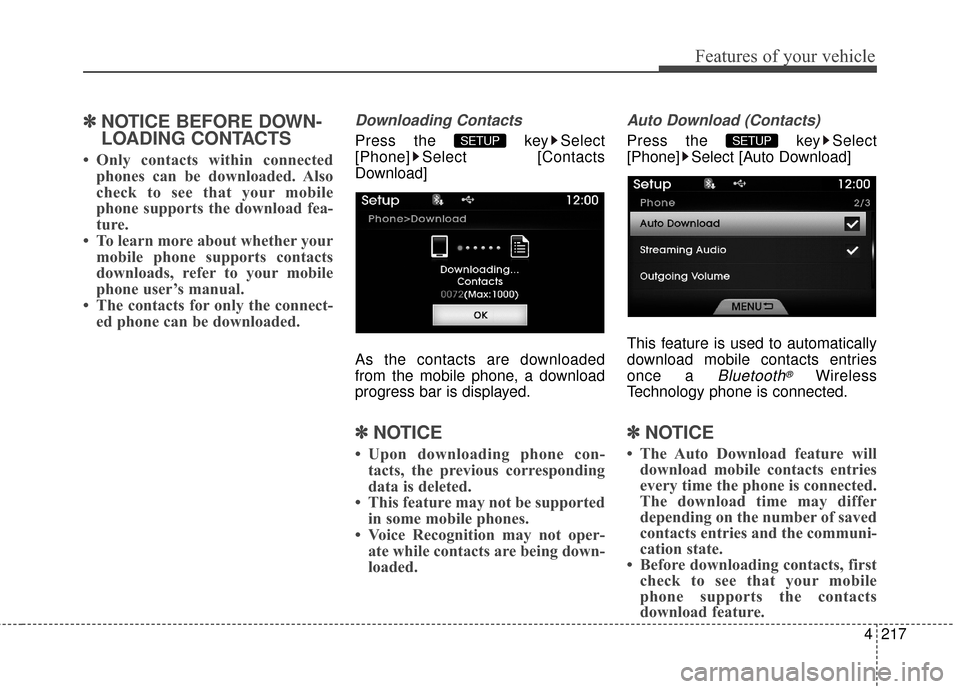
Downloading Contacts
Press the key Select
[Phone] Select [Contacts
Download]
As the contacts are downloaded
from the mobile phone, a download
progress bar is displayed.
✽ ✽ NOTICE
• Upon downloading phone con-
tacts, the previous corresponding
data is deleted.
• This feature may not be supported in some mobile phones.
• Voice Recognition may not oper- ate while contacts are being down-
loaded.
Auto Download (Contacts)
Press the key Select
[Phone] Select [Auto Download]
This feature is used to automatically
download mobile contacts entries
once a
Bluetooth®Wireless
Technology phone is connected.
✽ ✽ NOTICE
• The Auto Download feature will
download mobile contacts entries
every time the phone is connected.
The download time may differ
depending on the number of saved
contacts entries and the communi-
cation state.
• Before downloading contacts, first check to see that your mobile
phone supports the contacts
download feature.
SETUP SETUP
Page 297 of 520
![Hyundai Azera 2017 Owners Guide Features of your vehicle
218
4
Streaming Audio
Press the key Select
[Phone] Select [Streaming Audio]
When Streaming Audio is turned on,
you can play music files saved in
your
Bluetooth®Wireless
Tec](/img/35/14459/w960_14459-296.png "Hyundai Azera 2017 Owners Guide Features of your vehicle
218
4
Streaming Audio
Press the key Select
[Phone] Select [Streaming Audio]
When Streaming Audio is turned on,
you can play music files saved in
your
Bluetooth®Wireless
Tec")
Features of your vehicle
218
4
Streaming Audio
Press the key Select
[Phone] Select [Streaming Audio]
When Streaming Audio is turned on,
you can play music files saved in
your
Bluetooth®Wireless
Technology device through the audio
system.
Outgoing Volume
Press the key Select
[Phone] Select [Outgoing Volume]
Use TUNE knob to adjust the out-
going volume level.
✽ ✽ NOTICE
While on a call, the volume can be
changed by using the
,key.
Turning Bluetooth System Off
Press the key Select
[Phone] Select [Bluetooth System
Off]
Once
Bluetooth®Wireless
Technology is turned off,
Bluetooth®
Wireless Technology related features
will not be supported within the audio
system.
SETUP
TRACKSEEK
SETUP SETUP
Page 298 of 520
![Hyundai Azera 2017 Owners Guide 4219
Features of your vehicle
✽
✽NOTICE
To turn Bluetooth®Wireless
Technology back on, go to
[Phone] and press “Yes”.SETUP](/img/35/14459/w960_14459-297.png "Hyundai Azera 2017 Owners Guide 4219
Features of your vehicle
✽
✽NOTICE
To turn Bluetooth®Wireless
Technology back on, go to
[Phone] and press “Yes”.SETUP")
4219
Features of your vehicle
✽
✽NOTICE
To turn Bluetooth®Wireless
Technology back on, go to
[Phone] and press “Yes”.SETUP
Page 301 of 520
Features of your vehicle
222
4
Blue Link®(if equipped)
Hyundai aims to offer differentiated
customer values through a
‘Connected Car Life,’ which is to pro-
vide consumers with fast and reliable
IT technology. As consumers’
lifestyles become more and more
mobile in thanks to remarkable
advances in smart phones, tablet
PCs and overall wireless telecommu-
nication, new lifestyle patterns
demand seamless connection
between one’s office, home, out-
doors and automobiles.
Automobile companies are now
faced with the task of shifting their
paradigm from vehicle-centered
services to customer value-centered
services, with the ultimate goal of
securing global leadership in the
field of vehicle IT and telematics.
Hyundai Motor plans to achieve this
by realizing a terminal platform flexi- ble to changes in IT technology,
cooperating with global IT compa-
nies, creating an eco-system and
providing the latest contents & serv-
ices based on an open environment.
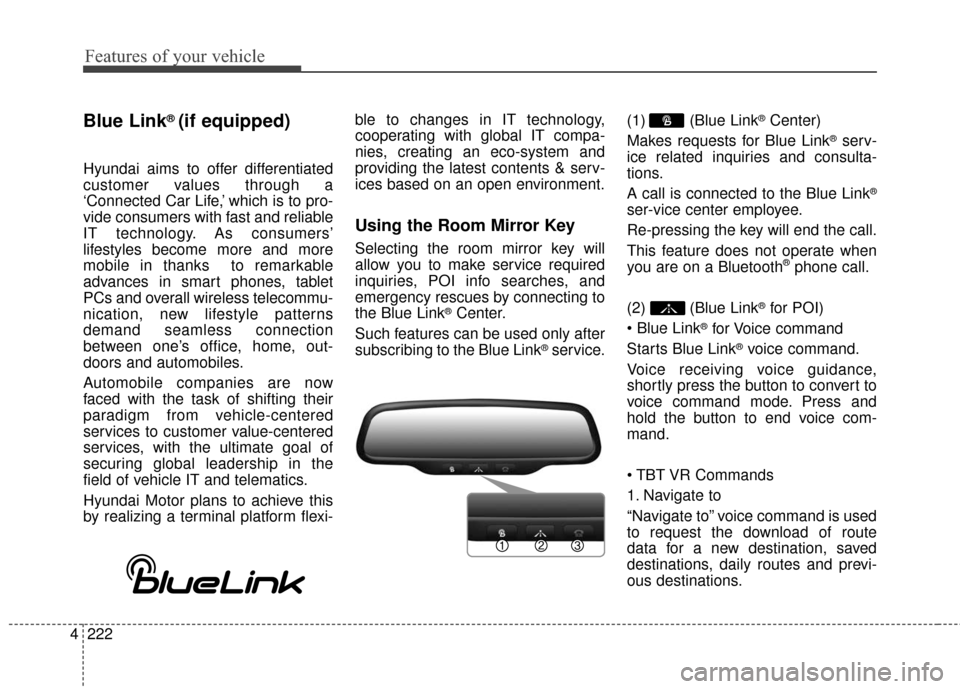
Using the Room Mirror Key
Selecting the room mirror key will
allow you to make service required
inquiries, POI info searches, and
emergency rescues by connecting to
the Blue Link
®Center.
Such features can be used only after
subscribing to the Blue Link
®service. (1) (Blue Link
®Center)
Makes requests for Blue Link
®serv-
ice related inquiries and consulta-
tions.
A call is connected to the Blue Link
®
ser-vice center employee.
Re-pressing the key will end the call.
This feature does not operate when
you are on a Bluetooth
®phone call.
(2) (Blue Link
®for POI)
®for Voice command
Starts Blue Link
®voice command.
Voice receiving voice guidance,
shortly press the button to convert to
voice command mode. Press and
hold the button to end voice com-
mand.
1. Navigate to
“Navigate to” voice command is used
to request the download of route
data for a new destination, saved
destinations, daily routes and previ-
ous destinations.
Page 302 of 520
4223
Features of your vehicle
2. Save Destination
“Save Destination” VR command is
used to assign a voice tag to the last
downloaded destination and store it
in a destination directory.
NOTE:
The Turn by Turn(TBT) feature sup-
ports the store of ten(10) destina-
tions in the TBT destinations
directory.
3. Route Preview
“Route Preview” VR command allows
the user to preview the route instruc-
tions (upcoming maneuver instruc-
tions) at any time during the route
guidance.
4. Destinations List
“Destinations List” VR command
allows the user to preview and delete
the stored destinations with their
associated voice tags in the Turn by
Turn destinations directory.5. Voice Guidance
“Voice Guidance” VR command
allows the user to mute/unmute the
Turn by Turn(TBT) direction
announcements.
6. Suspend Route
“Suspend Route” VR command
allows the user to suspend and
pause Turn by Turn(TBT) route guid-
ance while in the guidance mode.
7. Resume Route
“Resume Route” VR command
allows the user to resume Turn by
Turn(TBT) route guidance.
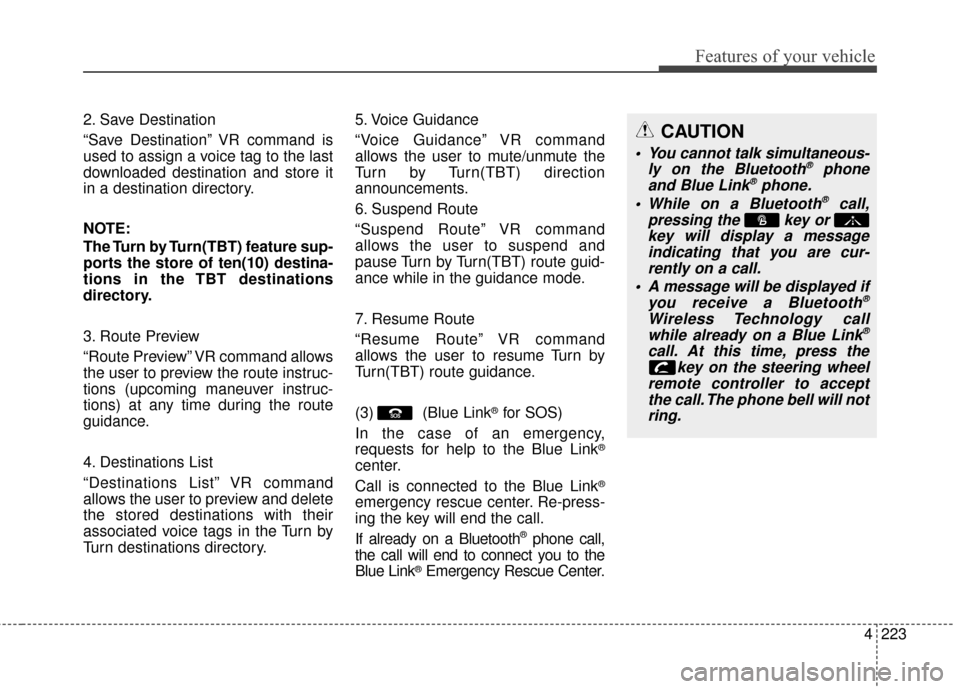
(3) (Blue Link
®for SOS)
In the case of an emergency,
requests for help to the Blue Link
®
center.
Call is connected to the Blue Link
®
emergency rescue center. Re-press-
ing the key will end the call.
If already on a Bluetooth
®phone call,
the call will end to connect you to the
Blue Link
®Emergency Rescue Center.
CAUTION
You cannot talk simultaneous- ly on the Bluetooth®phone
and Blue Link®phone.
While on a Bluetooth®call,
pressing the key or key will display a messageindicating that you are cur-rently on a call.
A message will be displayed if you receive a Bluetooth
®
Wireless Technology callwhile already on a Blue Link®
call. At this time, press the key on the steering wheel
remote controller to accept the call. The phone bell will notring.
Page 303 of 520

Features of your vehicle
224
4
Eco Coach
Every 2.5 minutes, Eco Coach com-
pares your fuel economy against the
government tested average (EPA) or
other similar Hyundai models (com-
munity), based on your preference.
Each month, or after every tank fill
up, Eco Coach rates your extended
average and gives you a reward star
if you best the average.
See your My Hyundai web page for
more information.
zontal line mean?
The horizontal line is adjusted once
per month or at each tank full, based
on your preference; it represents the
EPA combined average or communi-
ty average fuel economy target.
Your actual fuel economy average
over 2.5 minutes.
This value is also shown in bar graph
as your “now” rating.
If you beat the average (the EPA or
community), you will receive an Eco
Reward point.
See your my Hyundai web page for
more information.
[Eco Driving] will not operate if the
vehicle ignition is not turned on.
Please operate with the ignition
turned on.
Turn by Turn
The Turn by Turn feature can be used
through Blue Link®.
(1) Direction Indicator Image
(2) Remaining distance until next point
(3) The Count bar is divided into a total of 9 levels.
9 Level 0.5mi 8 Level 0.4mi
7 Level 0.3mi 6 Level 0.2mi
5 Level 0.1mi 4 Level 400ft
3 Level 300ft 2 Level 200ft
1 Level 100ft
Page 304 of 520
4225
Features of your vehicle
(4) Next Street name
(5) Distance to destination
(6) Expected Time Arrival
(7) Current Street name
❈For information on specific
Blue Link
®operations, please
refer to a separate manual.
Page 310 of 520
Driving your vehicle
65
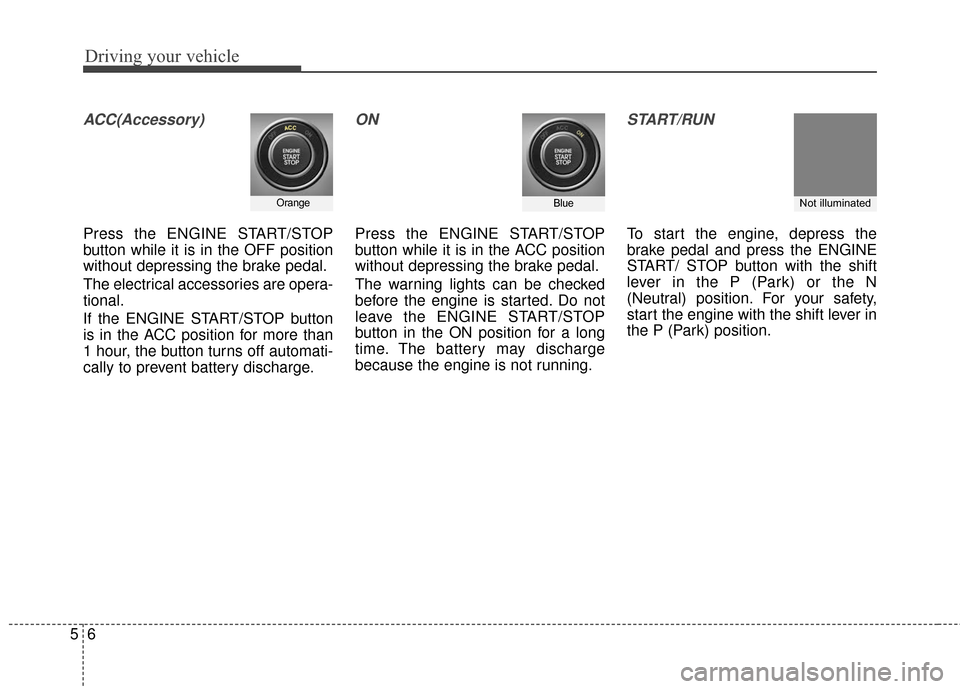
ACC(Accessory)
Press the ENGINE START/STOP
button while it is in the OFF position
without depressing the brake pedal.
The electrical accessories are opera-
tional.
If the ENGINE START/STOP button
is in the ACC position for more than
1 hour, the button turns off automati-
cally to prevent battery discharge.
ON
Press the ENGINE START/STOP
button while it is in the ACC position
without depressing the brake pedal.
The warning lights can be checked
before the engine is started. Do not
leave the ENGINE START/STOP
button in the ON position for a long
time. The battery may discharge
because the engine is not running.
START/RUN
To start the engine, depress the
brake pedal and press the ENGINE
START/ STOP button with the shift
lever in the P (Park) or the N
(Neutral) position. For your safety,
start the engine with the shift lever in
the P (Park) position.
OrangeBlueNot illuminated