Key Hyundai Azera 2017 Service Manual
[x] Cancel search | Manufacturer: HYUNDAI, Model Year: 2017, Model line: Azera, Model: Hyundai Azera 2017Pages: 520, PDF Size: 16.33 MB
Page 243 of 520
4164
Features of your vehicle
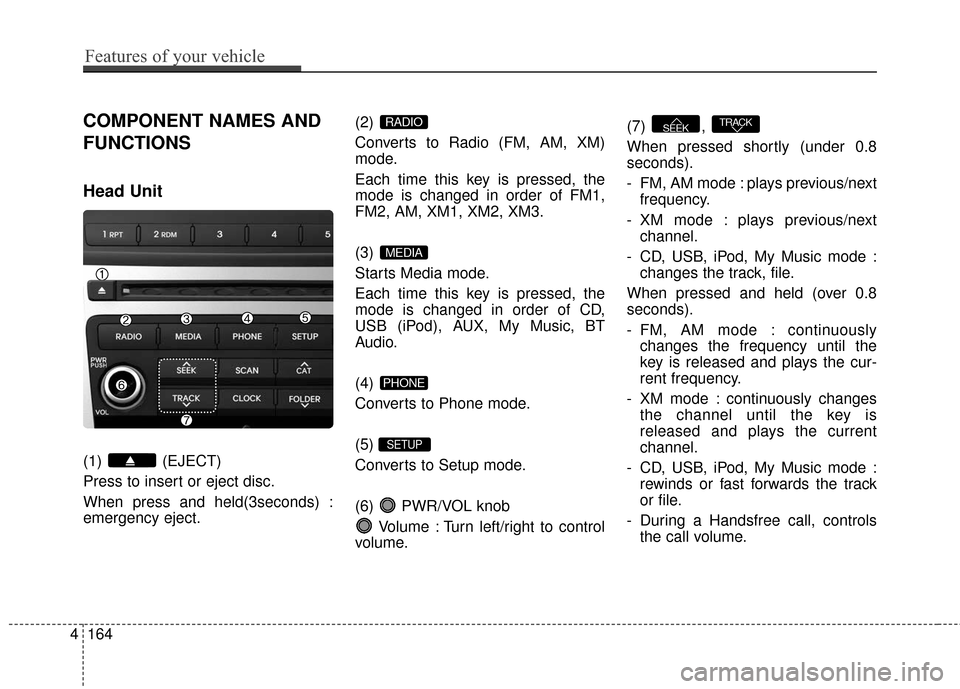
COMPONENT NAMES AND
FUNCTIONS
Head Unit
(1) (EJECT)
Press to insert or eject disc.
When press and held(3seconds) :
emergency eject.(2)
Converts to Radio (FM, AM, XM)
mode.
Each time this key is pressed, the
mode is changed in order of FM1,
FM2, AM, XM1, XM2, XM3.
(3)
Starts Media mode.
Each time this key is pressed, the
mode is changed in order of CD,
USB (iPod), AUX, My Music, BT
Audio.
(4)
Converts to Phone mode.
(5)
Converts to Setup mode.
(6) PWR/VOL knob
Volume : Turn left/right to control
volume. (7) ,
When pressed shortly (under 0.8
seconds).
- FM, AM mode : plays previous/next
frequency.
- XM mode : plays previous/next channel.
- CD, USB, iPod, My Music mode : changes the track, file.
When pressed and held (over 0.8
seconds).
- FM, AM mode : continuously changes the frequency until the
key is released and plays the cur-
rent frequency.
- XM mode : continuously changes the channel until the key is
released and plays the current
channel.
- CD, USB, iPod, My Music mode : rewinds or fast forwards the track
or file.
- During a Handsfree call, controls the call volume.
TRACKSEEK
SETUP
PHONE
MEDIA
RADIO
Page 244 of 520
Features of your vehicle
165
4
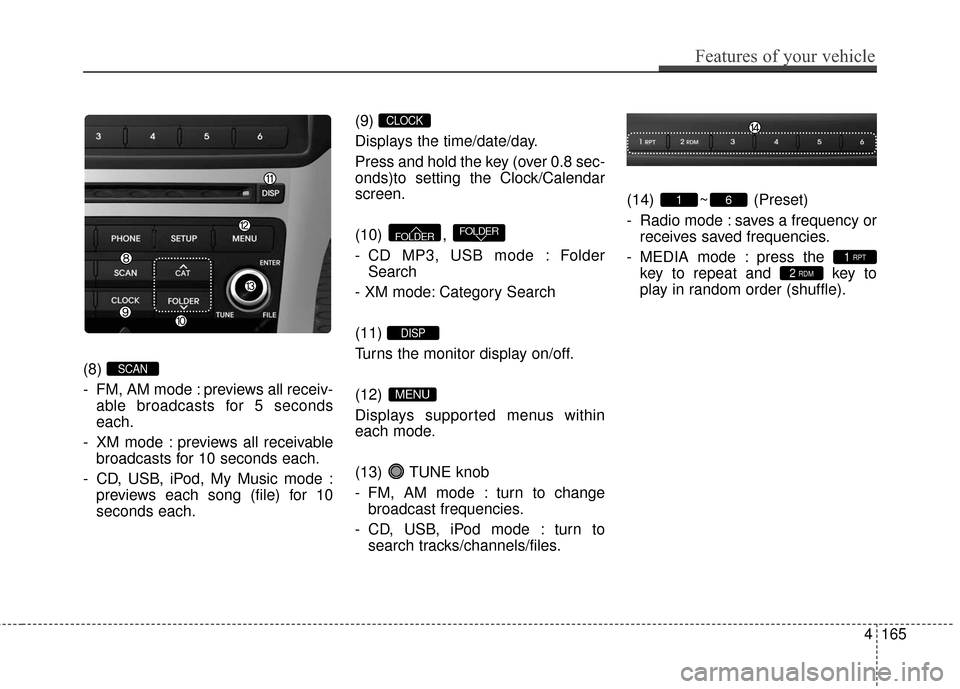
(8)
- FM, AM mode : previews all receiv-
able broadcasts for 5 seconds
each.
- XM mode : previews all receivable broadcasts for 10 seconds each.
- CD, USB, iPod, My Music mode : previews each song (file) for 10
seconds each. (9)
Displays the time/date/day.
Press and hold the key (over 0.8 sec-
onds)to setting the Clock/Calendar
screen.
(10) ,
- CD MP3, USB mode : Folder
Search
- XM mode: Category Search
(11)
Turns the monitor display on/off.
(12)
Displays supported menus within
each mode.
(13) TUNE knob
- FM, AM mode : turn to change broadcast frequencies.
- CD, USB, iPod mode : turn to search tracks/channels/files. (14) ~ (Preset)
- Radio mode : saves a frequency or
receives saved frequencies.
- MEDIA mode : press the key to repeat and key to
play in random order (shuffle).
2 RDM1 RPT
61
MENU
DISP
FOLDERFOLDER
CLOCK
SCAN
Page 245 of 520
4166
Features of your vehicle
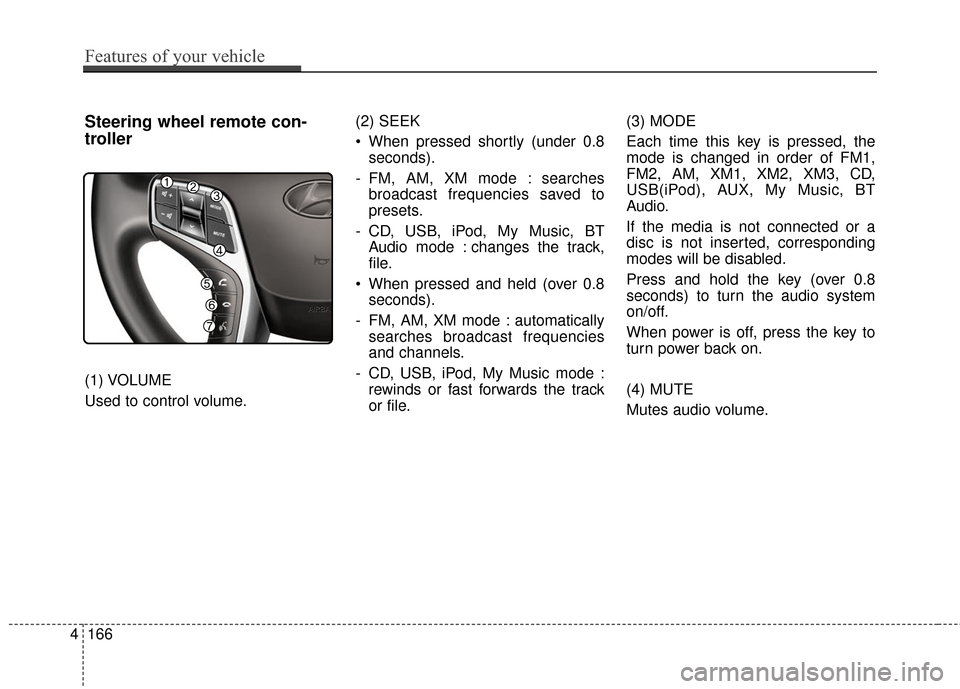
Steering wheel remote con-
troller
(1) VOLUME
Used to control volume.(2) SEEK
When pressed shortly (under 0.8
seconds).
- FM, AM, XM mode : searches broadcast frequencies saved to
presets.
- CD, USB, iPod, My Music, BT Audio mode : changes the track,
file.
When pressed and held (over 0.8 seconds).
- FM, AM, XM mode : automatically searches broadcast frequencies
and channels.
- CD, USB, iPod, My Music mode : rewinds or fast forwards the track
or file. (3) MODE
Each time this key is pressed, the
mode is changed in order of FM1,
FM2, AM, XM1, XM2, XM3, CD,
USB(iPod), AUX, My Music, BT
Audio.
If the media is not connected or a
disc is not inserted, corresponding
modes will be disabled.
Press and hold the key (over 0.8
seconds) to turn the audio system
on/off.
When power is off, press the key to
turn power back on.
(4) MUTE
Mutes audio volume.
Page 248 of 520
![Hyundai Azera 2017 Service Manual 4169
Features of your vehicle
Switching to Radio Mode
Pressing the key will change
the operating mode in order of FM1
➟ FM2 ➟ AM ➟ XM1 ➟ XM2 ➟ XM3.
If [Mode Pop up] is turned on within [Dis](/img/35/14459/w960_14459-247.png "Hyundai Azera 2017 Service Manual 4169
Features of your vehicle
Switching to Radio Mode
Pressing the key will change
the operating mode in order of FM1
➟ FM2 ➟ AM ➟ XM1 ➟ XM2 ➟ XM3.
If [Mode Pop up] is turned on within [Dis")
4169
Features of your vehicle
Switching to Radio Mode
Pressing the key will change
the operating mode in order of FM1
➟ FM2 ➟ AM ➟ XM1 ➟ XM2 ➟ XM3.
If [Mode Pop up] is turned on within [Display], then pressing thekey will display the Radio
mode pop up screen.
Use TUNE knob to move the
focus. Press the TUNE knob to
select.
✽ ✽ NOTICE
If the key is pressed with the
system power off, then the power
will turn on and the most recently
played broadcast will be played.
Searching Radio Frequencies
Using Seek
Press the , key to
play the previous/next frequency.
Using TUNE
Turn the TUNE knob to select the
frequency.
Increases/decreased by
200kHz
Increases/decreased by 10kHz
Using Radio Mode
Selecting Presets
Press the key Select
The 6 presets are displayed.
Press the ~ key to play the
desired preset.
6 1
PresetMENU
TRACKSEEK
RADIO
RADIO
SETUP
RADIO
Page 249 of 520
Features of your vehicle
170
4
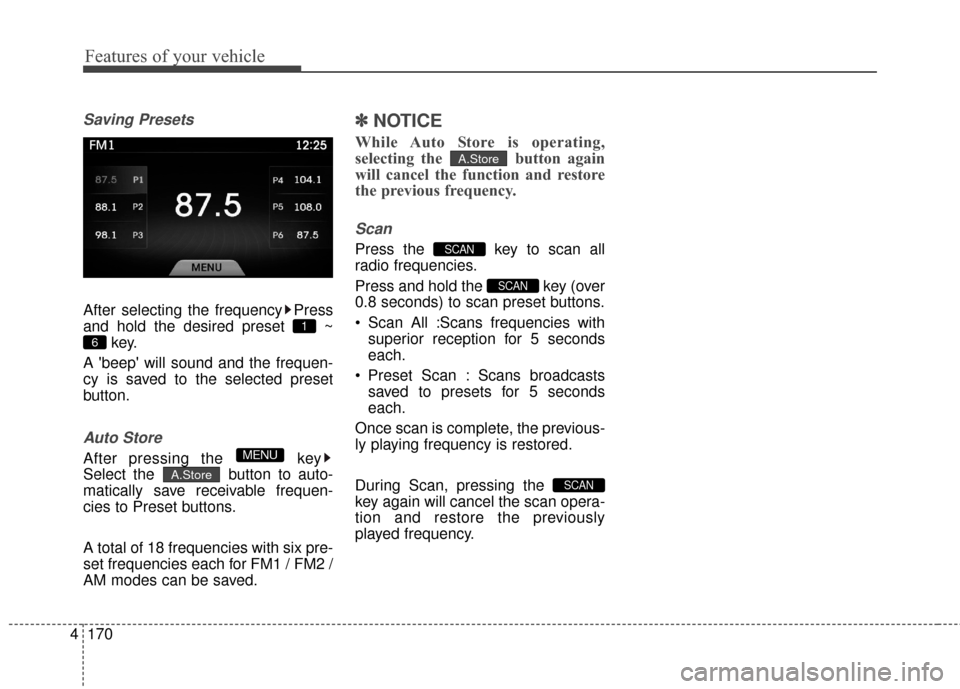
Saving Presets
After selecting the frequency Press
and hold the desired preset ~
key.
A 'beep' will sound and the frequen-
cy is saved to the selected preset
button.
Auto Store
After pressing the key
Select the button to auto-
matically save receivable frequen-
cies to Preset buttons.
A total of 18 frequencies with six pre-
set frequencies each for FM1 / FM2 /
AM modes can be saved.
✽ ✽ NOTICE
While Auto Store is operating,
selecting the button again
will cancel the function and restore
the previous frequency.
Scan
Press the key to scan all
radio frequencies.
Press and hold the key (over
0.8 seconds) to scan preset buttons.
Scan All :Scans frequencies with
superior reception for 5 seconds
each.
Preset Scan : Scans broadcasts saved to presets for 5 seconds
each.
Once scan is complete, the previous-
ly playing frequency is restored.
During Scan, pressing the
key again will cancel the scan opera-
tion and restore the previously
played frequency.
SCAN
SCAN
SCAN
A.Store
A.Store
MENU
6
1
Page 251 of 520
Using SEEK
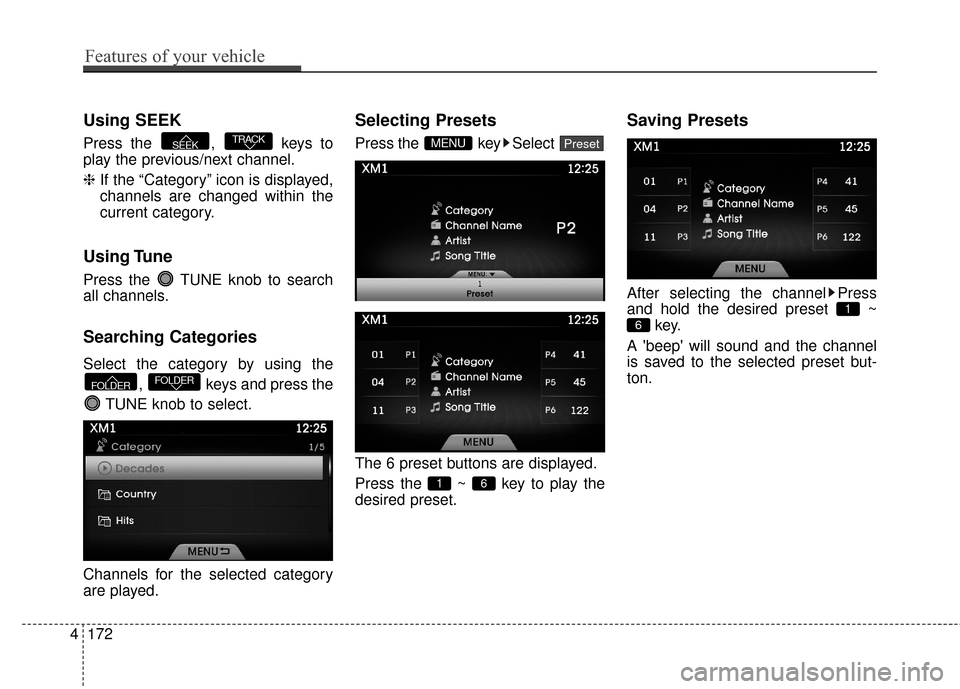
Press the , keys to
play the previous/next channel.
❈If the “Category” icon is displayed,
channels are changed within the
current category.
Using Tune
Press the TUNE knob to search
all channels.
Searching Categories
Select the category by using the
, keys and press the
TUNE knob to select.
Channels for the selected category
are played.
Selecting Presets
Press the key Select
The 6 preset buttons are displayed.
Press the ~ key to play the
desired preset.
Saving Presets
After selecting the channel Press
and hold the desired preset ~ key.
A 'beep' will sound and the channel
is saved to the selected preset but-
ton.
6
1
6 1
PresetMENU
FOLDERFOLDER
TRACKSEEK
4172
Features of your vehicle
Page 252 of 520
SCAN
Press the key to scan all
channels with superior reception for
10 seconds each.
Once scan is complete, the previous-
ly played channel will be restored.
During Scan, pressing the
key again will cancel the scan opera-
tion and restore the previously
played channel.
If the “Category” icon is displayed,
channels are changed within the cur-
rent category.
SCAN
SCAN
Features of your vehicle
173
4
Page 253 of 520
![Hyundai Azera 2017 Service Manual MEDIA MODE
Pressing the key will change
the operating mode in order of
CD
➟USB(iPod)➟AUX➟My Music ➟
BT Audio.
If [Mode Pop up] is turned on within[Display], then pressing thekey will display](/img/35/14459/w960_14459-252.png "Hyundai Azera 2017 Service Manual MEDIA MODE
Pressing the key will change
the operating mode in order of
CD
➟USB(iPod)➟AUX➟My Music ➟
BT Audio.
If [Mode Pop up] is turned on within[Display], then pressing thekey will display")
MEDIA MODE
Pressing the key will change
the operating mode in order of
CD
➟USB(iPod)➟AUX➟My Music ➟
BT Audio.
If [Mode Pop up] is turned on within[Display], then pressing thekey will display the Media
mode Pop-up screen.
Use the TUNE knob to move the
focus. Press the knob to select.
✽ ✽ NOTICE
• If the key is pressed with
the system power off, then the
power will turn on and the most
recently played media mode will
be played.
• The media mode pop up screen can be displayed only when there
are two or more media modes
turned on.MEDIA
MEDIA
SETUP
MEDIA
4174
Features of your vehicle
Page 255 of 520
Using Audio CD Mode
Playing/Pausing CD Tracks
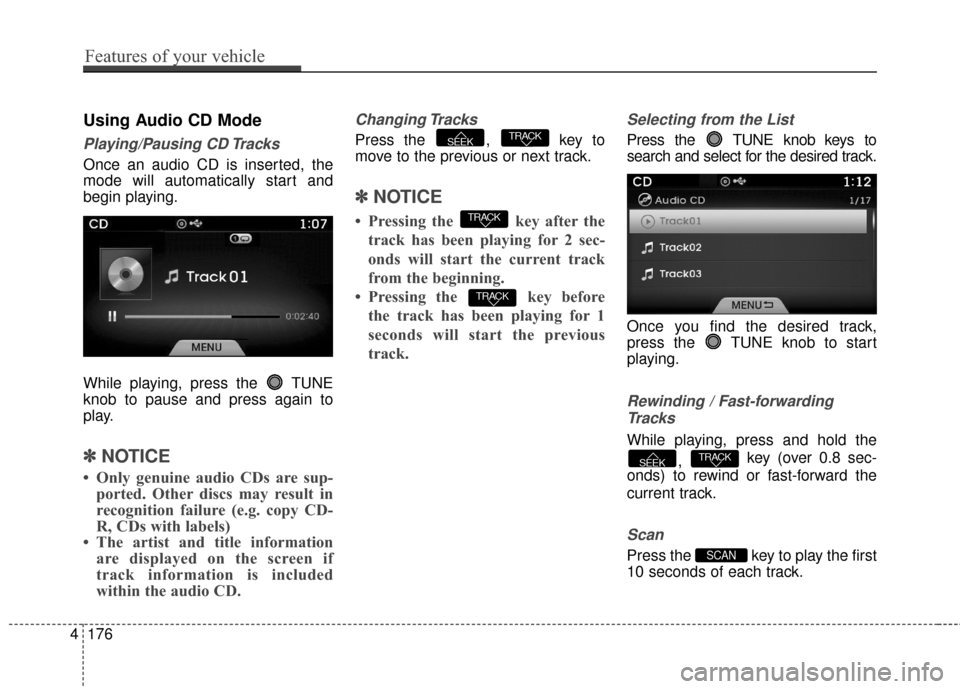
Once an audio CD is inserted, the
mode will automatically start and
begin playing.
While playing, press the TUNE
knob to pause and press again to
play.
✽ ✽NOTICE
• Only genuine audio CDs are sup-
ported. Other discs may result in
recognition failure (e.g. copy CD-
R, CDs with labels)
• The artist and title information are displayed on the screen if
track information is included
within the audio CD.
Changing Tracks
Press the , key to
move to the previous or next track.
✽ ✽ NOTICE
• Pressing the key after the
track has been playing for 2 sec-
onds will start the current track
from the beginning.
• Pressing the key before the track has been playing for 1
seconds will start the previous
track.
Selecting from the List
Press the TUNE knob keys to
search and select for the desired track.
Once you find the desired track,
press the TUNE knob to start
playing.
Rewinding / Fast-forwardingTracks
While playing, press and hold the
, key (over 0.8 sec-
onds) to rewind or fast-forward the
current track.
Scan
Press the key to play the first
10 seconds of each track.SCAN
TRACKSEEK
TRACK
TRACK
TRACKSEEK
4176
Features of your vehicle
Page 256 of 520
Audio CD Mode Menu
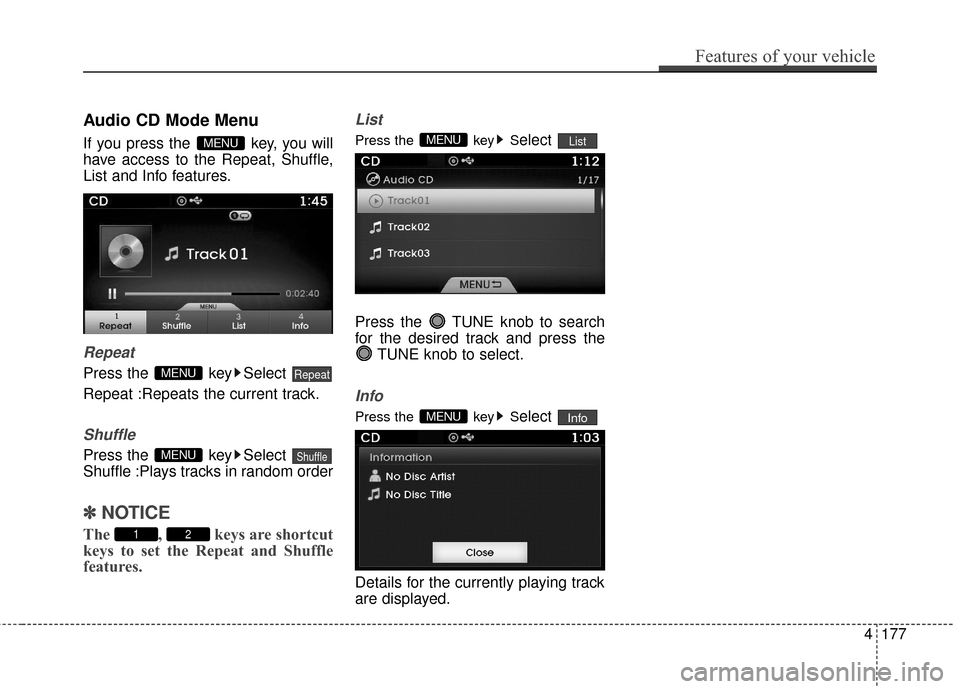
If you press the key, you will
have access to the Repeat, Shuffle,
List and Info features.
Repeat
Press the key Select
Repeat :Repeats the current track.
Shuffle
Press the key Select
Shuffle :Plays tracks in random order
✽ ✽NOTICE
The , keys are shortcut
keys to set the Repeat and Shuffle
features.
List
Press the key Select
Press the TUNE knob to search
for the desired track and press the TUNE knob to select.
Info
Press the key Select
Details for the currently playing track
are displayed.InfoMENU
ListMENU
21
ShuffleMENU
RepeatMENU
MENU
Features of your vehicle
177
4