display HYUNDAI COUPE 2012 User Guide
[x] Cancel search | Manufacturer: HYUNDAI, Model Year: 2012, Model line: COUPE, Model: HYUNDAI COUPE 2012Pages: 391, PDF Size: 6.88 MB
Page 182 of 391
4105
Features of your vehicle
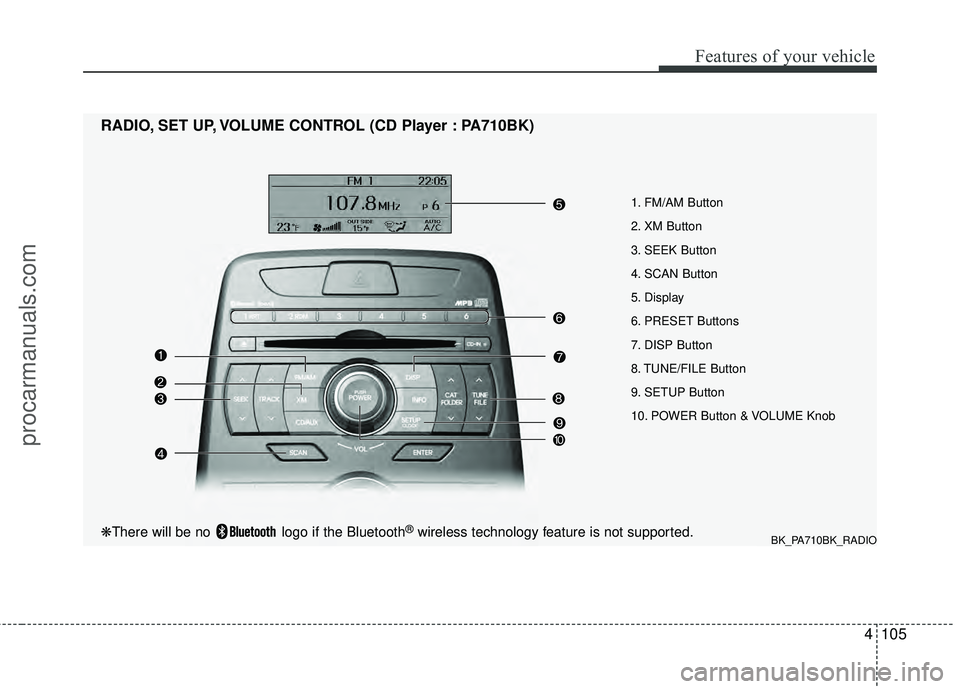
1. FM/AM Button
2. XM Button
3. SEEK Button
4. SCAN Button
5. Display
6. PRESET Buttons
7. DISP Button
8. TUNE/FILE Button
9. SETUP Button
10. POWER Button & VOLUME Knob
RADIO, SET UP, VOLUME CONTROL (CD Player : PA710BK)
BK_PA710BK_RADIO❋There will be no logo if the Bluetooth®wireless technology feature is not supported.
procarmanuals.com
Page 183 of 391
Features of your vehicle
106
4
Using RADIO, SET UP, VOLUME
CONTROL
1. FM/AM Button
Turn to FM or AM mode, and toggles in
the order of FM1 ➟FM2 ➟ AM ➟ FM1...
when the button is pressed each time.
2. XM Button
When this button is pressed, the mode
turns to XM satellite Radio.
3. SEEK Button
When the [SEEK / ] button is
pressed, it increases / decreases the
band frequency to automatically select
channel. Stops at the original frequency if
no channel is found.
4. SCAN Button
If this button is pressed, the frequencies
will become increased and receive the
corresponding broadcasts. This function
will play the frequencies for 5 seconds
(XM MODE: 10 seconds) each and find
other broadcasts as the frequency
increases. Press the button again when
desiring to continue listening to the cur-
rently playing broadcast.
5. Display
Display currently time, mode, frequency
SCAN status and preset channel.
6. PRESET Buttons
Press [PRESET 1~6] buttons less than
0.8 second to play the channel saved in
each button.
Press [PRESET 1~6] buttons for 0.8 sec-
ond or longer to save current station to
the respective button with a beep.
7. DISP Button
Turns on/off the displayed data and light
on LCD.
8. TUNE/FILE Button
When the [TUNE/FILE / ] button is
pressed, it increases / decreases the
band frequency from current frequency.
9. SETUP Button
Press the button to change the CLOCK,
TONE, POSITION, AVC, TEMP, SCROLL
and BLUETOOTH option modes.
10. POWER Button & VOLUME Knob
Turn on/off the set When the IGNITION
SWITCH is on ACC or ON. If the button
is turned to the right, it increases the vol-
ume and left, decreases the volume.
procarmanuals.com
Page 184 of 391
4107
Features of your vehicle
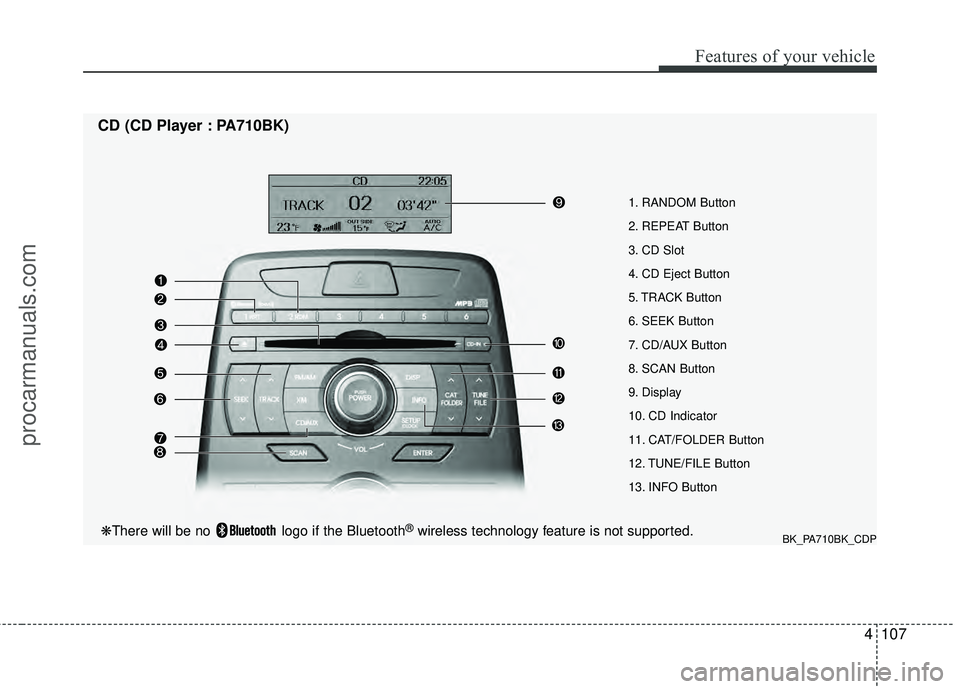
1. RANDOM Button
2. REPEAT Button
3. CD Slot
4. CD Eject Button
5. TRACK Button
6. SEEK Button
7. CD/AUX Button
8. SCAN Button
9. Display
10. CD Indicator
11. CAT/FOLDER Button
12. TUNE/FILE Button
13. INFO Button
CD (CD Player : PA710BK)
BK_PA710BK_CDP❋There will be no logo if the Bluetooth®wireless technology feature is not supported.
procarmanuals.com
Page 185 of 391
Features of your vehicle
108
4
Using CD Player
1. RANDOM Button
Turns on/off the randomization of the
play list of files in the currently played
DISC. To cancel the mode, press the but-
ton once again.
If loaded CD has a file folder, RANDOM
PLAY button operates below.
play randomized files in folder.
play randomized all files in CD.
2. REPEAT Button
Repeating an MP3 DISC or WMA DISC filesRepeats current song when the button
is pressed for less than 0.8 second.
Repeats all songs in current folder when
the button is pressed for 0.8 second or
longer.
Repeats current song when the button
is pressed for less than 0.8 second.
Repeats the entire DISC when the but-
ton is pressed for 0.8 second or longer.
3. CD Slot
Insert CD with printed side upward and
gently press in. When the ignition switch
is on ACC or ON and power is off, power
is automatically turned on if the CD is
loaded. This CD supports only 12 cm CD.
If VCD, Data CD are loaded, "Reading
Error" message will appear and CD will
be ejected.
4. CD Eject Button
Press [ ] button to eject the CD during
CD playback. This button is enabled
when ignition switch is off.
5. TRACK Button
] button to play the next song.
] button to play from the beginning of current song and press
again to play the previous song.
6. SEEK Button
] button to initiate highspeed sound search of current song.
] button to initiate reverse direction high speed sound
search of current song.
7. CD/AUX Button
If there is a CD in the CD deck it turns to
CD mode, and if a device is connected to
AUX then it toggles.
CD
➟AUX ➟ CD... when the button is
pressed each time. (It will not turn to AUX
if the auxiliary device is not connected.)
8. SCAN Button
Plays first 10 seconds of each song in
the DISC. Press the button once again to
cancel the mode.
9. Display
Displays the current time, mode, play
track number, play time, RDM, RPT and
SCAN status.
10. CD Indicator
When car ignition switch is ACC or ON
and if the CD is loaded, this indicator
Icon is on. If the CD is ejected the Icon is
off.
procarmanuals.com
Page 186 of 391
![HYUNDAI COUPE 2012 User Guide 4109
Features of your vehicle
11. CAT/FOLDER Button
When the loaded CD has file folders,
[CAT/FOLDER / ] buttons will oper-
ate in the manner described below.
[CAT/FOLDER ] button tomove to the chil](/img/35/57911/w960_57911-185.png "HYUNDAI COUPE 2012 User Guide 4109
Features of your vehicle
11. CAT/FOLDER Button
When the loaded CD has file folders,
[CAT/FOLDER / ] buttons will oper-
ate in the manner described below.
[CAT/FOLDER ] button tomove to the chil")
4109
Features of your vehicle
11. CAT/FOLDER Button
When the loaded CD has file folders,
[CAT/FOLDER / ] buttons will oper-
ate in the manner described below.
[CAT/FOLDER ] button tomove to the child folder of the current
folder and display the first song in the
folder. Press [ENTER] button to move to
the folder displayed. It will play the first
song in the folder.
[CAT/FOLDER ] button to move to the parent folder and display the
first song in the folder. Press [ENTER]
button to move to the folder displayed.
12. TUNE/FILE Button
When the loaded CD contains MP3 or
WMA files, [TUNE/FILE / ] button
will operate in the manner described
below.
] button to select the next song and press [ENTER] but-
ton to play.
] button to select the previous song and press [ENTER]
button to play.
13. INFO Button
Displays the information of the current CD
TRACK in the order of DISC TITLE ➟DISC ARTIST ➟TRACK TITLE ➟TRACK
ARTIST ➟TOTAL TRACK ➟PLAY
SCREEN ➟DISC TITLE... (not displayed
if the information is not available on the
DISC.)
procarmanuals.com
Page 187 of 391
Features of your vehicle
110
4
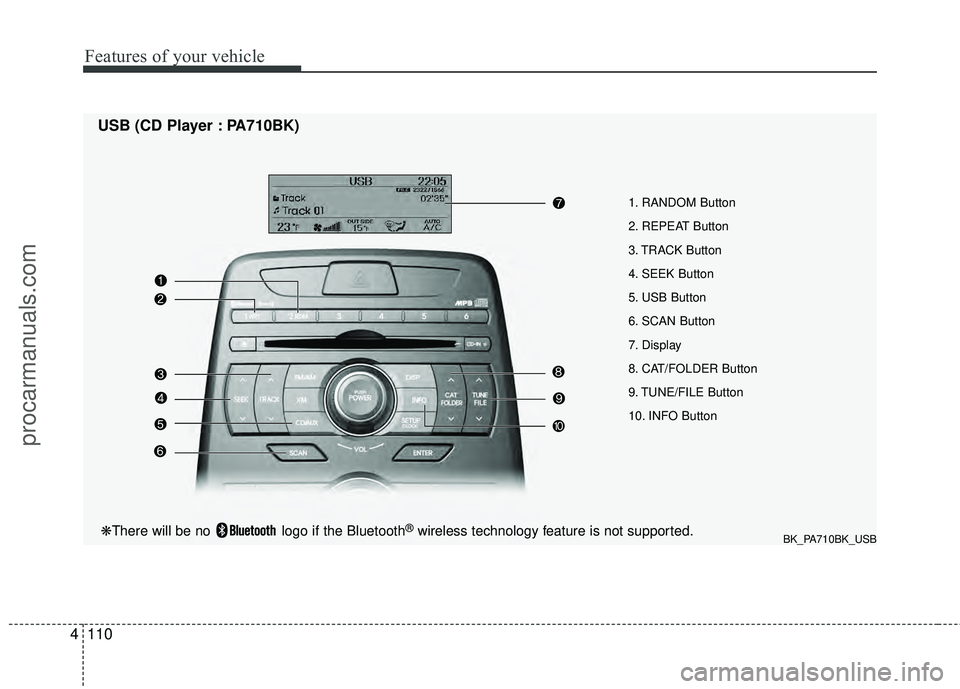
1. RANDOM Button
2. REPEAT Button
3. TRACK Button
4. SEEK Button
5. USB Button
6. SCAN Button
7. Display
8. CAT/FOLDER Button
9. TUNE/FILE Button
10. INFO Button
USB (CD Player : PA710BK)
BK_PA710BK_USB❋There will be no logo if the Bluetooth®wireless technology feature is not supported.
procarmanuals.com
Page 188 of 391
4111
Features of your vehicle
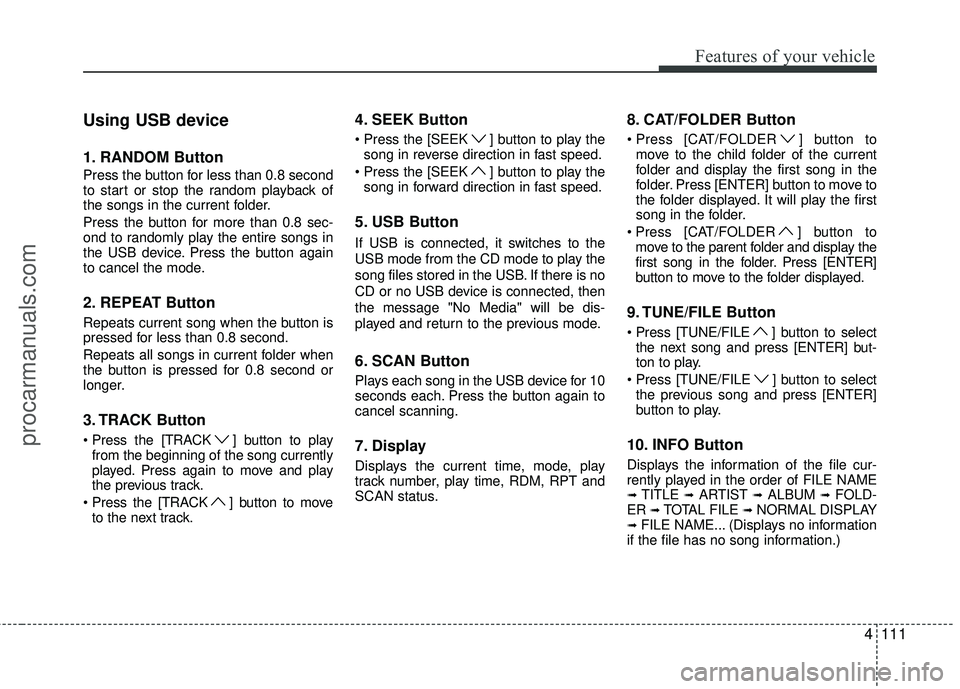
Using USB device
1. RANDOM Button
Press the button for less than 0.8 second
to start or stop the random playback of
the songs in the current folder.
Press the button for more than 0.8 sec-
ond to randomly play the entire songs in
the USB device. Press the button again
to cancel the mode.
2. REPEAT Button
Repeats current song when the button is
pressed for less than 0.8 second.
Repeats all songs in current folder when
the button is pressed for 0.8 second or
longer.
3. TRACK Button
] button to playfrom the beginning of the song currently
played. Press again to move and play
the previous track.
] button to move to the next track.
4. SEEK Button
] button to play thesong in reverse direction in fast speed.
] button to play the song in forward direction in fast speed.
5. USB Button
If USB is connected, it switches to the
USB mode from the CD mode to play the
song files stored in the USB. If there is no
CD or no USB device is connected, then
the message "No Media" will be dis-
played and return to the previous mode.
6. SCAN Button
Plays each song in the USB device for 10
seconds each. Press the button again to
cancel scanning.
7. Display
Displays the current time, mode, play
track number, play time, RDM, RPT and
SCAN status.
8. CAT/FOLDER Button
[CAT/FOLDER ] button to move to the child folder of the current
folder and display the first song in the
folder. Press [ENTER] button to move to
the folder displayed. It will play the first
song in the folder.
] button to move to the parent folder and display the
first song in the folder. Press [ENTER]
button to move to the folder displayed.
9. TUNE/FILE Button
Press [TUNE/FILE ] button to select the next song and press [ENTER] but-
ton to play.
] button to select the previous song and press [ENTER]
button to play.
10. INFO Button
Displays the information of the file cur-
rently played in the order of FILE NAME
➟TITLE ➟ARTIST ➟ALBUM ➟FOLD-
ER ➟TOTAL FILE ➟NORMAL DISPLAY➟FILE NAME... (Displays no information
if the file has no song information.)
procarmanuals.com
Page 191 of 391
Features of your vehicle
114
4
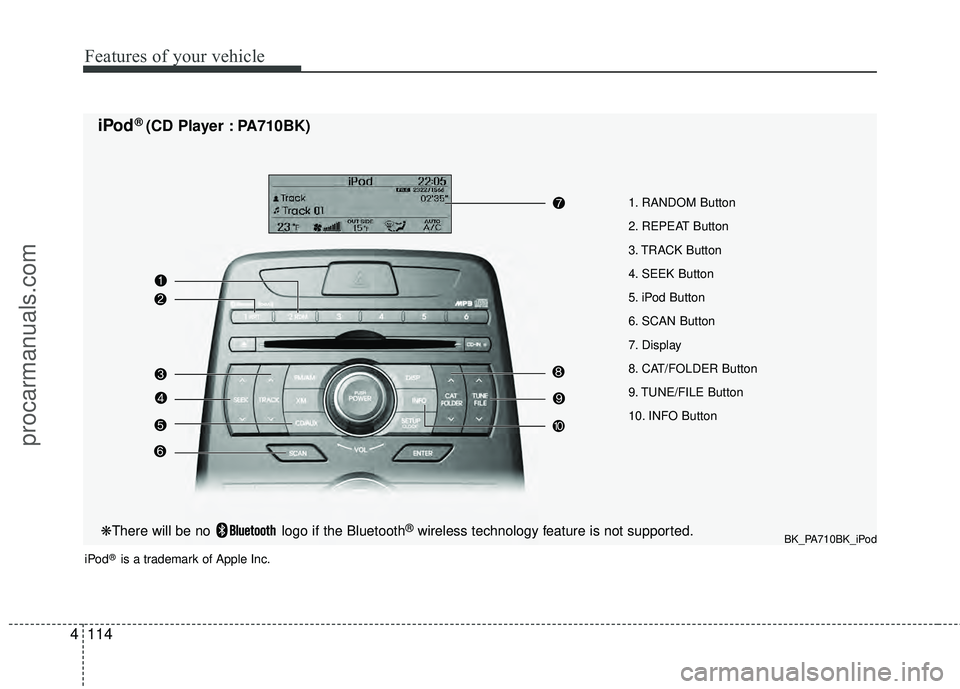
1. RANDOM Button
2. REPEAT Button
3. TRACK Button
4. SEEK Button
5. iPod Button
6. SCAN Button
7. Display
8. CAT/FOLDER Button
9. TUNE/FILE Button
10. INFO Button
iPod® (CD Player : PA710BK)
iPod®is a trademark of Apple Inc.
BK_PA710BK_iPod❋There will be no logo if the Bluetooth®wireless technology feature is not supported.
procarmanuals.com
Page 192 of 391
4115
Features of your vehicle
Using iPod®
Using an iPod when the exclusive cable
is connected to the multiple terminal
inside the console on the right hand side
of the driver's seat.
1. RANDOM Button
Press the button for less than 0.8 second
to to activate or deactivate the random
playback of the songs within the current
category. Press the button for longer than
0.8 second to randomly play all songs in
the entire album of the iPod. Press the
button once again to cancel the mode.
2. REPEAT Button
Press the button to repeat the song cur-
rently played.
3. TRACK Button
] button to playfrom the beginning of the song currently
played. Press again to move and play
previous track.
] button to move to the next track.
4. SEEK Button
] button to play thesong in reverse direction in fast speed.
] button to play the song in forward direction in fast speed.
5. iPod Button
If iPod is connected, it switches to the iPod
mode from the previous mode to play the
song files stored in the iPod.
If there is no iPod connected, then it dis-
plays the message "No Media" and returns
to the previous mode.
6. SCAN Button
Plays each song in the iPod device for 10
seconds each. Press the button once
again to cancel scanning.
7. Display
Displays the current time, mode, play
track number, play time, RDM, RPT and
SCAN status.
8. CAT/FOLDER Button
/ ] button tomove the category and display the first
song in the category. Press [ENTER] but-
ton to move to the category displayed. It
will play the first song in the folder.
(PLAYLISTS
➟ARTISTS ➟ALBUMS ➟GENRES ➟SONGS ➟COMPOSERS➟ PLAYLISTS...)
9. TUNE/FILE Button
] button to select the next song and press [ENTER]
button to play.
] button to select the previous song and press
[ENTER] button to play.
10. INFO Button
Displays the information of the file cur-
rently played in the order of TITLE ➟ARTIST ➟ALBUM ➟NORMAL DISPLAY➟TITLE... (Displays no information if the
file has no song information.)
procarmanuals.com
Page 194 of 391
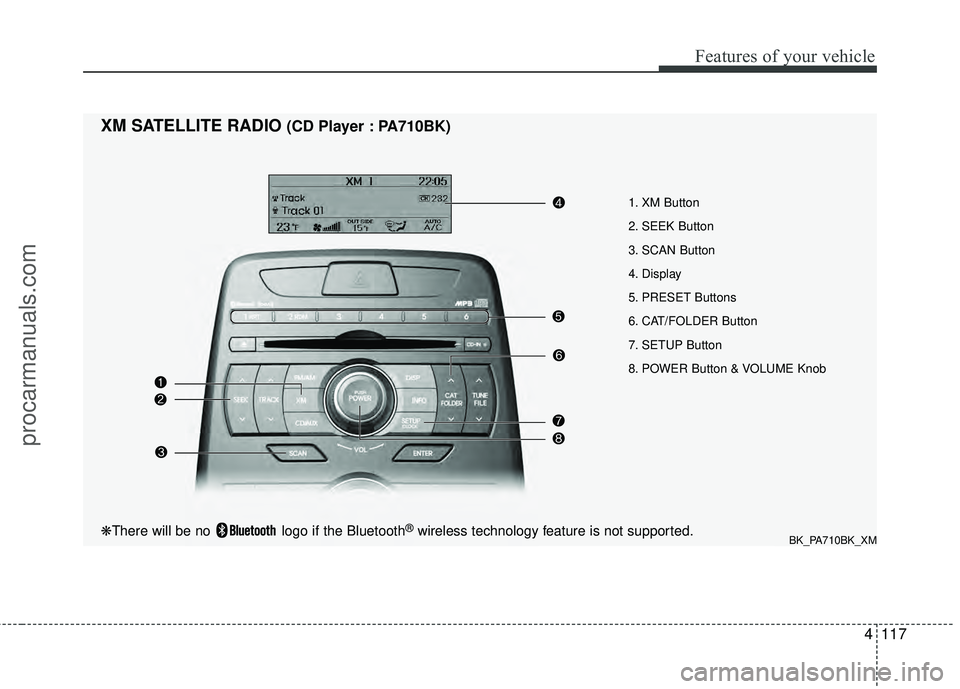
4117
Features of your vehicle
1. XM Button
2. SEEK Button
3. SCAN Button
4. Display
5. PRESET Buttons
6. CAT/FOLDER Button
7. SETUP Button
8. POWER Button & VOLUME Knob
XM SATELLITE RADIO(CD Player : PA710BK)
BK_PA710BK_XM❋There will be no logo if the Bluetooth®wireless technology feature is not supported.
procarmanuals.com