ECO mode HYUNDAI COUPE 2016 Owner's Manual
[x] Cancel search | Manufacturer: HYUNDAI, Model Year: 2016, Model line: COUPE, Model: HYUNDAI COUPE 2016Pages: 475, PDF Size: 14.78 MB
Page 227 of 475
✽
✽NOTICE - USING THE Voice
Recognition
• When using the voice recognition feature, only commands listed
within the user's manual are sup-
ported.
• Be aware that during the opera- tion of the voice recognition sys-
tem, pressing any key other than
the key or touching the screen
will terminate voice recognition
mode.
• For superior voice recognition performance, position the micro-
phone used for voice recognition
above the head of the driver’s seat
and maintain a proper position
when saying commands.
• Within the following situations, voice recognition may not function
properly due to external sound.
- When the windows and sunroof are open
- When the wind of the cooling / heating device is strong
- When entering and passing through tunnels (Continued)(Continued)
- When driving on rugged and uneven roads
- During severe rain (heavy rains, windstorms)
• Phone related voice commands can be used only when a
Bluetooth
®Wireless Technology
device is connected.
• When making calls by stating a name, the corresponding contact
must be downloaded and stored
within the audio system.
• After downloading the Bluetooth
®
Wireless Technology phone book,
it takes some times to convert the
phone book data into voice infor-
mation. During this time, voice
recognition may not properly
operate.
• Pronounce the voice commands naturally and clearly as if in a nor-
mal conversation.
4144
Features of your vehicle
procarmanuals.com
Page 230 of 475
Features of your vehicle
147
4
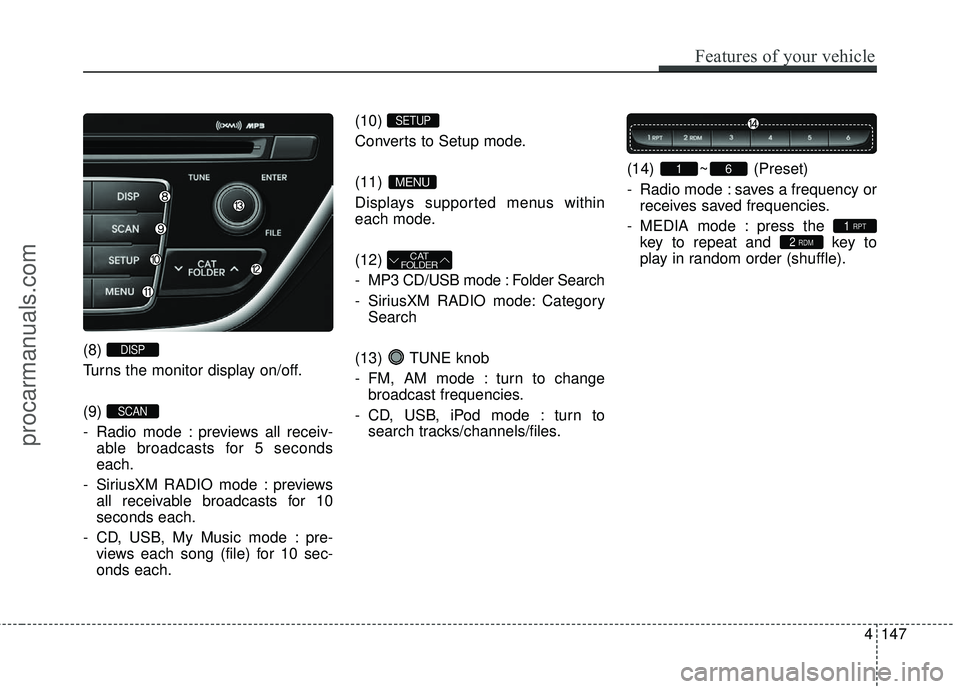
(8)
Turns the monitor display on/off.
(9)
- Radio mode : previews all receiv-
able broadcasts for 5 seconds
each.
- SiriusXM RADIO mode : previews all receivable broadcasts for 10
seconds each.
- CD, USB, My Music mode : pre- views each song (file) for 10 sec-
onds each. (10)
Converts to Setup mode.
(11)
Displays supported menus within
each mode.
(12)
- MP3 CD/USB mode : Folder Search
- SiriusXM RADIO mode: Category
Search
(13) TUNE knob
- FM, AM mode : turn to change broadcast frequencies.
- CD, USB, iPod mode : turn to search tracks/channels/files. (14) ~ (Preset)
- Radio mode : saves a frequency or
receives saved frequencies.
- MEDIA mode : press the key to repeat and key to
play in random order (shuffle).
2 RDM1 RPT
61
CAT
FOLDER
MENU
SETUP
SCAN
DISP
procarmanuals.com
Page 231 of 475
Head Unit (Except XM Model)
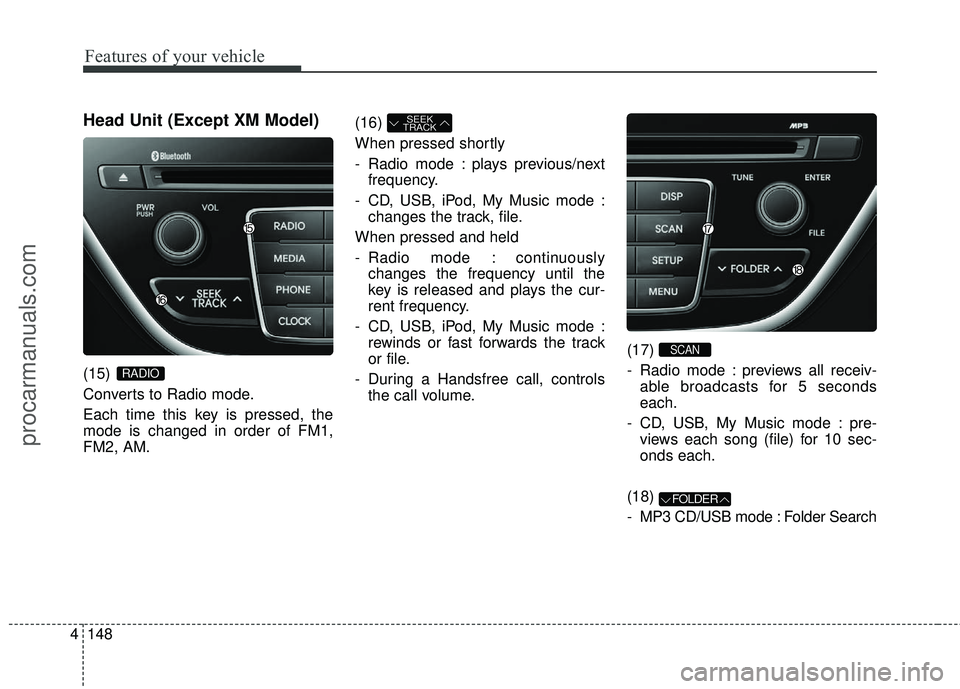
(15)
Converts to Radio mode.
Each time this key is pressed, the
mode is changed in order of FM1,
FM2, AM.(16)
When pressed shortly
- Radio mode : plays previous/next
frequency.
- CD, USB, iPod, My Music mode : changes the track, file.
When pressed and held
- Radio mode : continuously changes the frequency until the
key is released and plays the cur-
rent frequency.
- CD, USB, iPod, My Music mode : rewinds or fast forwards the track
or file.
- During a Handsfree call, controls the call volume. (17)
- Radio mode : previews all receiv-
able broadcasts for 5 seconds
each.
- CD, USB, My Music mode : pre- views each song (file) for 10 sec-
onds each.
(18)
- MP3 CD/USB mode : Folder Search
FOLDER
SCAN
SEEK
TRACK
RADIO
Features of your vehicle
148
4
procarmanuals.com
Page 232 of 475
4149
Features of your vehicle
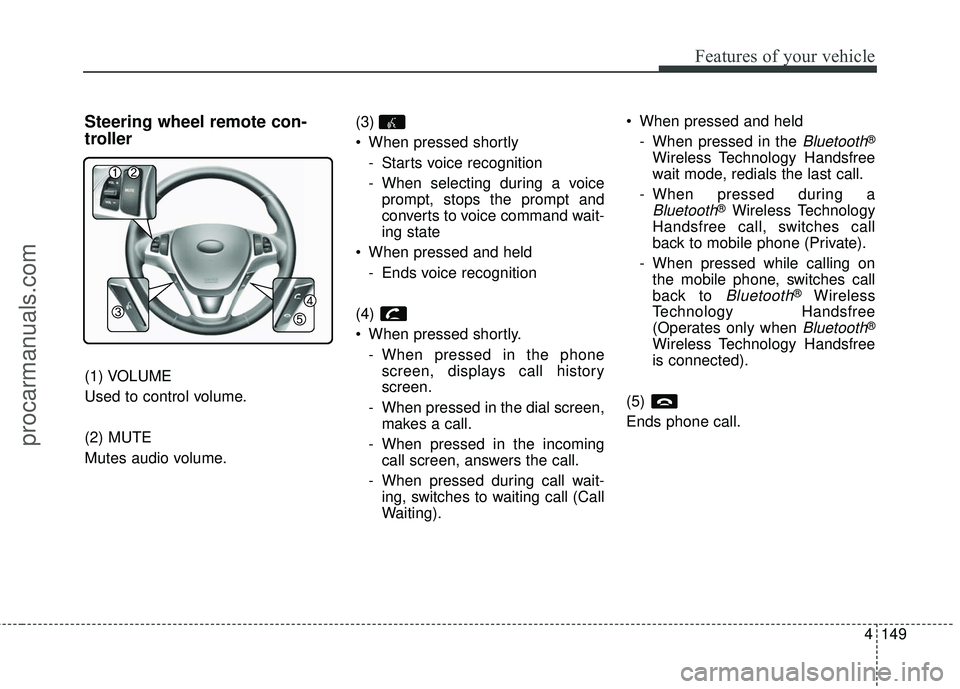
Steering wheel remote con-
troller
(1) VOLUME
Used to control volume.
(2) MUTE
Mutes audio volume.(3)
When pressed shortly
- Starts voice recognition
- When selecting during a voiceprompt, stops the prompt and
converts to voice command wait-
ing state
When pressed and held - Ends voice recognition
(4)
When pressed shortly. - When pressed in the phonescreen, displays call history
screen.
- When pressed in the dial screen, makes a call.
- When pressed in the incoming call screen, answers the call.
- When pressed during call wait- ing, switches to waiting call (Call
Waiting). When pressed and held
- When pressed in the
Bluetooth®
Wireless Technology Handsfree
wait mode, redials the last call.
- When pressed during a
Bluetooth®Wireless Technology
Handsfree call, switches call
back to mobile phone (Private).
- When pressed while calling on the mobile phone, switches call
back to
Bluetooth®Wireless
Technology Handsfree
(Operates only when
Bluetooth®
Wireless Technology Handsfree
is connected).
(5)
Ends phone call.
procarmanuals.com
Page 235 of 475
Features of your vehicle
152
4
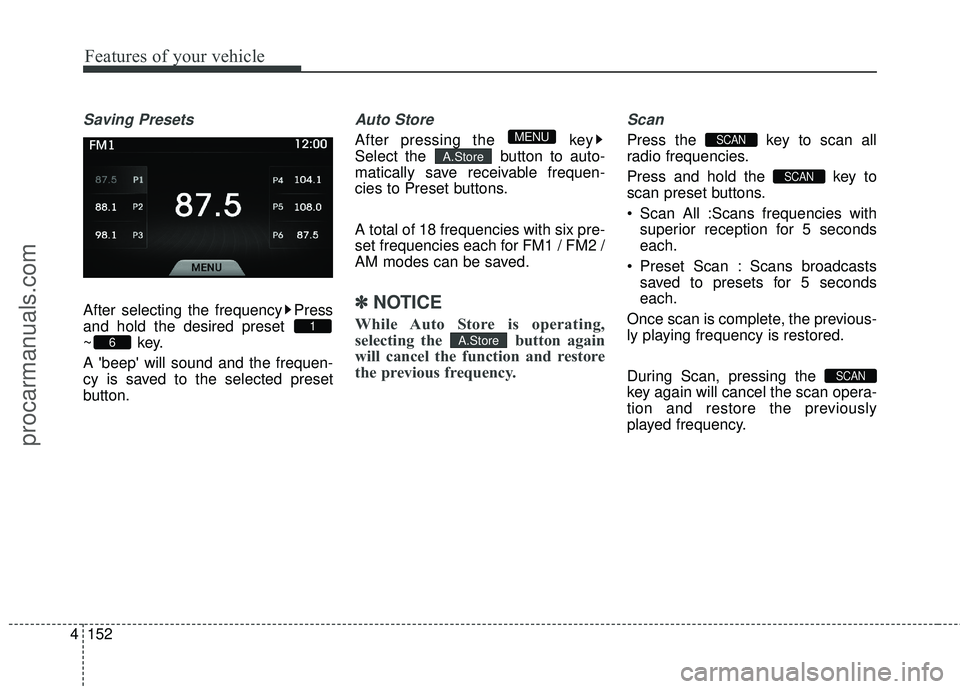
Saving Presets
After selecting the frequency Press
and hold the desired preset
~key.
A 'beep' will sound and the frequen-
cy is saved to the selected preset
button.
Auto Store
After pressing the key
Select the button to auto-
matically save receivable frequen-
cies to Preset buttons.
A total of 18 frequencies with six pre-
set frequencies each for FM1 / FM2 /
AM modes can be saved.
✽ ✽
NOTICE
While Auto Store is operating,
selecting the button again
will cancel the function and restore
the previous frequency.
Scan
Press the key to scan all
radio frequencies.
Press and hold the key to
scan preset buttons.
Scan All :Scans frequencies with
superior reception for 5 seconds
each.
Preset Scan : Scans broadcasts saved to presets for 5 seconds
each.
Once scan is complete, the previous-
ly playing frequency is restored.
During Scan, pressing the
key again will cancel the scan opera-
tion and restore the previously
played frequency.
SCAN
SCAN
SCAN
A.Store
A.Store
MENU
6
1
procarmanuals.com
Page 243 of 475
Features of your vehicle
160
4
Using Audio CD Mode
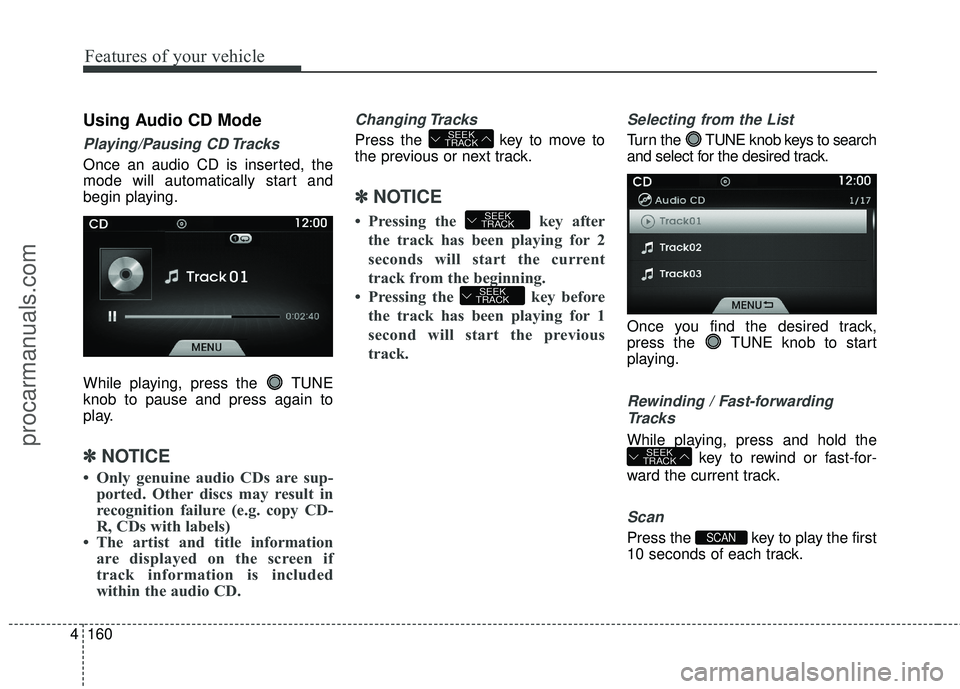
Playing/Pausing CD Tracks
Once an audio CD is inserted, the
mode will automatically start and
begin playing.
While playing, press the TUNE
knob to pause and press again to
play.
✽ ✽
NOTICE
• Only genuine audio CDs are sup-
ported. Other discs may result in
recognition failure (e.g. copy CD-
R, CDs with labels)
• The artist and title information are displayed on the screen if
track information is included
within the audio CD.
Changing Tracks
Press the key to move to
the previous or next track.
✽ ✽ NOTICE
• Pressing the key after
the track has been playing for 2
seconds will start the current
track from the beginning.
• Pressing the key before the track has been playing for 1
second will start the previous
track.
Selecting from the List
Tur n the TUNE knob keys to search
and select for the desired track.
Once you find the desired track,
press the TUNE knob to start
playing.
Rewinding / Fast-forwardingTracks
While playing, press and hold the
key to rewind or fast-for-
ward the current track.
Scan
Press the key to play the first
10 seconds of each track.SCAN
SEEK
TRACK
SEEK
TRACK
SEEK
TRACK
SEEK
TRACK
procarmanuals.com
Page 246 of 475
4163
Features of your vehicle
Using MP3 CD Mode
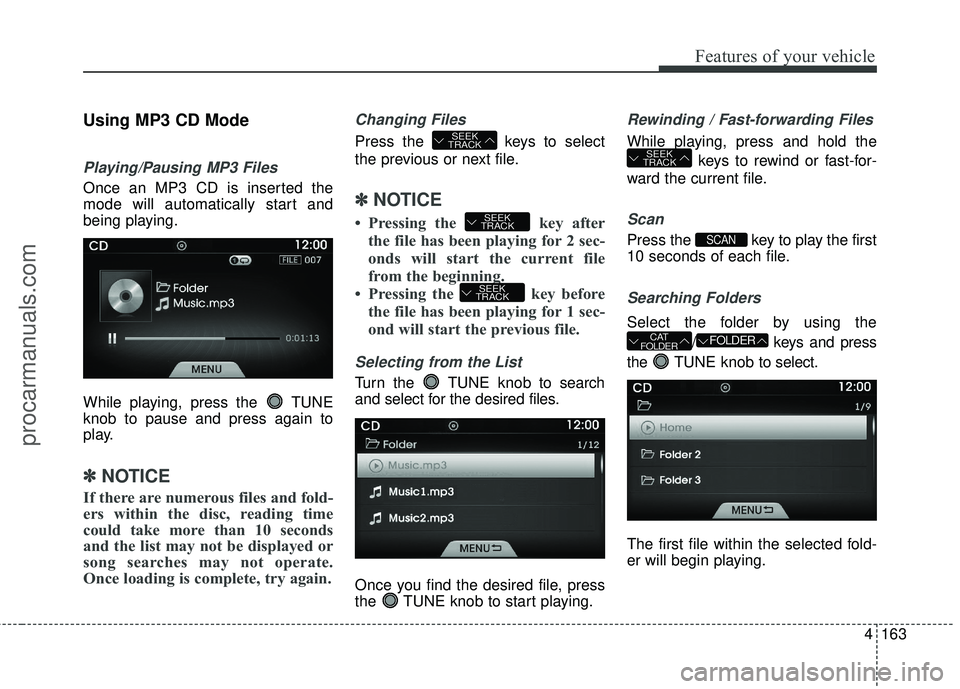
Playing/Pausing MP3 Files
Once an MP3 CD is inserted the
mode will automatically start and
being playing.
While playing, press the TUNE
knob to pause and press again to
play.
✽ ✽NOTICE
If there are numerous files and fold-
ers within the disc, reading time
could take more than 10 seconds
and the list may not be displayed or
song searches may not operate.
Once loading is complete, try again.
Changing Files
Press the keys to select
the previous or next file.
✽ ✽NOTICE
• Pressing the key after
the file has been playing for 2 sec-
onds will start the current file
from the beginning.
• Pressing the key before the file has been playing for 1 sec-
ond will start the previous file.
Selecting from the List
Turn the TUNE knob to search
and select for the desired files.
Once you find the desired file, press
the TUNE knob to start playing.
Rewinding / Fast-forwarding Files
While playing, press and hold the
keys to rewind or fast-for-
ward the current file.
Scan
Press the key to play the first
10 seconds of each file.
Searching Folders
Select the folder by using the
/ keys and press
the TUNE knob to select.
The first file within the selected fold-
er will begin playing.
FOLDERCAT
FOLDER
SCAN
SEEK
TRACK
SEEK
TRACK
SEEK
TRACK
SEEK
TRACK
procarmanuals.com
Page 250 of 475
4167
Features of your vehicle
Using USB Mode
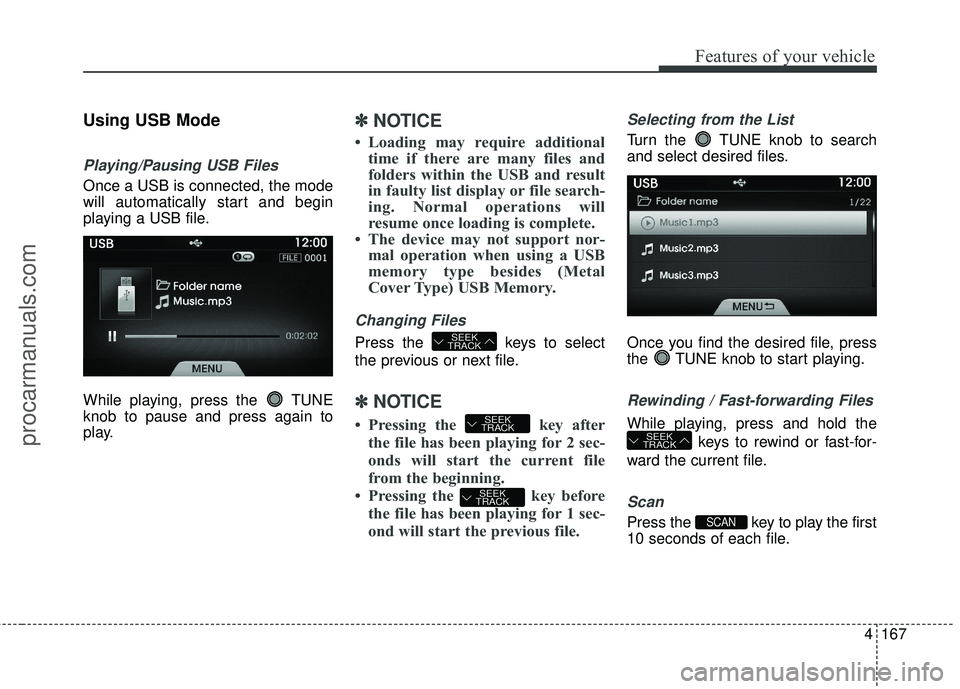
Playing/Pausing USB Files
Once a USB is connected, the mode
will automatically start and begin
playing a USB file.
While playing, press the TUNE
knob to pause and press again to
play.
✽ ✽NOTICE
• Loading may require additional
time if there are many files and
folders within the USB and result
in faulty list display or file search-
ing. Normal operations will
resume once loading is complete.
• The device may not support nor- mal operation when using a USB
memory type besides (Metal
Cover Type) USB Memory.
Changing Files
Press the keys to select
the previous or next file.
✽ ✽ NOTICE
• Pressing the key after
the file has been playing for 2 sec-
onds will start the current file
from the beginning.
• Pressing the key before the file has been playing for 1 sec-
ond will start the previous file.
Selecting from the List
Turn the TUNE knob to search
and select desired files.
Once you find the desired file, press
the TUNE knob to start playing.
Rewinding / Fast-forwarding Files
While playing, press and hold the
keys to rewind or fast-for-
ward the current file.
Scan
Press the key to play the first
10 seconds of each file.SCAN
SEEK
TRACK
SEEK
TRACK
SEEK
TRACK
SEEK
TRACK
procarmanuals.com
Page 254 of 475
4171
Features of your vehicle
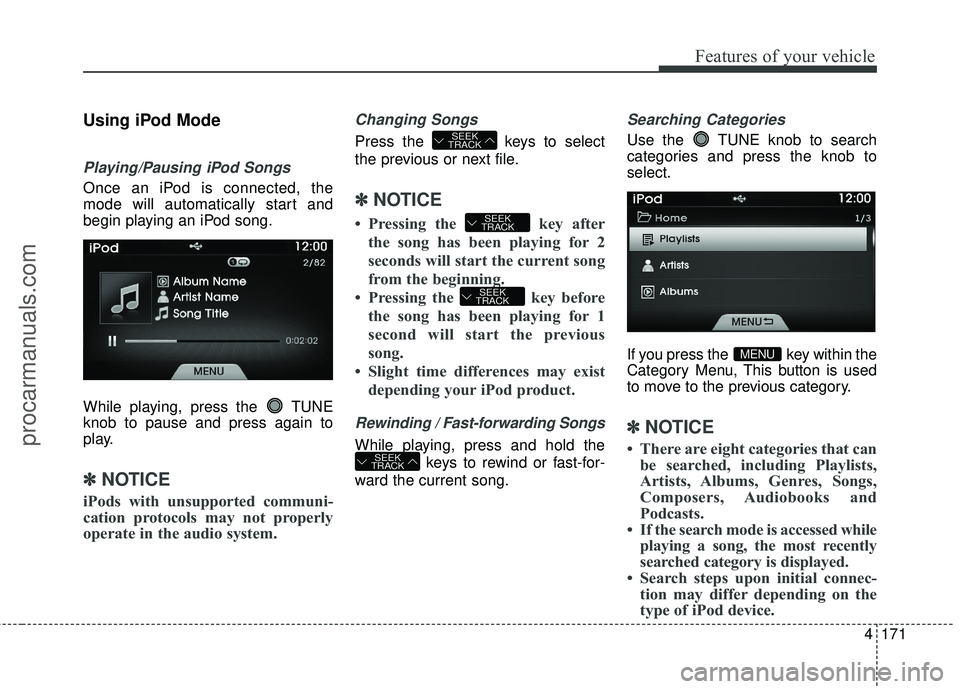
Using iPod Mode
Playing/Pausing iPod Songs
Once an iPod is connected, the
mode will automatically start and
begin playing an iPod song.
While playing, press the TUNE
knob to pause and press again to
play.
✽ ✽NOTICE
iPods with unsupported communi-
cation protocols may not properly
operate in the audio system.
Changing Songs
Press the keys to select
the previous or next file.
✽ ✽NOTICE
• Pressing the key after
the song has been playing for 2
seconds will start the current song
from the beginning.
• Pressing the key before the song has been playing for 1
second will start the previous
song.
• Slight time differences may exist depending your iPod product.
Rewinding / Fast-forwarding Songs
While playing, press and hold the
keys to rewind or fast-for-
ward the current song.
Searching Categories
Use the TUNE knob to search
categories and press the knob to
select.
If you press the key within the
Category Menu, This button is used
to move to the previous category.
✽ ✽ NOTICE
• There are eight categories that can
be searched, including Playlists,
Artists, Albums, Genres, Songs,
Composers, Audiobooks and
Podcasts.
• If the search mode is accessed while playing a song, the most recently
searched category is displayed.
• Search steps upon initial connec- tion may differ depending on the
type of iPod device.
MENU
SEEK
TRACK
SEEK
TRACK
SEEK
TRACK
SEEK
TRACK
procarmanuals.com
Page 258 of 475
4175
Features of your vehicle
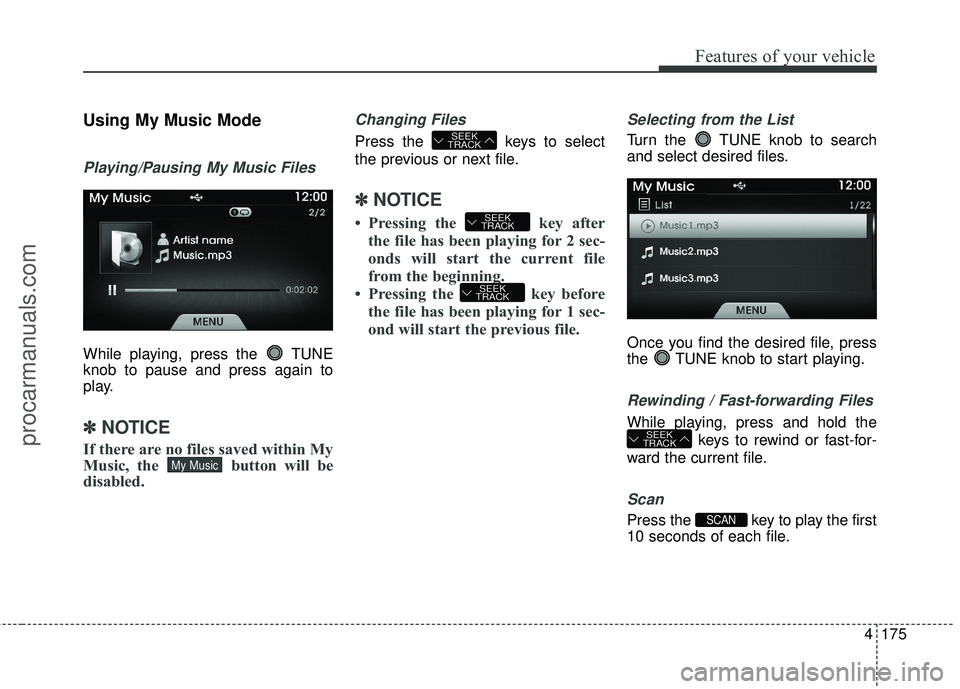
Using My Music Mode
Playing/Pausing My Music Files
While playing, press the TUNE
knob to pause and press again to
play.
✽ ✽NOTICE
If there are no files saved within My
Music, the button will be
disabled.
Changing Files
Press the keys to select
the previous or next file.
✽ ✽NOTICE
• Pressing the key after
the file has been playing for 2 sec-
onds will start the current file
from the beginning.
• Pressing the key before the file has been playing for 1 sec-
ond will start the previous file.
Selecting from the List
Turn the TUNE knob to search
and select desired files.
Once you find the desired file, press
the TUNE knob to start playing.
Rewinding / Fast-forwarding Files
While playing, press and hold the
keys to rewind or fast-for-
ward the current file.
Scan
Press the key to play the first
10 seconds of each file.SCAN
SEEK
TRACK
SEEK
TRACK
SEEK
TRACK
SEEK
TRACK
My Music
procarmanuals.com