first Hyundai Creta 2016 User Guide
[x] Cancel search | Manufacturer: HYUNDAI, Model Year: 2016, Model line: Creta, Model: Hyundai Creta 2016Pages: 512, PDF Size: 11.54 MB
Page 255 of 512
4-37
Multimedia System
4
Rewinding / Fast-forwarding Files
While playing, press and hold thekey (over 0.8 seconds) to
rewind or fast-forward the current file.
Scan
Press the key to play the first
10 seconds of each file.
Searching Folders
Press the key to select
and search folders.
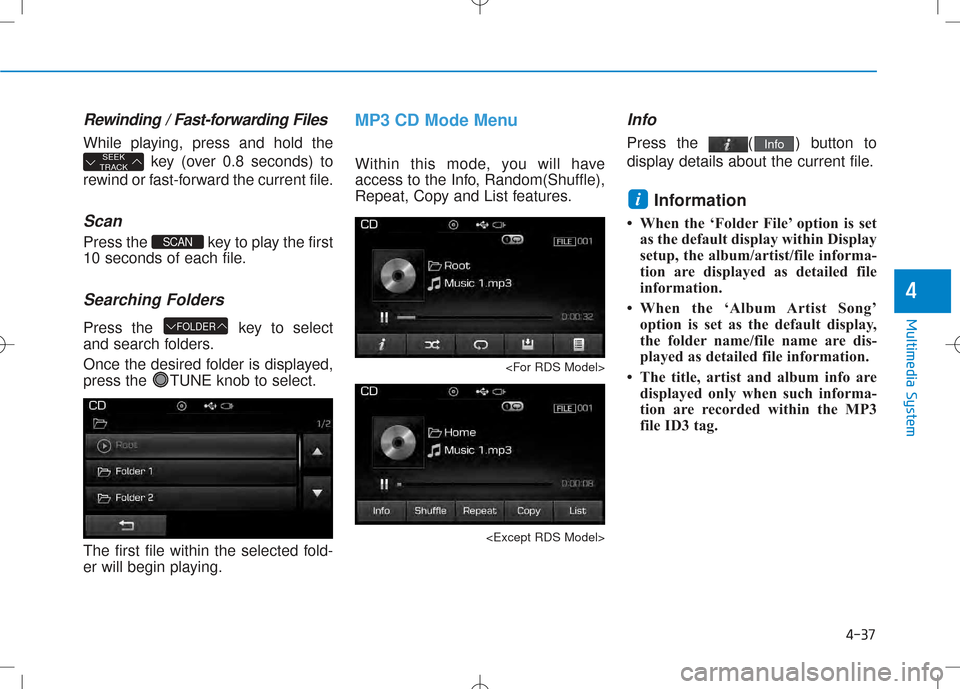
Once the desired folder is displayed,
press the TUNE knob to select.
The first file within the selected fold-
er will begin playing.
MP3 CD Mode Menu
Within this mode, you will have
access to the Info, Random(Shuffle),
Repeat, Copy and List features.
Info
Press the ( ) button to
display details about the current file. Information
When the ‘Folder File’ option is set as the default display within Display
setup, the album/artist/file informa-
tion are displayed as detailed file
information.
When the ‘Album Artist Song’ option is set as the default display,
the folder name/file name are dis-
played as detailed file information.
The title, artist and album info are displayed only when such informa-
tion are recorded within the MP3
file ID3 tag.
i
Info
FOLDER
SCAN
SEEK
TRACK
Page 258 of 512
4-40
Multimedia System
Selecting from the List
Turn the TUNE knob left/right to
search for the desired file.
Once you find the desired file, press
the TUNE knob to start playing.
Rewinding / Fast-forwarding
Files
While playing, press and hold the
key (over 0.8 seconds) to
rewind or fast-forward the current file.
Scan
Press the key to play the first
10 seconds of each file.
Searching Folders
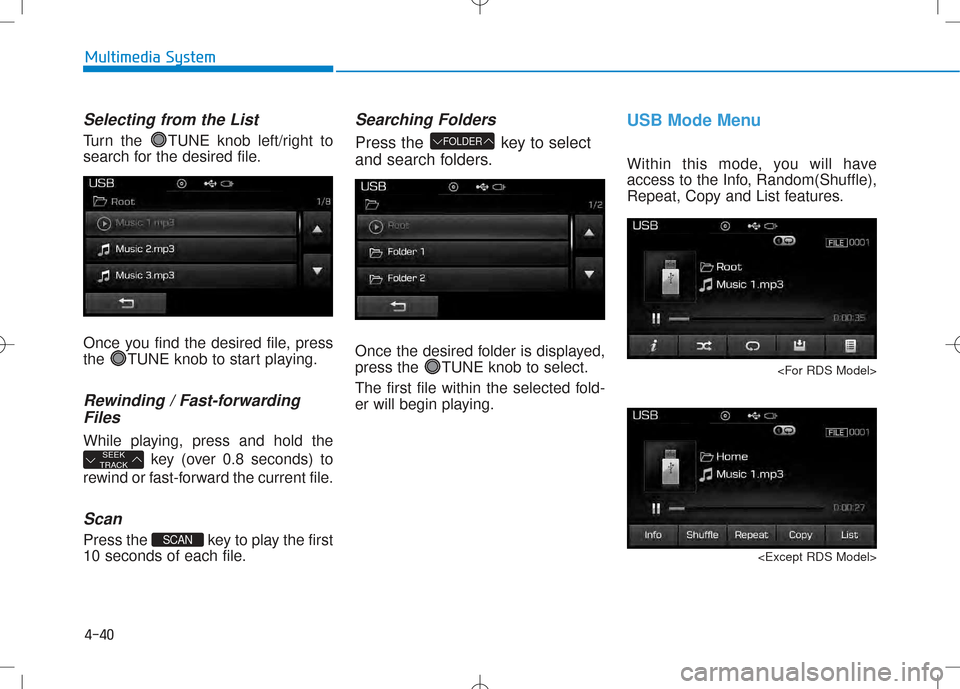
Press the key to select
and search folders.
Once the desired folder is displayed,
press the TUNE knob to select.
The first file within the selected fold-
er will begin playing.
USB Mode Menu
Within this mode, you will have
access to the Info, Random(Shuffle),
Repeat, Copy and List features.
FOLDER
SCAN
SEEK
TRACK
Page 265 of 512
4-47
Multimedia System
4
Rewinding / Fast-forwardingFiles
While playing, press and hold the key to rewind or fast-for-
ward the current file.
Scan
Press the key to play the first
10 seconds of each file.
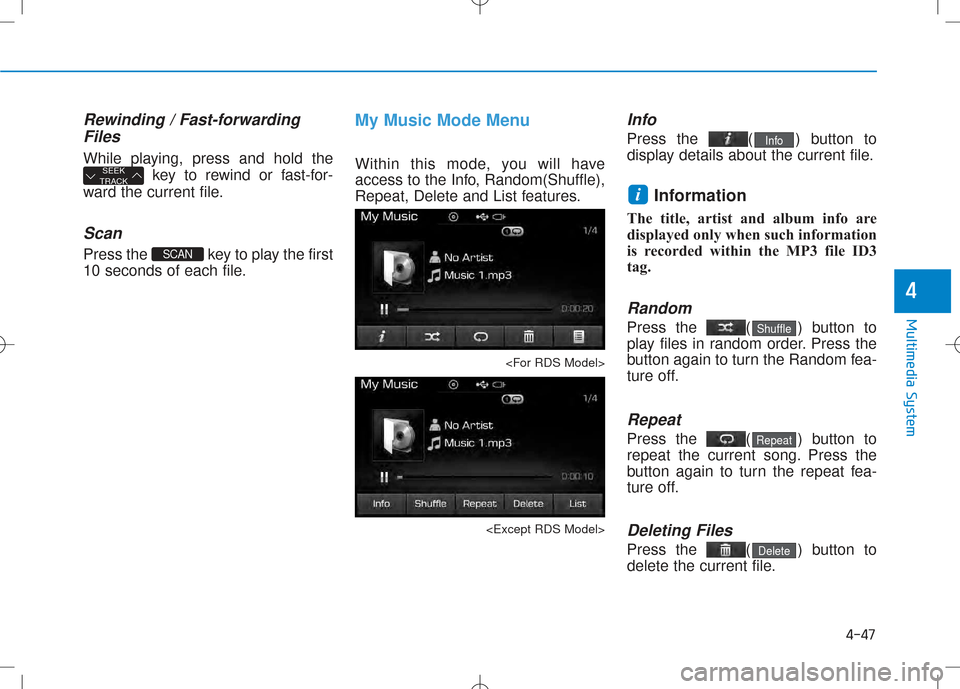
My Music Mode Menu
Within this mode, you will have
access to the Info, Random(Shuffle),
Repeat, Delete and List features.
Info
Press the ( ) button to
display details about the current file. Information
The title, artist and album info are
displayed only when such information
is recorded within the MP3 file ID3tag.
Random
Press the ( ) button to
play files in random order. Press the
button again to turn the Random fea-
ture off.
Repeat
Press the ( ) button to
repeat the current song. Press the
button again to turn the repeat fea-
ture off.
Deleting Files
Press the ( ) button to
delete the current file.Delete
Repeat
Shuffle
i
Info
SCAN
SEEK
TRACK
Page 292 of 512
![Hyundai Creta 2016 User Guide 4-74
Multimedia System
Downloading Phone books
Press the key Select
[Phone] Select [Phone book
Download]
The Phone book is downloaded from
the mobile phone and the download
progress is displayed.I](/img/35/14533/w960_14533-291.png "Hyundai Creta 2016 User Guide 4-74
Multimedia System
Downloading Phone books
Press the key Select
[Phone] Select [Phone book
Download]
The Phone book is downloaded from
the mobile phone and the download
progress is displayed.I")
4-74
Multimedia System
Downloading Phone books
Press the key Select
[Phone] Select [Phone book
Download]
The Phone book is downloaded from
the mobile phone and the download
progress is displayed.Information
Up to 1,000 phone book entries can be copied into car phone book.
Up to 1,000 phone book entries can be saved for each paired device.
Upon downloading phone book data, previously saved phone book
data will be deleted. However,
Phone book entries saved to other
paired phones are not deleted.
Auto Download (Phone Book)
Press the key Select
[Phone] Select [Auto Download]
This feature is used to automatically
download mobile phone book entriesonce a
Bluetooth®Wireless Technology
phone is connected.
Information
The Auto Download feature will download mobile phone book
entries every time the phone is con-
nected. The download time may dif-
fer depending on the number of
saved phone book entries and the
communication state.
When downloading a phone book, first check to see that your mobile
phone supports the phone book
download feature.
Outgoing Volume
Press the key Select
[Phone] Select [Outgoing Volume]
Use the , buttons to adjust
the outgoing volume level.SETUP
i
SETUP
i
SETUP
Page 298 of 512
![Hyundai Creta 2016 User Guide 4-80
Multimedia System
Downloading Contacts
Press the key Select
[Phone] Select [Contacts Download]
The contacts is downloaded from the
mobile phone and the download
progress is displayed.Informat](/img/35/14533/w960_14533-297.png "Hyundai Creta 2016 User Guide 4-80
Multimedia System
Downloading Contacts
Press the key Select
[Phone] Select [Contacts Download]
The contacts is downloaded from the
mobile phone and the download
progress is displayed.Informat")
4-80
Multimedia System
Downloading Contacts
Press the key Select
[Phone] Select [Contacts Download]
The contacts is downloaded from the
mobile phone and the download
progress is displayed.Information
Up to 1,000 contacts entries can be copied into car contacts.
Up to 1,000 contacts entries can be saved for each paired device.
Upon downloading contacts data, previously saved contacts data will
be deleted. However, contacts
entries saved to other paired phones
are not deleted.
Auto Download (Contacts)
(If equipped)
Press the key Select
[Phone] Select [Auto Download]
This feature is used to automatically
download mobile contacts entriesonce a
Bluetooth®Wireless
Technology phone is connected.
Information
The Auto Download feature will download mobile contacts entries
every time the phone is connected.
The download time may differ
depending on the number of saved
contacts entries and the communi-
cation state.
When downloading a contacts, first check to see that your mobile phone
supports the contacts download fea-
ture.
Outgoing Volume
Press the key Select
[Phone] Select [Outgoing Volume]
Use the , buttons to adjust the
outgoing volume level.
Turning Bluetooth System Off
Press the key Select
[Phone] Select [Bluetooth SystemOff] Once
Bluetooth®Wireless Technology
is turned off,
Bluetooth®Wireless
Technology related features will not be
supported within the audio system.
SETUP
SETUP
i
SETUP
i
SETUP
Page 306 of 512
4-88
Multimedia System
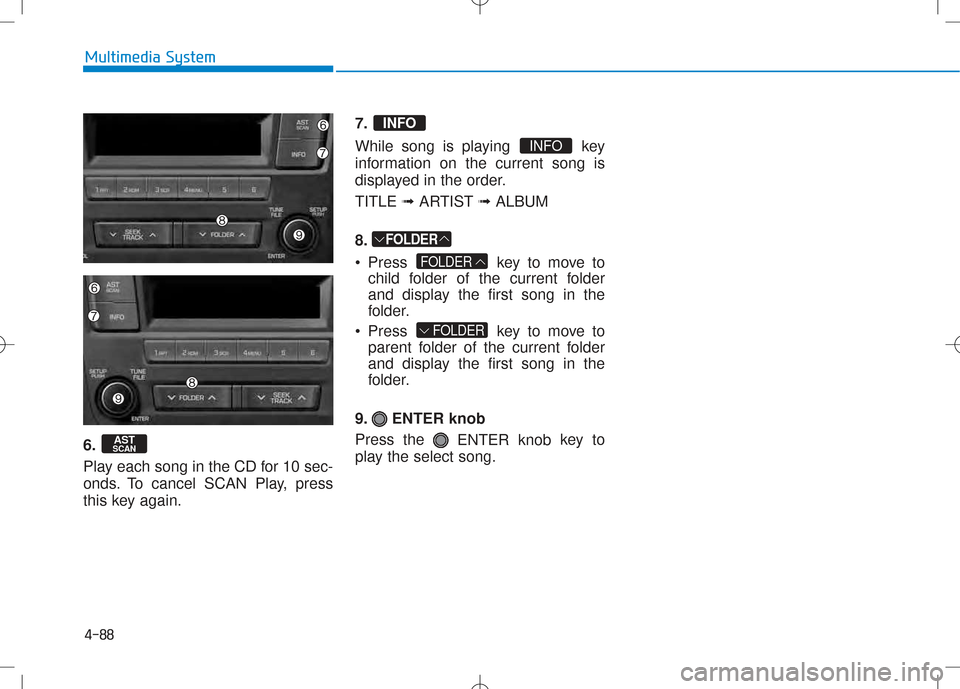
6.
Play each song in the CD for 10 sec-
onds. To cancel SCAN Play, press
this key again.7.
While song is playing key
information on the current song is
displayed in the order. TITLE
➟ARTIST ➟ALBUM
8.
Press key to move to child folder of the current folder
and display the first song in the
folder.
Press key to move to parent folder of the current folder
and display the first song in the
folder.
9. ENTER knob Press the ENTER knob key to
play the select song.
FOLDER
FOLDER
FOLDER
INFO
INFO
AST
SCAN
Page 311 of 512
4-93
Multimedia System
4
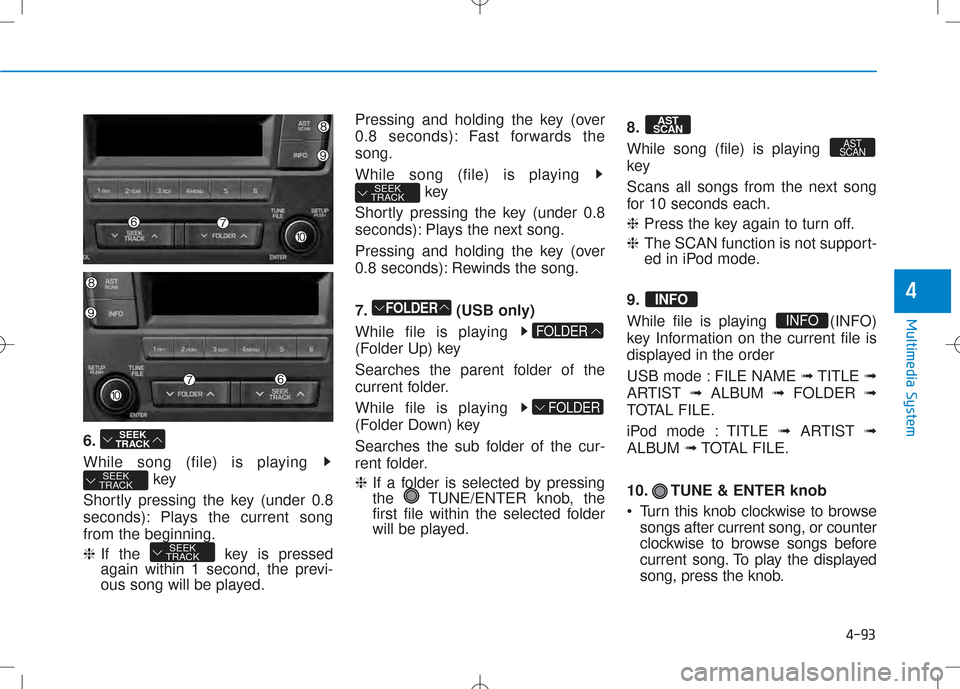
6.
While song (file) is playing key
Shortly pressing the key (under 0.8
seconds): Plays the current songfrom the beginning. ❈ If the key is pressed
again within 1 second, the previ-
ous song will be played. Pressing and holding the key (over
0.8 seconds): Fast forwards thesong.
While song (file) is playing
key
Shortly pressing the key (under 0.8
seconds): Plays the next song.
Pressing and holding the key (over
0.8 seconds): Rewinds the song.
7. (USB only)
While file is playing
(Folder Up) key
Searches the parent folder of the
current folder.
While file is playing
(Folder Down) key
Searches the sub folder of the cur-
rent folder. ❈ If a folder is selected by pressing
the TUNE/ENTER knob, the
first file within the selected folder
will be played. 8.
While song (file) is playing
key
Scans all songs from the next song
for 10 seconds each. ❈
Press the key again to turn off.
❈ The SCAN function is not support-
ed in iPod mode.
9.
While file is playing (INFO)
key Information on the current file is
displayed in the order
USB mode : FILE NAME ➟TITLE ➟
ARTIST ➟ALBUM ➟FOLDER ➟
TOTAL FILE.
iPod mode : TITLE ➟ARTIST ➟
ALBUM ➟TOTAL FILE.
10. TUNE & ENTER knob
Turn this knob clockwise to browse songs after current song, or counter
clockwise to browse songs before
current song. To play the displayed
song, press the knob.
INFO
INFO
AST
SCAN
AST
SCAN
FOLDER
FOLDER
FOLDER
SEEK
TRACK
SEEK
TRACK
SEEK
TRACK
SEEK
TRACK
Page 331 of 512
5-19
Driving your vehicle
5
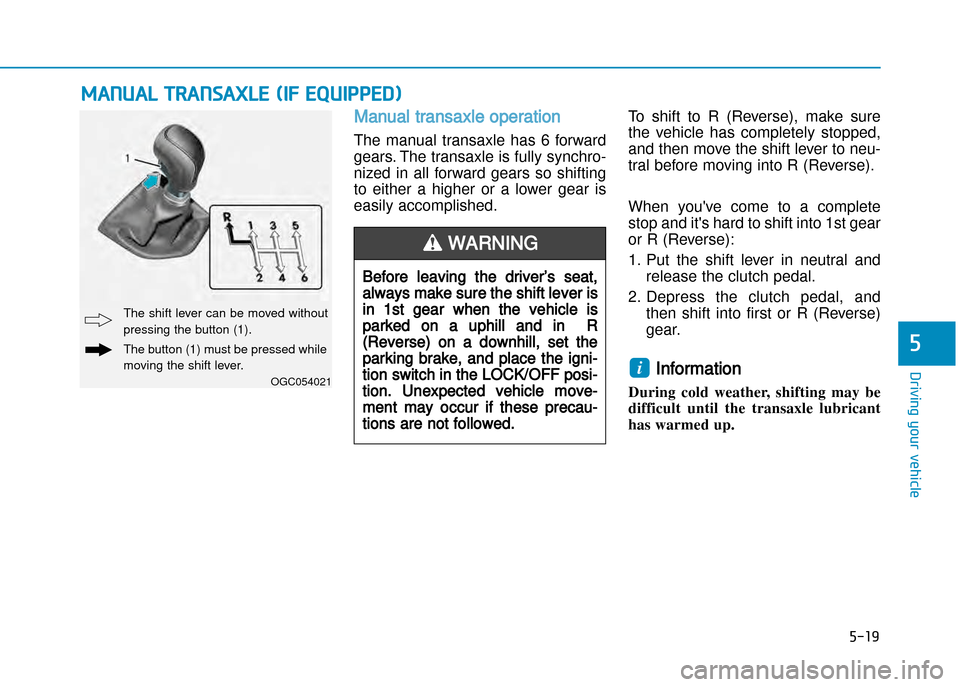
Manual transaxle operation
The manual transaxle has 6 forward
gears. The transaxle is fully synchro
nized in all forward gears so shifting
to either a higher or a lower gear is
easily accomplished.To shift to R (Reverse), make sure
the vehicle has completely stopped,
and then move the shift lever to neu
tral before moving into R (Reverse).
When you've come to a complete
stop and it's hard to shift into 1st gear
or R (Reverse):
1. Put the shift lever in neutral and
release the clutch pedal.
2. Depress the clutch pedal, and then shift into first or R (Reverse)
gear.
Information
During cold weather, shifting may be
difficult until the transaxle lubricant
has warmed up. i
MANUAL TRANSAXLE (IF EqUIppED)
OGC054021
The shift lever can be moved without
pressing the button (1).
The button (1) must be pressed while
moving the shift lever.
Before leaving the driver’s seat,
always make sure the shift lever is
in 1st gear when the vehicle is
parked on a uphill and in R
(Reverse) on a downhill, set the
parking brake, and place the igni
tion switch in the LOCK/OFF posi
tion. Unexpected vehicle move
ment may occur if these precau
tions are not followed.
WARNING
Page 343 of 512
5-31
Driving your vehicle
5
Disc brakes wear indicator
When your brake pads are worn and
new pads are required, you will hear
a high pitched warning sound from
your front or rear brakes. You may
hear this sound come and go or it
may occur whenever you depress
the brake pedal.
Please remember some driving con
ditions or climates may cause a
brake squeal when you first apply (or
lightly apply) the brakes. This is nor
mal and does not indicate a problem
with your brakes.
To avoid costly brake repairs, do not
continue to drive with worn brake
pads.
Information
Always replace brake pads as com
plete front or rear axle sets.
Rear drum brakes
(if equipped)
Your rear drum brakes do not have
wear indicators.Therefore, have the
rear brake linings inspected if you
hear a rear brake rubbing noise. Also
have your rear brakes inspected
each time you change or rotate your
tires and when you have the front
brakes replaced.
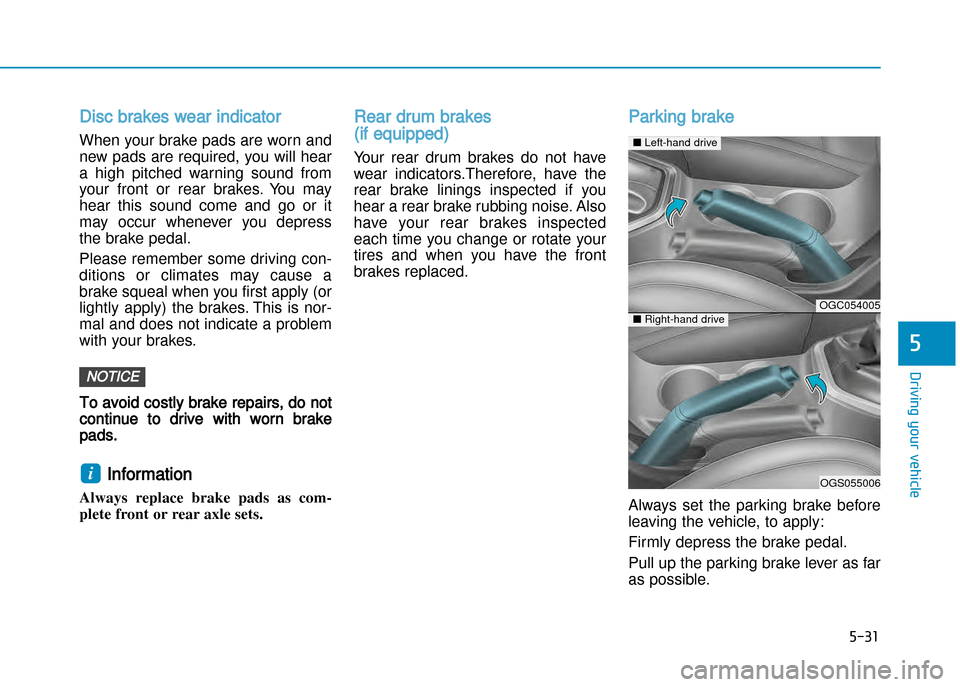
Parking brake
Always set the parking brake before
leaving the vehicle, to apply:
Firmly depress the brake pedal.
Pull up the parking brake lever as far
as possible.
i
NOTICE
OGC054005
OGS055006
■ Lefthand drive
■Righthand drive
Page 360 of 512
5-48
Driving your vehicle
SpECIAL DRIVING CONDITIONS
Hazardous driving conditions
When hazardous driving conditions
are encountered such as water,
snow, ice, mud or sand:
Drive cautiously and allow extra dis
tance for braking.
Avoid sudden movements in braking
or steering.
If stuck in snow, mud, or sand, use
second gear. Accelerate slowly to
avoid spinning the drive wheels.
Use sand, rock salt, or other nonslip
material under the drive wheels to
provide traction when stalled in ice,
snow, or mud.
Rocking the vehicle
If it is necessary to rock the vehicle
to free it from snow, sand, or mud,
first turn the steering wheel right and
left to clear the area around your
front wheels. Then, shift back and
forth between 1st and R (Reverse,
for manual transaxle vehicle) or R
(Reverse) and a forward gear (for
automatic transaxle vehicle). Try to
avoid spinning the wheels, and do
not race the engine.
To prevent transaxle wear, wait until
the wheels stop spinning before
shifting gears. Release the accelera
tor pedal while shifting, and press
lightly on the accelerator pedal while
the transaxle is in gear. Slowly spin
ning the wheels in forward and
reverse directions causes a rocking
motion that may free the vehicle.
Downshifting with an automatic
transaxle, while driving on slippery
surfaces can cause an accident.
The sudden change in tire speed
could cause the tires to skid. Be
careful when downshifting on slip
pery surfaces.
WARNING
If the vehicle is stuck and exces
sive wheel spin occurs, the tem
perature in the tires can increase
very quickly. If the tires become
damaged, a tire blow out or tire
explosion can occur. This condi
tion is dangerous you and others
may be injured. Do not attempt
this procedure if people or objects
are anywhere near the vehicle.
If you attempt to free the vehicle,
the vehicle can overheat quickly,
possibly causing an engine com
partment fire or other damage. Try
to avoid spinning the wheels as
much as possible to prevent over
heating of either the tires or the
engine. DO NOT allow the vehicle
to spin the wheels above 35 mph
(56 km/h).
WARNING