display Hyundai Creta 2018 Workshop Manual
[x] Cancel search | Manufacturer: HYUNDAI, Model Year: 2018, Model line: Creta, Model: Hyundai Creta 2018Pages: 472, PDF Size: 11.87 MB
Page 262 of 472
4-48
Multimedia System
Information
• Depending on the connected
Bluetooth device, mobile phone, or
the music player you are using,
playback controls may differ.
• Depending on the music player you
are using, streaming may not be
supported.
• Some cell phone models may not
support particular functions.
• Bluetooth
®audio volume is synced
with cell phone media volume.
Playback
Press the [MEDIA]button, and
select [BT Audio].
Changing songs
Press the [SEEK/TRACK]button to
play the previous or next song.
Information
Some cell phones may not support this
function.
Playing repeatedly
On the Bluetooth®(BT) Audio mode
screen, select [Repeat]. The repeat
play mode changes each time you
press it. The corresponding mode
icon will be displayed on the screen.
Information
The repeat play function is engaged,
depending on the operation of the con-
nected Bluetooth
®device.
Playing in random order
On the Bluetooth®(BT) Audio
screen, select [Shuffle]. The shuffle
play mode is activated or deactivated
each time you press it. When you
activate the shuffle mode, the corre-
sponding mode icon will be displayed
on the screen.
Information
The shuffle function is engaged,
depending on the operation of the con-
nected Bluetooth
®device.
Menu
Select [Menu], and select the desired
function.
Connections: The currently connected
Bluetooth
®device can be changed.
Information: Detailed information
on the currently playing song is dis-
played.
Sound Settings: Audio sound set-
tings can be changed.
i
i
i
i
Page 265 of 472
4-51
Multimedia System
4
Pairing a Bluetooth®device
Information on pairing Bluetooth®
devices
Pairing refers to the process of
pairing Bluetooth®cell phones or
devices with the system prior to
connection. This is a necessary
procedure for Bluetooth
®connec-
tion and usage.
Up to five devices can be paired.
Pairing Bluetooth
®device is not
allowed while vehicle is moving.
Pairing the first Bluetooth®device
Press the [PHONE]button on the
audio system or the [CALL]button
on the steering wheel remote control
➟Search for the vehicle from the
Bluetooth
®device, and pair ➟Enter
the passkey on the Bluetooth®
device or approve passkey ➟
Bluetooth®pairing completed.
1. When the [PHONE]button on the
audio system or the [CALL]but-
ton on the steering wheel remote
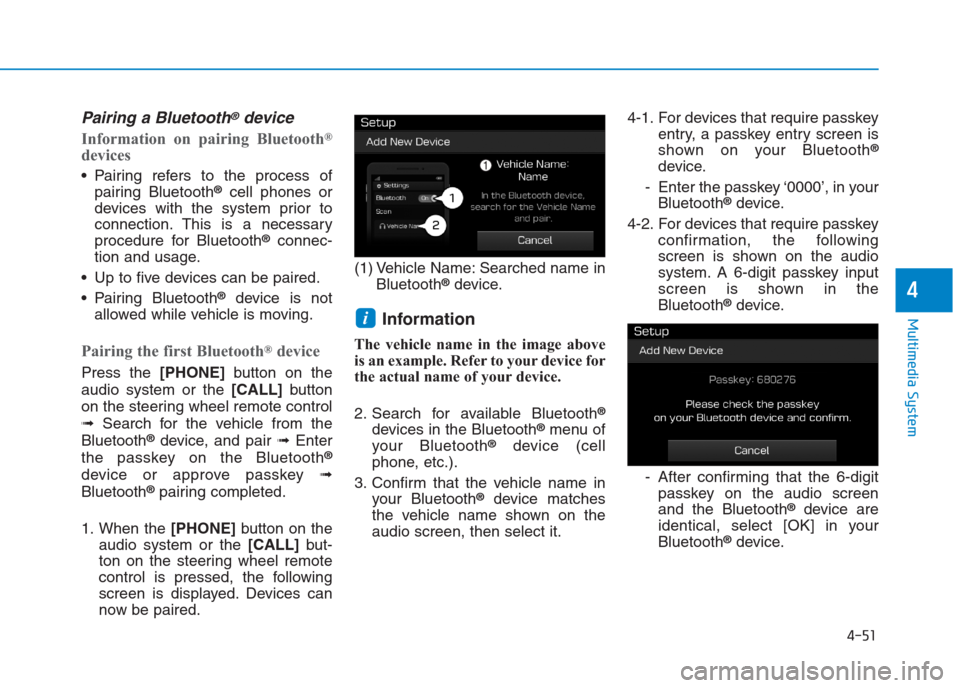
control is pressed, the following
screen is displayed. Devices can
now be paired.(1) Vehicle Name: Searched name in
Bluetooth
®device.
Information
The vehicle name in the image above
is an example. Refer to your device for
the actual name of your device.
2. Search for available Bluetooth
®
devices in the Bluetooth®menu of
your Bluetooth®device (cell
phone, etc.).
3. Confirm that the vehicle name in
your Bluetooth
®device matches
the vehicle name shown on the
audio screen, then select it.4-1. For devices that require passkey
entry, a passkey entry screen is
shown on your Bluetooth
®
device.
- Enter the passkey ‘0000’, in your
Bluetooth
®device.
4-2. For devices that require passkey
confirmation, the following
screen is shown on the audio
system. A 6-digit passkey input
screen is shown in the
Bluetooth
®device.
- After confirming that the 6-digit
passkey on the audio screen
and the Bluetooth
®device are
identical, select [OK] in your
Bluetooth
®device.
i
Page 267 of 472
![Hyundai Creta 2018 Workshop Manual 4-53
Multimedia System
4
If there are connected devices
Press the [PHONE]button on the
audio system ➟Select [Settings] ➟
Select [Connections] ➟Select
Bluetooth
®device to connect ➟Select
[Con](/img/35/14530/w960_14530-266.png "Hyundai Creta 2018 Workshop Manual 4-53
Multimedia System
4
If there are connected devices
Press the [PHONE]button on the
audio system ➟Select [Settings] ➟
Select [Connections] ➟Select
Bluetooth
®device to connect ➟Select
[Con")
4-53
Multimedia System
4
If there are connected devices
Press the [PHONE]button on the
audio system ➟Select [Settings] ➟
Select [Connections] ➟Select
Bluetooth
®device to connect ➟Select
[Connect] ➟Connect Bluetooth®.
Information
• Only one Bluetooth®device can be
connected at a time.
• When a Bluetooth
®device is con-
nected, other devices cannot be
paired.
Accepting/rejecting phone calls
Receiving phone calls with
Bluetooth®connected.
(1) Caller name: If the caller number
is in your contacts, the correspon-
ding name is displayed.
(2) Incoming phone number:
Incoming phone number is dis-
played.
(3) Accept: Accept call.
(4) Reject: Reject call.
Information
• When the incoming call screen is
displayed, audio mode and the set-
tings screen cannot be shown. Only
call volume control is supported.
• Some Bluetooth
®devices may not
support the call reject function.
• Some Bluetooth
®devices may not
support the phone number display
function.
i
i
Page 268 of 472
![Hyundai Creta 2018 Workshop Manual 4-54
Multimedia System
Operation during calls
Incoming call with Bluetooth®con-
nected ➟Select [Accept].
(1) Display Call duration: Call dura-
tion display.
(2) Caller name: If the caller number i](/img/35/14530/w960_14530-267.png "Hyundai Creta 2018 Workshop Manual 4-54
Multimedia System
Operation during calls
Incoming call with Bluetooth®con-
nected ➟Select [Accept].
(1) Display Call duration: Call dura-
tion display.
(2) Caller name: If the caller number i")
4-54
Multimedia System
Operation during calls
Incoming call with Bluetooth®con-
nected ➟Select [Accept].
(1) Display Call duration: Call dura-
tion display.
(2) Caller name: If the caller number is
in your contacts, the corresponding
name is displayed.
(3) Incoming phone number: Incoming
phone number is displayed.
(4) Keypad: Number keypad for
Automatic Response Service input
is displayed.
(5) Private: Call is transferred to a
cell phone.
(6) Outgoing Volume: Adjust outgo-
ing voice volume.
(7) End: End call.Information
• Some Bluetooth®devices may not
support the Private function.
• The outgoing voice volume may
vary depending on the type of
Bluetooth
®device. If the outgoing
voice volume is too high or low,
adjust the Outgoing Volume.
Favorites
Press the [PHONE]button on the
audio system ➟Select [Favorites] ➟
Favorites list displayed.
(1) Favorites list: A list of paired
favorites is displayed.
Connect a call when selected.
(2) Add to Favorites: Add a down-
loaded phone number to favorites.
(3) Delete: Delete a saved favorite.
i
Page 269 of 472
4-55
Multimedia System
4
Information
• Up to 20 favorites can be saved for
each connected Bluetooth®device.
• Favorites can be accessed when the
Bluetooth
®device they were paired
from is connected.
• The audio system does not down-
load favorites from Bluetooth
®
devices. Favorites must be newly
saved before use.
• To add to favorites, contacts must be
downloaded first.
• Saved favorites are not updated
even if the contacts of the connected
Bluetooth
®device are changed. In
this case, favorites need to be delet-
ed and added again.
Call History
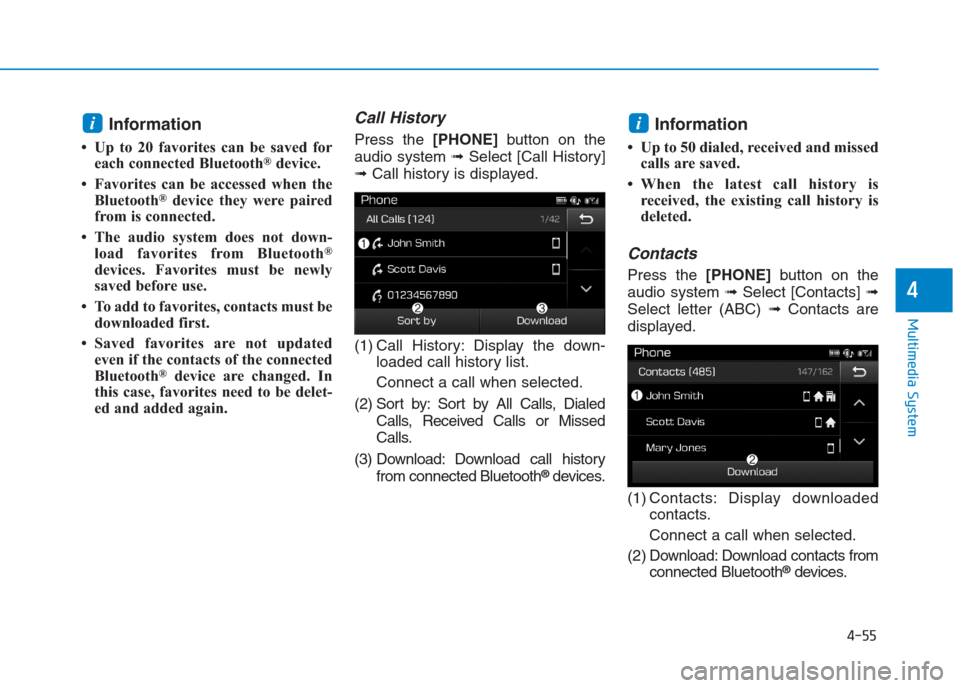
Press the [PHONE]button on the
audio system ➟Select [Call History]
➟Call history is displayed.
(1) Call History: Display the down-
loaded call history list.
Connect a call when selected.
(2) Sort by: Sort by All Calls, Dialed
Calls, Received Calls or Missed
Calls.
(3) Download: Download call history
from connected Bluetooth
®devices.
Information
• Up to 50 dialed, received and missed
calls are saved.
• When the latest call history is
received, the existing call history is
deleted.
Contacts
Press the [PHONE]button on the
audio system ➟Select [Contacts] ➟
Select letter (ABC) ➟Contacts are
displayed.
(1) Contacts: Display downloaded
contacts.
Connect a call when selected.
(2) Download: Download contacts from
connected Bluetooth
®devices.
ii
Page 270 of 472
4-56
Multimedia System
Information
• Only supported contacts format can
be downloaded and displayed from
the Bluetooth device, contacts from
some applications will not be included.
• Up to 2,000 contacts can be saved.
• In some cases, additional confirmation
from yourBluetooth
®device is neces-
sary when downloading contacts. If
downloading of contacts unsuccessful,
consult yourBluetooth
®device’s set-
tings or the audio screen to approve
the download.
• Contacts without phone numbers
are not displayed.
Dial
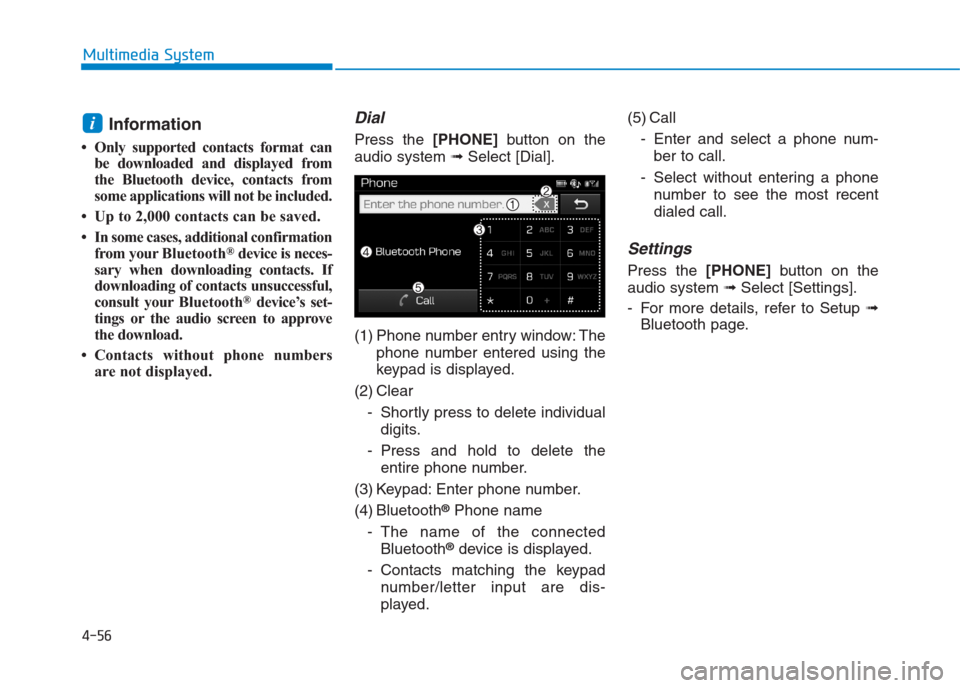
Press the [PHONE]button on the
audio system ➟Select [Dial].
(1) Phone number entry window: The
phone number entered using the
keypad is displayed.
(2) Clear
- Shortly press to delete individual
digits.
- Press and hold to delete the
entire phone number.
(3) Keypad: Enter phone number.
(4) Bluetooth
®Phone name
- The name of the connected
Bluetooth
®device is displayed.
- Contacts matching the keypad
number/letter input are dis-
played.(5) Call
- Enter and select a phone num-
ber to call.
- Select without entering a phone
number to see the most recent
dialed call.
Settings
Press the [PHONE]button on the
audio system ➟Select [Settings].
- For more details, refer to Setup ➟
Bluetooth page.
i
Page 271 of 472
![Hyundai Creta 2018 Workshop Manual 4-57
Multimedia System
4
Setup
Setup is the screen to control Audio
system settings.
Press the [SETUP]button on the
audio system.
Display
Press the [SETUP]button on the
audio system ➟Select [Displa](/img/35/14530/w960_14530-270.png "Hyundai Creta 2018 Workshop Manual 4-57
Multimedia System
4
Setup
Setup is the screen to control Audio
system settings.
Press the [SETUP]button on the
audio system.
Display
Press the [SETUP]button on the
audio system ➟Select [Displa")
4-57
Multimedia System
4
Setup
Setup is the screen to control Audio
system settings.
Press the [SETUP]button on the
audio system.
Display
Press the [SETUP]button on the
audio system ➟Select [Display].
Mode: Set the screen brightness to
be adjusted automatically accord-
ing to ambient lighting conditions
or set the screen to stay bright or
dark continuously.
Illumination: The brightness of the
audio screen can be changed.
Text Scroll: If text is too long to be
displayed on the screen, enable
the text scroll function.
Sound
Press the [SETUP]button on the
audio system ➟Select [Sound].
Position: Sound balance and fader
can be adjusted.
Tone: Sound tone color can be
adjusted.
Back-up Warning Priority:
- Automatically lower audio vol-
ume while reversing.
- Control the audio volume level
automatically in R-Position.
If volume level over “5 level” then
down to “5 level”.If volume level under “5 level”
then maintain the volume level.
Return the volume level when R-
Position was cancelled.
In R-Positon, if driver change the
volume level then volume
changed.
Apply the volume control option
“On/Off ” in “Setup”: Default is
“On”.
Speed Dependent Volume:
Automatically adjust volume based
on vehicle speed.
Beep: Select whether to play a
beep sound when the screen is
touched.
Page 272 of 472
![Hyundai Creta 2018 Workshop Manual 4-58
Multimedia System
Bluetooth
Press the [SETUP]button on the
audio system ➟Select [Bluetooth].
Connections: Control pairing, dele-
tion, connection and disconnection
of Bluetooth
®devices.
Aut](/img/35/14530/w960_14530-271.png "Hyundai Creta 2018 Workshop Manual 4-58
Multimedia System
Bluetooth
Press the [SETUP]button on the
audio system ➟Select [Bluetooth].
Connections: Control pairing, dele-
tion, connection and disconnection
of Bluetooth
®devices.
Aut")
4-58
Multimedia System
Bluetooth
Press the [SETUP]button on the
audio system ➟Select [Bluetooth].
Connections: Control pairing, dele-
tion, connection and disconnection
of Bluetooth
®devices.
Auto Connection Priority: Set the
connection priority of Bluetooth
®
devices when the vehicle is start-
ed.
Download Contacts: Contacts can
be downloaded from connected
Bluetooth
®devices.
Information
• When paired devices are deleted,
the call history and contacts of the
device saved to the audio system are
deleted.
• For Bluetooth
®connections with
low connection priority, some time
may be required for the connection
to be established.
• Contacts can be downloaded only
from the currently connected
Bluetooth
®device.
• If no Bluetooth
®device is connected,
the Download Contacts button is
disabled.
System
Press the [SETUP]button on the
audio system ➟Select [System].
Language: Change the user lan-
guage.
Default: Reset the audio system.
Information
• The system resets to the default val-
ues, and all saved data and settings
are lost.
Display Off
To prevent glare, the screen can be
turned off with the audio system in
operation.
Press the [SETUP]button on the
audio system ➟Select [Display Off].
i
i
Page 278 of 472
Before entering the vehicle
• Be sure all windows, outside mir-
ror(s), and outside lights are clean
and unobstructed.
Remove frost, snow, or ice.
Visually check the tires for uneven
wear and damage.
Check under the vehicle for any
sign of leaks.
Be sure there are no obstacles
behind you if you intend to back up.
Before starting
Make sure the hood, the tailgate,
and the doors are securely closed
and locked.
Adjust the position of the seat and
steering wheel.
Adjust the inside and outside
rearview mirrors.
Verify all the lights work.
Fasten your seatbelt. Check that all
passengers have fastened their
seatbelts. Check the gauges and indicators in
the instrument panel and the mes-
sages on the instrument display
when the ignition switch is in the
ON position.
Check that any items you are car-
rying are stored properly or fas-
tened down securely.
B BE
EF
FO
OR
RE
E
D
DR
RI
IV
VI
IN
NG
G
5-3
Driving your vehicle
5
Page 299 of 472
5-24
Driving your vehicle
Automatic transaxle operation
The automatic transaxle has six for-
ward speeds and one reverse speed.
The individual speeds are selected
automatically in the D (Drive) posi-
tion.The indicator in the instrument clus-
ter displays the shift lever position
when the ignition switch is in the ON
position.
P (Park)
Always come to a complete stop
before shifting into P (Park).
To shift from P (Park), you must
depress firmly on the brake pedal
and make sure your foot is off the
accelerator pedal.
If you have done all of the above and
still cannot shift the lever out of P
(Park), see “Shift-Lock Release” on
page 5-27.
The shift lever must be in P (Park)
before turning the engine off. To reduce the risk of serious
injury or death:
ALWAYS check the surround-
ing areas near your vehicle for
people, especially children,
before shifting a vehicle into
D (Drive) or R (Reverse).
Before leaving the driver’s
seat, always make sure the
shift lever is in the P (Park)
position, then set the parking
brake, and place the ignition
switch in the LOCK/OFF posi-
tion. Unexpected and sudden
vehicle movement can occur
if these precautions are not
followed.
Do not use engine braking
(shifting from a high gear to
lower gear) rapidly on slip-
pery roads. The vehicle may
slip causing an accident.
WARNING