AUX Hyundai Elantra 2009 Инструкция по эксплуатации (in Russian)
[x] Cancel search | Manufacturer: HYUNDAI, Model Year: 2009, Model line: Elantra, Model: Hyundai Elantra 2009Pages: 308, PDF Size: 15.03 MB
Page 136 of 308
481
Features of your vehicle
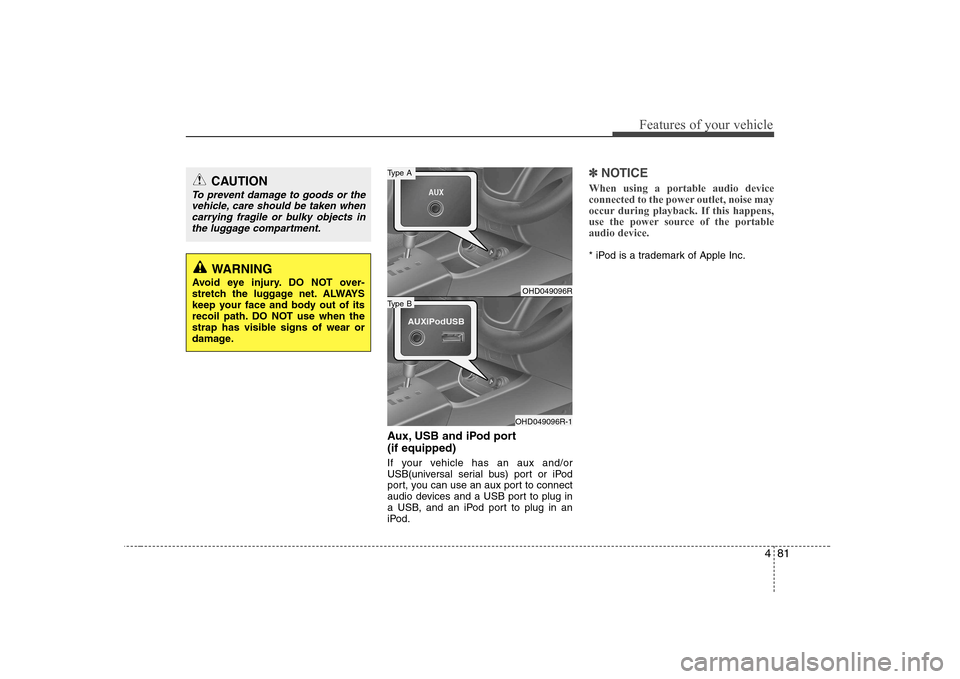
Aux, USB and iPod port (if equipped)
If your vehicle has an aux and/or
USB(universal serial bus) port or iPod
port, you can use an aux port to connect
audio devices and a USB port to plug in
a USB, and an iPod port to plug in an
iPod.
✽✽NOTICE
When using a portable audio device
connected to the power outlet, noise may
occur during playback. If this happens,
use the power source of the portableaudio device.
* iPod is a trademark of Apple Inc.
OHD049096R
OHD049096R-1
Type B
Type ACAUTION
To prevent damage to goods or the vehicle, care should be taken when carrying fragile or bulky objects inthe luggage compartment.
WARNING
Avoid eye injury. DO NOT over-
stretch the luggage net. ALWAYS
keep your face and body out of its
recoil path. DO NOT use when the
strap has visible signs of wear or
damage.
Page 146 of 308
491
Features of your vehicle
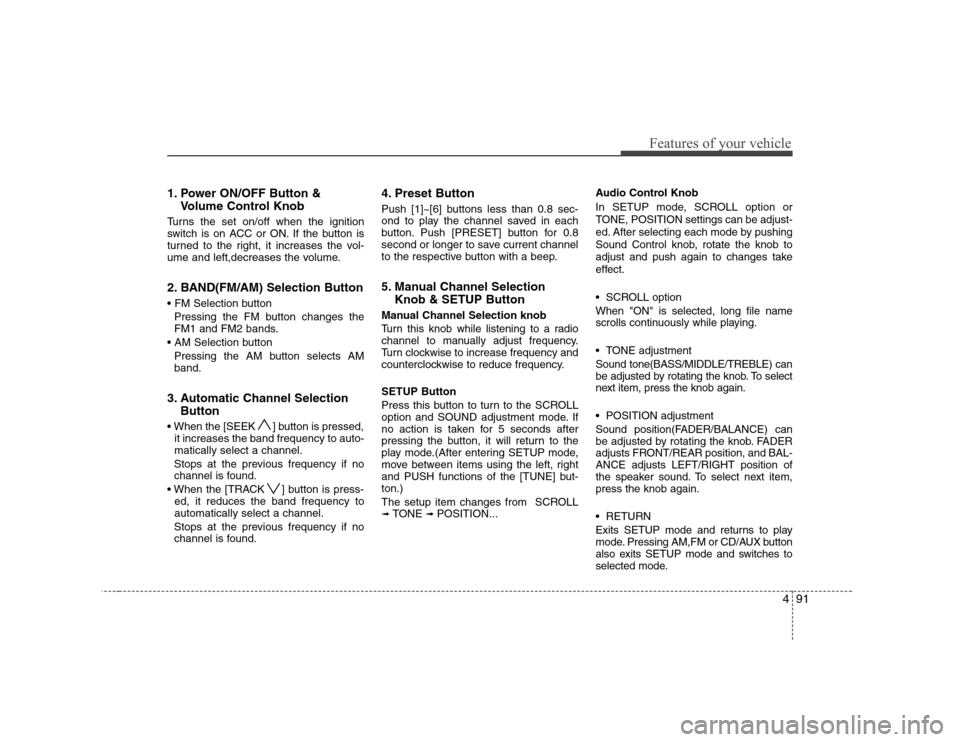
1. Power ON/OFF Button &Volume Control Knob
Turns the set on/off when the ignition
switch is on ACC or ON. If the button is
turned to the right, it increases the vol-
ume and left,decreases the volume.
2. BAND(FM/AM) Selection Button
Pressing the FM button changes the
FM1 and FM2 bands.
Pressing the AM button selects AMband.
3. Automatic Channel Selection Button
] button is pressed, it increases the band frequency to auto-matically select a channel.
Stops at the previous frequency if no
channel is found.
] button is press- ed, it reduces the band frequency toautomatically select a channel.
Stops at the previous frequency if no
channel is found. 4. Preset Button
Push [1]~[6] buttons less than 0.8 sec-
ond to play the channel saved in each
button. Push [PRESET] button for 0.8
second or longer to save current channel
to the respective button with a beep.
5. Manual Channel Selection
Knob & SETUP Button
Manual Channel Selection knob
Turn this knob while listening to a radio
channel to manually adjust frequency.
Turn clockwise to increase frequency and
counterclockwise to reduce frequency. SETUP Button
Press this button to turn to the SCROLL
option and SOUND adjustment mode. If
no action is taken for 5 seconds after
pressing the button, it will return to the
play mode.(After entering SETUP mode,
move between items using the left, right
and PUSH functions of the [TUNE] but-ton.)
The setup item changes from SCROLL ➟ TONE ➟ POSITION... Audio Control Knob
In SETUP mode, SCROLL option or
TONE, POSITION settings can be adjust-
ed. After selecting each mode by pushing
Sound Control knob, rotate the knob to
adjust and push again to changes take
effect.
SCROLL option When "ON" is selected, long file name
scrolls continuously while playing.
TONE adjustment Sound tone(BASS/MIDDLE/TREBLE) can
be adjusted by rotating the knob. To select
next item, press the knob again.
POSITION adjustment
Sound position(FADER/BALANCE) can
be adjusted by rotating the knob. FADER
adjusts FRONT/REAR position, and BAL-ANCE adjusts LEFT/RIGHT position of
the speaker sound. To select next item,press the knob again.
RETURN
Exits SETUP mode and returns to play
mode. Pressing AM,FM or CD/AUX button
also exits SETUP mode and switches to
selected mode.
Page 148 of 308
493
Features of your vehicle
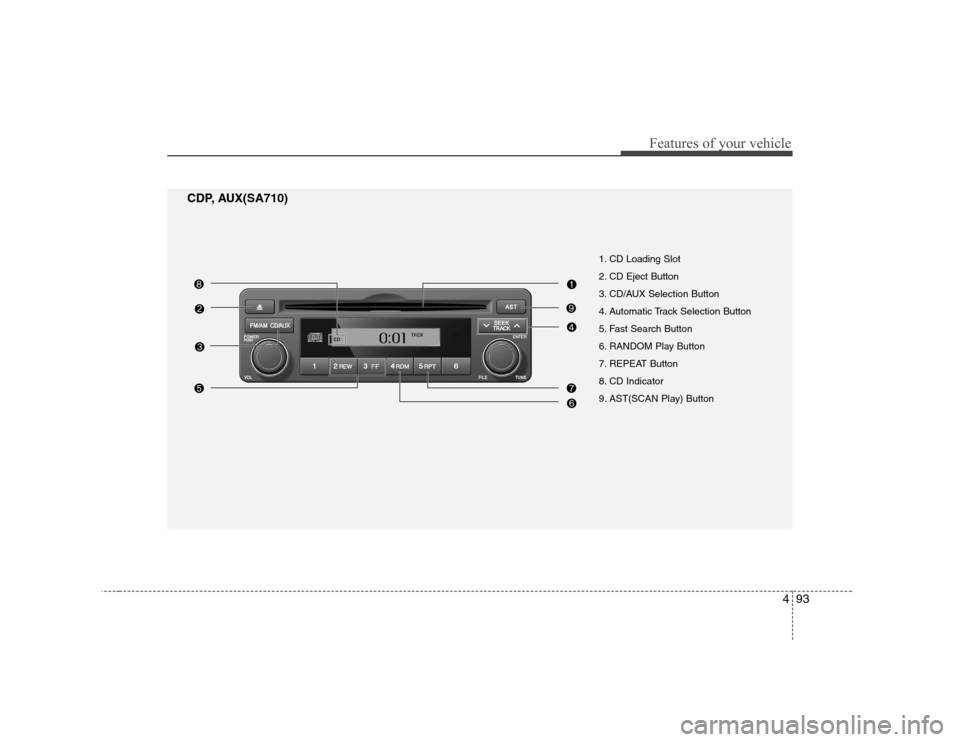
1. CD Loading Slot
2. CD Eject Button
3. CD/AUX Selection Button
4. Automatic Track Selection Button
5. Fast Search Button
6. RANDOM Play Button
7. REPEAT Button
8. CD Indicator
9. AST(SCAN Play) Button
CDP, AUX(SA710)
Page 149 of 308
Features of your vehicle
94
4
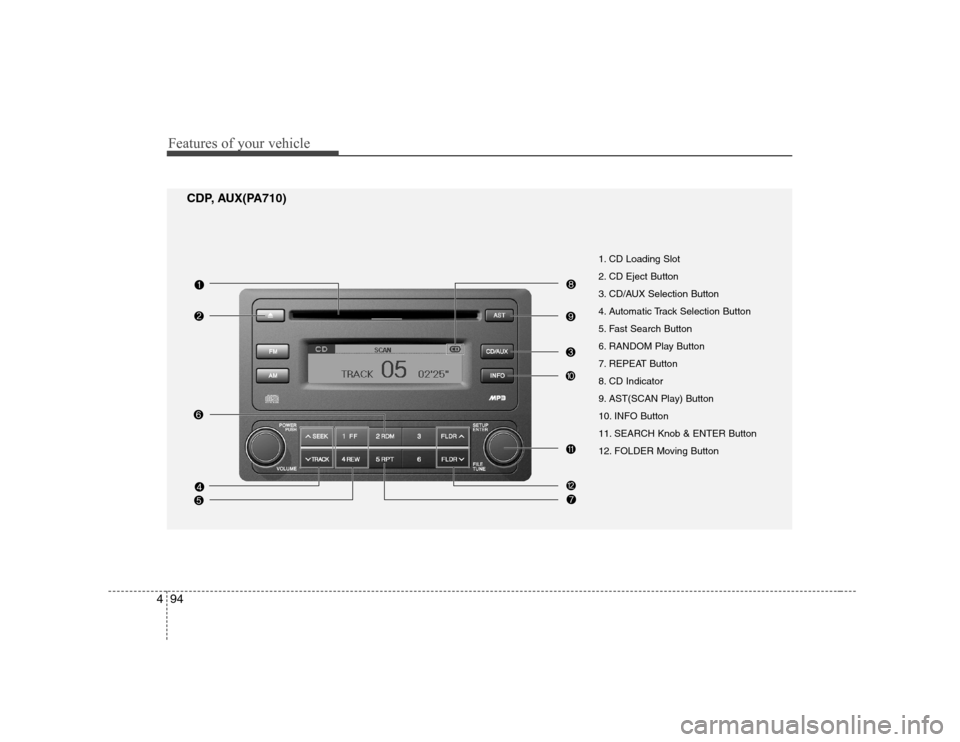
1. CD Loading Slot
2. CD Eject Button
3. CD/AUX Selection Button
4. Automatic Track Selection Button
5. Fast Search Button
6. RANDOM Play Button
7. REPEAT Button
8. CD Indicator
9. AST(SCAN Play) Button
10. INFO Button
11. SEARCH Knob & ENTER Button
12. FOLDER Moving Button
CDP, AUX(PA710)
Page 150 of 308
495
Features of your vehicle
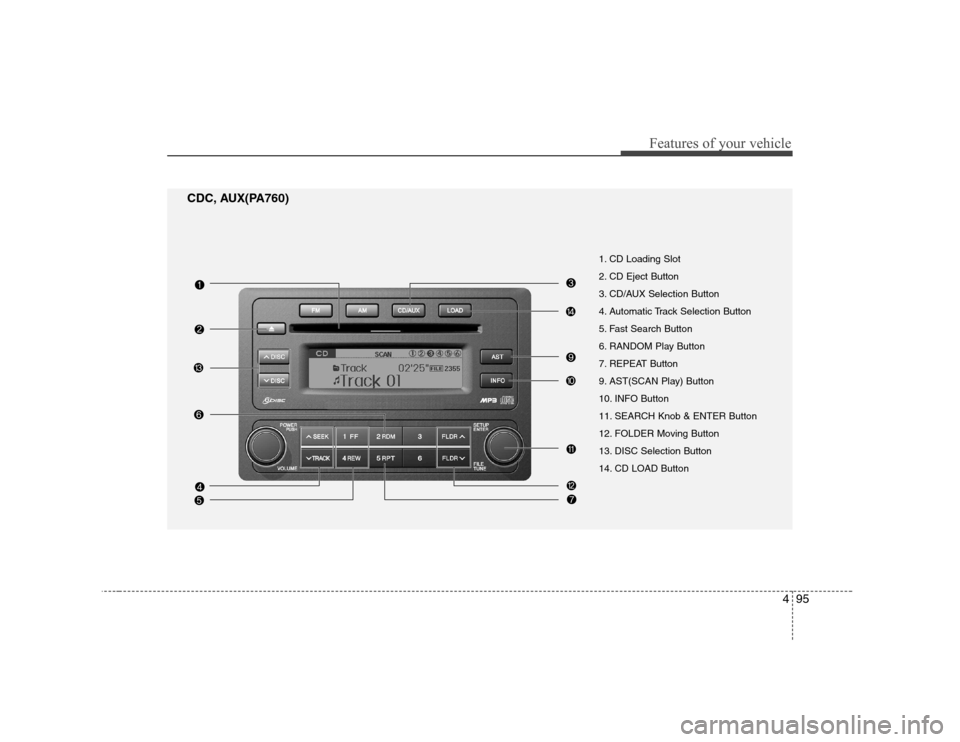
CDC, AUX(PA760) 1. CD Loading Slot
2. CD Eject Button
3. CD/AUX Selection Button
4. Automatic Track Selection Button
5. Fast Search Button
6. RANDOM Play Button
7. REPEAT Button
9. AST(SCAN Play) Button
10. INFO Button
11. SEARCH Knob & ENTER Button
12. FOLDER Moving Button
13. DISC Selection Button
14. CD LOAD Button
Page 151 of 308
Features of your vehicle
96
4
1. CD Loading Slot
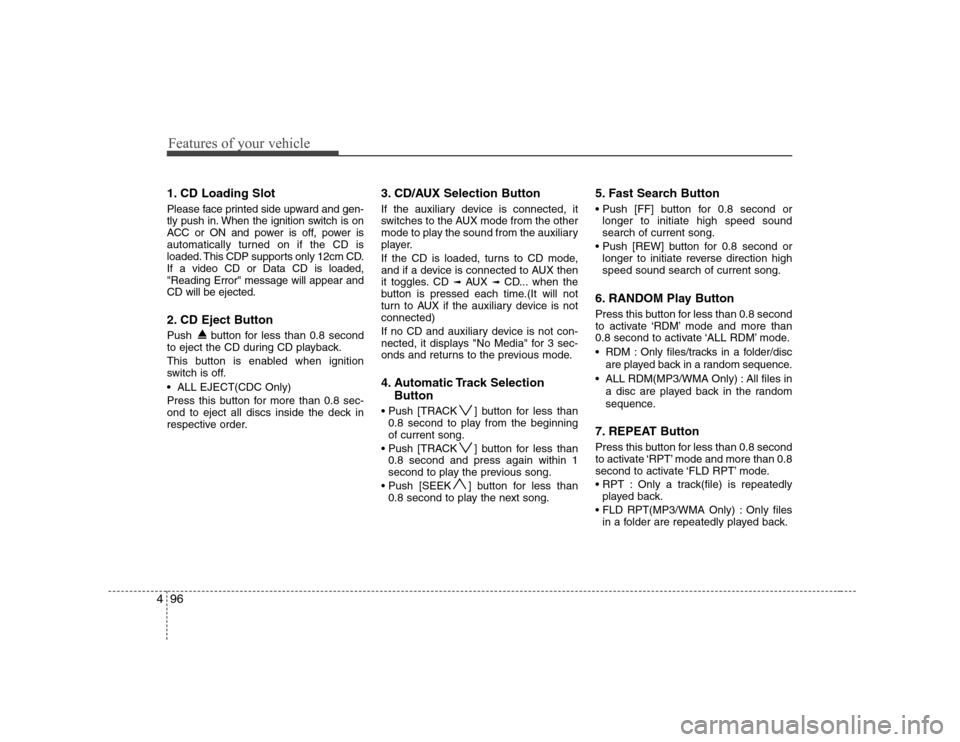
Please face printed side upward and gen-
tly push in. When the ignition switch is on
ACC or ON and power is off, power is
automatically turned on if the CD is
loaded. This CDP supports only 12cm CD.If a video CD or Data CD is loaded,"Reading Error" message will appear andCD will be ejected.
2. CD Eject Button
Push button for less than 0.8 second
to eject the CD during CD playback.
This button is enabled when ignition
switch is off.
ALL EJECT(CDC Only)
Press this button for more than 0.8 sec-
ond to eject all discs inside the deck in
respective order. 3. CD/AUX Selection Button
If the auxiliary device is connected, it
switches to the AUX mode from the other
mode to play the sound from the auxiliary
player.
If the CD is loaded, turns to CD mode,
and if a device is connected to AUX then
it toggles. CD
➟
AUX ➟ CD... when the
button is pressed each time.(It will not
turn to AUX if the auxiliary device is notconnected)
If no CD and auxiliary device is not con-
nected, it displays "No Media" for 3 sec-
onds and returns to the previous mode.
4. Automatic Track Selection
Button
] button for less than 0.8 second to play from the beginning of current song.
] button for less than 0.8 second and press again within 1
second to play the previous song.
] button for less than 0.8 second to play the next song. 5. Fast Search Button
longer to initiate high speed sound search of current song.
longer to initiate reverse direction highspeed sound search of current song.
6. RANDOM Play Button
Press this button for less than 0.8 second
to activate ‘RDM’ mode and more than
0.8 second to activate ‘ALL RDM’ mode.
RDM : Only files/tracks in a folder/disc are played back in a random sequence.
ALL RDM(MP3/WMA Only) : All files in a disc are played back in the random
sequence.
7. REPEAT Button
Press this button for less than 0.8 second
to activate ‘RPT’ mode and more than 0.8
second to activate ‘FLD RPT’ mode.
Only a track(file) is repeatedly played back.
Only files in a folder are repeatedly played back.
Page 155 of 308

Features of your vehicle
100
4
1. INFO Selection Button
Displays the information of the file cur-
rently played in the order of FILE NAME➟ TITLE ➟ ARTIST ➟ ALBUM ➟ FOLD-
ER ➟ TOTAL FILE ➟ NORMAL DISPLAY
➟ FILE NAME ➟... (Displays no informa-
tion if the file has no song information.)
2. TRACK Moving Button
] button for less
than 0.8 second to play from the begin-
ning of the song currently played. Press
the button for less than 0.8 second and
press it again within 1 second to move
and play the previous track.
] button for less than 0.8 second to move to the next-
track.
3. RANDOM Playback Button
Press this button for less than 0.8 second
to activate 'RDM' mode and more than
0.8 second to activate 'ALL RDM' mode.
Only files in a folder are played back in a random sequence.
ALL RDM : All files in a USB memory are played back in the random sequence. 4. REPEAT Button
Press this button for less than 0.8 second
to activate 'RPT' mode and more than
0.8 second to activate 'FLD RPT' mode.
Only a file is repeatedly played
back.
Only files in a folder are repeatedly played back.
5. USB Selection Button
If USB is connected, it switches to the
USB mode from the other mode to play
the song files stored in the USB.
If no CD and auxiliary device is not con-
nected, it displays "No Media" for 3 sec-
onds and returns to the previous mode.
6. FOLDER Moving Button
] button sub folder of the current folder and displays the first
song in the folder.
Press TUNE/ENTER knob to move to
the folder displayed. It will play the first
song in the folder.
] button main folder and displays the first song in the folder.
Press TUNE/ENTER knob to move to
the folder displayed. 7. SEARCH Knob & ENTER
Button
Turn this knob clockwise to display the
songs next to the currently played song.
Turn the button counterclockwise to dis-
play the songs before the currently
played song.
Press the knob to skip and play the selected song.
8. AST(SCAN Play) Button
Plays 10 seconds of each song in the
USB device.
Press the button once again to cancel scanning.
9. Fast Search Button
Push [FF] button for 0.8 second or longer to initiate high speed sound search ofcurrent song.
Push [REW] button for 0.8 second or
longer to initiate reverse direction highspeed sound search of current song.
Page 160 of 308
4105
Features of your vehicle
Using an iPod when the exclusive cable is
connected to the multimedia terminal
inside the console on the right hand side
of the driver's seat.
When the iPod is connected, the 'iPod'
icon will be displayed on the top left cor-
ner of the display screen.
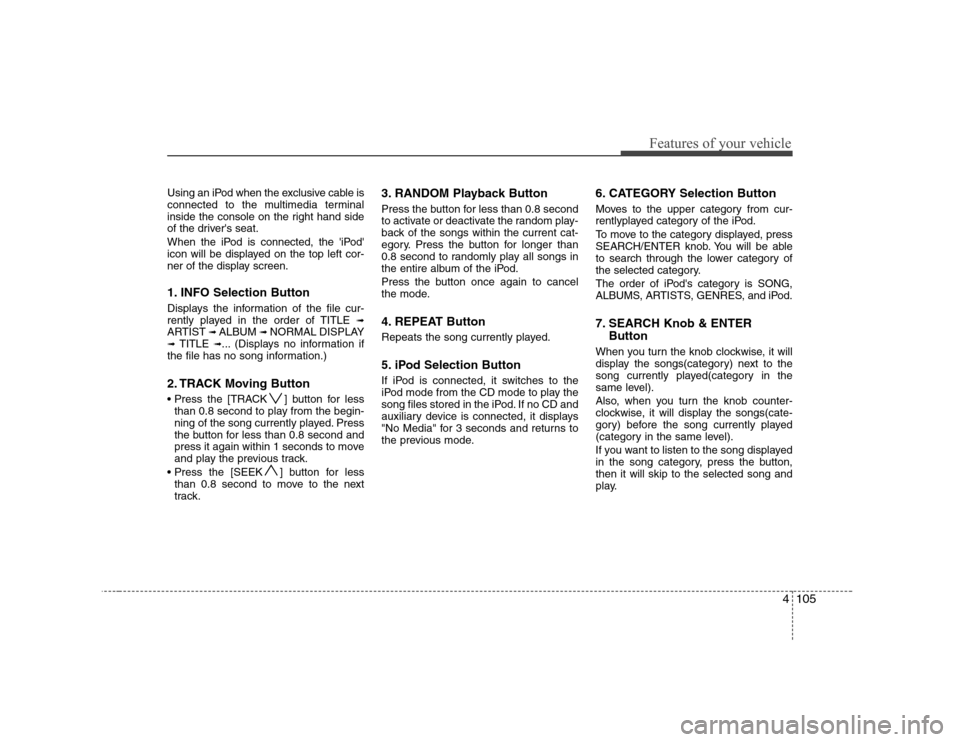
1. INFO Selection Button
Displays the information of the file cur-
rently played in the order of TITLE ➟
ARTIST ➟ ALBUM ➟ NORMAL DISPLAY
➟ TITLE ➟... (Displays no information if
the file has no song information.)
2. TRACK Moving Button
] button for less than 0.8 second to play from the begin-
ning of the song currently played. Press
the button for less than 0.8 second and
press it again within 1 seconds to move
and play the previous track.
] button for less than 0.8 second to move to the next
track. 3. RANDOM Playback Button
Press the button for less than 0.8 second
to activate or deactivate the random play-
back of the songs within the current cat-
egory. Press the button for longer than
0.8 second to randomly play all songs in
the entire album of the iPod.
Press the button once again to cancel
the mode.
4. REPEAT Button
Repeats the song currently played.
5. iPod Selection Button
If iPod is connected, it switches to the
iPod mode from the CD mode to play the
song files stored in the iPod. If no CD and
auxiliary device is connected, it displays
"No Media" for 3 seconds and returns to
the previous mode.
6. CATEGORY Selection Button
Moves to the upper category from cur-
rentlyplayed category of the iPod.
To move to the category displayed, press
SEARCH/ENTER knob. You will be able
to search through the lower category of
the selected category.
The order of iPod's category is SONG,
ALBUMS, ARTISTS, GENRES, and iPod.
7. SEARCH Knob & ENTER
Button
When you turn the knob clockwise, it will
display the songs(category) next to the
song currently played(category in the
same level).
Also, when you turn the knob counter-
clockwise, it will display the songs(cate-
gory) before the song currently played
(category in the same level).
If you want to listen to the song displayed
in the song category, press the button,then it will skip to the selected song and
play.
Page 162 of 308
4107
Features of your vehicle
(Continued) When the iPod cable is connected, the system can be switched to theAUX mode even without the iPod
device and can cause noise.Disconnect the iPod cable whenyou are not using the iPod device.
When the iPod is not used for the audio system, the iPod cable hasto be separate from iPod devies. Origin display of iPod may not be
displayed.