display Hyundai Elantra 2011 Owner's Guide
[x] Cancel search | Manufacturer: HYUNDAI, Model Year: 2011, Model line: Elantra, Model: Hyundai Elantra 2011Pages: 382, PDF Size: 9.25 MB
Page 196 of 382
Features of your vehicle
118 4
Using XM satellite Radio
Your vehicle is equipped with 3 months
complimentary period of XM Satellite
Radio. XM provides access to over 130
channels of music, information, and
entertainment programming.
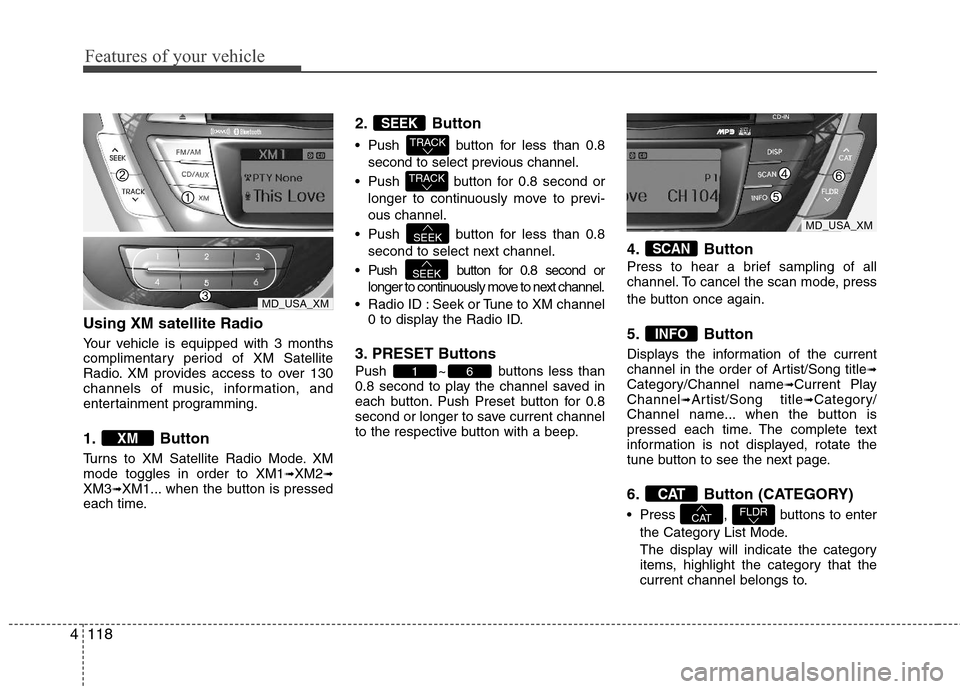
1. Button
Turns to XM Satellite Radio Mode. XM
mode toggles in order to XM1➟XM2➟XM3➟XM1... when the button is pressed
each time.
2. Button
Push button for less than 0.8
second to select previous channel.
Push button for 0.8 second or
longer to continuously move to previ-
ous channel.
Push button for less than 0.8
second to select next channel.
Push button for 0.8 second or
longer to continuously move to next channel.
Radio ID : Seek or Tune to XM channel
0 to display the Radio ID.
3. PRESET Buttons
Push ~ buttons less than
0.8 second to play the channel saved in
each button. Push Preset button for 0.8
second or longer to save current channel
to the respective button with a beep.
4. Button
Press to hear a brief sampling of all
channel. To cancel the scan mode, press
the button once again.
5. Button
Displays the information of the current
channel in the order of Artist/Song title➟Category/Channel name➟Current Play
Channel➟Artist/Song title➟Category/
Channel name... when the button is
pressed each time. The complete text
information is not displayed, rotate the
tune button to see the next page.
6. Button (CATEGORY)
Press , buttons to enter
the Category List Mode.
The display will indicate the category
items, highlight the category that the
current channel belongs to.FLDRCAT
CAT
INFO
SCAN
61
SEEK
SEEK
TRACK
TRACK
SEEK
XM
MD_USA_XM
MD_USA_XM
Page 197 of 382
4119
Features of your vehicle
In the Category List Mode, press these
buttons to navigate category list.
Press button to select the low-
est channel in highlighted category.
If channel is selected by selecting cat-
egory "CATEGORY" Icon is displayed
at the top of the screen.
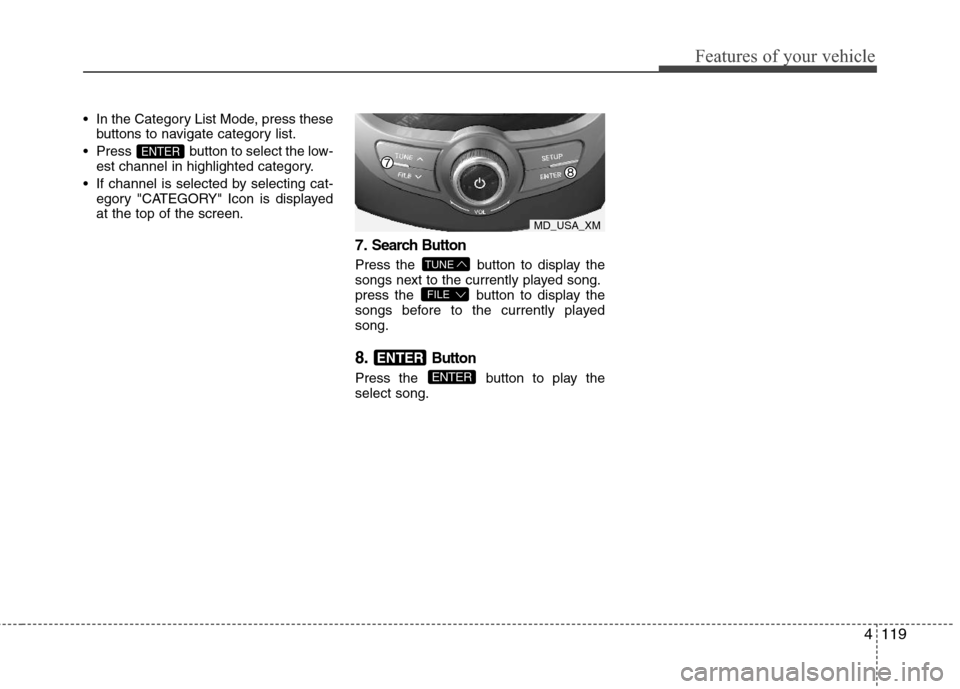
7.Search Button
Press the button to display the
songs next to the currently played song.
press the button to display the
songs before to the currently played
song.
8.Button
Press the button to play the
select song.ENTER
ENTER
FILE
TUNE
ENTER
MD_USA_XM
Page 199 of 382
4121
Features of your vehicle
BLUETOOTH®PHONE OPERATION
(if equipped)
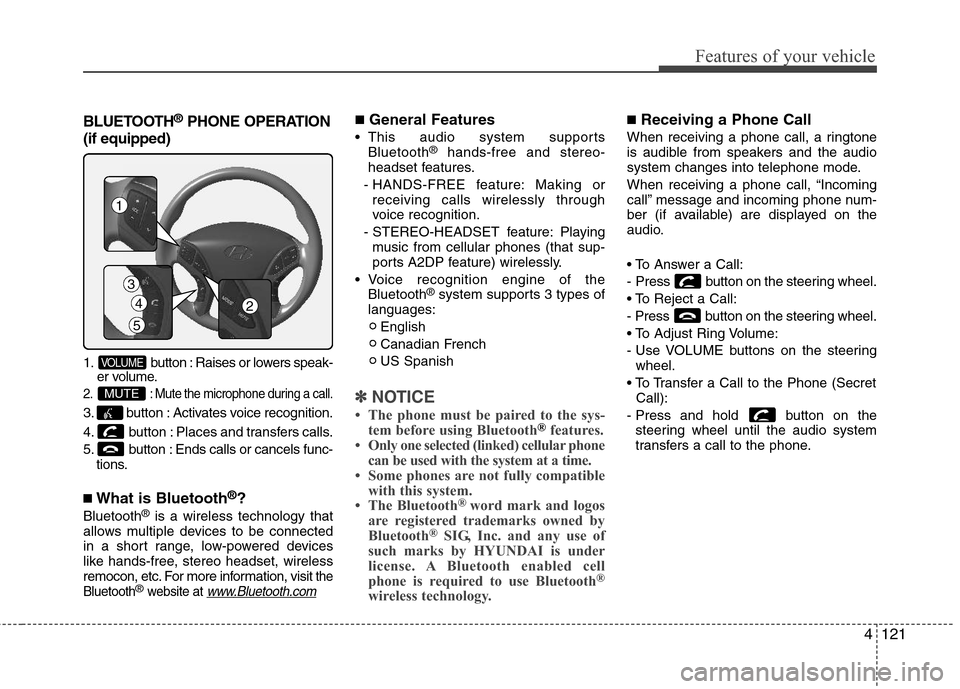
1. button : Raises or lowers speak-
er volume.
2. : Mute the microphone during a call.
3. button : Activates voice recognition.
4. button : Places and transfers calls.
5. button : Ends calls or cancels func-
tions.
■What is Bluetooth®?
Bluetooth®is a wireless technology that
allows multiple devices to be connected
in a short range, low-powered devices
like hands-free, stereo headset, wireless
remocon, etc. For more information, visit
the
Bluetooth®website at www.Bluetooth.com
■General Features
This audio system supports
Bluetooth®hands-free and stereo-
headset features.
- HANDS-FREE feature: Making or
receiving calls wirelessly through
voice recognition.
- STEREO-HEADSET feature: Playing
music from cellular phones (that sup-
ports A2DP feature) wirelessly.
Voice recognition engine of the
Bluetooth
®system supports 3 types of
languages:
English
Canadian French
US Spanish
✽ ✽
NOTICE
• The phone must be paired to the sys-
tem before using Bluetooth®features.
• Only one selected (linked) cellular phone
can be used with the system at a time.
• Some phones are not fully compatible
with this system.
• The Bluetooth
® word mark and logos
are registered trademarks owned by
Bluetooth
®SIG, Inc. and any use of
such marks by HYUNDAI is under
license. A Bluetooth enabled cell
phone is required to use Bluetooth
®
wireless technology.
■Receiving a Phone Call
When receiving a phone call, a ringtone
is audible from speakers and the audio
system changes into telephone mode.
When receiving a phone call, “Incoming
call” message and incoming phone num-
ber (if available) are displayed on the
audio.
- Press button on the steering wheel.
- Press button on the steering wheel.
- Use VOLUME buttons on the steering
wheel.
Call):
- Press and hold button on the
steering wheel until the audio system
transfers a call to the phone.
MUTE
VOLUME
4
5
3
1
2
Page 200 of 382
Features of your vehicle
122 4
■Talking on the Phone
When talking on the phone, “Active Call”
message and the other party’s phone
number (if available) are displayed on the
audio.
- Press button on the steering wheel.
✽ ✽
NOTICE
In the following situations, you or the
other party may have difficulty hearing
each other:
1. Speaking at the same time, your voice
may not reach each other parties. (This
is not a malfunction.) Speak alternate-
ly with the other party on the phone.
2. Keep the Bluetooth
®volume to a low
level. High-level volume may result in
distortion and echo.
3. When driving on a rough road.
4. When driving at high speeds.
5. When the window is open.
6. When the air conditioning vents are
facing the microphone.
7. When the sound of the air condition-
ing fan is loud.
■Bluetooth®Audio Music Streaming
The audio system supports Bluetooth®
A2DP (Audio Advanced Distribution
Profile) and AVRCP (Audio Video
Remote Control Profile) technologies.
Both profiles provide steaming of music
via compatible “PAIRED” Bluetooth
®
Cellular phone.
To stream music from the Bluetooth® cel-
lular phone, play your music files on your
cellular phone according to your cellular
phone user’s manual and press the
button on the audio system until
“MP3 play” is displayed on the LCD.
The audio system head unit displays
‘MP3 MODE’.
NOTE:
all music and sound files your cellu-
lar phone supports can be played
by the audio system.
®compatible cellular
phones must include A2DP and
AVRCP capabilities.
AVRCP compatible
Bluetooth
®cellular phones may not
play music through the audio sys-
tem initially. These cellular phones
may need to have the Bluetooth
®
streaming enabled, for example;
i.e : Menu
➟Filemanager➟Music➟Option➟Play via Bluetooth
cellular phone for more information.
To cancel Bluetooth
®cellular phone
music streaming, stop music play-
back on the cellular phone or
change the audio mode to AM/FM,
XM, CD, iPod, ect.
CD/AUX
Page 201 of 382
4123
Features of your vehicle
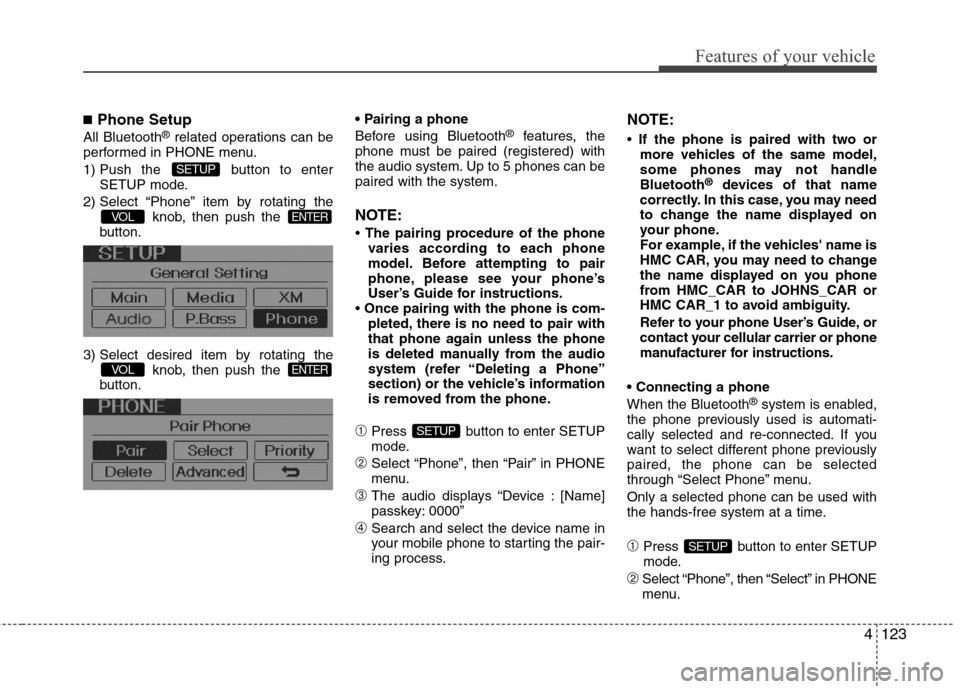
■Phone Setup
All Bluetooth®related operations can be
performed in PHONE menu.
1) Push the button to enter
SETUP mode.
2) Select “Phone” item by rotating the
knob, then push the
button.
3) Select desired item by rotating the
knob, then push the
button.
Before using Bluetooth®features, the
phone must be paired (registered) with
the audio system. Up to 5 phones can be
paired with the system.
NOTE:
• The pairing procedure of the phone
varies according to each phone
model. Before attempting to pair
phone, please see your phone’s
User’s Guide for instructions.
• Once pairing with the phone is com-
pleted, there is no need to pair with
that phone again unless the phone
is deleted manually from the audio
system (refer “Deleting a Phone”
section) or the vehicle’s information
is removed from the phone.
➀Press button to enter SETUP
mode.
➁Select “Phone”, then “Pair” in PHONE
menu.
➂The audio displays “Device : [Name]
passkey: 0000”
➃Search and select the device name in
your mobile phone to starting the pair-
ing process.
NOTE:
• If the phone is paired with two or
more vehicles of the same model,
some phones may not handle
Bluetooth
®devices of that name
correctly. In this case, you may need
to change the name displayed on
your phone.
For example, if the vehicles' name is
HMC CAR, you may need to change
the name displayed on you phone
from HMC_CAR to JOHNS_CAR or
HMC CAR_1 to avoid ambiguity.
Refer to your phone User’s Guide, or
contact your cellular carrier or phone
manufacturer for instructions.
When the Bluetooth
®system is enabled,
the phone previously used is automati-
cally selected and re-connected. If you
want to select different phone previously
paired, the phone can be selected
through “Select Phone” menu.
Only a selected phone can be used with
the hands-free system at a time.
➀Press button to enter SETUP
mode.
➁Select “Phone”, then “Select” in PHONE
menu.
SETUP
SETUP
ENTERVOL
ENTERVOL
SETUP
Page 202 of 382
Features of your vehicle
124 4
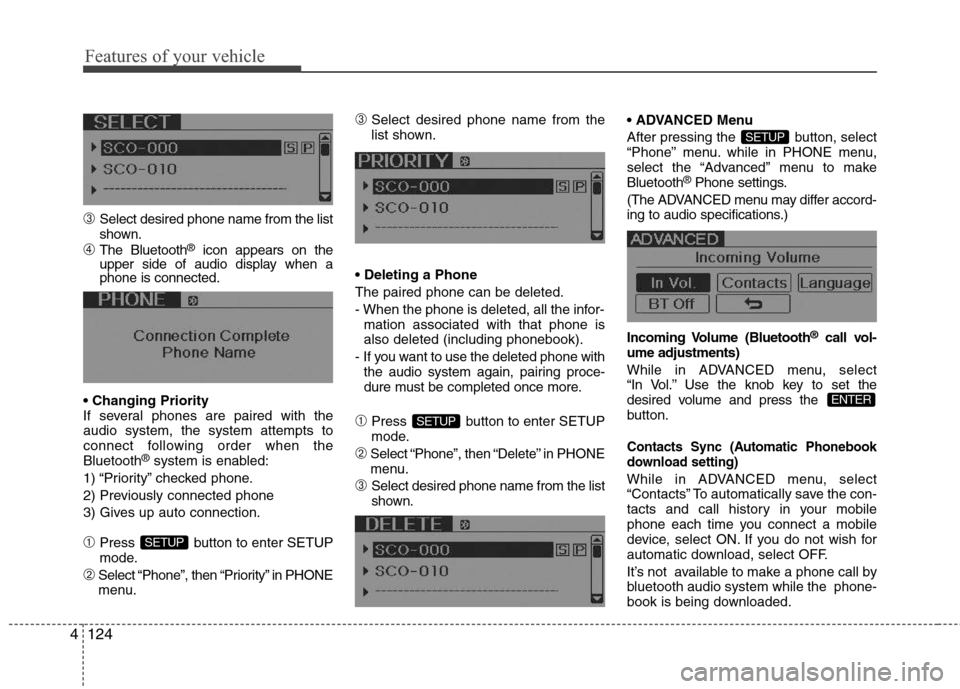
➂Select desired phone name from the list
shown.
➃The Bluetooth®icon appears on the
upper side of audio display when a
phone is connected.
If several phones are paired with the
audio system, the system attempts to
connect following order when the
Bluetooth
®system is enabled:
1) “Priority” checked phone.
2) Previously connected phone
3) Gives up auto connection.
➀Press button to enter SETUP
mode.
➁Select “Phone”, then “Priority” in PHONE
menu.
➂Select desired phone name from the
list shown.
The paired phone can be deleted.
- When the phone is deleted, all the infor-
mation associated with that phone is
also deleted (including phonebook).
- If you want to use the deleted phone with
the audio system again, pairing proce-
dure must be completed once more.
➀Press button to enter SETUP
mode.
➁Select “Phone”, then “Delete” in PHONE
menu.
➂Select desired phone name from the list
shown. Menu
After pressing the button, select
“Phone” menu. while in PHONE menu,
select the “Advanced” menu to make
Bluetooth
®Phone settings.
(The ADVANCED menu may differ accord-
ing to audio specifications.)
Incoming Volume (Bluetooth
®call vol-
ume adjustments)
While in ADVANCED menu, select
“In Vol.” Use the knob key to set the
desired volume and press the
button.
Contacts Sync (Automatic Phonebook
download setting)
While in ADVANCED menu, select
“Contacts” To automatically save the con-
tacts and call history in your mobile
phone each time you connect a mobile
device, select ON. If you do not wish for
automatic download, select OFF.
It’s not available to make a phone call by
bluetooth audio system while the phone-
book is being downloaded.
ENTER
SETUP
SETUP
SETUP
Page 205 of 382
4127
Features of your vehicle
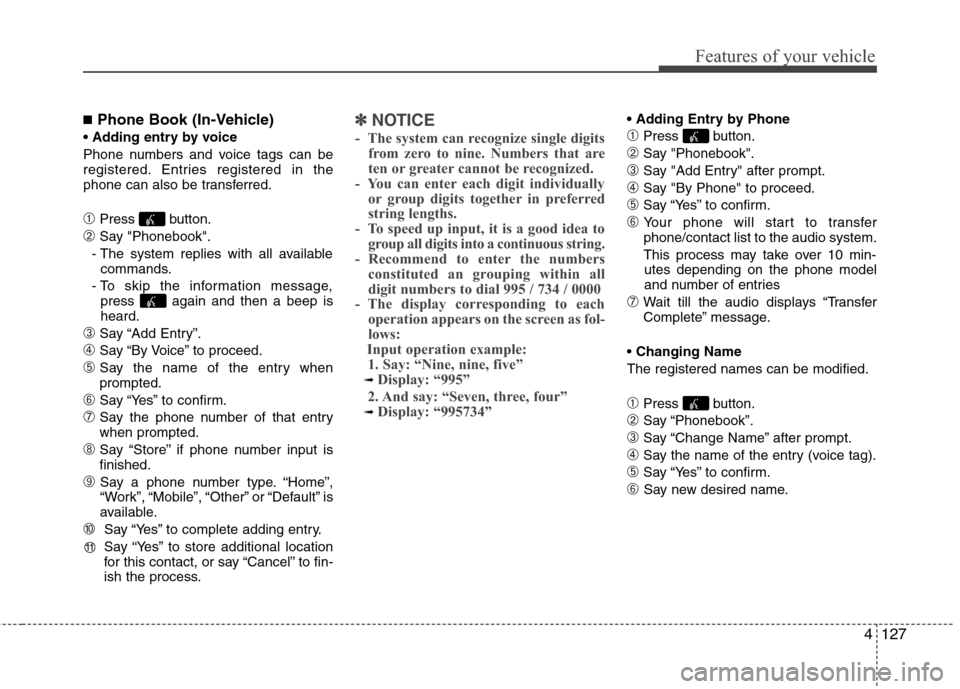
■Phone Book (In-Vehicle)
Phone numbers and voice tags can be
registered. Entries registered in the
phone can also be transferred.
➀Press button.
➁Say "Phonebook".
- The system replies with all available
commands.
- To skip the information message,
press again and then a beep is
heard.
➂Say “Add Entry”.
➃Say “By Voice” to proceed.
➄Say the name of the entry when
prompted.
➅Say “Yes” to confirm.
➆Say the phone number of that entry
when prompted.
➇Say “Store” if phone number input is
finished.
➈ Say a phone number type. “Home”,
“Work”, “Mobile”, “Other” or “Default” is
available.
➉ Say “Yes” to complete adding entry.
Say “Yes” to store additional location
for this contact, or say “Cancel” to fin-
ish the process.
✽ ✽
NOTICE
- The system can recognize single digits
from zero to nine. Numbers that are
ten or greater cannot be recognized.
- You can enter each digit individually
or group digits together in preferred
string lengths.
- To speed up input, it is a good idea to
group all digits into a continuous string.
- Recommend to enter the numbers
constituted an grouping within all
digit numbers to dial 995 / 734 / 0000
- The display corresponding to each
operation appears on the screen as fol-
lows:
Input operation example:
1. Say: “Nine, nine, five”
➟ Display: “995”
2. And say: “Seven, three, four”
➟ Display: “995734”
➀Press button.
➁Say "Phonebook".
➂Say "Add Entry" after prompt.
➃Say "By Phone" to proceed.
➄Say “Yes” to confirm.
➅ Your phone will start to transfer
phone/contact list to the audio system.
This process may take over 10 min-
utes depending on the phone model
and number of entries
➆Wait till the audio displays “Transfer
Complete” message.
Changing Name
The registered names can be modified.
➀Press button.
➁Say “Phonebook”.
➂Say “Change Name” after prompt.
➃Say the name of the entry (voice tag).
➄Say “Yes” to confirm.
➅ Say new desired name.
11
Page 206 of 382
Features of your vehicle
128 4
Deleting Name
The registered names can be deleted.
➀Press button.
➁Say “Phonebook”.
➂Say “Delete Name” after prompt.
➃Say the name of the entry (voice tag).
➄Say “Yes” to confirm.
■Bluetooth®Audio Speaker Adaptation
Speaker adaptation will improve perform-
ance of voice recognition system to a
particular user voice.
This will degrade the performance for
other users.
➀Press button for 10sec.
➁Say “Record profile”.
➂Say “Yes”.
➃Say the word displayed on Radio.
➀Press button for 10sec.
➁Say “Delete profile”.
➂Say “Yes”.
Page 223 of 382
Driving your vehicle
16 5
For smooth operation, depress the brake
pedal when shifting from N (Neutral) to a
forward or reverse gear.Transaxle ranges
The indicator in the instrument cluster
displays the shift lever position when the
ignition switch is in the ON position.
P (Park)
Always come to a complete stop before
shifting into P (Park). This position locks
the transaxle and prevents the drive
wheels from rotating.
WARNING- Automatic
transaxle
Always check the surrounding
areas near your vehicle for peo-
ple, especially children, before
shifting a car into D (Drive) or R
(Reverse).
Before leaving the driver’s seat,
always make sure the shift lever
is in the P (Park) position; then
set the parking brake fully and
shut the engine off. Unexpected
and sudden vehicle movement
can occur if these precautions
are not followed in the order iden-
tified.
CAUTION
To avoid damage to your
transaxle, do not accelerate the
engine in R (Reverse) or any for-
ward gear position with the
brakes on.
When stopped on an incline, do
not hold the vehicle stationary
with engine power. Use the serv-
ice brake or the parking brake.
Do not shift from N (Neutral) or P
(Park) into D (Drive), or R
(Reverse) when the engine is
above idle speed.
WARNING
Shifting into P (Park) while the
vehicle is in motion will cause the
drive wheels to lock which will
cause you to lose control of the
vehicle.
Do not use the P (Park) position
in place of the parking brake.
Always make sure the shift lever
is latched in the P (Park) position
and set the parking brake fully.
Never leave a child unattended in
a vehicle.
CAUTION
The transaxle may be damaged if
you shift into P (Park) while the
vehicle is in motion.
Page 280 of 382
What to do in an emergency
22 6
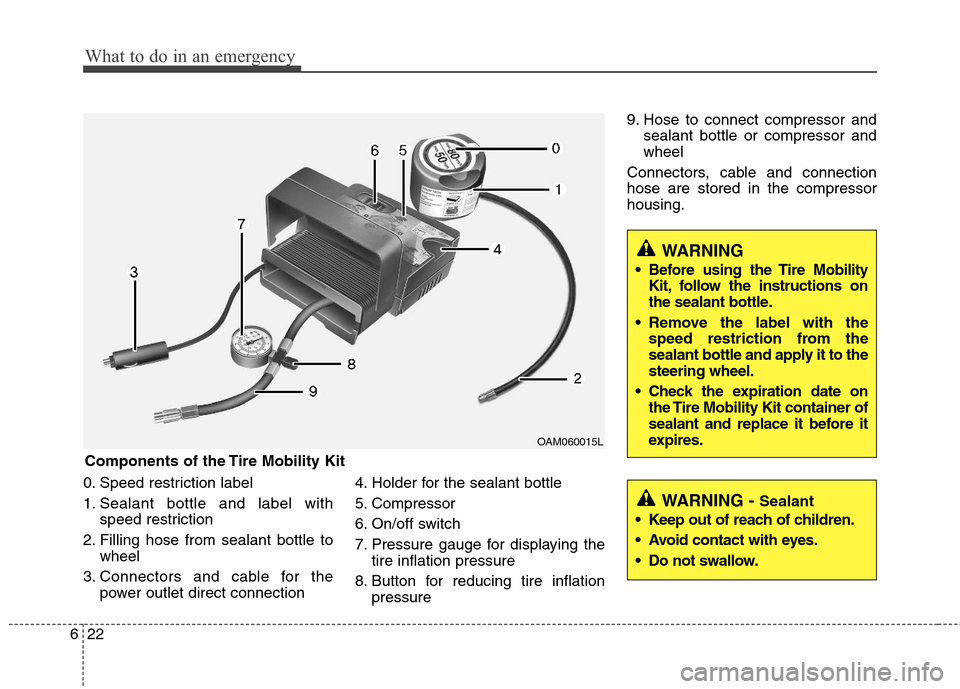
0. Speed restriction label
1. Sealant bottle and label with
speed restriction
2. Filling hose from sealant bottle to
wheel
3. Connectors and cable for the
power outlet direct connection4. Holder for the sealant bottle
5. Compressor
6. On/off switch
7. Pressure gauge for displaying the
tire inflation pressure
8. Button for reducing tire inflation
pressure9. Hose to connect compressor and
sealant bottle or compressor and
wheel
Connectors, cable and connection
hose are stored in the compressor
housing.
WARNING
Before using the Tire Mobility
Kit, follow the instructions on
the sealant bottle.
Remove the label with the
speed restriction from the
sealant bottle and apply it to the
steering wheel.
Check the expiration date on
the Tire Mobility Kit container of
sealant and replace it before it
expires.
WARNING - Sealant
Keep out of reach of children.
Avoid contact with eyes.
Do not swallow.
Components of the Tire Mobility Kit
OAM060015L