start Hyundai Elantra 2014 Workshop Manual
[x] Cancel search | Manufacturer: HYUNDAI, Model Year: 2014, Model line: Elantra, Model: Hyundai Elantra 2014Pages: 668, PDF Size: 35.58 MB
Page 323 of 668
4237
Features of your vehicle
VOICE RECOGNITION
Using Voice Recognition
Starting Voice Recognition
Shortly press the key on the
steering wheel remote controller. Say
a command.
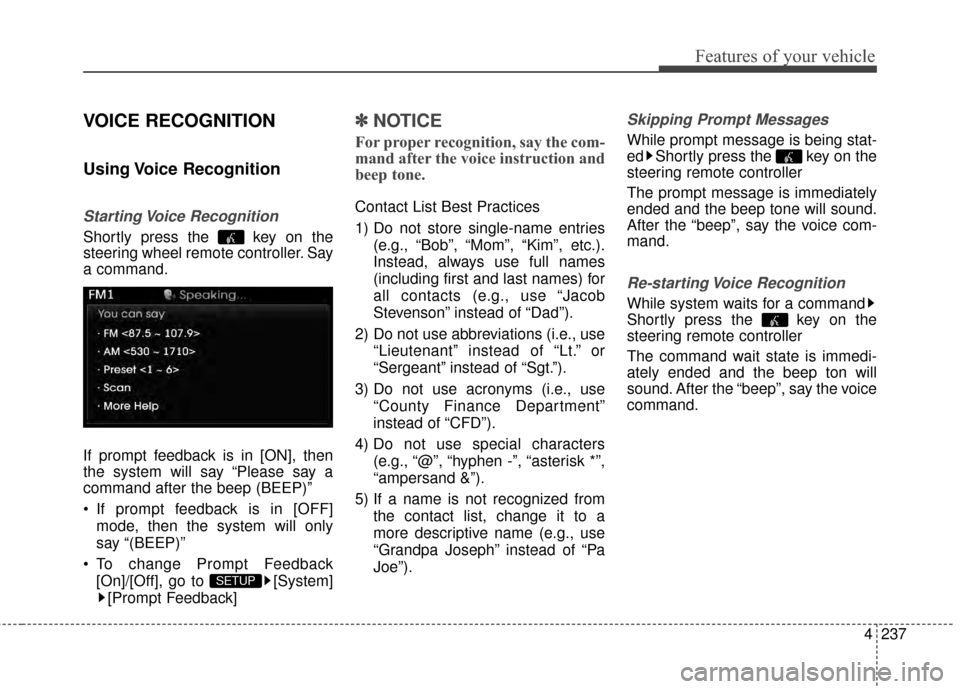
If prompt feedback is in [ON], then
the system will say “Please say a
command after the beep (BEEP)”
If prompt feedback is in [OFF]mode, then the system will only
say “(BEEP)”
To change Prompt Feedback [On]/[Off], go to [System][Prompt Feedback]
✽ ✽ NOTICE
For proper recognition, say the com-
mand after the voice instruction and
beep tone.
Contact List Best Practices
1) Do not store single-name entries
(e.g., “Bob”, “Mom”, “Kim”, etc.).
Instead, always use full names
(including first and last names) for
all contacts (e.g., use “Jacob
Stevenson” instead of “Dad”).
2) Do not use abbreviations (i.e., use “Lieutenant” instead of “Lt.” or
“Sergeant” instead of “Sgt.”).
3) Do not use acronyms (i.e., use “County Finance Department”
instead of “CFD”).
4) Do not use special characters (e.g., “@”, “hyphen -”, “asterisk *”,
“ampersand &”).
5) If a name is not recognized from the contact list, change it to a
more descriptive name (e.g., use
“Grandpa Joseph” instead of “Pa
Joe”).
Skipping Prompt Messages
While prompt message is being stat-
ed Shortly press the key on the
steering remote controller
The prompt message is immediately
ended and the beep tone will sound.
After the “beep”, say the voice com-
mand.
Re-starting Voice Recognition
While system waits for a command
Shortly press the key on the
steering remote controller
The command wait state is immedi-
ately ended and the beep ton will
sound. After the “beep”, say the voice
command.
SETUP
Page 330 of 668
![Hyundai Elantra 2014 Workshop Manual Features of your vehicle
244
4
SETUP
Starting Mode
Press the key to display the
Setup screen.
You can select and control options
related to [Display], [Sound],
[Clock/Calendar], [Phone] and
[System].](/img/35/14572/w960_14572-329.png "Hyundai Elantra 2014 Workshop Manual Features of your vehicle
244
4
SETUP
Starting Mode
Press the key to display the
Setup screen.
You can select and control options
related to [Display], [Sound],
[Clock/Calendar], [Phone] and
[System].")
Features of your vehicle
244
4
SETUP
Starting Mode
Press the key to display the
Setup screen.
You can select and control options
related to [Display], [Sound],
[Clock/Calendar], [Phone] and
[System].
Display Settings
Adjusting the Brightness
Press the key Select
[Display] Select [Brightness]
Use the , buttons to adjust the
screen brightness or set the
Brightness on Automatic, Daylight, or
Night mode.
Press the button to reset.
1) Automatic : Adjusts the brightness
automatically
2) Daylight : Always maintains the brightness on high
3) Night : Always maintains the
brightness on low
Pop-up Mode
Press the key Select
[Display] Select [Mode Pop up]
This feature is used to display the
Pop-up Mode screen when entering
radio and media modes.
When this feature is turned on,
pressing the or key
will display the Pop-up Mode screen.
✽ ✽ NOTICE
The media Pop-up Mode screen can
be displayed only when two or more
media modes have been connected.
MEDIA RADIO
SETUP
Default
SETUP SETUP
Page 336 of 668
Features of your vehicle
250
4
Blue Link® (if equipped)
Hyundai aims to offer differentiated
customer values through a
‘Connected Car Life,’ which is to pro-
vide consumers with fast and reliable
IT technology. As consumers’ lifestyles
become more and more mobile in
thanks to remarkable advances in
smart phones, tablet PCs and overall
wireless telecommunication, new
lifestyle patterns demand seamless
connection between one’s office,
home, outdoors and automobiles.
Automobile companies are now faced
with the task of shifting their paradigm
from vehicle-centered services to cus-
tomer value-centered services, with
the ultimate goal of securing global
leadership in the field of vehicle IT and
telematics.
Hyundai plans to achieve this by real-
izing a terminal platform flexible to
changes in IT technology, cooperat-
ing with global IT companies, creat-
ing an eco-system and providing the
latest contents & services based on
an open environment.
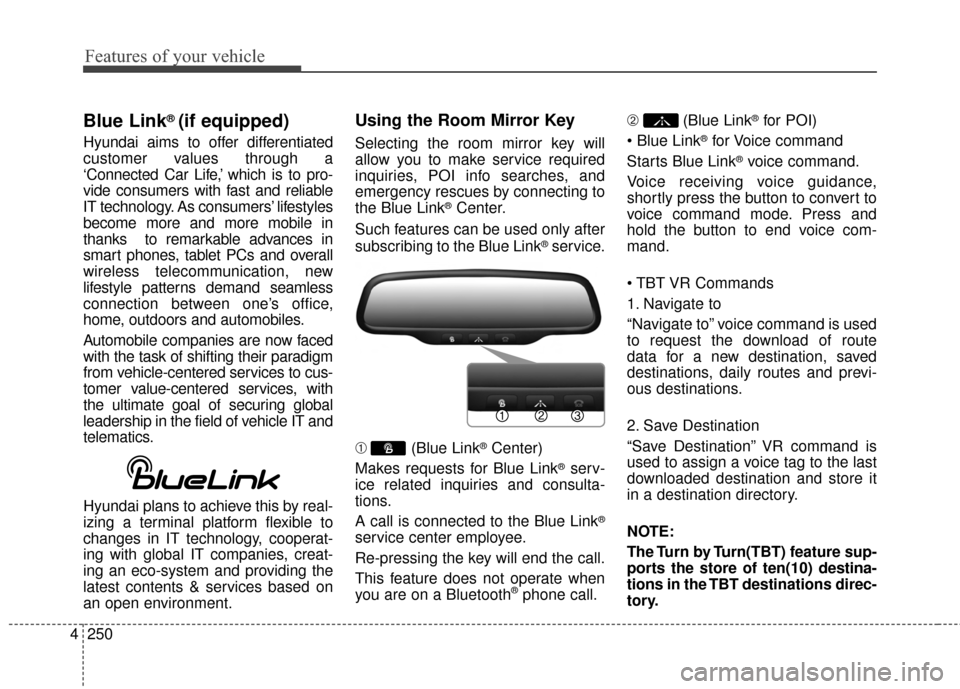
Using the Room Mirror Key
Selecting the room mirror key will
allow you to make service required
inquiries, POI info searches, and
emergency rescues by connecting to
the Blue Link
®Center.
Such features can be used only after
subscribing to the Blue Link
®service.
➀ (Blue Link
®Center)
Makes requests for Blue Link
®serv-
ice related inquiries and consulta-
tions.
A call is connected to the Blue Link
®
service center employee.
Re-pressing the key will end the call.
This feature does not operate when
you are on a Bluetooth
®phone call. \b
(Blue Link
®for POI)
®for Voice command
Starts Blue Link
®voice command.
Voice receiving voice guidance,
shortly press the button to convert to
voice command mode. Press and
hold the button to end voice com-
mand.
1. Navigate to
“Navigate to” voice command is used
to request the download of route
data for a new destination, saved
destinations, daily routes and previ-
ous destinations.
2. Save Destination
“Save Destination” VR command is
used to assign a voice tag to the last
downloaded destination and store it
in a destination directory.
NOTE:
The Turn by Turn(TBT) feature sup-
ports the store of ten(10) destina-
tions in the TBT destinations direc-
tory.
Page 359 of 668
4273
Features of your vehicle
Changing Song/File
While song (file) is playing
key
Shortly pressing the key (under 0.8seconds): Plays the current song
from the beginning.
❈ If the key is pressed
again within 1 second, the previous
song is played.
Pressing and holding the key (over 0.8 seconds): Rewinds the song.
While song (file) is playing
key
Shortly pressing the key (under 0.8seconds): Plays the next song.
Pressing and holding the key (over 0.8 seconds): Fast forwards the
song.
Scan
While song (file) is playing key
Scans all songs for 10 seconds start-
ing from the next song.
❈Press the key again to turn
off.
❈ The SCAN function is not support-
ed in iPod mode.
Folder Search : MP3 CD, USB
Mode
While file is playing
(Folder Up) key
Searches the next folder.
While file is playing
(Folder Down) key
Searches the previous folder.
❈ If a folder is selected by pressing
the TUNE knob, the first file
within the selected folder will be
played.
Searching Songs (File)
Turning TUNE knob : Searches for songs (files)
Pressing TUNE knob : Plays selected song (file).
CAT
FOLDER
CAT
FOLDER
SCAN
SCAN
SEEK
TRACK
SEEK
TRACK
SEEK
TRACK
UD(FL) HMA 4C(254~AUDIO2).QXP 8/28/2014 5:26 PM Page 273
Page 363 of 668
![Hyundai Elantra 2014 Workshop Manual 4277
Features of your vehicle
Information
Press the key Set [ Info]
through the
TUNEknob or key.
Displays information of the current
song.
❈ Press the key to turn off
info display.
Delete
Press](/img/35/14572/w960_14572-362.png "Hyundai Elantra 2014 Workshop Manual 4277
Features of your vehicle
Information
Press the key Set [ Info]
through the
TUNEknob or key.
Displays information of the current
song.
❈ Press the key to turn off
info display.
Delete
Press")
4277
Features of your vehicle
Information
Press the key Set [ Info]
through the
TUNEknob or key.
Displays information of the current
song.
❈ Press the key to turn off
info display.
Delete
Press the key Set [ Delete]
through the TUNEknob or key.
Deletes currently playing file
In the play screen, pressing delete
will delete the currently playing song.
Deletes file from list
➀Select the file you wish to delete by
using the TUNE knob.
➁ Press the key and select
the delete menu to delete the
selected file.
Delete All
Press the key Set [ Del.All]
through the TUNEknob or key.
Deletes all songs of My Music.
Delete Selection
Press the key Set [ Del.Sel]
through the TUNEknob or key.
Songs within My Music are selected
and deleted.
➀Select the songs you wish to
delete from the list.
➁ After selecting, press the
key and select the delete menu.
AUX
AUX is used to play external MEDIA
currently connected with the AUX
terminal.
AUX mode will automatically start
when an external device is connect-
ed to the AUX terminal.
If an external device is connected,
you can also press the key to
change to AUX mode.
❈AUX mode cannot be started
unless there is an external device
connected to the AUX terminal.
MEDIA
MENU
6
MENU
5
MENU
MENU
4
MENU
MENU
3
MENU
UD(FL) HMA 4C(254~AUDIO2).QXP 8/28/2014 5:26 PM Page 277
Page 364 of 668
Features of your vehicle
278
4
Bluetooth®Wireless
Technology AUDIO
What is
Bluetooth®Wireless
Technology?
Bluetooth®Wireless Technology allows
devices to be connected in a short dis-
tance, including hands-free devices,
stereo headsets, wireless remote con-
trollers, etc. For more information, visit
the
Bluetooth®Wireless Technology
website
at www.Bluetooth.com
Before using Bluetooth®Wireless
Technology audio features
Bluetooth®Wireless Technology
audio may not be supported
depending on the compatibility of
your
Bluetooth®Wireless
Technology mobile phone.
In order to use
Bluetooth®Wireless
Technology audio, you must first
pair and connect the
Bluetooth®
Wireless Technology mobile phone.
Bluetooth®Wireless Technology
audio can be used only when the
[Audio Streaming] of Phone is
turned .
❈ Setting
Bluetooth®Wireless
Technology Audio Streaming :
Press the key Select
[Phone] through the tune knob or key Select [Audio Streaming]
through the TUNE knob Set
/
Starting Bluetooth®Wireless
Technology Audio
Press the key to change
the mode in order of CD ➟ USB ➟
AUX ➟ My Music ➟ BT Audio.
If BT Audio is selected,
Bluetooth®
Wireless Technology audio will
start playing.
❈ Audio may not automatically start
playing in some mobile phones.
Using the Bluetooth®Wireless
Technology audio features
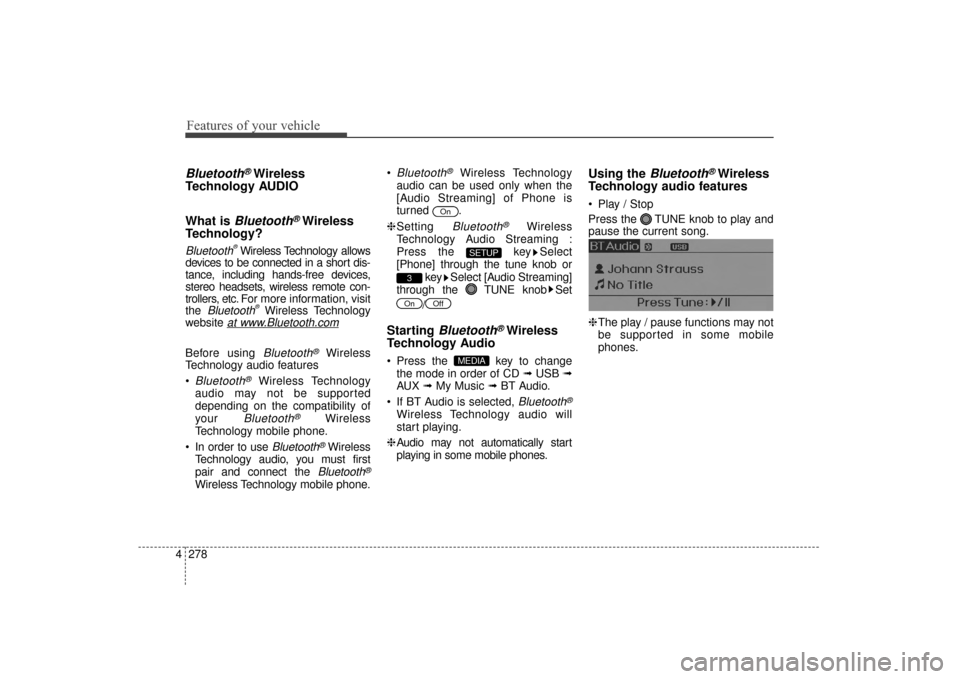
Play / Stop
Press the TUNE knob to play and
pause the current song.
❈ The play / pause functions may not
be supported in some mobile
phones.
MEDIA
OffOn
3
SETUP
On
UD(FL) HMA 4C(254~AUDIO2).QXP 8/28/2014 5:26 PM Page 278
Page 379 of 668
![Hyundai Elantra 2014 Workshop Manual 4293
Features of your vehicle
VOICE RECOGNITION
Using Voice Recognition
Starting Voice Recognition
Shortly press the key on the
steering wheel. Say a command.
If prompt feedback is in [ON], then
th](/img/35/14572/w960_14572-378.png "Hyundai Elantra 2014 Workshop Manual 4293
Features of your vehicle
VOICE RECOGNITION
Using Voice Recognition
Starting Voice Recognition
Shortly press the key on the
steering wheel. Say a command.
If prompt feedback is in [ON], then
th")
4293
Features of your vehicle
VOICE RECOGNITION
Using Voice Recognition
Starting Voice Recognition
Shortly press the key on the
steering wheel. Say a command.
If prompt feedback is in [ON], then
the system will say “Please say a
command after the beep (BEEP)”
If prompt feedback is in [OFF]mode, then the system will only
say “(BEEP)”
To change Prompt Feedback [On]/[Off], go to [System][Prompt Feedback]
✽ ✽ NOTICE
For proper recognition, say the com-
mand after the voice instruction and
beep tone.
Contact List Best Practices
1) Do not store single-name entries
(e.g., “Bob”, “Mom”, “Kim”, etc.).
Instead, always use full names
(including first and last names) for
all contacts (e.g., use “Jacob
Stevenson” instead of “Dad”).
2) Do not use abbreviations (i.e., use “Lieutenant” instead of “Lt.” or
“Sergeant” instead of “Sgt.”).
3) Do not use acronyms (i.e., use “County Finance Department”
instead of “CFD”).
4) Do not use special characters (e.g., “@”, “hyphen -”, “asterisk *”,
“ampersand &”).
5) If a name is not recognized from the contact list, change it to a
more descriptive name (e.g., use
“Grandpa Joseph” instead of “Pa
Joe”).
Skipping Prompt Messages
While prompt message is being stat-
ed Shortly press the key on the
steering remote controller
The prompt message is immediately
ended and the beep tone will sound.
After the “beep”, say the voice com-
mand.
Re-starting Voice Recognition
While system waits for a command
Shortly press the key on the
steering remote controller
The command wait state is immedi-
ately ended and the beep ton will
sound. After the “beep”, say the voice
command.
SETUP
UD(FL) HMA 4C(254~AUDIO2).QXP 8/28/2014 5:27 PM Page 293
Page 381 of 668
4295
Features of your vehicle
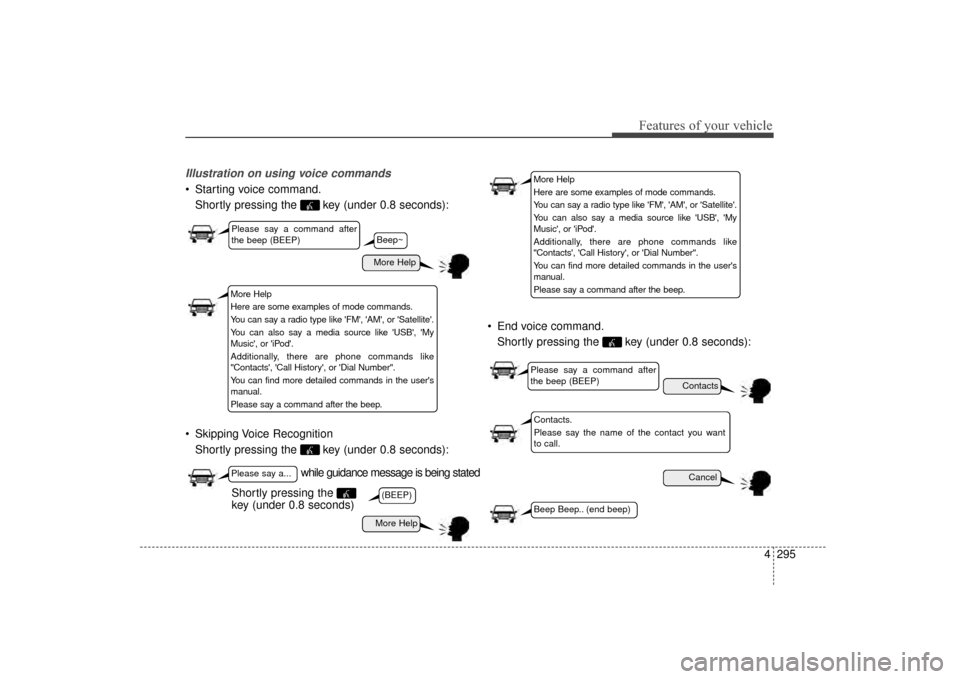
Illustration on using voice commands
Starting voice command.Shortly pressing the key (under 0.8 seconds):
Skipping Voice Recognition Shortly pressing the key (under 0.8 seconds): End voice command.
Shortly pressing the key (under 0.8 seconds):
while guidance message is being stated
More Help
Contacts
Cancel
More Help
Please say a command after
the beep (BEEP)
Please say a...
Contacts.
Please say the name of the contact you want
to call.
(BEEP)
Beep Beep.. (end beep)
Shortly pressing the
key (under 0.8 seconds)
Beep~
More Help
Here are some examples of mode commands.
You can say a radio type like 'FM', 'AM', or 'Satellite'.
You can also say a media source like 'USB', 'My
Music', or 'iPod'.
Additionally, there are phone commands like
"Contacts', 'Call History', or 'Dial Number".
You can find more detailed commands in the user's
manual.
Please say a command after the beep.
More Help
Here are some examples of mode commands.
You can say a radio type like 'FM', 'AM', or 'Satellite'.
You can also say a media source like 'USB', 'My
Music', or 'iPod'.
Additionally, there are phone commands like
"Contacts', 'Call History', or 'Dial Number".
You can find more detailed commands in the user's
manual.
Please say a command after the beep.
Please say a command after
the beep (BEEP)
UD(FL) HMA 4C(254~AUDIO2).QXP 8/28/2014 5:27 PM Page 295
Page 392 of 668
Features of your vehicle
306
4
14. RESET
Forced system termi-
nation and system
restart.
■ ■
CD Player : AM910MDAN
❋ No will be shown if the SiriusXMTMfeature is not supported.
UD(FL) HMA 4C(254~AUDIO2).QXP 8/28/2014 5:27 PM Page 306
Page 397 of 668
4311
Features of your vehicle
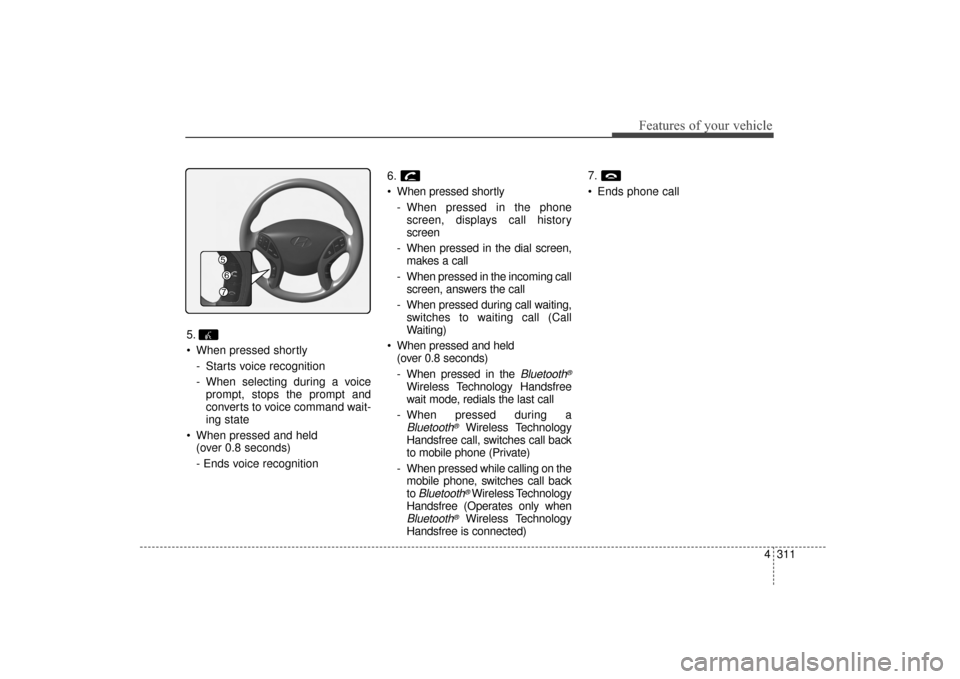
5.
When pressed shortly- Starts voice recognition
- When selecting during a voiceprompt, stops the prompt and
converts to voice command wait-
ing state
When pressed and held (over 0.8 seconds)
- Ends voice recognition 6.
When pressed shortly
- When pressed in the phonescreen, displays call history
screen
- When pressed in the dial screen, makes a call
- When pressed in the incoming call screen, answers the call
- When pressed during call waiting, switches to waiting call (Call
Waiting)
When pressed and held (over 0.8 seconds)
- When pressed in the
Bluetooth®
Wireless Technology Handsfree
wait mode, redials the last call
- When pressed during a
Bluetooth®Wireless Technology
Handsfree call, switches call back
to mobile phone (Private)
- When pressed while calling on the mobile phone, switches call back
to
Bluetooth®Wireless Technology
Handsfree (Operates only when
Bluetooth®Wireless Technology
Handsfree is connected) 7.
Ends phone call
UD(FL) HMA 4C(254~AUDIO2).QXP 8/28/2014 5:28 PM Page 311