bluetooth Hyundai Elantra 2016 - RHD (UK. Australia) User Guide
[x] Cancel search | Manufacturer: HYUNDAI, Model Year: 2016, Model line: Elantra, Model: Hyundai Elantra 2016Pages: 498, PDF Size: 9.45 MB
Page 244 of 498
Features of your vehicle
164 4
✽NOTICE - USING THE
Bluetooth®Wireless Technology
MOBILE PHONE
• Do not use a mobile phone or per-
form Bluetooth®Wireless
Technology settings (e.g. pairing a
phone) whilst driving.
• Some Bluetooth
®Wireless
Technology -enabled phones may
not be recognised by the system or
fully compatible with the system.
• Before using Bluetooth
®Wireless
Technology related features of the
audio system, refer to your
phone’s User’s Manual for phone-
side Bluetooth
®Wireless
Technology operations.
• The phone must be paired to the
audio system to use Bluetooth
®
Wireless Technology related fea-
tures.
• You will not be able to use the
hands-free feature when your
phone (in the vehicle) is outside of
the mobile service area (e.g. in a
tunnel, underground, mountain-
ous area, etc.).
(Continued)(Continued)
• If the mobile phone signal is poor
or the vehicle's interior noise is too
loud, it may be difficult to hear the
other person’s voice during a call.
• Do not place the phone near or
inside metallic objects, otherwise
communications with Bluetooth
®
Wireless Technology system or
mobile service stations can be dis-
turbed.
• Whilst a phone is connected
through Bluetooth
®Wireless
Technology your phone may dis-
charge quicker than usual for
additional Bluetooth
®Wireless
Technology-related operations.
• Some mobile phones or other
devices may cause interference,
noise or a malfunction to the audio
system. If this occurs, store the
device in a different location. This
may resolve the problem.
• Phone contact names should be
saved in English or they may not
be displayed correctly.
(Continued)(Continued)
• If activated, upon vehicle igni-
tion(IGN/ACC ON), the
Bluetooth
®Wireless Technology
phone will be automatically con-
nected. Even if you are outside, the
Bluetooth
®Wireless Technology
phone will be automatically con-
nected once you are in the vicinity
of the vehicle.
If you do not want automatic
Bluetooth
®Wireless Technology
connection, turn the Bluetooth®
Wireless Technology feature off.
• The hands-free call volume and
quality may differ depending on
the mobile phone type.
•Bluetooth
®Wireless Technology
features can be used only when the
mobile phone has been paired and
connected with the device. For
more information on pairing and
connecting Bluetooth
®Wireless
Technology enabled mobile
phones, refer to the “Phone Setup”
section.
(Continued)
Page 245 of 498
4165
Features of your vehicle
(Continued)
• When a Bluetooth®Wireless
Technology mobile phone is con-
nected, a ( ) icon will appear at
the top of the screen. If a ( ) icon
is not displayed, this indicates that
a Bluetooth
®Wireless Technology
enabled device has not been con-
nected. You must connect the
device before use. For more infor-
mation on Bluetooth
®Wireless
Technology mobile phones, refer
to the “Phone Setup” section.
• Pairing and connecting a
Bluetooth
®Wireless Technology
enabled mobile phone will work
only when the Bluetooth
®Wireless
Technology option within your
mobile phone has been turned on.
(Methods of turning on the
Wireless Technology enabled fea-
ture may differ depending on the
mobile phone.)
(Continued)(Continued)
• In some mobile phones, starting
the vehicle whilst talking on a
Bluetooth
®Wireless Technology
enabled handsfree call will result
in the call becoming disconnected.
(Switch the call back to your
mobile phone when starting the
vehicle.)
• Some features may not be sup-
ported on some Bluetooth
®
Wireless Technology mobile phone
devices.
•Bluetooth
®Wireless Technology
enabled operation may be unsta-
ble depending on the communica-
tion state.
• Placing the audio system within an
electromagnetic environment may
result in noise interference.
Page 246 of 498
Features of your vehicle
166 4
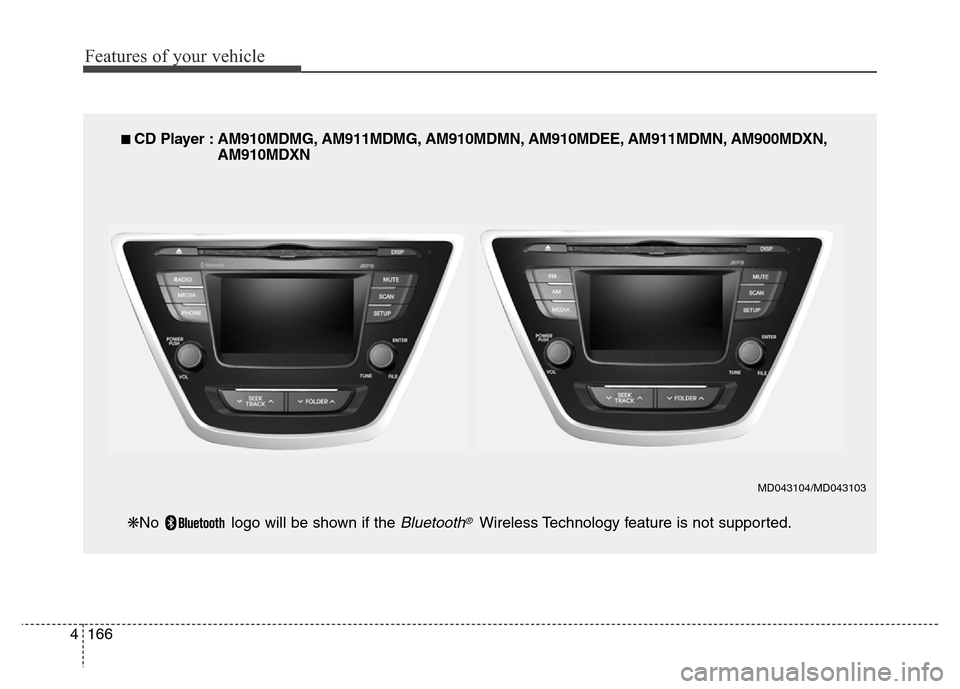
■ CD Player : AM910MDMG, AM911MDMG, AM910MDMN, AM910MDEE, AM911MDMN, AM900MDXN,
AM910MDXN
❋No logo will be shown if the
Bluetooth®Wireless Technology feature is not supported.
MD043104/MD043103
Page 247 of 498
4167
Features of your vehicle
SYSTEM CONTROLS AND
FUNCTIONS
❈Display and settings may differ
depending on the selected audio.
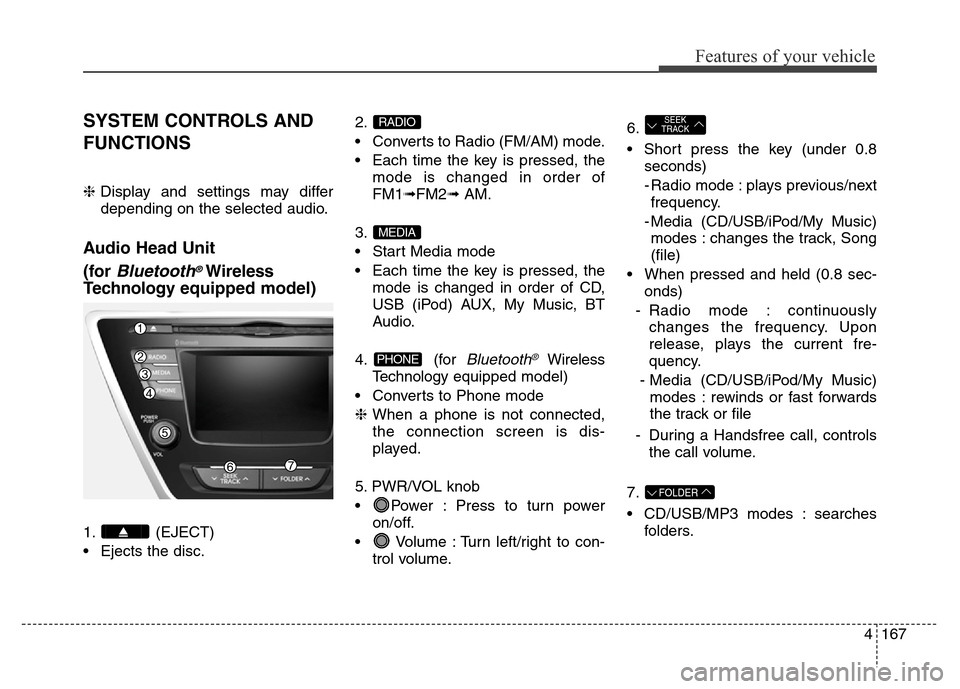
Audio Head Unit
(for
Bluetooth®Wireless
Technologyequipped model)
1. (EJECT)
• Ejects the disc.2.
• Converts to Radio (FM/AM) mode.
• Each time the key is pressed, the
mode is changed in order of
FM1➟FM2➟ AM.
3.
• Start Media mode
• Each time the key is pressed, the
mode is changed in order of CD,
USB (iPod) AUX, My Music, BT
Audio.
4. (for
Bluetooth®Wireless
Technologyequipped model)
• Converts to Phone mode
❈When a phone is not connected,
the connection screen is dis-
played.
5. PWR/VOL knob
• Power : Press to turn power
on/off.
• Volume : Turn left/right to con-
trol volume.6.
• Short press the key (under 0.8
seconds)
- Radio mode : plays previous/next
frequency.
- Media (CD/USB/iPod/My Music)
modes : changes the track, Song
(file)
• When pressed and held (0.8 sec-
onds)
- Radio mode : continuously
changes the frequency. Upon
release, plays the current fre-
quency.
- Media (CD/USB/iPod/My Music)
modes : rewinds or fast forwards
the track or file
- During a Handsfree call, controls
the call volume.
7.
• CD/USB/MP3 modes : searches
folders.
FOLDER
SEEK
TRACK
PHONE
MEDIA
RADIO
Page 250 of 498
Features of your vehicle
170 4
6.
• Short press the key (under 0.8
seconds)
- When pressed on the phone
screen, displays call history
screen
- When pressed on the dial
screen, makes a call
- When pressed on the incoming
call screen, answers the call
- When pressed during call wait-
ing, switches to waiting call (Call
Waiting)
• When pressed and held (over 0.8
seconds)
- When pressed in the
Bluetooth®
Wireless Technology Handsfree
wait mode, redials the last call
- When pressed during a
Bluetooth®Wireless Technology
Handsfree call, switches call
back to mobile phone (Private)- When pressed whilst calling on
the mobile phone, switches call
back to
Bluetooth®Wireless
Technology Handsfree (Operates
only when
Bluetooth®Wireless
Technology Handsfree is connect-
ed)
7.
• Ends phone call
Page 257 of 498
4177
Features of your vehicle
MEDIA MODE
- AM910MDMG, AM911MDMG,
AM910MDMN, AM910MDEE,
AM911MDMN, AM910MDXN
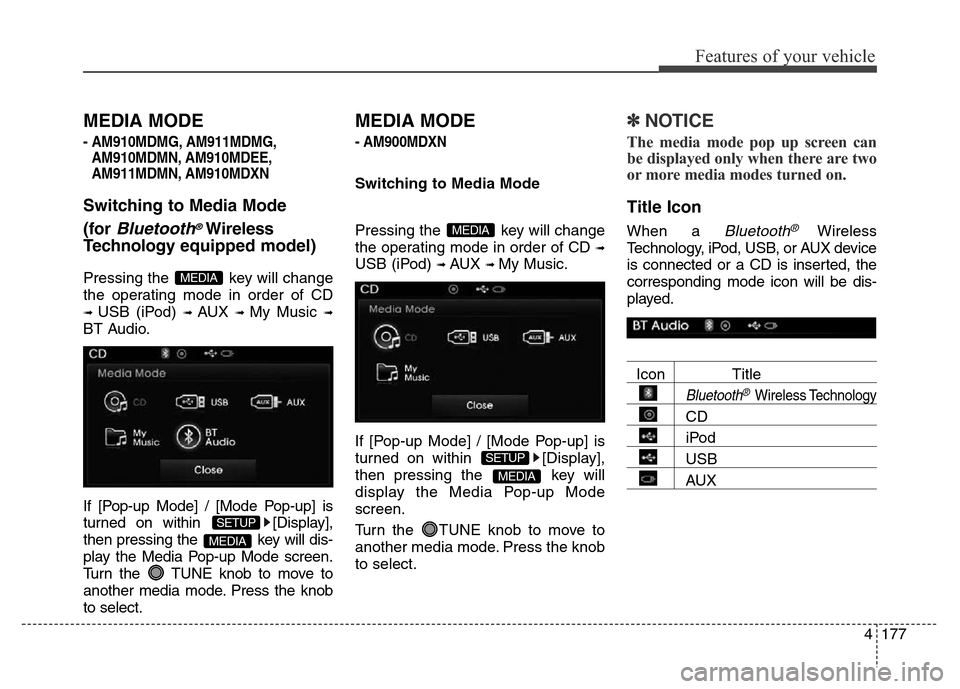
Switching to Media Mode
(for
Bluetooth®Wireless
Technologyequipped model)
Pressing the key will change
the operating mode in order of CD
➟ USB (iPod) ➟ AUX ➟ My Music ➟
BT Audio.
If [Pop-up Mode] / [Mode Pop-up] is
turned on within [Display],
then pressing the key will dis-
play the Media Pop-up Mode screen.
Turn the TUNE knob to move to
another media mode. Press the knob
to select.
MEDIA MODE
- AM900MDXN
Switching to Media Mode
Pressing the key will change
the operating mode in order of CD
➟
USB (iPod) ➟ AUX ➟ My Music.
If [Pop-up Mode] / [Mode Pop-up] is
turned on within [Display],
then pressing the key will
display the Media Pop-up Mode
screen.
Turn the TUNE knob to move to
another media mode. Press the knob
to select.
✽NOTICE
The media mode pop up screen can
be displayed only when there are two
or more media modes turned on.
Title Icon
When a Bluetooth®Wireless
Technology, iPod, USB, or AUX device
is connected or a CD is inserted, the
corresponding mode icon will be dis-
played.
Icon Title
Bluetooth®Wireless Technology
CD
iPod
USB
AUXMEDIA
SETUP
MEDIA
MEDIA
SETUP
MEDIA
Page 273 of 498
4193
Features of your vehicle
✽NOTICE- USING THE iPod®
DEVICE
•iPod®is a registered trademark of
Apple Inc.
• In order to use the iPod
®whilst
operating the keys, you must use a
dedicated iPod
®cable (the cable
that is supplied when purchasing
iPod
®/iPhone®products).
• If the iPod
®is connected to the
vehicle whilst it is playing, a high
pitch sound could occur for
approximately 1-2 seconds imme-
diately after connecting. If possi-
ble, connect the iPod
®to the vehi-
cle with the iPod®stopped/paused.
• When the ignition switch is in
ACC/ON, connecting the iPod
®
through the iPod®cable will
charge the iPod®through the
audio system.
• When connecting with the iPod
®
cable, make sure to fully insert the
jack to prevent communication
interference.
(Continued)(Continued)
• When the EQ features of an exter-
nal device, such as the iPod
®, and
the audio system are both active,
EQ effects could overlap and
cause sound deterioration and dis-
tortion. Whenever possible, turn
off the EQ feature within the
external device upon use by con-
necting with the audio system.
• Noise may occur when an iPod
®or
AUX device is connected. When
such devices are not being used,
disconnect the device for storage.
• When the iPod
®or AUX device
power is connected to the power
jack, playing the external device
may result in noise. In such cases,
disconnect the power connection
before use.
• Skipping or improper operation
may occur depending on the char-
acteristics of your iPod
®/Phone®
device.
(Continued)(Continued)
• If your iPhone is connected to both
the Bluetooth
®Wireless
Technology and USB, the sound
may not be properly played. In
your iPhone
®, select the Dock con-
nector orBluetooth®Wireless
Technology to change the sound
output (source).
•iPod
®mode cannot be operated
when the iPod®cannot be recog-
nised due to the playing of ver-
sions that do not support commu-
nication protocols. iPod
®abnor-
malities and defects may occur.
• For fifth generation iPod
®Nano
devices, the iPod®may not be
recognised when the battery level
is low. Please charge the iPod
®for
use.
• Search/play orders shown within
the iPod
®device may differ with
the orders shown within the audio
system.
(Continued)
Page 284 of 498
Features of your vehicle
204 4
1) : Moves to the previous
screen
2) Select All: Selects all files
3) Unselect All: Deselects all select-
ed files
4) Delete: Deletes selected files
After selecting the files you want to
delete, press the ( ) but-
ton to delete the selected files.
✽NOTICE
• If there is memory available, up to
6,000 files can be saved.
• Identical files cannot be copied
more than 1,000 times.
• To check memory information, go
to [System] [Memory
Information]
✽NOTICE - USING THE
Bluetooth®Wireless
Technology Audio Mode
•Bluetooth®Wireless Technology
Audio Mode can be used only
when a Bluetooth
®Wireless
Technology phone has been con-
nected.
•Bluetooth
®Wireless Technology
Audio Mode will not be available
when connecting mobile phones
that do not support this feature.
• Whilst Bluetooth
®Wireless
Technology Audio is playing, if the
Bluetooth
®Wireless Technology
phone is connected, then the music
will also stop.
• Moving the Track up/down whilst
playing in Bluetooth
®Wireless
Technology audio mode may
result in pop noises on some
mobile phones.
•Bluetooth
®Wireless Technology
streaming audio may not be sup-
ported on some mobile phones.
(Continued)(Continued)
• When returning to Bluetooth
®
Wireless Technology Audio mode
after ending a call, the mode may
not automatically restart on some
mobile phones.
• Receiving an incoming call or mak-
ing an outgoing call whilst playing
Bluetooth
®Wireless Technology
Audio may result in audio interfer-
ence.
SETUP
Delete
Page 285 of 498
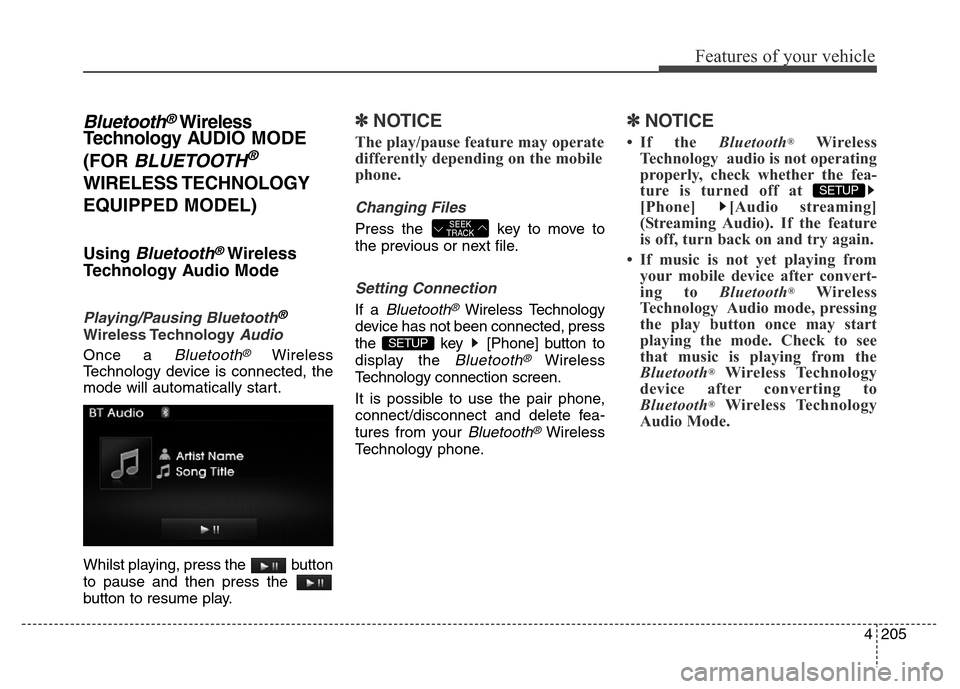
4205
Features of your vehicle
Bluetooth®Wireless
Technology AUDIO MODE
(FOR
BLUETOOTH®
WIRELESS TECHNOLOGY
EQUIPPED MODEL)
Using Bluetooth®Wireless
Technology Audio Mode
Playing/Pausing Bluetooth®
Wireless TechnologyAudio
Once a Bluetooth®Wireless
Technology device is connected, the
mode will automatically start.
Whilst playing, press the button
to pause and then press the
button to resume play.
✽NOTICE
The play/pause feature may operate
differently depending on the mobile
phone.
Changing Files
Press the key to move to
the previous or next file.
Setting Connection
If a Bluetooth®Wireless Technology
device has not been connected, press
the key [Phone] button to
display the
Bluetooth®Wireless
Technology connection screen.
It is possible to use the pair phone,
connect/disconnect and delete fea-
tures from your
Bluetooth®Wireless
Technology phone.
✽NOTICE
• If the Bluetooth®Wireless
Technology audio is not operating
properly, check whether the fea-
ture is turned off at
[Phone] [Audio streaming]
(Streaming Audio). If the feature
is off, turn back on and try again.
• If music is not yet playing from
your mobile device after convert-
ing to Bluetooth
®Wireless
Technology Audio mode, pressing
the play button once may start
playing the mode. Check to see
that music is playing from the
Bluetooth
®Wireless Technology
device after converting to
Bluetooth
®Wireless Technology
Audio Mode.
SETUP
SETUP
SEEK
TRACK
Page 286 of 498

Features of your vehicle
206 4
Bluetooth®Wireless Technology
(Bluetooth®Wireless
Technologyequipped model)
Using
Bluetooth®Wireless
Technology Handsfree
•Bluetooth®Wireless Technology
refers to a short-distance wireless
networking technology which uses
a 2.45GHz frequency to connect
various devices within a certain dis-
tance.
• Supported within PCs, external
devices,
Bluetooth®Wireless
Technology phones, PDAs, vari-
ous electronic devices, and auto-
motive environments.
Bluetooth®
Wireless Technology allows data
to be transmitted at high speeds
without having to use a connector
cable.•
Bluetooth®Wireless Technology
Handsfree refers to a device
which allows the user to conve-
niently make phone calls with
Bluetooth®Wireless Technology
mobile phones through the audio
system.
CAUTION
• Bluetooth®Wireless Technology
Handsfree is a feature that
enables drivers to practice safe
driving. Connecting the vehi-
cle's audio system with a
Bluetooth
®Wireless Technology
phone allows the user to conve-
niently make calls, receive calls,
and manage the phone book.
Before using the Bluetooth
®
Wireless Technology, carefully
read the contents of this user’s
manual.
• Excessive use or operations
whilst driving may lead to neg-
ligent driving practices and be
the cause of accidents.
• Do not operate the device
excessively whilst driving.
• Viewing the screen for pro-
longed periods of time is dan-
gerous and may lead to acci-
dents. When driving, view the
screen only for short periods
of time.