change time Hyundai Elantra 2016 Owner's Guide
[x] Cancel search | Manufacturer: HYUNDAI, Model Year: 2016, Model line: Elantra, Model: Hyundai Elantra 2016Pages: 669, PDF Size: 31.96 MB
Page 277 of 669
4191
Features of your vehicle
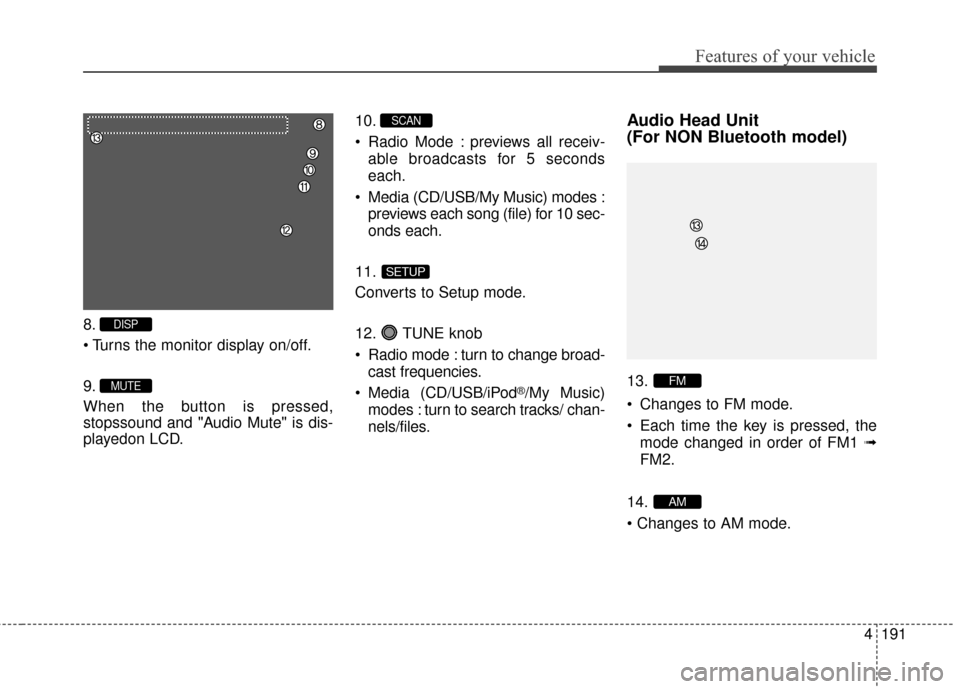
8.
9.
When the button is pressed,
stopssound and "Audio Mute" is dis-
playedon LCD.10.
Radio Mode : previews all receiv-
able broadcasts for 5 seconds
each.
Media (CD/USB/My Music) modes : previews each song (file) for 10 sec-
onds each.
11.
Converts to Setup mode.
12. TUNE knob
Radio mode : turn to change broad- cast frequencies.
Media (CD/USB/iPod
®/My Music)
modes : turn to search tracks/ chan-
nels/files.
Audio Head Unit
(For NON Bluetooth model)
13.
Changes to FM mode.
Each time the key is pressed, the mode changed in order of FM1 ➟
FM2.
14.
AM
FM
SETUP
SCAN
MUTE
DISP
Page 287 of 669
4201
Features of your vehicle
AUDIO CD MODE
Basic Mode Screen
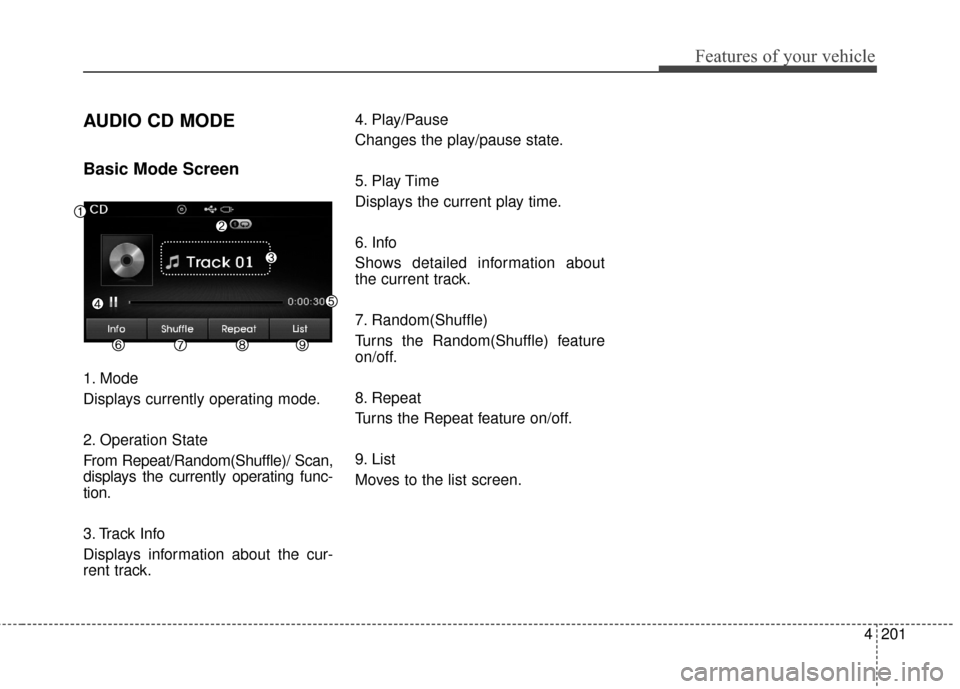
1. Mode
Displays currently operating mode.
2. Operation State
From Repeat/Random(Shuffle)/ Scan,
displays the currently operating func-
tion.
3. Track Info
Displays information about the cur-
rent track.4. Play/Pause
Changes the play/pause state.
5. Play Time
Displays the current play time.
6. Info
Shows detailed information about
the current track.
7. Random(Shuffle)
Turns the Random(Shuffle) feature
on/off.
8. Repeat
Turns the Repeat feature on/off.
9. List
Moves to the list screen.
Page 290 of 669
Features of your vehicle
204
4
MP3 CD MODE
Basic Mode Screen
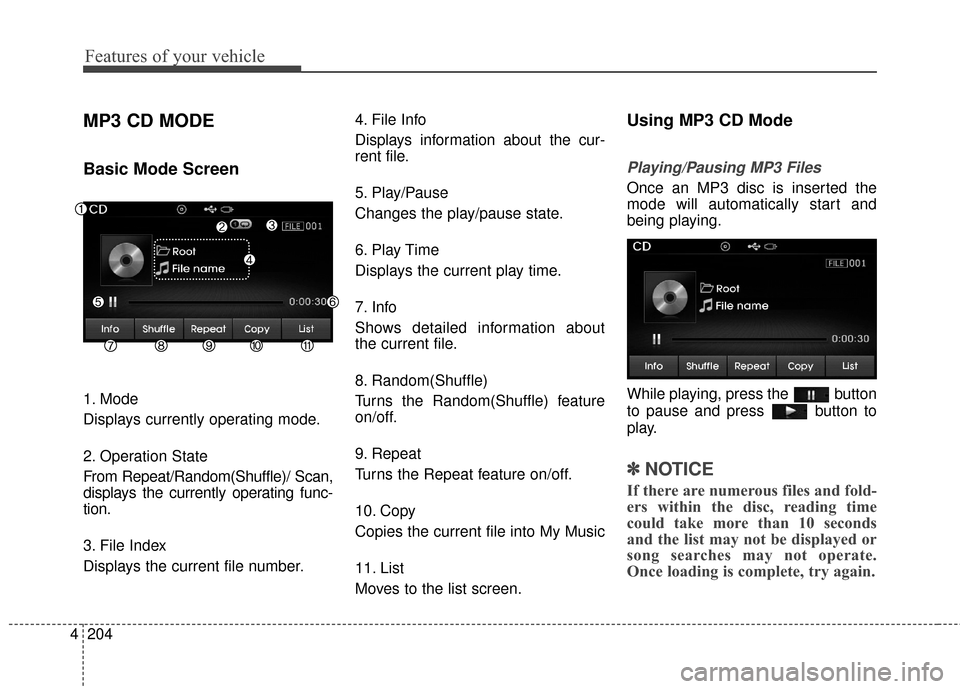
1. Mode
Displays currently operating mode.
2. Operation State
From Repeat/Random(Shuffle)/ Scan,
displays the currently operating func-
tion.
3. File Index
Displays the current file number. 4. File Info
Displays information about the cur-
rent file.
5. Play/Pause
Changes the play/pause state.
6. Play Time
Displays the current play time.
7. Info
Shows detailed information about
the current file.
8. Random(Shuffle)
Turns the Random(Shuffle) feature
on/off.
9. Repeat
Turns the Repeat feature on/off.
10. Copy
Copies the current file into My Music
11. List
Moves to the list screen.
Using MP3 CD Mode
Playing/Pausing MP3 Files
Once an MP3 disc is inserted the
mode will automatically start and
being playing.
While playing, press the button
to pause and press button to
play.
✽ ✽
NOTICE
If there are numerous files and fold-
ers within the disc, reading time
could take more than 10 seconds
and the list may not be displayed or
song searches may not operate.
Once loading is complete, try again.
Page 292 of 669
Features of your vehicle
206
4
✽
✽
NOTICE
• When the 'Folder File' option is
set as the default display within
Display setup, the album/artist/file
information are displayed as
detailed file information.
• When the 'Album Artist Song' option is set as the default display,
the folder name/file name are dis-
played as detailed file information.
• The title, artist and album info are displayed only when such infor-
mation are recorded within the
MP3 file ID3 tag.
Random(Shuffle)
Press the button to play files
in random(Shuffle) order.
Each time the button is pressed, the
feature changes in order of Random
(Shuffle) Folder
➟ Random (Shuffle)
All
➟ Off.
Random(Shuffle) Folder : Plays all files within the current folder in
Random (Shuffle) order.
Random(Shuffle) All : Plays all files in Random(Shuffle) order.
Repeat
Press the button to repeat the
current file or folder.
Each time the button is pressed, the
feature changes in order of Repeat
➟Repeat Folder➟Off.
Repeat: Repeats the current file.
Repeat Folder: Repeats all files within the current Folder.
Copying Files
Press the button to copy the
current file into My Music.
✽ ✽ NOTICE
Selecting another feature during
copying will display a pop-up asking
whether you wish to cancel copying.
To cancel, select 'Yes'.
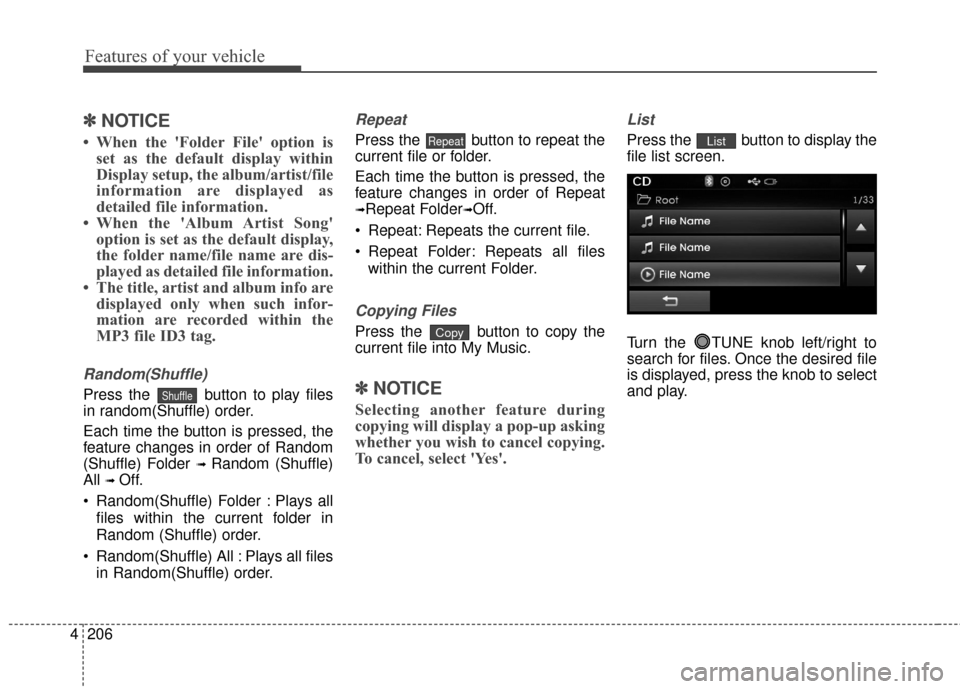
List
Press the button to display the
file list screen.
Turn the TUNE knob left/right to
search for files. Once the desired file
is displayed, press the knob to select
and play.List
Copy
Repeat
Shuffle
Page 295 of 669
4209
Features of your vehicle
USB MODE
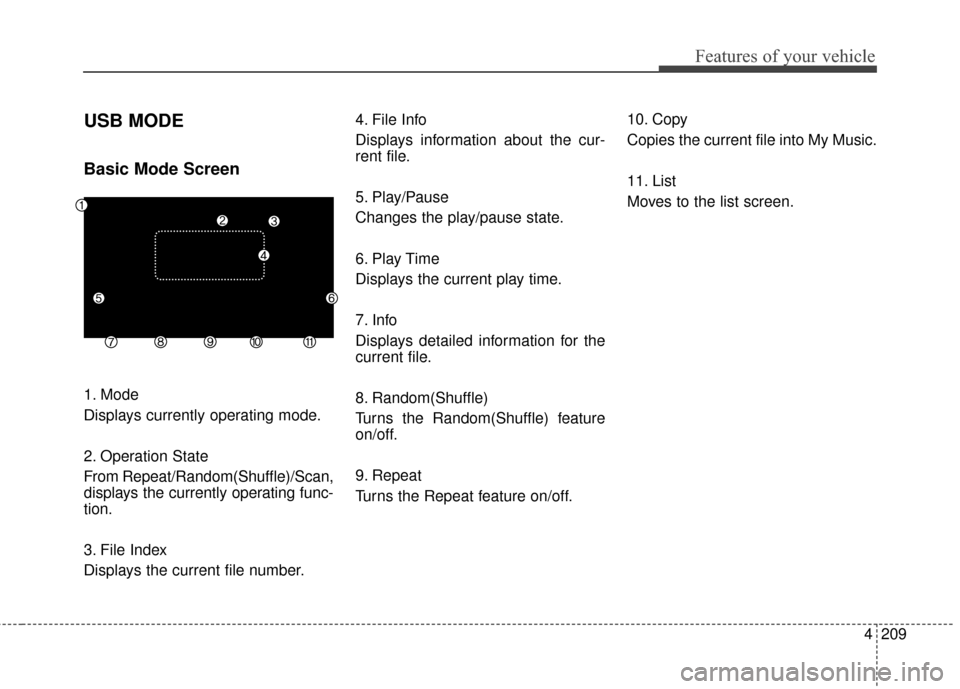
Basic Mode Screen
1. Mode
Displays currently operating mode.
2. Operation State
From Repeat/Random(Shuffle)/Scan,
displays the currently operating func-
tion.
3. File Index
Displays the current file number.4. File Info
Displays information about the cur-
rent file.
5. Play/Pause
Changes the play/pause state.
6. Play Time
Displays the current play time.
7. Info
Displays detailed information for the
current file.
8. Random(Shuffle)
Turns the Random(Shuffle) feature
on/off.
9. Repeat
Turns the Repeat feature on/off.
10. Copy
Copies the current file into My Music.
11. List
Moves to the list screen.
Page 297 of 669
4211
Features of your vehicle
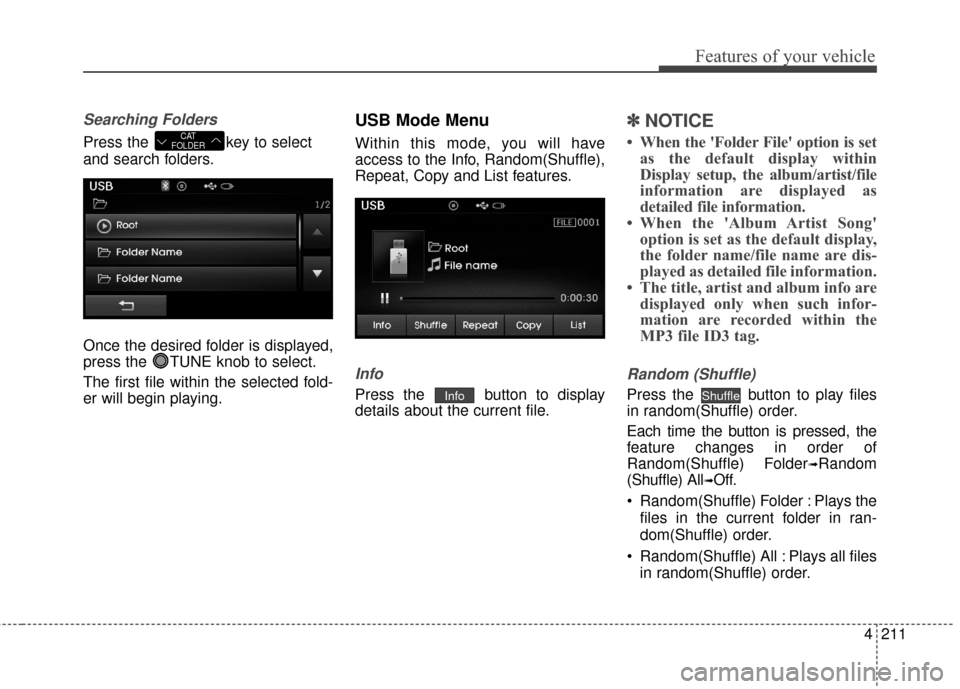
Searching Folders
Press the key to select
and search folders.
Once the desired folder is displayed,
press the TUNE knob to select.
The first file within the selected fold-
er will begin playing.
USB Mode Menu
Within this mode, you will have
access to the Info, Random(Shuffle),
Repeat, Copy and List features.
Info
Press the button to display
details about the current file.
✽ ✽NOTICE
• When the 'Folder File' option is set
as the default display within
Display setup, the album/artist/file
information are displayed as
detailed file information.
• When the 'Album Artist Song' option is set as the default display,
the folder name/file name are dis-
played as detailed file information.
• The title, artist and album info are displayed only when such infor-
mation are recorded within the
MP3 file ID3 tag.
Random (Shuffle)
Press the button to play files
in random(Shuffle) order.
Each time the button is pressed, the
feature changes in order of
Random(Shuffle) Folder
➟Random
(Shuffle) All
➟Off.
Random(Shuffle) Folder : Plays the files in the current folder in ran-
dom(Shuffle) order.
Random(Shuffle) All : Plays all files in random(Shuffle) order.
ShuffleInfo
CAT
FOLDER
Page 298 of 669
Features of your vehicle
212
4
Repeat
Press the button to repeat the
current file or folder.
Each time the button is pressed, the
feature changes in order of Repeat➟
Repeat Folder ➟ Off.
Repeat (Icon) : Repeats the cur- rent file.
Repeat Folder (Icon) : Repeats all files within the current folder.
Copying Files
Press the button to copy the
current file into My Music.
✽ ✽ NOTICE
Selecting another feature during
copying will display a pop-up asking
whether you wish to cancel copying.
To cancel, select 'Yes'.
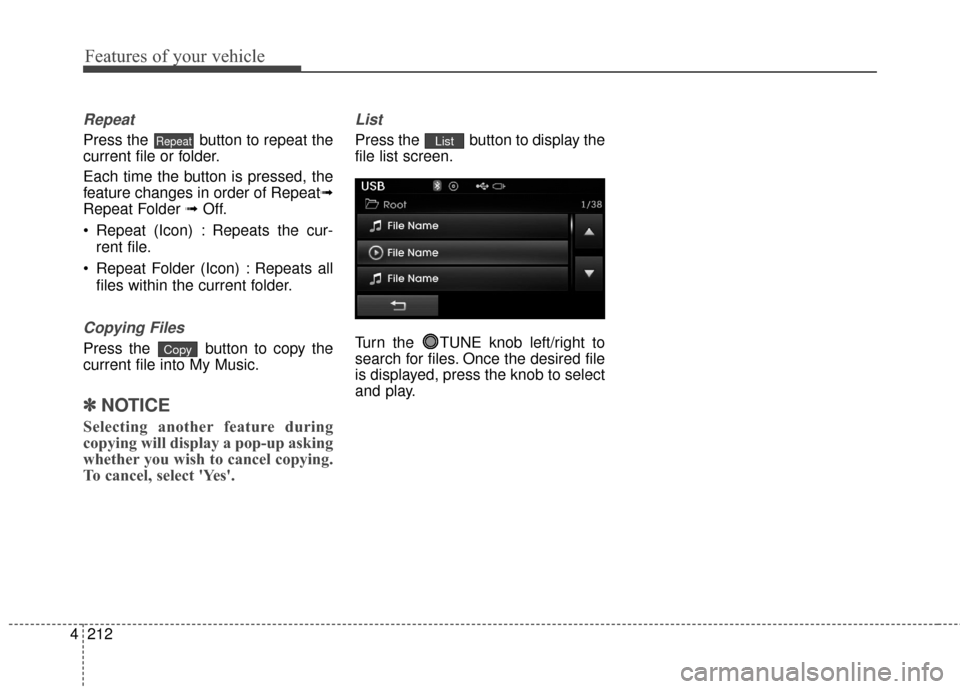
List
Press the button to display the
file list screen.
Turn the TUNE knob left/right to
search for files. Once the desired file
is displayed, press the knob to select
and play.List
Copy
Repeat
Page 300 of 669
Features of your vehicle
214
4
iPod®Mode
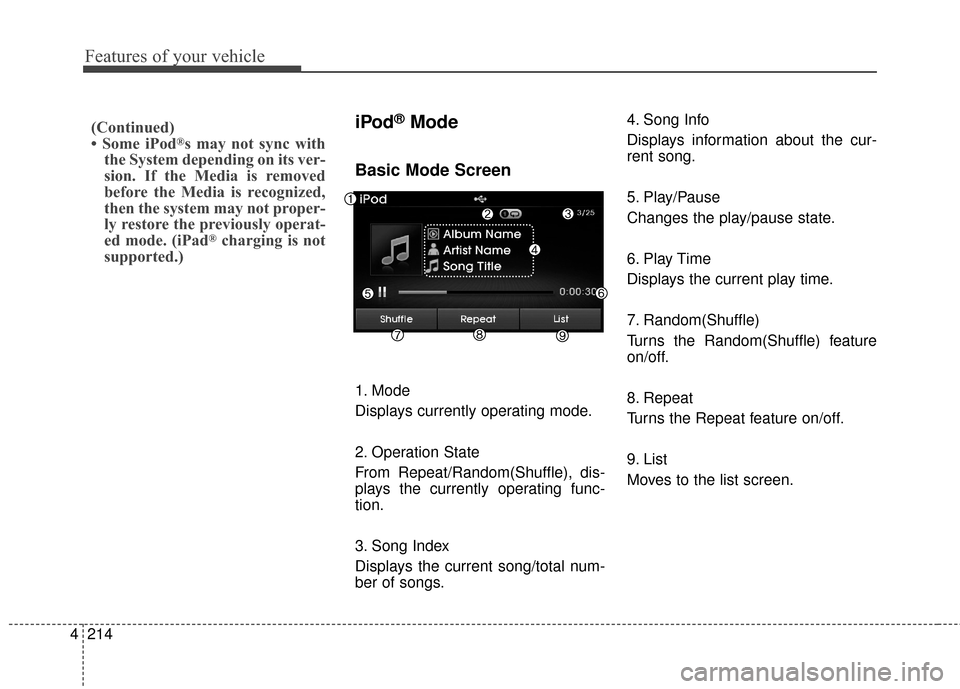
Basic Mode Screen
1. Mode
Displays currently operating mode.
2. Operation State
From Repeat/Random(Shuffle), dis-
plays the currently operating func-
tion.
3. Song Index
Displays the current song/total num-
ber of songs. 4. Song Info
Displays information about the cur-
rent song.
5. Play/Pause
Changes the play/pause state.
6. Play Time
Displays the current play time.
7. Random(Shuffle)
Turns the Random(Shuffle) feature
on/off.
8. Repeat
Turns the Repeat feature on/off.
9. List
Moves to the list screen.
(Continued)
• Some iPod®s may not sync with
the System depending on its ver-
sion. If the Media is removed
before the Media is recognized,
then the system may not proper-
ly restore the previously operat-
ed mode. (iPad
®charging is not
supported.)
Page 305 of 669
4219
Features of your vehicle
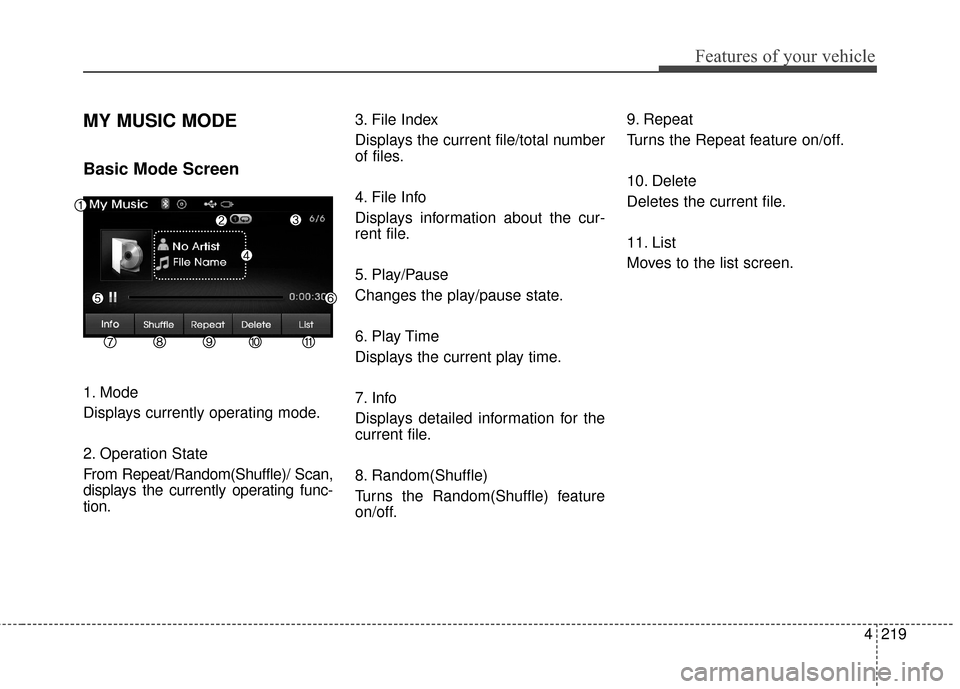
MY MUSIC MODE
Basic Mode Screen
1. Mode
Displays currently operating mode.
2. Operation State
From Repeat/Random(Shuffle)/ Scan,
displays the currently operating func-
tion.3. File Index
Displays the current file/total number
of files.
4. File Info
Displays information about the cur-
rent file.
5. Play/Pause
Changes the play/pause state.
6. Play Time
Displays the current play time.
7. Info
Displays detailed information for the
current file.
8. Random(Shuffle)
Turns the Random(Shuffle) feature
on/off.9. Repeat
Turns the Repeat feature on/off.
10. Delete
Deletes the current file.
11. List
Moves to the list screen.
Page 342 of 669
Features of your vehicle
256
4
SYSTEM CONTROLLERS
AND FUNCTIONS
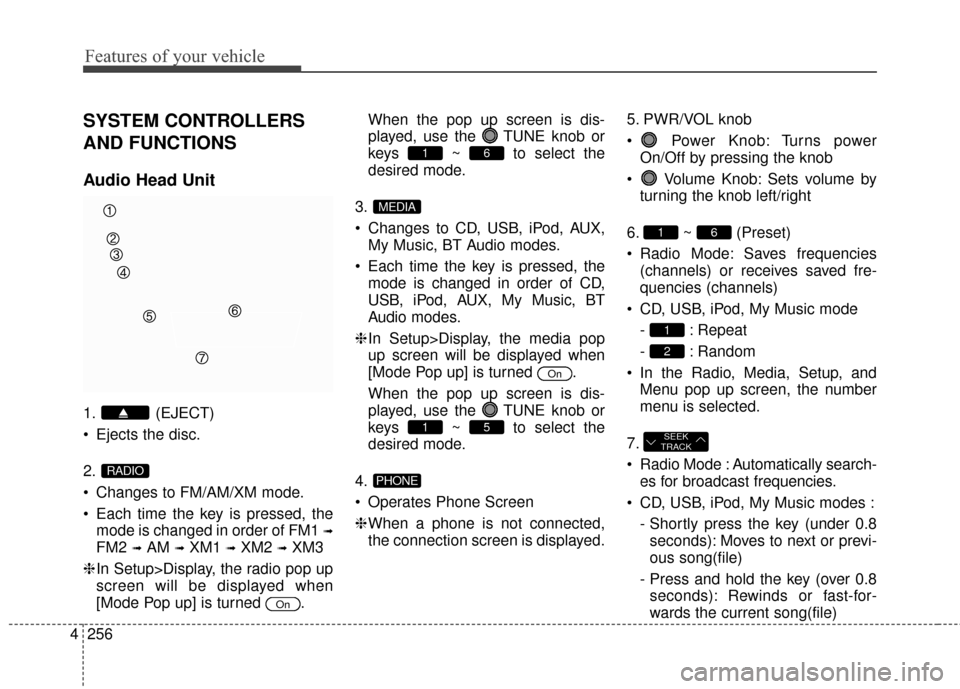
Audio Head Unit
1. (EJECT)
Ejects the disc.
2.
Changes to FM/AM/XM mode.
Each time the key is pressed, the
mode is changed in order of FM1
➟
FM2 ➟AM ➟XM1 ➟XM2 ➟XM3
❈ In Setup>Display, the radio pop up
screen will be displayed when
[Mode Pop up] is turned . When the pop up screen is dis-
played, use the TUNE knob or
keys ~ to select the
desired mode.
3.
Changes to CD, USB, iPod, AUX, My Music, BT Audio modes.
Each time the key is pressed, the mode is changed in order of CD,
USB, iPod, AUX, My Music, BT
Audio modes.
❈ In Setup>Display, the media pop
up screen will be displayed when
[Mode Pop up] is turned .
When the pop up screen is dis-
played, use the TUNE knob or
keys ~ to select the
desired mode.
4.
Operates Phone Screen
❈ When a phone is not connected,
the connection screen is displayed. 5. PWR/VOL knob
Power Knob: Turns power
On/Off by pressing the knob
Volume Knob: Sets volume by turning the knob left/right
6. ~ (Preset)
Radio Mode: Saves frequencies (channels) or receives saved fre-
quencies (channels)
CD, USB, iPod, My Music mode - : Repeat
- : Random
In the Radio, Media, Setup, and Menu pop up screen, the number
menu is selected.
7.
Radio Mode : Automatically search- es for broadcast frequencies.
CD, USB, iPod, My Music modes : - Shortly press the key (under 0.8seconds): Moves to next or previ-
ous song(file)
- Press and hold the key (over 0.8 seconds): Rewinds or fast-for-
wards the current song(file)
SEEK
TRACK
2
1
61
PHONE
51
On
MEDIA
61
On
RADIO