ECU Hyundai Elantra 2016 Owner's Guide
[x] Cancel search | Manufacturer: HYUNDAI, Model Year: 2016, Model line: Elantra, Model: Hyundai Elantra 2016Pages: 669, PDF Size: 31.96 MB
Page 264 of 669
Features of your vehicle
178
4
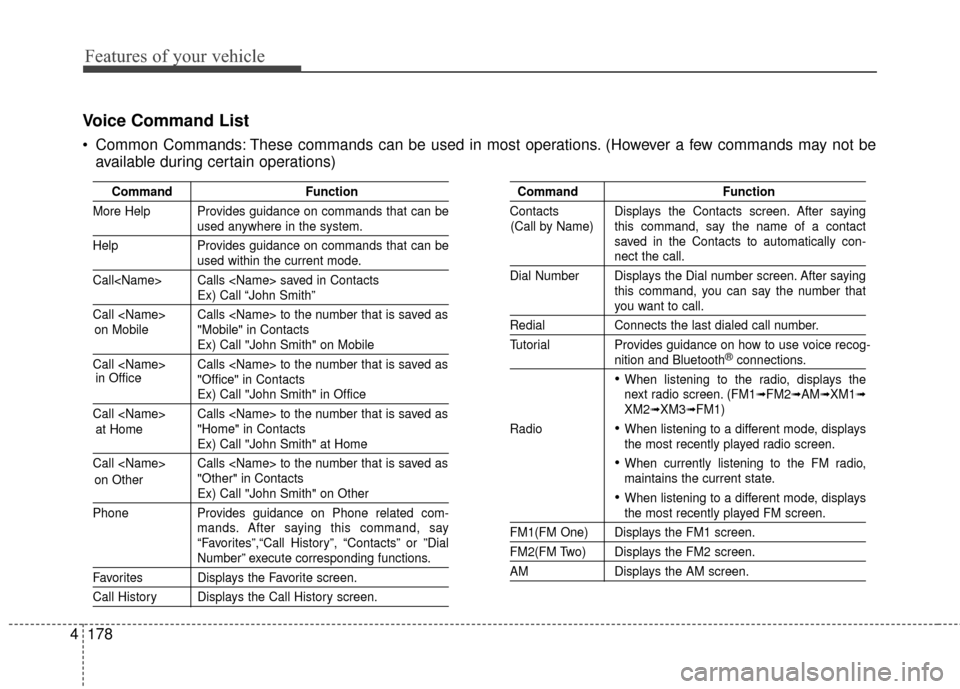
Voice Command List
Common Commands: These commands can be used in most operations. (However a few commands may not be
available during certain operations)
Command Function
More Help Provides guidance on commands that can be
used anywhere in the system.
Help Provides guidance on commands that can be
used within the current mode.
Call
Ex) Call “John Smith”
Call
Ex) Call "John Smith" on Mobile
Call
Ex) Call "John Smith" in Office
Call
Ex) Call "John Smith" at Home
Call
Ex) Call "John Smith" on Other
Phone Provides guidance on Phone related com- mands. After saying this command, say
“Favorites”,“Call History”, “Contacts” or ”Dial
Number” execute corresponding functions.
Favorites Displays the Favorite screen.
Call History Displays the Call History screen.
Command Function
Contacts Displays the Contacts screen. After saying this command, say the name of a contact
saved in the Contacts to automatically con-
nect the call.
Dial Number Displays the Dial number screen. After saying this command, you can say the number that
you want to call.
RedialConnects the last dialed call number.
Tutorial Provides guidance on how to use voice recog-
nition and Bluetooth®connections.
When listening to the radio, displays the
next radio screen. (FM1➟FM2➟AM➟XM1➟XM2➟XM3➟FM1)
Radio
When listening to a different mode, displays
the most recently played radio screen.
When currently listening to the FM radio,
maintains the current state.
When listening to a different mode, displaysthe most recently played FM screen.
FM1(FM One) Displays the FM1 screen.
FM2(FM Two) Displays the FM2 screen.
AM Displays the AM screen.
(Call by Name)
on Mobile
in Office
at Home
on Other
Page 312 of 669
![Hyundai Elantra 2016 Owners Guide Features of your vehicle
226
4
[Non SSP supported device]
(SSP: Secure Simple Pairing)
4. After a few moments, a screen is
displayed where the passkey is
entered.
Hear, enter the passkey “0000” to](/img/35/14551/w960_14551-311.png "Hyundai Elantra 2016 Owners Guide Features of your vehicle
226
4
[Non SSP supported device]
(SSP: Secure Simple Pairing)
4. After a few moments, a screen is
displayed where the passkey is
entered.
Hear, enter the passkey “0000” to")
Features of your vehicle
226
4
[Non SSP supported device]
(SSP: Secure Simple Pairing)
4. After a few moments, a screen is
displayed where the passkey is
entered.
Hear, enter the passkey “0000” to
pair your
Bluetooth®Wireless
Technology device with the car
audio system.
[SSP supported device]
4. After a few moments, a screen is displayed 6 digits passkey.
Hear, check the passkey on your
Bluetooth®Wireless Technology
device and confirm.
5. Once pairing is complete, the fol- lowing screen is displayed.
✽ ✽NOTICE
If Bluetooth®Wireless Technology
devices are paired but none are cur-
rently connected, pressing the key or the key on the
steering wheel displays the following
screen. Press the [Pair] button to
pair a new device or press the
[Connect] to connect a previously
paired device.
Pairing through [PHONE]
Setup
Press the key Select
[Phone] Select [Pair Phone]
Select TUNE knob
(For USA)
(For CANADA)
1.The following steps are the same
as those described in the section
"When No Devices have been
Paired" on the previous page.
SETUP
PHONE
Page 326 of 669
Features of your vehicle
240
4
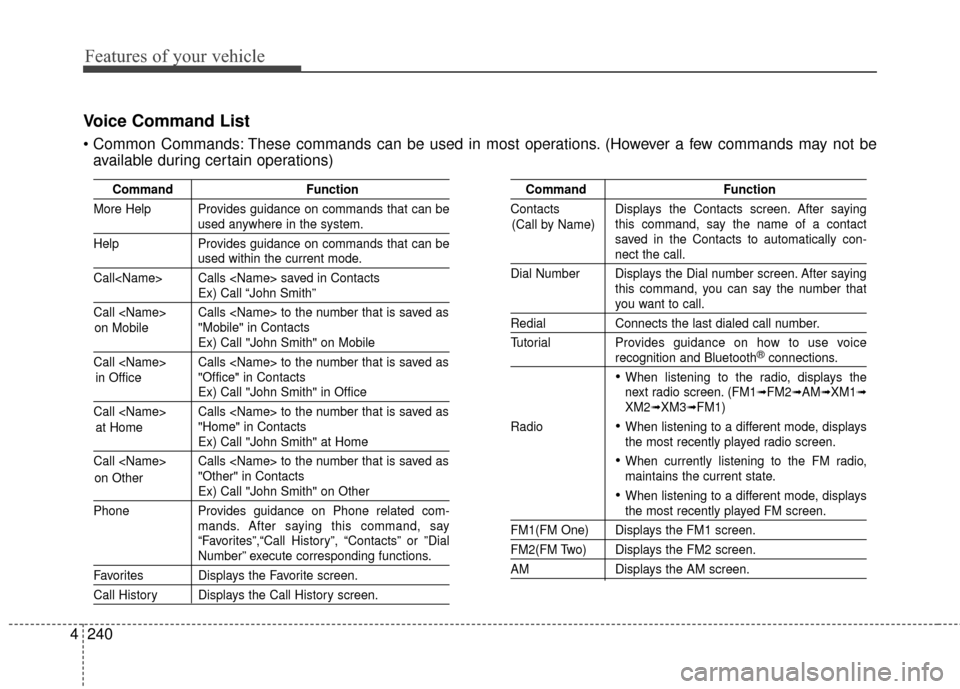
Command Function
More Help Provides guidance on commands that can be
used anywhere in the system.
Help Provides guidance on commands that can be
used within the current mode.
Call
Ex) Call “John Smith”
Call
Ex) Call "John Smith" on Mobile
Call
Ex) Call "John Smith" in Office
Call
Ex) Call "John Smith" at Home
Call
Ex) Call "John Smith" on Other
Phone Provides guidance on Phone related com- mands. After saying this command, say
“Favorites”,“Call History”, “Contacts” or ”Dial
Number” execute corresponding functions.
Favorites Displays the Favorite screen.
Call History Displays the Call History screen.
Command Function
Contacts Displays the Contacts screen. After saying this command, say the name of a contact
saved in the Contacts to automatically con-
nect the call.
Dial Number Displays the Dial number screen. After saying this command, you can say the number that
you want to call.
Redial Connects the last dialed call number.
Tutorial Provides guidance on how to use voice
recognition and Bluetooth®connections.
When listening to the radio, displays the
next radio screen. (FM1➟FM2➟AM➟XM1➟XM2➟XM3➟FM1)
Radio
When listening to a different mode, displays
the most recently played radio screen.
When currently listening to the FM radio,
maintains the current state.
When listening to a different mode, displaysthe most recently played FM screen.
FM1(FM One) Displays the FM1 screen.
FM2(FM Two) Displays the FM2 screen.
AM Displays the AM screen.
(Call by Name)
Voice Command List
These commands can be used in most operations. (However a few commands may not be
available during certain operations)
on Mobile
in Officeat Home
on Other
Page 336 of 669
Features of your vehicle
250
4
Blue Link®(if equipped)
Hyundai aims to offer differentiated
customer values through a
‘Connected Car Life,’ which is to pro-
vide consumers with fast and reliable
IT technology. As consumers’ lifestyles
become more and more mobile in
thanks to remarkable advances in
smart phones, tablet PCs and overall
wireless telecommunication, new
lifestyle patterns demand seamless
connection between one’s office,
home, outdoors and automobiles.
Automobile companies are now faced
with the task of shifting their paradigm
from vehicle-centered services to cus-
tomer value-centered services, with
the ultimate goal of securing global
leadership in the field of vehicle IT and
telematics.
Hyundai plans to achieve this by real-
izing a terminal platform flexible to
changes in IT technology, cooperat-
ing with global IT companies, creat-
ing an eco-system and providing the
latest contents & services based on
an open environment.
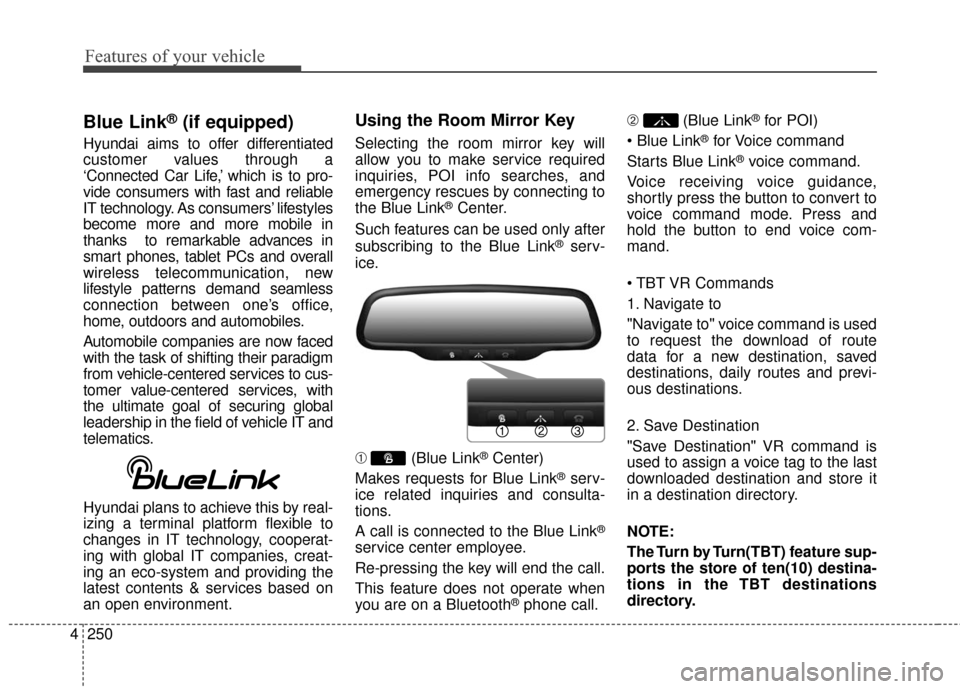
Using the Room Mirror Key
Selecting the room mirror key will
allow you to make service required
inquiries, POI info searches, and
emergency rescues by connecting to
the Blue Link
®Center.
Such features can be used only after
subscribing to the Blue Link
®serv-
ice.
➀ (Blue Link
®Center)
Makes requests for Blue Link
®serv-
ice related inquiries and consulta-
tions.
A call is connected to the Blue Link
®
service center employee.
Re-pressing the key will end the call.
This feature does not operate when
you are on a Bluetooth
®phone call. \b
(Blue Link
®for POI)
®for Voice command
Starts Blue Link
®voice command.
Voice receiving voice guidance,
shortly press the button to convert to
voice command mode. Press and
hold the button to end voice com-
mand.
1. Navigate to
"Navigate to" voice command is used
to request the download of route
data for a new destination, saved
destinations, daily routes and previ-
ous destinations.
2. Save Destination
"Save Destination" VR command is
used to assign a voice tag to the last
downloaded destination and store it
in a destination directory.
NOTE:
The Turn by Turn(TBT) feature sup-
ports the store of ten(10) destina-
tions in the TBT destinations
directory.
Page 367 of 669
4281
Features of your vehicle
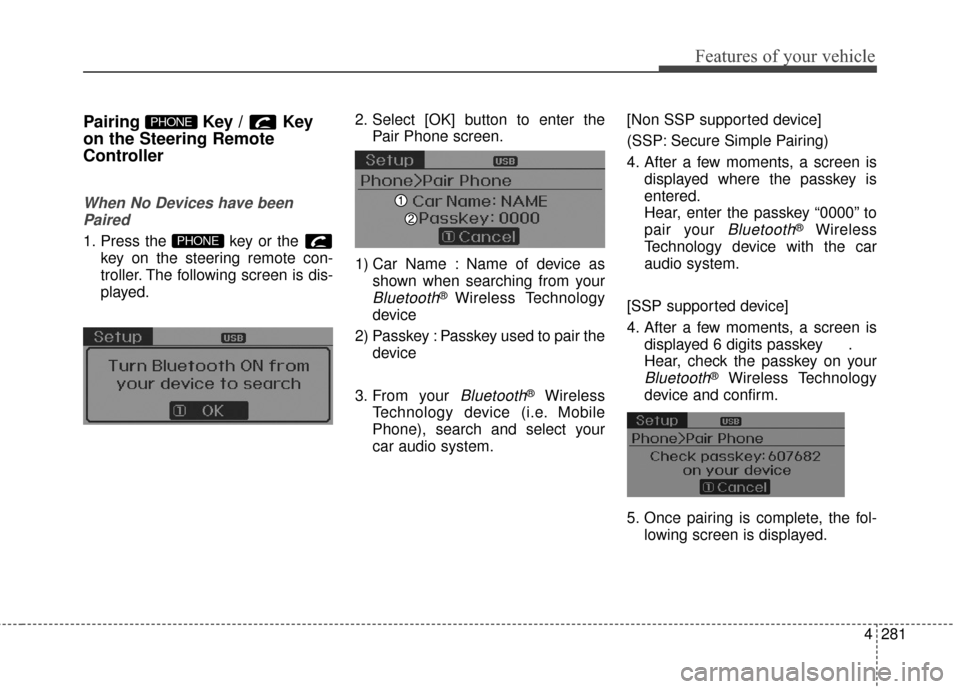
Pairing Key / Key
on the Steering Remote
Controller
When No Devices have beenPaired
1. Press the key or the key on the steering remote con-
troller. The following screen is dis-
played. 2. Select [OK] button to enter the
Pair Phone screen.
1) Car Name : Name of device as shown when searching from your
Bluetooth®Wireless Technology
device
2) Passkey : Passkey used to pair the device
3. From your
Bluetooth®Wireless
Technology device (i.e. Mobile
Phone), search and select your
car audio system. [Non SSP supported device]
(SSP: Secure Simple Pairing)
4. After a few moments, a screen is
displayed where the passkey is
entered.
Hear, enter the passkey “0000” to
pair your
Bluetooth®Wireless
Technology device with the car
audio system.
[SSP supported device]
4. After a few moments, a screen is displayed 6 digits passkey .
Hear, check the passkey on your
Bluetooth®Wireless Technology
device and confirm.
5. Once pairing is complete, the fol- lowing screen is displayed.
PHONE
PHONE
Page 382 of 669
Features of your vehicle
296
4
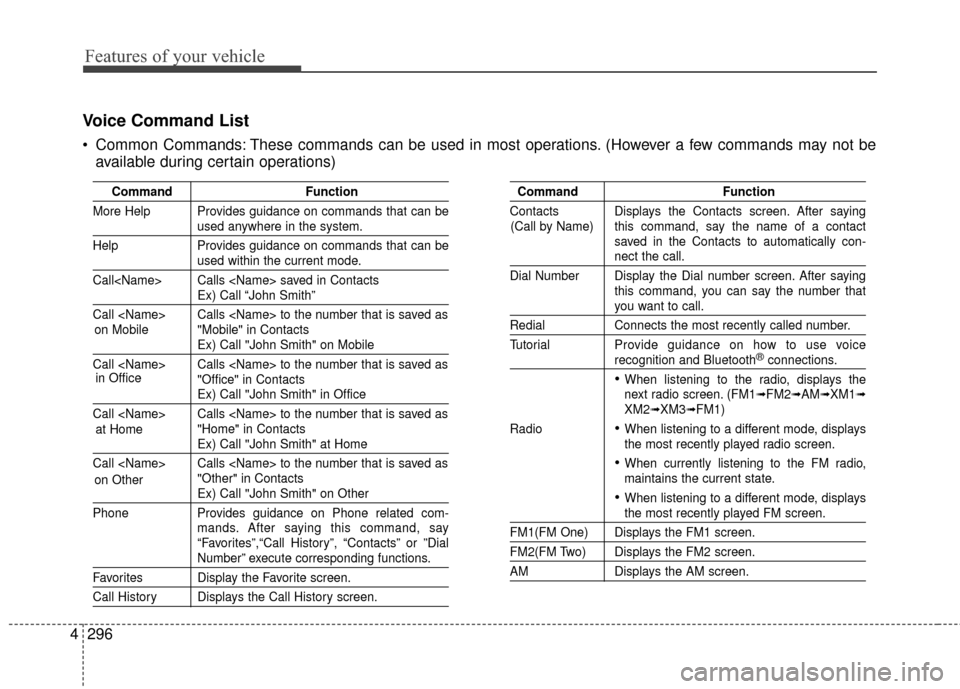
Voice Command List
Common Commands: These commands can be used in most operations. (However a few commands may not be
available during certain operations)
Command Function
More Help Provides guidance on commands that can be
used anywhere in the system.
Help Provides guidance on commands that can be
used within the current mode.
Call
Ex) Call “John Smith”
Call
Ex) Call "John Smith" on Mobile
Call
Ex) Call "John Smith" in Office
Call
Ex) Call "John Smith" at Home
Call
Ex) Call "John Smith" on Other
Phone Provides guidance on Phone related com- mands. After saying this command, say
“Favorites”,“Call History”, “Contacts” or ”Dial
Number” execute corresponding functions.
Favorites Display the Favorite screen.
Call History Displays the Call History screen.
Command Function
Contacts Displays the Contacts screen. After saying this command, say the name of a contact
saved in the Contacts to automatically con-
nect the call.
Dial Number Display the Dial number screen. After saying this command, you can say the number that
you want to call.
RedialConnects the most recently called number.
Tutorial Pro vide guidance on how to use voice
recognition and Bluetooth®connections.
When listening to the radio, displays the
next radio screen. (FM1➟FM2➟AM➟XM1➟XM2➟XM3➟FM1)
Radio
When listening to a different mode, displays
the most recently played radio screen.
When currently listening to the FM radio,
maintains the current state.
When listening to a different mode, displaysthe most recently played FM screen.
FM1(FM One) Displays the FM1 screen.
FM2(FM Two) Displays the FM2 screen.
AM Displays the AM screen.
(Call by Name)
on Mobile
in Office
at Home
on Other
Page 428 of 669
![Hyundai Elantra 2016 Owners Guide [Non SSP supported device]
(SSP: Secure Simple Pairing)
4. After a few moments, a screen isdisplayed where the passkey is
entered.
Hear, enter the passkey “0000” to
pair your
Bluetooth®Wireless](/img/35/14551/w960_14551-427.png "Hyundai Elantra 2016 Owners Guide [Non SSP supported device]
(SSP: Secure Simple Pairing)
4. After a few moments, a screen isdisplayed where the passkey is
entered.
Hear, enter the passkey “0000” to
pair your
Bluetooth®Wireless")
[Non SSP supported device]
(SSP: Secure Simple Pairing)
4. After a few moments, a screen isdisplayed where the passkey is
entered.
Hear, enter the passkey “0000” to
pair your
Bluetooth®Wireless
Technology device with the car
audio system.
[SSP supported device]
4. After a few moments, a screen is displayed 6 digits passkey.
Hear, check the passkey on your
Bluetooth®Wireless Technology
device and confirm.
5. Once pairing is complete, the fol- lowing screen is displayed.
✽ ✽NOTICE
If Bluetooth®Wireless Technology
devices are paired but none are cur-
rently connected, pressing the key or the key on the
steering wheel displays the following
screen. Press the [Pair] button to
pair a new device or press the
[Connect] to connect a previously
paired device.
Pairing through [PHONE]
Setup
Press the key Select
[Phone] Select [Pair Phone]
Select TUNE knob
1.The following steps are the same
as those described in the section
"When No Devices have been
Paired" on the previous page.SETUP
PHONE
4342
Features of your vehicle
Page 442 of 669
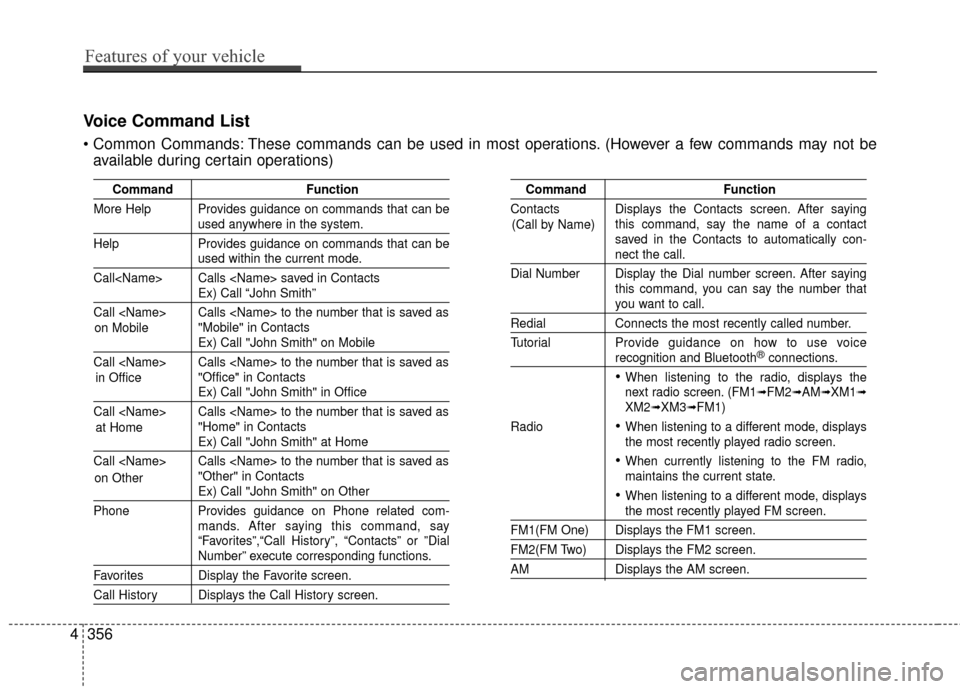
CommandFunction
More Help Provides guidance on commands that can be
used anywhere in the system.
Help Provides guidance on commands that can be
used within the current mode.
Call
Ex) Call “John Smith”
Call
Ex) Call "John Smith" on Mobile
Call
Ex) Call "John Smith" in Office
Call
Ex) Call "John Smith" at Home
Call
Ex) Call "John Smith" on Other
Phone Provides guidance on Phone related com- mands. After saying this command, say
“Favorites”,“Call History”, “Contacts” or ”Dial
Number” execute corresponding functions.
Favorites Display the Favorite screen.
Call History Displays the Call History screen.
Command Function
Contacts Displays the Contacts screen. After saying this command, say the name of a contact
saved in the Contacts to automatically con-
nect the call.
Dial Number Display the Dial number screen. After saying this command, you can say the number that
you want to call.
RedialConnects the most recently called number.
Tutorial Pro vide guidance on how to use voice
recognition and Bluetooth®connections.
When listening to the radio, displays the
next radio screen. (FM1➟FM2➟AM➟XM1➟XM2➟XM3➟FM1)
Radio
When listening to a different mode, displays
the most recently played radio screen.
When currently listening to the FM radio,
maintains the current state.
When listening to a different mode, displaysthe most recently played FM screen.
FM1(FM One) Displays the FM1 screen.
FM2(FM Two) Displays the FM2 screen.
AM Displays the AM screen.
(Call by Name)
Voice Command List
These commands can be used in most operations. (However a few commands may not be
available during certain operations)
4356
Features of your vehicle
on Mobile
in Officeat Home
on Other
Page 452 of 669
Features of your vehicle
366
4
Blue Link®(if equipped)
Hyundai aims to offer differentiated
customer values through a
‘Connected Car Life,’ which is to pro-
vide consumers with fast and reliable
IT technology. As consumers’ lifestyles
become more and more mobile in
thanks to remarkable advances in
smart phones, tablet PCs and overall
wireless telecommunication, new
lifestyle patterns demand seamless
connection between one’s office,
home, outdoors and automobiles.
Automobile companies are now faced
with the task of shifting their paradigm
from vehicle-centered services to cus-
tomer value-centered services, with
the ultimate goal of securing global
leadership in the field of vehicle IT and
telematics.
Hyundai plans to achieve this by real-
izing a terminal platform flexible to
changes in IT technology, cooperat-
ing with global IT companies, creat-
ing an eco-system and providing the
latest contents & services based on
an open environment.
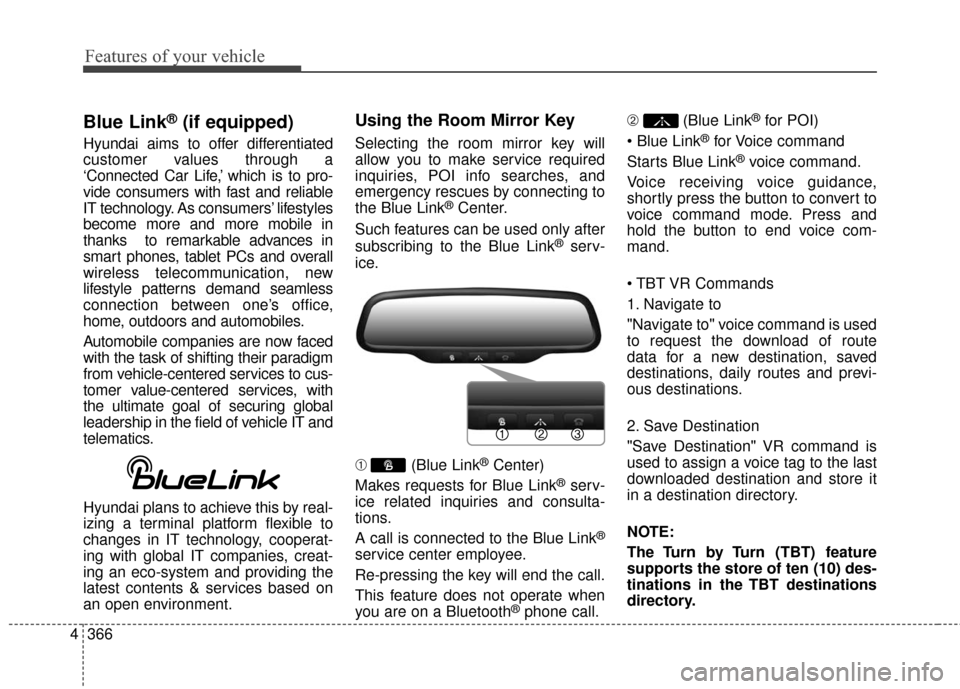
Using the Room Mirror Key
Selecting the room mirror key will
allow you to make service required
inquiries, POI info searches, and
emergency rescues by connecting to
the Blue Link
®Center.
Such features can be used only after
subscribing to the Blue Link
®serv-
ice.
➀ (Blue Link
®Center)
Makes requests for Blue Link
®serv-
ice related inquiries and consulta-
tions.
A call is connected to the Blue Link
®
service center employee.
Re-pressing the key will end the call.
This feature does not operate when
you are on a Bluetooth
®phone call. ➁
(Blue Link
®for POI)
®for Voice command
Starts Blue Link
®voice command.
Voice receiving voice guidance,
shortly press the button to convert to
voice command mode. Press and
hold the button to end voice com-
mand.
1. Navigate to
"Navigate to" voice command is used
to request the download of route
data for a new destination, saved
destinations, daily routes and previ-
ous destinations.
2. Save Destination
"Save Destination" VR command is
used to assign a voice tag to the last
downloaded destination and store it
in a destination directory.
NOTE:
The Turn by Turn (TBT) feature
supports the store of ten (10) des-
tinations in the TBT destinations
directory.
Page 460 of 669
Before entering the vehicle
• Be sure all windows, outside mir-ror(s), and outside lights are clean
and unobstructed.
Remove frost, snow, or ice.
Visually check the tires for uneven wear and damage.
Check under the vehicle for any sign of leaks.
Be sure there are no obstacles behind you if you intend to back up.
Before starting
Make sure the hood, the trunk, andthe doors are securely closed and
locked.
Adjust the position of the seat and steering wheel.
Adjust the inside and outside rearview mirrors.
Verify all the lights work.
Fasten your seatbelt. Check that all passengers have fastened their
seatbelts.
Check the gauges and indicators in the instrument panel and the mes-
sages on the instrument display
when the ignition switch is in the
ON position.
Check that any items you are car- rying are stored properly or fas-
tened down securely.
53
Driving your vehicle
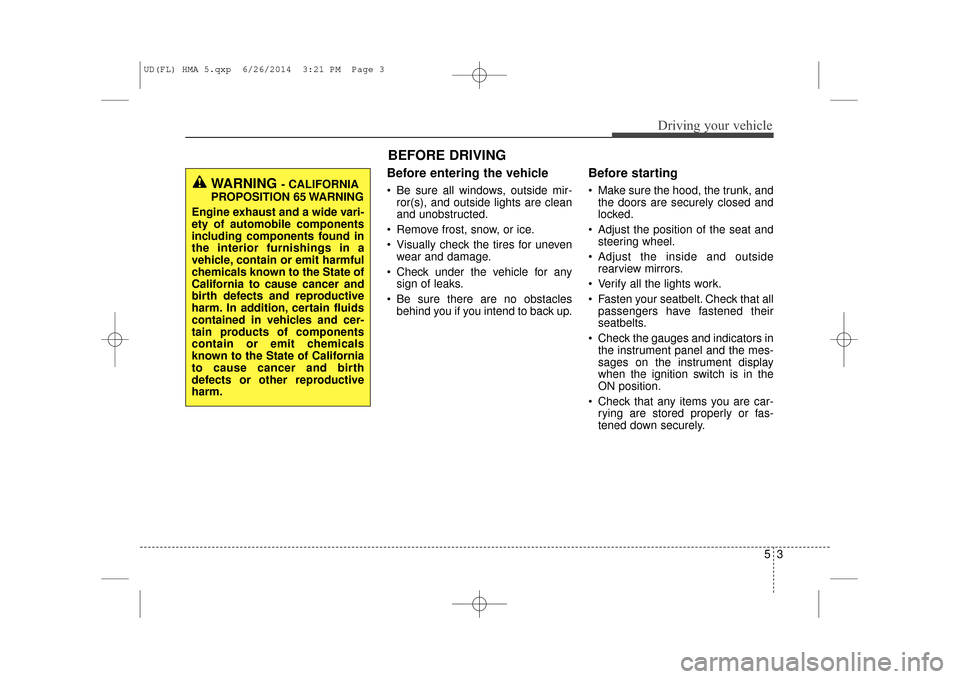
WARNING - CALIFORNIA
PROPOSITION 65 WARNING
Engine exhaust and a wide vari-
ety of automobile components
including components found in
the interior furnishings in a
vehicle, contain or emit harmful
chemicals known to the State of
California to cause cancer and
birth defects and reproductive
harm. In addition, certain fluids
contained in vehicles and cer-
tain products of components
contain or emit chemicals
known to the State of California
to cause cancer and birth
defects or other reproductive
harm.
BEFORE DRIVING
UD(FL) HMA 5.qxp 6/26/2014 3:21 PM Page 3