Ok button Hyundai Elantra 2016 Manual PDF
[x] Cancel search | Manufacturer: HYUNDAI, Model Year: 2016, Model line: Elantra, Model: Hyundai Elantra 2016Pages: 669, PDF Size: 31.96 MB
Page 207 of 669
4121
Features of your vehicle
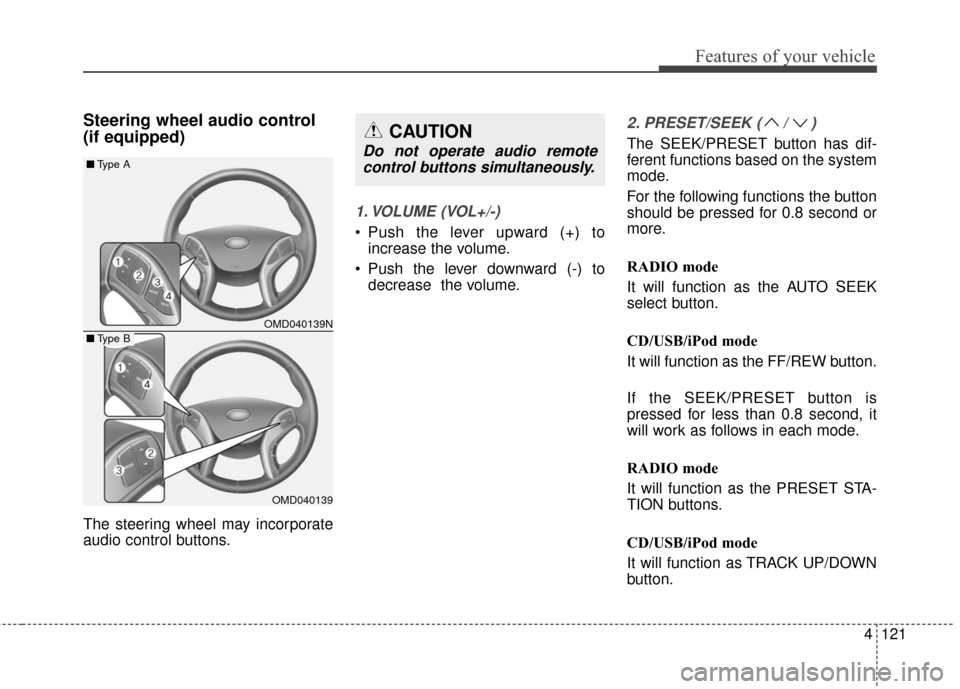
Steering wheel audio control
(if equipped)
The steering wheel may incorporate
audio control buttons.
1. VOLUME (VOL+/-)
Push the lever upward (+) toincrease the volume.
Push the lever downward (-) to decrease the volume.
2. PRESET/SEEK ( / )
The SEEK/PRESET button has dif-
ferent functions based on the system
mode.
For the following functions the button
should be pressed for 0.8 second or
more.
RADIO mode
It will function as the AUTO SEEK
select button.
CD/USB/iPod mode
It will function as the FF/REW button.
If the SEEK/PRESET button is
pressed for less than 0.8 second, it
will work as follows in each mode.
RADIO mode
It will function as the PRESET STA-
TION buttons.
CD/USB/iPod mode
It will function as TRACK UP/DOWN
button.CAUTION
Do not operate audio remotecontrol buttons simultaneously.
OMD040139N
OMD040139
■ Type A
■Type B
Page 208 of 669
Features of your vehicle
122
4
3. MODE
Press the button to change audio
source.
- FM(1~2)
➟ AM ➟ SAT(1~3) ➟ CD
➟ USB AUX(iPod) FM...
4. MUTE (if equipped)
Press the button to mute the
sound.
Press the button to turn off the microphone during a telephone
call.
Detailed information for audio control
buttons are described in the following
pages in this chapter.
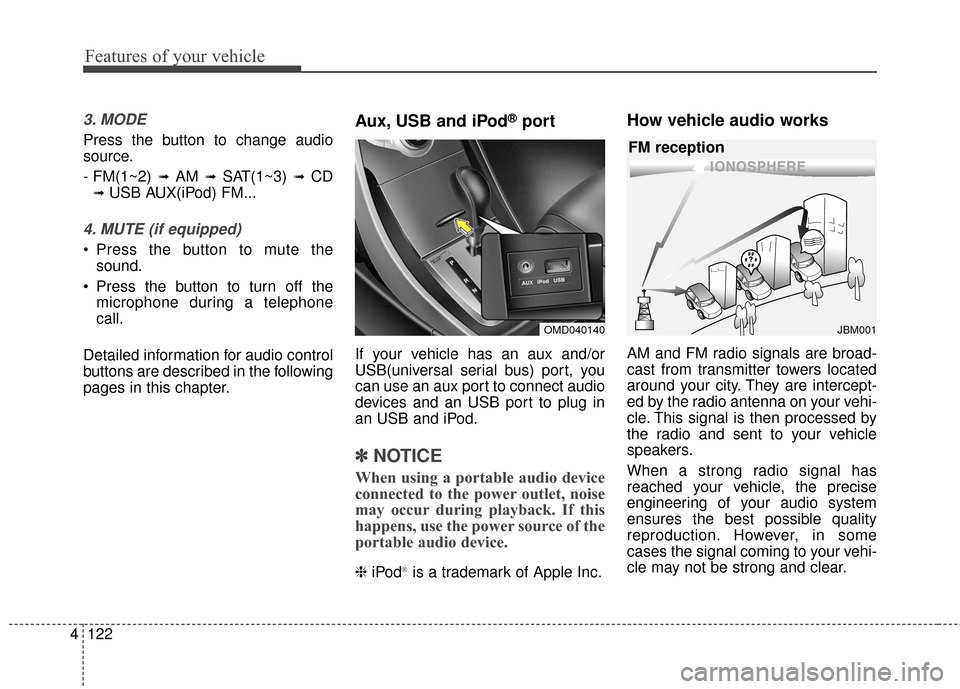
Aux, USB and iPod®port
If your vehicle has an aux and/or
USB(universal serial bus) port, you
can use an aux port to connect audio
devices and an USB port to plug in
an USB and iPod.
✽ ✽ NOTICE
When using a portable audio device
connected to the power outlet, noise
may occur during playback. If this
happens, use the power source of the
portable audio device.
❈ iPod®is a trademark of Apple Inc.
How vehicle audio works
AM and FM radio signals are broad-
cast from transmitter towers located
around your city. They are intercept-
ed by the radio antenna on your vehi-
cle. This signal is then processed by
the radio and sent to your vehicle
speakers.
When a strong radio signal has
reached your vehicle, the precise
engineering of your audio system
ensures the best possible quality
reproduction. However, in some
cases the signal coming to your vehi-
cle may not be strong and clear.
OMD040140
¢¢¢
JBM001
FM reception
Page 223 of 669
4137
Features of your vehicle
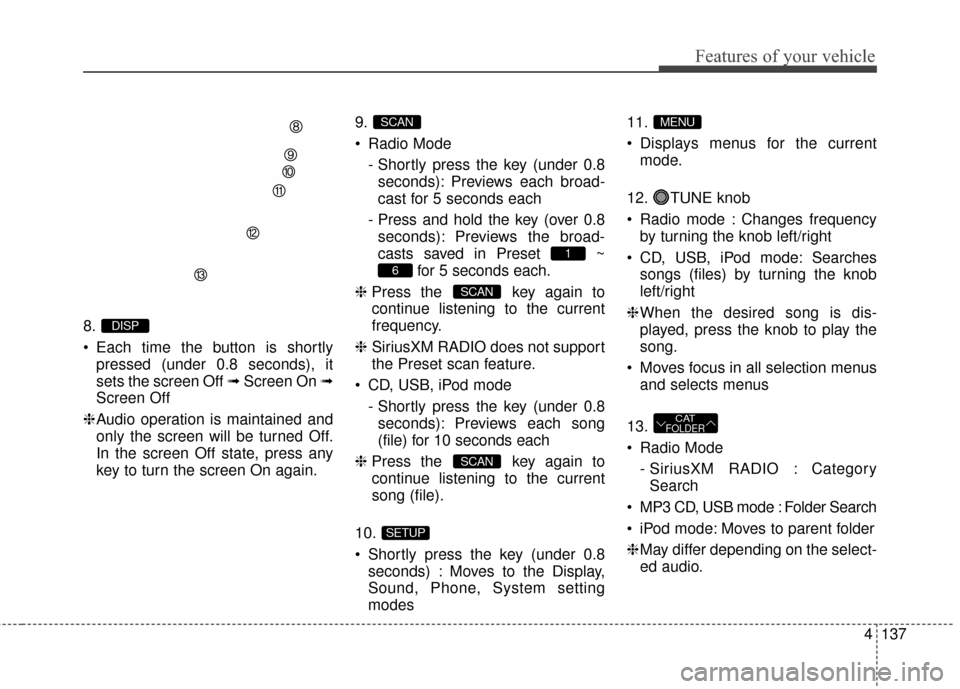
8.
Each time the button is shortlypressed (under 0.8 seconds), it
sets the screen Off ➟ Screen On ➟
Screen Off
❈ Audio operation is maintained and
only the screen will be turned Off.
In the screen Off state, press any
key to turn the screen On again. 9.
Radio Mode
- Shortly press the key (under 0.8seconds): Previews each broad-
cast for 5 seconds each
- Press and hold the key (over 0.8 seconds): Previews the broad-
casts saved in Preset ~ for 5 seconds each.
❈ Press the key again to
continue listening to the current
frequency.
❈ SiriusXM RADIO does not support
the Preset scan feature.
CD, USB, iPod mode - Shortly press the key (under 0.8seconds): Previews each song
(file) for 10 seconds each
❈ Press the key again to
continue listening to the current
song (file).
10.
Shortly press the key (under 0.8 seconds) : Moves to the Display,
Sound, Phone, System setting
modes 11.
Displays menus for the current
mode.
12. TUNE knob
Radio mode : Changes frequency by turning the knob left/right
CD, USB, iPod mode: Searches songs (files) by turning the knob
left/right
❈ When the desired song is dis-
played, press the knob to play the
song.
Moves focus in all selection menus and selects menus
13.
Radio Mode - SiriusXM RADIO : CategorySearch
MP3 CD, USB mode : Folder Search
iPod mode: Moves to parent folder
❈ May differ depending on the select-
ed audio.
CATFOLDER
MENU
SETUP
SCAN
SCAN
6
1
SCAN
DISP
Page 228 of 669
Features of your vehicle
142
4
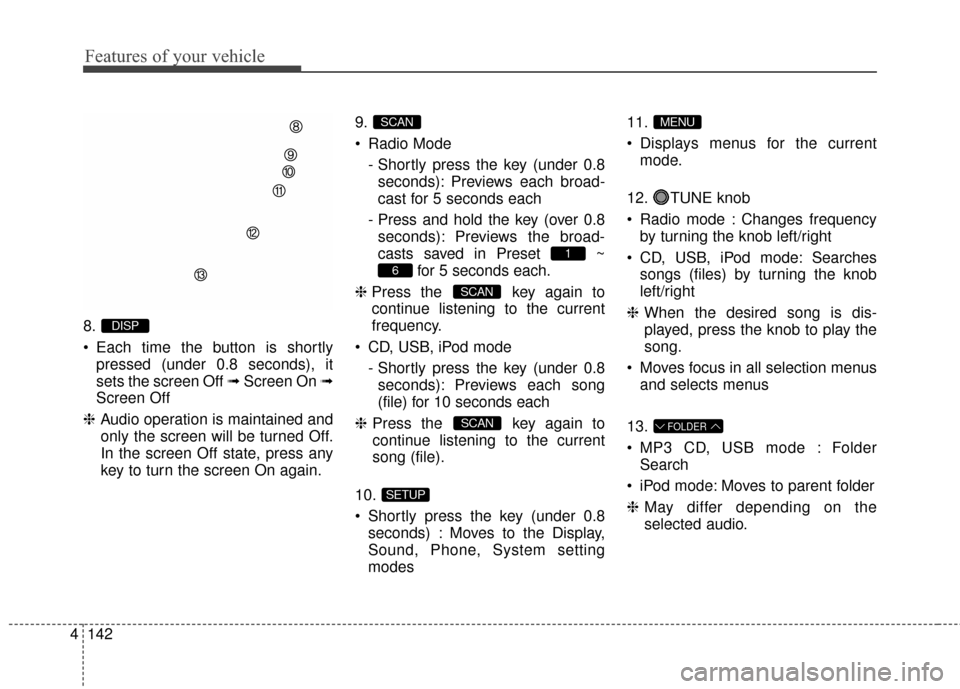
8.
Each time the button is shortly
pressed (under 0.8 seconds), it
sets the screen Off ➟ Screen On ➟
Screen Off
❈ Audio operation is maintained and
only the screen will be turned Off.
In the screen Off state, press any
key to turn the screen On again. 9.
Radio Mode
- Shortly press the key (under 0.8seconds): Previews each broad-
cast for 5 seconds each
- Press and hold the key (over 0.8 seconds): Previews the broad-
casts saved in Preset ~ for 5 seconds each.
❈ Press the key again to
continue listening to the current
frequency.
CD, USB, iPod mode - Shortly press the key (under 0.8seconds): Previews each song
(file) for 10 seconds each
❈ Press the key again to
continue listening to the current
song (file).
10.
Shortly press the key (under 0.8 seconds) : Moves to the Display,
Sound, Phone, System setting
modes 11.
Displays menus for the current
mode.
12. TUNE knob
Radio mode : Changes frequency by turning the knob left/right
CD, USB, iPod mode: Searches songs (files) by turning the knob
left/right
❈ When the desired song is dis-
played, press the knob to play the
song.
Moves focus in all selection menus and selects menus
13.
MP3 CD, USB mode : Folder Search
iPod mode: Moves to parent folder
❈ May differ depending on the
selected audio.
FOLDER
MENU
SETUP
SCAN
SCAN
6
1
SCAN
DISP
Page 249 of 669
4163
Features of your vehicle
Pairing key / key
on the Steering Remote
Controller
When No Devices have beenPaired
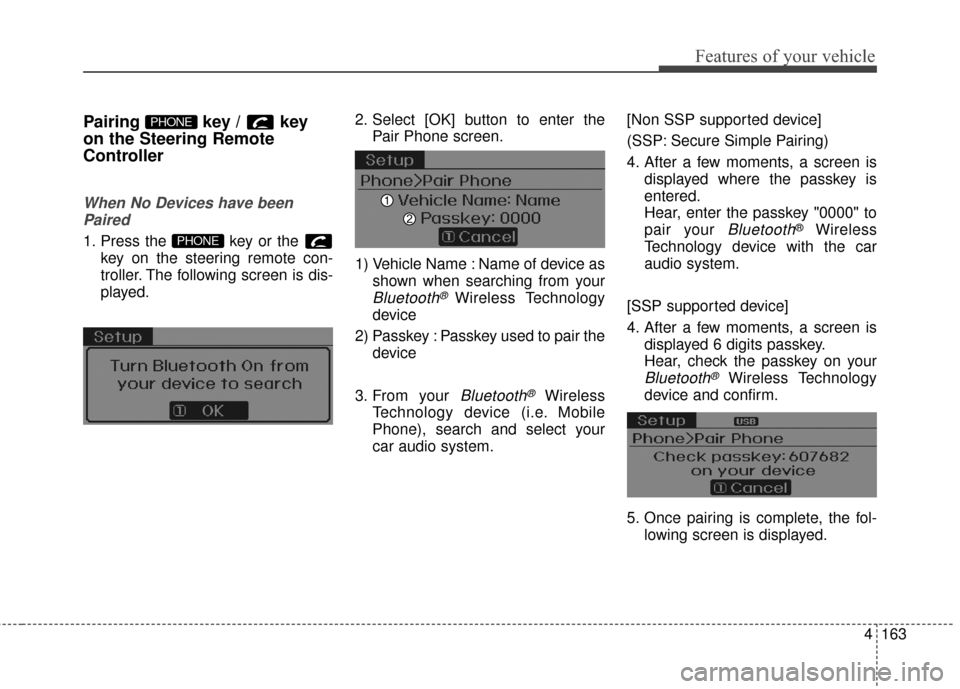
1. Press the key or the key on the steering remote con-
troller. The following screen is dis-
played. 2. Select [OK] button to enter the
Pair Phone screen.
1) Vehicle Name : Name of device as shown when searching from your
Bluetooth® Wireless Technology
device
2) Passkey : Passkey used to pair the device
3. From your
Bluetooth®Wireless
Technology device (i.e. Mobile
Phone), search and select your
car audio system. [Non SSP supported device]
(SSP: Secure Simple Pairing)
4. After a few moments, a screen is
displayed where the passkey is
entered.
Hear, enter the passkey "0000" to
pair your
Bluetooth®Wireless
Technology device with the car
audio system.
[SSP supported device]
4. After a few moments, a screen is displayed 6 digits passkey.
Hear, check the passkey on your
Bluetooth®Wireless Technology
device and confirm.
5. Once pairing is complete, the fol- lowing screen is displayed.
PHONE
PHONE
Page 250 of 669
Features of your vehicle
164
4
During the pairing process, make sure
that all connection requests on the
phone are accepted for phonebook
download and to allow acceptance of
all future connection requests. Visit
http://www.hyundaiusa.com/Bluetooth
for additional information on pairing
your Bluetooth-enabled mobile phone,
and to view a phone compatibility list.
✽ ✽
NOTICE
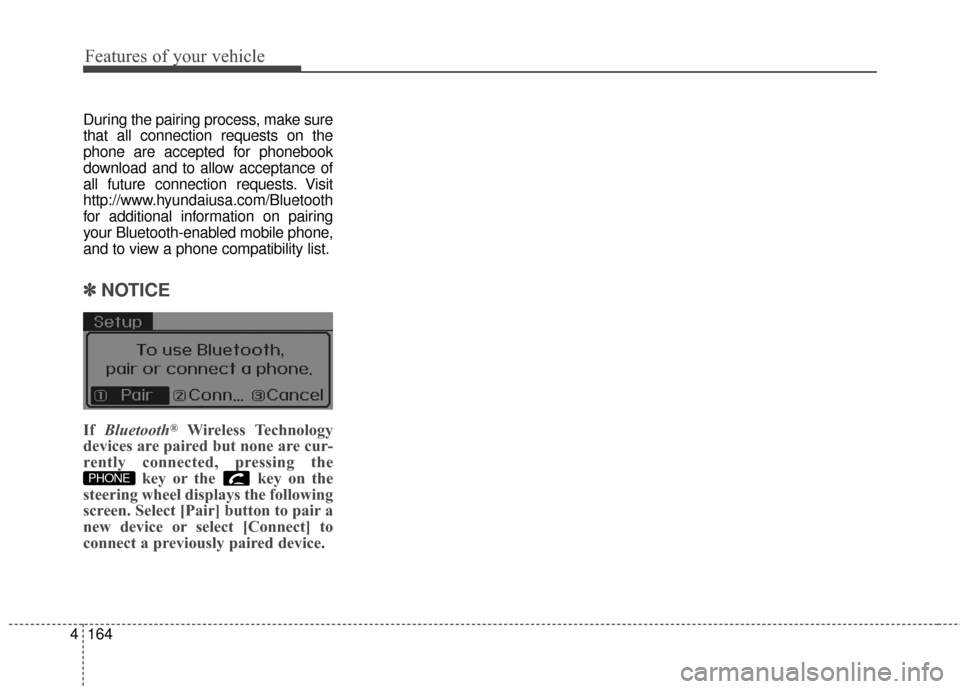
If Bluetooth®Wireless Technology
devices are paired but none are cur-
rently connected, pressing the key or the key on the
steering wheel displays the following
screen. Select [Pair] button to pair a
new device or select [Connect] to
connect a previously paired device.
PHONE
Page 253 of 669
![Hyundai Elantra 2016 Manual PDF 4167
Features of your vehicle
From the paired phone list, select
the phone you want to switch to the
highest priority, then select [Change
Priority] button from the Menu. The
selected device will be c](/img/35/14551/w960_14551-252.png "Hyundai Elantra 2016 Manual PDF 4167
Features of your vehicle
From the paired phone list, select
the phone you want to switch to the
highest priority, then select [Change
Priority] button from the Menu. The
selected device will be c")
4167
Features of your vehicle
From the paired phone list, select
the phone you want to switch to the
highest priority, then select [Change
Priority] button from the Menu. The
selected device will be changed to
the highest priority.✽ ✽ NOTICE
Priority icon will be displayed when
the selected phone is set as a priori-
ty phone.
Disconnecting a Device
Press the key Select
[Phone] Select [Paired Phone List]
From the paired phone list, select the
currently connected device and
select [Disconnect] button.SETUP
Page 254 of 669
![Hyundai Elantra 2016 Manual PDF Features of your vehicle
168
4
Deleting a Device
Press the key Select
[Phone] Select [Paired Phone List]
From the paired phone list, select the
device you want to delete and select
[Delete] button.
â](/img/35/14551/w960_14551-253.png "Hyundai Elantra 2016 Manual PDF Features of your vehicle
168
4
Deleting a Device
Press the key Select
[Phone] Select [Paired Phone List]
From the paired phone list, select the
device you want to delete and select
[Delete] button.
â")
Features of your vehicle
168
4
Deleting a Device
Press the key Select
[Phone] Select [Paired Phone List]
From the paired phone list, select the
device you want to delete and select
[Delete] button.
✽ ✽
NOTICE
• When deleting the currently con-
nected device, the device will auto-
matically be disconnected to pro-
ceed with the deleting process.
• If a paired Bluetooth
®Wireless
Technology device is deleted, the
device’s call history and contacts
data will also be deleted.
• To re-use a deleted device, you must pair the device again.
SETUP
Page 255 of 669
4169
Features of your vehicle
USING Bluetooth®
WIRELESS TECHNOLOGY
(IF EQUIPPED)
Phone Menu Screen
Phone Menus
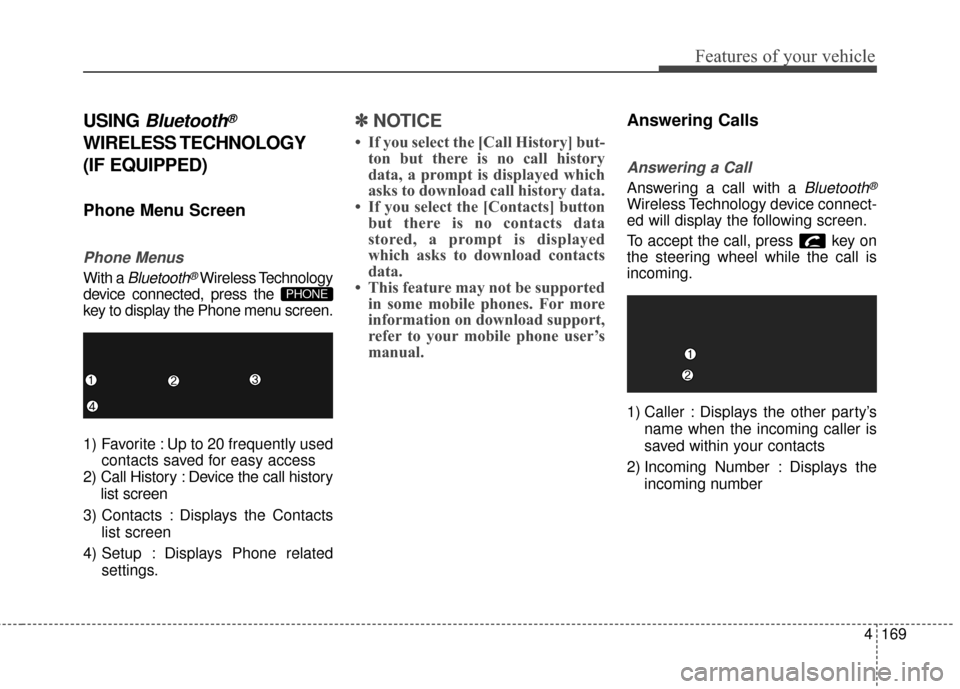
With a Bluetooth®Wireless Technology
device connected, press the
key to display the Phone menu screen.
1) Favorite : Up to 20 frequently used contacts saved for easy access
2) Call History : Device the call history list screen
3) Contacts : Displays the Contacts list screen
4) Setup : Displays Phone related settings.
✽ ✽NOTICE
• If you select the [Call History] but-
ton but there is no call history
data, a prompt is displayed which
asks to download call history data.
• If you select the [Contacts] button but there is no contacts data
stored, a prompt is displayed
which asks to download contacts
data.
• This feature may not be supported in some mobile phones. For more
information on download support,
refer to your mobile phone user’s
manual.
Answering Calls
Answering a Call
Answering a call with a Bluetooth®
Wireless Technology device connect-
ed will display the following screen.
To accept the call, press key on
the steering wheel while the call is
incoming.
1) Caller : Displays the other party’s
name when the incoming caller is
saved within your contacts
2) Incoming Number : Displays the incoming number
PHONE
Page 273 of 669
4187
Features of your vehicle
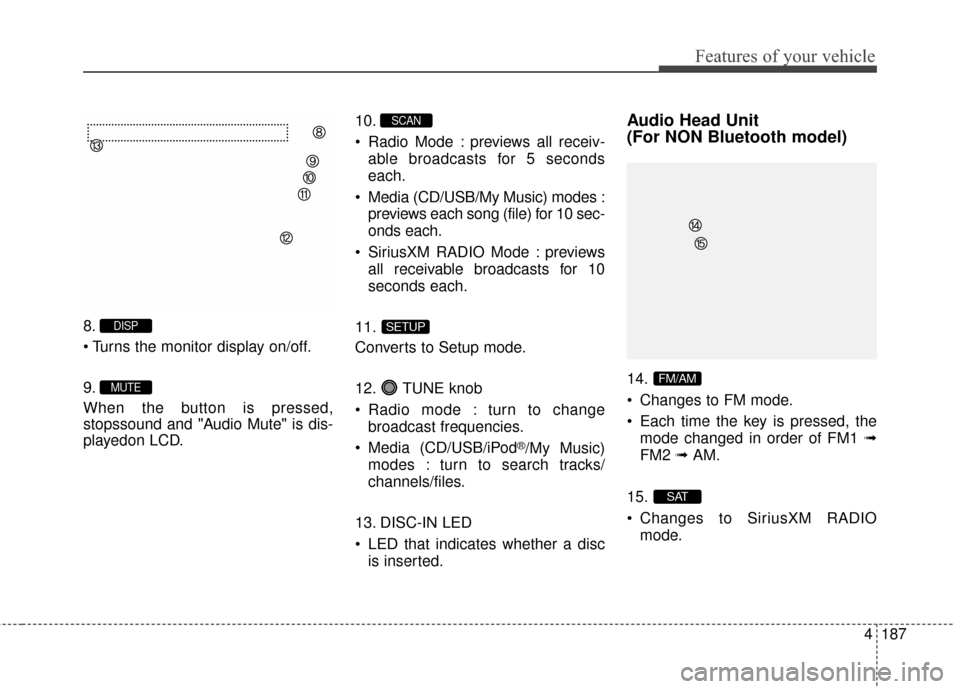
8.
9.
When the button is pressed,
stopssound and "Audio Mute" is dis-
playedon LCD.10.
Radio Mode : previews all receiv-
able broadcasts for 5 seconds
each.
Media (CD/USB/My Music) modes : previews each song (file) for 10 sec-
onds each.
SiriusXM RADIO Mode : previews all receivable broadcasts for 10
seconds each.
11.
Converts to Setup mode.
12. TUNE knob
Radio mode : turn to change broadcast frequencies.
Media (CD/USB/iPod
®/My Music)
modes : turn to search tracks/
channels/files.
13. DISC-IN LED
LED that indicates whether a disc is inserted.
Audio Head Unit
(For NON Bluetooth model)
14.
Changes to FM mode.
Each time the key is pressed, themode changed in order of FM1 ➟
FM2 ➟AM.
15.
Changes to SiriusXM RADIO mode.
SAT
FM/AM
SETUP
SCAN
MUTE
DISP