phone Hyundai Elantra 2017 User Guide
[x] Cancel search | Manufacturer: HYUNDAI, Model Year: 2017, Model line: Elantra, Model: Hyundai Elantra 2017Pages: 637, PDF Size: 15.02 MB
Page 253 of 637
3-158
Convenient features of your vehicle
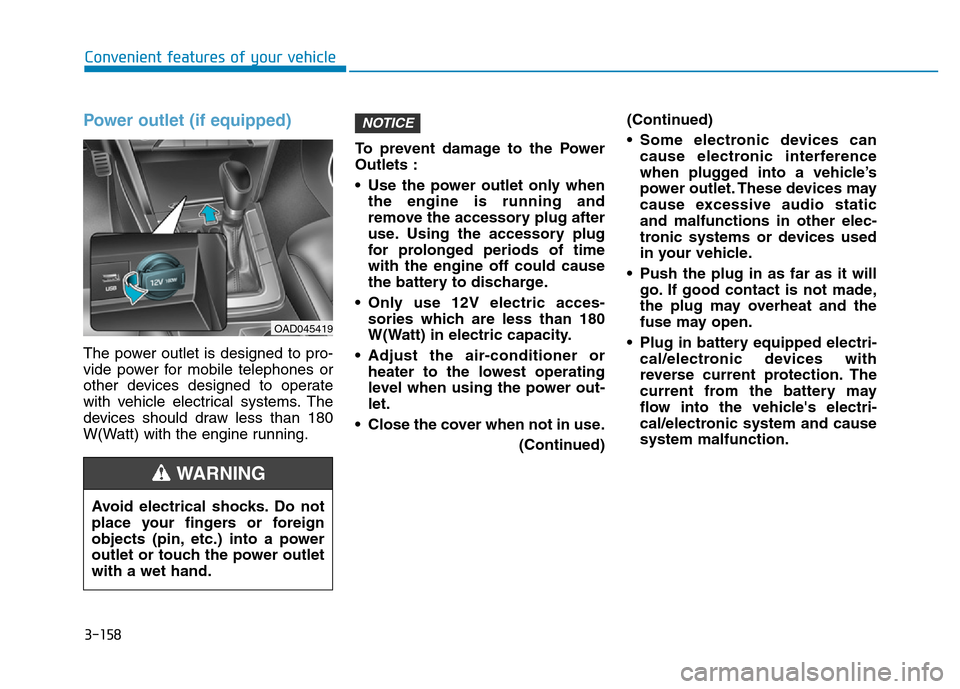
Power outlet (if equipped)
The power outlet is designed to pro-
vide power for mobile telephones or
other devices designed to operate
with vehicle electrical systems. The
devices should draw less than 180
W(Watt) with the engine running.To prevent damage to the Power
Outlets :
• Use the power outlet only when
the engine is running and
remove the accessory plug after
use. Using the accessory plug
for prolonged periods of time
with the engine off could cause
the battery to discharge.
• Only use 12V electric acces-
sories which are less than 180
W(Watt) in electric capacity.
• Adjust the air-conditioner or
heater to the lowest operating
level when using the power out-
let.
• Close the cover when not in use.
(Continued)(Continued)
• Some electronic devices can
cause electronic interference
when plugged into a vehicle’s
power outlet. These devices may
cause excessive audio static
and malfunctions in other elec-
tronic systems or devices used
in your vehicle.
• Push the plug in as far as it will
go. If good contact is not made,
the plug may overheat and the
fuse may open.
• Plug in battery equipped electri-
cal/electronic devices with
reverse current protection. The
current from the battery may
flow into the vehicle's electri-
cal/electronic system and cause
system malfunction.
NOTICE
OAD045419
Avoid electrical shocks. Do not
place your fingers or foreign
objects (pin, etc.) into a power
outlet or touch the power outlet
with a wet hand.
WARNING
Page 254 of 637
3-159
Convenient features of your vehicle
3
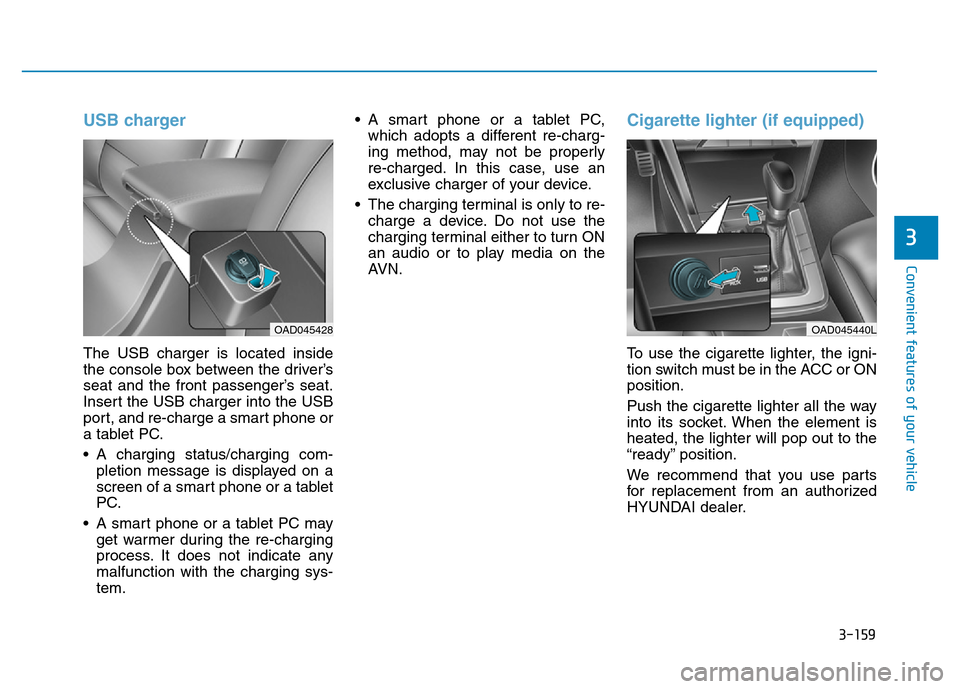
USB charger
The USB charger is located inside
the console box between the driver’s
seat and the front passenger’s seat.
Insert the USB charger into the USB
port, and re-charge a smart phone or
a tablet PC.
• A charging status/charging com-
pletion message is displayed on a
screen of a smart phone or a tablet
PC.
• A smart phone or a tablet PC may
get warmer during the re-charging
process. It does not indicate any
malfunction with the charging sys-
tem.• A smart phone or a tablet PC,
which adopts a different re-charg-
ing method, may not be properly
re-charged. In this case, use an
exclusive charger of your device.
• The charging terminal is only to re-
charge a device. Do not use the
charging terminal either to turn ON
an audio or to play media on the
AVN.
Cigarette lighter (if equipped)
To use the cigarette lighter, the igni-
tion switch must be in the ACC or ON
position.
Push the cigarette lighter all the way
into its socket. When the element is
heated, the lighter will pop out to the
“ready” position.
We recommend that you use parts
for replacement from an authorized
HYUNDAI dealer.
OAD045428OAD045440L
Page 258 of 637
Multimedia System
Multimedia system .................................................4-2
Aux, USB and iPod®port ................................................4-2
Antenna ...............................................................................4-3
Steering wheel audio control ........................................4-4
Audio / Video / Navigation system (AVN) .................4-5
Bluetooth®Wireless Technology hands-free ..........4-5
How vehicle radio works .................................................4-6
Audio (Without Touch Screen) ............................4-9
Feature of Your Audio ...................................................4-10
Radio Mode (Type A-1, Type A-2, Type A-3,
Type A-4 with RDS)........................................................4-28
Radio Mode (Type A-5, Type A-6) .............................4-30
Media Mode......................................................................4-31
Phone Mode ....................................................................4-38
Setup Mode
(Type A-1, Type A-2, Type A-3, Type A-4).............4-40
Setup Mode (Type A-5, Type A-6).............................4-46
Audio (With Touch Screen) ................................4-54
Feature of Your Audio ...................................................4-55
Radio Mode
(Type B-1, Type B-2,Type B-3, Type B-4) ..............4-72
Radio Mode (Type B-5, Type B-6) .............................4-74
Media Mode......................................................................4-75
Phone Mode .....................................................................4-90
Bluetooth®Wireless Technology
(Type B-1, Type B-2,Type B-3, Type B-4) ..............4-90
Bluetooth®Wireless Technology
(Type B-5, Type B-6) .....................................................4-97
Setup Mode
(Type B-1, Type B-2,Type B-3, Type B-4) ............4-103
Setup Mode (Type B-5, Type B-6) ..........................4-110
Declaration of Conformity ..............................4-117
FCC ..................................................................................4-117
CE for EU ........................................................................4-119
NCC for Taiwan ..............................................................4-121
ACMA for Australia ......................................................4-122
ANATEL for Brazil .........................................................4-124
SMA for Jamaica ...........................................................4-127
IFETEL for Mexico ........................................................4-128
MOC for Israel ...............................................................4-129
4
Page 262 of 637
Audio / Video / Navigation sys-
tem (AVN)(if equipped)
Detailed information for the AVN sys-
tem is described in a separately sup-
plied manual.
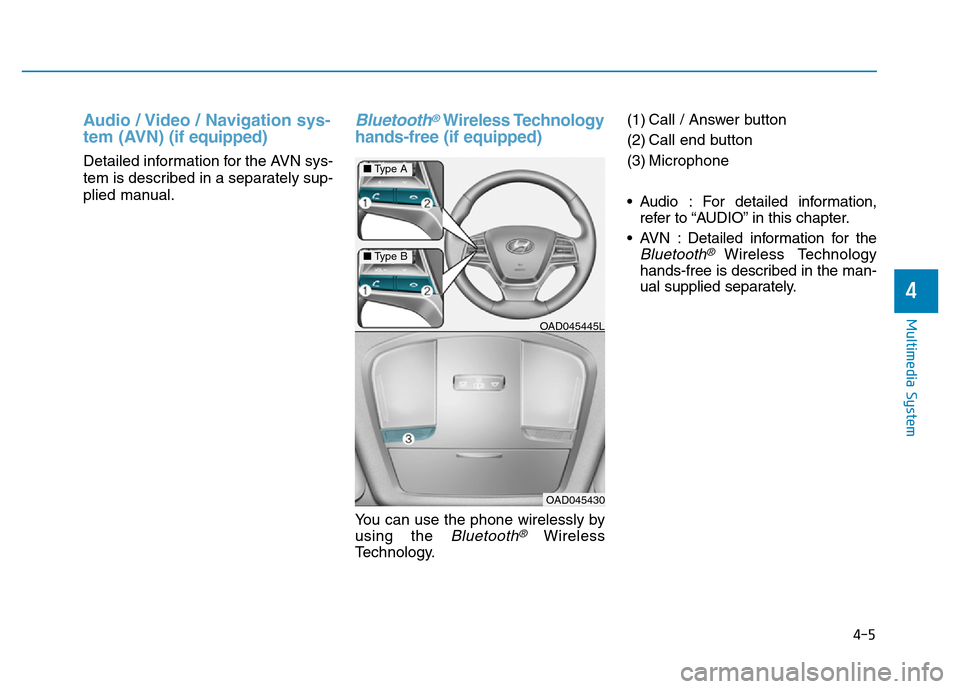
Bluetooth®Wireless Technology
hands-free (if equipped)
You can use the phone wirelessly by
using the
Bluetooth®Wireless
Technology.(1) Call / Answer button
(2) Call end button
(3) Microphone
• Audio : For detailed information,
refer to “AUDIO” in this chapter.
• AVN : Detailed information for the
Bluetooth® Wireless Technology
hands-free is described in the man-
ual supplied separately.
OAD045445L
OAD045430
4-5
Multimedia System
4
■Type A
■Type B
Page 265 of 637
4-8
Multimedia System
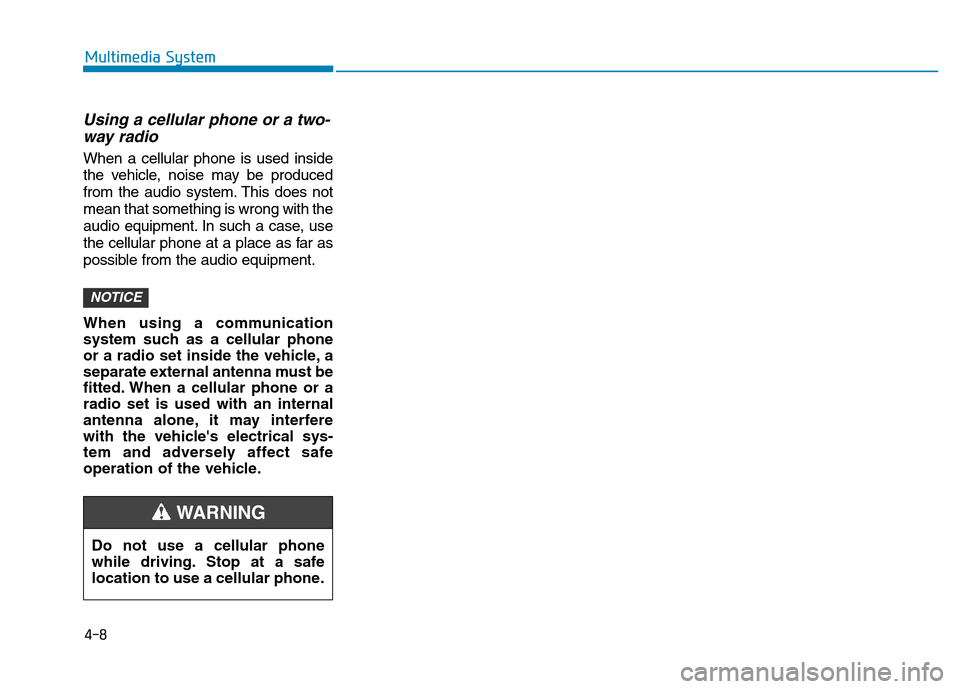
Using a cellular phone or a two-
way radio
When a cellular phone is used inside
the vehicle, noise may be produced
from the audio system. This does not
mean that something is wrong with the
audio equipment. In such a case, use
the cellular phone at a place as far as
possible from the audio equipment.
When using a communication
system such as a cellular phone
or a radio set inside the vehicle, a
separate external antenna must be
fitted. When a cellular phone or a
radio set is used with an internal
antenna alone, it may interfere
with the vehicle's electrical sys-
tem and adversely affect safe
operation of the vehicle.
NOTICE
Do not use a cellular phone
while driving. Stop at a safe
location to use a cellular phone.
WARNING
Page 267 of 637
4-10
Multimedia System
Feature of Your Audio
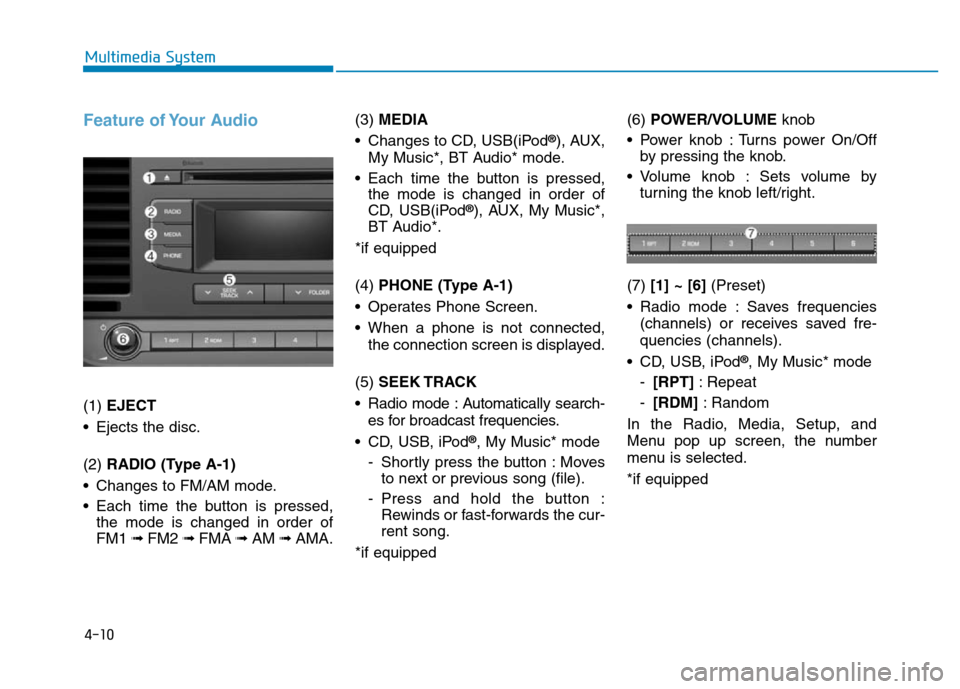
(1) EJECT
• Ejects the disc.
(2) RADIO (Type A-1)
• Changes to FM/AM mode.
• Each time the button is pressed,
the mode is changed in order of
FM1 ➟ FM2 ➟FMA ➟AM ➟AMA.(3) MEDIA
• Changes to CD, USB(iPod
®), AUX,
My Music*, BT Audio* mode.
• Each time the button is pressed,
the mode is changed in order of
CD, USB(iPod
®), AUX, My Music*,
BT Audio*.
*if equipped
(4) PHONE (Type A-1)
• Operates Phone Screen.
• When a phone is not connected,
the connection screen is displayed.
(5) SEEK TRACK
• Radio mode : Automatically search-
es for broadcast frequencies.
• CD, USB, iPod
®, My Music* mode
- Shortly press the button : Moves
to next or previous song (file).
- Press and hold the button :
Rewinds or fast-forwards the cur-
rent song.
*if equipped(6) POWER/VOLUMEknob
• Power knob : Turns power On/Off
by pressing the knob.
• Volume knob : Sets volume by
turning the knob left/right.
(7) [1] ~ [6](Preset)
• Radio mode : Saves frequencies
(channels) or receives saved fre-
quencies (channels).
• CD, USB, iPod
®, My Music* mode
-[RPT]: Repeat
-[RDM]: Random
In the Radio, Media, Setup, and
Menu pop up screen, the number
menu is selected.
*if equipped
Page 268 of 637
4-11
Multimedia System
4
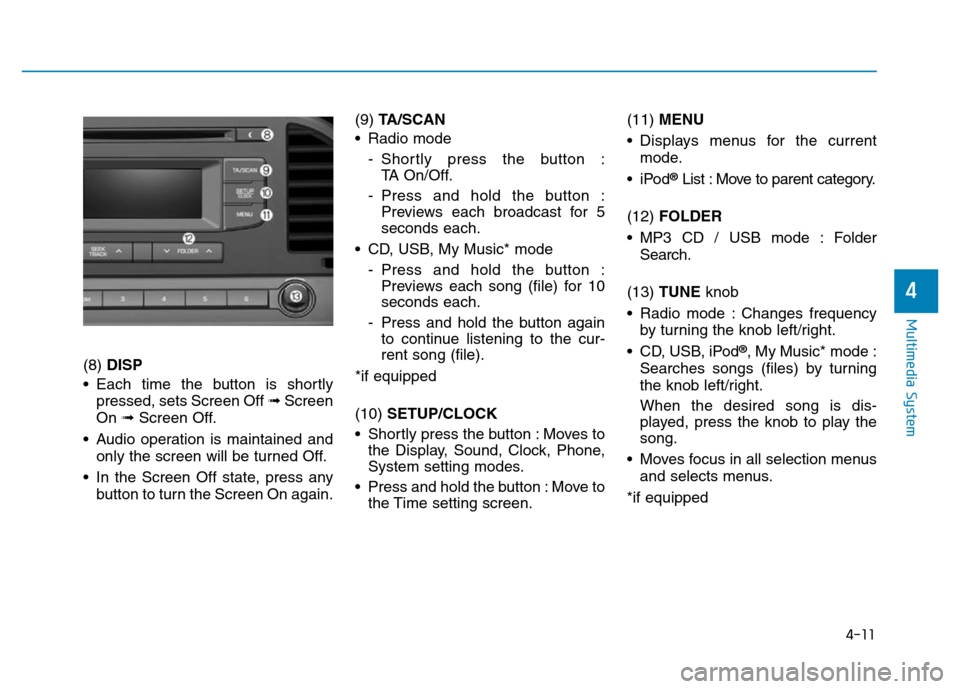
(8) DISP
• Each time the button is shortly
pressed, sets Screen Off ➟Screen
On ➟Screen Off.
• Audio operation is maintained and
only the screen will be turned Off.
• In the Screen Off state, press any
button to turn the Screen On again.(9) TA/SCAN
• Radio mode
- Shortly press the button :
TA On/Off.
- Press and hold the button :
Previews each broadcast for 5
seconds each.
• CD, USB, My Music* mode
- Press and hold the button :
Previews each song (file) for 10
seconds each.
- Press and hold the button again
to continue listening to the cur-
rent song (file).
*if equipped
(10) SETUP/CLOCK
• Shortly press the button : Moves to
the Display, Sound, Clock, Phone,
System setting modes.
• Press and hold the button : Move to
the Time setting screen.(11) MENU
• Displays menus for the current
mode.
•iPod
®List : Move to parent category.
(12) FOLDER
• MP3 CD / USB mode : Folder
Search.
(13) TUNE knob
• Radio mode : Changes frequency
by turning the knob left/right.
• CD, USB, iPod
®, My Music* mode :
Searches songs (files) by turning
the knob left/right.
When the desired song is dis-
played, press the knob to play the
song.
• Moves focus in all selection menus
and selects menus.
*if equipped
Page 271 of 637
4-14
Multimedia System
Feature of Your Audio
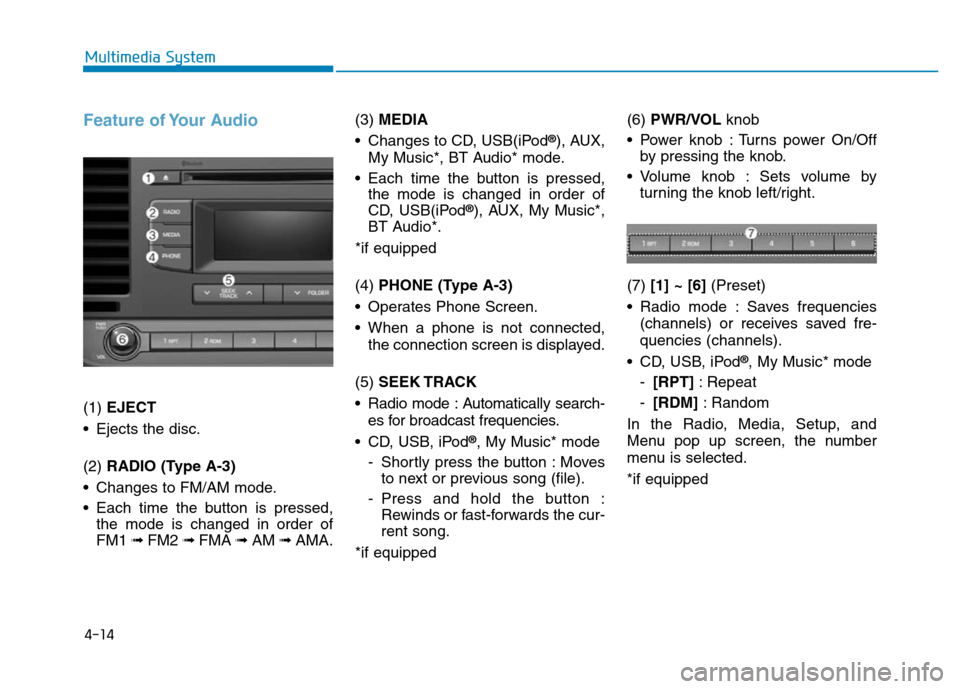
(1) EJECT
• Ejects the disc.
(2) RADIO (Type A-3)
• Changes to FM/AM mode.
• Each time the button is pressed,
the mode is changed in order of
FM1 ➟ FM2 ➟FMA ➟AM ➟AMA.(3) MEDIA
• Changes to CD, USB(iPod
®), AUX,
My Music*, BT Audio* mode.
• Each time the button is pressed,
the mode is changed in order of
CD, USB(iPod
®), AUX, My Music*,
BT Audio*.
*if equipped
(4) PHONE (Type A-3)
• Operates Phone Screen.
• When a phone is not connected,
the connection screen is displayed.
(5) SEEK TRACK
• Radio mode : Automatically search-
es for broadcast frequencies.
• CD, USB, iPod
®, My Music* mode
- Shortly press the button : Moves
to next or previous song (file).
- Press and hold the button :
Rewinds or fast-forwards the cur-
rent song.
*if equipped(6) PWR/VOL knob
• Power knob : Turns power On/Off
by pressing the knob.
• Volume knob : Sets volume by
turning the knob left/right.
(7) [1] ~ [6](Preset)
• Radio mode : Saves frequencies
(channels) or receives saved fre-
quencies (channels).
• CD, USB, iPod
®, My Music* mode
-[RPT]: Repeat
-[RDM]: Random
In the Radio, Media, Setup, and
Menu pop up screen, the number
menu is selected.
*if equipped
Page 272 of 637
4-15
Multimedia System
4
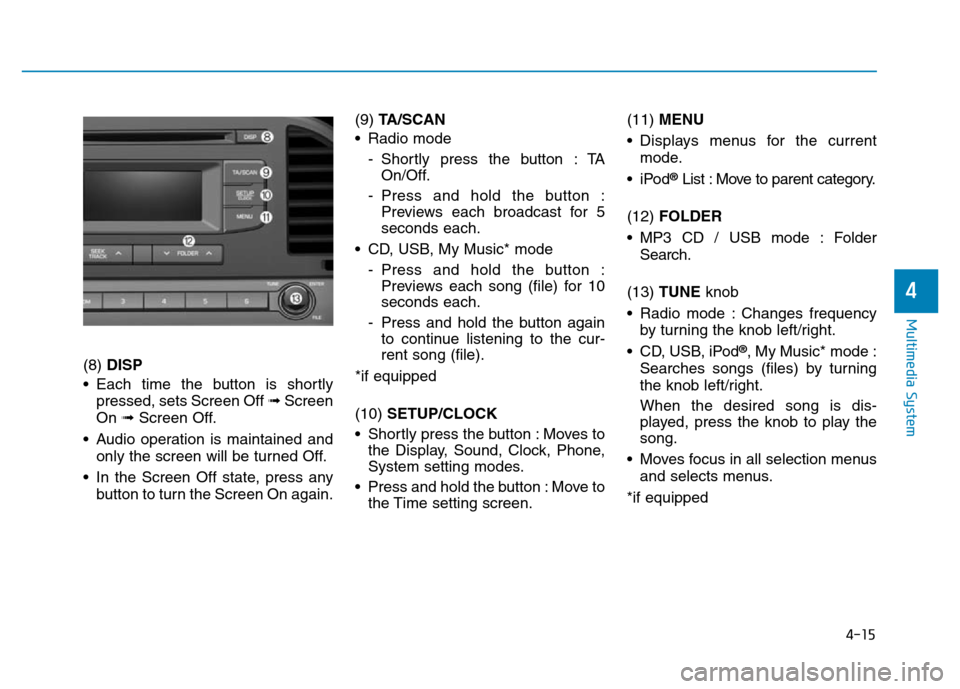
(8) DISP
• Each time the button is shortly
pressed, sets Screen Off ➟Screen
On ➟Screen Off.
• Audio operation is maintained and
only the screen will be turned Off.
• In the Screen Off state, press any
button to turn the Screen On again.(9) TA/SCAN
• Radio mode
- Shortly press the button : TA
On/Off.
- Press and hold the button :
Previews each broadcast for 5
seconds each.
• CD, USB, My Music* mode
- Press and hold the button :
Previews each song (file) for 10
seconds each.
- Press and hold the button again
to continue listening to the cur-
rent song (file).
*if equipped
(10) SETUP/CLOCK
• Shortly press the button : Moves to
the Display, Sound, Clock, Phone,
System setting modes.
• Press and hold the button : Move to
the Time setting screen.(11) MENU
• Displays menus for the current
mode.
•iPod
®List : Move to parent category.
(12) FOLDER
• MP3 CD / USB mode : Folder
Search.
(13) TUNE knob
• Radio mode : Changes frequency
by turning the knob left/right.
• CD, USB, iPod
®, My Music* mode :
Searches songs (files) by turning
the knob left/right.
When the desired song is dis-
played, press the knob to play the
song.
• Moves focus in all selection menus
and selects menus.
*if equipped
Page 275 of 637
4-18
Multimedia System
Feature of Your Audio
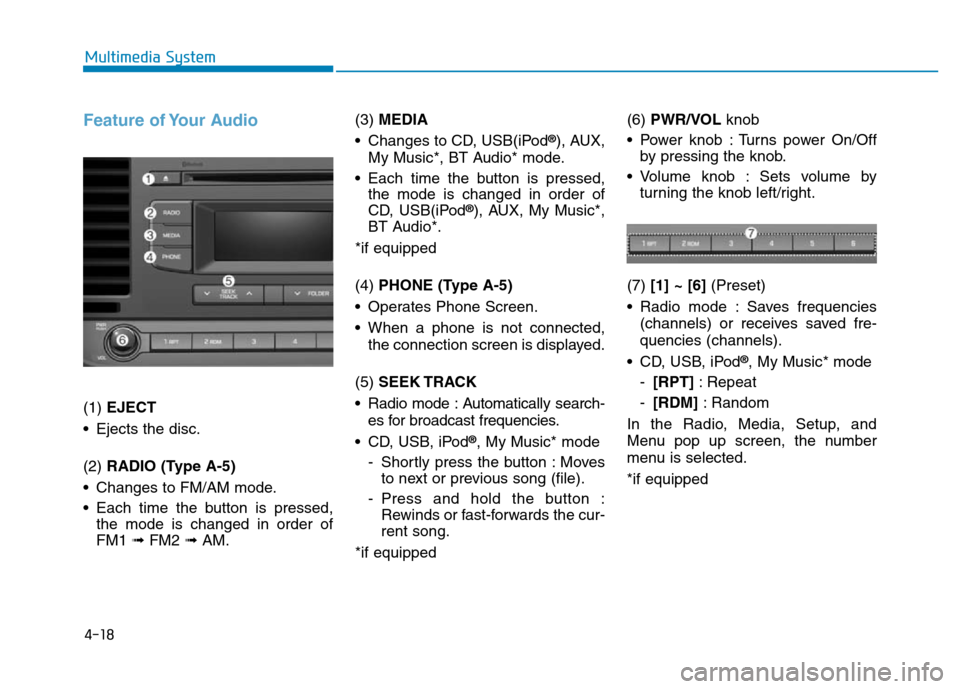
(1) EJECT
• Ejects the disc.
(2) RADIO (Type A-5)
• Changes to FM/AM mode.
• Each time the button is pressed,
the mode is changed in order of
FM1 ➟ FM2 ➟AM.(3) MEDIA
• Changes to CD, USB(iPod
®), AUX,
My Music*, BT Audio* mode.
• Each time the button is pressed,
the mode is changed in order of
CD, USB(iPod
®), AUX, My Music*,
BT Audio*.
*if equipped
(4) PHONE (Type A-5)
• Operates Phone Screen.
• When a phone is not connected,
the connection screen is displayed.
(5) SEEK TRACK
• Radio mode : Automatically search-
es for broadcast frequencies.
• CD, USB, iPod
®, My Music* mode
- Shortly press the button : Moves
to next or previous song (file).
- Press and hold the button :
Rewinds or fast-forwards the cur-
rent song.
*if equipped(6) PWR/VOL knob
• Power knob : Turns power On/Off
by pressing the knob.
• Volume knob : Sets volume by
turning the knob left/right.
(7) [1] ~ [6](Preset)
• Radio mode : Saves frequencies
(channels) or receives saved fre-
quencies (channels).
• CD, USB, iPod
®, My Music* mode
-[RPT]: Repeat
-[RDM]: Random
In the Radio, Media, Setup, and
Menu pop up screen, the number
menu is selected.
*if equipped