battery Hyundai Elantra 2017 Owner's Guide
[x] Cancel search | Manufacturer: HYUNDAI, Model Year: 2017, Model line: Elantra, Model: Hyundai Elantra 2017Pages: 637, PDF Size: 15.02 MB
Page 279 of 637
• Operating the device while driving
could lead to accidents due to a
lack of attention to external sur-
roundings. First park the vehicle
before operating the device.
• Adjust the volume to levels that
allow the driver to hear sounds
from outside of the vehicle.
Driving in a state where external
sounds cannot be heard may lead
to accidents.
• Pay attention to the volume set-
ting when turning the device on. A
sudden output of extreme volume
upon turning the device on could
lead to hearing impairment.
(Adjust the volume to a suitable
levels before turning off the
device.)
• If you want to change the position
of device installation, please
inquire with your place of pur-
chase or service maintenance
center. Technical expertise is
required to install or disassemble
the device.
(Continued)(Continued)
• Turn on the car ignition before
using this device. Do not operate
the audio system for long periods
of time with the ignition turned off
as such operations may lead to
battery discharge.
• Do not subject the device to
severe shock or impact. Direct
pressure onto the front side of the
monitor may cause damage to the
LCD or touch screen.
• When cleaning the device, make
sure to turn off the device and use
a dry and smooth cloth. Never use
tough materials, chemical cloths,
or solvents (alcohol, benzene,
thinners, etc.) as such materials
may damage the device panel or
cause color/quality deterioration
• Do not place beverages close to
the audio system. Spilling bever-
ages may lead to system malfunc-
tion.
• In case of product malfunction,
please contact your place of pur-
chase or After Service center.
• Placing the audio system within
an electromagnetic environment
may result in noise interference.
NOTICE
4-22
Multimedia System
Driving while distracted can
result in a loss of vehicle con-
trol that may lead to an acci-
dent, severe personal injury,
and death. The driver’s primary
responsibility is in the safe and
legal operation of a vehicle, and
use of any handheld devices,
other equipment, or vehicle sys-
tems which take the driver’s
eyes, attention and focus away
from the safe operation of a
vehicle or which are not permis-
sible by law should never be
used during operation of the
vehicle.
WARNING
Page 281 of 637
4-24
Multimedia System
(Continued)
• Use of USB accessories such as
rechargers or heaters using USB I/F
may lower performance or cause
trouble.
• If you use devices such as a USB hub
purchased separately, the vehicle’s
audio system may not recognize the
USB device. In that case, connect
the USB device directly to the multi-
media terminal of the vehicle.
• If the USB device is divided by logi-
cal drives, only the music files on the
highest-priority drive are recog-
nized by car audio.
• Devices such as MP3 Player/
Cellular phone/Digital camera can
be unrecognizable by standard USB
I/F can be unrecognizable.
• Charging through the USB may not
be supported in some mobile
devices.
• USB HDD or USB types liable to
connection failures due to vehicle
vibrations are not supported. (i-
stick type)
(Continued)(Continued)
• Some non-standard USB devices
(METAL COVER TYPE USB) can
be unrecognizable.
• Some USB flash memory readers
(such as CF, SD, micro SD, etc.) or
external-HDD type devices can be
unrecognizable.
• Music files protected by DRM
(DIGITAL RIGHTS MANAGE-
MENT) are not recognizable.
• The data in the USB memory may
be lost while using this audio.
Always back up important data on a
personal storage device.
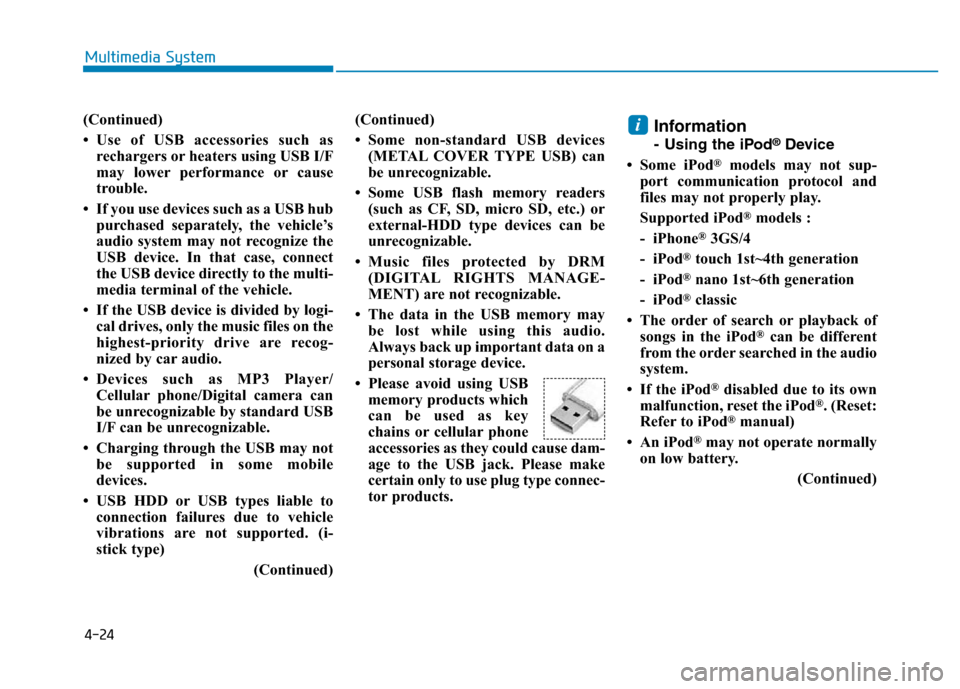
• Please avoid using USB
memory products which
can be used as key
chains or cellular phone
accessories as they could cause dam-
age to the USB jack. Please make
certain only to use plug type connec-
tor products.
Information
- Using the iPod®Device
• Some iPod
®models may not sup-
port communication protocol and
files may not properly play.
Supported iPod
®models :
- iPhone
®3GS/4
- iPod
®touch 1st~4th generation
- iPod
®nano 1st~6th generation
- iPod
®classic
• The order of search or playback of
songs in the iPod
®can be different
from the order searched in the audio
system.
• If the iPod
®disabled due to its own
malfunction, reset the iPod®. (Reset:
Refer to iPod®manual)
• An iPod
®may not operate normally
on low battery.
(Continued)
i
Page 284 of 637
4-27
Multimedia System
4
(Continued)
• Placing the audio system within an
electromagnetic environment may
result in noise interference.
• Some cellular phones or other devices
may cause interference noise or mal-
function to audio system. In this case,
store the device in a different location
may resolve the condition.
• While a phone is connected through
Bluetooth
®Wireless Technology your
phone may discharge quicker than
usual for additional Bluetooth
®
Wireless Technology-related opera-
tions.
• If Priority is set upon vehicle igni-
tion (IGN/ACC ON), the Bluetooth
®
Wireless Technology phone will be
automatically connected. Even if
you are outside, the Bluetooth
®
Wireless Technology phone will be
automatically connected once you
are in the vicinity of the vehicle. If
you do not want to automatically
connect yourBluetooth
®Wireless
Technology phone, try the following.
1) Turn off the Bluetooth
®Wireless
Technology feature in your
mobile phone.
(Continued)(Continued)
2) Turn off the Bluetooth
®Wireless
Technology feature in your car
audio system.
- To turn off the Bluetooth
®
Wireless Technology feature in
your car audio system, go to
[SETUP/CLOCK] > [Phone] and
[turn off] the Bluetooth
®Wireless
Technology feature.
•Bluetooth
®Wireless Technology
connection may become intermit-
tently disconnected in some mobile
phones. Follow these steps to try
again.
1) Turn the Bluetooth
®Wireless
Technology function within the
mobile phone off/on and try
again.
2) Turn the mobile phone power
Off/On and try again.
3) Completely remove the mobile
phone battery, reboot, and then
again.
4) Reboot the audio system and try
again.
5) Delete all paired devices, pair and
try again.
(Continued)(Continued)
• It is possible to pair up to five
Bluetooth
®Wireless Technology
devices to the car system.
• Phone contact names should be
saved in English or they may not be
displayed correctly.
• The Handsfree call volume and
quality may differ depending on the
mobile phone.
• Only one Bluetooth
®Wireless
Technology device can be connected
at a time.
• In some mobile phones, starting the
ignition while talking through
Bluetooth
®Wireless Technology
enabled handsfree call will result in
the call becoming disconnected.
(Switch the call back to your mobile
phone when starting the ignition.)
• If the mobile phone is not paired or
connected, it is not possible to enter
Phone mode. Once a phone is paired
or connected, the guidance screen
will be displayed.
Page 325 of 637
4-68
Multimedia System
(Continued)
• When the EQ features of an external
device, such as the iPod
®, and the
audio system are both active, EQ
effects could overlap and cause sound
deterioration and distortion.
Whenever possible, turn off the EQ
feature within the external device
upon use by connecting with the
audio system.
• Noise may occur when an iPod
®or
AUX device is connected. When such
devices are not being used, disconnect
the device for storage.
• When the iPod
®or AUX device
power is connected to the power jack,
playing the external device may
result in noise. In such cases, discon-
nect the power connection before use.
• Skipping or improper operation may
occur depending on the characteris-
tics of your iPod
®/iPhone®device.
• If your iPhone is connected to both
the Bluetooth
®Wireless Technology
and USB, the sound may not be prop-
erly played. In your iPhone
®, select
the Dock connector orBluetooth®
Wireless Technology to change the
sound output (source).
(Continued)(Continued)
• iPod
®mode cannot be operated when
the iPod®cannot be recognized due
to the playing of versions that do not
support communication protocols,
cases of iPod
®abnormalities and
defects.
• For fifth generation iPod
®Nano
devices, the iPod®may not be recog-
nized when the battery level is low.
Please charge the iPod
®for use.
• Search/play orders shown within the
iPod
®device may differ with the
orders shown within the audio sys-
tem.
• If the iPod
®malfunctions due to an
iPod®device defect, reset the iPod®
and try again. (To learn more, refer to
your iPod®manual)
• Some iPod
®s may not sync with the
System depending on its version. If
the Media is removed before the
Media is recognized, then the system
may not properly restore the previ-
ously operated mode. (iPad charging
is not supported.)
• Beside support 1M cable when pur-
chasing iPod
®/iPhone®products,
Long Cable cannot be recognized.
Information
- Using the Bluetooth®Wireless
Technology Audio Mode
•Bluetooth
®Wireless Technology
Audio Mode can be used only when
a Bluetooth
®Wireless Technology
phone has been connected.
•Bluetooth
®Wireless Technology
Audio Mode will not be available
when connecting mobile phones that
do not support this feature.
• While Bluetooth
®Wireless
Technology Audio is playing, if the
Bluetooth
®Wireless Technology
phone is connected, then the music
will also stop.
• Moving the Track up/down while
playing Bluetooth
®Wireless
Technology audio mode may result
in pop noises in some mobile
phones.
•Bluetooth
®Wireless Technology
streaming audio may not be sup-
ported in some mobile phones.
(Continued)
i
Page 328 of 637
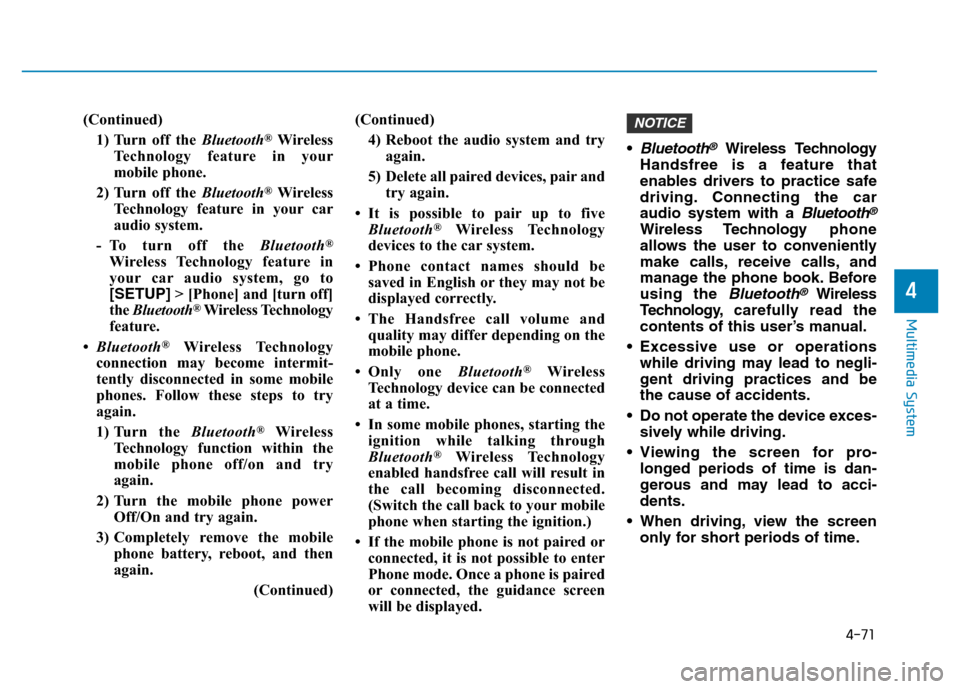
4-71
Multimedia System
4
(Continued)
1) Turn off the Bluetooth
®Wireless
Technology feature in your
mobile phone.
2) Turn off the Bluetooth
®Wireless
Technology feature in your car
audio system.
- To turn off the Bluetooth
®
Wireless Technology feature in
your car audio system, go to
[SETUP]> [Phone] and [turn off]
the Bluetooth
®Wireless Technology
feature.
•Bluetooth
®Wireless Technology
connection may become intermit-
tently disconnected in some mobile
phones. Follow these steps to try
again.
1) Turn the Bluetooth
®Wireless
Technology function within the
mobile phone off/on and try
again.
2) Turn the mobile phone power
Off/On and try again.
3) Completely remove the mobile
phone battery, reboot, and then
again.
(Continued)(Continued)
4) Reboot the audio system and try
again.
5) Delete all paired devices, pair and
try again.
• It is possible to pair up to five
Bluetooth
®Wireless Technology
devices to the car system.
• Phone contact names should be
saved in English or they may not be
displayed correctly.
• The Handsfree call volume and
quality may differ depending on the
mobile phone.
• Only one Bluetooth
®Wireless
Technology device can be connected
at a time.
• In some mobile phones, starting the
ignition while talking through
Bluetooth
®Wireless Technology
enabled handsfree call will result in
the call becoming disconnected.
(Switch the call back to your mobile
phone when starting the ignition.)
• If the mobile phone is not paired or
connected, it is not possible to enter
Phone mode. Once a phone is paired
or connected, the guidance screen
will be displayed.•
Bluetooth®Wireless Technology
Handsfree is a feature that
enables drivers to practice safe
driving. Connecting the car
audio system with a
Bluetooth®
Wireless Technologyphone
allows the user to conveniently
make calls, receive calls, and
manage the phone book. Before
using the
Bluetooth®Wireless
Technology,carefully read the
contents of this user’s manual.
• Excessive use or operations
while driving may lead to negli-
gent driving practices and be
the cause of accidents.
• Do not operate the device exces-
sively while driving.
• Viewing the screen for pro-
longed periods of time is dan-
gerous and may lead to acci-
dents.
• When driving, view the screen
only for short periods of time.
NOTICE
Page 387 of 637
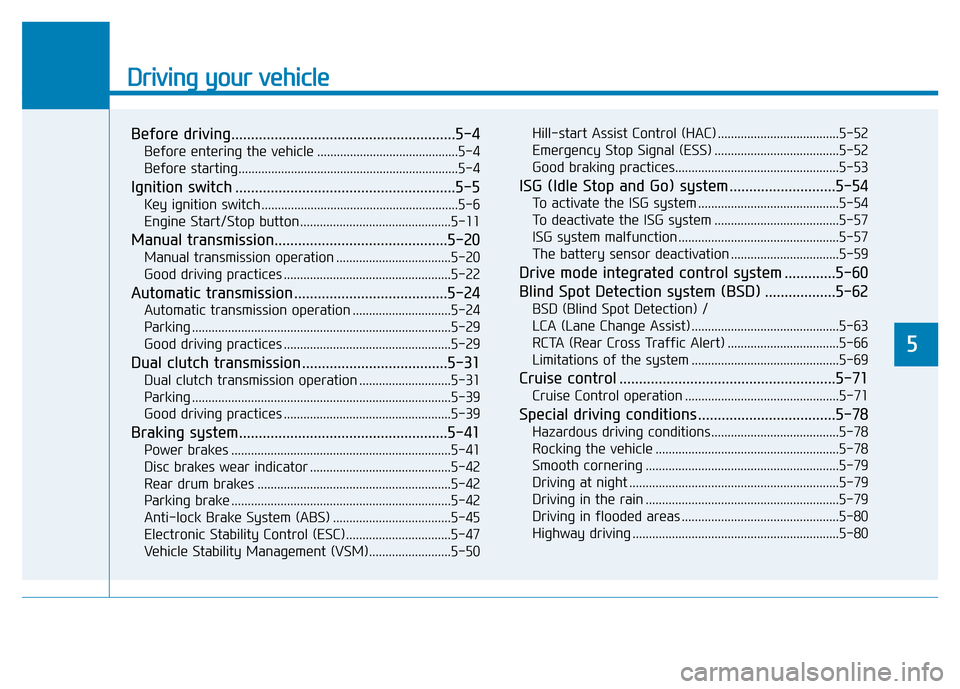
Driving your vehicle
Before driving.........................................................5-4
Before entering the vehicle ...........................................5-4
Before starting...................................................................5-4
Ignition switch ........................................................5-5
Key ignition switch ............................................................5-6
Engine Start/Stop button ..............................................5-11
Manual transmission............................................5-20
Manual transmission operation ...................................5-20
Good driving practices ...................................................5-22
Automatic transmission .......................................5-24
Automatic transmission operation ..............................5-24
Parking ...............................................................................5-29
Good driving practices ...................................................5-29
Dual clutch transmission .....................................5-31
Dual clutch transmission operation ............................5-31
Parking ...............................................................................5-39
Good driving practices ...................................................5-39
Braking system.....................................................5-41
Power brakes ...................................................................5-41
Disc brakes wear indicator ...........................................5-42
Rear drum brakes ...........................................................5-42
Parking brake ...................................................................5-42
Anti-lock Brake System (ABS) ....................................5-45
Electronic Stability Control (ESC)................................5-47
Vehicle Stability Management (VSM).........................5-50Hill-start Assist Control (HAC) .....................................5-52
Emergency Stop Signal (ESS) ......................................5-52
Good braking practices..................................................5-53
ISG (Idle Stop and Go) system ...........................5-54
To activate the ISG system ...........................................5-54
To deactivate the ISG system ......................................5-57
ISG system malfunction .................................................5-57
The battery sensor deactivation .................................5-59
Drive mode integrated control system .............5-60
Blind Spot Detection system (BSD) ..................5-62
BSD (Blind Spot Detection) /
LCA (Lane Change Assist) .............................................5-63
RCTA (Rear Cross Traffic Alert) ..................................5-66
Limitations of the system .............................................5-69
Cruise control .......................................................5-71
Cruise Control operation ...............................................5-71
Special driving conditions ...................................5-78
Hazardous driving conditions.......................................5-78
Rocking the vehicle ........................................................5-78
Smooth cornering ...........................................................5-79
Driving at night ................................................................5-79
Driving in the rain ...........................................................5-79
Driving in flooded areas ................................................5-80
Highway driving ...............................................................5-80
5
Page 393 of 637
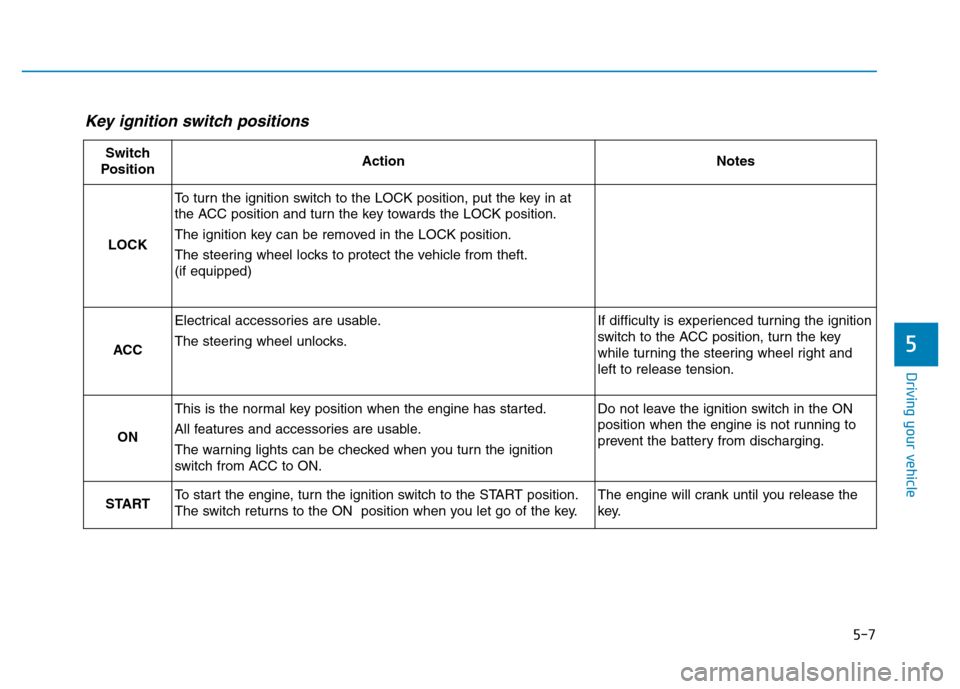
5-7
Driving your vehicle
5
Key ignition switch positions
Switch
PositionActionNotes
LOCK
To turn the ignition switch to the LOCK position, put the key in at
the ACC position and turn the key towards the LOCK position.
The ignition key can be removed in the LOCK position.
The steering wheel locks to protect the vehicle from theft.
(if equipped)
ACC
Electrical accessories are usable.
The steering wheel unlocks.If difficulty is experienced turning the ignition
switch to the ACC position, turn the key
while turning the steering wheel right and
left to release tension.
ON
This is the normal key position when the engine has started.
All features and accessories are usable.
The warning lights can be checked when you turn the ignition
switch from ACC to ON.Do not leave the ignition switch in the ON
position when the engine is not running to
prevent the battery from discharging.
STARTTo start the engine, turn the ignition switch to the START position.
The switch returns to the ON position when you let go of the key.The engine will crank until you release the
key.
Page 398 of 637
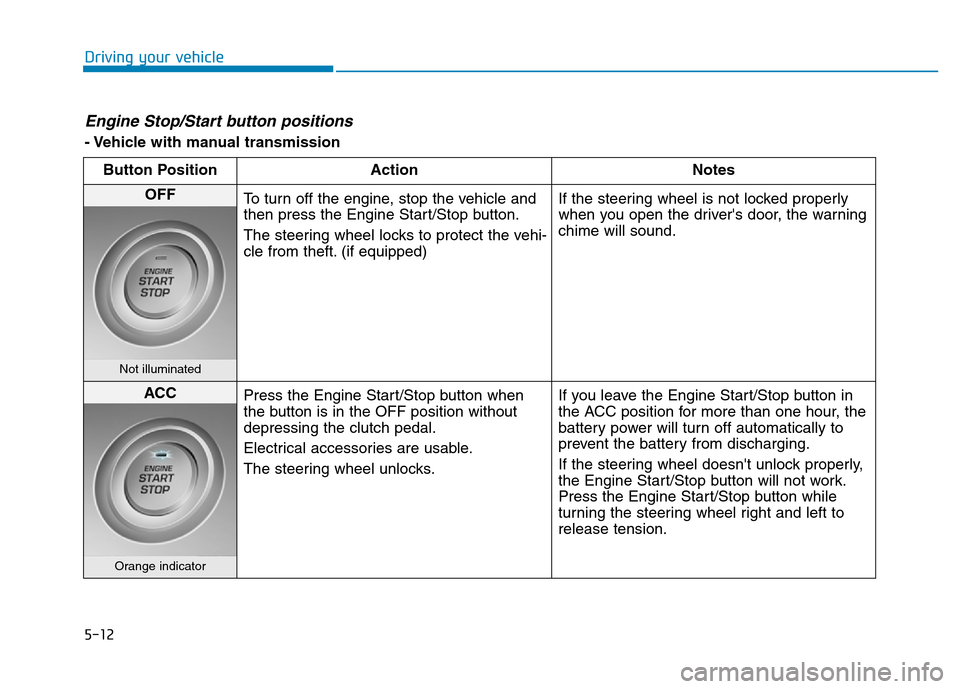
5-12
Driving your vehicle
Engine Stop/Start button positions
- Vehicle with manual transmission
Button Position Action Notes
OFF
To turn off the engine, stop the vehicle and
then press the Engine Start/Stop button.
The steering wheel locks to protect the vehi-
cle from theft. (if equipped)If the steering wheel is not locked properly
when you open the driver's door, the warning
chime will sound.
Not illuminated
ACC
Press the Engine Start/Stop button when
the button is in the OFF position without
depressing the clutch pedal.
Electrical accessories are usable.
The steering wheel unlocks.If you leave the Engine Start/Stop button in
the ACC position for more than one hour, the
battery power will turn off automatically to
prevent the battery from discharging.
If the steering wheel doesn't unlock properly,
the Engine Start/Stop button will not work.
Press the Engine Start/Stop button while
turning the steering wheel right and left to
release tension.
Orange indicator
Page 399 of 637
5-13
Driving your vehicle
5
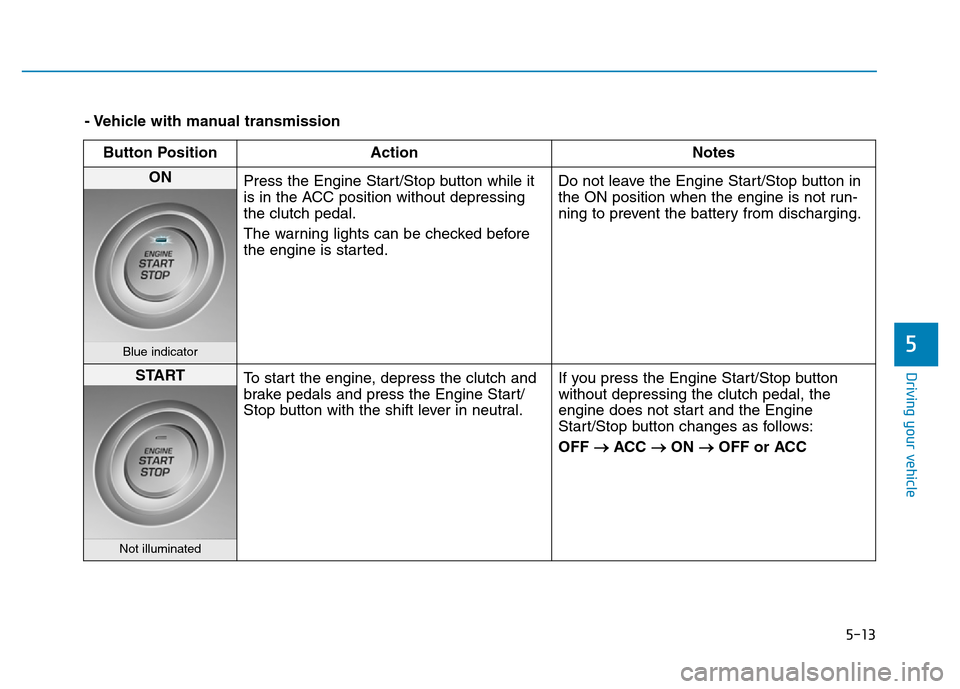
- Vehicle with manual transmission
Button Position Action Notes
ON
Press the Engine Start/Stop button while it
is in the ACC position without depressing
the clutch pedal.
The warning lights can be checked before
the engine is started.Do not leave the Engine Start/Stop button in
the ON position when the engine is not run-
ning to prevent the battery from discharging.
Blue indicator
START
To start the engine, depress the clutch and
brake pedals and press the Engine Start/
Stop button with the shift lever in neutral.If you press the Engine Start/Stop button
without depressing the clutch pedal, the
engine does not start and the Engine
Start/Stop button changes as follows:
OFF
→ACC →ON →OFF or ACC
Not illuminated
Page 400 of 637
5-14
Driving your vehicle
Engine Stop/Start button positions
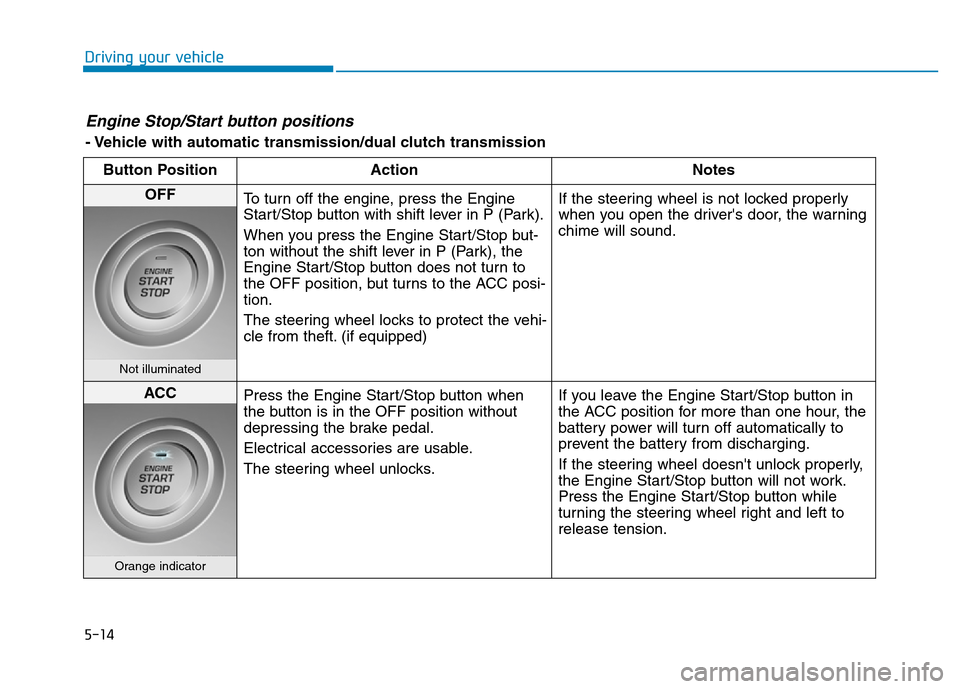
- Vehicle with automatic transmission/dual clutch transmission
Button Position Action Notes
OFF
To turn off the engine, press the Engine
Start/Stop button with shift lever in P (Park).
When you press the Engine Start/Stop but-
ton without the shift lever in P (Park), the
Engine Start/Stop button does not turn to
the OFF position, but turns to the ACC posi-
tion.
The steering wheel locks to protect the vehi-
cle from theft. (if equipped)If the steering wheel is not locked properly
when you open the driver's door, the warning
chime will sound.
Not illuminated
ACC
Press the Engine Start/Stop button when
the button is in the OFF position without
depressing the brake pedal.
Electrical accessories are usable.
The steering wheel unlocks.If you leave the Engine Start/Stop button in
the ACC position for more than one hour, the
battery power will turn off automatically to
prevent the battery from discharging.
If the steering wheel doesn't unlock properly,
the Engine Start/Stop button will not work.
Press the Engine Start/Stop button while
turning the steering wheel right and left to
release tension.
Orange indicator