lock Hyundai Elantra 2017 Manual PDF
[x] Cancel search | Manufacturer: HYUNDAI, Model Year: 2017, Model line: Elantra, Model: Hyundai Elantra 2017Pages: 637, PDF Size: 15.02 MB
Page 239 of 637
3-144
Convenient features of your vehicle
Operation Tips
• To keep dust or unpleasant fumes
from entering the vehicle through
the ventilation system, temporarily
set the air intake control to the
recirculated air position. Be sure to
return the control to the fresh air
position when the irritation has
passed to keep fresh air in the
vehicle. This will help keep the driv-
er alert and comfortable.
• Air for the heating/cooling system
is drawn in through the grilles just
ahead of the windshield. Care
should be taken that these are not
blocked by leaves, snow, ice or
other obstructions.
• To prevent interior fog on the wind-
shield, set the air intake control to
the fresh air position and fan speed
to the desired position, turn on the
air conditioning system, and adjust
the temperature control to desired
temperature.
Air conditioning
HYUNDAI Air Conditioning Systems
are filled with R-134a or R1234yf
refrigerant.
1. Start the engine. Push the air con-
ditioning button.
2. Set the mode to the position.
3. Set the air intake control to the out-
side air or recirculated air position.
4. Adjust the fan speed control and
temperature control to maintain
maximum comfort.
Information
Your vehicle is filled with R-134a or
R-1234yf according to the regulation
in your country at the time of produc-
tion. You can find out which air condi-
tioning refrigerant is applied to your
vehicle on the label located inside of
the hood. • The refrigerant system should
only be serviced by trained and
certified technicians to insure
proper and safe operation.
• The refrigerant system should
be serviced in a well-ventilated
place.
• The air conditioning evaporator
(cooling coil) shall never be
repaired or replaced with one
removed from a used or sal-
vaged vehicle and new replace-
ment MAC evaporators shall be
certified (and labeled) as meet-
ing SAE Standard J2842.
NOTICE
i
Page 250 of 637
3-155
Convenient features of your vehicle
3
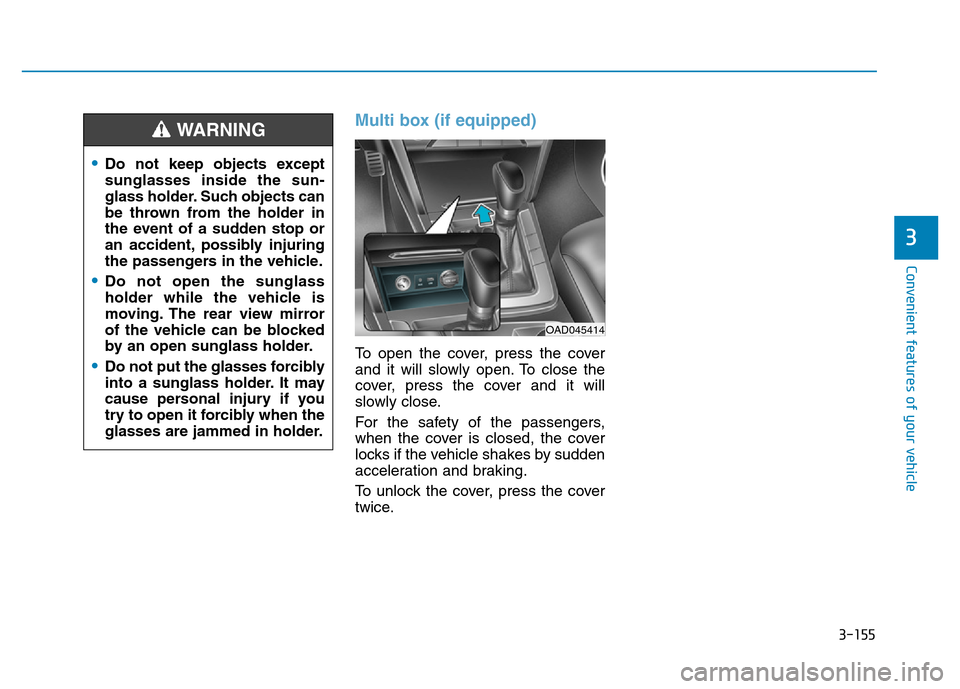
Multi box (if equipped)
To open the cover, press the cover
and it will slowly open. To close the
cover, press the cover and it will
slowly close.
For the safety of the passengers,
when the cover is closed, the cover
locks if the vehicle shakes by sudden
acceleration and braking.
To unlock the cover, press the cover
twice.
•Do not keep objects except
sunglasses inside the sun-
glass holder. Such objects can
be thrown from the holder in
the event of a sudden stop or
an accident, possibly injuring
the passengers in the vehicle.
•Do not open the sunglass
holder while the vehicle is
moving. The rear view mirror
of the vehicle can be blocked
by an open sunglass holder.
•Do not put the glasses forcibly
into a sunglass holder. It may
cause personal injury if you
try to open it forcibly when the
glasses are jammed in holder.
WARNING
OAD045414
Page 251 of 637
3-156
Convenient features of your vehicle
INTERIOR FEATURES
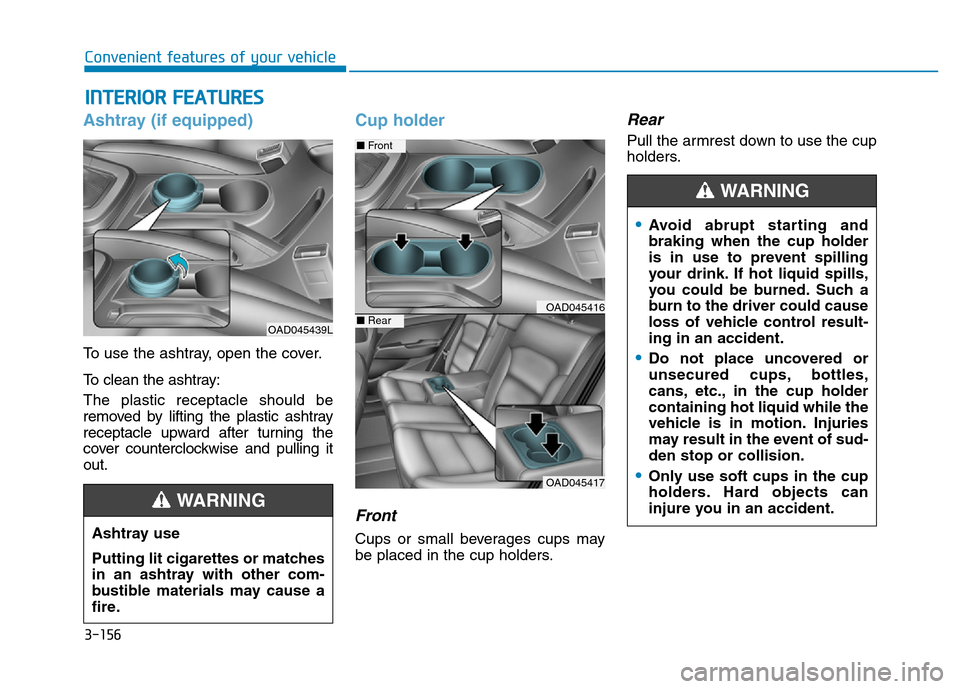
Ashtray (if equipped)
To use the ashtray, open the cover.
To clean the ashtray:
The plastic receptacle should be
removed by lifting the plastic ashtray
receptacle upward after turning the
cover counterclockwise and pulling it
out.
Cup holder
Front
Cups or small beverages cups may
be placed in the cup holders.
Rear
Pull the armrest down to use the cup
holders.
OAD045439L
Ashtray use
Putting lit cigarettes or matches
in an ashtray with other com-
bustible materials may cause a
fire.
WARNING
OAD045417
■Front
■RearOAD045416
•Avoid abrupt starting and
braking when the cup holder
is in use to prevent spilling
your drink. If hot liquid spills,
you could be burned. Such a
burn to the driver could cause
loss of vehicle control result-
ing in an accident.
•Do not place uncovered or
unsecured cups, bottles,
cans, etc., in the cup holder
containing hot liquid while the
vehicle is in motion. Injuries
may result in the event of sud-
den stop or collision.
•Only use soft cups in the cup
holders. Hard objects can
injure you in an accident.
WARNING
Page 252 of 637
3-157
Convenient features of your vehicle
3
• Keep your drinks sealed while
driving to prevent spilling your
drink. If liquid spills, it may get
into the vehicle's electrical/elec-
tronic system and damage elec-
trical/electronic parts.
• When cleaning spilled liquids, do
not dry the cup holder at high
temperature. This may damage
the cup holder.
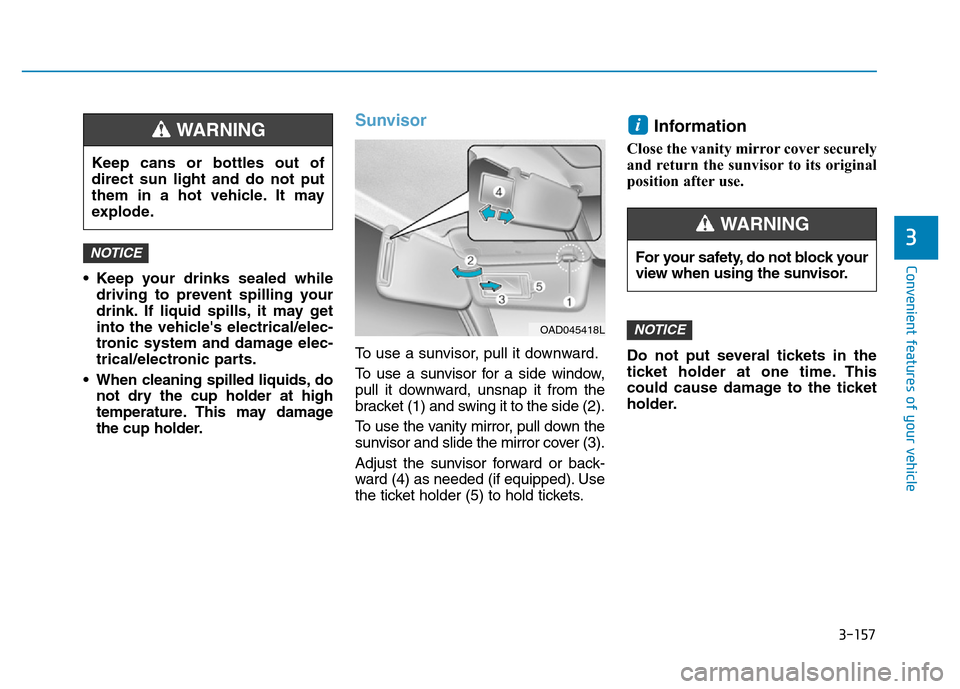
Sunvisor
To use a sunvisor, pull it downward.
To use a sunvisor for a side window,
pull it downward, unsnap it from the
bracket (1) and swing it to the side (2).
To use the vanity mirror, pull down the
sunvisor and slide the mirror cover (3).
Adjust the sunvisor forward or back-
ward (4) as needed (if equipped). Use
the ticket holder (5) to hold tickets.
Information
Close the vanity mirror cover securely
and return the sunvisor to its original
position after use.
Do not put several tickets in the
ticket holder at one time. This
could cause damage to the ticket
holder.
NOTICE
i
NOTICE
Keep cans or bottles out of
direct sun light and do not put
them in a hot vehicle. It may
explode.
WARNING
OAD045418L
For your safety, do not block your
view when using the sunvisor.
WARNING
Page 255 of 637
3-160
Convenient features of your vehicle
Only a genuine HYUNDAI lighter
should be used in the cigarette
lighter socket. The use of plug-in
accessories (shavers, hand-held
vacuums, and coffee pots, etc.)
may damage the socket or cause
electrical failure.
Clock
For more details, please refer to
the manual that was supplied with
your vehicle.
Clothes hanger (if equipped)
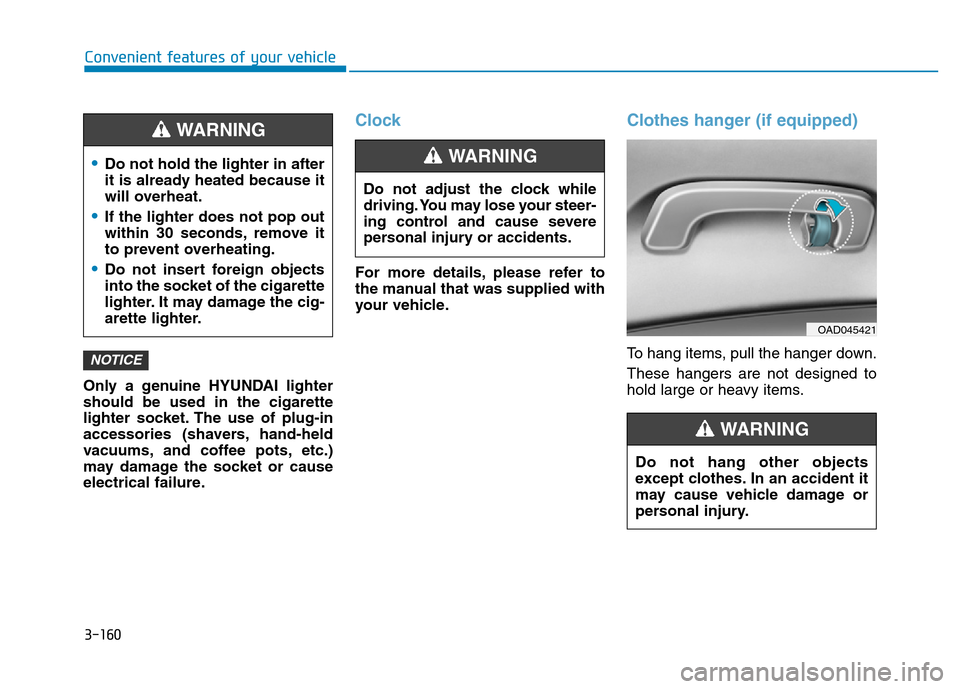
To hang items, pull the hanger down.
These hangers are not designed to
hold large or heavy items.NOTICE
OAD045421
Do not adjust the clock while
driving. You may lose your steer-
ing control and cause severe
personal injury or accidents.
WARNING
Do not hang other objects
except clothes. In an accident it
may cause vehicle damage or
personal injury.
WARNING
•Do not hold the lighter in after
it is already heated because it
will overheat.
•If the lighter does not pop out
within 30 seconds, remove it
to prevent overheating.
•Do not insert foreign objects
into the socket of the cigarette
lighter. It may damage the cig-
arette lighter.
WARNING
Page 264 of 637

4-7
Multimedia System
4
FM radio station
FM broadcasts are transmitted at
high frequencies and do not bend to
follow the earth's surface. Because
of this, FM broadcasts generally
begin to fade at short distances from
the station. Also, FM signals are eas-
ily affected by buildings, mountains,
or other obstructions. These can
result in certain listening conditions
which might lead you to believe a
problem exists with your radio. The
following conditions are normal and
do not indicate radio trouble :• Fading - As your vehicle moves
away from the radio station, the
signal will weaken and sound will
begin to fade. When this occurs,
we suggest that you select another
stronger station.
• Flutter/Static - Weak FM signals or
large obstructions between the
transmitter and your radio can dis-
turb the signal causing static or
fluttering noises to occur. Reducing
the treble level may lessen this
effect until the disturbance clears.• Station Swapping - As a FM signal
weakens, another more powerful
signal near the same frequency
may begin to play. This is because
your radio is designed to lock onto
the clearest signal. If this occurs,
select another station with a
stronger signal.
• Multi-Path Cancellation - Radio
signals being received from sever-
al directions can cause distortion
or fluttering. This can be caused by
a direct and reflected signal from
the same station, or by signals
from two stations with close fre-
quencies. If this occurs, select
another station until the condition
has passed.
OJF045311L
¢¢¢
JBM004
OJF045310L
Page 268 of 637
4-11
Multimedia System
4
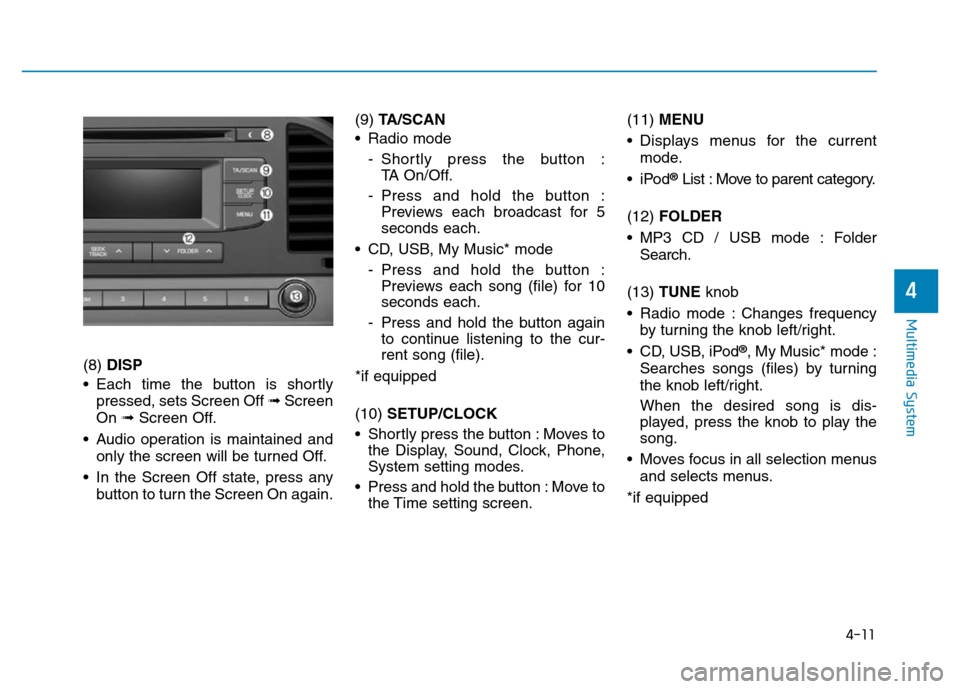
(8) DISP
• Each time the button is shortly
pressed, sets Screen Off ➟Screen
On ➟Screen Off.
• Audio operation is maintained and
only the screen will be turned Off.
• In the Screen Off state, press any
button to turn the Screen On again.(9) TA/SCAN
• Radio mode
- Shortly press the button :
TA On/Off.
- Press and hold the button :
Previews each broadcast for 5
seconds each.
• CD, USB, My Music* mode
- Press and hold the button :
Previews each song (file) for 10
seconds each.
- Press and hold the button again
to continue listening to the cur-
rent song (file).
*if equipped
(10) SETUP/CLOCK
• Shortly press the button : Moves to
the Display, Sound, Clock, Phone,
System setting modes.
• Press and hold the button : Move to
the Time setting screen.(11) MENU
• Displays menus for the current
mode.
•iPod
®List : Move to parent category.
(12) FOLDER
• MP3 CD / USB mode : Folder
Search.
(13) TUNE knob
• Radio mode : Changes frequency
by turning the knob left/right.
• CD, USB, iPod
®, My Music* mode :
Searches songs (files) by turning
the knob left/right.
When the desired song is dis-
played, press the knob to play the
song.
• Moves focus in all selection menus
and selects menus.
*if equipped
Page 272 of 637
4-15
Multimedia System
4
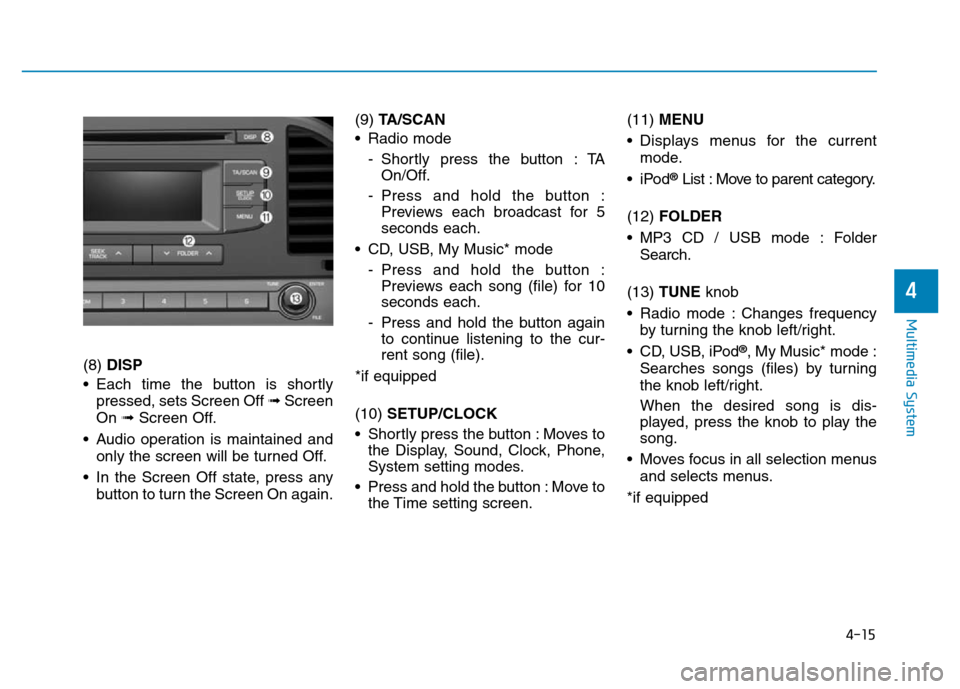
(8) DISP
• Each time the button is shortly
pressed, sets Screen Off ➟Screen
On ➟Screen Off.
• Audio operation is maintained and
only the screen will be turned Off.
• In the Screen Off state, press any
button to turn the Screen On again.(9) TA/SCAN
• Radio mode
- Shortly press the button : TA
On/Off.
- Press and hold the button :
Previews each broadcast for 5
seconds each.
• CD, USB, My Music* mode
- Press and hold the button :
Previews each song (file) for 10
seconds each.
- Press and hold the button again
to continue listening to the cur-
rent song (file).
*if equipped
(10) SETUP/CLOCK
• Shortly press the button : Moves to
the Display, Sound, Clock, Phone,
System setting modes.
• Press and hold the button : Move to
the Time setting screen.(11) MENU
• Displays menus for the current
mode.
•iPod
®List : Move to parent category.
(12) FOLDER
• MP3 CD / USB mode : Folder
Search.
(13) TUNE knob
• Radio mode : Changes frequency
by turning the knob left/right.
• CD, USB, iPod
®, My Music* mode :
Searches songs (files) by turning
the knob left/right.
When the desired song is dis-
played, press the knob to play the
song.
• Moves focus in all selection menus
and selects menus.
*if equipped
Page 276 of 637
4-19
Multimedia System
4
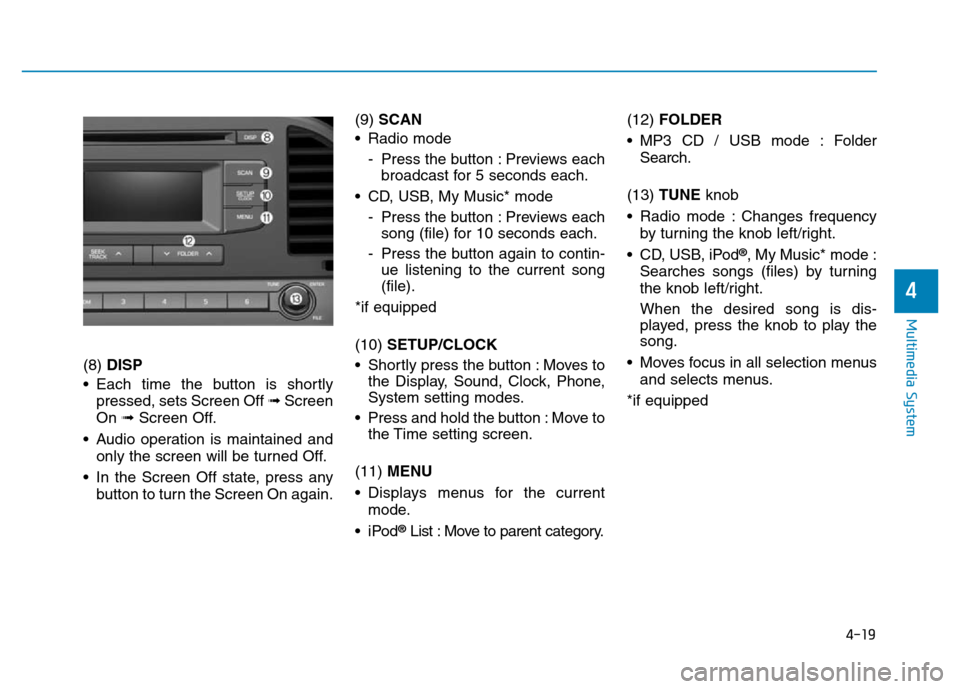
(8) DISP
• Each time the button is shortly
pressed, sets Screen Off ➟Screen
On ➟Screen Off.
• Audio operation is maintained and
only the screen will be turned Off.
• In the Screen Off state, press any
button to turn the Screen On again.(9) SCAN
• Radio mode
- Press the button : Previews each
broadcast for 5 seconds each.
• CD, USB, My Music* mode
- Press the button : Previews each
song (file) for 10 seconds each.
- Press the button again to contin-
ue listening to the current song
(file).
*if equipped
(10) SETUP/CLOCK
• Shortly press the button : Moves to
the Display, Sound, Clock, Phone,
System setting modes.
• Press and hold the button : Move to
the Time setting screen.
(11) MENU
• Displays menus for the current
mode.
•iPod
®List : Move to parent category.(12) FOLDER
• MP3 CD / USB mode : Folder
Search.
(13) TUNE knob
• Radio mode : Changes frequency
by turning the knob left/right.
• CD, USB, iPod
®, My Music* mode :
Searches songs (files) by turning
the knob left/right.
When the desired song is dis-
played, press the knob to play the
song.
• Moves focus in all selection menus
and selects menus.
*if equipped
Page 284 of 637
4-27
Multimedia System
4
(Continued)
• Placing the audio system within an
electromagnetic environment may
result in noise interference.
• Some cellular phones or other devices
may cause interference noise or mal-
function to audio system. In this case,
store the device in a different location
may resolve the condition.
• While a phone is connected through
Bluetooth
®Wireless Technology your
phone may discharge quicker than
usual for additional Bluetooth
®
Wireless Technology-related opera-
tions.
• If Priority is set upon vehicle igni-
tion (IGN/ACC ON), the Bluetooth
®
Wireless Technology phone will be
automatically connected. Even if
you are outside, the Bluetooth
®
Wireless Technology phone will be
automatically connected once you
are in the vicinity of the vehicle. If
you do not want to automatically
connect yourBluetooth
®Wireless
Technology phone, try the following.
1) Turn off the Bluetooth
®Wireless
Technology feature in your
mobile phone.
(Continued)(Continued)
2) Turn off the Bluetooth
®Wireless
Technology feature in your car
audio system.
- To turn off the Bluetooth
®
Wireless Technology feature in
your car audio system, go to
[SETUP/CLOCK] > [Phone] and
[turn off] the Bluetooth
®Wireless
Technology feature.
•Bluetooth
®Wireless Technology
connection may become intermit-
tently disconnected in some mobile
phones. Follow these steps to try
again.
1) Turn the Bluetooth
®Wireless
Technology function within the
mobile phone off/on and try
again.
2) Turn the mobile phone power
Off/On and try again.
3) Completely remove the mobile
phone battery, reboot, and then
again.
4) Reboot the audio system and try
again.
5) Delete all paired devices, pair and
try again.
(Continued)(Continued)
• It is possible to pair up to five
Bluetooth
®Wireless Technology
devices to the car system.
• Phone contact names should be
saved in English or they may not be
displayed correctly.
• The Handsfree call volume and
quality may differ depending on the
mobile phone.
• Only one Bluetooth
®Wireless
Technology device can be connected
at a time.
• In some mobile phones, starting the
ignition while talking through
Bluetooth
®Wireless Technology
enabled handsfree call will result in
the call becoming disconnected.
(Switch the call back to your mobile
phone when starting the ignition.)
• If the mobile phone is not paired or
connected, it is not possible to enter
Phone mode. Once a phone is paired
or connected, the guidance screen
will be displayed.