ignition Hyundai Elantra 2018 Workshop Manual
[x] Cancel search | Manufacturer: HYUNDAI, Model Year: 2018, Model line: Elantra, Model: Hyundai Elantra 2018Pages: 526, PDF Size: 17.2 MB
Page 210 of 526
3-133
Convenient features of your vehicle
3
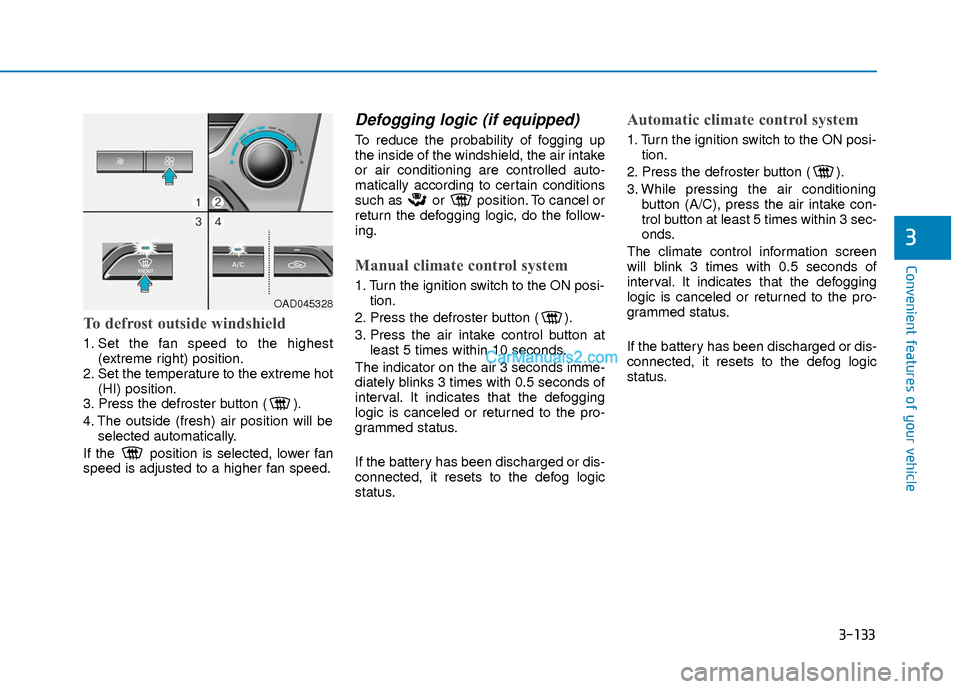
To defrost outside windshield
1. Set the fan speed to the highest(extreme right) position.
2. Set the temperature to the extreme hot (HI) position.
3. Press the defroster button ( ).
4. The outside (fresh) air position will be selected automatically.
If the position is selected, lower fan
speed is adjusted to a higher fan speed.
Defogging logic (if equipped)
To reduce the probability of fogging up
the inside of the windshield, the air intake
or air conditioning are controlled auto-
matically according to certain conditions
such as or position. To cancel or
return the defogging logic, do the follow-
ing.
Manual climate control system
1. Turn the ignition switch to the ON posi- tion.
2. Press the defroster button ( ).
3. Press the air intake control button at least 5 times within 10 seconds.
The indicator on the air 3 seconds imme-
diately blinks 3 times with 0.5 seconds of
interval. It indicates that the defogging
logic is canceled or returned to the pro-
grammed status.
If the battery has been discharged or dis-
connected, it resets to the defog logic
status.
Automatic climate control system
1. Turn the ignition switch to the ON posi- tion.
2. Press the defroster button ( ).
3. While pressing the air conditioning button (A/C), press the air intake con-
trol button at least 5 times within 3 sec-
onds.
The climate control information screen
will blink 3 times with 0.5 seconds of
interval. It indicates that the defogging
logic is canceled or returned to the pro-
grammed status.
If the battery has been discharged or dis-
connected, it resets to the defog logic
status.
OAD045328
Page 211 of 526
3-134
Convenient features of your vehicle
Auto Defogging System (Only
for Automatic Climate Control
System, if equipped)
Auto defogging reduces the possibility of
fogging up the inside of the windshield by
automatically sensing the moisture of
inside the windshield.
The auto defogging system operates
when the heater or air conditioning is on.
Information
The auto defogging system may not oper-
ate normally, when the outside tempera-
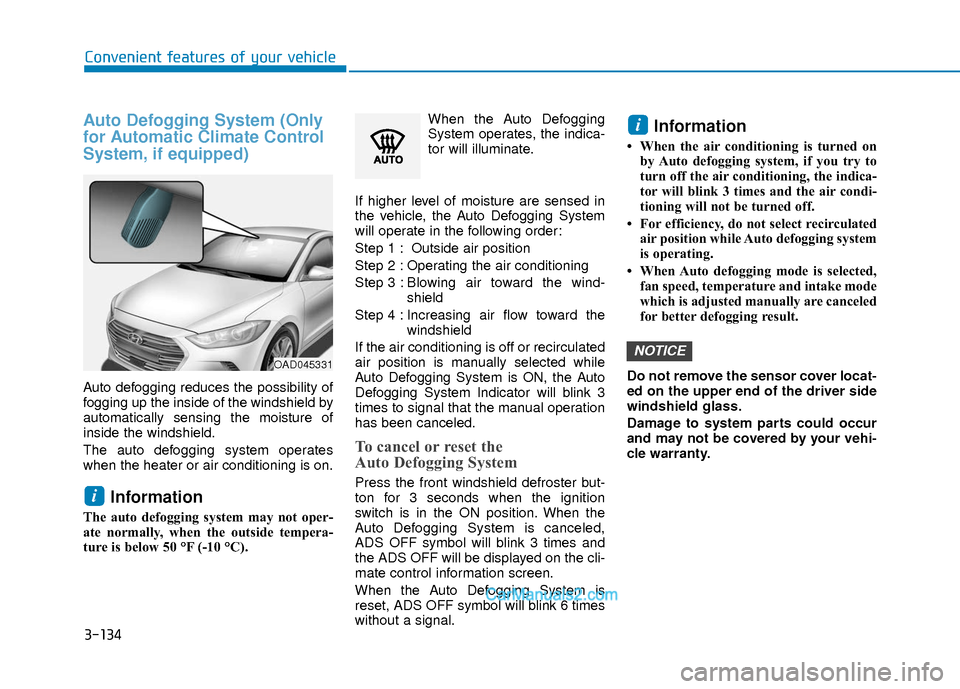
ture is below 50 °F (-10 °C).When the Auto Defogging
System operates, the indica-
tor will illuminate.
If higher level of moisture are sensed in
the vehicle, the Auto Defogging System
will operate in the following order:
Step 1 : Outside air position
Step 2 : Operating the air conditioning
Step 3 : Blo wing air toward the wind-
shield
Step 4 : Increasing air flow toward the windshield
If the air conditioning is off or recirculated
air position is manually selected while
Auto Defogging System is ON, the Auto
Defogging System Indicator will blink 3
times to signal that the manual operation
has been canceled.
To cancel or reset the
Auto Defogging System
Press the front windshield defroster but-
ton for 3 seconds when the ignition
switch is in the ON position. When the
Auto Defogging System is canceled,
ADS OFF symbol will blink 3 times and
the ADS OFF will be displayed on the cli-
mate control information screen.
When the Auto Defogging System is
reset, ADS OFF symbol will blink 6 times
without a signal.
Information
• When the air conditioning is turned on by Auto defogging system, if you try to
turn off the air conditioning, the indica-
tor will blink 3 times and the air condi-
tioning will not be turned off.
• For efficiency, do not select recirculated air position while Auto defogging system
is operating.
• When Auto defogging mode is selected, fan speed, temperature and intake mode
which is adjusted manually are canceled
for better defogging result.
Do not remove the sensor cover locat-
ed on the upper end of the driver side
windshield glass.
Damage to system parts could occur
and may not be covered by your vehi-
cle warranty.
NOTICE
i
i
OAD045331
Page 212 of 526
3-135
Convenient features of your vehicle
3
C
CL
LI
IM
M A
AT
TE
E
C
C O
O N
NT
TR
R O
O L
L
A
A D
DD
DI
IT
T I
IO
O N
NA
AL
L
F
F E
E A
A T
TU
U R
RE
ES
S
(
( I
IF
F
E
E Q
Q U
UI
IP
P P
PE
ED
D )
)
Automatic Ventilation
(if equipped)
When the ignition switch is in the ON
position or when the engine is running
and temperature is below 59°F (15°C)
with the recirculated air position selected
more than five minutes, the air intake
position will automatically change to the
outside (fresh) air position.
To cancel or reset the Automatic
Ventilation
When the air conditioning system is on,
select Face Level mode and while
pressing the A/C button, press the recir-
culated air position button five times with-
in three seconds.
Sunroof Inside Air
Recirculation (if equipped)
When the heater or air conditioning sys-
tem is on with the sunroof opened, the
outside (fresh) air position will be auto-
matically selected. At this time, if you
press the recirculated air position button,
the recirculated air position will be select-
ed but will change back to the outside
(fresh) air position after 3 minutes.
When the sunroof is closed, the air intake
position will return to the original position
that was selected.
To avoid possible theft, do not leave
valuables in the storage compart-
ments.
NOTICE
S
ST
T O
O R
RA
A G
G E
E
C
C O
O M
M P
PA
A R
RT
TM
M E
EN
N T
T
Never store cigarette lighters,
propane cylinders, or other flamma-
ble/explosive materials in the vehi-
cle. These items may catch fire
and/or explode if the vehicle is
exposed to hot temperatures for
extended periods.
WARNING
ALWAYS keep the storage compart-
ment covers closed securely while
driving. Items inside your vehicle
are moving as fast as the vehicle. If
you have to stop or turn quickly, or
if there is a crash, the items may fly
out of the compartment and may
cause an injury if they strike the
driver or a passenger.
WARNING
Page 230 of 526
Information -Using the USB
device
• Connect the USB device after turning on the engine. The USB device may become
damaged if it is already connected when
the ignition is turned on.The USB device
may not operate properly if the car igni-
tion is turned on or off with the USB
device connected.
• Heed caution to static electricity when connecting/disconnecting USB devices.
• Encoded MP3 Players will not be recog- nized when connected as an external
device.
• When connecting an external USB device, the device may not properly rec-
ognize the USB is in some states.
• Only products formatted with byte/sec- tors under 64Kbyte will be recognized.
• This device recognizes USB devices for- matted in FAT 12/16/32 file formats.
This device does not recognize files in
NTFS file format.
• Some USB devices may not be support- ed due to compatibility issues.
• Avoid contact between the USB connec- tor with bodily parts or foreign objects.
• Repeated connecting/disconnecting of USB devices within short periods of time
may result in product malfunction.
(Continued)(Continued)
• A strange noise may occur when discon- necting the USB.
• Make sure to connect/disconnect exter- nal USB devices with the audio power
turned off.
• The amount of time required to recog- nize the USB device may differ depend-
ing on the type, size or file formats
stored in the USB. Such differences in
time are not indications of malfunctions.
• The device only supports USB devices used to play music files.
• USB images and videos are not support- ed.
• Do not use the USB I/F to charge batter- ies or USB accessories that generate
heat. Such acts may lead to worsened
performance or damage to the device.
• The device may not recognize the USB device if separately purchased USB
hubs and extension cables are being
used. Connect the USB directly with the
multimedia terminal of the vehicle.
• When using mass storage USB devices with separate logical drives, only files
saved to the root drive can be played.
• Files may not properly operate if appli- cation programs are installed to the
USBs.
(Continued)(Continued)
• The device may not operate normally if MP3 Players, cellular phones, digital
cameras, or other electronic devices
(USB devices not recognized as portable
disk drives) are connected with the
device.
• Charging through the USB may not work for some mobile devices.
• The device may not support normal operation when using a USB memory
type besides (Metal Cover Type) USB
Memory.
• The device may not support normal operation when using formats such as
HDD Type, CF, or SD Memory.
• The device will not support files locked by DRM (Digital Rights Management.)
• USB memory sticks used by connecting an Adaptor (SD Type or CF Type) may
not be properly recognized.
• The device may not operate properly when using USB HDDs or USBs subject
to connection failures caused by vehicle
vibrations. (e.g. i-stick type)
(Continued)i
4-11
Multimedia System
4
Page 233 of 526
Information - Precautions for
safe driving
• Bluetooth
®Handsfree is a feature that
enables drivers to practice safe driving.
Connecting the head unit with a
Bluetooth
®phone allows the user to
conveniently make and receive calls and
use contacts. Before using Bluetooth
®,
carefully read the contents of this user’s
manual.
• Excessive use or operations while driv- ing may lead to negligent driving prac-
tices and result in accidents. Refrain
from excessive operations while driving.
• Viewing the screen for prolonged peri- ods of time is dangerous and may lead to
accidents. When driving, view the
screen only for short periods of time.
Information - When connecting
a Bluetooth®phone
• Before connecting the head unit with the mobile phone, check to see that the
mobile phone supports Bluetooth
®fea-
tures.
• Even if the phone supports Bluetooth
®,
the phone will not be found during
device searches if the phone has been set
to hidden state or the Bluetooth
®power
is turned off. Disable the hidden state or
turn on the Bluetooth
®power prior to
searching/connecting with the Head
unit.
• Bluetooth
®phone is automatically con-
nected when the ignition on.
• If you do not want automatic connection with your Bluetooth
®device, turn off
the Bluetooth®feature within your
mobile phone.
• The Handsfree call volume and quality may differ depending on the mobile
phone.
(Continued)(Continued)
• Park the vehicle when connecting the
head unit with the mobile phone.
• Bluetooth
®connection may become
intermittently disconnected in some
mobile phones. Follow these steps to try
again.
1. Within the mobile phone, turn the Bluetooth
®function off/on and try
again.
2. Turn the mobile phone power Off/On and try again.
3. Completely remove the mobile phone battery, reboot, and then again.
4. Reboot the Audio System and try again.
5. Delete all paired devices, pair and try again.
• Handsfree call quality and volume may differ depending on the model of your
mobile phone.
ii
4-14
Multimedia System
Page 244 of 526
4-25
Multimedia System
4
Information
Turn on the car ignition before using this
device. Do not operate the audio system
for long periods of time with the ignition
turned off as such operations may lead to
battery discharge.
Do not subject the device to severeshock or impact. Direct pressure
onto the front side of the monitor
may cause damage to the LCD or
touch screen.
When cleaning the device, make sure to turn off the device and use a
dry and smooth cloth. Never use
rough materials, chemical cloths, or
solvents (alcohol, benzene, thin-
ners, etc.) as such materials may
damage the device panel or cause
color/quality deterioration.
Do not place beverages close to the audio system. Spilling beverages
may lead to system malfunction.
Placing the audio system within an electromagnetic environment may
result in noise interference.
Information
In case of product malfunction, please
contact your dealer or vehicle service cen-
ter.
i
NOTICE
i(Continued)
Do not touch the antenna during
thunder or lightening as such
acts may lead to lightning
induced electric shock.
Do not stop or park in parking-
restricted areas to operate the
product. Such acts could lead to
traffic accidents.
Distracted Driving
Driving while distracted can result
in a loss of vehicle control that may
lead to an accident, severe person-
al injury, and death. The driver’s pri-
mary responsibility is in the safe
and legal operation of a vehicle,
and use of any handheld devices,
other equipment, or vehicle sys-
tems which take the driver’s eyes,
attention and focus away from the
safe operation of a vehicle or which
are not permissible by law should
never be used during operation of
the vehicle.
WARNING
Page 248 of 526
4-29
Multimedia System
4
(Continued)
• The phone must be paired to the audiosystem to use Bluetooth
®Wireless
Technology related features.
• Pairing and connecting a Bluetooth
®
Wireless Technology enabled mobile
phone will work only when the
Bluetooth
®Wireless Technology option
within your mobile phone has been
turned on. (Methods of turning on the
Bluetooth
®Wireless Technology enabled
feature may differ depending on the
mobile phone.)
• Do not use a cellular phone or perform Bluetooth
®Wireless Technology settings
(e.g. pairing a phone) while driving.
• Even if the phone supports Bluetooth
®
Wireless Technology, the phone will not
be found during device searches if the
phone has been set to hidden state or the
Bluetooth
®Wireless Technology power
is turned off. Disable the hidden state or
turn on the Bluetooth
®Wireless
Technology power prior to
searching/connecting with the car audio
system.
(Continued)(Continued)
• You will not be able to use the hands-
free feature when your phone (in the
car) is outside of the cellular service area
(e.g. in a tunnel, in an underground
location, in a mountainous area, etc.).
• If the cellular phone signal is poor or the vehicle’s interior noise is too loud, it
may be difficult to hear the other per-
son’s voice during a call.
• Do not place the phone near or inside metallic objects, otherwise communica-
tions with Bluetooth
®Wireless
Technology system or cellular service
stations can be disturbed.
• Placing the audio system within an elec- tromagnetic environment may result in
noise interference.
• Some cellular phones or other devices may cause interference noise or a mal-
function to the audio system. In this
case, storing the device in a different
location may resolve the condition.
• While a phone is connected through Bluetooth
®Wireless Technology your
phone may discharge quicker than usual
for additional Bluetooth
®Wireless
Technology-related operations.
(Continued)(Continued)
• If Priority is set upon vehicle ignition
(IGN/ACC ON), the Bluetooth
®
Wireless Technology phone will be auto-
matically connected. Even if you are
outside, the Bluetooth
®Wireless
Technology phone will be automatically
connected once you are in the vicinity of
the vehicle. If you do not want to auto-
matically connect your Bluetooth
®
Wireless Technology phone, try the fol-
lowing.
1) Turn off the Bluetooth
®Wireless
Technology feature in your mobile
phone.
2) Turn off the Bluetooth
®Wireless
Technology feature in your car audio
system.
- To turn off the Bluetooth
®Wireless
Technology feature in your car audio
system, go to [SETUP/CLOCK] >
[Phone] and [turn off] the Bluetooth
®
Wireless Technology feature.
(Continued)
Page 249 of 526
4-30
Multimedia System
(Continued)
•Bluetooth®Wireless Technology connec-
tion may become intermittently discon-
nected in some mobile phones. Follow
these steps to try again.
1) Turn the Bluetooth
®Wireless
Technology function within the mobile
phone off/on and try again.
2) Turn the mobile phone power Off/On and try again.
3) Completely remove the mobile phone battery, reboot, and then try again.
4) Reboot the audio system and try again.
5) Delete all paired devices, pair and try again.
• It is possible to pair up to five Bluetooth
®Wireless Technology devices
to the car system.
• Phone contact names should be saved in English or they may not be displayed
correctly.
• The Handsfree call volume and quality may differ depending on the mobile
phone.
• Only one Bluetooth
®Wireless
Technology device can be connected at a
time.
(Continued)(Continued)
• In some mobile phones, starting the
ignition while talking through
Bluetooth
®Wireless Technology enabled
handsfree call will result in the call
becoming disconnected. (Switch the call
back to your mobile phone when start-
ing the ignition.)
• If the mobile phone is not paired or con- nected, it is not possible to enter Phone
mode. Once a phone is paired or con-
nected, the guidance screen will be dis-
played.
• Bluetooth
®Handsfree may not be sup-
ported in some mobile phones. To learn
more about mobile device compatibility,
visit http://www. hyundai.com/us/en/
content/owners/bluetooth.
• Bluetooth
®Wireless Technology
Handsfree is a feature that enables driv-
ers to practice safe driving. Connecting
the car audio system with a Bluetooth
®
Wireless Technology phone allows the
user to conveniently make calls, receive
calls, and manage the phone book.
Before using the Bluetooth
®Wireless
Technology, carefully read the contents
of this user's manual. Excessive use or operations while
driving may lead to negligent driv-
ing practices and be the cause of
accidents.
Do not operate the device exces- sively while driving.
Viewing the screen for prolonged periods of time while driving is dan-
gerous and may lead to accidents.
NOTICE
Page 284 of 526
Driving your vehicle
5
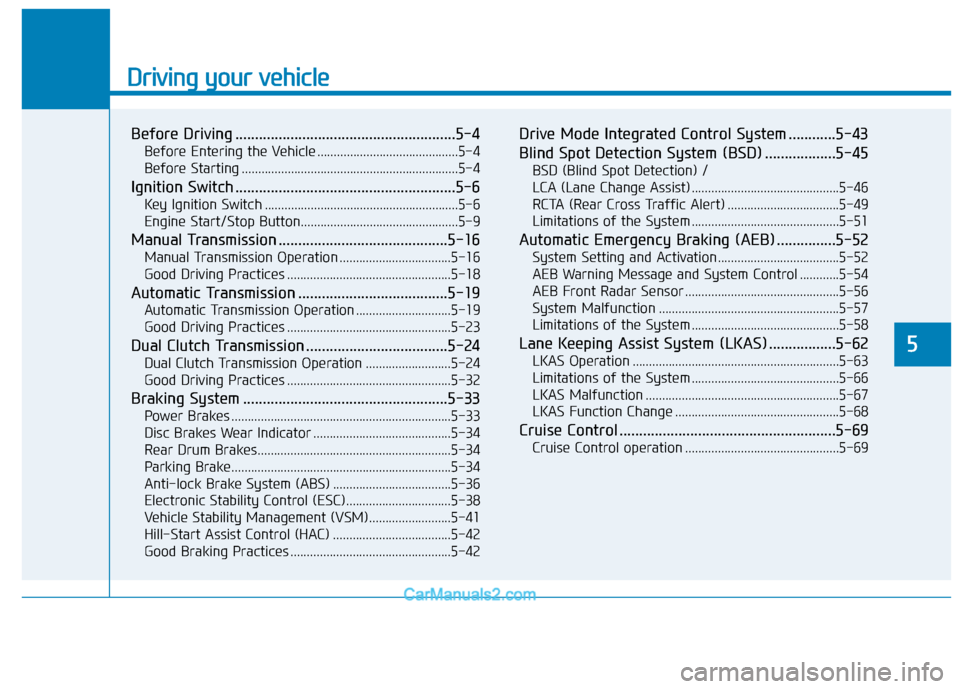
Before Driving ........................................................5-4
Before Entering the Vehicle ...........................................5-4
Before Starting ..................................................................5-4
Ignition Switch ........................................................5-6
Key Ignition Switch ...........................................................5-6
Engine Start/Stop Button................................................5-9
Manual Transmission ...........................................5-16
Manual Transmission Operation ..................................5-16
Good Driving Practices ..................................................5-18
Automatic Transmission ......................................5-19
Automatic Transmission Operation .............................5-19
Good Driving Practices ..................................................5-23
Dual Clutch Transmission ....................................5-24
Dual Clutch Transmission Operation ..........................5-24
Good Driving Practices ..................................................5-32
Braking System ....................................................5-33
Power Brakes ...................................................................5-33
Disc Brakes Wear Indicator ..........................................5-34
Rear Drum Brakes...........................................................5-34
Parking Brake...................................................................5-34
Anti-lock Brake System (ABS) ....................................5-36
Electronic Stability Control (ESC)................................5-38
Vehicle Stability Management (VSM).........................5-41
Hill-Start Assist Control (HAC) ....................................5-42
Good Braking Practices .................................................5-42
Drive Mode Integrated Control System ............5-43
Blind Spot Detection System (BSD) ..................5-45
BSD (Blind Spot Detection) /
LCA (Lane Change Assist) .............................................5-46
RCTA (Rear Cross Traffic Alert) ..................................5-49
Limitations of the System .............................................5-51
Automatic Emergency Braking (AEB) ...............5-52
System Setting and Activation.....................................5-52
AEB Warning Message and System Control ............5-54
AEB Front Radar Sensor ...............................................5-56
System Malfunction .......................................................5-57
Limitations of the System .............................................5-58
Lane Keeping Assist System (LKAS) .................5-62
LKAS Operation ...............................................................5-63
Limitations of the System .............................................5-66
LKAS Malfunction ...........................................................5-67
LKAS Function Change ..................................................5-68
Cruise Control .......................................................5-69
Cruise Control operation ...............................................5-69
Page 289 of 526
5-6
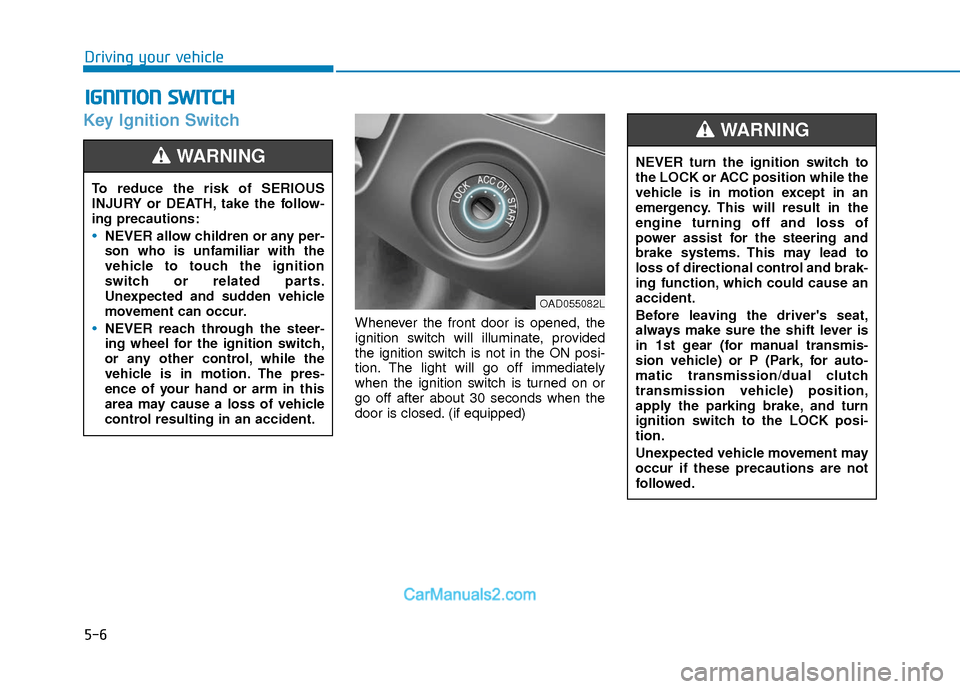
Key Ignition Switch
Whenever the front door is opened, the
ignition switch will illuminate, provided
the ignition switch is not in the ON posi-
tion. The light will go off immediately
when the ignition switch is turned on or
go off after about 30 seconds when the
door is closed. (if equipped)
I IG
G N
N I
IT
T I
IO
O N
N
S
S W
W I
IT
T C
CH
H
Driving your vehicle
To reduce the risk of SERIOUS
INJURY or DEATH, take the follow-
ing precautions:
NEVER allow children or any per-
son who is unfamiliar with the
vehicle to touch the ignition
switch or related parts.
Unexpected and sudden vehicle
movement can occur.
NEVER reach through the steer-
ing wheel for the ignition switch,
or any other control, while the
vehicle is in motion. The pres-
ence of your hand or arm in this
area may cause a loss of vehicle
control resulting in an accident.
WARNING NEVER turn the ignition switch to
the LOCK or ACC position while the
vehicle is in motion except in an
emergency. This will result in the
engine turning off and loss of
power assist for the steering and
brake systems. This may lead to
loss of directional control and brak-
ing function, which could cause an
accident.
Before leaving the driver's seat,
always make sure the shift lever is
in 1st gear (for manual transmis-
sion vehicle) or P (Park, for auto-
matic transmission/dual clutch
transmission vehicle) position,
apply the parking brake, and turn
ignition switch to the LOCK posi-
tion.
Unexpected vehicle movement may
occur if these precautions are not
followed.
WARNING
OAD055082L