jack Hyundai Elantra 2018 Owner's Manual
[x] Cancel search | Manufacturer: HYUNDAI, Model Year: 2018, Model line: Elantra, Model: Hyundai Elantra 2018Pages: 526, PDF Size: 17.2 MB
Page 82 of 526
3-5
Convenient features of your vehicle
3
Remote key precautions
The remote key will not work if any of the
following occur:
The key is in the ignition switch.
You exceed the operating distance limit(about 90 feet [30 m]).
The remote key battery is weak.
Other vehicles or objects may be blocking the signal.
The weather is extremely cold.
The remote key is close to a radio transmitter such as a radio station or
an airport which can interfere with nor-
mal operation of the remote key.
When the remote key does not work cor-
rectly, open and close the door with the
mechanical key. If you have a problem
with the remote key contact an author-
ized HYUNDAI dealer.
If the remote key is in close proximity to
your mobile phone, the signal could be
blocked by your mobile phones normal
operational signals. This is especially
important when the phone is active such
as making and receiving calls, text mes-
saging, and/or sending/receiving emails.
Avoid placing the remote key and your
mobile phone in the same pants or jack-
et pocket and always try to maintain an
adequate distance between the two
devices.Information
This device complies with Part 15 of the
FCC rules.
Operation is subject to the following three
conditions:
1. This device may not cause harmful interference, and
2. This device must accept any interfer- ence received, including interference
that may cause undesired operation.
3. Changes or modifications not expressly approved by the party responsible for
compliance could void the user’s
authority to operate the device.
Keep the remote key away from elec-
tromagnetic materials that blocks
electromagnetic waves to the key sur-
face.
Battery replacement
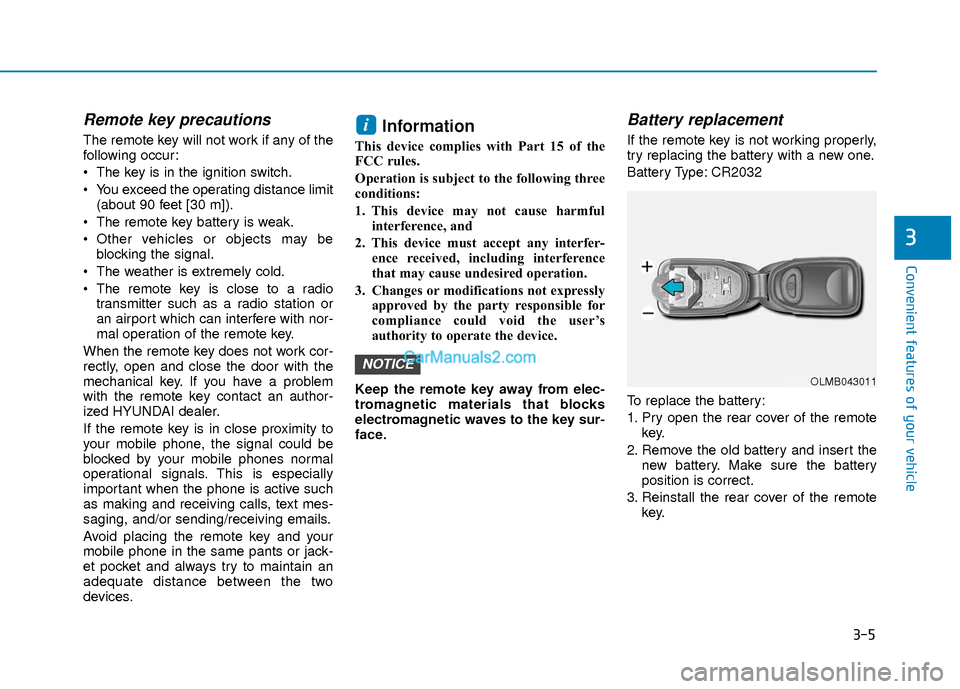
If the remote key is not working properly,
try replacing the battery with a new one.
Battery Type: CR2032
To replace the battery:
1. Pry open the rear cover of the remote key.
2. Remove the old battery and insert the new battery. Make sure the battery
position is correct.
3. Reinstall the rear cover of the remote key.
NOTICE
i
OLMB043011
Page 86 of 526
3-9
Convenient features of your vehicle
3
Loss of a smart key
A maximum of two Smart Keys can be
registered to a single vehicle. If you hap-
pen to lose your smart key, you should
immediately take the vehicle and remain-
ing keys to your authorized HYUNDAI
dealer or tow the vehicle, if necessary.
Smart key precautions
The smart key will not work if any of the
following occur:
The smart key is close to a radio trans-mitter such as a radio station or an air-
port which can interfere with normal
operation of the transmitter.
The smart key is near a mobile two way radio system or a cellular phone.
Another vehicle’s smart key is being operated close to your vehicle.
When the smart key does not work cor-
rectly, open and close the door with the
mechanical key. If you have a problem
with the smart key, contact an authorized
HYUNDAI dealer.
If the smart key is in close proximity to
your mobile phone, the signal could be
blocked by your mobile phones normal
operational signals. This is especially
important when the phone is active such
as making and receiving calls, text mes-
saging, and/or sending/receiving emails. Avoid placing the smart key and your
mobile phone in the same pants or jack-
et pocket and always try to maintain an
adequate distance between the two
devices.
Information
This device complies with Part 15 of the
FCC rules.
Operation is subject to the following three
conditions:
1. This device may not cause harmful
interference, and
2. This device must accept any interfer- ence received, including interference
that may cause undesired operation.
3. Changes or modifications not expressly approved by the party responsible for
compliance could void the user 's
authority to operate the device.
Battery replacement
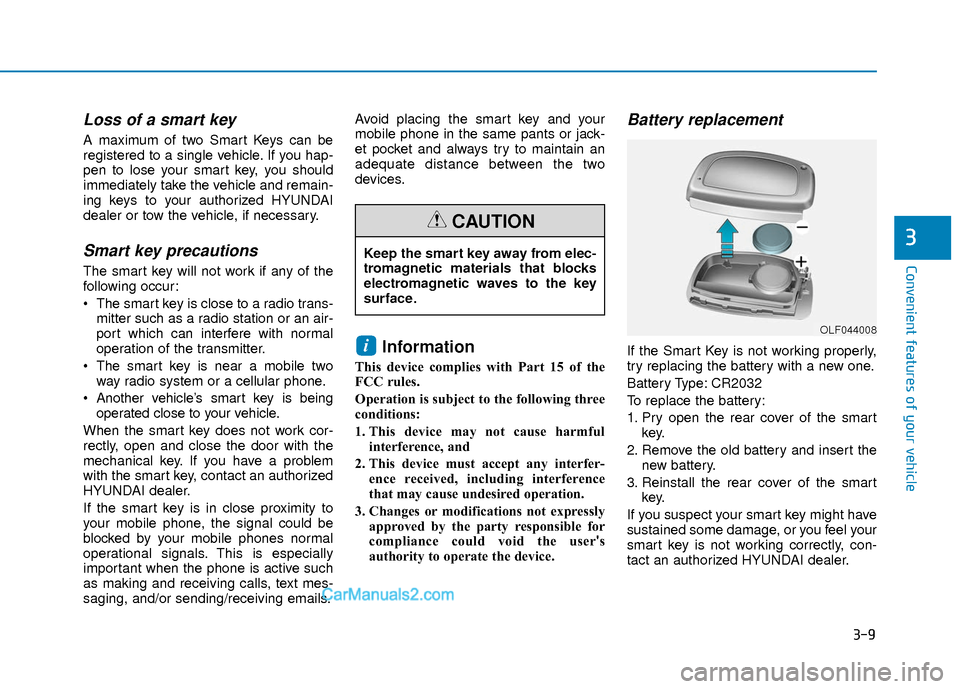
If the Smart Key is not working properly,
try replacing the battery with a new one.
Battery Type: CR2032
To replace the battery:
1. Pry open the rear cover of the smart key.
2. Remove the old battery and insert the new battery.
3. Reinstall the rear cover of the smart key.
If you suspect your smart key might have
sustained some damage, or you feel your
smart key is not working correctly, con-
tact an authorized HYUNDAI dealer.i
Keep the smart key away from elec-
tromagnetic materials that blocks
electromagnetic waves to the key
surface.
CAUTION
OLF044008
Page 231 of 526
(Continued)
• Avoid use of USB memoryproducts that can also be
used as key chains or
mobile phone accessories.
Use of such products may
cause damage to the USB jack.
• Connecting an MP3 device or phone through various channels, such as
AUX/BT or Audio/ USB mode may
result in pop noises or abnormal opera-
tion.Information - Using the iPod®
device
• iPod®is a registered trademark of
Apple Inc.
• In order to use the iPod
®while operat-
ing the keys, you must use a dedicated
iPod
®cable. (the cable that is supplied
when purchasing iPod® /iPhone®prod-
ucts)
• If the iPod
®is connected to the vehicle
while it is playing, a high pitch sound
could occur for approximately 1-2 sec-
onds immediately after connecting. If
possible, connect the iPod to the vehicle
with the iPod
®stopped/ paused.
• During ACC ON state, connecting the iPod
®through the iPod®cable will
charge the iPod®through the car audio
system.
• When connecting with the iPod
®cable,
make sure to fully insert the jack to pre-
vent communication interference.
• When the EQ features of an external device, such as the iPod
®, and the audio
system are both active, EQ effects could
overlap and cause sound deterioration
and distortion.
(Continued)(Continued)
Whenever possible, turn off the EQ fea-
ture within the external device upon use
by connecting with the audio system.
• Noise may occur when an iPod
®or AUX
device is connected. When such devices
are not being used, disconnect the device
for storage.
• When the iPod
®or AUX device power is
connected to the power jack, playing the
external device may result in noise. In
such cases, disconnect the power con-
nection before use.
• Skipping or improper operation may occur depending on the characteristics
of your iPod
® /Phone®device.
• If your iPhone®is connected to both the
Bluetooth®Wireless Technology and
USB, the sound may not be properly
played. In your iPhone
®, select the Dock
connector or Bluetooth®Wireless
Technology to change the sound output
(source).
• iPod mode cannot be operated when the iPod
®cannot be recognized due to ver-
sions that do not support communica-
tion protocols.
(Continued)
i
4-12
Multimedia System
Page 232 of 526
(Continued)
• For fifth generation iPod®Nano devices,
the iPod®may not be recognized when
the battery level is low. Please charge
the iPod
®for use.
• Search/play orders shown within the iPod
®device may differ with the orders
shown within the audio system.
• If the iPod
®malfunctions due to an iPod®
device defect, reset the iPod®and try
again. (To learn more, refer to your iPod®
manual)
• Some iPod®s may not sync with the
System depending on its version. If the
Media is removed before the Media is
recognized, then the system may not
properly restore the previously operated
mode. (iPad
®charging is not support-
ed.)
Information - Using the AUX device
• If an external device connector is con- nected with the AUX terminal, then
AUX mode will automatically operate.
Once the connector is disconnected, the
previous mode will be restored.
• AUX mode can be used only when an external audio player (camcorder, in-car
DVD player, etc.) has been connected.
• The AUX volume can be controlled sep- arately from other audio modes.
• Connecting a connector jack to the AUX terminal without an external device will
convert the system to AUX mode, but
only output noise. When an external
device is not being used, also remove the
connector jack.
• When the external device power is con- nected to the power jack, playing the
external device may output noise. In
such cases, disconnect the power con-
nection before use.
• Fully insert the AUX cable to the AUX jack upon use.Information - Before using the
Bluetooth®handsfree
What is Bluetooth®?
• Bluetooth®refers to a short-distance
wireless networking technology which
uses a 2.4GHz ~ 2.48GHz frequency to
connect various devices within a certain
distance.
• Supported within PCs, external devices, Bluetooth
®phones, PDAs, various elec-
tronic devices, and automotive environ-
ments, Bluetooth
®allows data to be trans-
mitted at high speeds without having to
use a connector cable.
• Bluetooth
®Handsfree refers to a device
which allows the user to conveniently
make phone calls with Bluetooth
®
mobile phones through the audio system.
• Bluetooth®Handsfree may not be support-
ed in some mobile phones. To learn more
about mobile device compatibility, visit
www
. hyundaiusa.com.
ii
4-13
Multimedia System
4
Page 246 of 526
4-27
Multimedia System
4
(Continued)
• Some non-standard USB devices(METAL COVER TYPE USB) can be
unrecognizable.
• Some USB flash memory readers (such as CF, SD, micro SD, etc.) or external-
HDD type devices can be unrecogniz-
able.
• Music files protected by DRM (DIGITAL RIGHTS MANAGEMENT) are not rec-
ognizable.
• The data in the USB memory may be lost while using this audio. Always back
up important data on a personal storage
device.
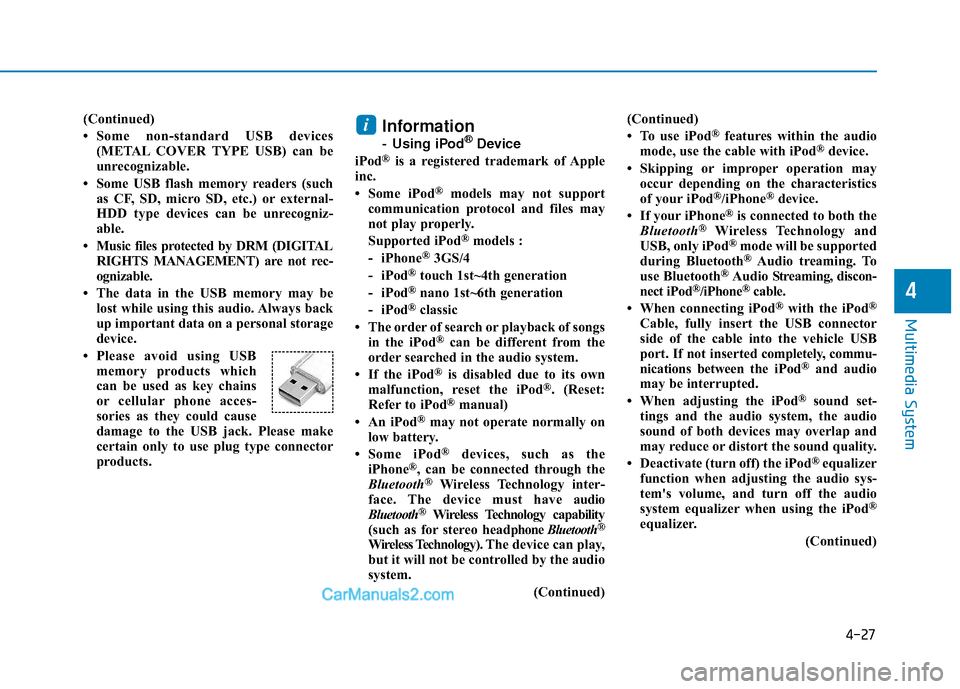
• Please avoid using USB memory products which
can be used as key chains
or cellular phone acces-
sories as they could cause
damage to the USB jack. Please make
certain only to use plug type connector
products.Information
- Using iPod®Device
iPod®is a registered trademark of Apple
inc.
• Some iPod
®models may not support
communication protocol and files may
not play properly.
Supported iPod
®models :
- iPhone®3GS/4
- iPod®touch 1st~4th generation
- iPod®nano 1st~6th generation
- iPod®classic
• The order of search or playback of songs in the iPod
®can be different from the
order searched in the audio system.
• If the iPod
®is disabled due to its own
malfunction, reset the iPod®. (Reset:
Refer to iPod®manual)
• An iPod®may not operate normally on
low battery.
• Some iPod
®devices, such as the
iPhone®, can be connected through the
Bluetooth®Wireless Technology inter-
face. The device must have audio
Bluetooth
®Wireless Technology capability
(such as for stereo headphone Bluetooth®
Wireless Technology).The device can play,
but it will not be controlled by the audio
system.
(Continued)(Continued)
• To use iPod
®features within the audio
mode, use the cable with iPod®device.
• Skipping or improper operation may occur depending on the characteristics
of your iPod
®/iPhone®device.
• If your iPhone®is connected to both the
Bluetooth®Wireless Technology and
USB, only iPod®mode will be supported
during Bluetooth®Audio treaming. To
use Bluetooth®Audio Str eaming, discon-
nect iPod®/iPhone®cable.
• When connecting iPod®with the iPod®
Cable, fully insert the USB connector
side of the cable into the vehicle USB
port. If not inserted completely, commu-
nications between the iPod
®and audio
may be interrupted.
• When adjusting the iPod
®sound set-
tings and the audio system, the audio
sound of both devices may overlap and
may reduce or distort the sound quality.
• Deactivate (turn off) the iPod
®equalizer
function when adjusting the audio sys-
tem's volume, and turn off the audio
system equalizer when using the iPod
®
equalizer.
(Continued)
i
Page 394 of 526
6-13
What to do in an emergency
6
With Spare Tire (if equipped)Jack and tools
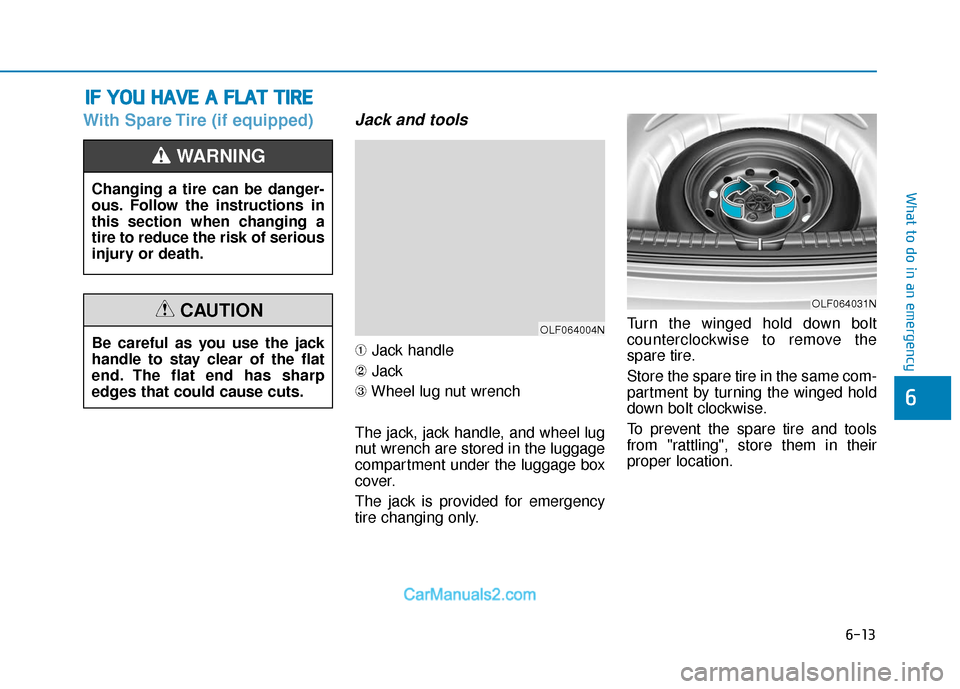
➀Jack handle
② Jack
③ Wheel lug nut wrench
The jack, jack handle, and wheel lug
nut wrench are stored in the luggage
compartment under the luggage box
cover.
The jack is provided for emergency
tire changing only. Turn the winged hold down bolt
counterclockwise to remove the
spare tire.
Store the spare tire in the same com-
partment by turning the winged hold
down bolt clockwise.
To prevent the spare tire and tools
from "rattling", store them in their
proper location.
I I
F
F
Y
Y O
O U
U
H
H A
AV
VE
E
A
A
F
F L
LA
A T
T
T
T I
IR
R E
E
Changing a tire can be danger-
ous. Follow the instructions in
this section when changing a
tire to reduce the risk of serious
injury or death.
WARNING
OLF064004N
OLF064031N
Be careful as you use the jack
handle to stay clear of the flat
end. The flat end has sharp
edges that could cause cuts.
CAUTION
Page 395 of 526
6-14
What to do in an emergency
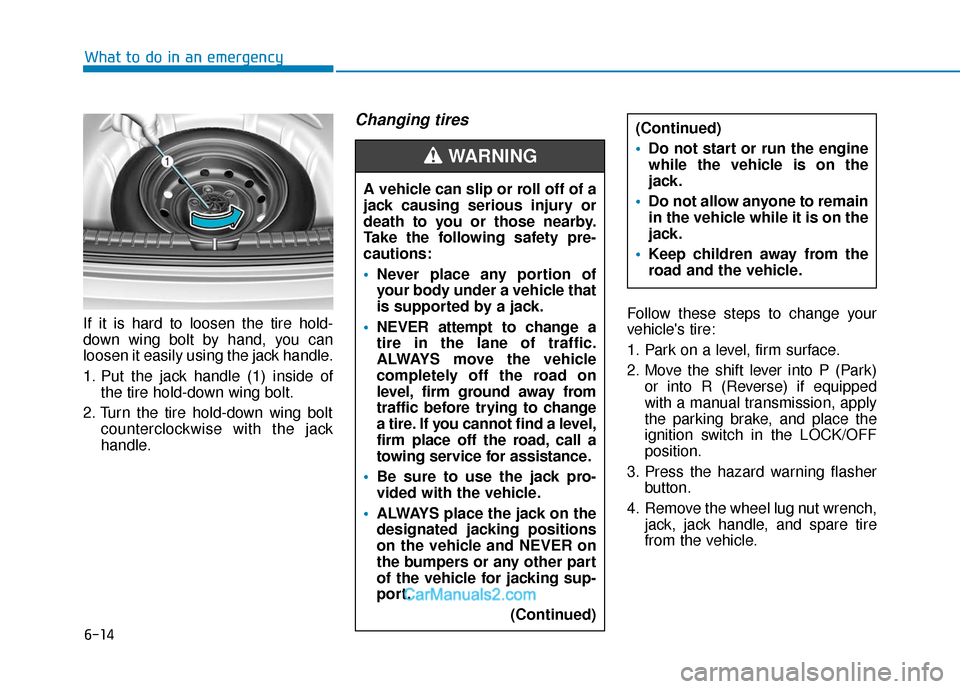
If it is hard to loosen the tire hold-
down wing bolt by hand, you can
loosen it easily using the jack handle.
1. Put the jack handle (1) inside of the tire hold-down wing bolt.
2. Turn the tire hold-down wing bolt counterclockwise with the jack
handle.
Changing tires
Follow these steps to change your
vehicle's tire:
1. Park on a level, firm surface.
2. Move the shift lever into P (Park)or into R (Reverse) if equipped
with a manual transmission, apply
the parking brake, and place the
ignition switch in the LOCK/OFF
position.
3. Press the hazard warning flasher button.
4. Remove the wheel lug nut wrench, jack, jack handle, and spare tire
from the vehicle.
A vehicle can slip or roll off of a
jack causing serious injury or
death to you or those nearby.
Take the following safety pre-
cautions:
Never place any portion of
your body under a vehicle that
is supported by a jack.
NEVER attempt to change a
tire in the lane of traffic.
ALWAYS move the vehicle
completely off the road on
level, firm ground away from
traffic before trying to change
a tire. If you cannot find a level,
firm place off the road, call a
towing service for assistance.
Be sure to use the jack pro-
vided with the vehicle.
ALWAYS place the jack on the
designated jacking positions
on the vehicle and NEVER on
the bumpers or any other part
of the vehicle for jacking sup-
port.
(Continued)
(Continued)
Do not start or run the engine
while the vehicle is on the
jack.
Do not allow anyone to remain
in the vehicle while it is on the
jack.
Keep children away from the
road and the vehicle.
WARNING
Page 396 of 526
6-15
What to do in an emergency
6
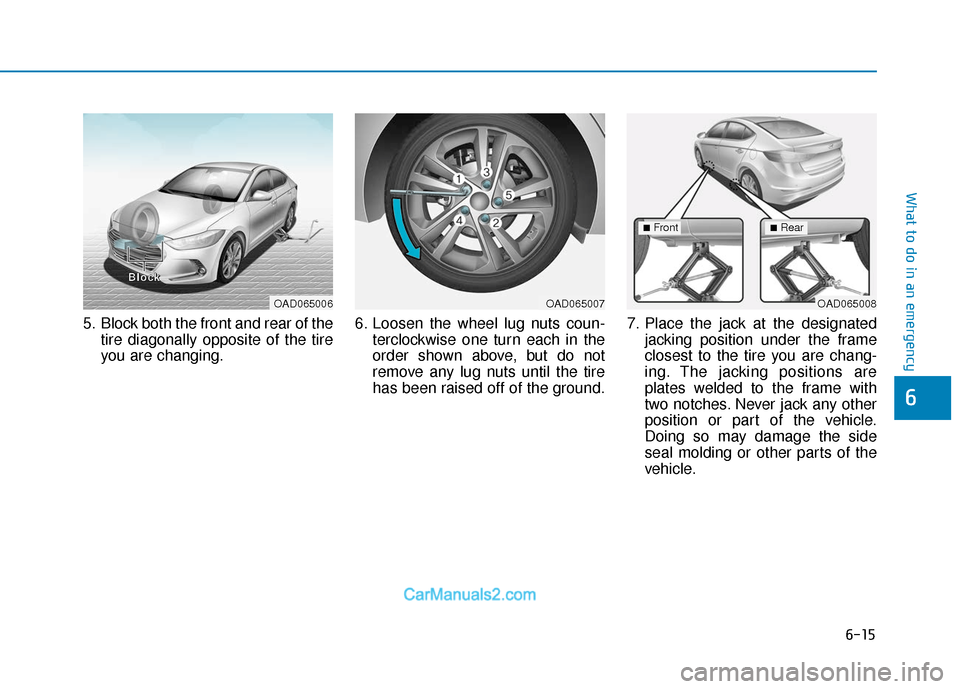
5. Block both the front and rear of thetire diagonally opposite of the tire
you are changing. 6. Loosen the wheel lug nuts coun-
terclockwise one turn each in the
order shown above, but do not
remove any lug nuts until the tire
has been raised off of the ground. 7. Place the jack at the designated
jacking position under the frame
closest to the tire you are chang-
ing. The jacking positions are
plates welded to the frame with
two notches. Never jack any other
position or part of the vehicle.
Doing so may damage the side
seal molding or other parts of the
vehicle.
OAD065006
B
B
B
B
l
l
l
l
o
o
o
o
c
c
c
c
k
k
k
kOAD065007OAD065008
■Front■Rear
Page 397 of 526
6-16
What to do in an emergency
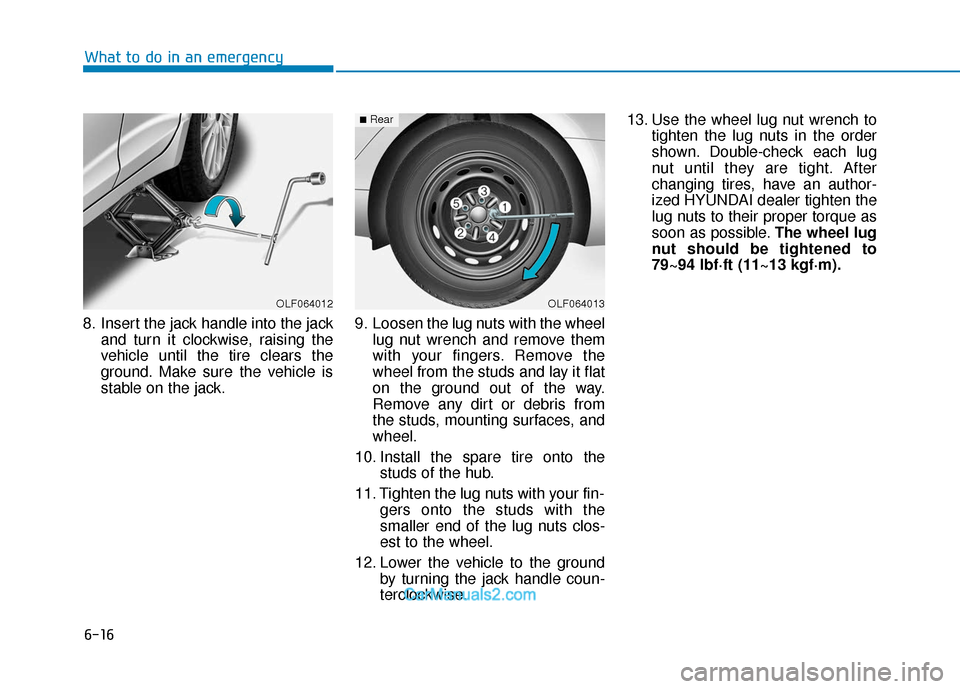
8. Insert the jack handle into the jack and turn it clockwise, raising the
vehicle until the tire clears the
ground. Make sure the vehicle is
stable on the jack. 9. Loosen the lug nuts with the wheel
lug nut wrench and remove them
with your fingers. Remove the
wheel from the studs and lay it flat
on the ground out of the way.
Remove any dirt or debris from
the studs, mounting surfaces, and
wheel.
10. Install the spare tire onto the studs of the hub.
11. Tighten the lug nuts with your fin- gers onto the studs with the
smaller end of the lug nuts clos-
est to the wheel.
12. Lower the vehicle to the ground by turning the jack handle coun-
terclockwise. 13. Use the wheel lug nut wrench to
tighten the lug nuts in the order
shown. Double-check each lug
nut until they are tight. After
changing tires, have an author-
ized HYUNDAI dealer tighten the
lug nuts to their proper torque as
soon as possible. The wheel lug
nut should be tightened to
79~94 lbf·ft (11~13 kgf·m).
OLF064012OLF064013
■Rear
Page 398 of 526
6-17
What to do in an emergency
6
If you have a tire gauge, check the
tire pressure (see "Tires and
Wheels" in chapter 8 for tire pressure
instructions.). If the pressure is lower
or higher than recommended, drive
slowly to the nearest service station
and adjust it to the recommended
pressure. Always reinstall the valve
cap after checking or adjusting tire
pressure. If the cap is not replaced,
air may leak from the tire. If you lose
a valve cap, buy another and install it
as soon as possible. After changing
tires, secure the flat tire and return
the jack and tools to their proper stor-
age locations.
Check the tire pressure as soon
as possible after installing a spare
tire. Adjust it to the recommended
pressure.If any of the equipment such as the
jack, lug nuts, studs, or other equip-
ment is damaged or in poor condi-
tion, do not attempt to change the
tire and call for assistance.Use of compact spare tires
Compact spare tires are designed for
emergency use only. Drive carefully
on the compact spare tire and
always follow the safety precautions.
NOTICE
Your vehicle has metric threads
on the studs and lug nuts. Make
certain during tire changing
that the same nuts that were
removed are reinstalled. If you
have to replace your lug nuts
make sure they have metric
threads to avoid damaging the
studs and ensure the wheel is
properly secured to the hub.
Consult an authorized
HYUNDAI dealer for assistance.
CAUTION
To prevent compact spare tire
failure and loss of control pos-
sibly resulting in an accident:
Use the compact spare tire
only in an emergency.
NEVER operate your vehicle
over 50 mph (80 km/h).
Do not exceed the vehicle's
maximum load rating or the
load carrying capacity shown
on the sidewall of the com-
pact spare tire.
Do not use the compact spare
tire continuously. Repair or
replace the original tire as
soon as possible to avoid fail-
ure of the compact spare tire.
WARNING