cruise control HYUNDAI ELANTRA 2021 User Guide
[x] Cancel search | Manufacturer: HYUNDAI, Model Year: 2021, Model line: ELANTRA, Model: HYUNDAI ELANTRA 2021Pages: 570, PDF Size: 52.21 MB
Page 290 of 570
06
6-31
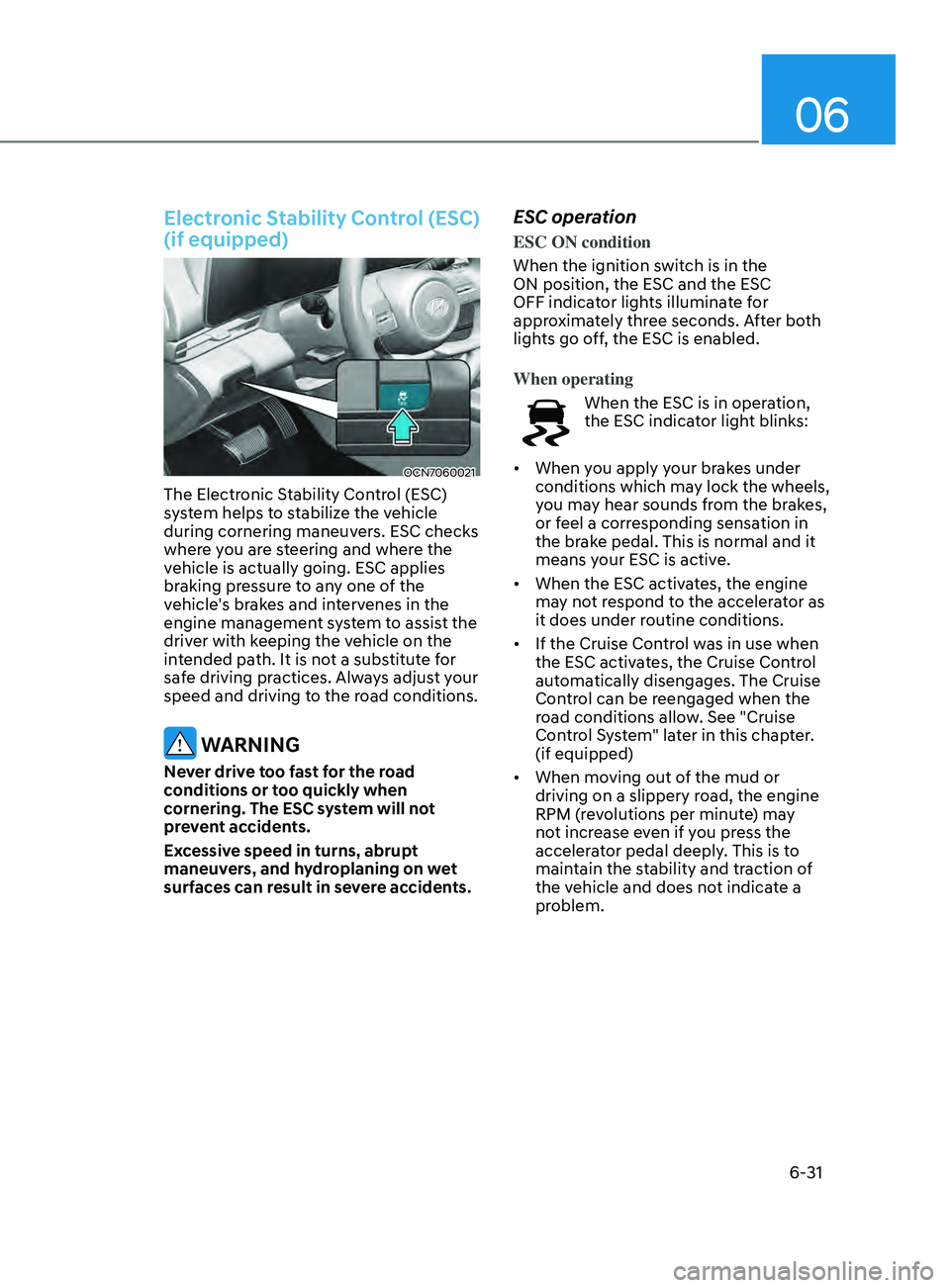
Electronic Stability Control (ESC)
(if equipped)
OCN7060021
The Electronic Stability Control (ESC)
system helps to stabilize the vehicle
during cornering maneuvers. ESC checks
where you are steering and where the
vehicle is actually going. ESC applies
braking pressure to any one of the
vehicle's brakes and intervenes in the
engine management system to assist the
driver with keeping the vehicle on the
intended path. It is not a substitute for
safe driving practices. Always adjust your
speed and driving to the road conditions.
WARNING
Never drive too fast for the road
conditions or too quickly when
cornering. The ESC system will not
prevent accidents.
Excessive speed in turns, abrupt
maneuvers, and hydroplaning on wet
surfaces can result in severe accidents.
ESC operation
ESC ON condition
When the ignition switch is in the
ON position, the ESC and the ESC
OFF indicator lights illuminate for
approximately three seconds. After both
lights go off, the ESC is enabled.
When operating
When the ESC is in operation,
the ESC indicator light blinks:
• When you apply your brakes under
conditions which may lock the wheels,
you may hear sounds from the brakes,
or feel a corresponding sensation in
the brake pedal. This is normal and it
means your ESC is active.
• When the ESC activates, the engine
may not respond to the accelerator as
it does under routine conditions.
• If the Cruise Control was in use when
the ESC activates, the Cruise Control
automatically disengages. The Cruise
Control can be reengaged when the
road conditions allow. See "Cruise
Control System" later in this chapter.
(if equipped)
• When moving out of the mud or
driving on a slippery road, the engine
RPM (revolutions per minute) may
not increase even if you press the
accelerator pedal deeply. This is to
maintain the stability and traction of
the vehicle and does not indicate a
problem.
Page 298 of 570
06
6-39
drIve mode Integrated Control system (If e quIpped)
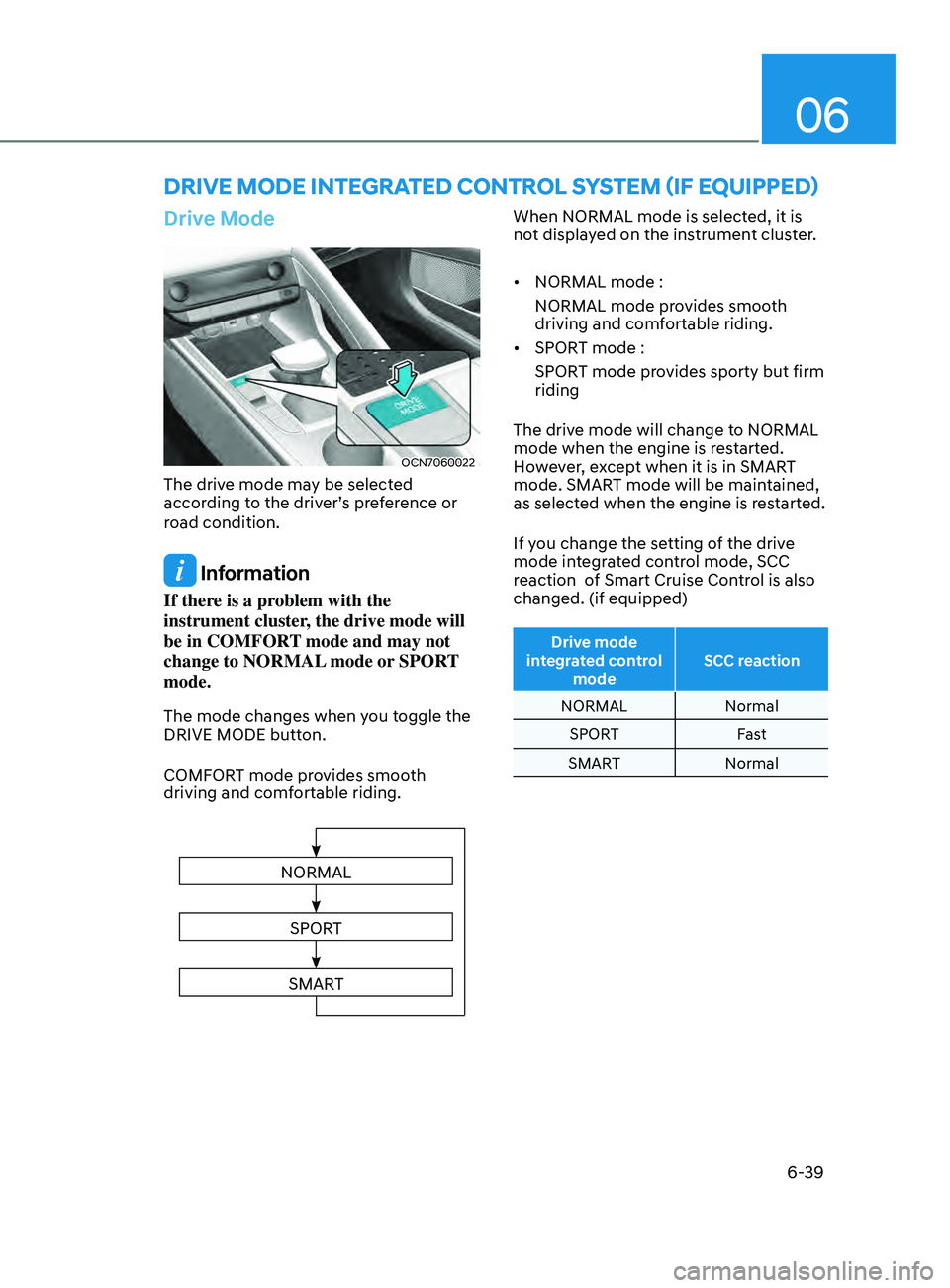
Drive Mode
OCN7060022
The drive mode may be selected
according to the driver’s preference or
road condition.
Information
If there is a problem with the
instrument cluster, the drive mode will
be in COMFORT mode and may not
change to NORMAL mode or SPORT
mode.
The mode changes when you toggle the
DRIVE MODE button.
COMFORT mode provides smooth
driving and comfortable riding.
NORMAL
SPORT
SMART
When NORMAL mode is selected, it is
not displayed on the instrument cluster.
• NORMAL mode :
NORMAL mode provides smooth
driving and comfortable riding.
• SPORT mode :
SPORT mode provides sporty but firm
riding
The drive mode will change to NORMAL
mode when the engine is restarted.
However, except when it is in SMART
mode. SMART mode will be maintained,
as selected when the engine is restarted.
If you change the setting of the drive
mode integrated control mode, SCC
reaction of Smart Cruise Control is also
changed. (if equipped)
Drive mode
integrated control mode SCC reaction
NORMAL Normal
SPORT Fast
SMART Normal
Page 300 of 570
06
6-41
Various driving situations, which you may
encounter in SMART mode
• The driving mode automatically
changes to SMART ECO mode after
a certain period of time, when you
gently depress the accelerator pedal
(Your driving is categorized to be
economic.).
• The driving mode automatically
changes from SMART ECO mode to
SMART NORMAL mode after a certain
period of time, when you sharply or
repetitively depress the accelerator
pedal.
• The driving mode automatically
changes to SMART NORMAL mode
with the same driving patterns, when
the vehicle starts to drive on an
upward slope of a certain angle. The
driving mode automatically returns to
SMART ECO mode, when the vehicle
enters a leveled road.
• The driving mode automatically
changes to SMART SPORT, when
you abruptly accelerate the vehicle
or repetitively operate the steering
wheel (Your driving is categorized
to be sporty.). In this mode, your
vehicle drives in a lower gear for
abrupt accelerating/decelerating
and increases the engine brake
performance.
• You may still sense the engine
braking performance, even when
you release the accelerator pedal in
SMART SPORT mode. It is because
your vehicle remains in lower gear
over a certain period of time for next
acceleration. Thus, it is a normal
driving situation, not indicating any
malfunction. •
The driving mode automatically
changes to SMART SPORT mode
only in harsh driving situations. In
most of the normal driving situations,
the driving mode sets to be either
in SMART ECO mode or in SMART
NORMAL mode.
Limitation of SMART mode
The SMART mode may be limited in
following situations. (The OFF indicator
illuminates in those situations.)
• The cruise control is activated :
The cruise control system may
deactivate the SMART mode when
the vehicle is controlled by the set
speed of Smart Cruise Control system.
(SMART mode is not deactivated
just by activating the cruise control
system.)
• The transmission oil temperature is
either extremely low or extremely
high :
The SMART mode can be active in
most of the normal driving situations.
However, an extremely high/ low
transmission oil temperature may
temporarily deactivate the SMART
mode, because the transmission
condition is out of normal operation
condition.
Page 303 of 570
6-44
Smooth Cornering
Avoid braking or gear changing in
corners, especially when roads are wet.
Ideally, corners should always be taken
under gentle acceleration.
Driving at Night
Night driving presents more hazards than
driving in the daylight. Here are some
important tips to remember:
• Slow down and keep more distance
between you and other vehicles, as it
may be more difficult to see at night,
especially in areas where there may
not be any street lights.
• Adjust your mirrors to reduce the glare
from other driver's headlamps.
• Keep your headlamps clean and
properly aimed. Dirty or improperly
aimed headlamps will make it much
more difficult to see at night.
• Avoid staring directly at the
headlamps of oncoming vehicles. You
could be temporarily blinded, and it
will take several seconds for your eyes
to readjust to the darkness.
Driving in the Rain
Rain and wet roads can make driving
dangerous. Here are a few things to
consider when driving in the rain or on
slick pavement:
• Slow down and allow extra following
distance. A heavy rainfall makes
it harder to see and increases the
distance needed to stop your vehicle.
• Turn OFF your Cruise Control.
• Replace your windshield wiper blades
when they show signs of streaking or
missing areas on the windshield.
• Tires should be properly maintained
with at least 2/32nds of an inch of
tread depth. If your tires do not have
enough tread, making a quick stop on
wet pavement can cause a skid and
possibly lead to an accident. See "Tire
Tread" in chapter 8.
• Turn on your headlamps to make it
easier for others to see you.
• Driving too fast through large puddles
can affect your brakes. If you must go
through puddles, try to drive through
them slowly.
• If you believe your brakes may be wet,
apply them lightly while driving until
normal braking operation returns.
Hydroplaning
If the road is wet enough and you are
going fast enough, your vehicle may
have little or no contact with the road
surface and actually ride on the water.
The best advice is SLOW DOWN when
the road is wet.
The risk of hydroplaning increases as
the depth of tire tread decreases, refer
to "Tire Tread" in chapter 8.
While Driving
Page 314 of 570
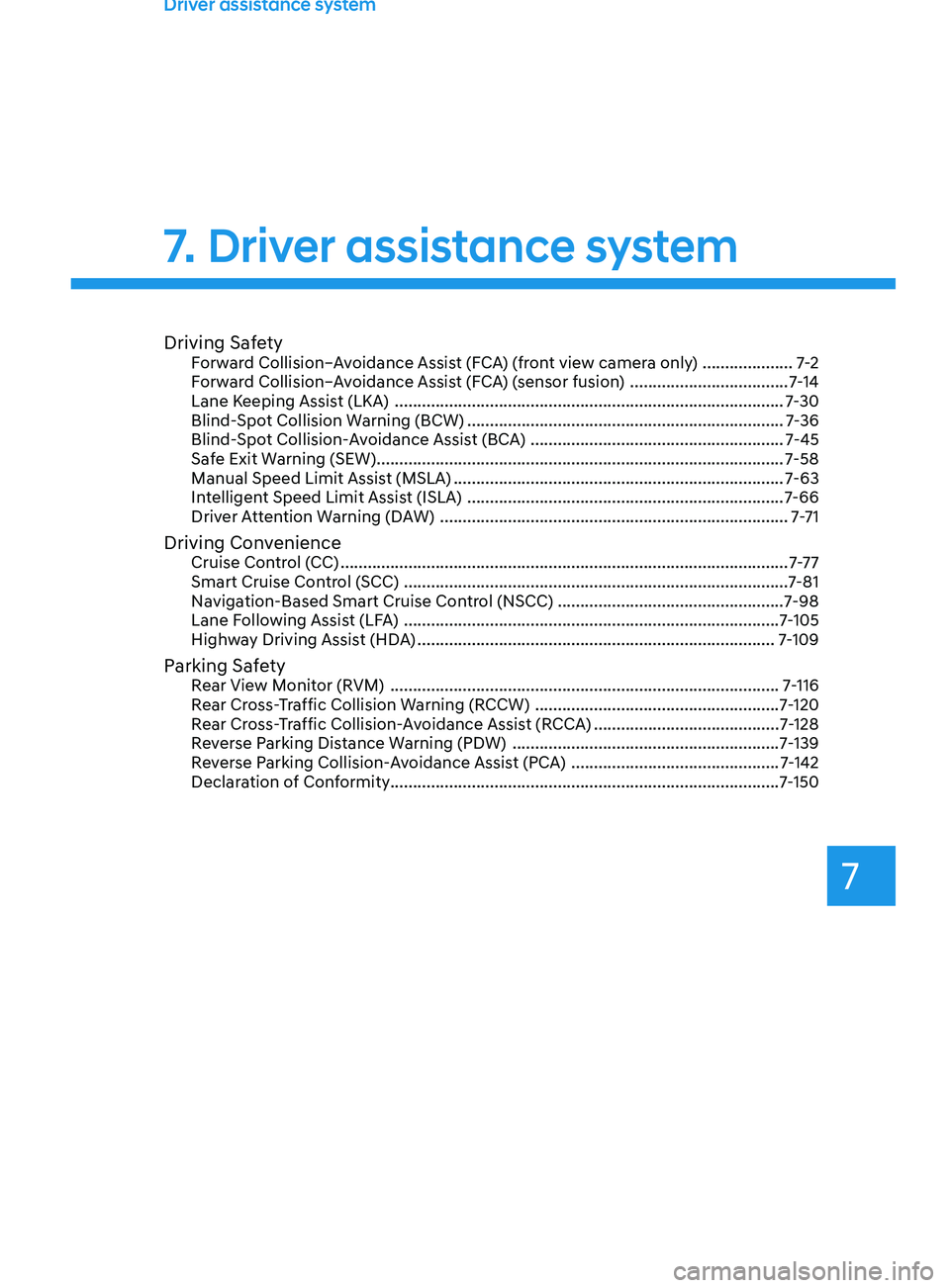
Driving SafetyForward Collision–Avoidance Assist (FCA) (front view camera only) ....................7-2
F orward Collision–Avoidance Assist (FCA) (sensor fusion) ................................... 7
-14
Lane Keeping Assist (LKA)
........................................................................\
.............. 7
-30
Blind-Spot Collision Warning (BCW)
...................................................................... 7
-36
Blind-Spot Collision-Avoidance Assist (BCA)
........................................................ 7
-45
Safe Exit Warning (SEW)
........................................................................\
.................. 7
-58
Manual Speed Limit Assist (MSLA)
........................................................................\
. 7-63
In
telligent Speed Limit Assist (ISLA)
...................................................................... 7
-66
Driver Attention Warning (DAW)
........................................................................\
..... 7
-7 1
Driving ConvenienceCruise Control (CC) ........................................................................\
...........................7-7 7
Smart Cruise Control (SCC) ........................................................................\
............. 7
-81
Navigation-Based Smart Cruise Control (NSCC) ..................................................7-98
Lane Following Assist (LFA)
........................................................................\
........... 7
-105
Highway Driving Assist (HDA)
........................................................................\
....... 7
-109
Parking SafetyRear View Monitor (RVM) ........................................................................\
..............7- 116
Rear Cross-Traffic Collision Warning (RCCW) ...................................................... 7
-120
Rear Cross-Traffic Collision-Avoidance Assist (RCCA)
......................................... 7
-128
Reverse Parking Distance Warning (PDW)
........................................................... 7
-139
Reverse Parking Collision-Avoidance Assist (PCA)
.............................................. 7
-142
Declaration of Conformity
........................................................................\
.............. 7
-150
7. Driver assistance system
Driver assistance system
7
Page 379 of 570
Driver assistance system
7-66
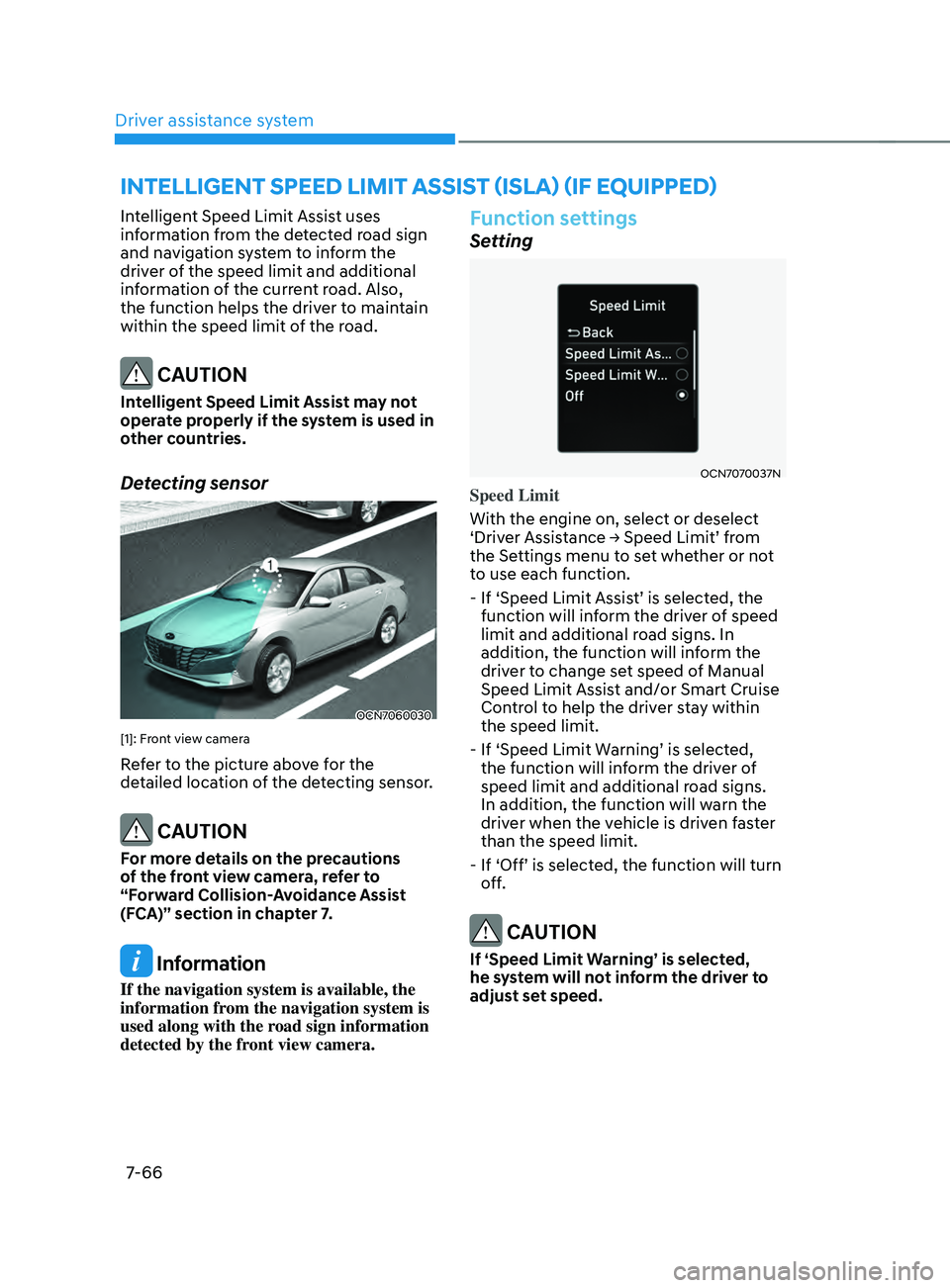
intelligent speed liMit assist (isla) (iF equipped)
Intelligent Speed Limit Assist uses
information from the detected road sign
and navigation system to inform the
driver of the speed limit and additional
information of the current road. Also,
the function helps the driver to maintain
within the speed limit of the road.
CAUTION
Intelligent Speed Limit Assist may not
operate properly if the system is used in
other countries.
Detecting sensor
OCN7060030
[1]: Front view camera
Refer to the picture above for the
detailed location of the detecting sensor.
CAUTION
For more details on the precautions
of the front view camera, refer to
“Forward Collision-Avoidance Assist
(FCA)” section in chapter 7.
Information
If the navigation system is available, the
information from the navigation system is
used along with the road sign information
detected by the front view camera.
Function settings
Setting
OCN7070037N
Speed Limit
With the engine on, select or deselect
‘Driver
Assis
tance
→ Speed Limit’ fr
om
the Settings menu t
o set whether or not
to use each function.
-
If ‘Speed Limit Assis
t’
is select
ed,
the function will inf
orm the driver of speed
limit and additional road signs. In
addition, the function will inform the
driver to change set speed of Manual
Speed Limit Assist and/or Smart Cruise
Control to help the driver stay within
the speed limit.
-
If ‘Speed Limit W
arning’
is select
ed,
the function will inf
orm the driver of
speed limit and additional road signs.
In addition, the function will warn the
driver when the vehicle is driven faster
than the speed limit.
-
If ‘Off’ is select
ed,
the function will turn of
f.
CAUTION
If ‘Speed Limit Warning’ is selected,
he system will not inform the driver to
adjust set speed.
Page 381 of 570
Driver assistance system
7-68
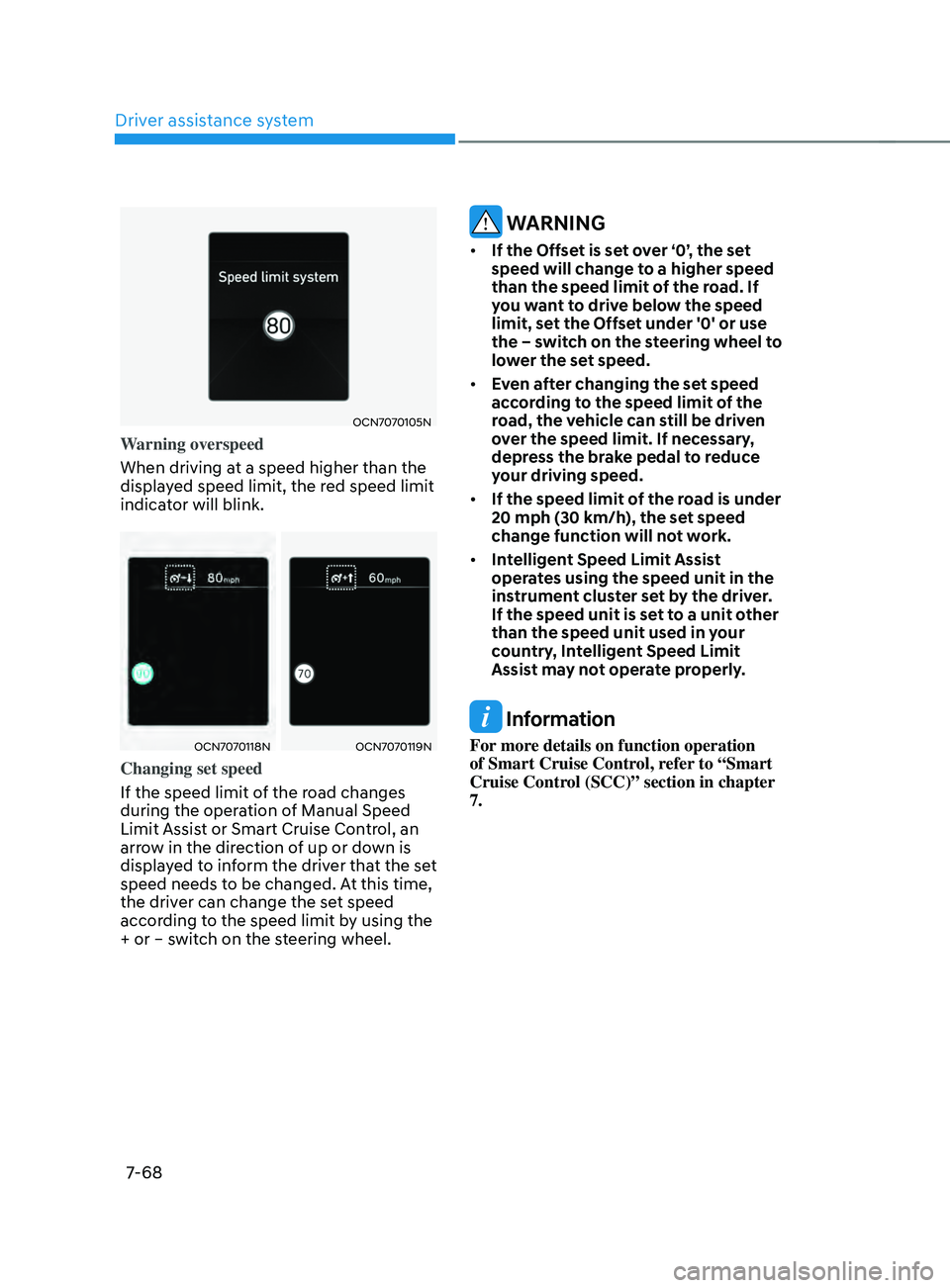
OCN7070105N
Warning overspeed
When driving at a speed higher than the
displayed speed limit, the red speed limit
indicator will blink.
OCN7070118NOCN7070119N
Changing set speed
If the speed limit of the road changes
during the operation of Manual Speed
Limit Assist or Smart Cruise Control, an
arrow in the direction of up or down is
displayed to inform the driver that the set
speed needs to be changed. At this time,
the driver can change the set speed
according to the speed limit by using the
+ or – switch on the steering wheel.
WARNING
• If the Offset is set over ‘0’, the set
speed will change to a higher speed
than the speed limit of the road. If
you want to drive below the speed
limit, set the Offset under '0' or use
the – switch on the steering wheel to
lower the set speed.
• Even after changing the set speed
according to the speed limit of the
road, the vehicle can still be driven
over the speed limit. If necessary,
depress the brake pedal to reduce
your driving speed.
• If the speed limit of the road is under
20 mph (30 km/h), the set speed
change function will not work.
• Intelligent Speed Limit Assist
operates using the speed unit in the
instrument cluster set by the driver.
If the speed unit is set to a unit other
than the speed unit used in your
country, Intelligent Speed Limit
Assist may not operate properly.
Information
For more details on function operation
of Smart Cruise Control, refer to “Smart
Cruise Control (SCC)” section in chapter
7.
Page 390 of 570
07
7-7 7
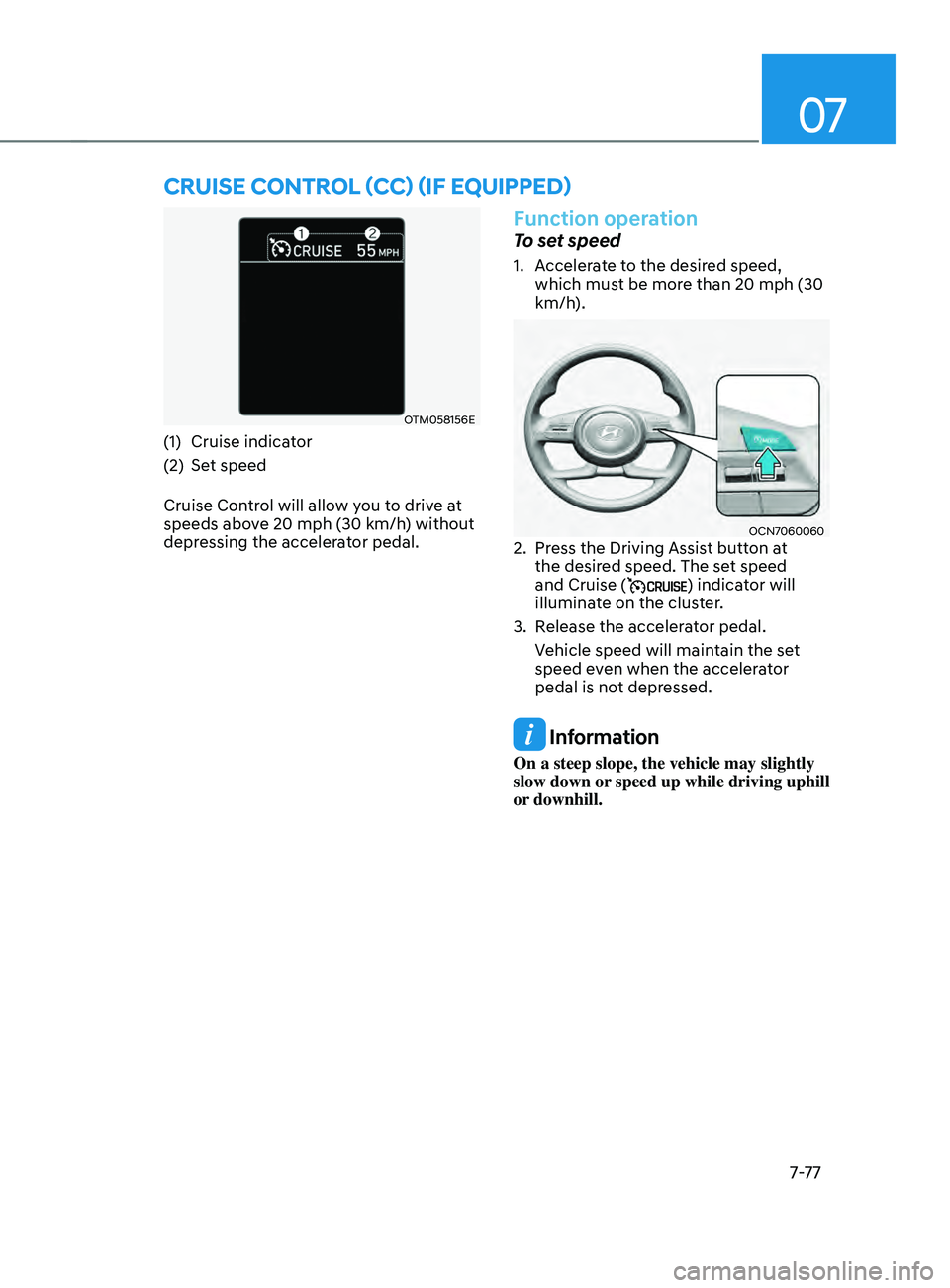
OTM058156E
(1) Cruise indicator
(2)
Set speed
Cruise Con
trol will allow you to drive at
speeds above 20 mph (30 km/h) without
depressing the accelerator pedal.
Function operation
To set speed
1. Accelerate to the desired speed,
which mus t be more than 20 mph (30
km/h).
OCN70600602. Press the Driving Assist button at
the desir ed speed. The set speed
and Cruise (
) indicator will
illuminate on the cluster.
3.
Release the acceler
ator pedal.
Vehicle speed will maintain the set
speed even when the accelerator
pedal is not depressed.
Information
On a steep slope, the vehicle may slightly
slow down or speed up while driving uphill
or downhill.
Cruise Control (CC) (iF equipped)
Page 392 of 570
07
7-7 9
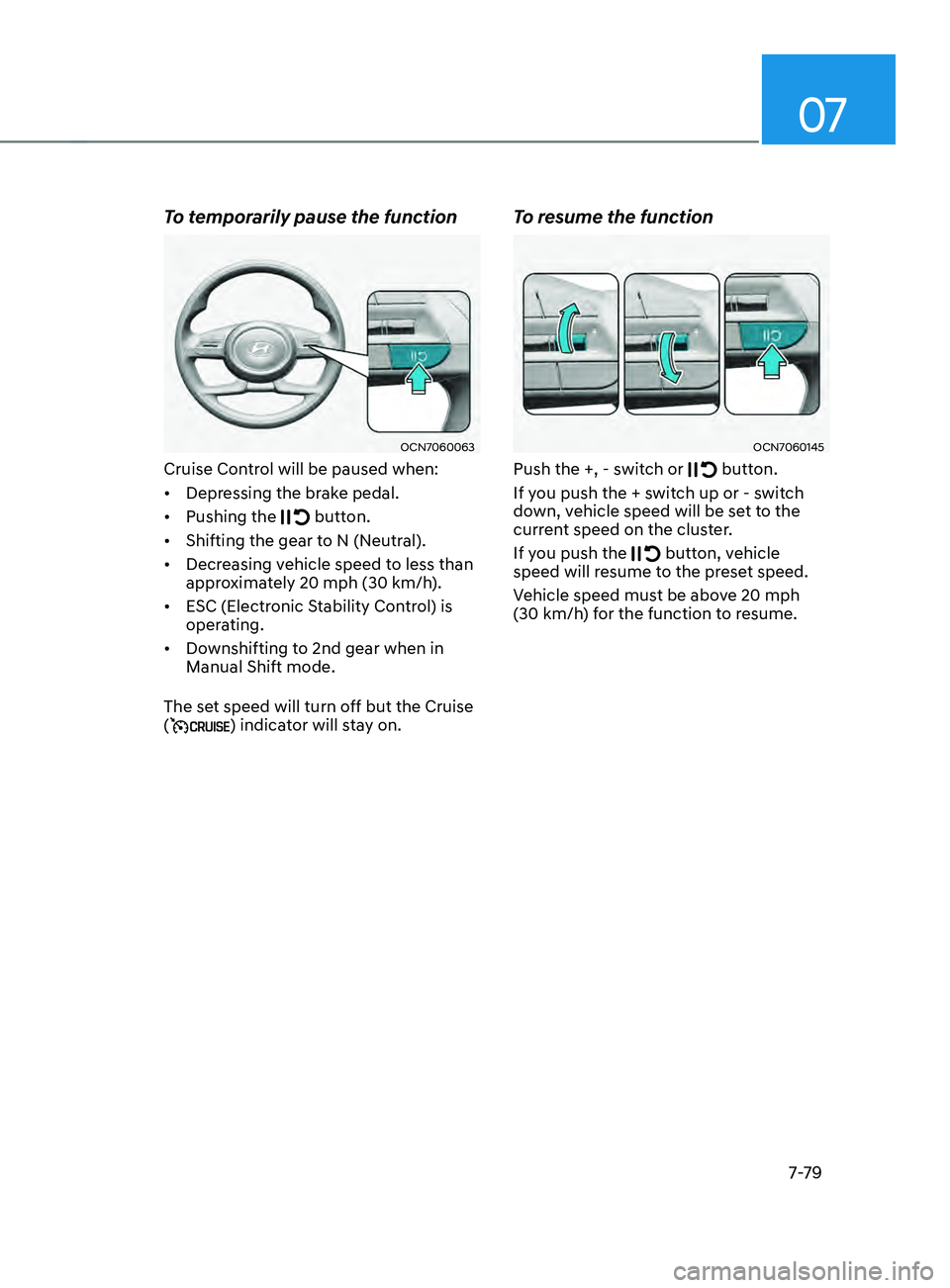
To temporarily pause the function
OCN7060063
Cruise Control will be paused when:
• Depressing the brake pedal.
• Pushing the
button.
• Shifting the gear to N (Neutral).
• Decreasing vehicle speed to less than
approximately 20
mph (30 km/h
).
• ESC (Electronic Stability Control) is
operating.
• Downshifting to 2nd gear when in
Manual Shift mode.
The set speed will turn off but the Cruise
(
) indicator will stay on.
To resume the function
OCN7060145
Push the +, - switch or button.
If you push the + switch up or - switch
down, vehicle speed will be set to the
current speed on the cluster.
If you push the
button, vehicle
speed will resume to the preset speed.
Vehicle speed must be above 20
mph
(30 km/h
) for the function to resume.
Page 393 of 570
Driver assistance system
7-80
To turn off the function
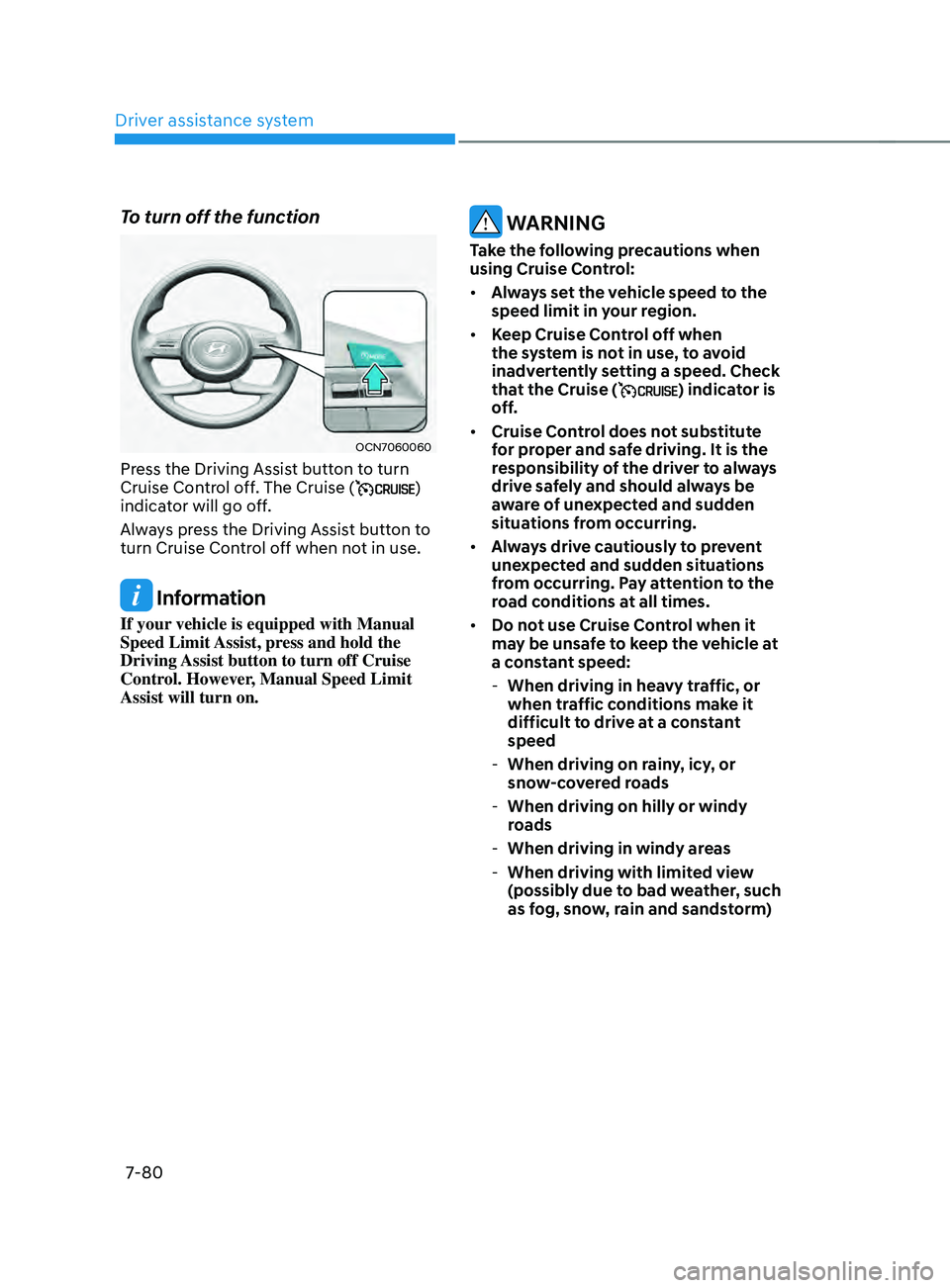
OCN7060060
Press the Driving Assist button to turn
Cruise Control off. The Cruise ()
indicator will go off.
Always press the Driving Assist button to
turn Cruise Control off when not in use.
Information
If your vehicle is equipped with Manual
Speed Limit Assist, press and hold the
Driving Assist button to turn off Cruise
Control. However, Manual Speed Limit
Assist will turn on.
WARNING
Take the following precautions when
using Cruise Control:
• Always set the vehicle speed to the
speed limit in your region.
• Keep Cruise Control off when
the system is not in use, to avoid
inadvertently setting a speed. Check
that the Cruise (
) indicator is
off.
• Cruise Control does not substitute
for proper and safe driving. It is the
responsibility of the driver to always
drive safely and should always be
aware of unexpected and sudden
situations from occurring.
• Always drive cautiously to prevent
unexpected and sudden situations
from occurring. Pay attention to the
road conditions at all times.
• Do not use Cruise Control when it
may be unsafe to keep the vehicle at
a constant speed:
-When driving in heavy tr
affic, or
when traffic conditions make it
difficult to drive at a constant
speed
- When driving on rain
y, icy, or
snow-covered roads
- When driving on hilly or windy
roads
-When driving in windy areas
-When driving with limited vie
w
(possibly due to bad weather, such
as fog, snow, rain and sandstorm)