Level Hyundai Elantra Coupe 2014 User Guide
[x] Cancel search | Manufacturer: HYUNDAI, Model Year: 2014, Model line: Elantra Coupe, Model: Hyundai Elantra Coupe 2014Pages: 550, PDF Size: 45.11 MB
Page 182 of 550
Features of your vehicle
96 4
Manual heating and air condi-
tioning
The heating and cooling system can
be controlled manually by pressing
buttons or turning knob(s) other than
the AUTO button. In this case, the
system works sequentially according
to the order of buttons or knob(s)
selected.
1. Start the engine.
2. Set the mode to the desired posi-
tion.
For improving the effectiveness of
heating and cooling;
- Heating:
- Cooling:
3. Set the temperature control to the
desired position.
4. Set the air intake control to the
outside (fresh) air position.
5. Set the fan speed control to the
desired speed.
6. If air conditioning is desired, turn
the air conditioning system on.
Press the AUTO button in order to
convert to full automatic control of
the system.
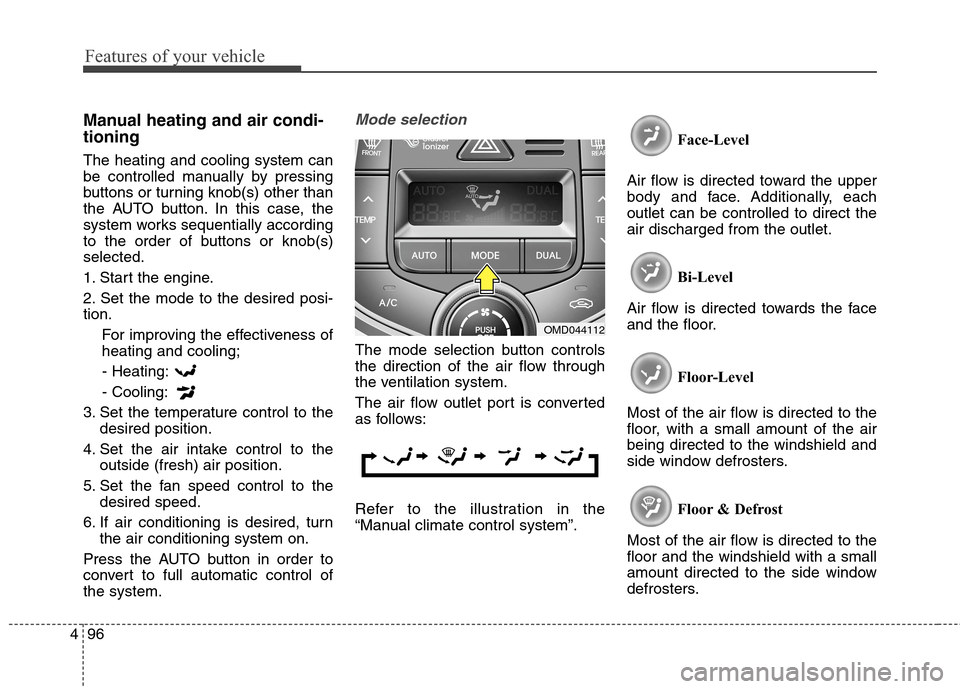
Mode selection
The mode selection button controls
the direction of the air flow through
the ventilation system.
The air flow outlet port is converted
as follows:
Refer to the illustration in the
“Manual climate control system”.Face-Level
Air flow is directed toward the upper
body and face. Additionally, each
outlet can be controlled to direct the
air discharged from the outlet.
Bi-Level
Air flow is directed towards the face
and the floor.
Floor-Level
Most of the air flow is directed to the
floor, with a small amount of the air
being directed to the windshield and
side window defrosters.
Floor & Defrost
Most of the air flow is directed to the
floor and the windshield with a small
amount directed to the side window
defrosters.
OMD044112
Page 183 of 550
497
Features of your vehicle
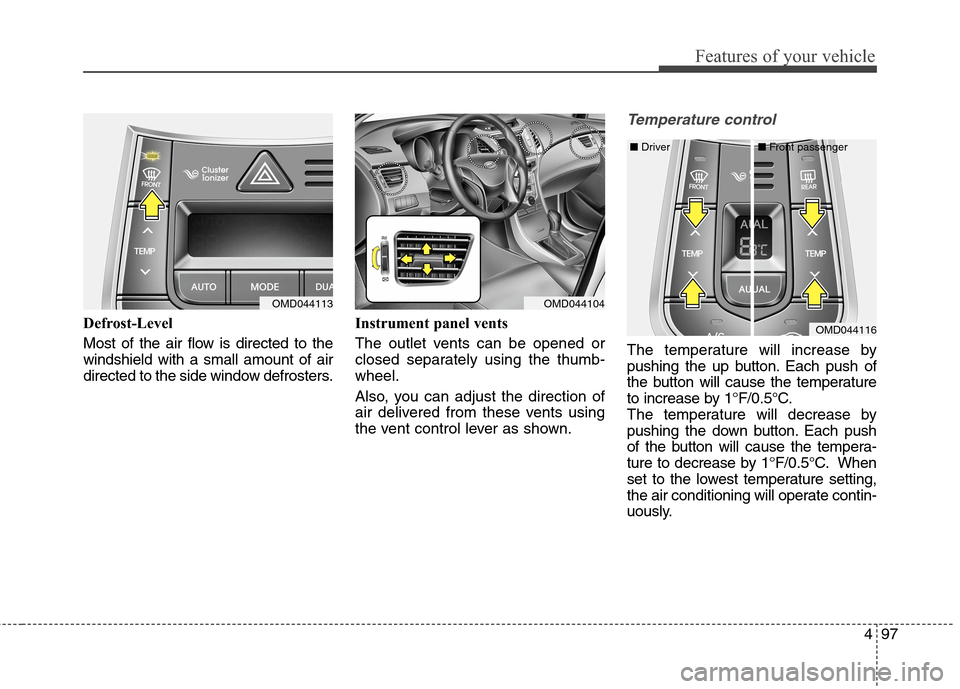
Defrost-Level
Most of the air flow is directed to the
windshield with a small amount of air
directed to the side window defrosters.Instrument panel vents
The outlet vents can be opened or
closed separately using the thumb-
wheel.
Also, you can adjust the direction of
air delivered from these vents using
the vent control lever as shown.
Temperature control
The temperature will increase by
pushing the up button. Each push of
the button will cause the temperature
to increase by 1°F/0.5°C.
The temperature will decrease by
pushing the down button. Each push
of the button will cause the tempera-
ture to decrease by 1°F/0.5°C. When
set to the lowest temperature setting,
the air conditioning will operate contin-
uously.
OMD044113OMD044104
OMD044116 ■Driver■Front passenger
Page 186 of 550
Features of your vehicle
100 4
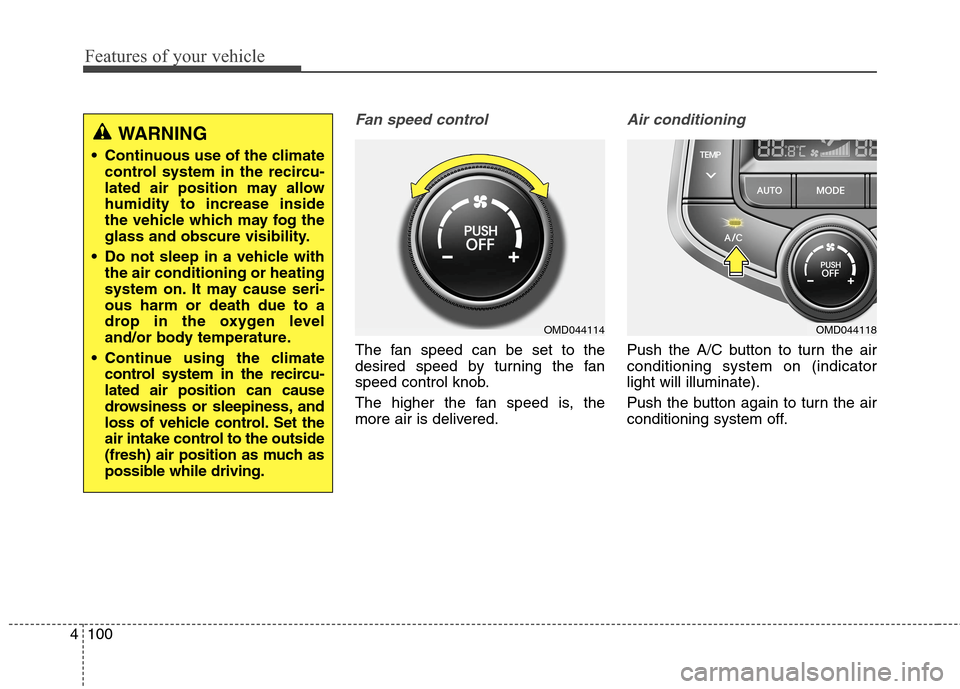
Fan speed control
The fan speed can be set to the
desired speed by turning the fan
speed control knob.
The higher the fan speed is, the
more air is delivered.
Air conditioning
Push the A/C button to turn the air
conditioning system on (indicator
light will illuminate).
Push the button again to turn the air
conditioning system off.
WARNING
Continuous use of the climate
control system in the recircu-
lated air position may allow
humidity to increase inside
the vehicle which may fog the
glass and obscure visibility.
Do not sleep in a vehicle with
the air conditioning or heating
system on. It may cause seri-
ous harm or death due to a
drop in the oxygen level
and/or body temperature.
Continue using the climate
control system in the recircu-
lated air position can cause
drowsiness or sleepiness, and
loss of vehicle control. Set the
air intake control to the outside
(fresh) air position as much as
possible while driving.
OMD044118OMD044114
Page 203 of 550
4117
Features of your vehicle
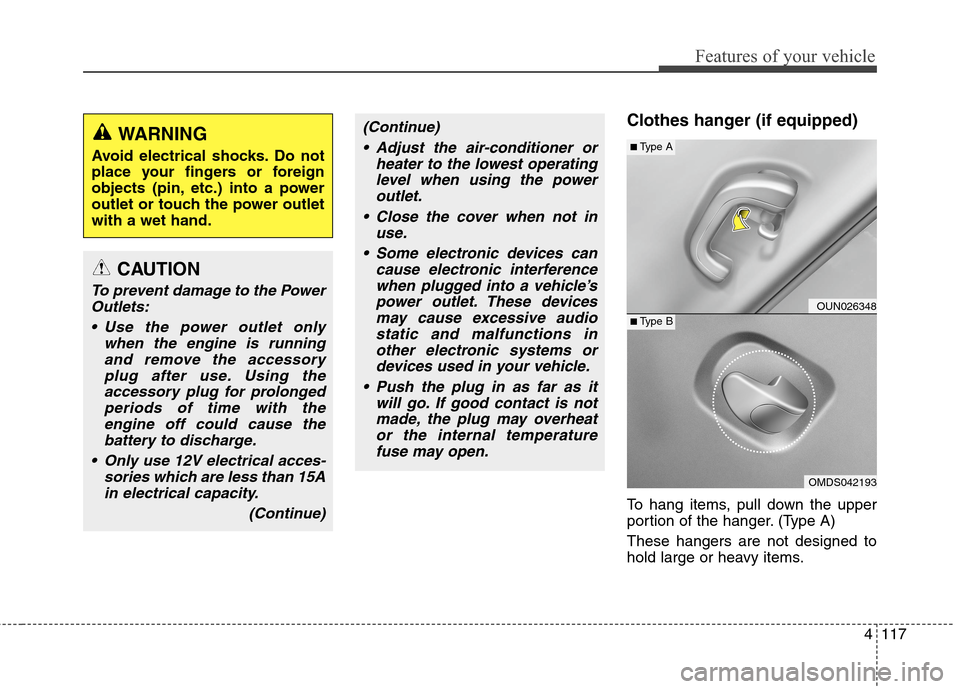
Clothes hanger (if equipped)
To hang items, pull down the upper
portion of the hanger. (Type A)
These hangers are not designed to
hold large or heavy items.
CAUTION
To prevent damage to the Power
Outlets:
Use the power outlet only
when the engine is running
and remove the accessory
plug after use. Using the
accessory plug for prolonged
periods of time with the
engine off could cause the
battery to discharge.
Only use 12V electrical acces-
sories which are less than 15A
in electrical capacity.
(Continue)
(Continue)
Adjust the air-conditioner or
heater to the lowest operating
level when using the power
outlet.
Close the cover when not in
use.
Some electronic devices can
cause electronic interference
when plugged into a vehicle’s
power outlet. These devices
may cause excessive audio
static and malfunctions in
other electronic systems or
devices used in your vehicle.
Push the plug in as far as it
will go. If good contact is not
made, the plug may overheat
or the internal temperature
fuse may open.WARNING
Avoid electrical shocks. Do not
place your fingers or foreign
objects (pin, etc.) into a power
outlet or touch the power outlet
with a wet hand.
OUN026348
OMDS042193
■Type A
■Type B
Page 210 of 550
Features of your vehicle
124 4
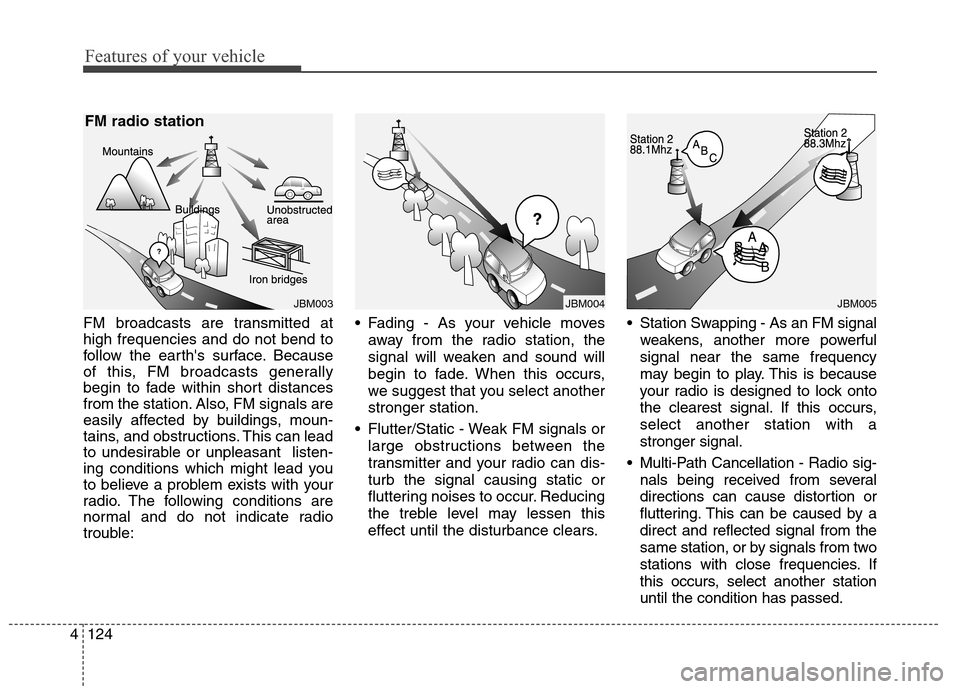
FM broadcasts are transmitted at
high frequencies and do not bend to
follow the earth's surface. Because
of this, FM broadcasts generally
begin to fade within short distances
from the station. Also, FM signals are
easily affected by buildings, moun-
tains, and obstructions. This can lead
to undesirable or unpleasant listen-
ing conditions which might lead you
to believe a problem exists with your
radio. The following conditions are
normal and do not indicate radio
trouble: Fading - As your vehicle moves
away from the radio station, the
signal will weaken and sound will
begin to fade. When this occurs,
we suggest that you select another
stronger station.
Flutter/Static - Weak FM signals or
large obstructions between the
transmitter and your radio can dis-
turb the signal causing static or
fluttering noises to occur. Reducing
the treble level may lessen this
effect until the disturbance clears. Station Swapping - As an FM signal
weakens, another more powerful
signal near the same frequency
may begin to play. This is because
your radio is designed to lock onto
the clearest signal. If this occurs,
select another station with a
stronger signal.
Multi-Path Cancellation - Radio sig-
nals being received from several
directions can cause distortion or
fluttering. This can be caused by a
direct and reflected signal from the
same station, or by signals from two
stations with close frequencies. If
this occurs, select another station
until the condition has passed.
JBM003
FM radio station
¢¢¢
JBM004JBM005
Page 213 of 550
4127
Features of your vehicle
(Continued)
Turn on the car ignition before
using this device. Do not oper-
ate the audio system for long
periods of time with the ignition
turned off as such operations
may lead to battery discharge.
Do not subject the device to
severe shock or impact. Direct
pressure onto the front side of
the monitor may cause dam-
age to the LCD or touch
screen.
When cleaning the device,
make sure to turn off the
device and use a dry and
smooth cloth. Never use
tough materials, chemical
cloths, or solvents (alcohol,
benzene, thinners, etc.) as
such materials may damage
the device panel or cause
color/quality deterioration.
(Continued)CAUTION
Operating the device while
driving could lead to accidents
due to a lack of attention to
external surroundings. First
park the vehicle before operat-
ing the device.
Adjust the volume to levels that
allow the driver to hear sounds
from outside of the vehicle.
Driving in a state where exter-
nal sounds cannot be heard
may lead to accidents.
Pay attention to the volume set-
ting when turning the device
on. A sudden output of extreme
volume upon turning the
device on could lead to hearing
impairment. (Adjust the volume
to a suitable levels before turn-
ing off the device.)
(Continued)
(Continued)
Please refrain from use if the
screen is blank or no sound
can be heard as these signs
may indicate product malfunc-
tion. Continued use in such
conditions could lead to acci-
dents(fires, electric shock) or
product malfunctions.
Do not touch the antenna dur-
ing thunder or lightening as
such acts may lead to light-
ning induced electric shock.
Do not stop or park in park-
ing-restricted areas to operate
the product. Such acts could
lead to traffic accidents.
Use the system with the vehi-
cle ignition turned on.
Prolonged use with the igni-
tion turned off could result in
battery discharge.
Page 232 of 550
![Hyundai Elantra Coupe 2014 User Guide Features of your vehicle
146 4
SOUND SETTINGS
Press the key Select
[Sound] through TUNE knob or
key Select menu through
TUNE knob
Sound Settings
This menu allows you to set the
‘Bass, Middle, Tre](/img/35/14621/w960_14621-231.png "Hyundai Elantra Coupe 2014 User Guide Features of your vehicle
146 4
SOUND SETTINGS
Press the key Select
[Sound] through TUNE knob or
key Select menu through
TUNE knob
Sound Settings
This menu allows you to set the
‘Bass, Middle, Tre")
Features of your vehicle
146 4
SOUND SETTINGS
Press the key Select
[Sound] through TUNE knob or
key Select menu through
TUNE knob
Sound Settings
This menu allows you to set the
‘Bass, Middle, Treble’ and the Sound
Fader and Balance.
Select [Sound Settings] Select
menu through TUNE knob Turn
TUNE knob left/right to set
Bass, Middle, Treble : Selects the
sound tone.
Fader, Balance : Moves the sound
fader and balance.
Default : Restores default settings.
❈Back : While adjusting values,
pressing the TUNE knob will
restore the parent menu.
Speed Dependent Volume
Control
This feature is used to automatically
control the volume level according to
the speed of the vehicle.
Select [SDVC] Turn SDVC On/Off
by pressing the Tune knob.
2
SETUP
Page 260 of 550
![Hyundai Elantra Coupe 2014 User Guide Features of your vehicle
174 4
Outgoing Volume
Press the key Select
[Phone] Select [Outgoing Volume]
Use TUNE knob to adjust the out-
going volume level.
✽ ✽
NOTICE
While on a call, the volume](/img/35/14621/w960_14621-259.png "Hyundai Elantra Coupe 2014 User Guide Features of your vehicle
174 4
Outgoing Volume
Press the key Select
[Phone] Select [Outgoing Volume]
Use TUNE knob to adjust the out-
going volume level.
✽ ✽
NOTICE
While on a call, the volume")
Features of your vehicle
174 4
Outgoing Volume
Press the key Select
[Phone] Select [Outgoing Volume]
Use TUNE knob to adjust the out-
going volume level.
✽ ✽
NOTICE
While on a call, the volume can be
changed by using the key.
Turning Bluetooth System Off
Press the key Select
[Phone] Select [Bluetooth System
Off]
Once
Bluetooth®Wireless Technology
is turned off,
Bluetooth®Wireless
Technology related features will not be
supported within the audio system.
✽ ✽
NOTICE
To turn Bluetooth®Wireless
Technology back on, go to
[Phone] and select “Yes”.SETUP
SETUP
SEEK
TRACK
SETUP
Page 280 of 550
Features of your vehicle
194 4
SIRIUSXM™RADIO MODE
Features of your vehicle
Satellite radio reception
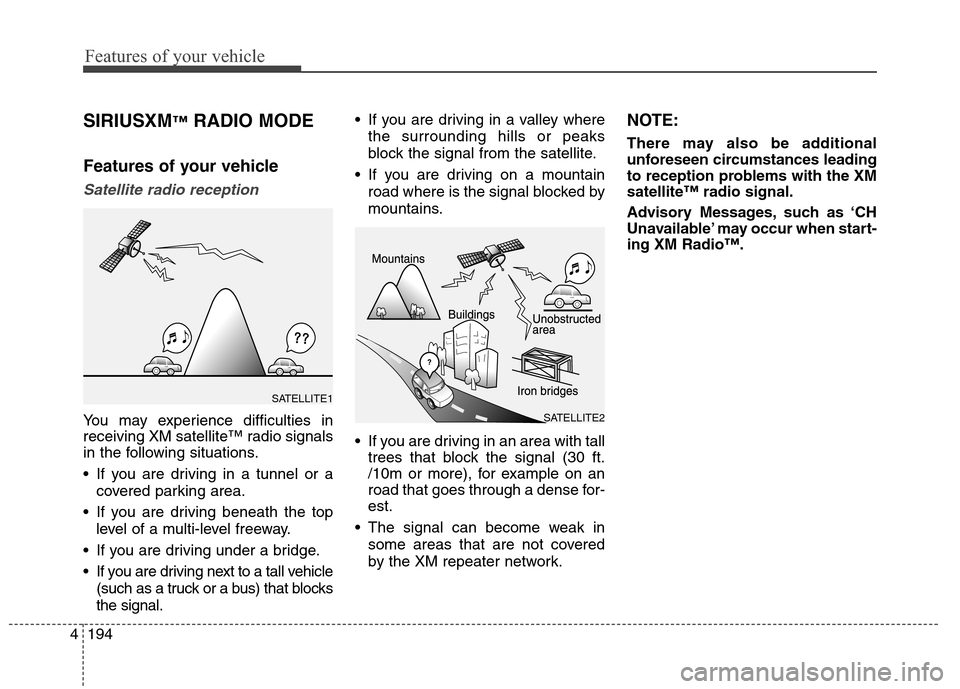
You may experience difficulties in
receiving XM satellite™ radio signals
in the following situations.
If you are driving in a tunnel or a
covered parking area.
If you are driving beneath the top
level of a multi-level freeway.
If you are driving under a bridge.
If you are driving next to a tall vehicle
(such as a truck or a bus) that blocks
the signal. If you are driving in a valley where
the surrounding hills or peaks
block the signal from the satellite.
If you are driving on a mountain
road where is the signal blocked by
mountains.
If you are driving in an area with tall
trees that block the signal (30 ft.
/10m or more), for example on an
road that goes through a dense for-
est.
The signal can become weak in
some areas that are not covered
by the XM repeater network.
NOTE:
There may also be additional
unforeseen circumstances leading
to reception problems with the XM
satellite™ radio signal.
Advisory Messages, such as ‘CH
Unavailable’ may occur when start-
ing XM Radio™.
SATELLITE2
SATELLITE1
Page 297 of 550
4211
Features of your vehicle
✽ ✽
NOTICE - USING THE
iPod®DEVICE
• iPod®is a registered trademark
of Apple Inc.
• In order to use the iPod
®while
operating the keys, you must use
a dedicated iPod
®cable. (the
cable that is supplied when pur-
chasing iPod
®/iPhone®prod-
ucts)
• If the iPod
®is connected to the
vehicle while it is playing, a high
pitch sound could occur for
approximately 1-2 seconds
immediately after connecting. If
possible, connect the iPod to the
vehicle with the iPod
®stopped/
paused.
• During ACC ON state, connect-
ing the iPod
®through the iPod®
cable will charge the iPod®
through the car audio system.
• When connecting with the iPod®
cable, make sure to fully insert
the jack to prevent communica-
tion interference.
(Continued)(Continued)
• When the EQ features of an
external device, such as the
iPod
®, and the audio system are
both active, EQ effects could
overlap and cause sound deteri-
oration and distortion.
Whenever possible, turn off the
EQ feature within the external
device upon use by connecting
with the audio system.
• Noise may occur when an iPod
®
or AUX device is connected.
When such devices are not being
used, disconnect the device for
storage.
• When the iPod
®or AUX device
power is connected to the power
jack, playing the external device
may result in noise. In such
cases, disconnect the power con-
nection before use.
• Skipping or improper operation
may occur depending on the
characteristics of your iPod
®
/Phone®device.
(Continued)(Continued)
• If your iPhone
®is connected to
both the Bluetooth®Wireless
Technology and USB, the sound
may not be properly played. In
your iPhone
®, select the Dock
connector orBluetooth®Wireless
Technology to change the sound
output (source).
• iPod mode cannot be operated
when the iPod
®cannot be recog-
nized due to versions that do not
support communication proto-
cols.
• For fifth generation iPod
®Nano
devices, the iPod®may not be
recognized when the battery
level is low. Please charge the
iPod
®for use.
• Search/play orders shown with-
in the iPod
®device may differ
with the orders shown within
the audio system.
• If the iPod
®malfunctions due to
an iPod®device defect, reset the
iPod®and try again. (To learn
more, refer to your iPod®manual)
(Continued)