bluetooth Hyundai Elantra Coupe 2014 Workshop Manual
[x] Cancel search | Manufacturer: HYUNDAI, Model Year: 2014, Model line: Elantra Coupe, Model: Hyundai Elantra Coupe 2014Pages: 550, PDF Size: 45.11 MB
Page 326 of 550
Features of your vehicle
240 4
0~255
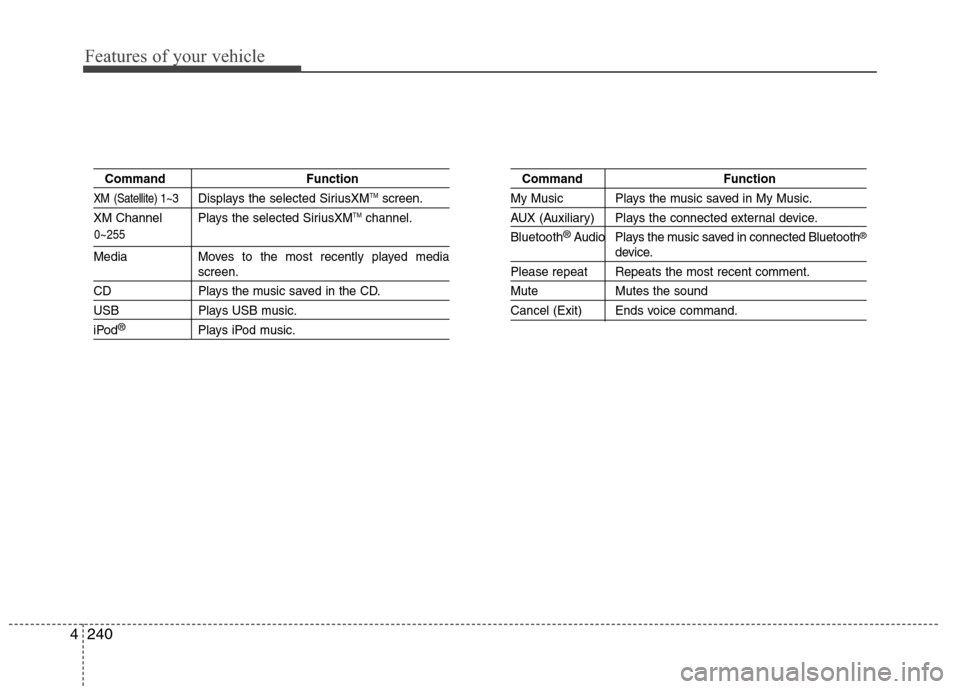
Command Function
XM (Satellite) 1~3Displays the selected SiriusXMTMscreen.
XM Channel Plays the selected SiriusXMTMchannel.
Media Moves to the most recently played mediascreen.
CD Plays the music saved in the CD.
USB Plays USB music.
iPod®Plays iPod music.
Command Function
My Music Plays the music saved in My Music.
AUX (Auxiliary) Plays the connected external device.
Bluetooth
®Audio Plays the music saved in connected Bluetooth®
device.
Please repeat Repeats the most recent comment.
Mute Mutes the sound
Cancel (Exit) Ends voice command.
Page 336 of 550
Features of your vehicle
250 4
Blue Link® (if equipped)
Hyundai aims to offer differentiated
customer values through a
‘Connected Car Life,’ which is to pro-
vide consumers with fast and reliable
IT technology. As consumers’ lifestyles
become more and more mobile in
thanks to remarkable advances in
smart phones, tablet PCs and overall
wireless telecommunication, new
lifestyle patterns demand seamless
connection between one’s office,
home, outdoors and automobiles.
Automobile companies are now faced
with the task of shifting their paradigm
from vehicle-centered services to cus-
tomer value-centered services, with
the ultimate goal of securing global
leadership in the field of vehicle IT and
telematics.
Hyundai plans to achieve this by real-
izing a terminal platform flexible to
changes in IT technology, cooperat-
ing with global IT companies, creat-
ing an eco-system and providing the
latest contents & services based on
an open environment.
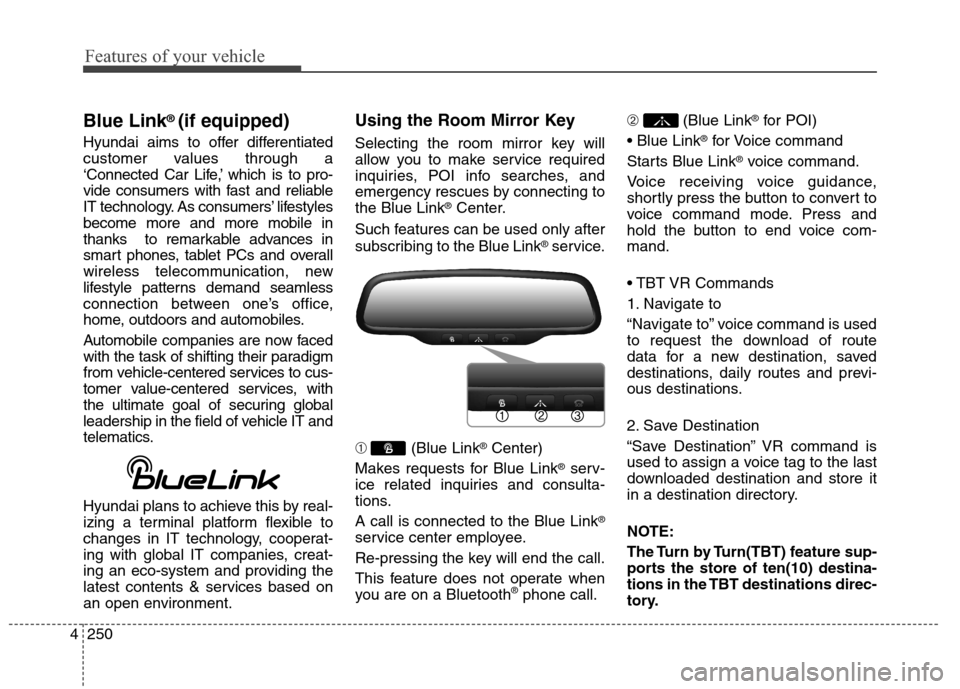
Using the Room Mirror Key
Selecting the room mirror key will
allow you to make service required
inquiries, POI info searches, and
emergency rescues by connecting to
the Blue Link
®Center.
Such features can be used only after
subscribing to the Blue Link
®service.
➀ (Blue Link
®Center)
Makes requests for Blue Link
®serv-
ice related inquiries and consulta-
tions.
A call is connected to the Blue Link
®
service center employee.
Re-pressing the key will end the call.
This feature does not operate when
you are on a Bluetooth
®phone call.➁ (Blue Link
®for POI)
®for Voice command
Starts Blue Link
®voice command.
Voice receiving voice guidance,
shortly press the button to convert to
voice command mode. Press and
hold the button to end voice com-
mand.
1. Navigate to
“Navigate to” voice command is used
to request the download of route
data for a new destination, saved
destinations, daily routes and previ-
ous destinations.
2. Save Destination
“Save Destination” VR command is
used to assign a voice tag to the last
downloaded destination and store it
in a destination directory.
NOTE:
The Turn by Turn(TBT) feature sup-
ports the store of ten(10) destina-
tions in the TBT destinations direc-
tory.
Page 337 of 550
4251
Features of your vehicle
3. Route Preview
“Route Preview” VR command allows
the user to preview the route instruc-
tions (upcoming maneuver instruc-
tions) at any time during the route
guidance.
4. Destinations List
“Destinations List” VR command
allows the user to preview and delete
the stored destinations with their
associated voice tags in the Turn by
Turn destinations directory.
5. Voice Guidance
“Voice Guidance” VR command allows
the user to mute/unmute the Turn by
Turn(TBT) direction announcements.
6. Suspend Route
“Suspend Route” VR command
allows the user to suspend and
pause Turn by Turn(TBT) route guid-
ance while in the guidance mode.7. Resume Route
“Resume Route” VR command
allows the user to resume Turn by
Turn(TBT) route guidance.
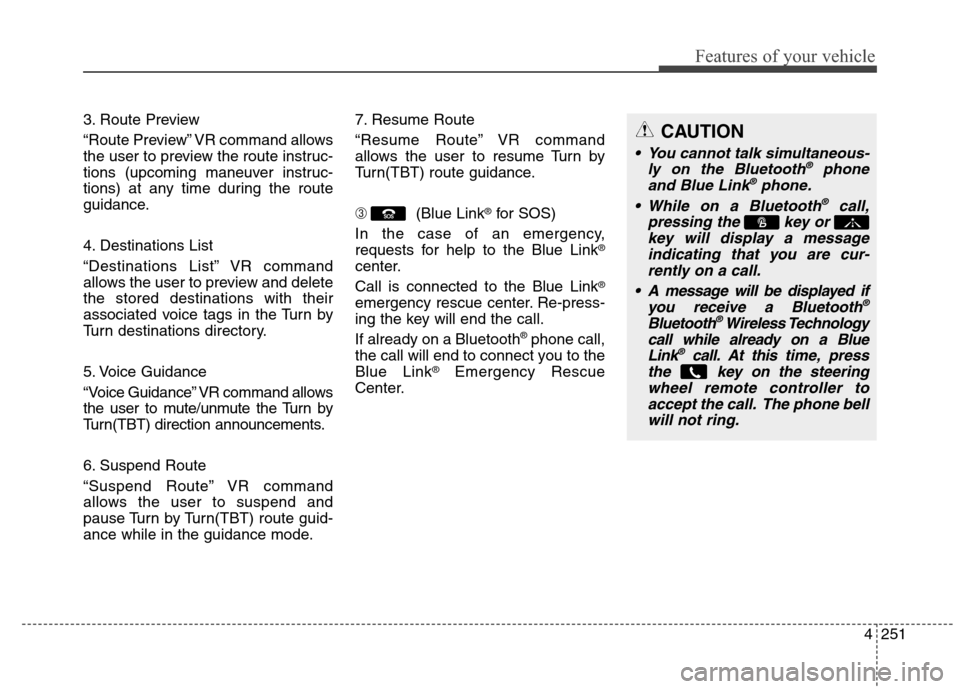
➂ (Blue Link
®for SOS)
In the case of an emergency,
requests for help to the Blue Link
®
center.
Call is connected to the Blue Link
®
emergency rescue center. Re-press-
ing the key will end the call.
If already on a Bluetooth
®phone call,
the call will end to connect you to the
Blue Link
®Emergency Rescue
Center.
CAUTION
You cannot talk simultaneous-
ly on the Bluetooth®phone
and Blue Link®phone.
While on a Bluetooth®call,
pressing the key or
key will display a message
indicating that you are cur-
rently on a call.
A message will be displayed if
you receive a Bluetooth
®
Bluetooth®Wireless Technology
call while already on a Blue
Link
®call. At this time,press
the key on the steering
wheel remote controller to
accept the call. The phone bell
will not ring.