bluetooth Hyundai Elantra Coupe 2014 Service Manual
[x] Cancel search | Manufacturer: HYUNDAI, Model Year: 2014, Model line: Elantra Coupe, Model: Hyundai Elantra Coupe 2014Pages: 550, PDF Size: 45.11 MB
Page 313 of 550
![Hyundai Elantra Coupe 2014 Service Manual 4227
Features of your vehicle
Connecting a Device
Press the key Select
[Phone] Select [Paired Phone List]
1) Connected Phone : Device that is
currently connected
2) Paired Phone : Device that is
pa](/img/35/14621/w960_14621-312.png "Hyundai Elantra Coupe 2014 Service Manual 4227
Features of your vehicle
Connecting a Device
Press the key Select
[Phone] Select [Paired Phone List]
1) Connected Phone : Device that is
currently connected
2) Paired Phone : Device that is
pa")
4227
Features of your vehicle
Connecting a Device
Press the key Select
[Phone] Select [Paired Phone List]
1) Connected Phone : Device that is
currently connected
2) Paired Phone : Device that is
paired but not connectedFrom the paired phone list, select the
device you want to connect and
press the button.
Changing Priority
What is Priority?
It is possible to pair up to five
Bluetooth®Wireless Technology
devices with the car audio system.
The "Change Priority" feature is used
to set the connection priority of
paired phones.
Press the key Select
[Phone] Select [Paired Phone List]
SETUP
ConnectSETUP
Page 315 of 550
![Hyundai Elantra Coupe 2014 Service Manual 4229
Features of your vehicle
Deleting a Device
Press the key Select
[Phone] Select [Paired Phone List]
From the paired phone list, select the
device you want to delete and press
the button.
✽ ✽](/img/35/14621/w960_14621-314.png "Hyundai Elantra Coupe 2014 Service Manual 4229
Features of your vehicle
Deleting a Device
Press the key Select
[Phone] Select [Paired Phone List]
From the paired phone list, select the
device you want to delete and press
the button.
✽ ✽")
4229
Features of your vehicle
Deleting a Device
Press the key Select
[Phone] Select [Paired Phone List]
From the paired phone list, select the
device you want to delete and press
the button.
✽ ✽
NOTICE
• When deleting the currently con-
nected device, the device will auto-
matically be disconnected to pro-
ceed with the deleting process.
• If a paired Bluetooth
®Wireless
Technology device is deleted, the
device’s call history and contacts
data will also be deleted.
• To re-use a deleted device, you
must pair the device again.
Delete
SETUP
Page 316 of 550
Features of your vehicle
230 4
USING Bluetooth®Wireless
Technology
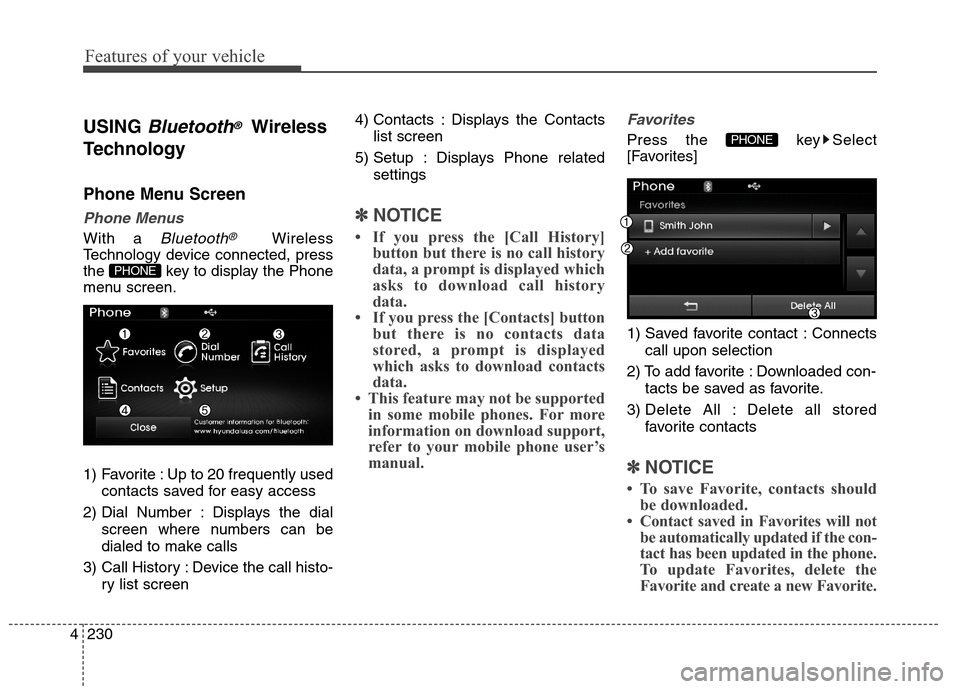
Phone Menu Screen
Phone Menus
With a Bluetooth®Wireless
Technology device connected, press
the key to display the Phone
menu screen.
1) Favorite : Up to 20 frequently used
contacts saved for easy access
2) Dial Number : Displays the dial
screen where numbers can be
dialed to make calls
3) Call History : Device the call histo-
ry list screen4) Contacts : Displays the Contacts
list screen
5) Setup : Displays Phone related
settings
✽ ✽
NOTICE
• If you press the [Call History]
button but there is no call history
data, a prompt is displayed which
asks to download call history
data.
• If you press the [Contacts] button
but there is no contacts data
stored, a prompt is displayed
which asks to download contacts
data.
• This feature may not be supported
in some mobile phones. For more
information on download support,
refer to your mobile phone user’s
manual.
Favorites
Press the key Select
[Favorites]
1) Saved favorite contact : Connects
call upon selection
2) To add favorite : Downloaded con-
tacts be saved as favorite.
3) Delete All : Delete all stored
favorite contacts
✽ ✽
NOTICE
• To save Favorite, contacts should
be downloaded.
• Contact saved in Favorites will not
be automatically updated if the con-
tact has been updated in the phone.
To update Favorites, delete the
Favorite and create a new Favorite.
PHONE
PHONE
Page 317 of 550
![Hyundai Elantra Coupe 2014 Service Manual 4231
Features of your vehicle
Calling by Dialing a Number
Press the key Select [Dial
Number]
1) Dial Pad : Used to enter phone
number
2) Call : If a number has been
entered, calls the number If no
nu](/img/35/14621/w960_14621-316.png "Hyundai Elantra Coupe 2014 Service Manual 4231
Features of your vehicle
Calling by Dialing a Number
Press the key Select [Dial
Number]
1) Dial Pad : Used to enter phone
number
2) Call : If a number has been
entered, calls the number If no
nu")
4231
Features of your vehicle
Calling by Dialing a Number
Press the key Select [Dial
Number]
1) Dial Pad : Used to enter phone
number
2) Call : If a number has been
entered, calls the number If no
number has been entered, switch-
es to call history screen
3) End : Deletes the entered phone
number
4) Delete : Deletes entered numbers
one digit at a time
Answering Calls
Answering a Call
Answering a call with a Bluetooth®
Wireless Technology device connect-
ed will display the following screen.
1) Caller : Displays the other party’s
name when the incoming caller is
saved within your contacts
2) Incoming Number : Displays the
incoming number
3) Accept : Accept the incoming call
4) Reject : Reject the incoming call
✽ ✽
NOTICE
• When an incoming call pop-up is
displayed, most Audio and SETUP
mode features are disabled. Only
the call volume will operate.
• The telephone number may not be
properly displayed in some mobile
phones.
• When a call is answered with the
mobile phone, the call mode will
automatically revert to Private
mode.
PHONE
Page 318 of 550
Features of your vehicle
232 4
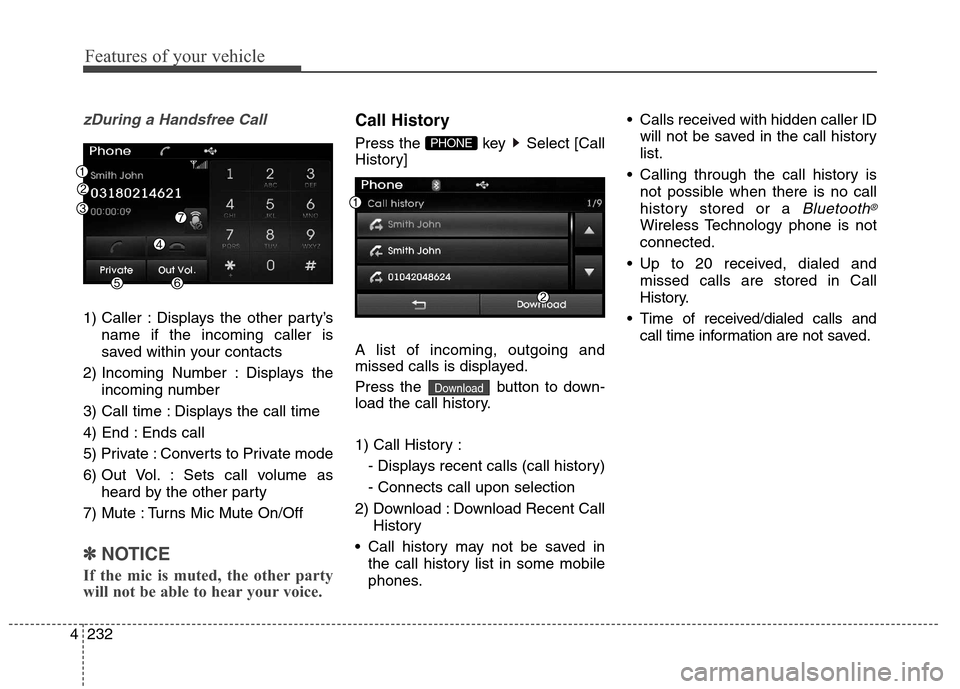
zDuring a Handsfree Call
1) Caller : Displays the other party’s
name if the incoming caller is
saved within your contacts
2) Incoming Number : Displays the
incoming number
3) Call time : Displays the call time
4) End : Ends call
5) Private : Converts to Private mode
6) Out Vol. : Sets call volume as
heard by the other party
7) Mute : Turns Mic Mute On/Off
✽ ✽
NOTICE
If the mic is muted, the other party
will not be able to hear your voice.
Call History
Press the key Select [Call
History]
A list of incoming, outgoing and
missed calls is displayed.
Press the button to down-
load the call history.
1) Call History :
- Displays recent calls (call history)
- Connects call upon selection
2) Download : Download Recent Call
History
Call history may not be saved in
the call history list in some mobile
phones. Calls received with hidden caller ID
will not be saved in the call history
list.
Calling through the call history is
not possible when there is no call
history stored or a
Bluetooth®
Wireless Technology phone is not
connected.
Up to 20 received, dialed and
missed calls are stored in Call
History.
Time of received/dialed calls and
call time information are not saved.
Download
PHONE
Page 319 of 550
![Hyundai Elantra Coupe 2014 Service Manual 4233
Features of your vehicle
Contacts
Press the key Select
[Contacts]
The list of saved phone book entries
is displayed. Press the but-
ton to download the call history.
1) Contacts List :
- Displa](/img/35/14621/w960_14621-318.png "Hyundai Elantra Coupe 2014 Service Manual 4233
Features of your vehicle
Contacts
Press the key Select
[Contacts]
The list of saved phone book entries
is displayed. Press the but-
ton to download the call history.
1) Contacts List :
- Displa")
4233
Features of your vehicle
Contacts
Press the key Select
[Contacts]
The list of saved phone book entries
is displayed. Press the but-
ton to download the call history.
1) Contacts List :
- Displays downloaded contacts
entries
- Connects call upon selection
2) Sort by : Find a contact in an
alphabetical order.
3) Download : Download contacts
entries
✽ ✽
NOTICE
• Up to 1,000 contacts saved in your
Bluetooth®Wireless Technology
phone can be downloaded into the
car contacts. Contacts that have
been downloaded to the car cannot
be edited or deleted on the phone.
• Mobile phone contacts are man-
aged separately for each paired
Bluetooth
®Wireless Technology
device (max 5 devices x 1,000 con-
tacts each). Previously downloaded
data is maintained even if the
Bluetooth
®Wireless Technology
device has been disconnected.
(However, the contacts and call his-
tory saved to the phone will be
deleted if a paired phone is deleted.)
• It is possible to download contacts
during Bluetooth streaming audio.
• When downloading contacts, the
icon will be displayed within the
status bar.
(Continued)(Continued)
• It is not possible to begin down-
loading a contact list when the
contact download feature has been
turned off within the Bluetooth
®
Wireless Technology device. In
addition, some devices may
require device authorization upon
attempting to download contacts.
If downloading does not normally
occur, check the Bluetooth
®
Wireless Technology device set-
tings or the screen state.
• The contacts download feature
may not be supported in some
mobile phones. For more informa-
tion of supported Bluetooth
®
devices and function support,
refer to your phone’s user manual.Download
PHONE
Page 320 of 550
![Hyundai Elantra Coupe 2014 Service Manual Features of your vehicle
234 4
Bluetooth®Wireless
Technology Setting
Pairing a New Device
Press the key Select
[Phone] Select [Pair Phone]
Bluetooth®Wireless Technology
devices can be paired with t](/img/35/14621/w960_14621-319.png "Hyundai Elantra Coupe 2014 Service Manual Features of your vehicle
234 4
Bluetooth®Wireless
Technology Setting
Pairing a New Device
Press the key Select
[Phone] Select [Pair Phone]
Bluetooth®Wireless Technology
devices can be paired with t")
Features of your vehicle
234 4
Bluetooth®Wireless
Technology Setting
Pairing a New Device
Press the key Select
[Phone] Select [Pair Phone]
Bluetooth®Wireless Technology
devices can be paired with the audio
system.
For more information, refer to the
“Pairing through Phone Setup” sec-
tion within
Bluetooth®Wireless
Technology.
Viewing Paired Phone List
Press the key Select
[Phone] Select [Paired Phone List]
This feature is used to view mobile
phones that have been paired with
the audio system. Upon selecting a
paired phone, the setup menu is dis-
played.
For more information, refer to the
“Setting
Bluetooth®Wireless
Technology Connection” section with-
in
Bluetooth®Wireless Technology.1) : Moves to the previous
screen
2) Connect/Disconnect Phone :
Connect/ disconnects currently
selected phone
3) Delete : Deletes the currently
selected phone
4) Change Priority : Sets currently
selected phone to highest connec-
tion priority
SETUP
SETUP
Page 321 of 550
4235
Features of your vehicle
✽ ✽
NOTICE BEFORE DOWN-
LOADING CONTACTS
• Only contacts within connected
phones can be downloaded. Also
check to see that your mobile
phone supports the download fea-
ture.
• To learn more about whether your
mobile phone supports contacts
downloads, refer to your mobile
phone user’s manual.
• The contacts for only the connect-
ed phone can be downloaded.
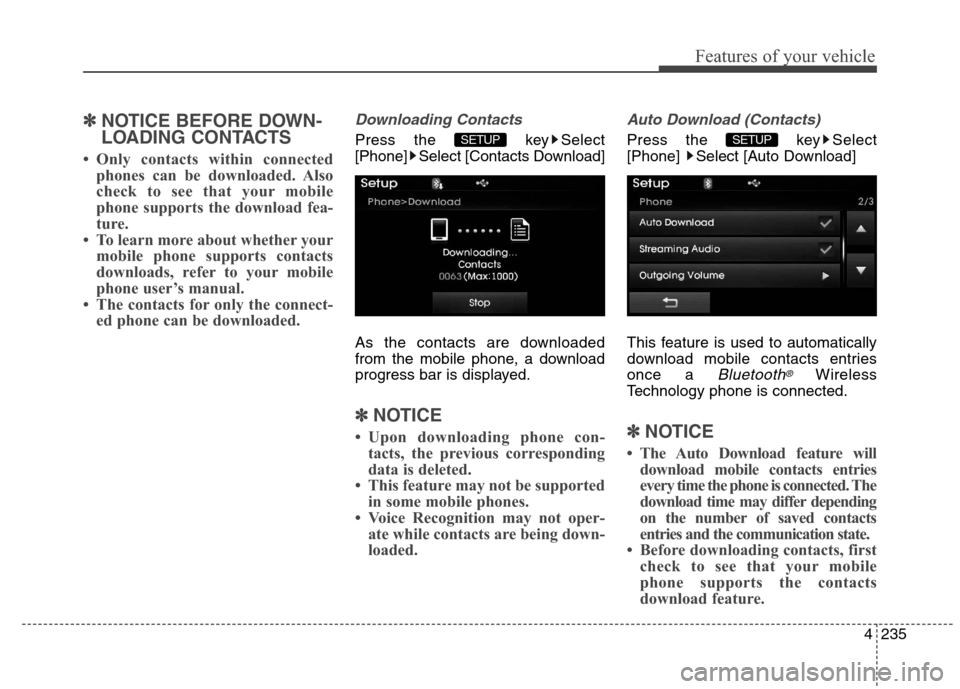
Downloading Contacts
Press the key Select
[Phone] Select [Contacts Download]
As the contacts are downloaded
from the mobile phone, a download
progress bar is displayed.
✽ ✽
NOTICE
• Upon downloading phone con-
tacts, the previous corresponding
data is deleted.
• This feature may not be supported
in some mobile phones.
• Voice Recognition may not oper-
ate while contacts are being down-
loaded.
Auto Download (Contacts)
Press the key Select
[Phone] Select [Auto Download]
This feature is used to automatically
download mobile contacts entries
once a
Bluetooth®Wireless
Technology phone is connected.
✽ ✽
NOTICE
• The Auto Download feature will
download mobile contacts entries
every time the phone is connected. The
download time may differ depending
on the number of saved contacts
entries and the communication state.
• Before downloading contacts, first
check to see that your mobile
phone supports the contacts
download feature.
SETUP SETUP
Page 322 of 550
![Hyundai Elantra Coupe 2014 Service Manual Features of your vehicle
236 4
Streaming Audio
Press the key Select
[Phone] Select [Streaming Audio]
When Streaming Audio is turned on,
you can play music files saved in
your
Bluetooth®Wireless Te](/img/35/14621/w960_14621-321.png "Hyundai Elantra Coupe 2014 Service Manual Features of your vehicle
236 4
Streaming Audio
Press the key Select
[Phone] Select [Streaming Audio]
When Streaming Audio is turned on,
you can play music files saved in
your
Bluetooth®Wireless Te")
Features of your vehicle
236 4
Streaming Audio
Press the key Select
[Phone] Select [Streaming Audio]
When Streaming Audio is turned on,
you can play music files saved in
your
Bluetooth®Wireless Technology
device through the audio system.
Outgoing Volume
Press the key Select
[Phone] Select [Outgoing Volume]
Use the , buttons to adjust the
outgoing volume level.
✽ ✽
NOTICE
While on a call, the volume can be
changed by using the key.
Turning Bluetooth System Off
Press the key Select
[Phone] Select [Bluetooth System Off]
Once
Bluetooth®Wireless Technology
is turned off,
Bluetooth®Wireless
Technology related features will not be
supported within the audio system.
✽ ✽
NOTICE
To turn Bluetooth®Wireless
Technology back on, go to
[Phone] and press “YesSETUP
SETUP
SEEK
TRACK
SETUP SETUP
Page 325 of 550
4239
Features of your vehicle
Command Function
More Help Provides guidance on commands that can be
used anywhere in the system.
Help Provides guidance on commands that can be
used within the current mode.
Call
Ex) Call “John Smith”
Phone Provides guidance on Phone related com-
mands. After saying this command, say
“Favorites”,“Dial Number”, “Call History” or
“Contacts” execute corresponding functions.
Favorites Display the Favorite screen.
Call History Displays the Call History screen.
Contacts Displays the Contacts screen. After saying
this command, say the name of a contact
saved in the Contacts to automatically con-
nect the call.
Dial Number Display the Dial number screen. After saying
this command, you can say the number that
you want to call.
Redial Connects the most recently called number.
Tutorial Provide guidance on how to use voice
recognition and Bluetooth®connections.
Command Function
When listening to the radio, displays the
next radio screen. (FM1➟FM2➟AM➟XM1➟XM2➟XM3➟FM1)
Radio
When listening to a different mode, displays
the most recently played radio screen.
When currently listening to the FM radio,
maintains the current state.
When listening to a different mode, displaysthe most recently played FM screen.
FM1(FM One) Displays the FM1 screen.
FM2(FM Two) Displays the FM2 screen.
AM Displays the AM screen.
FM Preset 1~6 Plays the most recently played broadcast
saved in FM Preset 1~6.
AM Preset 1~6 Plays the broadcast saved in AM Preset 1~6.
FM 87.5~107.9 Plays the FM broadcast of the corresponding
frequency.
AM 530~1710 Plays the AM broadcast of the corresponding
frequency.
XM (Satellite)
When currently listening to the SiriusXMTM,
maintains the current state.
When listening to a different mode, displaysthe most recently played SiriusXMTMscreen. (Call by Name)
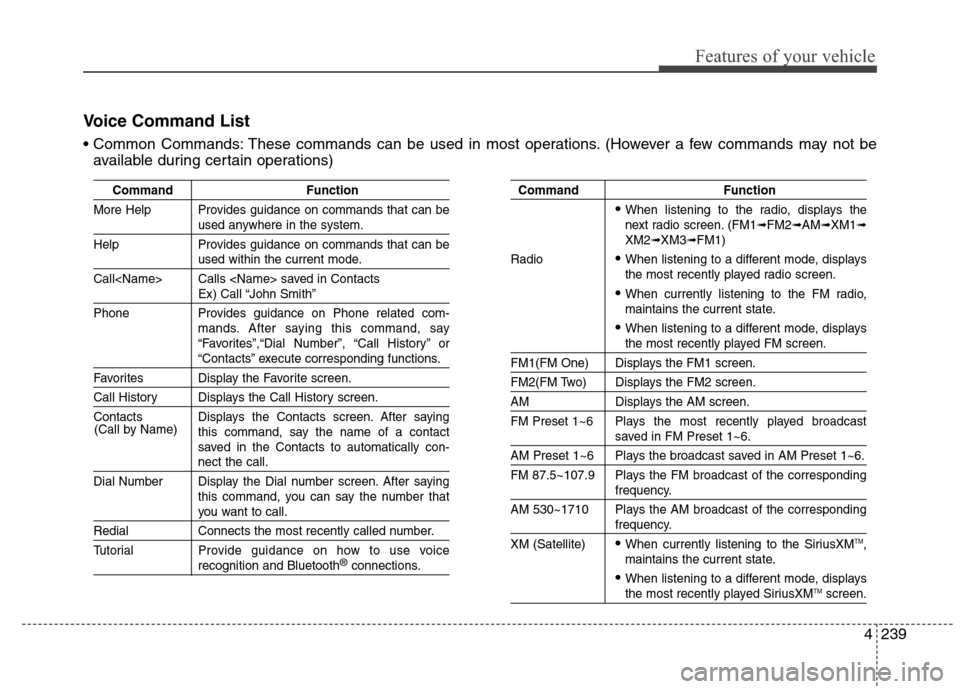
Voice Command List
These commands can be used in most operations. (However a few commands may not be
available during certain operations)