display Hyundai Elantra Coupe 2016 Owner's Guide
[x] Cancel search | Manufacturer: HYUNDAI, Model Year: 2016, Model line: Elantra Coupe, Model: Hyundai Elantra Coupe 2016Pages: 526, PDF Size: 9.99 MB
Page 235 of 526
Features of your vehicle
150 4
BASIC METHOD OF USE :
Audio CD / MP3 CD / USB /
iPod
®/ My Music
Press the key to change the
mod mode in order of CD
➟
USB(iPod®) ➟ AUX ➟ My Music ➟ BT
Audio.
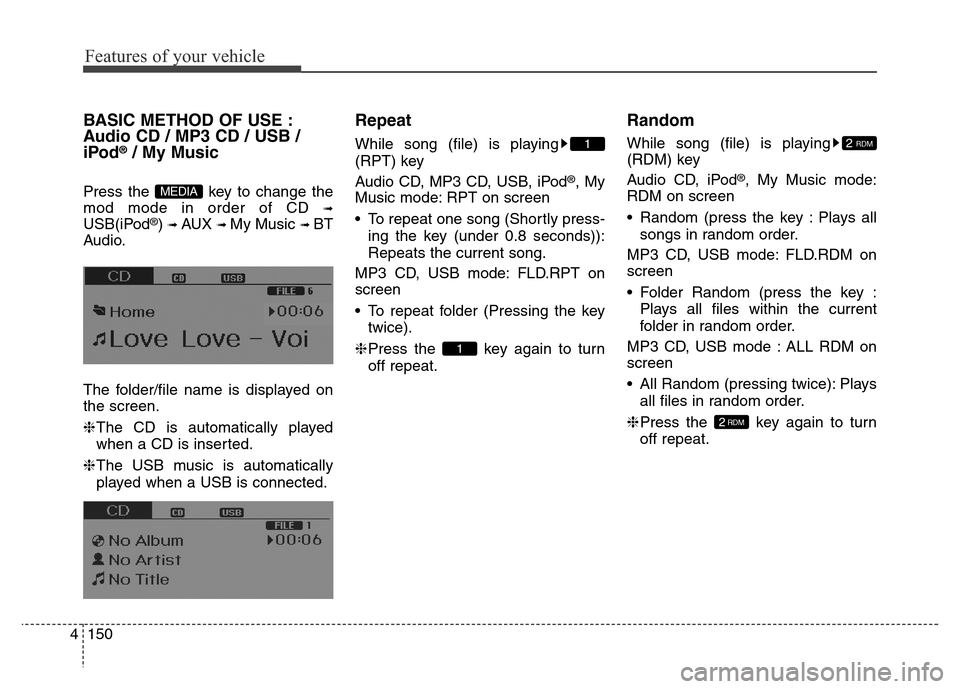
The folder/file name is displayed on
the screen.
❈The CD is automatically played
when a CD is inserted.
❈The USB music is automatically
played when a USB is connected.
Repeat
While song (file) is playing
(RPT) key
Audio CD, MP3 CD, USB, iPod
®, My
Music mode: RPT on screen
• To repeat one song (Shortly press-
ing the key (under 0.8 seconds)):
Repeats the current song.
MP3 CD, USB mode: FLD.RPT on
screen
• To repeat folder (Pressing the key
twice).
❈Press the key again to turn
off repeat.
Random
While song (file) is playing
(RDM) key
Audio CD, iPod
®, My Music mode:
RDM on screen
• Random (press the key : Plays all
songs in random order.
MP3 CD, USB mode: FLD.RDM on
screen
• Folder Random (press the key :
Plays all files within the current
folder in random order.
MP3 CD, USB mode : ALL RDM on
screen
• All Random (pressing twice): Plays
all files in random order.
❈Press the key again to turn
off repeat.
2RDM
2 RDM
1
1
MEDIA
Page 237 of 526
![Hyundai Elantra Coupe 2016 Owners Guide Features of your vehicle
152 4
MENU : Audio CD
Press the CD MP3 mode key
to set the Repeat, Random,
Information features.
Repeat
Press the key Set [ RPT]
through the
TUNEknob or
key to repeat the](/img/35/14620/w960_14620-236.png "Hyundai Elantra Coupe 2016 Owners Guide Features of your vehicle
152 4
MENU : Audio CD
Press the CD MP3 mode key
to set the Repeat, Random,
Information features.
Repeat
Press the key Set [ RPT]
through the
TUNEknob or
key to repeat the")
Features of your vehicle
152 4
MENU : Audio CD
Press the CD MP3 mode key
to set the Repeat, Random,
Information features.
Repeat
Press the key Set [ RPT]
through the
TUNEknob or
key to repeat the current song.
❈Press RPT again to turn off.
Random
Press the key Set [ RDM]
through the
TUNEknob or
key to randomly play songs within
the current folder.
❈Press RDM again to turn off.
Information
Press the key Set [ Info]
through the
TUNEknob or
key to display information of the cur-
rent song.
❈Press the key to turn off
info display.
MENU
3
MENU
2
MENU
1
MENU
MENU
Page 238 of 526
4153
Features of your vehicle
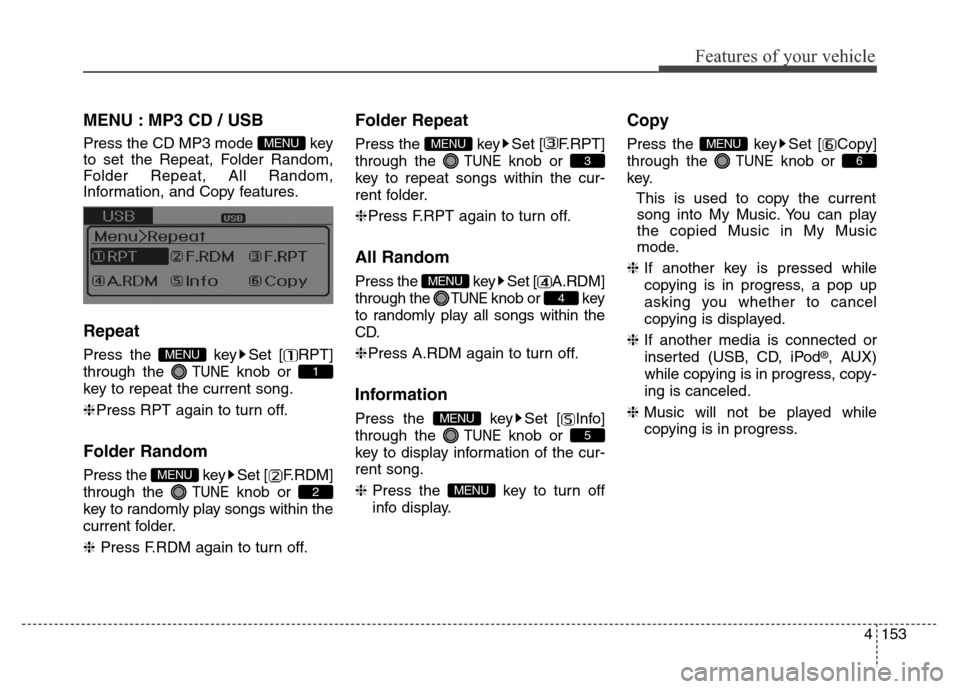
MENU : MP3 CD / USB
Press the CD MP3 mode key
to set the Repeat, Folder Random,
Folder Repeat, All Random,
Information, and Copy features.
Repeat
Press the key Set [ RPT]
through the
TUNEknob or
key to repeat the current song.
❈Press RPT again to turn off.
Folder Random
Press the key Set [ F.RDM]
through the
TUNEknob or
key to randomly play songs within the
current folder.
❈ Press F.RDM again to turn off.
Folder Repeat
Press the key Set [ F.RPT]
through the
TUNEknob or
key to repeat songs within the cur-
rent folder.
❈Press F.RPT again to turn off.
All Random
Press the key Set [ A.RDM]
through the
TUNEknob or key
to randomly play all songs within the
CD.
❈Press A.RDM again to turn off.
Information
Press the key Set [ Info]
through the
TUNEknob or
key to display information of the cur-
rent song.
❈Press the key to turn off
info display.
Copy
Press the key Set [ Copy]
through the
TUNEknob or
key.
This is used to copy the current
song into My Music. You can play
the copied Music in My Music
mode.
❈If another key is pressed while
copying is in progress, a pop up
asking you whether to cancel
copying is displayed.
❈If another media is connected or
inserted (USB, CD, iPod
®, AUX)
while copying is in progress, copy-
ing is canceled.
❈Music will not be played while
copying is in progress.
6
MENU
MENU
5
MENU
4
MENU
3
MENU
2
MENU
1
MENU
MENU
Page 239 of 526
![Hyundai Elantra Coupe 2016 Owners Guide Features of your vehicle
154 4
MENU : iPod®
In iPod®mode, press the key
to set the Repeat, Random,
Information and Search features.
Repeat
Press the key Set [ RPT]
through the
TUNEknob or
key to](/img/35/14620/w960_14620-238.png "Hyundai Elantra Coupe 2016 Owners Guide Features of your vehicle
154 4
MENU : iPod®
In iPod®mode, press the key
to set the Repeat, Random,
Information and Search features.
Repeat
Press the key Set [ RPT]
through the
TUNEknob or
key to")
Features of your vehicle
154 4
MENU : iPod®
In iPod®mode, press the key
to set the Repeat, Random,
Information and Search features.
Repeat
Press the key Set [ RPT]
through the
TUNEknob or
key to repeat the current song.
❈ Press RPT again to turn repeat off.
Random
Press the key Set [ RDM]
through the TUNEknob or
key.
Plays all songs within the currently
playing category in random order.
❈Press RDM again to turn off.
Information
Press the key Set [ Info]
through the
TUNEknob or
key.
Displays information of the current
song.
❈Press the key to turn off
info display.
Search
Press the key Set [ Search]
through the
TUNEknob or
key.
Displays iPod
®category list.
❈Searching iPod
®category is
key pressed, move to par-
ent category.
MENU : My Music Mode
In My Music mode, press the
key to set the Repeat, Random,
Information, Delete, Delete All, and
Delete Selection features.
Repeat
Press the key Set [ RPT]
through the TUNE knob or key.
Repeats the currently playing song.
❈Press RPT again to turn repeat off.
Random
Press the key Set [ RDM]
through the TUNEknob or key.
Plays all songs within the currently
playing folder in random order.
❈Press RDM again to turn random
off.
2
MENU
1
MENU
MENU
MENU
4
MENU
MENU
3
MENU
2 RDMMENU
1 RPTMENU
MENU
Page 240 of 526
![Hyundai Elantra Coupe 2016 Owners Guide 4155
Features of your vehicle
Information
Press the key Set [ Info]
through the
TUNEknob or key.
Displays information of the current
song.
❈Press the key to turn off
info display.
Delete
Press t](/img/35/14620/w960_14620-239.png "Hyundai Elantra Coupe 2016 Owners Guide 4155
Features of your vehicle
Information
Press the key Set [ Info]
through the
TUNEknob or key.
Displays information of the current
song.
❈Press the key to turn off
info display.
Delete
Press t")
4155
Features of your vehicle
Information
Press the key Set [ Info]
through the
TUNEknob or key.
Displays information of the current
song.
❈Press the key to turn off
info display.
Delete
Press the key Set [ Delete]
through the TUNEknob or key.
• Deletes currently playing file
In the play screen, pressing delete
will delete the currently playing song.
• Deletes file from list
➀Select the file you wish to delete by
using the TUNE knob.
➁Press the key and select
the delete menu to delete the
selected file.
Delete All
Press the key Set [ Del.All]
through the TUNEknob or key.
Deletes all songs of My Music.
Delete Selection
Press the key Set [ Del.Sel]
through the TUNEknob or key.
Songs within My Music are selected
and deleted.
➀Select the songs you wish to
delete from the list.
➁After selecting, press the
key and select the delete menu.
AUX
AUX is used to play external MEDIA
currently connected with the AUX
terminal.
AUX mode will automatically start
when an external device is connect-
ed to the AUX terminal.
If an external device is connected,
you can also press the key to
change to AUX mode.
❈AUX mode cannot be started
unless there is an external device
connected to the AUX terminal.
MEDIA
MENU
6
MENU
5
MENU
MENU
4
MENU
MENU
3
MENU
Page 242 of 526
4157
Features of your vehicle
PHONE (IF EQUIPPED)
Before using the Bluetooth®
Wireless Technology phone features
• In order to use
Bluetooth®Wireless
Technology phone, you must first
pair and connect the
Bluetooth®
Wireless Technology mobile phone.
• If the mobile phone is not paired or
connected, it is not possible to
enter Phone mode. Once a phone
is paired or connected, the guid-
ance screen will be displayed.
• If Priority is set upon vehicle igni-
tion(IGN/ACC ON), the
Bluetooth®
Wireless Technology phone will be
automatically connected. Even if
you are outside, the first
Bluetooth®
Wireless Technology phone will be
automatically connected once you
are in the vicinity of the vehicle. If you
do not want automatic
Bluetooth®
Wireless Technology phone connec-
tion, set the
Bluetooth®Wireless
Technology power to OFF.
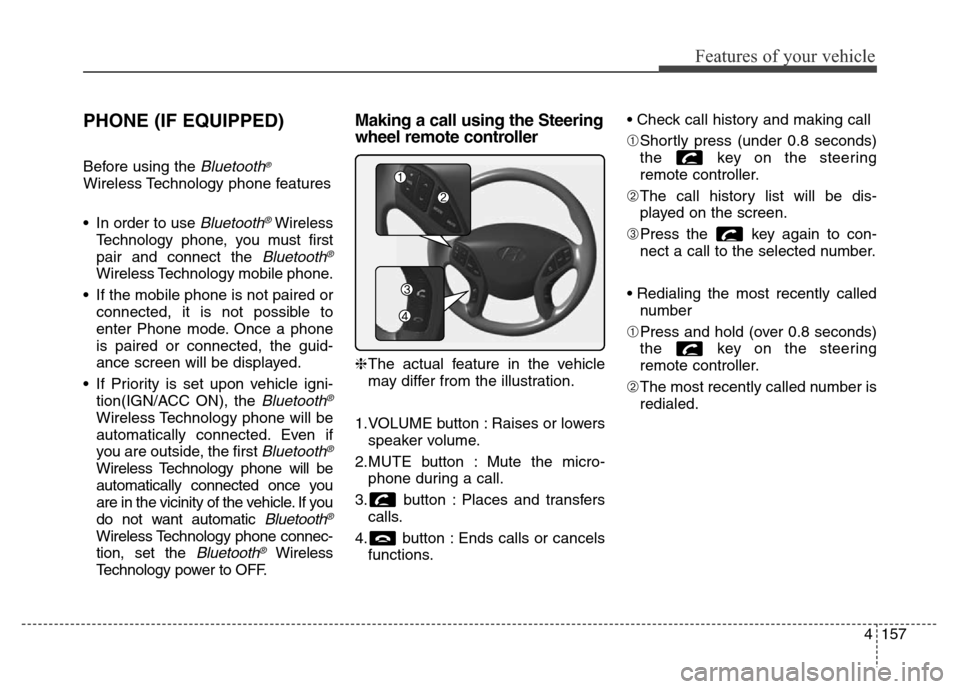
Making a call using the Steering
wheel remote controller
❈The actual feature in the vehicle
may differ from the illustration.
1.VOLUME button : Raises or lowers
speaker volume.
2.MUTE button : Mute the micro-
phone during a call.
3. button : Places and transfers
calls.
4. button : Ends calls or cancels
functions.• Check call history and making call
➀Shortly press (under 0.8 seconds)
the key on the steering
remote controller.
➁The call history list will be dis-
played on the screen.
➂Press the key again to con-
nect a call to the selected number.
• Redialing the most recently called
number
➀Press and hold (over 0.8 seconds)
the key on the steering
remote controller.
➁The most recently called number is
redialed.
Page 244 of 526
4159
Features of your vehicle
Pairing Key / Key
on the Steering Remote
Controller
When No Devices have been
Paired
1. Press the key or the
key on the steering remote con-
troller. The following screen is dis-
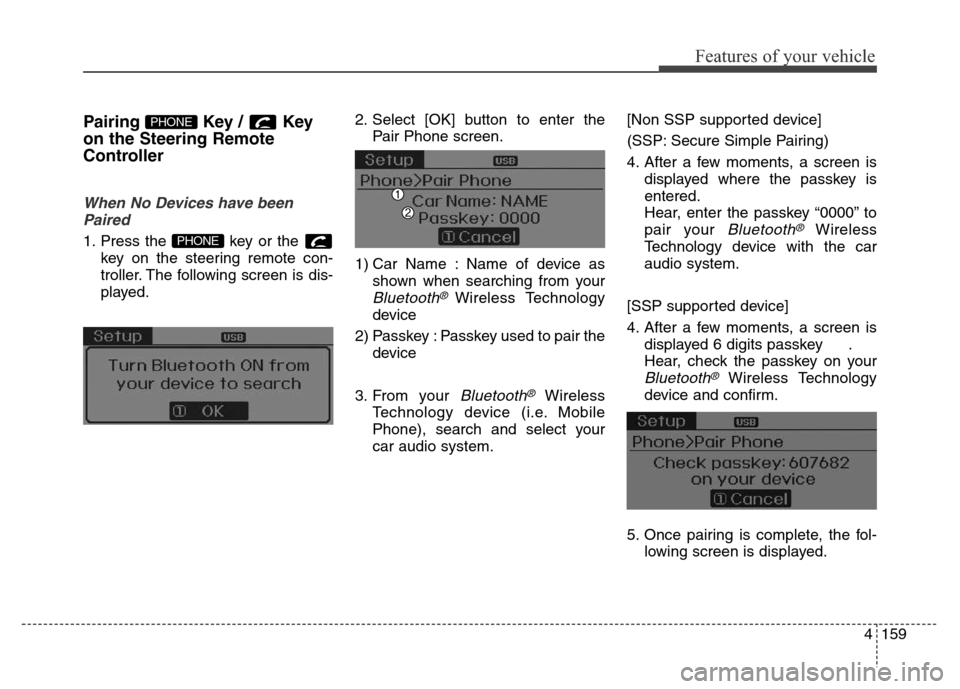
played.2. Select [OK] button to enter the
Pair Phone screen.
1) Car Name : Name of device as
shown when searching from your
Bluetooth® Wireless Technology
device
2) Passkey : Passkey used to pair the
device
3. From your
Bluetooth®Wireless
Technology device (i.e. Mobile
Phone), search and select your
car audio system.[Non SSP supported device]
(SSP: Secure Simple Pairing)
4. After a few moments, a screen is
displayed where the passkey is
entered.
Hear, enter the passkey “0000” to
pair your
Bluetooth®Wireless
Technology device with the car
audio system.
[SSP supported device]
4. After a few moments, a screen is
displayed 6 digits passkey .
Hear, check the passkey on your
Bluetooth®Wireless Technology
device and confirm.
5. Once pairing is complete, the fol-
lowing screen is displayed.
PHONE
PHONE
Page 245 of 526
Features of your vehicle
160 4
During the pairing process, make sure
that all connection requests on the
phone are accepted for phonebook
download and to allow acceptance of
all future connection requests. Visit
http://www.hyundaiusa.com/Bluetooth
for additional information on pairing
your Bluetooth-enabled mobile
phone, and to view a phone compat-
ibility list.
✽NOTICE
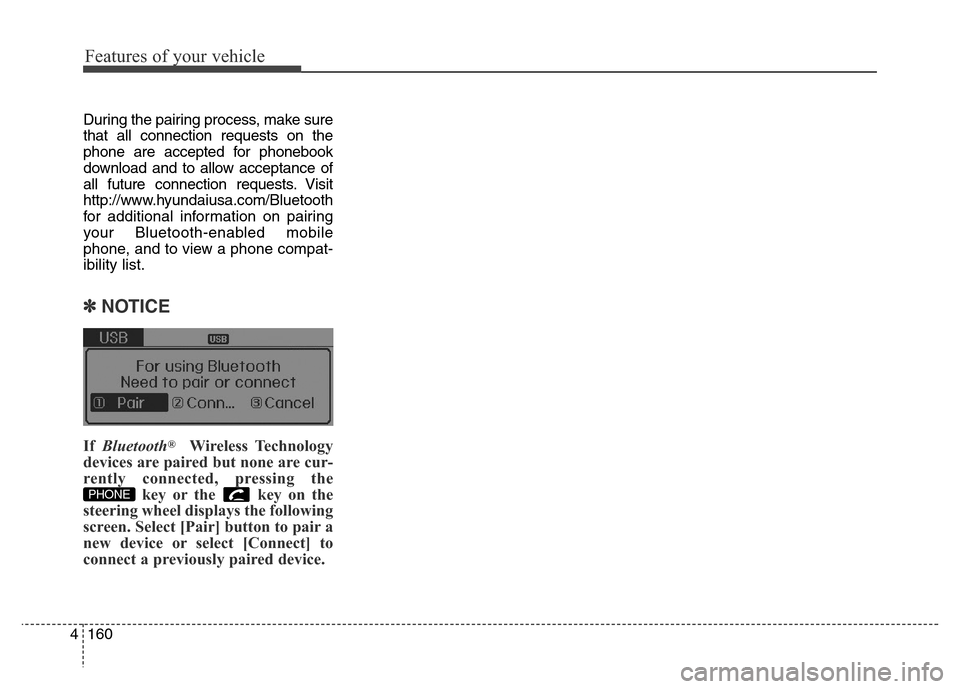
If Bluetooth®Wireless Technology
devices are paired but none are cur-
rently connected, pressing the
key or the key on the
steering wheel displays the following
screen. Select [Pair] button to pair a
new device or select [Connect] to
connect a previously paired device.
PHONE
Page 248 of 526
![Hyundai Elantra Coupe 2016 Owners Guide 4163
Features of your vehicle
From the paired phone list, select
the phone you want to switch to the
highest priority, then select [Change
Priority] button from the Menu. The
selected device will be c](/img/35/14620/w960_14620-247.png "Hyundai Elantra Coupe 2016 Owners Guide 4163
Features of your vehicle
From the paired phone list, select
the phone you want to switch to the
highest priority, then select [Change
Priority] button from the Menu. The
selected device will be c")
4163
Features of your vehicle
From the paired phone list, select
the phone you want to switch to the
highest priority, then select [Change
Priority] button from the Menu. The
selected device will be changed to
the highest priority.✽NOTICE
Priority icon will be displayed when
the selected phone is set as a priority
phone.
Disconnecting a Device
Press the key Select
[Phone] Select [Paired Phone List]
From the paired phone list, select the
currently connected device and
select [Disconnect] button.SETUP
Page 250 of 526
4165
Features of your vehicle
USING Bluetooth®
WIRELESS TECHNOLOGY
(IF EQUIPPED)
Phone Menu Screen
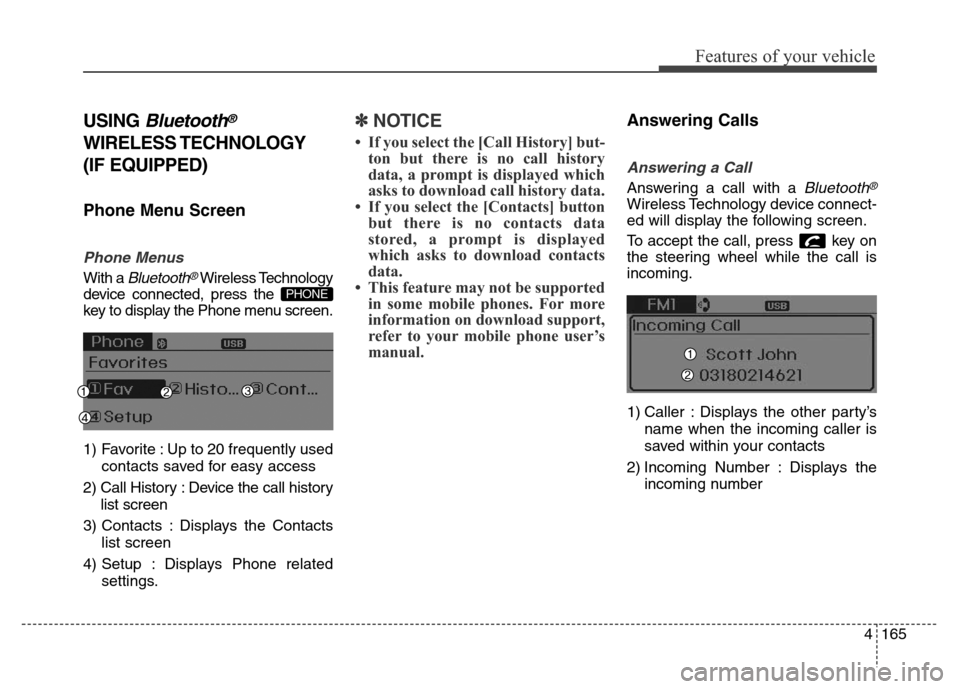
Phone Menus
With a Bluetooth®Wireless Technology
device connected, press the
key to display the Phone menu screen.
1) Favorite : Up to 20 frequently used
contacts saved for easy access
2) Call History : Device the call history
list screen
3) Contacts : Displays the Contacts
list screen
4) Setup : Displays Phone related
settings.
✽NOTICE
• If you select the [Call History] but-
ton but there is no call history
data, a prompt is displayed which
asks to download call history data.
• If you select the [Contacts] button
but there is no contacts data
stored, a prompt is displayed
which asks to download contacts
data.
• This feature may not be supported
in some mobile phones. For more
information on download support,
refer to your mobile phone user’s
manual.
Answering Calls
Answering a Call
Answering a call with a Bluetooth®
Wireless Technology device connect-
ed will display the following screen.
To accept the call, press key on
the steering wheel while the call is
incoming.
1) Caller : Displays the other party’s
name when the incoming caller is
saved within your contacts
2) Incoming Number : Displays the
incoming number
PHONE