display Hyundai Elantra Coupe 2016 User Guide
[x] Cancel search | Manufacturer: HYUNDAI, Model Year: 2016, Model line: Elantra Coupe, Model: Hyundai Elantra Coupe 2016Pages: 526, PDF Size: 9.99 MB
Page 198 of 526
4113
Features of your vehicle
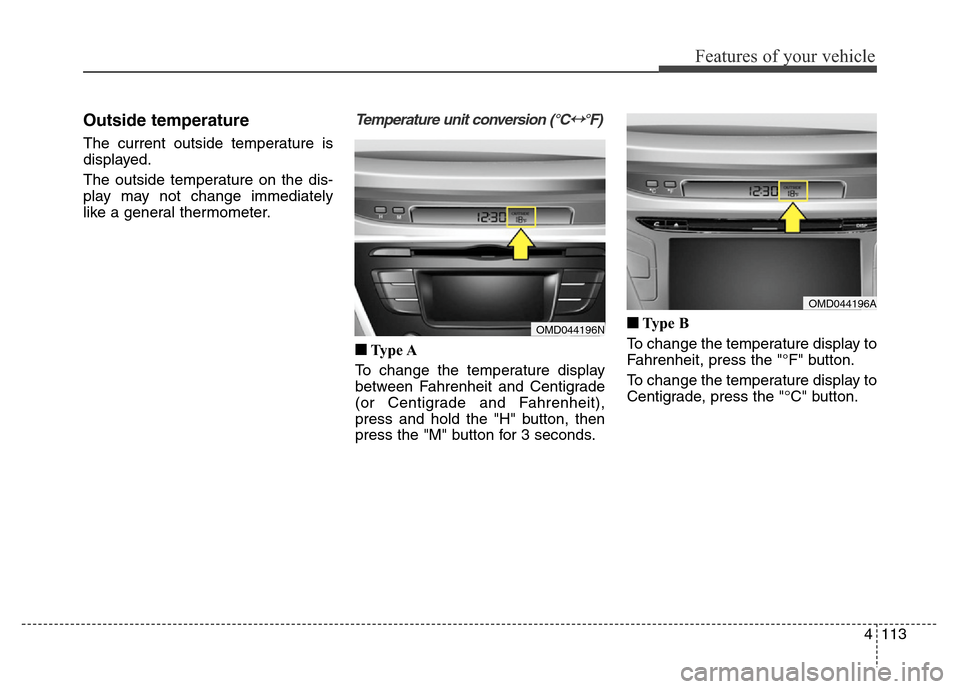
Outside temperature
The current outside temperature is
displayed.
The outside temperature on the dis-
play may not change immediately
like a general thermometer.
Temperature unit conversion (°C↔
Page 210 of 526
4125
Features of your vehicle
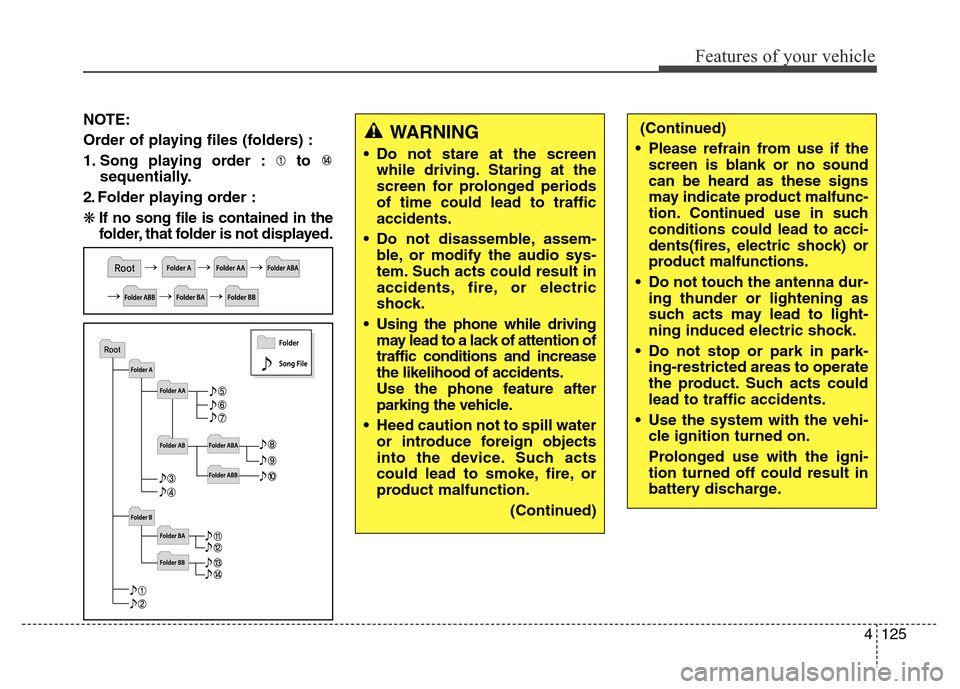
NOTE:
Order of playing files (folders) :
1. Song playing order : to
sequentially.
2. Folder playing order :
❋If no song file is contained in the
folder, that folder is not displayed.WARNING
• Do not stare at the screen
while driving. Staring at the
screen for prolonged periods
of time could lead to traffic
accidents.
• Do not disassemble, assem-
ble, or modify the audio sys-
tem. Such acts could result in
accidents, fire, or electric
shock.
• Using the phone while driving
may lead to a lack of attention of
traffic conditions and increase
the likelihood of accidents.
Use the phone feature after
parking the vehicle.
• Heed caution not to spill water
or introduce foreign objects
into the device. Such acts
could lead to smoke, fire, or
product malfunction.
(Continued)
(Continued)
• Please refrain from use if the
screen is blank or no sound
can be heard as these signs
may indicate product malfunc-
tion. Continued use in such
conditions could lead to acci-
dents(fires, electric shock) or
product malfunctions.
• Do not touch the antenna dur-
ing thunder or lightening as
such acts may lead to light-
ning induced electric shock.
• Do not stop or park in park-
ing-restricted areas to operate
the product. Such acts could
lead to traffic accidents.
• Use the system with the vehi-
cle ignition turned on.
Prolonged use with the igni-
tion turned off could result in
battery discharge.
Page 219 of 526
Features of your vehicle
134 4
SYSTEM CONTROLLERS
AND FUNCTIONS
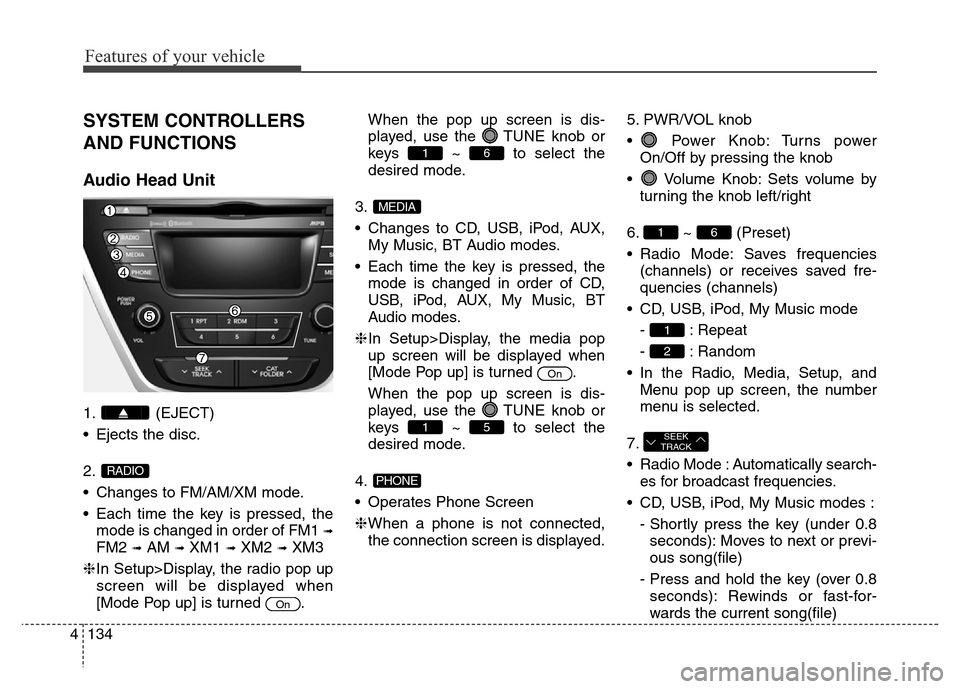
Audio Head Unit
1. (EJECT)
• Ejects the disc.
2.
• Changes to FM/AM/XM mode.
• Each time the key is pressed, the
mode is changed in order of FM1
➟
FM2 ➟AM ➟XM1 ➟XM2 ➟XM3
❈In Setup>Display, the radio pop up
screen will be displayed when
[Mode Pop up] is turned .When the pop up screen is dis-
played, use the TUNE knob or
keys ~ to select the
desired mode.
3.
• Changes to CD, USB, iPod, AUX,
My Music, BT Audio modes.
• Each time the key is pressed, the
mode is changed in order of CD,
USB, iPod, AUX, My Music, BT
Audio modes.
❈In Setup>Display, the media pop
up screen will be displayed when
[Mode Pop up] is turned .
When the pop up screen is dis-
played, use the TUNE knob or
keys ~ to select the
desired mode.
4.
• Operates Phone Screen
❈When a phone is not connected,
the connection screen is displayed.5. PWR/VOL knob
• Power Knob: Turns power
On/Off by pressing the knob
• Volume Knob: Sets volume by
turning the knob left/right
6. ~ (Preset)
• Radio Mode: Saves frequencies
(channels) or receives saved fre-
quencies (channels)
• CD, USB, iPod, My Music mode
- : Repeat
- : Random
• In the Radio, Media, Setup, and
Menu pop up screen, the number
menu is selected.
7.
• Radio Mode : Automatically search-
es for broadcast frequencies.
• CD, USB, iPod, My Music modes :
- Shortly press the key (under 0.8
seconds): Moves to next or previ-
ous song(file)
- Press and hold the key (over 0.8
seconds): Rewinds or fast-for-
wards the current song(file)
SEEK
TRACK
2
1
61
PHONE
51
On
MEDIA
61
On
RADIO
Page 220 of 526
4135
Features of your vehicle
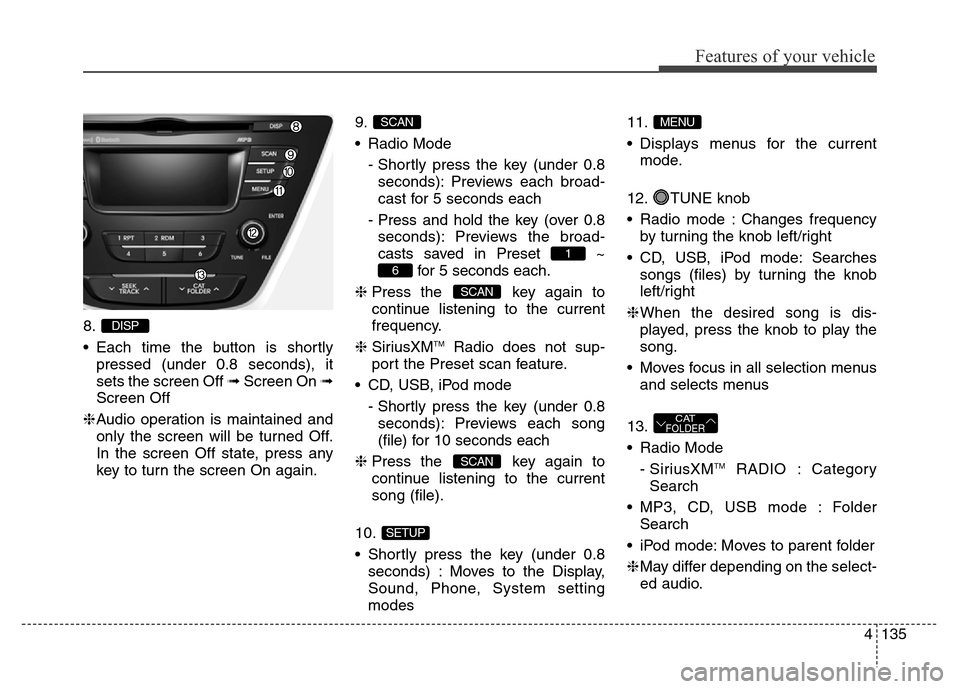
8.
• Each time the button is shortly
pressed (under 0.8 seconds), it
sets the screen Off ➟Screen On ➟
Screen Off
❈Audio operation is maintained and
only the screen will be turned Off.
In the screen Off state, press any
key to turn the screen On again.9.
• Radio Mode
- Shortly press the key (under 0.8
seconds): Previews each broad-
cast for 5 seconds each
- Press and hold the key (over 0.8
seconds): Previews the broad-
casts saved in Preset ~
for 5 seconds each.
❈Press the key again to
continue listening to the current
frequency.
❈SiriusXM
TMRadio does not sup-
port the Preset scan feature.
• CD, USB, iPod mode
- Shortly press the key (under 0.8
seconds): Previews each song
(file) for 10 seconds each
❈Press the key again to
continue listening to the current
song (file).
10.
• Shortly press the key (under 0.8
seconds) : Moves to the Display,
Sound, Phone, System setting
modes11.
• Displays menus for the current
mode.
12. TUNE knob
• Radio mode : Changes frequency
by turning the knob left/right
• CD, USB, iPod mode: Searches
songs (files) by turning the knob
left/right
❈When the desired song is dis-
played, press the knob to play the
song.
• Moves focus in all selection menus
and selects menus
13.
• Radio Mode
- SiriusXM
TMRADIO : Category
Search
• MP3, CD, USB mode : Folder
Search
• iPod mode: Moves to parent folder
❈May differ depending on the select-
ed audio.
CATFOLDER
MENU
SETUP
SCAN
SCAN
6
1
SCAN
DISP
Page 224 of 526
4139
Features of your vehicle
SYSTEM CONTROLLERS
AND FUNCTIONS
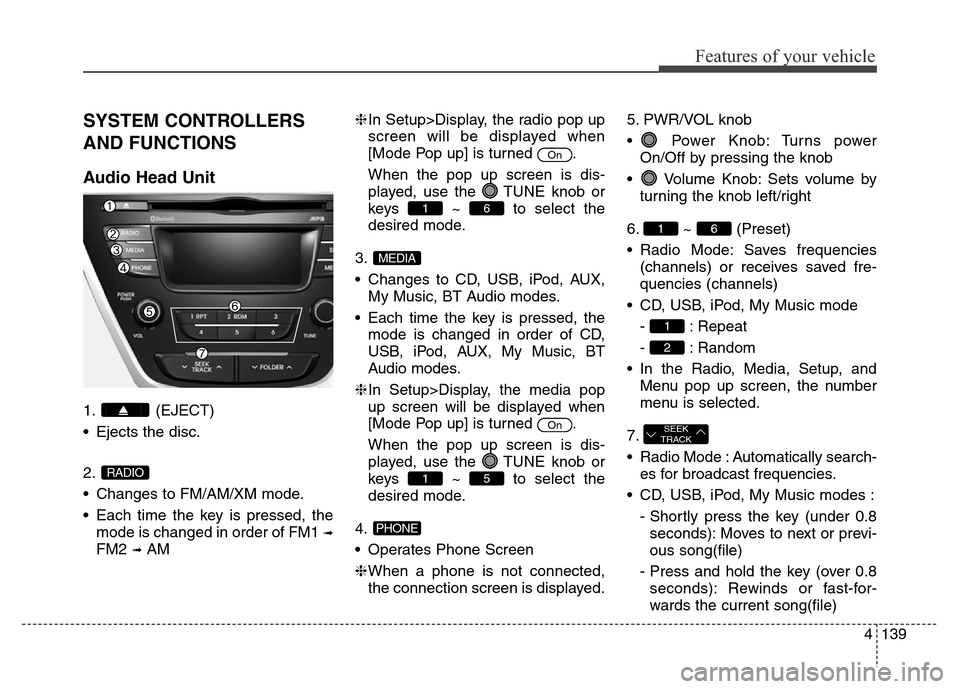
Audio Head Unit
1. (EJECT)
• Ejects the disc.
2.
• Changes to FM/AM/XM mode.
• Each time the key is pressed, the
mode is changed in order of FM1
➟
FM2 ➟AM❈In Setup>Display, the radio pop up
screen will be displayed when
[Mode Pop up] is turned .
When the pop up screen is dis-
played, use the TUNE knob or
keys ~ to select the
desired mode.
3.
• Changes to CD, USB, iPod, AUX,
My Music, BT Audio modes.
• Each time the key is pressed, the
mode is changed in order of CD,
USB, iPod, AUX, My Music, BT
Audio modes.
❈In Setup>Display, the media pop
up screen will be displayed when
[Mode Pop up] is turned .
When the pop up screen is dis-
played, use the TUNE knob or
keys ~ to select the
desired mode.
4.
• Operates Phone Screen
❈When a phone is not connected,
the connection screen is displayed.5. PWR/VOL knob
• Power Knob: Turns power
On/Off by pressing the knob
• Volume Knob: Sets volume by
turning the knob left/right
6. ~ (Preset)
• Radio Mode: Saves frequencies
(channels) or receives saved fre-
quencies (channels)
• CD, USB, iPod, My Music mode
- : Repeat
- : Random
• In the Radio, Media, Setup, and
Menu pop up screen, the number
menu is selected.
7.
• Radio Mode : Automatically search-
es for broadcast frequencies.
• CD, USB, iPod, My Music modes :
- Shortly press the key (under 0.8
seconds): Moves to next or previ-
ous song(file)
- Press and hold the key (over 0.8
seconds): Rewinds or fast-for-
wards the current song(file)
SEEK
TRACK
2
1
61
PHONE
51
On
MEDIA
61
On
RADIO
Page 225 of 526
Features of your vehicle
140 4
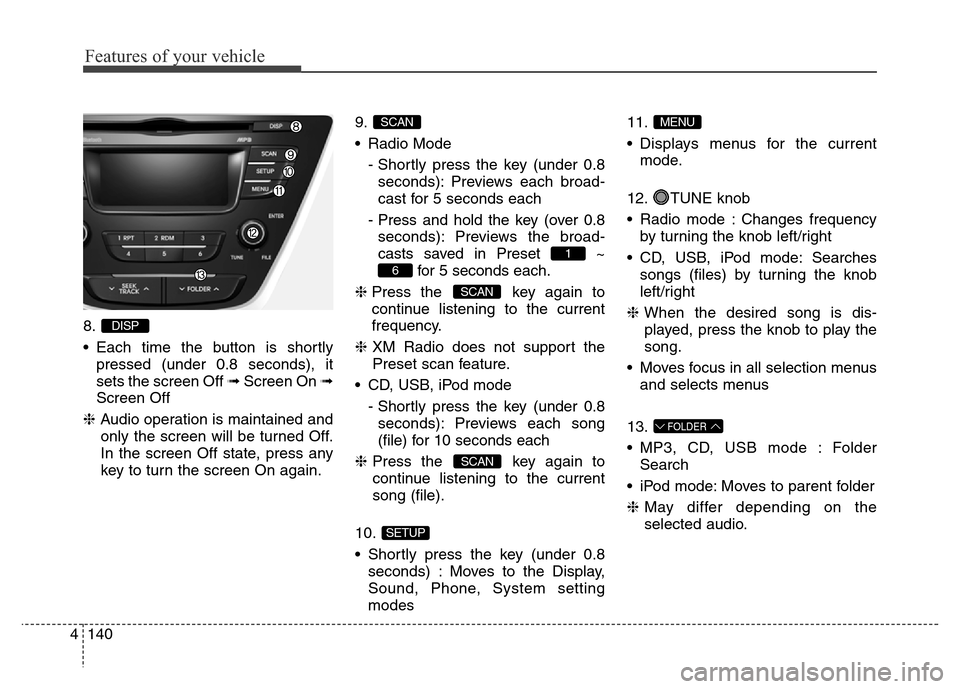
8.
• Each time the button is shortly
pressed (under 0.8 seconds), it
sets the screen Off ➟Screen On ➟
Screen Off
❈Audio operation is maintained and
only the screen will be turned Off.
In the screen Off state, press any
key to turn the screen On again.9.
• Radio Mode
- Shortly press the key (under 0.8
seconds): Previews each broad-
cast for 5 seconds each
- Press and hold the key (over 0.8
seconds): Previews the broad-
casts saved in Preset ~
for 5 seconds each.
❈Press the key again to
continue listening to the current
frequency.
❈XM Radio does not support the
Preset scan feature.
• CD, USB, iPod mode
- Shortly press the key (under 0.8
seconds): Previews each song
(file) for 10 seconds each
❈Press the key again to
continue listening to the current
song (file).
10.
• Shortly press the key (under 0.8
seconds) : Moves to the Display,
Sound, Phone, System setting
modes11.
• Displays menus for the current
mode.
12. TUNE knob
• Radio mode : Changes frequency
by turning the knob left/right
• CD, USB, iPod mode: Searches
songs (files) by turning the knob
left/right
❈When the desired song is dis-
played, press the knob to play the
song.
• Moves focus in all selection menus
and selects menus
13.
• MP3, CD, USB mode : Folder
Search
• iPod mode: Moves to parent folder
❈May differ depending on the
selected audio.
FOLDER
MENU
SETUP
SCAN
SCAN
6
1
SCAN
DISP
Page 227 of 526
![Hyundai Elantra Coupe 2016 User Guide Features of your vehicle
142 4
SETUP
Display Settings
Press the key Select
[Display] through TUNE knob or
key Select menu through
TUNE knob
Mode Pop up
[Mode Pop up] Changes
/
selection mode
• D](/img/35/14620/w960_14620-226.png "Hyundai Elantra Coupe 2016 User Guide Features of your vehicle
142 4
SETUP
Display Settings
Press the key Select
[Display] through TUNE knob or
key Select menu through
TUNE knob
Mode Pop up
[Mode Pop up] Changes
/
selection mode
• D")
Features of your vehicle
142 4
SETUP
Display Settings
Press the key Select
[Display] through TUNE knob or
key Select menu through
TUNE knob
Mode Pop up
[Mode Pop up] Changes
/
selection mode
• During On state, press the
or key to display the mode
change pop up screen.
Media Display
When playing an MP3 file, select the
desired display info from ‘Folder/File’
or ‘Album/Artist/Song’.
MEDIA
RADIO
OffOn
1
SETUP
Page 230 of 526
![Hyundai Elantra Coupe 2016 User Guide 4145
Features of your vehicle
SYSTEM SETTINGS
Press the key Select [System]
through tune knob or key Select
menu through TUNE knob
Memory Information
Displays currently used memory and
total system](/img/35/14620/w960_14620-229.png "Hyundai Elantra Coupe 2016 User Guide 4145
Features of your vehicle
SYSTEM SETTINGS
Press the key Select [System]
through tune knob or key Select
menu through TUNE knob
Memory Information
Displays currently used memory and
total system")
4145
Features of your vehicle
SYSTEM SETTINGS
Press the key Select [System]
through tune knob or key Select
menu through TUNE knob
Memory Information
Displays currently used memory and
total system memory.
Select [Memory Information] OK
The currently used memory is dis-
played on the left side while the total
system memory is displayed on the
right side.
Prompt Feedback
This feature is used to change voice
command feedback between Normal
and Expert modes.
Select [Prompt Feedback] Set
through
TUNEknob
• Normal(On) : This mode is for
beginner users and provides
detailed instructions during voice
command operation.• Expert(Off) :This mode is for expert
users and omits some information
during voice command operation.
(When using Expert mode, guid-
ance instructions can be heard
through the [Help] or [Menu] com-
mands.
Language
This menu is used to set the display
and voice recognition language.
Select [Language] Set through TUNE
knob
❈The system will reboot after the
language is changed.
❈Language support by region
- English, Francais, Espanol
4
SETUP
Page 233 of 526
Features of your vehicle
148 4
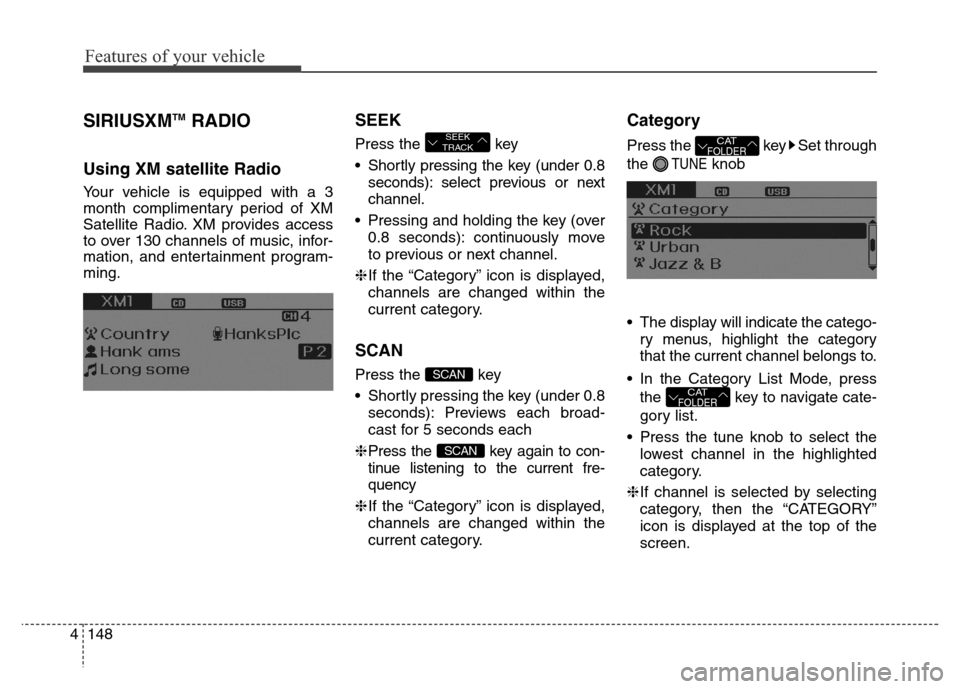
SIRIUSXMTMRADIO
Using XM satellite Radio
Your vehicle is equipped with a 3
month complimentary period of XM
Satellite Radio. XM provides access
to over 130 channels of music, infor-
mation, and entertainment program-
ming.
SEEK
Press the key
• Shortly pressing the key (under 0.8
seconds): select previous or next
channel.
• Pressing and holding the key (over
0.8 seconds): continuously move
to previous or next channel.
❈If the “Category” icon is displayed,
channels are changed within the
current category.
SCAN
Press the key
• Shortly pressing the key (under 0.8
seconds): Previews each broad-
cast for 5 seconds each
❈Press the key again to con-
tinue listening to the current fre-
quency
❈If the “Category” icon is displayed,
channels are changed within the
current category.
Category
Press the key Set through
the
TUNEknob
• The display will indicate the catego-
ry menus, highlight the category
that the current channel belongs to.
• In the Category List Mode, press
the key to navigate cate-
gory list.
• Press the tune knob to select the
lowest channel in the highlighted
category.
❈If channel is selected by selecting
category, then the “CATEGORY”
icon is displayed at the top of the
screen.
CATFOLDER
CATFOLDER
SCAN
SCAN
SEEK
TRACK
Page 234 of 526
4149
Features of your vehicle
Preset
Press the ~ key
• Shortly pressing the key (under 0.8
seconds): Plays the frequency
saved in the corresponding key.
• Pressing and holding the key (over
0.8 seconds): Pressing and holding
the desired key from
~
will save the current broadcast to
the selected key and sound a
BEEP.
Tune
• Rotate TUNE knob : Changes
the channel number or scrolls cate-
gory list.
• Press TUNE knob : Selects the
menu.
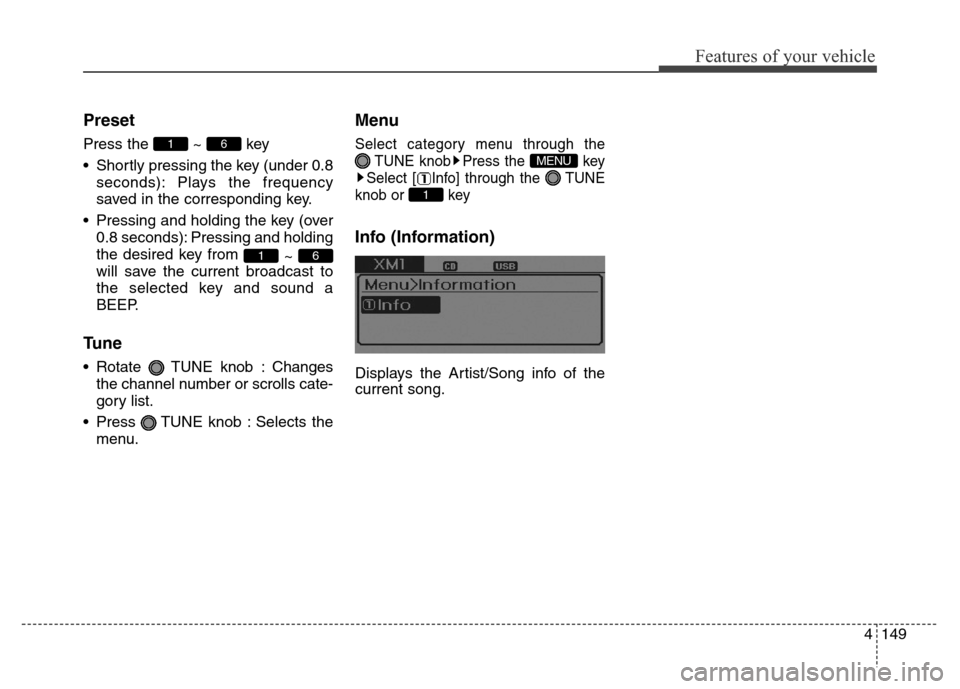
Menu
Select category menu through the
TUNE knob Press the key
Select [ Info] through the TUNE
knob or key
Info (Information)
Displays the Artist/Song info of the
current song.
1
MENU
61
61