phone HYUNDAI ELANTRA GT 2014 Owner's Manual
[x] Cancel search | Manufacturer: HYUNDAI, Model Year: 2014, Model line: ELANTRA GT, Model: HYUNDAI ELANTRA GT 2014Pages: 476, PDF Size: 31.71 MB
Page 257 of 476
![HYUNDAI ELANTRA GT 2014 Owners Manual Features of your vehicle
172 4
Phone MENU
Press the key to display three
menus (Call History, Contacts, Phone
Setup).
Call history
Press the key Set [ Call
History] through the TUNE knob
or key.
Th](/img/35/56097/w960_56097-256.png "HYUNDAI ELANTRA GT 2014 Owners Manual Features of your vehicle
172 4
Phone MENU
Press the key to display three
menus (Call History, Contacts, Phone
Setup).
Call history
Press the key Set [ Call
History] through the TUNE knob
or key.
Th")
Features of your vehicle
172 4
Phone MENU
Press the key to display three
menus (Call History, Contacts, Phone
Setup).
Call history
Press the key Set [ Call
History] through the TUNE knob
or key.
The call history is displayed and can
be used to select a number and
make a call.
If call history does not exist, a screen
asking whether to download call his-
tory is displayed. (The download fea-
ture may not be supported in some
mobile phones)Contacts
Press the key Set [
Contacts] through the TUNE knob
or key.
The Contacts are displayed and can
be used to select a number and
make a call.
❈If more than one number is saved
to one contact, then a screen
showing the mobile phone num-
ber, house and office number are
displayed. Select the desired num-
ber to make the call.
❈If Contacts do not exist, a screen
asking whether to download
Contacts is displayed. (The down-
load feature may not be supported
in some mobile phones)Phone Setup
Press the key Set [ Phone
Setup] through the TUNE knob or
key.
The
Bluetooth®Wireless Technology
enabled mobile phone setup screen
is displayed. For more information,
refer to “Phone Setup”.
3
PHONE
2
PHONE
1
PHONE
PHONE
Page 258 of 476
4173
Features of your vehicle
CAUTION USING
BLUETOOTH®WIRE-
LESS TECHNOLOGY
CELLULAR PHONE
Do not perform Bluetooth®
Wireless Technology settings
(e.g. pairing a phone) while
driving.
Some Bluetooth
®Wireless
Technology-enabled phones
may not be recognized by the
system or fully compatible
with the system.
Before using Bluetooth
®
Wireless Technology related
features of the audio system,
refer your phone’s User’s
Manual for phone-side
Bluetooth
®Wireless
Technology operations.
The phone must be paired to
the audio system to use
Bluetooth
®Wireless
Technology related features.
(Continued)
(Continued)
You will not be able to use the
hands-free feature when your
phone (in the car) is outside of
the cellular service area (e.g.
in a tunnel, in a underground,
in a mountainous area, etc.).
If the cellular phone signal is
poor or the vehicles interior
noise is too loud, it may be dif-
ficult to hear the other per-
son’s voice during a call.
Do not place the phone near or
inside metallic objects, other-
wise communications with
Bluetooth
®Wireless Technology
system or cellular service sta-
tions can be disturbed.
While a phone is connected
through Bluetooth
®Wireless
Technology your phone may
discharge quicker than usual
for additional Bluetooth
®
Wireless Technology-related
operations.
(Continued)
(Continued)
Some cellular phones or other
devices may cause interference
noise or malfunction to audio
system. In this case, store the
device in a different location
may resolve the condition.
Phone contact names should
be saved in English or they
may not be displayed correctly.
If Priority is set upon vehicle
ignition(IGN/ACC ON), the
Bluetooth
®Wireless Technology
phone will be automatically
connected.
Even if you are outside, the
Bluetooth
®Wireless Technology
phone will be automatically
connected once you are in the
vicinity of the vehicle.
If you do not want automatic
Bluetooth
®Wireless Technology
connection, turn the Bluetooth®
Wireless Technology feature off.
The hands-free call volume
and quality may differ depend-
ing on the mobile phone type.
Page 259 of 476
Features of your vehicle
174 4
CAUTION
Bluetooth®Wireless Technology
features can be used only when
the mobile phone has been
paired and connected with the
device. For more information on
pairing and connecting
Bluetooth
®Wireless Technology
enabled mobile phones, refer to
the “Phone Setup” section.
When a Bluetooth
®Wireless
Technology mobile phone is
connected, a ( ) icon will
appear at the top of the screen.
If a ( ) icon is not displayed,
this indicates that a Bluetooth
®
Wireless Technology enabled
device has not been connected
if a ( ) icon is displayed. This
means that Bluetooth
®Wireless
Technology enable device has
just been connected with A2DP
(Advanced Audio Distribution
Profile). Your must connect the
device before use.
(Continued)
(Continued)
For more information on
Bluetooth
®Wireless Technology
mobile phones, refer to the
“Phone Setup” section.
Pairing and connecting a
Bluetooth
®Wireless Technology
enabled mobile phone will work
only when the Bluetooth
®
Wireless Technology option
within your mobile phone has
been turned on. (Methods of
turning on the Bluetooth
®
Wireless Technology enabled
feature may differ depending on
the mobile phone.)
In some mobile phones, start-
ing the ignition while talking
through Bluetooth
®Wireless
Technology enabled handsfree
call will result in the call becom-
ing disconnected. (Switch the
call back to your mobile phone
when starting the ignition.)
(Continued)
(Continued)
Some features may not be
supported in some Bluetooth
®
Wireless Technology mobile
phone and devices.
Bluetooth
®Wireless Technology
enabled operation may be
unstable depending on the
communication state.
CAUTION
Placing the audio system within
an electromagnetic environment
may result in noise interference.
Page 261 of 476
Features of your vehicle
176 4
(Continued)
Voice recognition may not
function properly due to out-
side noise. The following con-
ditions can affect the perform-
ance of Voice Recognition:
- When the windows and sun-
roof are open
- When the heating/cooling
system is on
- When passing a tunnel
- When driving on rugged and
uneven roads
After downloading Bluetooth
®
Wireless Technology contacts,
the system requires some
times to convert the contacts
into voice information. During
this time, voice recognition
may not operate properly.
Upon inputting your contacts,
special symbols and numbers
cannot be recognized by
voice. For example, “# John
Doe%&” will be recognized as
“John Doe”.
CAUTION IN USING
VOICE COMMAND
The voice recognition feature
of this product supports recog-
nition of the commands listed
within this user’s manual.
While using voice recognition,
operating the steering remote
control or the device will ter-
minate voice recognition and
allow you to manually operate
desired functions.
Position the microphone
above the head of the driver’s
seat. For superior perform-
ance, maintain good posture
when saying voice commands.
(Continued)
Page 262 of 476
4177
Features of your vehicle
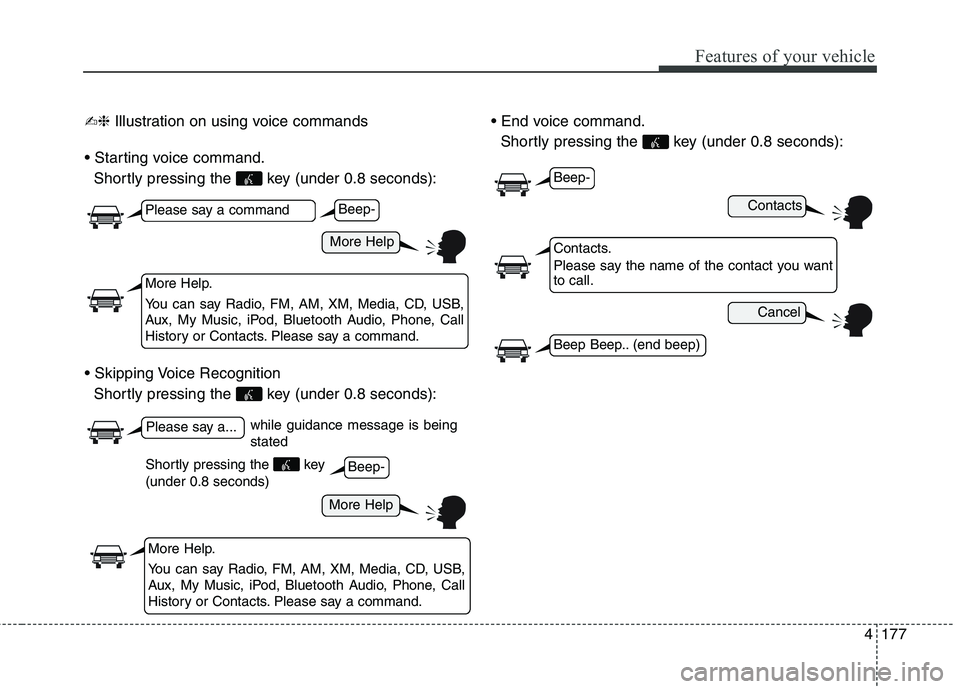
✍❈Illustration on using voice commands
Shortly pressing the key (under 0.8 seconds):
Shortly pressing the key (under 0.8 seconds):
Shortly pressing the key (under 0.8 seconds):
while guidance message is being
stated
More Help
Contacts
Cancel
More Help
Please say a command
Please say a...
More Help.
You can say Radio, FM, AM, XM, Media, CD, USB,
Aux, My Music, iPod, Bluetooth Audio, Phone, Call
History or Contacts. Please say a command.
Contacts.
Please say the name of the contact you want
to call.
More Help.
You can say Radio, FM, AM, XM, Media, CD, USB,
Aux, My Music, iPod, Bluetooth Audio, Phone, Call
History or Contacts. Please say a command.
Beep-
Beep-
Beep-
Beep Beep.. (end beep)
Shortly pressing the key
(under 0.8 seconds)
Page 263 of 476
Features of your vehicle
178 4
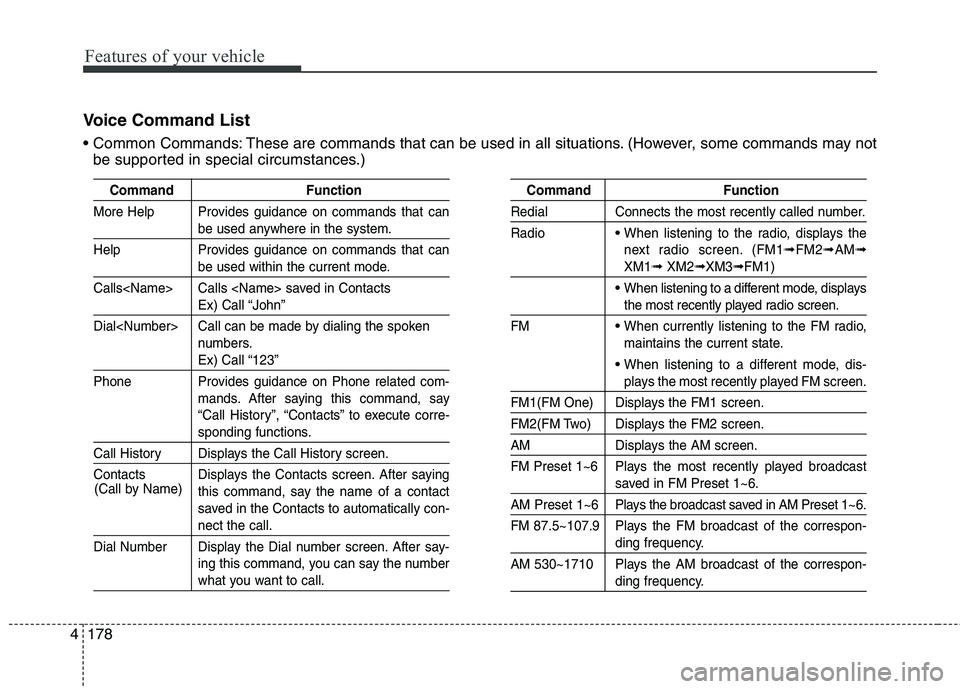
Voice Command List
These are commands that can be used in all situations. (However, some commands may not
be supported in special circumstances.)
Command Function
More Help Provides guidance on commands that can
be used anywhere in the system.
Help Provides guidance on commands that can
be used within the current mode.
Calls
Ex) Call “John”
Dial
numbers.
Ex) Call “123”
Phone Provides guidance on Phone related com-
mands. After saying this command, say
“Call History”, “Contacts” to execute corre-
sponding functions.
Call History Displays the Call History screen.
Contacts Displays the Contacts screen. After saying
this command, say the name of a contact
saved in the Contacts to automatically con-
nect the call.
Dial Number Display the Dial number screen. After say-
ing this command, you can say the number
what you want to call.
Command Function
Redial Connects the most recently called number.
Radio
When listening to the radio, displays the
next radio screen. (FM1
➟FM2➟AM➟
XM1➟XM2➟XM3➟FM1)
When listening to a different mode, displays
the most recently played radio screen.
FM
When currently listening to the FM radio,
maintains the current state.
When listening to a different mode, dis-
plays the most recently played FM screen.
FM1(FM One) Displays the FM1 screen.
FM2(FM Two) Displays the FM2 screen.
AM Displays the AM screen.
FM Preset 1~6 Plays the most recently played broadcast
saved in FM Preset 1~6.
AM Preset 1~6 Plays the broadcast saved in AM Preset 1~6.
FM 87.5~107.9 Plays the FM broadcast of the correspon-
ding frequency.
AM 530~1710 Plays the AM broadcast of the correspon-
ding frequency. (Call by Name)
Page 268 of 476
4183
Features of your vehicle
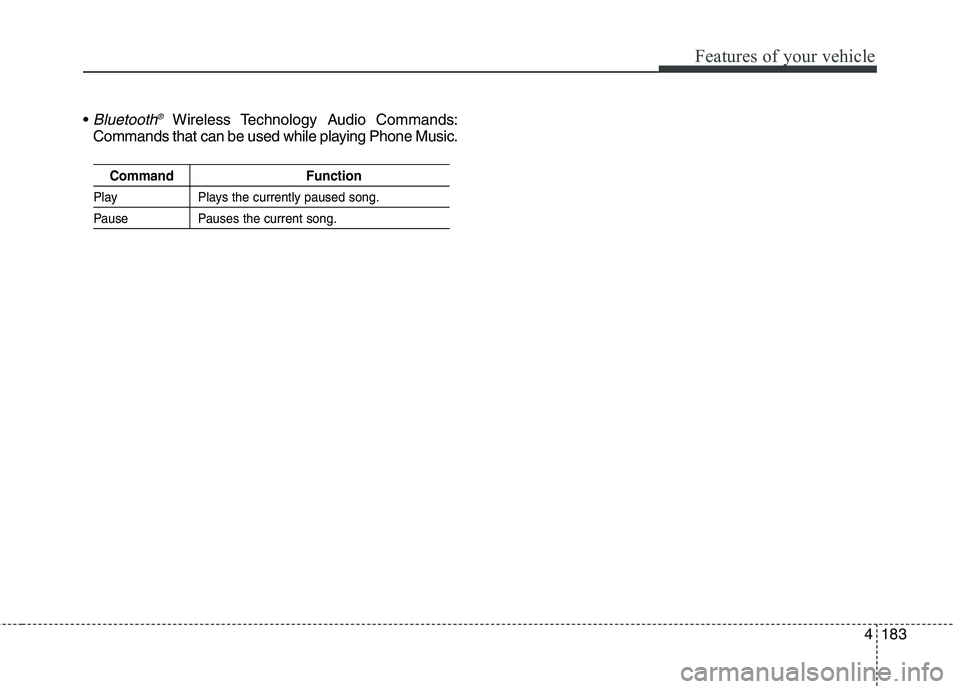
Bluetooth®Wireless Technology Audio Commands:
Commands that can be used while playing Phone Music.
Command Function
Play Plays the currently paused song.
Pause Pauses the current song.
Page 269 of 476
Features of your vehicle
184 4
Blue Link®
Hyundai aims to offer differentiated
customer values through a
‘Connected Car Life,’ which is to pro-
vide consumers with fast and reliable
IT technology. As consumers’
lifestyles become more and more
mobile in thanks to remarkable
advances in smart phones, tablet
PCs and overall wireless telecommu-
nication, new lifestyle patterns
demand seamless connection
between one’s office, home, out-
doors and automobiles.
Automobile companies are now
faced with the task of shifting their
paradigm from vehicle-centered
services to customer value-centered
services, with the ultimate goal of
securing global leadership in the
field of vehicle IT and telematics.Hyundai Motor plans to achieve this
by realizing a terminal platform flexi-
ble to changes in IT technology,
cooperating with global IT compa-
nies, creating an eco-system and
providing the latest contents & serv-
ices based on an open environment.
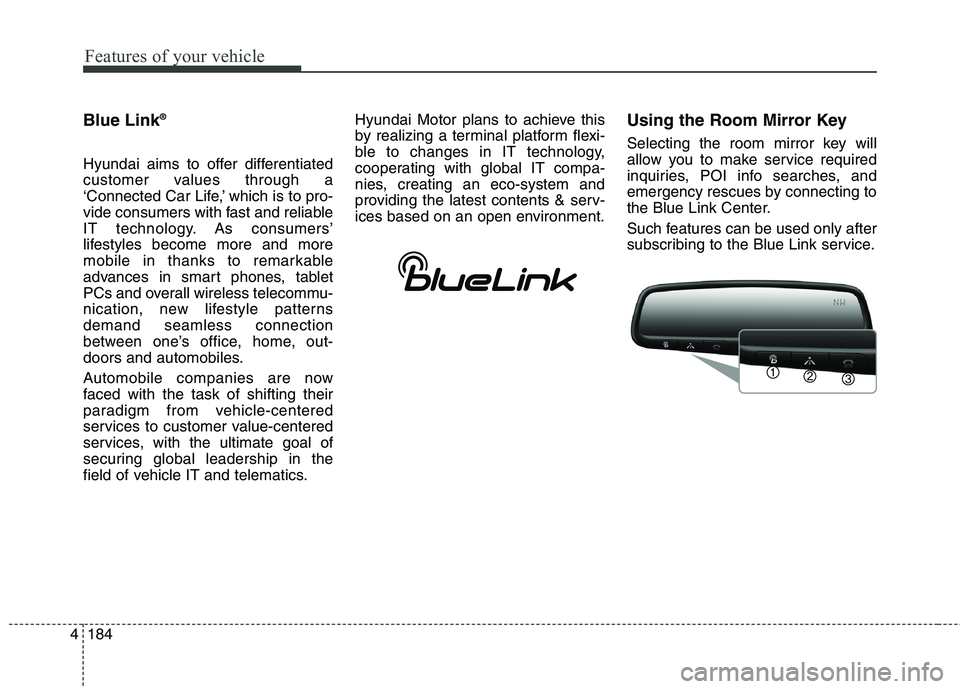
Using the Room Mirror Key
Selecting the room mirror key will
allow you to make service required
inquiries, POI info searches, and
emergency rescues by connecting to
the Blue Link Center.
Such features can be used only after
subscribing to the Blue Link service.
Page 270 of 476
4185
Features of your vehicle
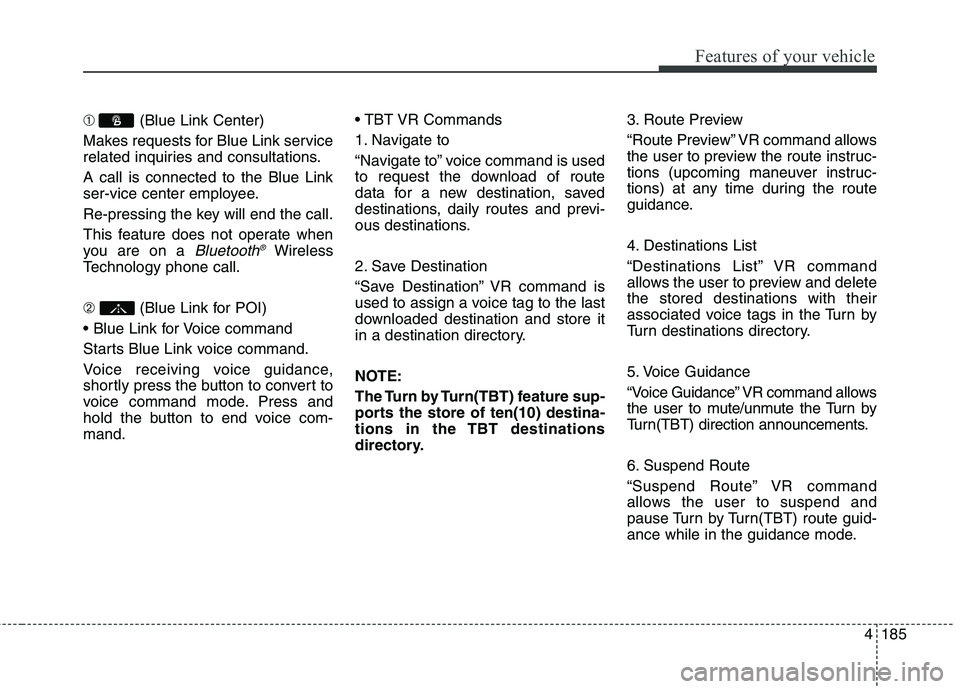
➀(Blue Link Center)
Makes requests for Blue Link service
related inquiries and consultations.
A call is connected to the Blue Link
ser-vice center employee.
Re-pressing the key will end the call.
This feature does not operate when
you are on a
Bluetooth®Wireless
Technology phone call.
➁(Blue Link for POI)
Starts Blue Link voice command.
Voice receiving voice guidance,
shortly press the button to convert to
voice command mode. Press and
hold the button to end voice com-
mand.
1. Navigate to
“Navigate to” voice command is used
to request the download of route
data for a new destination, saved
destinations, daily routes and previ-
ous destinations.
2. Save Destination
“Save Destination” VR command is
used to assign a voice tag to the last
downloaded destination and store it
in a destination directory.
NOTE:
The Turn by Turn(TBT) feature sup-
ports the store of ten(10) destina-
tions in the TBT destinations
directory.3. Route Preview
“Route Preview” VR command allows
the user to preview the route instruc-
tions (upcoming maneuver instruc-
tions) at any time during the route
guidance.
4. Destinations List
“Destinations List” VR command
allows the user to preview and delete
the stored destinations with their
associated voice tags in the Turn by
Turn destinations directory.
5. Voice Guidance
“Voice Guidance” VR command allows
the user to mute/unmute the Turn by
Turn(TBT) direction announcements.
6. Suspend Route
“Suspend Route” VR command
allows the user to suspend and
pause Turn by Turn(TBT) route guid-
ance while in the guidance mode.
Page 271 of 476
Features of your vehicle
186 4
7. Resume Route
“Resume Route” VR command
allows the user to resume Turn by
Turn(TBT) route guidance.
➂(Blue Link for SOS)
In the case of an emergency, requests
for help to the Blue Link center.
Call is connected to the Blue Link
emergency rescue center. Re-press-
ing the key will end the call.
If already on a
Bluetooth®Wireless
Technology phone call, the call will
end to connect you to the Blue Link
Emergency Rescue Center.
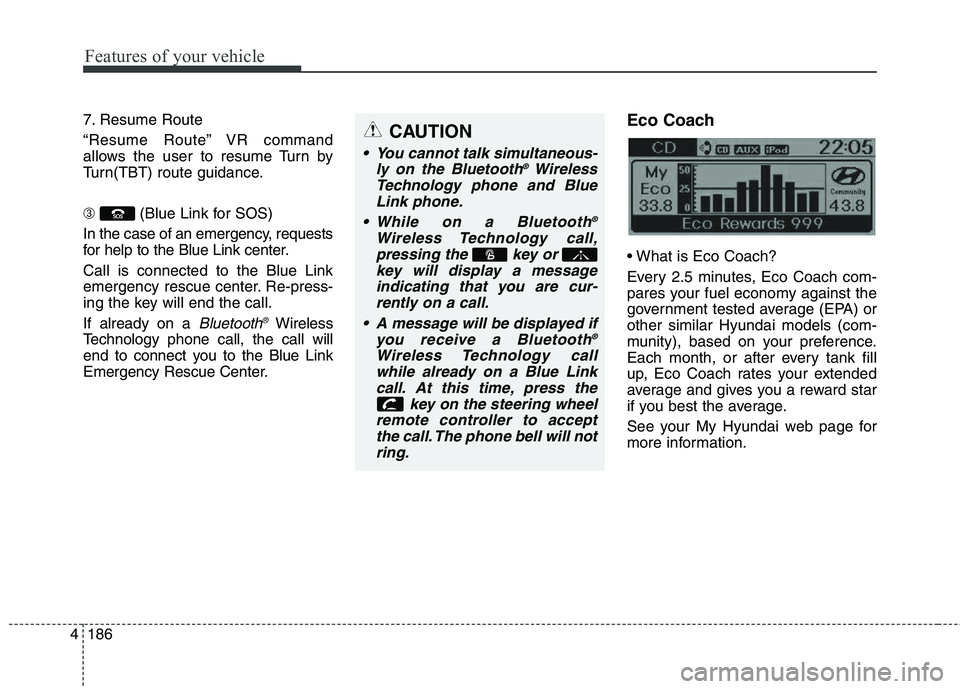
Eco Coach
Every 2.5 minutes, Eco Coach com-
pares your fuel economy against the
government tested average (EPA) or
other similar Hyundai models (com-
munity), based on your preference.
Each month, or after every tank fill
up, Eco Coach rates your extended
average and gives you a reward star
if you best the average.
See your My Hyundai web page for
more information.
CAUTION
You cannot talk simultaneous-
ly on the Bluetooth®Wireless
Technology phone and Blue
Link phone.
While on a Bluetooth
®
Wireless Technology call,
pressing the key or
key will display a message
indicating that you are cur-
rently on a call.
A message will be displayed if
you receive a Bluetooth
®
Wireless Technology call
while already on a Blue Link
call. At this time, press the
key on the steering wheel
remote controller to accept
the call. The phone bell will not
ring.