key HYUNDAI ELANTRA GT 2014 Repair Manual
[x] Cancel search | Manufacturer: HYUNDAI, Model Year: 2014, Model line: ELANTRA GT, Model: HYUNDAI ELANTRA GT 2014Pages: 476, PDF Size: 31.71 MB
Page 245 of 476
![HYUNDAI ELANTRA GT 2014 Repair Manual Features of your vehicle
160 4
MENU : iPod
In iPod mode, press the key
to set the Repeat, Album Random,
All Random, and Information fea-
tures.
Repeat
Press the key Set [ RPT]
through the
TUNEknob](/img/35/56097/w960_56097-244.png "HYUNDAI ELANTRA GT 2014 Repair Manual Features of your vehicle
160 4
MENU : iPod
In iPod mode, press the key
to set the Repeat, Album Random,
All Random, and Information fea-
tures.
Repeat
Press the key Set [ RPT]
through the
TUNEknob")
Features of your vehicle
160 4
MENU : iPod
In iPod mode, press the key
to set the Repeat, Album Random,
All Random, and Information fea-
tures.
Repeat
Press the key Set [ RPT]
through the
TUNEknob or
key to repeat the current song.
❈ Press RPT again to turn repeat off.
Album Random
Press the key Set [ Alb.RDM]
through the TUNEknob or key.
Plays albums within the currently
playing category in random order.
❈ Press Alb.RDM again to turn off.
All Random
Press the key Set [ A.RDM]
through the TUNEknob or
key.
Plays all songs within the currently
playing category in random order.
❈ Press A.RDM again to turn off.
Information
Press the key Set [ Info]
through the
TUNEknob or
key.
Displays information of the current
song.
❈ Press the key to turn off info
display.MENU
4
MENU
3
MENU
2
MENU
1
MENU
MENU
Page 246 of 476
4161
Features of your vehicle
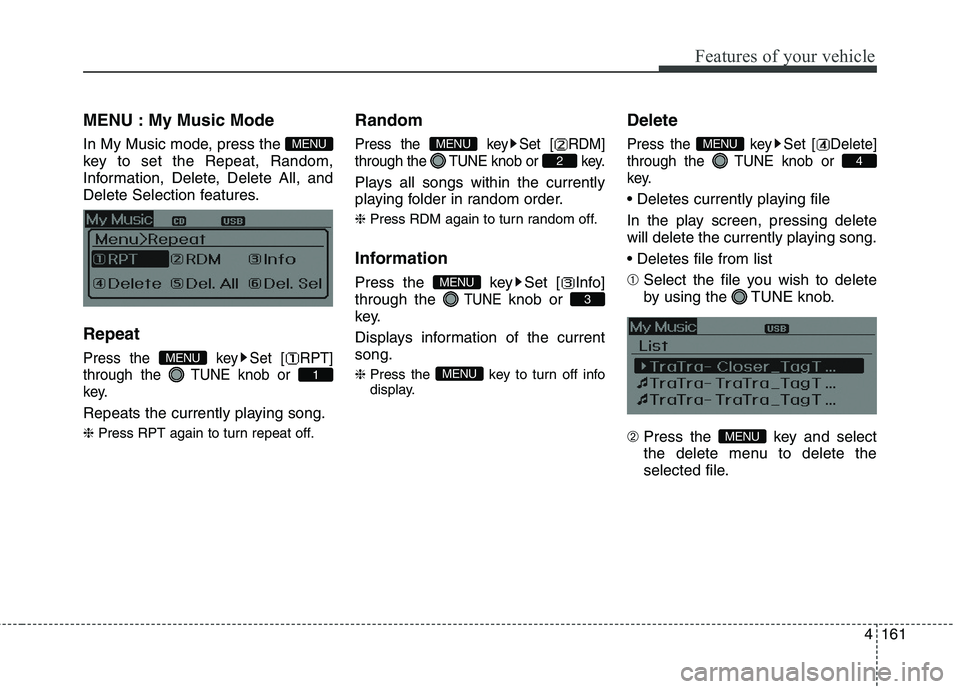
MENU : My Music Mode
In My Music mode, press the
key to set the Repeat, Random,
Information, Delete, Delete All, and
Delete Selection features.
Repeat
Press the key Set [ RPT]
through the TUNEknob or
key.
Repeats the currently playing song.
❈ Press RPT again to turn repeat off.
Random
Press the key Set [ RDM]
through the TUNEknob or key.
Plays all songs within the currently
playing folder in random order.
❈ Press RDM again to turn random off.
Information
Press the key Set [ Info]
through the
TUNEknob or
key.
Displays information of the current
song.
❈ Press the key to turn off info
display.
Delete
Press the key Set [ Delete]
through the TUNEknob or
key.
In the play screen, pressing delete
will delete the currently playing song.
➀ Select the file you wish to delete
by using the TUNE knob.
➁ Press the key and select
the delete menu to delete the
selected file.
MENU
4
MENU
MENU
3
MENU
2
MENU
1
MENU
MENU
Page 247 of 476
![HYUNDAI ELANTRA GT 2014 Repair Manual Features of your vehicle
162 4
Delete All
Press the key Set [ Del.All]
through the TUNEknob or key.
Deletes all songs of My Music.
Delete Selection
Press the key Set [ Del.Sel]
through the TUNEknob](/img/35/56097/w960_56097-246.png "HYUNDAI ELANTRA GT 2014 Repair Manual Features of your vehicle
162 4
Delete All
Press the key Set [ Del.All]
through the TUNEknob or key.
Deletes all songs of My Music.
Delete Selection
Press the key Set [ Del.Sel]
through the TUNEknob")
Features of your vehicle
162 4
Delete All
Press the key Set [ Del.All]
through the TUNEknob or key.
Deletes all songs of My Music.
Delete Selection
Press the key Set [ Del.Sel]
through the TUNEknob or
key.
Songs within My Music are selected
and deleted.
➀ Select the songs you wish to
delete from the list.
➁ After selecting, press the
key and select the delete menu.
AUXILIARY
AUX is used to play external MEDIA
currently connected with the AUX
terminal.
AUX mode will automatically start
when an external device is connect-
ed to the AUX terminal.
If an external device is connected,
you can also press the key to
change to AUX mode.
❈ AUX mode cannot be started unless
there is an external device connected
to the AUX terminal.
✽ ✽
NOTICE FOR USING THE
AUX
• Fully insert the AUX cable into the
AUX terminal for use
MEDIA
MENU
6
MENU
5
MENU
Page 251 of 476
Features of your vehicle
166 4
(Continued)
Playing videos through the
USB is not supported.
Use of USB accessories such
as rechargers or heaters
using USB I/F may lower per-
formance or cause trouble.
If you use devices such as a
USB hub purchased separate-
ly, the vehicle’s audio system
may not recognize the USB
device. In that case, connect
the USB device directly to the
multimedia terminal of the
vehicle.
If the USB device is divided by
logical drives, only the music
files on the highest-priority
drive are recognized by car
audio.
Devices such as MP3 Player/
Cellular phone/Digital camera
can be unrecognizable by
standard USB I/F can be
unrecognizable.
(Continued)(Continued)
Charging through the USB
may not be supported in some
mobile devices.
USB HDD or USB types liable
to connection failures due to
vehicle vibrations are not sup-
ported. (i-stick type)
Some non-standard USB
devices (METAL COVER TYPE
USB) can be unrecognizable.
Some USB flash memory read-
ers (such as CF, SD, micro SD,
etc.) or external-HDD type
devices can be unrecognizable.
Music files protected by DRM
(DIGITAL RIGHTS MANAGE-
MENT) are not recognizable.
The data in the USB memory
may be lost while using this
audio. Always back up impor-
tant data on a personal stor-
age device.
(Continued)(Continued)
Please avoid using USB mem-
ory products which can be
used as key chains or cellular
phone accessories as they
could cause damage to the
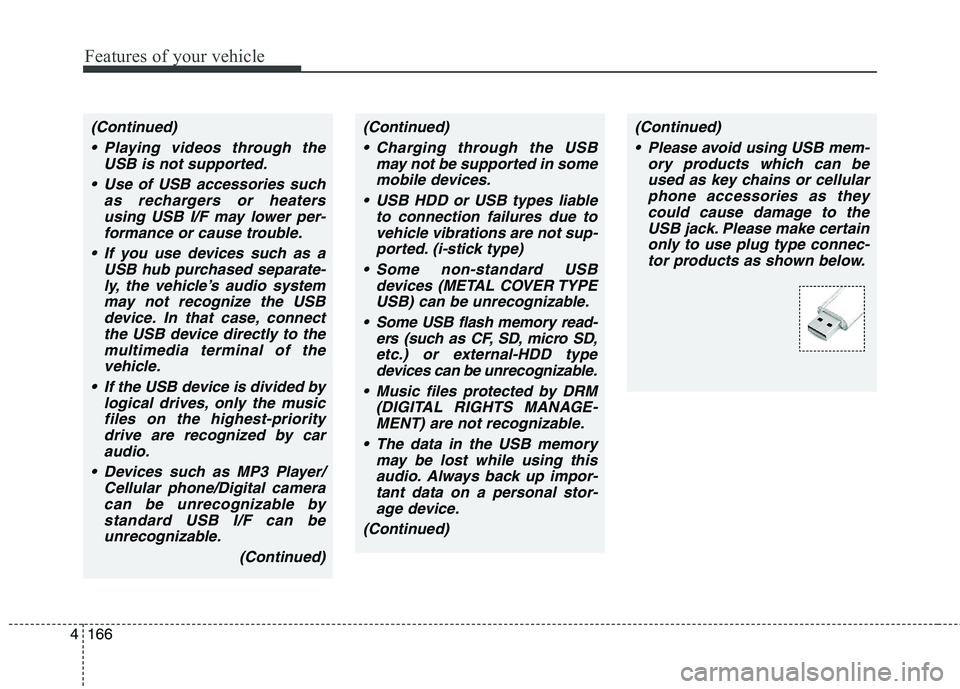
USB jack. Please make certain
only to use plug type connec-
tor products as shown below.
Page 254 of 476
4169
Features of your vehicle
Bluetooth®Wireless Technology
AUDIO (if equipped)
NOTE:
Bluetooth®Wireless Technology
phone compatibility can be
checked by visiting
www.hyundaiusa.com and under
the SERVICE & PARTS - BLUE-
TOOTH COMPATIBILITY menu.
The website provides informa-
tion, including information on
Pairing, Connection, Handsfree
Calling, Streaming, and more.
What is Bluetooth®Wireless
Technology?
Bluetooth®Wireless Technology is a
wireless technology that allows mul-
tiple devices to be connected in a
short range, low-powered devices
like hands-free, stereo headset, wire-
less remote controller, etc. For more
information, visit the
Bluetooth®
Wireless Technology website at
www.Bluetooth.com
Before using Bluetooth®
Wireless Technology audio
features
Bluetooth®Wireless Technology
audio may not be supported
depending on the compatibility of
your
Bluetooth®Wireless
Technology mobile phone.
Bluetooth®Wireless
Technology audio, you must first
pair and connect the
Bluetooth®
Wireless Technology mobile phone.
Bluetooth®Wireless Technology
audio can be used only when the
[Audio Streaming] of Phone is
turned .
❈Setting
Bluetooth®Wireless
Technology Audio Streaming : Press
the key Select [Phone]
through the tune knob or key
Select [Audio Streaming] through
the TUNE knob Set /
OffOn
3
SETUP
On
Page 255 of 476
Features of your vehicle
170 4
Starting Bluetooth®Wireless
Technology Audio
key to change the
mode in order of CD ➟ USB ➟ AUX
➟ My Music ➟ BT Audio.
Bluetooth®
Wireless Technology audio will start
playing.
❈Audio may not automatically start
playing in some mobile phones.
Using the Bluetooth®Wireless
Technology audio features
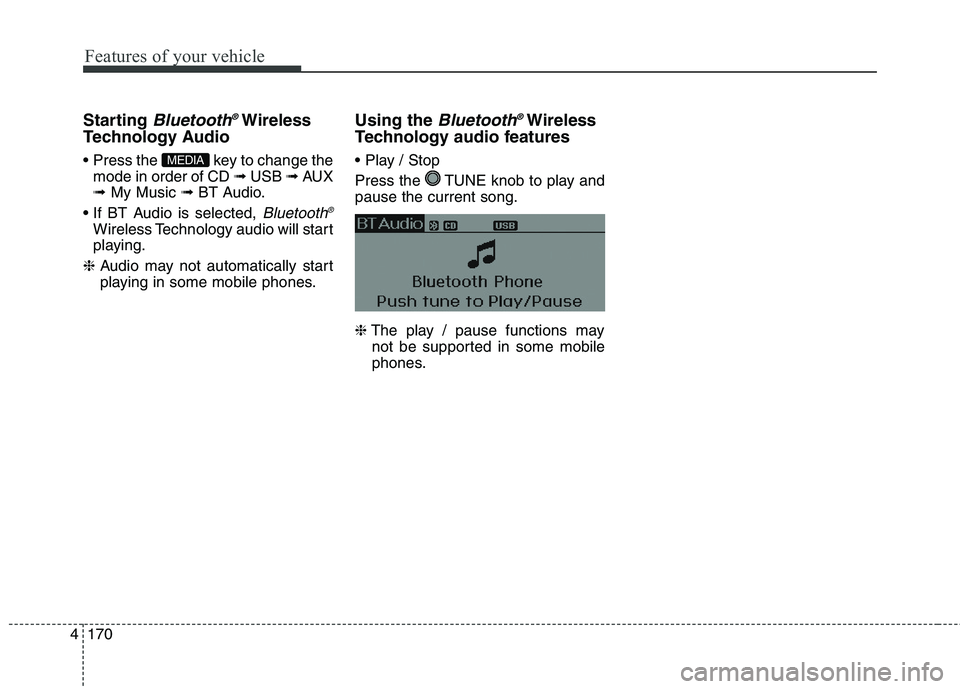
Press the TUNE knob to play and
pause the current song.
❈The play / pause functions may
not be supported in some mobile
phones.MEDIA
Page 256 of 476
4171
Features of your vehicle
PHONE (IF EQUIPPED)
Before using the Bluetooth®Wireless
Technology enabled phone features
In order to use
Bluetooth®Wireless
Technology phone, you must first
pair and connect the
Bluetooth®
Wireless Technology mobile phone.
If the mobile phone is not paired or
connected, it is not possible to
enter Phone mode. Once a phone
is paired or connected, the guid-
ance screen will be displayed.
If Priority is set upon vehicle igni-
tion (IGN/ACC ON), the
Bluetooth®
Wireless Technology enabled
phone will be automatically con-
nected. Even if you are outside, the
Bluetooth®Wireless Technology
enabled phone will be automatical-
ly connected once you are in the
vicinity of the vehicle. If you do not
want automatic
Bluetooth®Wireless
Technology enabled phone con-
nection, set the
Bluetooth®Wireless
Technology power to OFF.
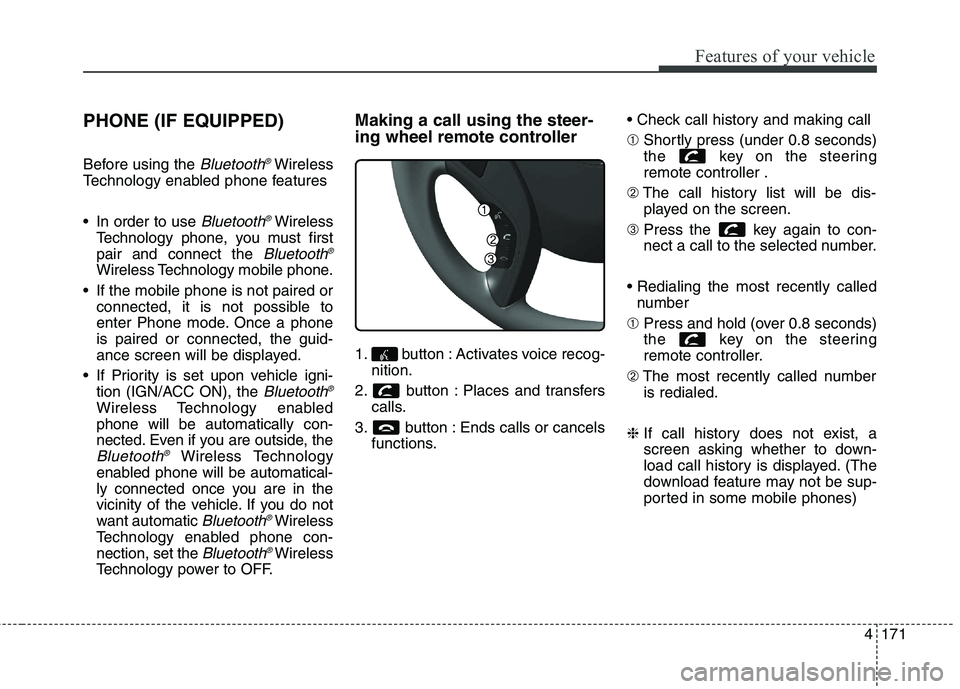
Making a call using the steer-
ing wheel remote controller
1. button : Activates voice recog-
nition.
2. button : Places and transfers
calls.
3. button : Ends calls or cancels
functions.
➀Shortly press (under 0.8 seconds)
the key on the steering
remote controller .
➁The call history list will be dis-
played on the screen.
➂Press the key again to con-
nect a call to the selected number.
number
➀Press and hold (over 0.8 seconds)
the key on the steering
remote controller.
➁The most recently called number
is redialed.
❈If call history does not exist, a
screen asking whether to down-
load call history is displayed. (The
download feature may not be sup-
ported in some mobile phones)
Page 257 of 476
![HYUNDAI ELANTRA GT 2014 Repair Manual Features of your vehicle
172 4
Phone MENU
Press the key to display three
menus (Call History, Contacts, Phone
Setup).
Call history
Press the key Set [ Call
History] through the TUNE knob
or key.
Th](/img/35/56097/w960_56097-256.png "HYUNDAI ELANTRA GT 2014 Repair Manual Features of your vehicle
172 4
Phone MENU
Press the key to display three
menus (Call History, Contacts, Phone
Setup).
Call history
Press the key Set [ Call
History] through the TUNE knob
or key.
Th")
Features of your vehicle
172 4
Phone MENU
Press the key to display three
menus (Call History, Contacts, Phone
Setup).
Call history
Press the key Set [ Call
History] through the TUNE knob
or key.
The call history is displayed and can
be used to select a number and
make a call.
If call history does not exist, a screen
asking whether to download call his-
tory is displayed. (The download fea-
ture may not be supported in some
mobile phones)Contacts
Press the key Set [
Contacts] through the TUNE knob
or key.
The Contacts are displayed and can
be used to select a number and
make a call.
❈If more than one number is saved
to one contact, then a screen
showing the mobile phone num-
ber, house and office number are
displayed. Select the desired num-
ber to make the call.
❈If Contacts do not exist, a screen
asking whether to download
Contacts is displayed. (The down-
load feature may not be supported
in some mobile phones)Phone Setup
Press the key Set [ Phone
Setup] through the TUNE knob or
key.
The
Bluetooth®Wireless Technology
enabled mobile phone setup screen
is displayed. For more information,
refer to “Phone Setup”.
3
PHONE
2
PHONE
1
PHONE
PHONE
Page 260 of 476
![HYUNDAI ELANTRA GT 2014 Repair Manual 4175
Features of your vehicle
VOICE COMMAND
(IF EQUIPPED)
Starting Voice Command
press the key on the steering
wheel remote controller.
Mode], then the system will say
“Please say a command. Be](/img/35/56097/w960_56097-259.png "HYUNDAI ELANTRA GT 2014 Repair Manual 4175
Features of your vehicle
VOICE COMMAND
(IF EQUIPPED)
Starting Voice Command
press the key on the steering
wheel remote controller.
Mode], then the system will say
“Please say a command. Be")
4175
Features of your vehicle
VOICE COMMAND
(IF EQUIPPED)
Starting Voice Command
press the key on the steering
wheel remote controller.
Mode], then the system will say
“Please say a command. Beep”
❈If voice command is in [Expert
Mode], then the system will only
say a “Beep-”
❈Setting Voice command [Normal
Mode]/[Expert Mode]:
Press the key Select
[System] through the TUNE
knob or key Select [Voice
Command Mode] through the
TUNE knob Set [Normal
Mode]/[Expert Mode]
Skipping the Guidance
Message
While the guidance message is
being stated, shortly press the
key (under 0.8 seconds) to discontin-
ue the guidance message and sound
the “beep”.
After the “beep”, say the voice com-
mand.
Ending Voice Command
and hold the key (over 0.8 sec-
onds) to end voice command.
ing the steering wheel remote con-
troller or a different key will end
voice command.
ing for your voice command, say
“cancel” or “end” to end voice com-
mand.
ing for your voice command, short-
ly press the key (under 0.8 sec-
onds) to end voice command.
5
SETUP
CAUTION
For proper voice recognition,
say the voice command after
the guidance message and the
“Beep” sound.
Page 262 of 476
4177
Features of your vehicle
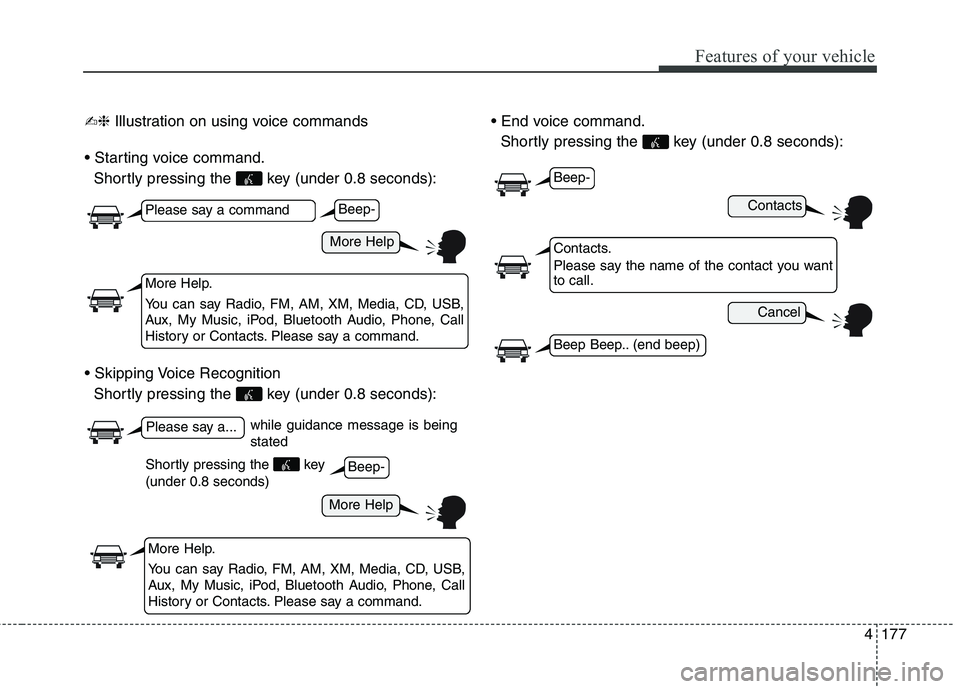
✍❈Illustration on using voice commands
Shortly pressing the key (under 0.8 seconds):
Shortly pressing the key (under 0.8 seconds):
Shortly pressing the key (under 0.8 seconds):
while guidance message is being
stated
More Help
Contacts
Cancel
More Help
Please say a command
Please say a...
More Help.
You can say Radio, FM, AM, XM, Media, CD, USB,
Aux, My Music, iPod, Bluetooth Audio, Phone, Call
History or Contacts. Please say a command.
Contacts.
Please say the name of the contact you want
to call.
More Help.
You can say Radio, FM, AM, XM, Media, CD, USB,
Aux, My Music, iPod, Bluetooth Audio, Phone, Call
History or Contacts. Please say a command.
Beep-
Beep-
Beep-
Beep Beep.. (end beep)
Shortly pressing the key
(under 0.8 seconds)