display HYUNDAI ELANTRA GT 2019 Owner's Manual
[x] Cancel search | Manufacturer: HYUNDAI, Model Year: 2019, Model line: ELANTRA GT, Model: HYUNDAI ELANTRA GT 2019Pages: 486, PDF Size: 78.59 MB
Page 154 of 486
3-69
Convenient features of your vehicle
3
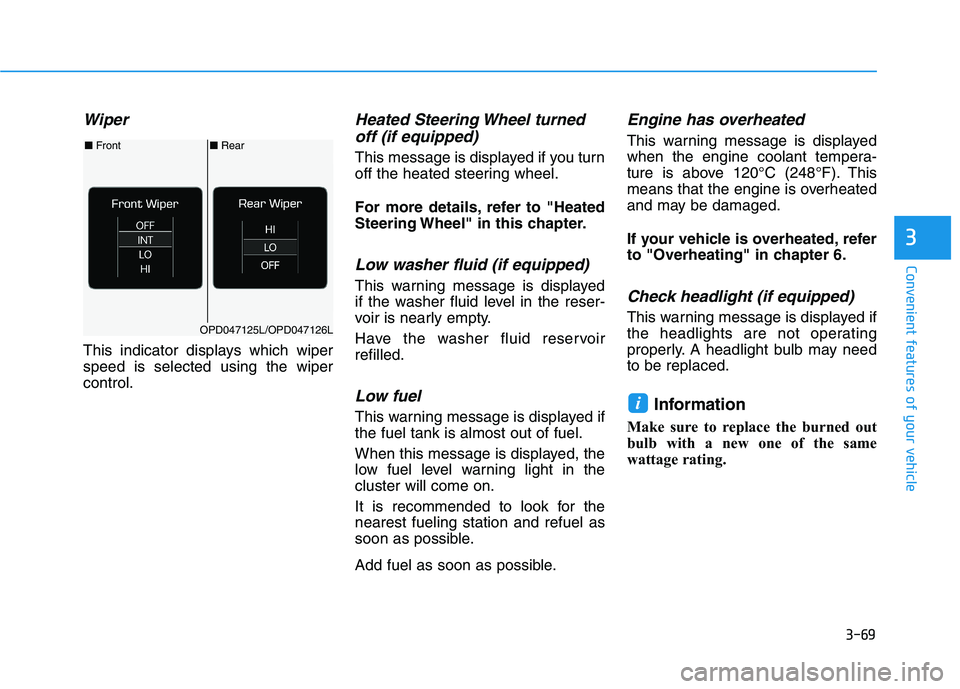
Wiper
This indicator displays which wiper speed is selected using the wipercontrol.
Heated Steering Wheel turnedoff (if equipped)
This message is displayed if you turn
off the heated steering wheel.
For more details, refer to "Heated
Steering Wheel" in this chapter.
Low washer fluid (if equipped)
This warning message is displayed
if the washer fluid level in the reser-
voir is nearly empty.
Have the washer fluid reservoir refilled.
Low fuel
This warning message is displayed ifthe fuel tank is almost out of fuel.
When this message is displayed, the
low fuel level warning light in thecluster will come on.
It is recommended to look for the nearest fueling station and refuel as
soon as possible.
Add fuel as soon as possible.
Engine has overheated
This warning message is displayed
when the engine coolant tempera-
ture is above 120°C (248°F). This
means that the engine is overheated
and may be damaged.
If your vehicle is overheated, refer
to "Overheating" in chapter 6.
Check headlight (if equipped)
This warning message is displayed if
the headlights are not operating
properly. A headlight bulb may needto be replaced.
Information
Make sure to replace the burned out
bulb with a new one of the same
wattage rating.
i
■ Rear
■ Front
OPD047125L/OPD047126L
Page 155 of 486
3-70
Convenient features of your vehicle
Check headlamp LED(if equipped)
This warning message is displayed if
there is a problem with the LED
headlamp. Have the vehicle inspect-
ed by an authorized HYUNDAI deal-
er.
Check headlamp FAN(if equipped)
This warning message is displayed if
there is a problem with headlamp
fan. Have the vehicle inspected by an
authorized HYUNDAI dealer.
Check High Beam Assist (HBA)
system (if equipped)
This warning message is displayed if
there is a problem with the High
Beam Assist (HBA) system. Have the
vehicle inspected by an authorized
HYUNDAI dealer.
For more information, refer to
"High Beam Assist (HBA) system"
in chapter 3.
Check Forward CollisionAvoidance Assist system
(if equipped)
This warning message is displayed ifthere is a malfunction with the
Forward Collision-Avoidance Assist
(FCA) system. Have the vehicle
inspected by an authorized
HYUNDAI dealer.
For more information, refer to
"Forward Collision-Avoidance
Assist (FCA) system" in chapter5.
Check Driver Attention Warning (DAW) system (if equipped)
This warning message is displayed if
there is a problem with the Driver
Attention Warning (DAW). Have the
vehicle inspected by an authorized
HYUNDAI dealer.
For more information, refer to
"Driver Attention Warning (DAW)"
in chapter 5.
Check Blind-spot CollisionWarning (BCW) system
(if equipped)
This warning message is displayed if
there is a problem with the Blind-spot
Collision Warning (BCW) system.
Have the vehicle inspected by an
authorized HYUNDAI dealer.
For more information, refer to
"Blind-spot Collision Warning
(BCW) system" in chapter 5.
Check Lane Keeping Assist(LKA) system (if equipped)
This warning message is displayed if
there is a problem with the Check
Lane Keeping Assist (LKA) system.
Have the vehicle inspected by an
authorized HYUNDAI dealer.
For more information, refer to
"Lane Keeping Assist (LKA) sys-
tem" in chapter 5.
Page 156 of 486

3-71
Convenient features of your vehicle
3
LLCC DD DD IISS PP LLAA YY
LCD Display Control
The LCD display modes can be
changed by using the control buttons.
(1) : MODE button for changing
modes
(2) , : MOVE switch for changing items
(3) OK : SELECT/ RESET button for
setting or resetting the select- ed item
OPD047404N/OPDN048487
■
■■■TTTTyyyyppppeeee AAAA
■■■■TTTTyyyyppppeeee BBBB
■■■■TTTTyyyyppppeeee CCCC
■■■■TTTTyyyyppppeeee DDDD
Page 157 of 486
3-72
Convenient features of your vehicle
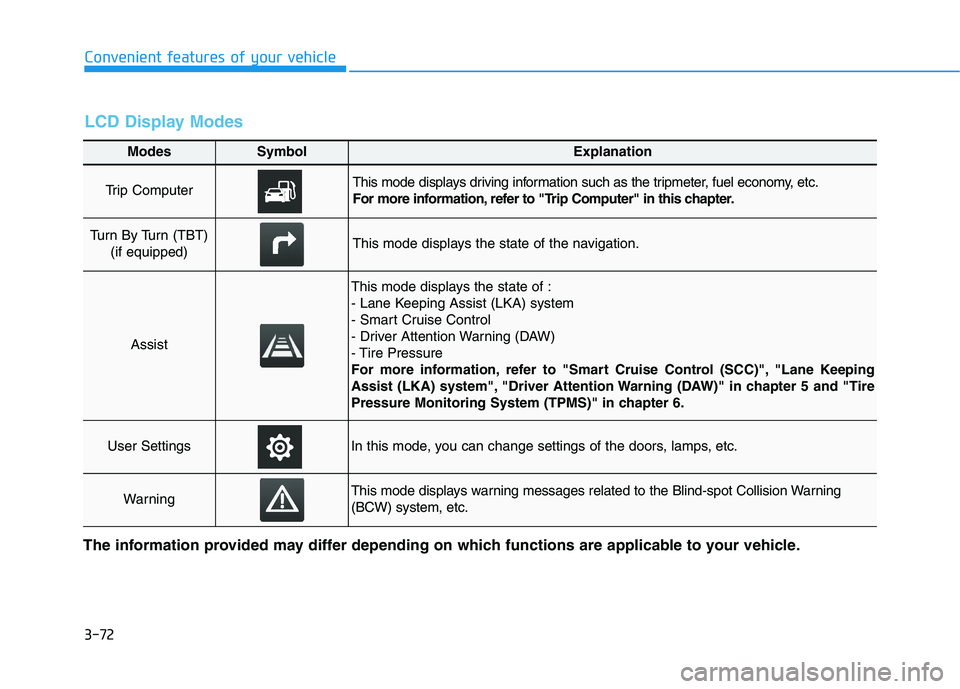
Modes SymbolExplanation
Trip Computer This mode displays driving information such as the tripmeter, fuel economy, etc.
For more information, refer to "Trip Computer" in this chapter.
Turn By Turn (TBT) (if equipped)This mode displays the state of the navigation.
Assist
This mode displays the state of :
- Lane Keeping Assist (LKA) system
- Smart Cruise Control
- Driver Attention Warning (DAW)
- Tire Pressure
For more information, refer to "Smart Cruise Control (SCC)", "Lane Keeping
Assist (LKA) system", "Driver Attention Warning (DAW)" in chapter 5 and "Tire
Pressure Monitoring System (TPMS)" in chapter 6.
User SettingsIn this mode, you can change settings of the doors, lamps, etc.
WarningThis mode displays warning messages related to the Blind-spot Collision Warning (BCW) system, etc.
The information provided may differ depending on which functions are applicable to your vehicle.
LCD Display Modes
Page 158 of 486
3-73
Convenient features of your vehicle
3
Settings available after engag-ing parking brake / Settings
available after shifting to P
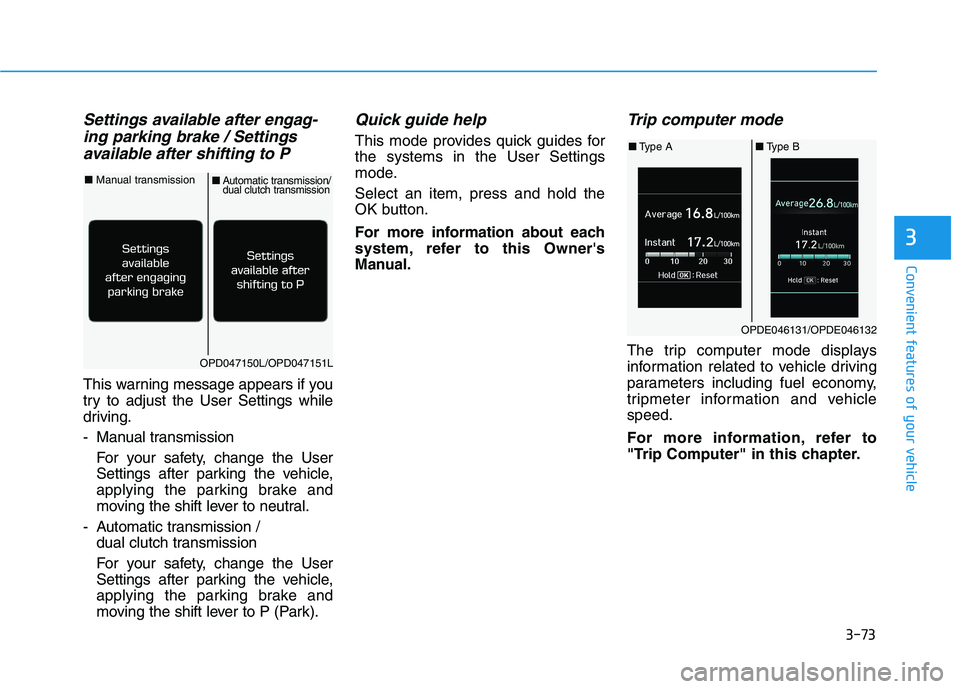
This warning message appears if you
try to adjust the User Settings while
driving.
- Manual transmission
For your safety, change the User
Settings after parking the vehicle,
applying the parking brake and
moving the shift lever to neutral.
- Automatic transmission / dual clutch transmission
For your safety, change the User
Settings after parking the vehicle,
applying the parking brake and
moving the shift lever to P (Park).
Quick guide help
This mode provides quick guides forthe systems in the User Settings
mode. Select an item, press and hold the
OK button.
For more information about each
system, refer to this Owner's
Manual.
Trip computer mode
The trip computer mode displays
information related to vehicle driving
parameters including fuel economy,
tripmeter information and vehiclespeed.
For more information, refer to
"Trip Computer" in this chapter.OPD047150L/OPD047151L
■Manual transmission
■Automatic transmission/dual clutch transmission
OPDE046131/OPDE046132
■ Type A ■Type B
Page 159 of 486
3-74
Convenient features of your vehicle
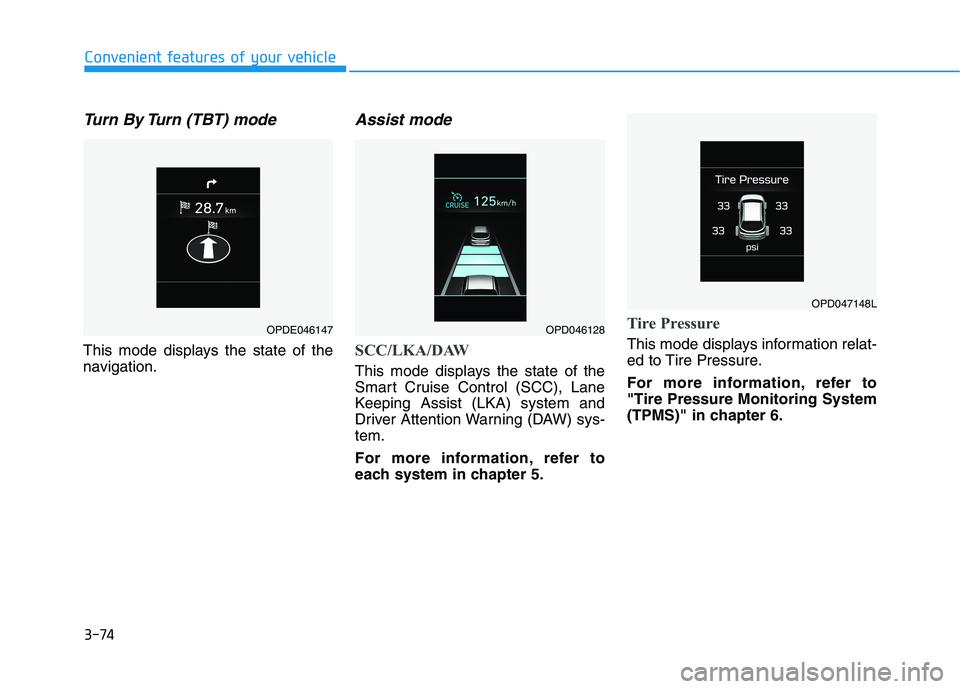
Turn By Turn (TBT) mode
This mode displays the state of the
navigation.
Assist mode
SCC/LKA/DAW
This mode displays the state of the
Smart Cruise Control (SCC), Lane
Keeping Assist (LKA) system and
Driver Attention Warning (DAW) sys-tem.
For more information, refer to
each system in chapter 5.
Tire Pressure
This mode displays information relat-
ed to Tire Pressure.
For more information, refer to "Tire Pressure Monitoring System
(TPMS)" in chapter 6.
OPDE046147OPD046128
OPD047148L
Page 160 of 486
3-75
Convenient features of your vehicle
3
Warning mode
If one of followings occurs, warning
messages will be displayed on the
LCD display for several seconds.
- LED headlamp malfunction (if equipped)
- Blind-spot Collision Warning (BCW) system malfunction (if equipped)
- Forward Collision-Avoidance Assist (FCA) system malfunction(if equipped)
- Smart cruise control malfunction (if equipped)
User settings mode
In this mode, you can change the
settings of the instrument cluster,
doors, lamps, etc.
1. Driver Assistance
2. Door
3. Lights
4. Sound
5. Convenience
6. Service Interval
7. Other
8. Reset
The information provided may differ depending on which functions are
applicable to your vehicle. 1. Driver Assistance
Lane Keeping Assist system
To adjust the sensitivity of the Lane
Keeping Assist (LKA) system.
- Lane Departure Warning/
Standard LKA/Active LKA
For more information, refer to the
"Lane Keeping Assist (LKA) sys-
tem" in chapter 5.
Driver Attention Warning (DAW) system
To adjust the sensitivity of the Driver
Attention Warning (DAW) system.
- Off/Normal/Early
For more information, refer to the
"Driver Attention Warning (DAW)
system" in chapter 5.
Smart Cruise Control Response
To adjust the sensitivity of the Smart
Cruise Control system.
- Slow/Normal/Fast
For more information, refer to the
"Smart Cruise Control" in chapter5.
Page 162 of 486
3-77
Convenient features of your vehicle
3
3. Lights
One Touch Turn Signal
- Off: The one touch turn signal func-tion will be deactivated.
- 3, 5, 7 Flashes: The turn signal indicator will blink 3, 5, or 7 times
when the turn signal lever is moved
slightly.
For more information, refer to
"Lighting" in this chapter.
Head Lamp Delay
To activate or deactivate the head-
light delay function.
For more information, refer to
"Lighting" in this chapter
4. Sound
Blind-spot Collision Warning Sound
To activate or deactivate the Blind-
spot Collision Warning sound.
For more information, refer to
"Blind-spot Collision Warning" in
chapter 5.
Welcome Sound
To activate or deactivate the wel- come sound function. 5. Convenience
Wireless Charging System
To activate or deactivate the wireless charging system in the front seat.
For more information, refer to
"Wireless Charging System" in
this chapter.
Wiper/Lights Display
To activate or deactivate the Wiper/
Light mode.
When activated, the LCD display
shows the selected Wiper/Light
mode whenever you change the
mode.
Auto Rear Wiper (reverse)
To activate or deactivate the rear
wiper while the vehicle is in reversewith the front wiper ON.
Gear Position Pop-up
To activate or deactivate the gear
position pop-up.
When activated, the gear position
will be displayed on the LCD display.
(if equipped with automatic transmis-
sion/dual clutch transmission)
6. Service
Service Interval
To activate or deactivate the service
interval function.
Adjust Interval
If the service interval menu is acti-
vated, you may adjust the time and
distance.
Information
To use the service interval menu, con-
sult an authorized HYUNDAI dealer.
If the service interval is activated and the time and distance is adjusted,
messages are displayed in the fol-
lowing situations each time the vehi-
cle is turned on.
- Service in : Displayed to inform the driver theremaining mileage and days to
service.
- Service required : Displayed when the mileage anddays to service has been reachedor passed.
i
Page 164 of 486
3-79
Convenient features of your vehicle
3
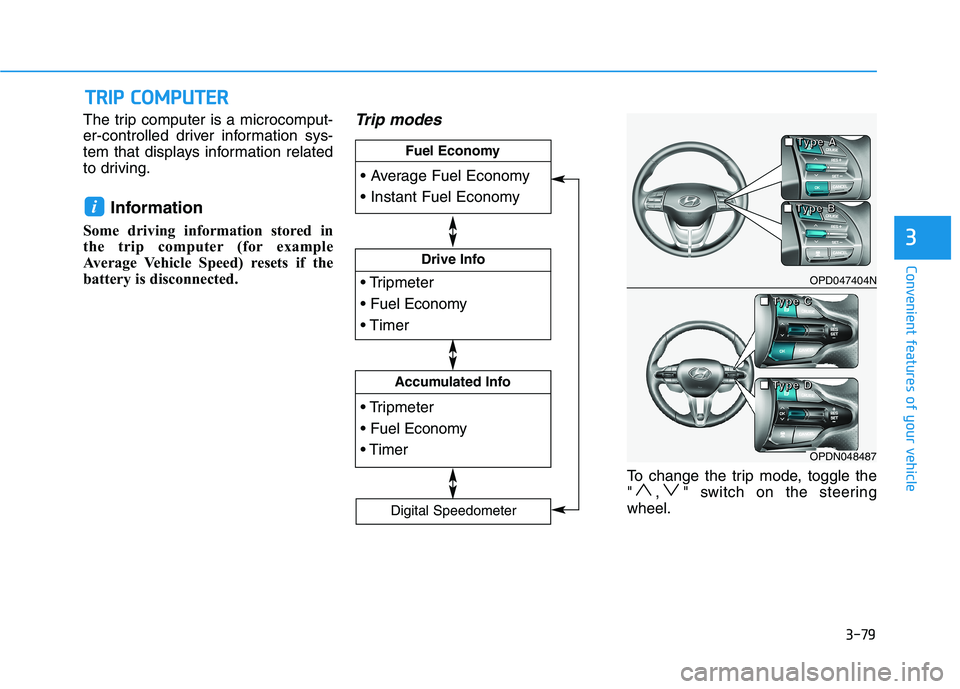
The trip computer is a microcomput-
er-controlled driver information sys-
tem that displays information related
to driving.Information
Some driving information stored in
the trip computer (for example
Average Vehicle Speed) resets if the
battery is disconnected.Trip modes
To change the trip mode, toggle the
" , " switch on the steeringwheel.
i
TT RR IIPP CC OO MM PPUU TTEERR
Drive Info
Accumulated Info
Fuel Economy
Digital Speedometer
OPD047404N
OPDN048487
■
■■■TTTTyyyyppppeeee AAAA
■■■■TTTTyyyyppppeeee CCCC
■■■■TTTTyyyyppppeeee DDDD
■■■■TTTTyyyyppppeeee BBBB
Page 165 of 486
3-80
Convenient features of your vehicle
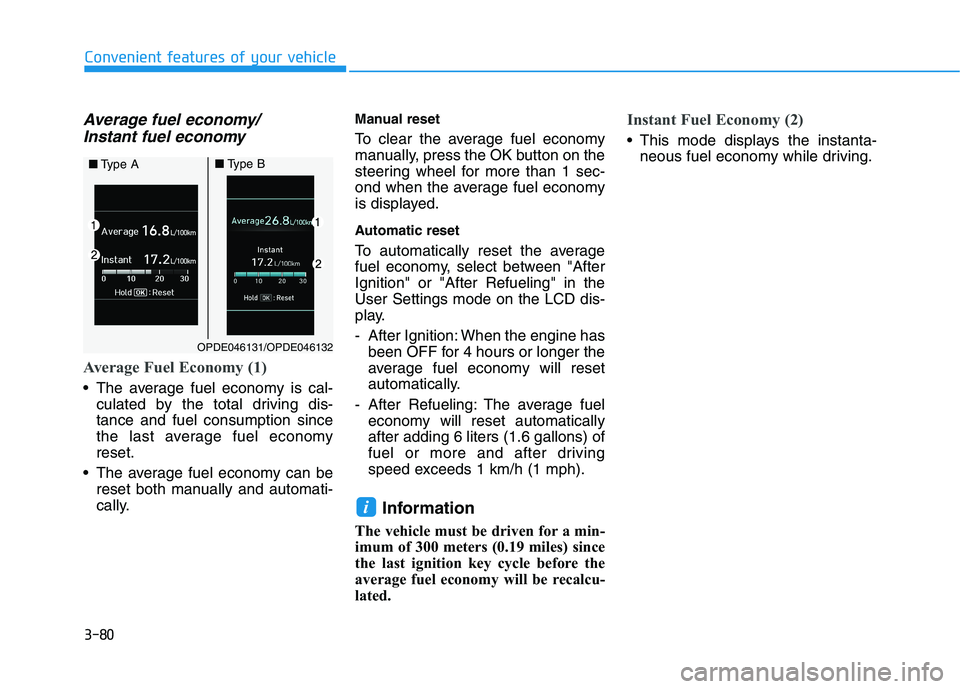
Average fuel economy/Instant fuel economy
Average Fuel Economy (1)
The average fuel economy is cal- culated by the total driving dis- tance and fuel consumption since
the last average fuel economyreset.
The average fuel economy can be reset both manually and automati-
cally. Manual reset
To clear the average fuel economy
manually, press the OK button on the
steering wheel for more than 1 sec-
ond when the average fuel economy
is displayed.
Automatic reset
To automatically reset the average
fuel economy, select between "AfterIgnition" or "After Refueling" in theUser Settings mode on the LCD dis-
play.
- After Ignition: When the engine has
been OFF for 4 hours or longer the
average fuel economy will reset
automatically.
- After Refueling: The average fuel economy will reset automaticallyafter adding 6 liters (1.6 gallons) of
fuel or more and after driving
speed exceeds 1 km/h (1 mph).
Information
The vehicle must be driven for a min-
imum of 300 meters (0.19 miles) since
the last ignition key cycle before the
average fuel economy will be recalcu-
lated.
Instant Fuel Economy (2)
This mode displays the instanta- neous fuel economy while driving.
i
OPDE046131/OPDE046132
■Type A■Type B