ESP HYUNDAI ELANTRA SE 2017 Owner's Manual
[x] Cancel search | Manufacturer: HYUNDAI, Model Year: 2017, Model line: ELANTRA SE, Model: HYUNDAI ELANTRA SE 2017Pages: 586, PDF Size: 15.29 MB
Page 239 of 586
3-145
Convenient features of your vehicle
3
W
WI
IN
N D
DS
SH
H I
IE
E L
LD
D
D
D E
EF
FR
R O
O S
ST
T I
IN
N G
G
A
A N
N D
D
D
D E
EF
FO
O G
GG
GI
IN
N G
G
For maximum defrosting, set the
temperature control to the extreme
right/hot position and the fan speed
control to the highest speed.
If warm air to the floor is desired while defrosting or defogging, set the
mode to the floor-defrost position.
Before driving, clear all snow and ice from the windshield, rear win-
dow, side view mirrors, and all side
windows.
Clear all snow and ice from the hood and air inlet in the cowl grill to
improve heater and defroster effi-
ciency and to reduce the probability
of fogging up the inside of the wind-
shield.
If the engine temperature is still
cold after starting, then a brief
engine warm up period may be
required for the vented air flow to
become warm or hot.Manual Climate Control System
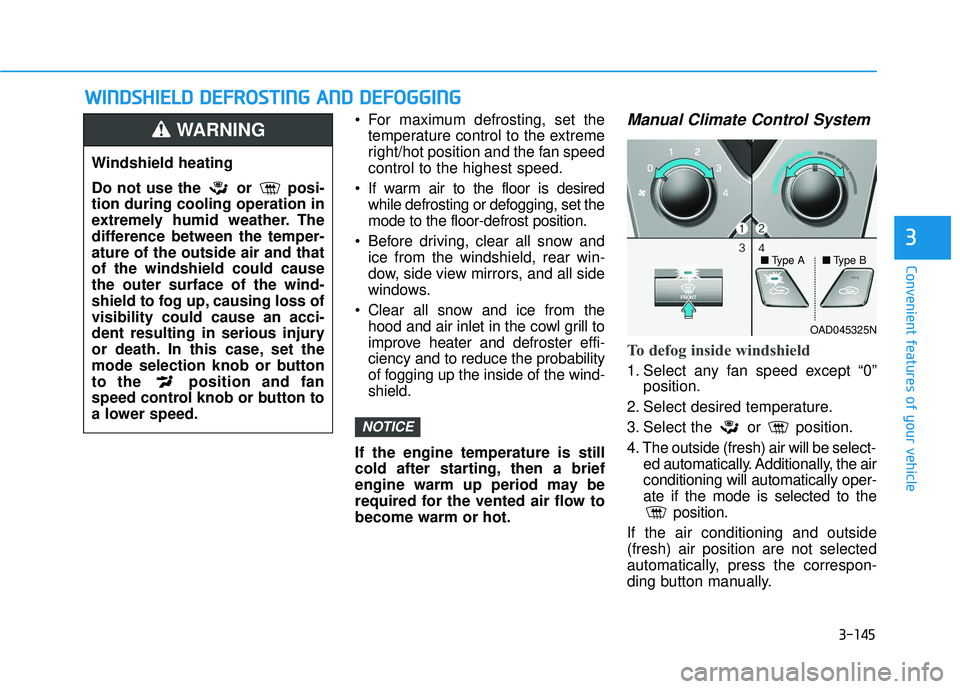
To defog inside windshield
1. Select any fan speed except “0” position.
2. Select desired temperature.
3. Select the or position.
4. The outside (fresh) air will be select- ed automatically. Additionally, the air
conditioning will automatically oper-
ate if the mode is selected to the position.
If the air conditioning and outside
(fresh) air position are not selected
automatically, press the correspon-
ding button manually.
NOTICE
Windshield heating
Do not use the or posi-
tion during cooling operation in
extremely humid weather. The
difference between the temper-
ature of the outside air and that
of the windshield could cause
the outer surface of the wind-
shield to fog up, causing loss of
visibility could cause an acci-
dent resulting in serious injury
or death. In this case, set the
mode selection knob or button
to the position and fan
speed control knob or button to
a lower speed.
WARNING
OAD045325N
■
Type A ■Type B
Page 240 of 586
3-146
Convenient features of your vehicle
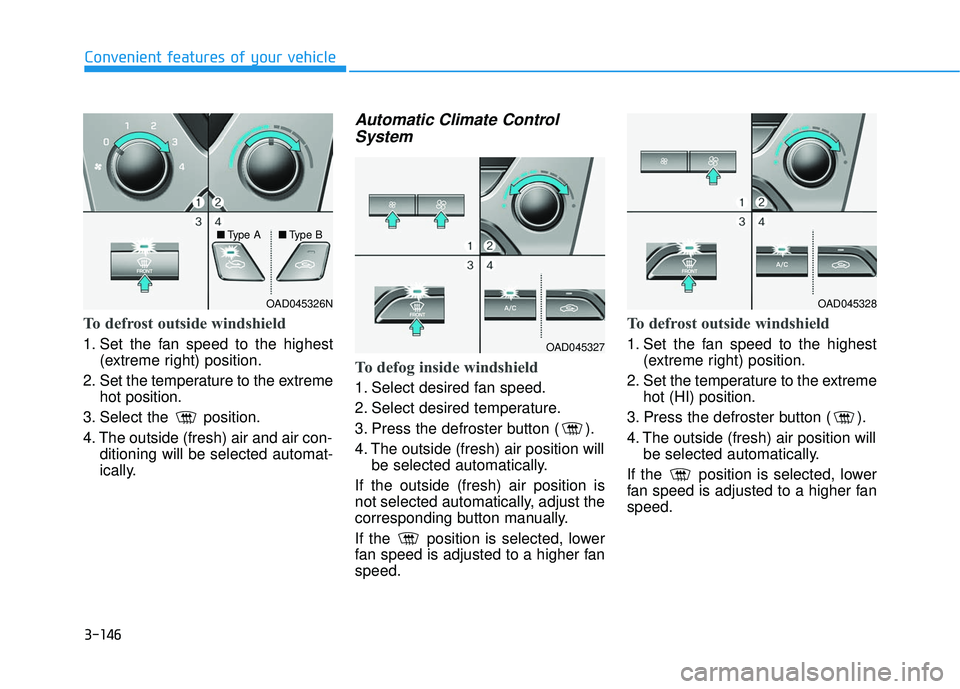
To defrost outside windshield
1. Set the fan speed to the highest(extreme right) position.
2. Set the temperature to the extreme hot position.
3. Select the position.
4. The outside (fresh) air and air con- ditioning will be selected automat-
ically.
Automatic Climate Control System
To defog inside windshield
1. Select desired fan speed.
2. Select desired temperature.
3. Press the defroster button ( ).
4. The outside (fresh) air position will
be selected automatically.
If the outside (fresh) air position is
not selected automatically, adjust the
corresponding button manually.
If the position is selected, lower
fan speed is adjusted to a higher fan
speed.
To defrost outside windshield
1. Set the fan speed to the highest (extreme right) position.
2. Set the temperature to the extreme hot (HI) position.
3. Press the defroster button ( ).
4. The outside (fresh) air position will be selected automatically.
If the position is selected, lower
fan speed is adjusted to a higher fan
speed.
OAD045326NOAD045328
OAD045327
■
Type A ■Type B
Page 268 of 586
(Continued)
• Park the vehicle when connectingthe head unit with the mobile phone.
• Bluetooth
®connection may become
intermittently disconnected in some
mobile phones. Follow these steps to
try again.
1. Within the mobile phone, turn the Bluetooth
®function off/on and try
again.
2. Turn the mobile phone power Off/On and try again.
3. Completely remove the mobile phone battery, reboot, and then
again.
4. Reboot the Audio System and try again.
5. Delete all paired devices, pair and try again.
• Handsfree call quality and volume may differ depending on the model
of your mobile phone.
Information - Using the voicerecognition
• When using the voice recognition feature, only commands listed with-
in the user's manual are supported.
• Be aware that during the operation of the voice recognition system,
pressing any key other than the
key terminate the voice recognition
mode.
• For superior voice recognition per- formance, position the microphone
used for voice recognition above the
head of the driver’s seat and main-
tain a proper position when saying
commands.
• Within the following situations, voice recognition may not function
properly due to external sound.
- When the windows and sunroofare open
- When the wind of the cooling / heating device is strong
- When entering and passing through tunnels
(Continued)(Continued)
- When driving on rugged anduneven roads
- During severe rain (heavy rains, windstorms)
• Phone related voice commands can be used only when a Bluetooth
®
Wireless Technology device is con-
nected.
• When making calls by stating a name, the corresponding contact
must be downloaded and stored
within the audio system.
• After downloading the Bluetooth
®
Wireless Technology phone book, it
takes some times to convert the
phone book data into voice informa-
tion. During this time, voice recogni-
tion may not properly operate.
• Pronounce the voice commands nat- urally and clearly as if in a normal
conversation.
i
4-16
Multimedia System
Page 278 of 586
4-26
Multimedia SystemAudio System Safety Warnings
Do not stare at the screen
while driving. Staring at the
screen for prolonged periods
of time could lead to traffic
accidents.
Do not disassemble, assem-
ble, or modify the audio sys-
tem. Such acts could result in
accidents, fire, or electric
shock.
Using the phone while driving
may lead to a lack of attention
of traffic conditions and
increase the likelihood of
accidents. Use the phone fea-
ture after parking the vehicle.
Exercise caution not to spill
water or introduce foreign
objects into the device. Such
acts could lead to smoke, fire,
or product malfunction. (Continued)
(Continued)
Please refrain from use if the
screen is blank or no sound
can be heard as these signs
may indicate product mal func-
tion. Continued use in such
conditions could lead to acci-
dents (fires, electric shock) or
product malfunctions.
Do not touch the antenna dur-
ing thunder or lightening as
such acts may lead to light-
ning induced electric shock.
Do not stop or park in park-
ing-restricted areas to operate
the product. Such acts could
lead to traffic accidents.
WARNING
Distracted Driving
Driving while distracted can
result in a loss of vehicle con-
trol that may lead to an acci-
dent, severe personal injury,
and death. The driver’s primary
responsibility is in the safe and
legal operation of a vehicle, and
use of any handheld devices,
other equipment, or vehicle sys-
tems which take the driver’s
eyes, attention and focus away
from the safe operation of a
vehicle or which are not permis-
sible by law should never be
used during operation of the
vehicle.
WARNING
Page 282 of 586
4-30
Multimedia System
(Continued)
• When connecting iPod
®with the
iPod®Cable, fully insert the USB
connector side of the cable into the
vehicle USB port. If not inserted
completely, communications between
the iPod
®and audio may be inter-
rupted.
• When adjusting the iPod
®sound
settings and the audio system, the
audio sound of both devices may
overlap and may reduce or distort
the sound quality.
• Deactivate (turn off) the iPod
®
equalizer function when adjusting
the audio system’s volume, and turn
off the audio system equalizer when
using the iPod
®equalizer.
• Disconnect the iPod
®cable when not
using the iPod®with the vehicle
audio system. Otherwise, iPod®may
remain in accessory mode, and may
not work properly.
• Use an iPod
®/iPhone®USB cable
shorter than 1 meter in length, longer
cables cannot be recognized.
Information
- Using the Bluetooth®Wireless
Technology Cellular Phone
(if equipped)
• Bluetooth
®Wireless Technology
Handsfree refers to a device which
allows the user to conveniently
make phone calls with Bluetooth
®
Wireless Technology mobile phones
through the audio system.
• Bluetooth
®Wireless Technology
allows devices to be connected in a
short distance, including hands-free
devices, stereo headsets, wireless
remote controllers, etc. For more
information, visit the Bluetooth
®
Wireless Technology website at
www
.Bluetooth.com. Before using
Bluetooth®Wireless Technology
audio features.
• The Bluetooth
®word mark and
logos are registered trademarks
owned by Bluetooth
®SIG, Inc. and
any use of such marks by Hyundai is
under license. Other trademarks
and trade names are those of their
respective owners. A Bluetooth
®
enabled cell phone is required to use
Bluetooth®Wireless Technology.
(Continued) (Continued)
•
Bluetooth
®Wireless Technology fea-
tures supported within the vehicle
are as follows. Some features may
not be supported depending on your
Bluetooth
®Wireless Technology
device.
- Answering and placing Bluetooth
®
Wireless Technology Handsfree
calls
- Menu operation during call (Switch to Private, Switch to call
waiting, Outgoing volume)
- Download Call History
- Download Mobile Phone book
- Phone book/Call History Auto Download
- Bluetooth
®Wireless Technology
device auto connection
- Bluetooth
®Wireless Technology
Audio
(Continued)
i
Page 285 of 586
4-33
Multimedia System
4
Excessive use or operationswhile driving may lead to negli-
gent driving practices and be
the cause of accidents.
Do not operate the device exces- sively while driving.
Viewing the screen for pro- longed periods of time while
driving is dangerous and may
lead to accidents.
Information
- Using Voice Recognition(if equipped)
• When using the voice recognition feature, only commands listed with-
in the user's manual are supported.
• Be aware that when the voice recog- nition system is active, pressing any
button other than the button ter-
minates voice recognition mode.
• For optimal voice recognition per- formance, position your head below
the microphone located above the
driver’s seat and maintain proper
position when speaking voice com-
mands.
• Within the following situations, voice recognition may not function
properly due to external sound.
- When the windows and sunroofare open
- When the blower AC/heater is set to high
- When entering and passing through tunnels
- When driving on rugged and uneven roads
(Continued)(Continued)
- During severe rain (heavy rains,windstorms)
• Phone related voice commands can be used only when a Bluetooth
®
Wireless Technology device is con-
nected.
• When making calls by name, the corresponding contact must be
downloaded and stored within the
audio system.
• After downloading the phone book, it takes some time to convert the
phone book data into voice informa-
tion. During this time, voice recogni-
tion may not operate properly.
• Pressing and holding the button : While holding the button, frequency
changes without stopping. When the
button is released, the system auto-
matically searches for the next fre-
quency from that point.
iNOTICE
Page 286 of 586
![HYUNDAI ELANTRA SE 2017 Owners Manual 4-34
Multimedia System
Radio Mode
With the Radio Mode Button
Seek
Press the [SEEK TRACK]button.
Short press : Automatically search- es for the next station.
Press and hold : While holding the button](/img/35/56090/w960_56090-285.png "HYUNDAI ELANTRA SE 2017 Owners Manual 4-34
Multimedia System
Radio Mode
With the Radio Mode Button
Seek
Press the [SEEK TRACK]button.
Short press : Automatically search- es for the next station.
Press and hold : While holding the button")
4-34
Multimedia System
Radio Mode
With the Radio Mode Button
Seek
Press the [SEEK TRACK]button.
Short press : Automatically search- es for the next station.
Press and hold : While holding the button, frequency changes without
stopping. When the button is
released, the system automatically
searches for the next frequency
from that point.
Preset
Press the [1] ~ [6] button.
Short press : Plays the frequency saved in the corresponding button.
Press and hold : Pressing and holding the desired button from [1]
~ [6] will save the currently playing
broadcast to the selected button
and sound a BEEP.
Scan
Press the [SCAN] button.
Short press : The broadcast fre- quency increases and previews
each broadcast for 5 seconds
each. After scanning all frequen-
cies, returns and plays the current
broadcast frequency.
Press and hold : Previews the broadcasts saved in Preset [1] ~
[6] for 5 seconds each.
Selecting through manual search
Turn the TUNE knob left/right to
adjust the radio frequency.
MENU : Radio
Within [MENU] button is the A.Store
(Auto Store).
A.Store (Auto Store) : [1] Button
Select A.Store (Auto Store) to save
frequencies with superior reception
to presets [1]~ [6]. If no frequencies
are received, then the most recently
received frequency will be broad-
cast.
Page 290 of 586
![HYUNDAI ELANTRA SE 2017 Owners Manual 4-38
Multimedia System
Category
Press the [CAT/FOLDER]button.
The display will indicate the catego- ry menus, highlight the category
that the current channel belongs to.
In the Category List Mode, p](/img/35/56090/w960_56090-289.png "HYUNDAI ELANTRA SE 2017 Owners Manual 4-38
Multimedia System
Category
Press the [CAT/FOLDER]button.
The display will indicate the catego- ry menus, highlight the category
that the current channel belongs to.
In the Category List Mode, p")
4-38
Multimedia System
Category
Press the [CAT/FOLDER]button.
The display will indicate the catego- ry menus, highlight the category
that the current channel belongs to.
In the Category List Mode, press the [CAT/FOLDER] button to navi-
gate category list.
Press the tune knob to select the lowest channel in the highlighted
category.
If channel is selected by selecting category, then the “CATEGORY”
icon is displayed at the top of the
screen.
Preset
Press the [1] ~ [6] button
Short press : Plays the channel saved in the corresponding button.
Press and hold : Pressing and holding the desired button from [1]
~ [6] will save the current broad-
cast to the selected button and
sound a BEEP.
Information
- Troubleshooting
1. Antenna Error If this message is displayed, the
antenna or antenna cable is broken
or unplugged. Please consult with
your Hyundai dealership.
2. No Signal If this message is displayed, it
means that the antenna is covered
and that the SiriusXM Satellite
Radio signal is not available.
Ensure the antenna is uncovered
and has a clear view of the sky.
Tune
Rotate TUNEknob : Changes the
channel number or scrolls catego-
ry list.
Press
TUNEknob : Selects the
menu.
Menu : SiriusXM Radio
Press the [MENU] button.
Info (Information) : [1]Button
Displays the Artist/Song info of the
current song.
i
Page 296 of 586
4-44
Multimedia System
Information
- Using the My Music(if equipped)
• Even if memory is available, a max- imum of 6,000 songs can be stored.
• The same song can be copied up to 1,000 times.
• Memory info can be checked in the System menu of Setup.
MENU : Bluetooth® Wireless
Technology Audio (if equipped)
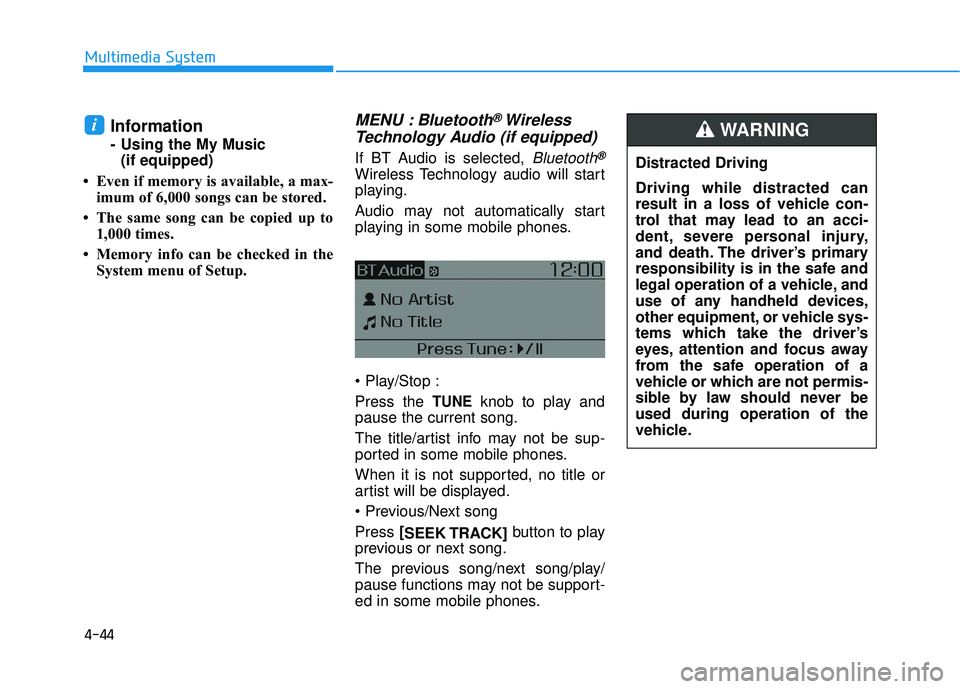
If BT Audio is selected, Bluetooth®
Wireless Technology audio will start
playing.
Audio may not automatically start
playing in some mobile phones.
Press the
TUNEknob to play and
pause the current song.
The title/artist info may not be sup-
ported in some mobile phones.
When it is not supported, no title or
artist will be displayed.
Press [
SEEK TRACK] button to play
previous or next song.
The previous song/next song/play/
pause functions may not be support-
ed in some mobile phones.
i
Distracted Driving
Driving while distracted can
result in a loss of vehicle con-
trol that may lead to an acci-
dent, severe personal injury,
and death. The driver’s primary
responsibility is in the safe and
legal operation of a vehicle, and
use of any handheld devices,
other equipment, or vehicle sys-
tems which take the driver’s
eyes, attention and focus away
from the safe operation of a
vehicle or which are not permis-
sible by law should never be
used during operation of the
vehicle.
WARNING
Page 304 of 586
4-52
Multimedia System
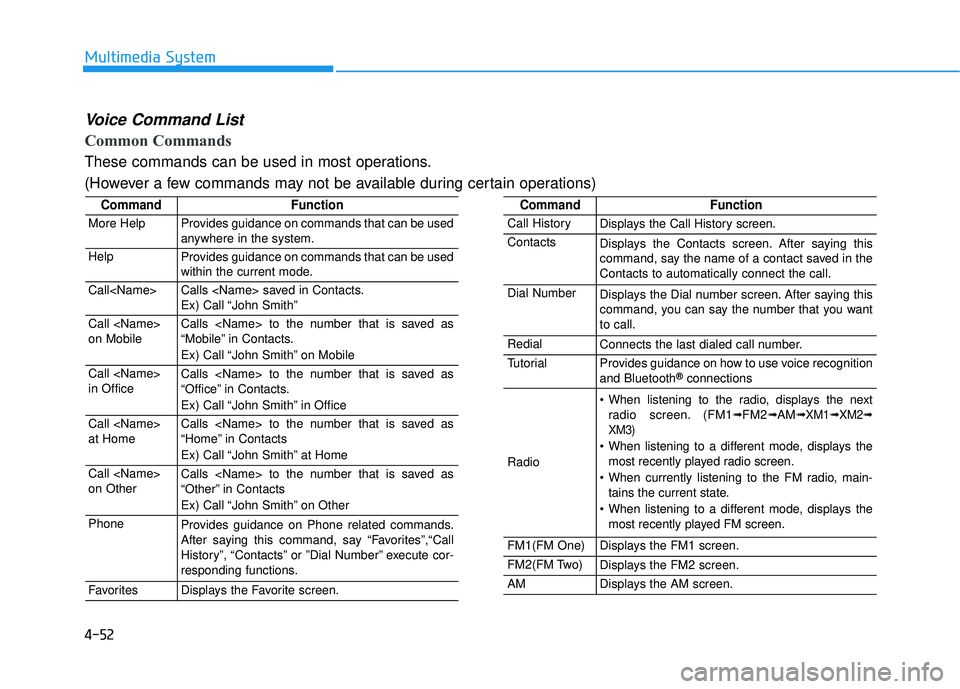
Voice Command List
Common Commands
These commands can be used in most operations.
(However a few commands may not be available during certain operations)
CommandFunction
More HelpProvides guidance on commands that can be used
anywhere in the system.
HelpProvides guidance on commands that can be used
within the current mode.
Call
Ex) Call “John Smith”
Call
on MobileCalls
“Mobile” in Contacts.
Ex) Call “John Smith” on Mobile
Call
in OfficeCalls
“Office” in Contacts.
Ex) Call “John Smith” in Office
Call
at HomeCalls
“Home” in Contacts
Ex) Call “John Smith” at Home
Call
on OtherCalls
“Other” in Contacts
Ex) Call “John Smith” on Other
PhoneProvides guidance on Phone related commands.
After saying this command, say “Favorites”,“Call
History”, “Contacts” or ”Dial Number” execute cor-
responding functions.
FavoritesDisplays the Favorite screen.
CommandFunction
Call HistoryDisplays the Call History screen.
ContactsDisplays the Contacts screen. After saying this
command, say the name of a contact saved in the
Contacts to automatically connect the call.
Dial NumberDisplays the Dial number screen. After saying this
command, you can say the number that you want
to call.
RedialConnects the last dialed call number.
TutorialProvides guidance on how to use voice recognition
and Bluetooth®connections
Radio
When listening to the radio, displays the nextradio screen. (FM1➟FM2➟AM➟ XM1➟ XM2➟
XM3)
When listening to a different mode, displays the most recently played radio screen.
When currently listening to the FM radio, main- tains the current state.
When listening to a different mode, displays the most recently played FM screen.
FM1(FM One)Displays the FM1 screen.
FM2(FM Two)Displays the FM2 screen.
AMDisplays the AM screen.