display HYUNDAI ELANTRA SE 2017 Workshop Manual
[x] Cancel search | Manufacturer: HYUNDAI, Model Year: 2017, Model line: ELANTRA SE, Model: HYUNDAI ELANTRA SE 2017Pages: 586, PDF Size: 15.29 MB
Page 215 of 586
3-121
Convenient features of your vehicle
3
D
DR
RI
IV
V E
ER
R
A
A S
SS
SI
IS
S T
T
S
S Y
Y S
ST
T E
EM
M
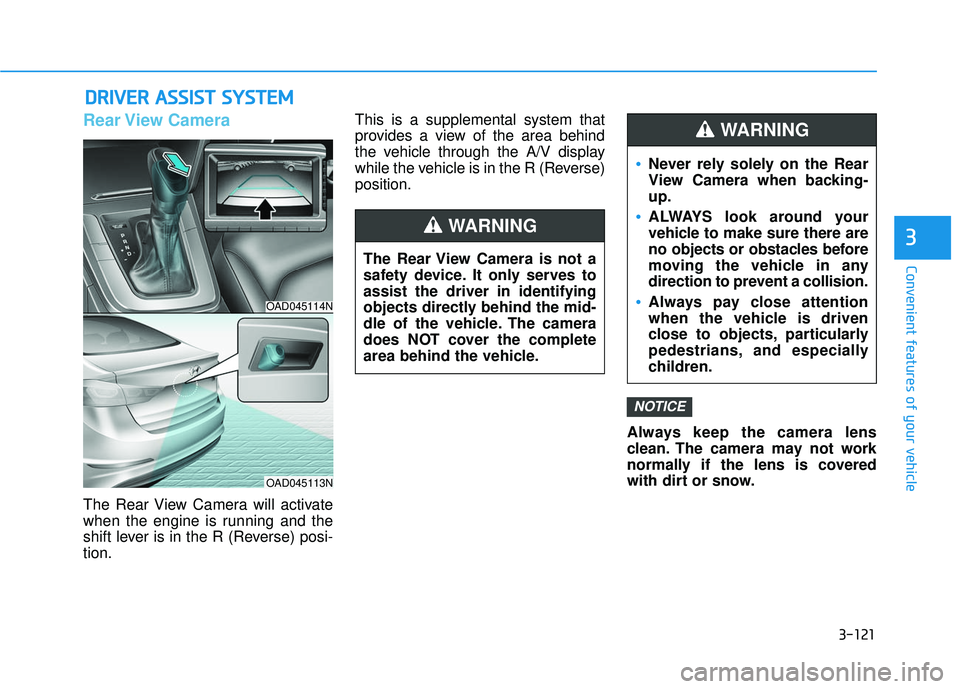
Rear View Camera
The Rear View Camera will activate
when the engine is running and the
shift lever is in the R (Reverse) posi-
tion. This is a supplemental system that
provides a view of the area behind
the vehicle through the A/V display
while the vehicle is in the R (Reverse)
position.
Always keep the camera lens
clean. The camera may not work
normally if the lens is covered
with dirt or snow.
NOTICE
The Rear View Camera is not a
safety device. It only serves to
assist the driver in identifying
objects directly behind the mid-
dle of the vehicle. The camera
does NOT cover the complete
area behind the vehicle.
WARNING
Never rely solely on the Rear
View Camera when backing-
up.
ALWAYS look around your
vehicle to make sure there are
no objects or obstacles before
moving the vehicle in any
direction to prevent a collision.
Always pay close attention
when the vehicle is driven
close to objects, particularly
pedestrians, and especially
children.
WARNING
OAD045114N
OAD045113N
Page 228 of 586
3-134
Convenient features of your vehicle
Automatic Heating and Air
Conditioning
The Automatic Climate Control
System is controlled by setting the
desired temperature.
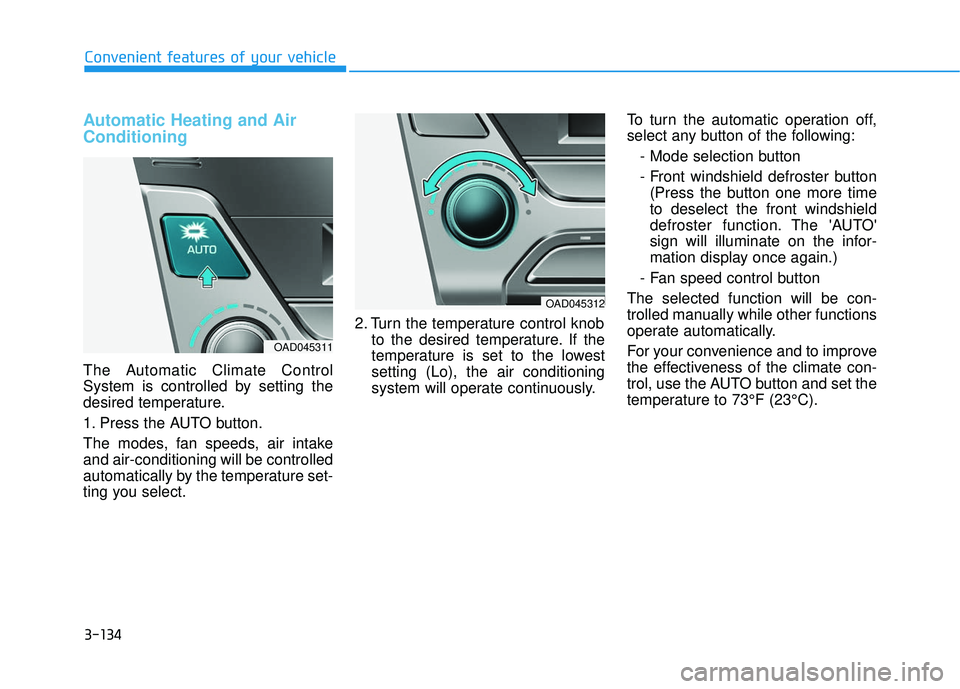
1. Press the AUTO button.
The modes, fan speeds, air intake
and air-conditioning will be controlled
automatically by the temperature set-
ting you select.2. Turn the temperature control knob
to the desired temperature. If the
temperature is set to the lowest
setting (Lo), the air conditioning
system will operate continuously. To turn the automatic operation off,
select any button of the following:
- Mode selection button
- Front windshield defroster button(Press the button one more time
to deselect the front windshield
defroster function. The 'AUTO'
sign will illuminate on the infor-
mation display once again.)
- Fan speed control button
The selected function will be con-
trolled manually while other functions
operate automatically.
For your convenience and to improve
the effectiveness of the climate con-
trol, use the AUTO button and set the
temperature to 73°F (23°C).
OAD045311
OAD045312
Page 233 of 586
3-139
Convenient features of your vehicle
3
Adjusting the driver and passen-
ger side temperature individually
Press the "SYNC" button again to
operate the driver and passenger
side temperature individually. The
button indicator will turn off.
Temperature conversion
If the battery has been discharged or
disconnected, the temperature mode
display will reset to Fahrenheit.
To change the temperature unit from
°F to °C or °C to °F:
- On the instrument cluster, go toUser Settings Mode ➝ Other
Features ➝Temperature Unit.
- Press the AUTO button for 3 sec- onds while pressing the OFF button.
(Automatic climate control system)
Both the temperature unit on the
cluster LCD display and climate con-
trol screen will change.
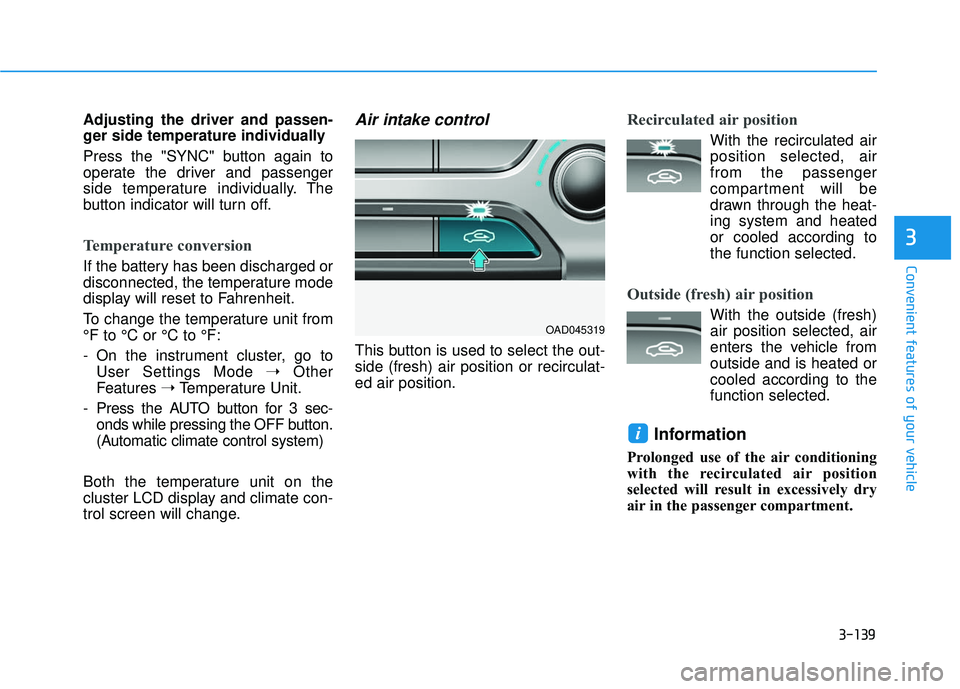
Air intake control
This button is used to select the out-
side (fresh) air position or recirculat-
ed air position.
Recirculated air position
With the recirculated air position selected, air
from the passenger
compartment will be
drawn through the heat-
ing system and heated
or cooled according to
the function selected.
Outside (fresh) air position
With the outside (fresh) air position selected, air
enters the vehicle from
outside and is heated or
cooled according to the
function selected.
Information
Prolonged use of the air conditioning
with the recirculated air position
selected will result in excessively dry
air in the passenger compartment.
i
OAD045319
Page 250 of 586
3-156
Convenient features of your vehicle
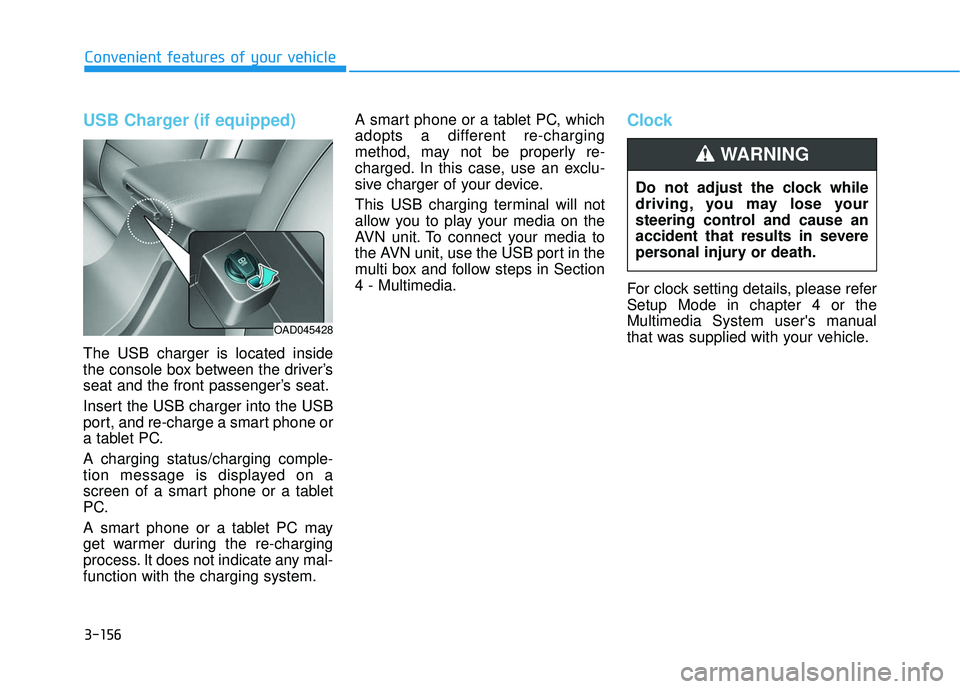
USB Charger (if equipped)
The USB charger is located inside
the console box between the driver’s
seat and the front passenger’s seat.
Insert the USB charger into the USB
port, and re-charge a smart phone or
a tablet PC.
A charging status/charging comple-
tion message is displayed on a
screen of a smart phone or a tablet
PC.
A smart phone or a tablet PC may
get warmer during the re-charging
process. It does not indicate any mal-
function with the charging system.A smart phone or a tablet PC, which
adopts a different re-charging
method, may not be properly re-
charged. In this case, use an exclu-
sive charger of your device.
This USB charging terminal will not
allow you to play your media on the
AVN unit. To connect your media to
the AVN unit, use the USB port in the
multi box and follow steps in Section
4 - Multimedia.
Clock
For clock setting details, please refer
Setup Mode in chapter 4 or the
Multimedia System user's manual
that was supplied with your vehicle.
Do not adjust the clock while
driving, you may lose your
steering control and cause an
accident that results in severe
personal injury or death.
WARNING
OAD045428
Page 253 of 586
Multimedia System
Multimedia system .................................................4-2
AUX, USB and iPod®port ...............................................4-2
Antenna ........................................................................\
.......4-2
Steering Wheel Audio Controls ......................................4-3
Bluetooth®Wireless Technology Hands-Free ...........4-4
Audio (Display Audio) / Video /
Navigation System (AVN).................................................4-4
How Vehicle Audio Works ...............................................4-5
Features of Your Vehicle.................................................4-7
Caring for CDs ....................................................................4-8
Audio (Without Touch Screen) ..........................4-17
Features of Your Audio .................................................4-18
Radio Mode.......................................................................4\
-34
SiriusXM Radio Mode.....................................................4-37
Media Mode......................................................................4-\
39
Phone Mode .....................................................................4-4\
5
Voice Recognition Mode ...............................................4-49
Setup Mode ......................................................................4-\
57
Declaration of conformity ..................................4-67
FCC ........................................................................\
..............4-67
4
Page 256 of 586
4-4
Multimedia System
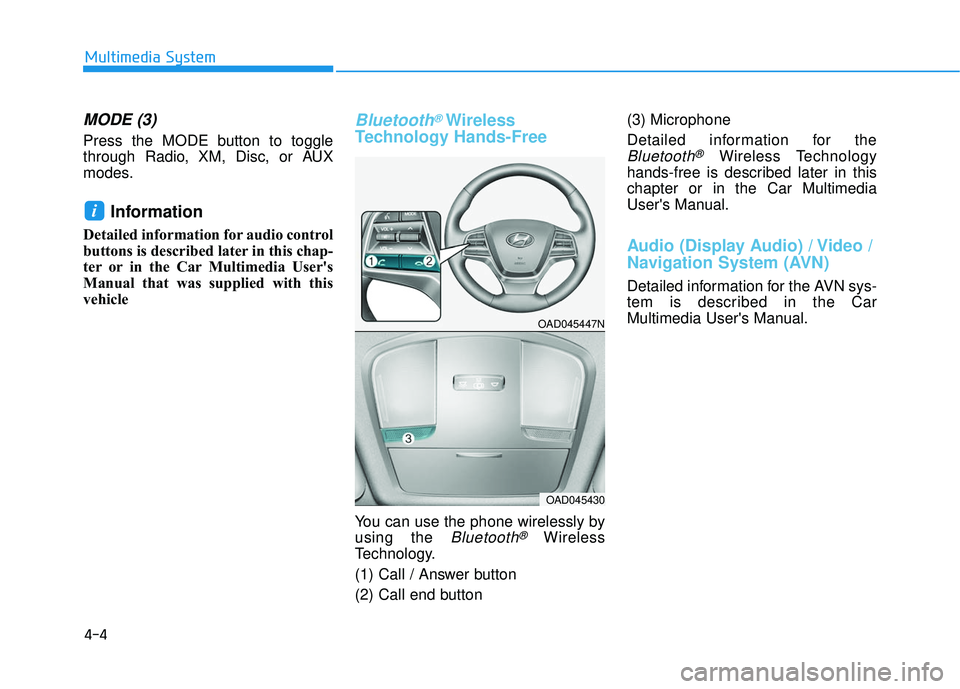
MODE (3)
Press the MODE button to toggle
through Radio, XM, Disc, or AUX
modes.
Information
Detailed information for audio control
buttons is described later in this chap-
ter or in the Car Multimedia User's
Manual that was supplied with this
vehicle
Bluetooth®Wireless
Technology Hands-Free
You can use the phone wirelessly by
using the
Bluetooth®Wireless
Technology.
(1) Call / Answer button
(2) Call end button (3) Microphone
Detailed information for the
Bluetooth®Wireless Technology
hands-free is described later in this
chapter or in the Car Multimedia
User's Manual.
Audio (Display Audio) / Video /
Navigation System (AVN)
Detailed information for the AVN sys-
tem is described in the Car
Multimedia User's Manual.
i
OAD045447N
OAD045430
Page 261 of 586
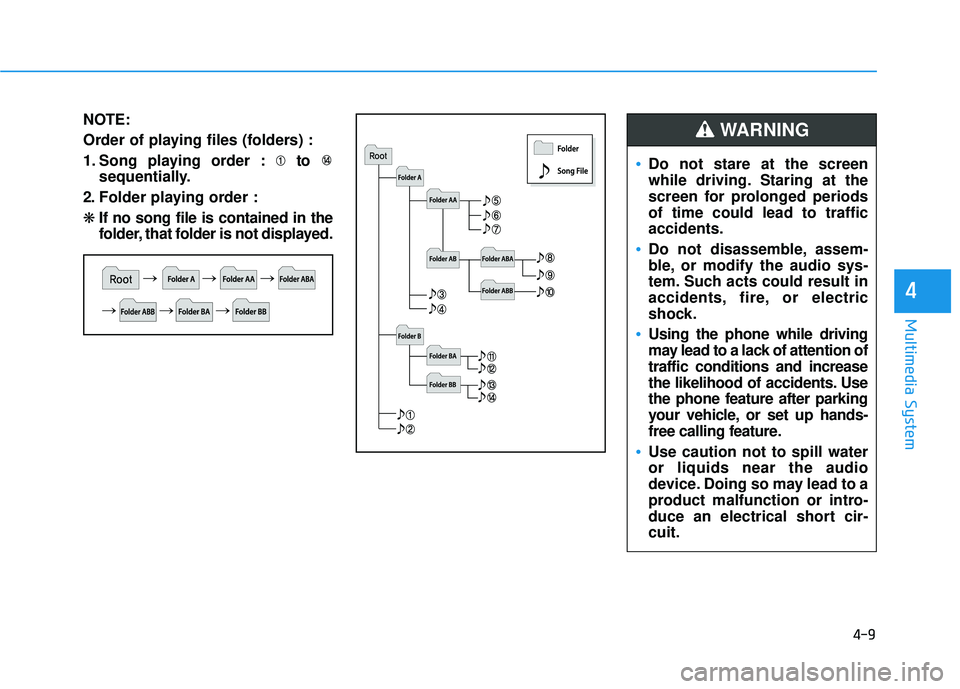
NOTE:
Order of playing files (folders) :
1. Song playing order : to sequentially.
2. Folder playing order :
❋ If no song file is contained in the
folder, that folder is not displayed.
4-9
Multimedia System
4
Do not stare at the screen
while driving. Staring at the
screen for prolonged periods
of time could lead to traffic
accidents.
Do not disassemble, assem-
ble, or modify the audio sys-
tem. Such acts could result in
accidents, fire, or electric
shock.
Using the phone while driving
may lead to a lack of attention of
traffic conditions and increase
the likelihood of accidents. Use
the phone feature after parking
your vehicle, or set up hands-
free calling feature.
Use caution not to spill water
or liquids near the audio
device. Doing so may lead to a
product malfunction or intro-
duce an electrical short cir-
cuit.
WARNING
Page 270 of 586
4-18
Multimedia System
Features of Your Audio
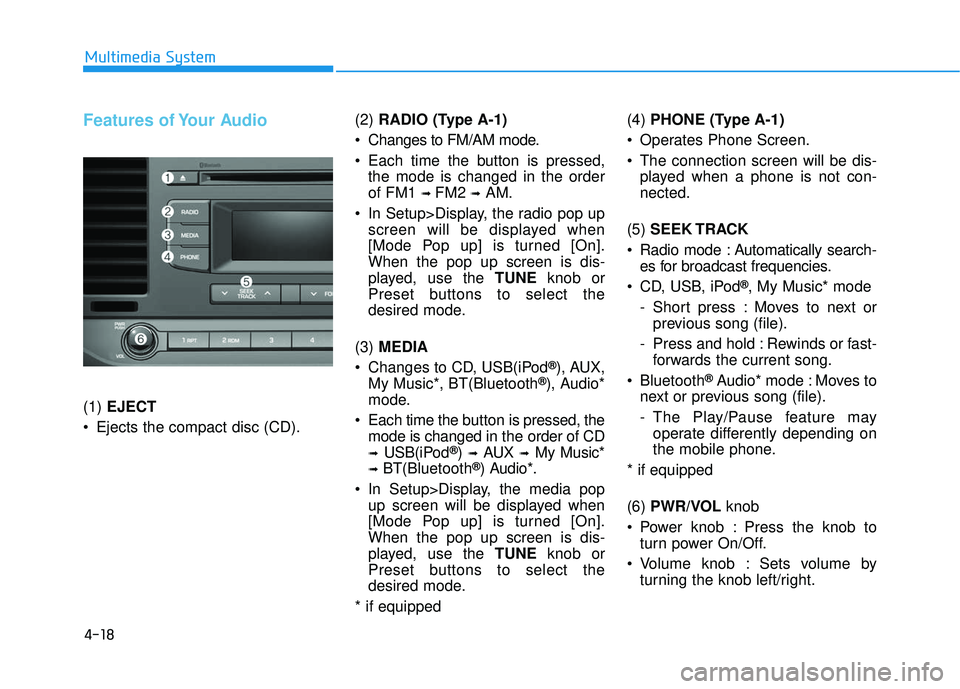
(1) EJECT
Ejects the compact disc (CD). (2)
RADIO (Type A-1)
Changes to FM/AM mode.
Each time the button is pressed, the mode is changed in the order
of FM1
➟ FM2 ➟AM.
In Setup>Display, the radio pop up screen will be displayed when
[Mode Pop up] is turned [On].
When the pop up screen is dis-
played, use the TUNE knob or
Preset buttons to select the
desired mode.
(3) MEDIA
Changes to CD, USB(iPod
®), AUX,
My Music*, BT(Bluetooth®), Audio*
mode.
Each time the b utton is pressed, the
mode is changed in the order of CD
➟USB(iPod®)➟AUX➟My Music*
➟BT(Bluetooth®) Audio*.
In Setup>Display, the media pop up screen will be displayed when
[Mode Pop up] is turned [On].
When the pop up screen is dis-
played, use the TUNE knob or
Preset buttons to select the
desired mode.
* if equipped (4)
PHONE (Type A-1)
Operates Phone Screen.
The connection screen will be dis- played when a phone is not con-
nected.
(5) SEEK TRACK
Radio mode : Automatically search- es for broadcast frequencies.
CD, USB, iPod
®, My Music* mode
- Short press : Moves to next or previous song (file).
- Press and hold : Rewinds or fast- forwards the current song.
Bluetooth
®Audio* mode : Moves to
next or previous song (file).
- The Play/Pause feature may operate differently depending on
the mobile phone.
* if equipped
(6) PWR/VOL knob
Power knob : Press the knob to turn power On/Off.
Volume knob : Sets volume by turning the knob left/right.
Page 271 of 586
![HYUNDAI ELANTRA SE 2017 Workshop Manual 4-19
Multimedia System
4
(7) [1] ~ [6] (Preset)
Radio mode : Saves frequencies (channels) or receives saved fre-
quencies (channels).
CD, USB, iPod
®, My Music* mode
- [RPT] : Repeat
- [RDM] : Rand](/img/35/56090/w960_56090-270.png "HYUNDAI ELANTRA SE 2017 Workshop Manual 4-19
Multimedia System
4
(7) [1] ~ [6] (Preset)
Radio mode : Saves frequencies (channels) or receives saved fre-
quencies (channels).
CD, USB, iPod
®, My Music* mode
- [RPT] : Repeat
- [RDM] : Rand")
4-19
Multimedia System
4
(7) [1] ~ [6] (Preset)
Radio mode : Saves frequencies (channels) or receives saved fre-
quencies (channels).
CD, USB, iPod
®, My Music* mode
- [RPT] : Repeat
- [RDM] : Random
In the Radio, Media, Setup, and
Menu pop up screen, the number
menu is selected.
* if equipped (8)
DISP
Each short press toggles through the following modes : Screen Off
➟
Screen On ➟Screen Off.
Audio operation is maintained and only the Screen will be turned Off.
In the Screen Off state, press any button to turn the Screen On again. (9)
SCAN
Radio mode - Short press : Previews eachbroadcast for 5 seconds each.
- Press and hold : Previews the broadcasts saved in Preset [1] ~
[6] for 5 seconds each.
- Press the [SCAN] button again
to continue listening to the cur-
rent frequency.
CD, USB, My Music* mode - Short press : Previews eachsong (file) for 10 seconds each.
- Press the [SCAN] button again
to continue listening to the cur-
rent song (file).
* if equipped
(10) SETUP/CLOCK
Moves to the Display, Sound, Clock, Phone, System setting
menu.
Page 272 of 586
4-20
Multimedia System
(11) MENU
Displays menus for the current mode.
®List : Move to parent catego-
ry.
(12) FOLDER
MP3 CD/USB mode - Folder Search
(13) TUNE knob
Radio mode : Changes frequency by turning the knob left/right.
CD, USB, iPod
®, My Music* mode :
Searches songs (files) by turning
the knob left/right. When the
desired song is displayed, press
the knob to play the song.
Moves focus in all selection menus and selects menus.
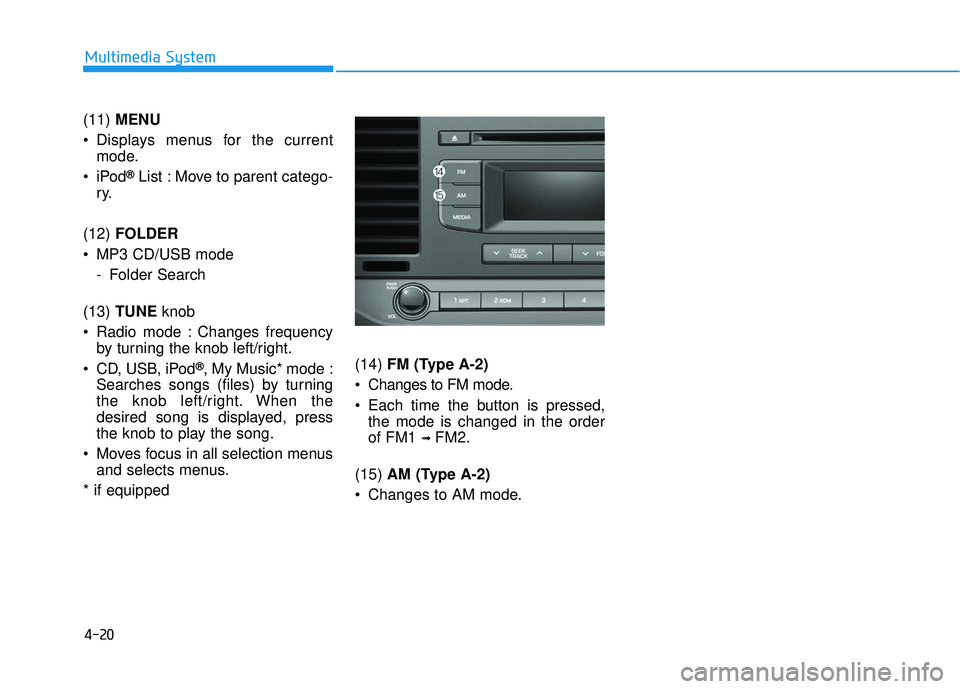
* if equipped (14)
FM (Type A-2)
Changes to FM mode.
Each time the button is pressed, the mode is changed in the order
of FM1
➟ FM2.
(15) AM (Type A-2)
Changes to AM mode.