ignition HYUNDAI ELANTRA SE 2017 Workshop Manual
[x] Cancel search | Manufacturer: HYUNDAI, Model Year: 2017, Model line: ELANTRA SE, Model: HYUNDAI ELANTRA SE 2017Pages: 586, PDF Size: 15.29 MB
Page 209 of 586
3-115
Convenient features of your vehicle
3
Interior Lights
Do not use the interior lights for
extended periods when the engine
is turned off or the battery will dis-
charge.
Interior lamp AUTO cut
The interior lamps will automatically
go off approximately 20 minutes after
the engine is turned off and the
doors closed. If a door is opened, the
lamp will go off 40 minutes after the
engine is turned off. If the doors are
locked by the remote key or smart
key and the vehicle enters the armed
stage of the theft alarm system, the
lamps will go off five seconds later.
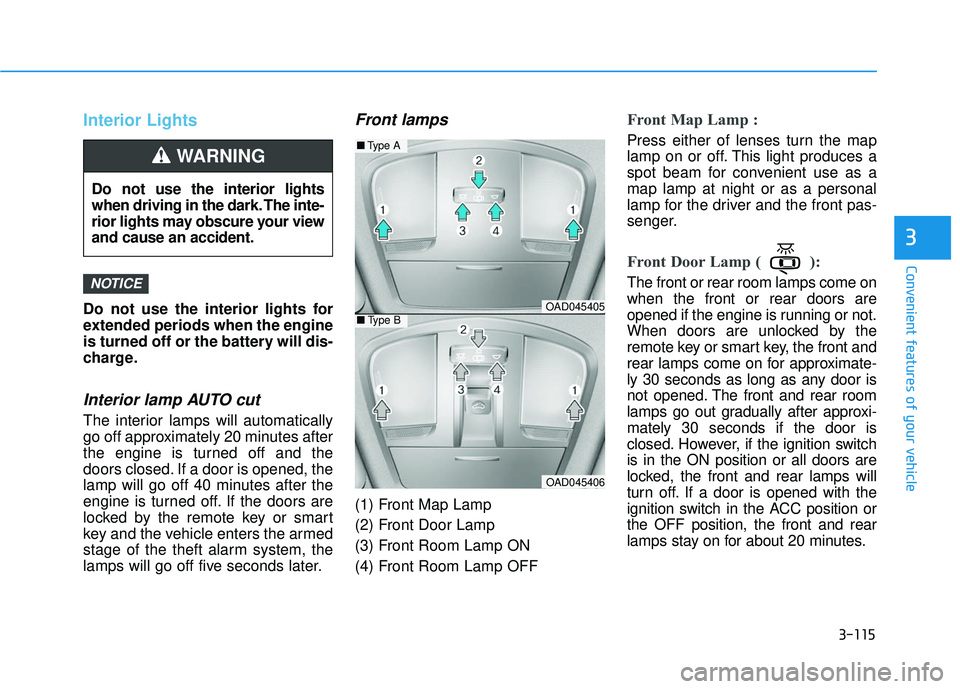
Front lamps
(1) Front Map Lamp
(2) Front Door Lamp
(3) Front Room Lamp ON
(4) Front Room Lamp OFF
Front Map Lamp :
Press either of lenses turn the map
lamp on or off. This light produces a
spot beam for convenient use as a
map lamp at night or as a personal
lamp for the driver and the front pas-
senger.
Front Door Lamp ( ):
The front or rear room lamps come on
when the front or rear doors are
opened if the engine is running or not.
When doors are unlocked by the
remote key or smart key, the front and
rear lamps come on for approximate-
ly 30 seconds as long as any door is
not opened. The front and rear room
lamps go out gradually after approxi-
mately 30 seconds if the door is
closed. However, if the ignition switch
is in the ON position or all doors are
locked, the front and rear lamps will
turn off. If a door is opened with the
ignition switch in the ACC position or
the OFF position, the front and rear
lamps stay on for about 20 minutes.NOTICE
Do not use the interior lights
when driving in the dark. The inte-
rior lights may obscure your view
and cause an accident.
WARNING
OAD045405
OAD045406
■Type A
■Type B
Page 216 of 586
3-122
Convenient features of your vehicle
D
DE
EF
FR
R O
O S
ST
T E
ER
R
To prevent damage to the conduc-
tors bonded to the inside surface
of the rear window, never use
sharp instruments or window
cleaners containing abrasives to
clean the window.
If you want to defrost and defog
the front windshield, refer to the
"Windshield Defrosting and
Defogging" section in this chapter.
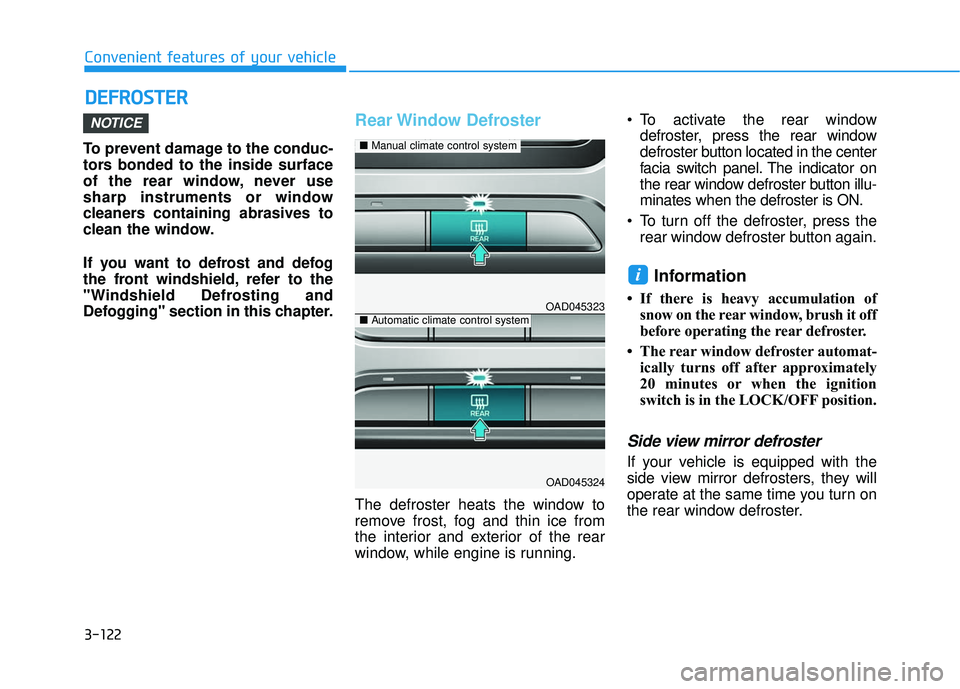
Rear Window Defroster
The defroster heats the window to
remove frost, fog and thin ice from
the interior and exterior of the rear
window, while engine is running. To activate the rear window
defroster, press the rear window
defroster button located in the center
facia switch panel. The indicator on
the rear window defroster button illu-
minates when the defroster is ON.
To turn off the defroster, press the rear window defroster button again.
Information
• If there is heavy accumulation ofsnow on the rear window, brush it off
before operating the rear defroster.
• The rear window defroster automat- ically turns off after approximately
20 minutes or when the ignition
switch is in the LOCK/OFF position.
Side view mirror defroster
If your vehicle is equipped with the
side view mirror defrosters, they will
operate at the same time you turn on
the rear window defroster.
i
NOTICE
OAD045323
OAD045324
■ Manual climate control system
■Automatic climate control system
Page 227 of 586
3-133
Convenient features of your vehicle
3
A
AU
U T
TO
O M
M A
AT
TI
IC
C
C
C L
LI
IM
M A
AT
TE
E
C
C O
O N
NT
TR
R O
O L
L
S
S Y
Y S
ST
T E
EM
M
OAD045310
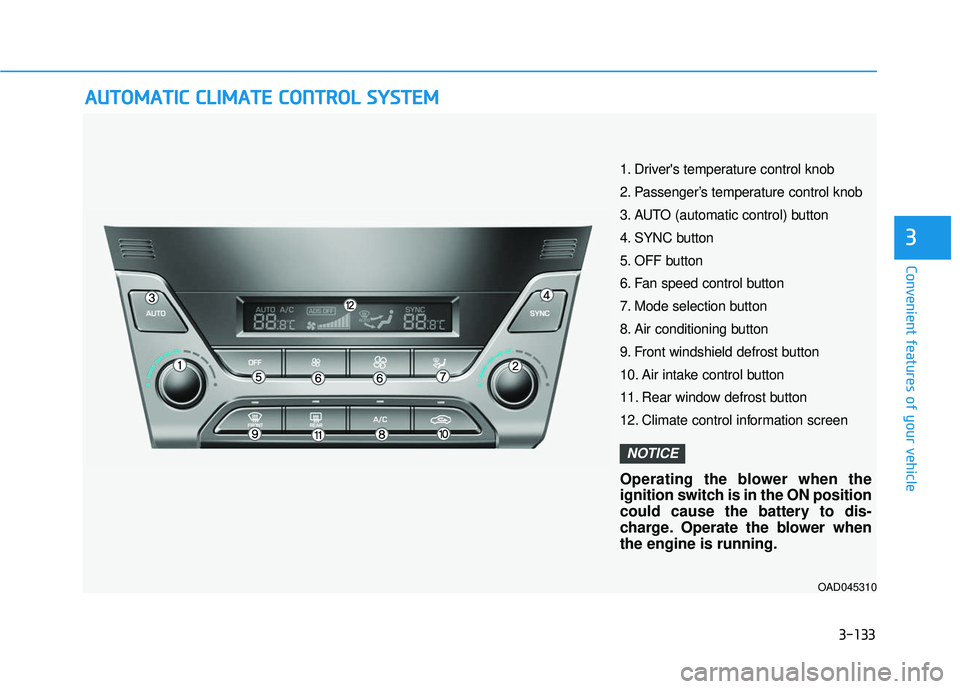
1. Driver's temperature control knob
2. Passenger’s temperature control knob
3. AUTO (automatic control) button
4. SYNC button
5. OFF button
6. Fan speed control button
7. Mode selection button
8. Air conditioning button
9. Front windshield defrost button
10. Air intake control button
11. Rear window defrost button
12. Climate control information screen
Operating the blower when the
ignition switch is in the ON position
could cause the battery to dis-
charge. Operate the blower when
the engine is running.
NOTICE
Page 235 of 586
3-141
Convenient features of your vehicle
3
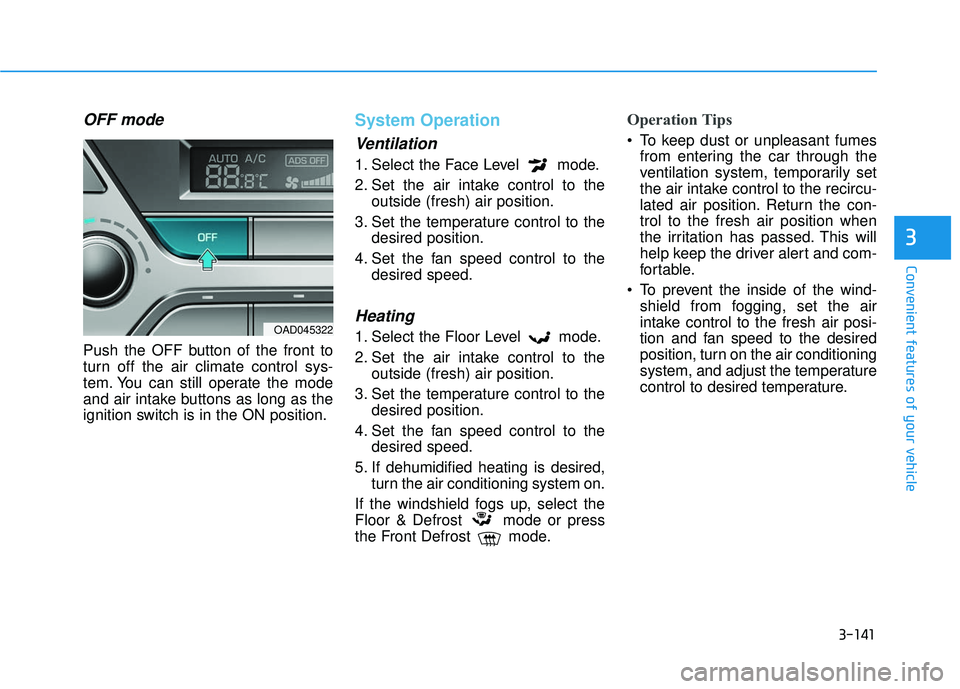
OFF mode
Push the OFF button of the front to
turn off the air climate control sys-
tem. You can still operate the mode
and air intake buttons as long as the
ignition switch is in the ON position.
System Operation
Ventilation
1. Select the Face Level mode.
2. Set the air intake control to theoutside (fresh) air position.
3. Set the temperature control to the desired position.
4. Set the fan speed control to the desired speed.
Heating
1. Select the Floor Level mode.
2. Set the air intake control to theoutside (fresh) air position.
3. Set the temperature control to the desired position.
4. Set the fan speed control to the desired speed.
5. If dehumidified heating is desired, turn the air conditioning system on.
If the windshield fogs up, select the
Floor & Defrost mode or press
the Front Defrost mode.
Operation Tips
To keep dust or unpleasant fumes from entering the car through the
ventilation system, temporarily set
the air intake control to the recircu-
lated air position. Return the con-
trol to the fresh air position when
the irritation has passed. This will
help keep the driver alert and com-
fortable.
To prevent the inside of the wind- shield from fogging, set the air
intake control to the fresh air posi-
tion and fan speed to the desired
position, turn on the air conditioning
system, and adjust the temperature
control to desired temperature.
OAD045322
Page 241 of 586
3-147
Convenient features of your vehicle
3
Defogging logic (if equipped)
To reduce the probability of fogging
up the inside of the windshield, the
air intake or air conditioning are con-
trolled automatically according to
certain conditions such as or
position. To cancel or return the
defogging logic, do the following.
Manual climate control system
1. Turn the ignition switch to the ONposition.
2. Press the defroster button ( ).
3. Press the air intake control button at least 5 times within 10 seconds.
The indicator on the air 3 seconds
immediately blinks 3 times with 0.5
seconds of interval. It indicates that
the defogging logic is canceled or
returned to the programmed status.
If the battery has been discharged or
disconnected, it resets to the defog
logic status.
Automatic climate control system
1. Turn the ignition switch to the ON position.
2. Press the defroster button ( ).
3. While pressing the air conditioning button (A/C), press the air intake
control button at least 5 times with-
in 3 seconds.
The climate control information
screen will blink 3 times with 0.5 sec-
onds of interval. It indicates that the
defogging logic is canceled or
returned to the programmed status.
If the battery has been discharged or
disconnected, it resets to the defog
logic status.
Page 243 of 586
3-149
Convenient features of your vehicle
3
C
CL
LI
IM
M A
AT
TE
E
C
C O
O N
NT
TR
R O
O L
L
A
A D
DD
DI
IT
T I
IO
O N
NA
AL
L
F
F E
E A
A T
TU
U R
RE
ES
S
(
( I
IF
F
E
E Q
Q U
UI
IP
P P
PE
ED
D )
)
Automatic Ventilation
(if equipped)
When the ignition switch is in the ON
position or when the engine is run-
ning and temperature is below 59°F
(15°C) with the recirculated air posi-
tion selected more than five minutes,
the air intake position will automati-
cally change to the outside (fresh) air
position.
To cancel or reset the Automatic
Ventilation
When the air conditioning system is
on, select Face Level mode and
while pressing the A/C button, press
the recirculated air position button
five times within three seconds.
Sunroof Inside Air
Recirculation (if equipped)
When the heater or air conditioning
system is on with the sunroof
opened, the outside (fresh) air posi-
tion will be automatically selected. At
this time, if you press the recirculated
air position button, the recirculated
air position will be selected but will
change back to the outside (fresh) air
position after 3 minutes.
When the sunroof is closed, the air
intake position will return to the orig-
inal position that was selected.
Page 263 of 586
(Continued)
• Clean fingerprints and dust off thedisc surface (coated side) with a soft
cloth.
• The use of CD-R/CD-RW discs attached with labels may result in
disc slot jams or difficulties in disc
removal. Such discs may also result
in noise while playing.
• Some CD-R/CD-RW discs may not properly operate depending on the
disc manufacturer, production
method and the record method as
used by the user. If problems persist,
trying using a different CD as con-
tinued use may result in malfunc-
tions.
• The performance of this product may differ depending on the CD-
RW Drive Software.
• Copy-protected CDs such as S-type CDs may not function in the device.
DATA discs cannot be played.
(However, such discs may still oper-
ate but will do so abnormally.)
(Continued)(Continued)
• Do not use abnormally shaped discs
(8cm, heart-shaped, octagon-shaped)
as such discs could lead to malfunc-
tions.
• If the disc is straddled on the disc slot without removal for 10 seconds,
the disc will automatically be re-
inserted into the disc player.
• Only genuine audio CDs are sup- ported. Other discs may result in
recognition failure (e.g. copy CD-R,
CDs with labels)Information -Using the USB
device
• Connect the USB device after turn- ing on the engine. The USB device
may become damaged if it is already
connected when the ignition is
turned on.The USB device may not
operate properly if the car ignition
is turned on or off with the USB
device connected.
• Heed caution to static electricity when connecting/disconnecting USB
devices.
• Encoded MP3 Players will not be recognized when connected as an
external device.
• When connecting an external USB device, the device may not properly
recognize the USB is in some states.
• Only products formatted with byte/sectors under 64Kbyte will be
recognized.
• This device recognizes USB devices formatted in FAT 12/16/32 file for-
mats. This device does not recognize
files in NTFS file format.
(Continued)i
4-11
Multimedia System
4
Page 267 of 586
Information - Before using
the Bluetooth®handsfree
What is Bluetooth®?
• Bluetooth®refers to a short-dis-
tance wireless networking technolo-
gy which uses a 2.4GHz ~ 2.48GHz
frequency to connect various
devices within a certain distance.
• Supported within PCs, external devices, Bluetooth
®phones, PDAs,
various electronic devices, and auto-
motive environments, Bluetooth
®
allows data to be transmitted at high
speeds without having to use a con-
nector cable.
• Bluetooth
®Handsfree refers to a
device which allows the user to con-
veniently make phone calls with
Bluetooth
®mobile phones through
the audio system.
• Bluetooth
®Handsfree may not be sup-
ported in some mobile phones. To learn
more about mobile device compatibility,
visit www
. hyundaiusa.com.
Information - Precautions for
safe driving
• Bluetooth
®Handsfree is a feature
that enables drivers to practice safe
driving. Connecting the head unit
with a Bluetooth
®phone allows the
user to conveniently make and
receive calls and use contacts.
Before using Bluetooth
®, carefully
read the contents of this user’s man-
ual.
• Excessive use or operations while driving may lead to negligent driv-
ing practices and result in accidents.
Refrain from excessive operations
while driving.
• Viewing the screen for prolonged periods of time is dangerous and
may lead to accidents. When driv-
ing, view the screen only for short
periods of time.
Information - When connect-
ing a Bluetooth®phone
• Before connecting the head unit with the mobile phone, check to see
that the mobile phone supports
Bluetooth
®features.
• Even if the phone supports Bluetooth
®, the phone will not be
found during device searches if the
phone has been set to hidden state
or the Bluetooth
®power is turned
off. Disable the hidden state or turn
on the Bluetooth
®power prior to
searching/connecting with the Head
unit.
• Bluetooth
®phone is automatically
connected when the ignition on.
• If you do not want automatic con- nection with your Bluetooth
®
device, turn off the Bluetooth®fea-
ture within your mobile phone.
• The Handsfree call volume and quality may differ depending on the
mobile phone.
(Continued)
iii
4-15
Multimedia System
4
Page 279 of 586
4-27
Multimedia System
4
Information
Turn on the car ignition before using
this device. Do not operate the audio
system for long periods of time with
the ignition turned off as such opera-
tions may lead to battery discharge. Do not subject the device to
severe shock or impact. Direct
pressure onto the front side of
the monitor may cause damage
to the LCD or touch screen.
When cleaning the device, make sure to turn off the device and
use a dry and smooth cloth.
Never use rough materials,
chemical cloths, or solvents
(alcohol, benzene, thinners, etc.)
as such materials may damage
the device panel or cause
color/quality deterioration.
Do not place beverages close to the audio system. Spilling bever-
ages may lead to system mal-
function.
Placing the audio system within an electromagnetic environment
may result in noise interference.
Information
In case of product malfunction, please
contact your dealer or vehicle service
center.
Information
- Using the USB Devices
• To use an external USB device, make sure the device is not connect-
ed when starting up the vehicle.
Connect the device after starting up.
• If you start the engine when the USB device is connected, it may
damage the USB device. (USB flash-
drives are very sensitive to electric
shock.)
• If the engine is started up or turned off while the external USB device is
connected, the external USB device
may not work.
• The System may not play unauthen- ticated MP3 or WMA files.
1) It can only play MP3 files with the compression rate between 8Kbps ~
320Kbps.
2) It can only play WMA music files with the compression rate between
8Kbps ~ 320Kbps.
• Take precautions for static electricity when connecting or disconnecting
the external USB device.
(Continued)
i
i
NOTICEi
Page 284 of 586
4-32
Multimedia System
(Continued)
1) Turn off the Bluetooth
®Wireless
Technology feature in your mobile
phone.
2) Turn off the Bluetooth
®Wireless
Technology feature in your car
audio system.
- To turn off the Bluetooth
®
Wireless Technology feature in
your car audio system, go to
[SETUP/CLOCK] > [Phone] and
[turn off] the Bluetooth
®Wireless
Technology feature.
• Bluetooth
®Wireless Technology
connection may become intermit-
tently disconnected in some mobile
phones. Follow these steps to try
again.
1) Turn the Bluetooth
®Wireless
Technology function within the
mobile phone off/on and try again.
2) Turn the mobile phone power Off/On and try again.
3) Completely remove the mobile phone battery, reboot, and then try
again.
4) Reboot the audio system and try again.
(Continued)(Continued)
5) Delete all paired devices, pair and
try again.
• It is possible to pair up to five Bluetooth
®Wireless Technology
devices to the car system.
• Phone contact names should be saved in English or they may not be
displayed correctly.
• The Handsfree call volume and quality may differ depending on the
mobile phone.
• Only one Bluetooth
®Wireless
Technology device can be connected
at a time.
• In some mobile phones, starting the ignition while talking through
Bluetooth
®Wireless Technology
enabled handsfree call will result in
the call becoming disconnected.
(Switch the call back to your mobile
phone when starting the ignition.)
• If the mobile phone is not paired or connected, it is not possible to enter
Phone mode. Once a phone is paired
or connected, the guidance screen
will be displayed.
(Continued)(Continued)
• Bluetooth
®Handsfree may not be
supported in some mobile phones.
To learn more about mobile device
compatibility, visit http://www.
hyundai.com/us/en/content/own-
ers/bluetooth.
• Bluetooth
®Wireless Technology
Handsfree is a feature that enables
drivers to practice safe driving.
Connecting the car audio system
with a Bluetooth
®Wireless
Technology phone allows the user to
conveniently make calls, receive
calls, and manage the phone book.
Before using the Bluetooth
®
Wireless Technology, carefully read
the contents of this user’s manual.