AUX HYUNDAI ENTOURAGE 2007 Owners Manual
[x] Cancel search | Manufacturer: HYUNDAI, Model Year: 2007, Model line: ENTOURAGE, Model: HYUNDAI ENTOURAGE 2007Pages: 398, PDF Size: 8.03 MB
Page 217 of 398
3201
Features of your vehicle
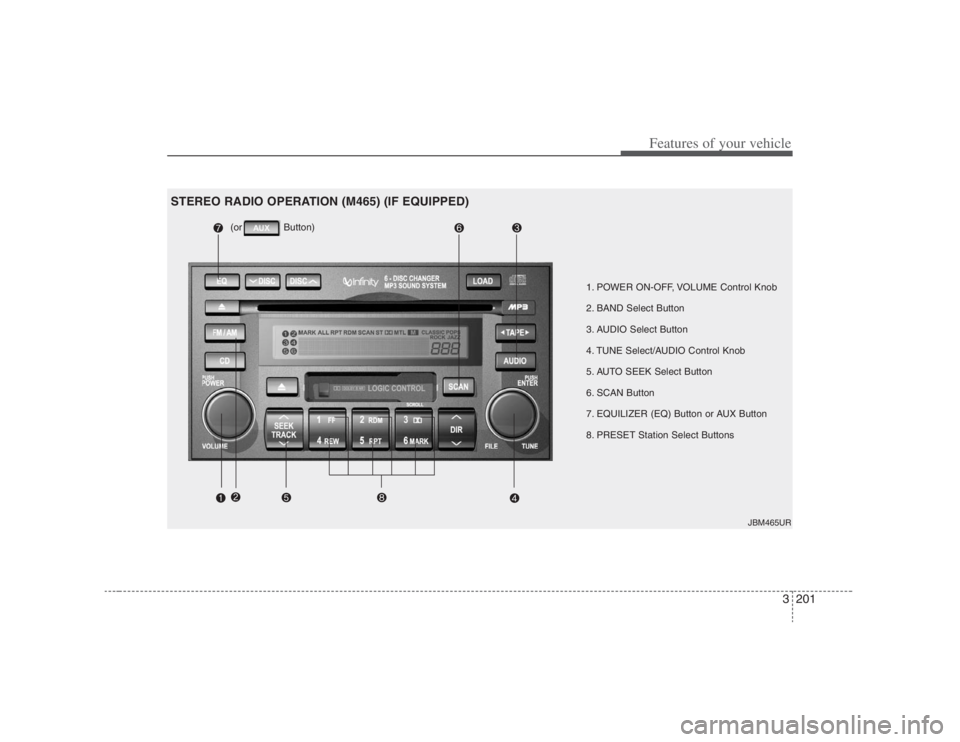
1. POWER ON-OFF, VOLUME Control Knob
2. BAND Select Button
3. AUDIO Select Button
4. TUNE Select/AUDIO Control Knob
5. AUTO SEEK Select Button
6. SCAN Button
7. EQUILIZER (EQ) Button or AUX Button
8. PRESET Station Select Buttons (or Button)
JBM465UR
STEREO RADIO OPERATION (M465) (IF EQUIPPED)
Page 219 of 398
3203
Features of your vehicle
7. EQUILIZER (EQ) Button or
AUXILARY (AUX) ButtonPress the EQ button to select the CLAS-
SIC, POPS, ROCK, JAZZ and OFF
MODE for the desired tone quality. Each
press of the button changes the display
as follows;
If the button is labeled AUX, it will
change to AUX mode when you press
the button, and the button has no EQ
function.
The AUX button is functional only if
Rear Seat Entertainment (RSE) unit is
on.
You can enjoy the RSE audio through
the speakers in AUX mode.
The speaker volume level is adjustable
by VOLUME(+,-) key, on RSE unit or
wireless remote control.
* Refer to the “RSE” in this section for
details RSE operation.
* RSE : Rear Seat Entertainment
System(A/V).
8. PRESET STATION Select
ButtonsSix stations for AM, FM1 and FM2
respectively can be preset in the elec-
tronic memory circuit.HOW TO PRESET STATIONSSix AM and twelve FM stations may be
programmed into the memory of the
radio. Then, by simply pressing the AM/
FM band select button and/or one of the
six station select buttons, you may recall
any of these stations instantly. To pro-
gram the stations, follow these steps:
Press AM/FM selector to set the band
for AM, FM1 and FM2.
Select the desired station to be stored
by seek or manual tuning.
Determine the preset station select
button you wish to use to access that
station. Press and hold the station select but-
ton for more than 1 second. A select
button indicator will show in the display
indicating which select button you have
depressed. The frequency display will
flash after it has been stored into the
memory. You should then release the
button, and proceed to program the
next desired station. A total of 18 sta-
tions can be programmed by selecting
one AM and two FM stations per but-
ton.
When completed, any preset station
may be recalled by selecting AM, FM1
or FM2 band and the appropriate sta-
tion button.
CLASSIC➟POPS➟ROCK➟JAZZ➟OFF
CAUTION
Do not place beverages close to
the audio system. The audio sys-
tem mechanism may be damaged
if you spill them.
Do not strike or allow anything to
impact the audio system, damage
to the system mechanisms could
occur.
Page 220 of 398
Features of your vehicle204 3
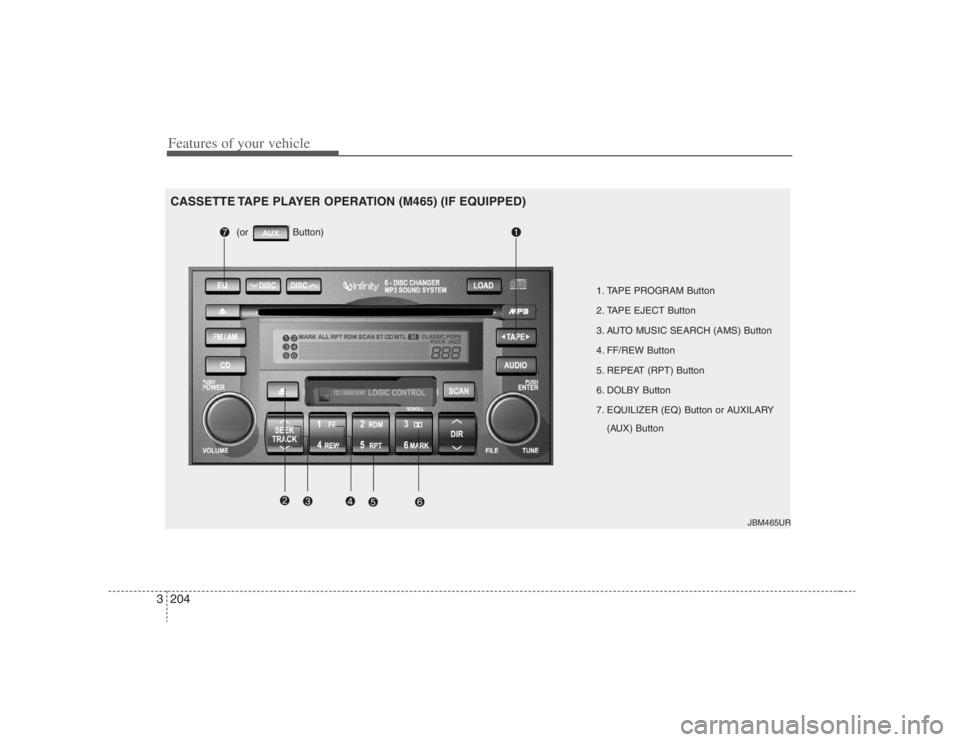
1. TAPE PROGRAM Button
2. TAPE EJECT Button
3. AUTO MUSIC SEARCH (AMS) Button
4. FF/REW Button
5. REPEAT (RPT) Button
6. DOLBY Button
7. EQUILIZER (EQ) Button or AUXILARY
(AUX) Button
JBM465UR
CASSETTE TAPE PLAYER OPERATION (M465) (IF EQUIPPED)
(or Button)
Page 221 of 398
3205
Features of your vehicle
1. TAPE PROGRAM Button This allows you to play the reverse side
of the tape by merely depressing the
program button. An arrow will appear in
the display to show tape direction.
Push the TAPE button while the tape is
in the tape deck, to turn on that func-
tion without pushing the Power ON-
OFF control knob.2. TAPE EJECT Button When the button is pressed with a
cassette loaded, the cassette will eject.
When the button is pressed during
FF/REW mode, the cassette will eject.3. AUTO MUSIC SEARCH (AMS)
ButtonPress the button to find the starting point
of each song in a prerecorded music
tape. The quiet space between songs
(must have at least 4 sec. gap) can be
identified by the AUTO MUSIC SEARCH
button.
Pressing the button will play the
beginning of the next music segment.
Pressing the button will start replay
at the beginning of the music just lis-
tened to.
To stop FF or REW action, press the
button again.
4. FF/REW Button Forward tape winding starts when the
FF button is pressed during PLAY or
REW mode.
Tape PLAY starts when the FF button
is pressed again during FF mode.
Tape rewinding starts when the REW
button is pressed during PLAY or FF
mode.
Tape PLAY starts when the REW but-
ton pressed again during REW mode.5. REPEAT (RPT) Button To repeat the track you are currently
listening to, press the RPT button. To
cancel, press again.
If you do not release RPT operation
when the track ends, it will automati-
cally be replayed.
This process will be continued until you
push the button again or turn the
power OFF then ON.6. DOLBY ButtonIf you get background noise during tape
PLAY, you can reduce this considerably
by merely pressing the DOLBY button. If
you want to cancel the DOLBY feature,
press the button again.
7. EQUILIZER (EQ) Button or
AUXILARY (AUX) ButtonPress the EQ button to select the CLAS-
SIC, POPS, ROCK, JAZZ and OFF
MODE for the desired tone quality. Each
press of the button changes the display
as follows;
If the button is labeled AUX, it will
change to AUX mode when you press
the button, and the button has no EQ
function.
The AUX button is functional only if
RSE unit is on.
You can enjoy the RSE audio through
the speakers in AUX mode.
The speaker volume level is adjustable
by VOLUME(+,-) key, on RSE unit or
wireless remote control.
* Refer to the “RSE” in this section for
details RSE operation.
* RSE : Rear Seat Entertainment
System(A/V).CLASSIC➟POPS➟ROCK➟JAZZ➟OFF
Page 223 of 398
3207
Features of your vehicle
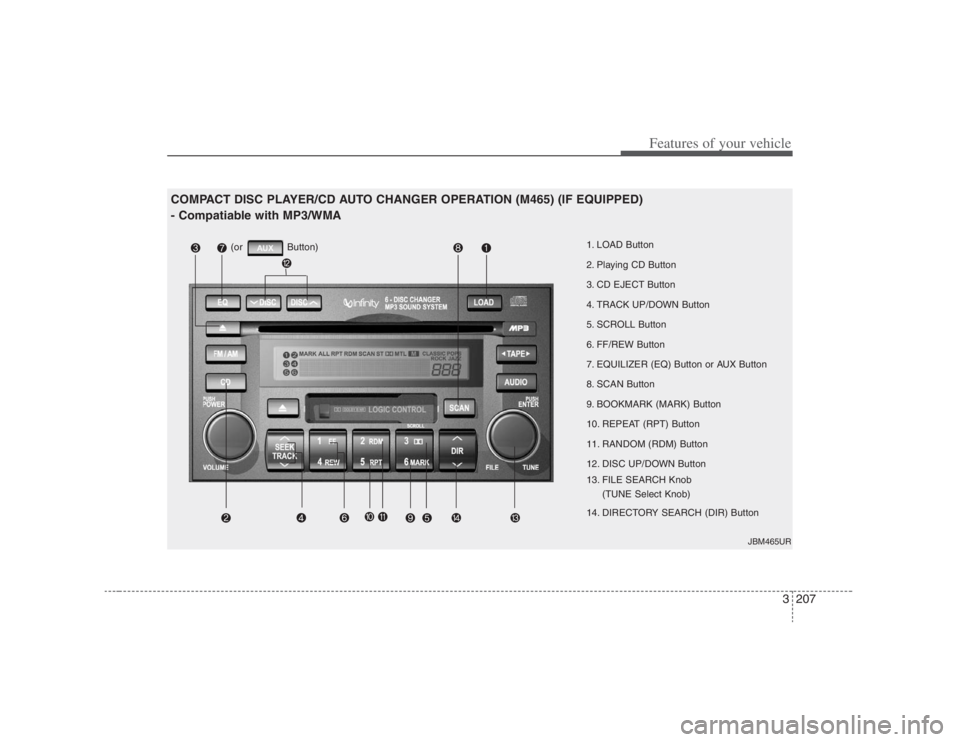
1. LOAD Button
2. Playing CD Button
3. CD EJECT Button
4. TRACK UP/DOWN Button
5. SCROLL Button
6. FF/REW Button
7. EQUILIZER (EQ) Button or AUX Button
8. SCAN Button
9. BOOKMARK (MARK) Button
10. REPEAT (RPT) Button
11. RANDOM (RDM) Button
12. DISC UP/DOWN Button
13. FILE SEARCH Knob
(TUNE Select Knob)
14. DIRECTORY SEARCH (DIR) Button
JBM465UR
COMPACT DISC PLAYER/CD AUTO CHANGER OPERATION (M465) (IF EQUIPPED)
- Compatiable with MP3/WMA
(or Button)
Page 225 of 398
3209
Features of your vehicle
✽ ✽
NOTICEPlayback of MP3 and WMA file formats
are supported. Load to play time for
these formats may be longer due to the
compressed nature of these discs.3. CD EJECT Button When the button is pressed with a
CD loaded, the CD will eject.
To eject all of the discs, press this but-
ton for one second or more.4. TRACK UP/DOWN Button The desired track on the disc currently
being played can be selected using the
track number.
Press once to skip forward to the
beginning of the next track.
Press once to skip back to the
beginning of the track.
Press before playback begins to
quickly move backward through a CD.
5. SCROLL ButtonPress the button, and you can check the file
names with more than 16 characters on
MP3 CD(max 34 characters).
The button doesn’t work on file names
less than 16 characters.6. FF/REW ButtonIf you want to fast forward or reverse
through the compact disc track, push and
hold the FF or REW button.
When you release the button, the compact
disc player will resume playing.7. EQUILIZER (EQ) Button or
AUXILARY (AUX) ButtonPress the EQ button to select the CLAS-
SIC, POPS, ROCK, JAZZ and OFF
MODE for the desired tone quality. Each
press of the button changes the display
as follows; If the button is labeled AUX, it will
change to AUX mode when you press
the button, and the button has no EQ
function.
The AUX button is functional only if
RSE unit is on.
You can enjoy the RSE audio through
the speakers in AUX mode.
The speaker volume level is adjustable
by VOLUME(+,-) key, on RSE unit or
wireless remote control.
* Refer to the “RSE” in this section for
details RSE operation.
* RSE : Rear Seat Entertainment
System(A/V).
8. SCAN Button To playback the first 10 seconds of
each track, press the SCAN button
more than 1 second.
To playback the first 10 seconds of
each track in the selected folder, press
the SCAN button within 1 second.
(MP3 CD only)
Press the SCAN button again within 10
sec. when you have reached the
desired track.
CLASSIC➟POPS➟ROCK➟JAZZ➟OFF
Page 230 of 398
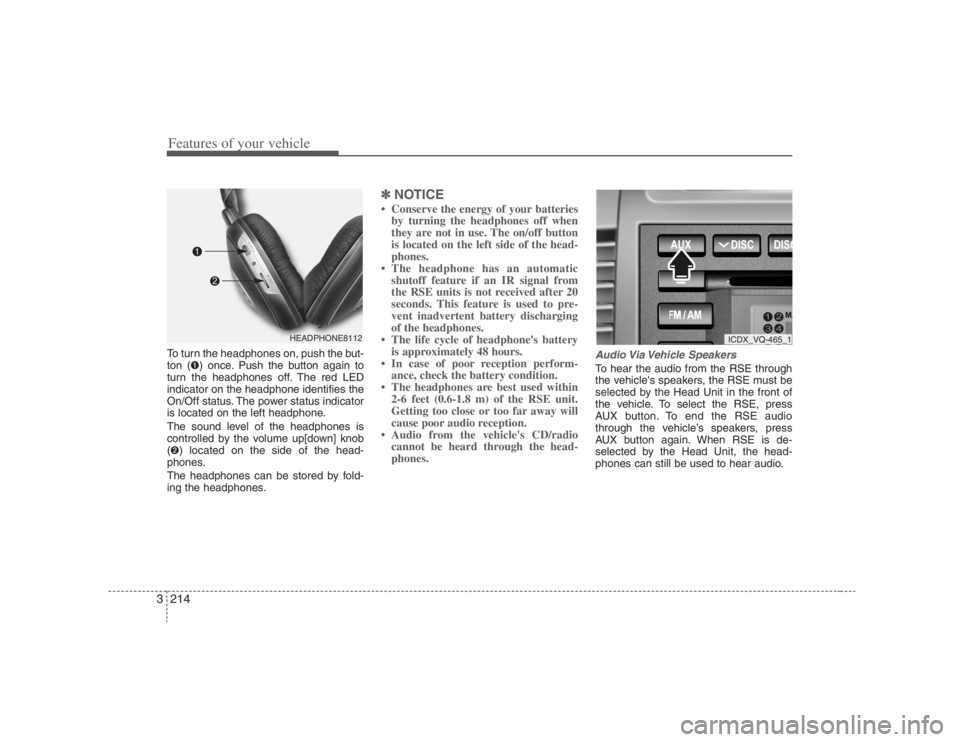
Features of your vehicle214 3To turn the headphones on, push the but-
ton (➊) once. Push the button again to
turn the headphones off. The red LED
indicator on the headphone identifies the
On/Off status. The power status indicator
is located on the left headphone.
The sound level of the headphones is
controlled by the volume up[down] knob
(➋) located on the side of the head-
phones.
The headphones can be stored by fold-
ing the headphones.
✽ ✽
NOTICE• Conserve the energy of your batteries
by turning the headphones off when
they are not in use. The on/off button
is located on the left side of the head-
phones.
• The headphone has an automatic
shutoff feature if an IR signal from
the RSE units is not received after 20
seconds. This feature is used to pre-
vent inadvertent battery discharging
of the headphones.
• The life cycle of headphone's battery
is approximately 48 hours.
• In case of poor reception perform-
ance, check the battery condition.
• The headphones are best used within
2-6 feet (0.6-1.8 m) of the RSE unit.
Getting too close or too far away will
cause poor audio reception.
• Audio from the vehicle's CD/radio
cannot be heard through the head-
phones.
Audio Via Vehicle SpeakersTo hear the audio from the RSE through
the vehicle's speakers, the RSE must be
selected by the Head Unit in the front of
the vehicle. To select the RSE, press
AUX button. To end the RSE audio
through the vehicle’s speakers, press
AUX button again. When RSE is de-
selected by the Head Unit, the head-
phones can still be used to hear audio.
HEADPHONE8112
ICDX_VQ-465_1
Page 231 of 398
3215
Features of your vehicle
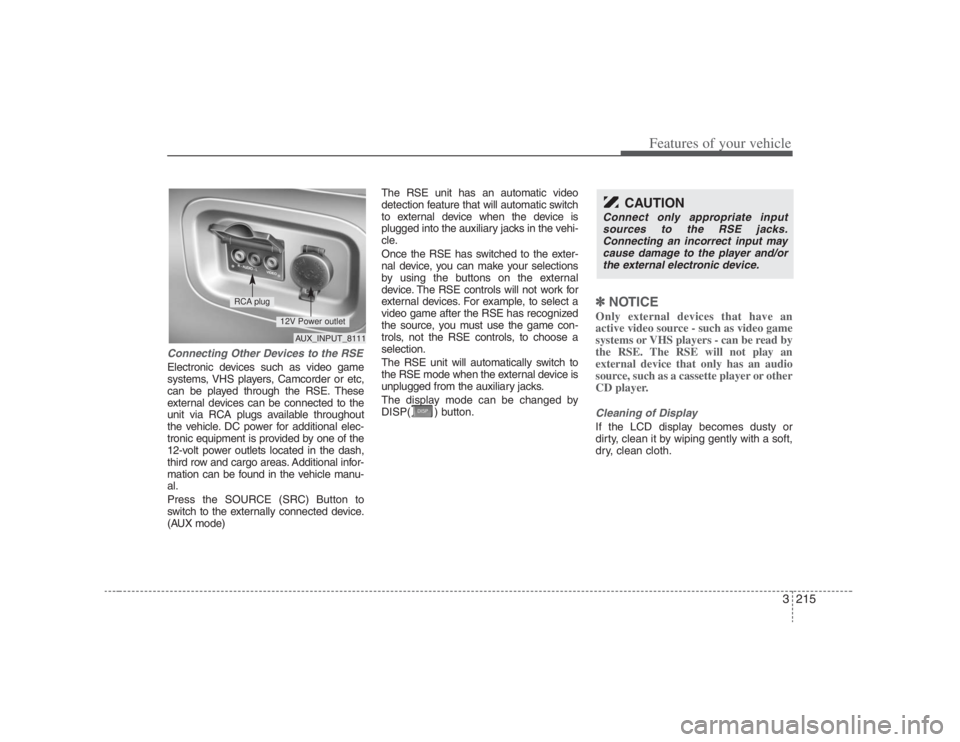
Connecting Other Devices to the RSEElectronic devices such as video game
systems, VHS players, Camcorder or etc,
can be played through the RSE. These
external devices can be connected to the
unit via RCA plugs available throughout
the vehicle. DC power for additional elec-
tronic equipment is provided by one of the
12-volt power outlets located in the dash,
third row and cargo areas. Additional infor-
mation can be found in the vehicle manu-
al.
Press the SOURCE (SRC) Button to
switch to the externally connected device.
(AUX mode)The RSE unit has an automatic video
detection feature that will automatic switch
to external device when the device is
plugged into the auxiliary jacks in the vehi-
cle.
Once the RSE has switched to the exter-
nal device, you can make your selections
by using the buttons on the external
device. The RSE controls will not work for
external devices. For example, to select a
video game after the RSE has recognized
the source, you must use the game con-
trols, not the RSE controls, to choose a
selection.
The RSE unit will automatically switch to
the RSE mode when the external device is
unplugged from the auxiliary jacks.
The display mode can be changed by
DISP( ) button.
✽ ✽
NOTICEOnly external devices that have an
active video source - such as video game
systems or VHS players - can be read by
the RSE. The RSE will not play an
external device that only has an audio
source, such as a cassette player or other
CD player.Cleaning of DisplayIf the LCD display becomes dusty or
dirty, clean it by wiping gently with a soft,
dry, clean cloth.
CAUTION
Connect only appropriate input
sources to the RSE jacks.
Connecting an incorrect input may
cause damage to the player and/or
the external electronic device.
AUX_INPUT_8111
RCA plug
12V Power outlet
Page 235 of 398
3219
Features of your vehicle
You have two options: 4:3 (normal) and
16:9 (widescreen). Press the display but-
ton to select the preferred aspect ratio.
When the RSE unit receives video sig-
nals from the AUX, the aspect ratio can
be changed to 16:9 or 4:3 by the DISP
button.
The aspect ratio information will auto-
matically disappear if no button is
pressed for three seconds.5. ForwardThere are three DVD and VCD fast for-
ward speeds. Press and hold the FWD
button for up to 2 seconds and the player
will fast forward at 4 times the normal
speed (8 times for VCDs). Hold the but-
ton for more than 2 seconds but less than
4 seconds and the player will fast forward
at about 8 times the normal speed (20
times for VCDs). Hold the button for more
than 4 seconds and the fast forward will
increase to about 32 times the normal
speed for both DVDs and VCDs. Press
the FWD button again to stop fast for-
warding and return to normal speed play.
6. ReverseThere are three DVD and VCD fast
reverse speeds. Press and hold the REV
button for up to 2 seconds and the player
will reverse through the DVD at 4 times
the normal speed (8 times for VCDs).
Hold the button for more than 2 seconds
but less than 4 seconds and the player
will reverse at about 8 times the normal
speed (20 times for VCDs). Hold the but-
ton for more than 4 seconds and the
reverse will increase to 32 times the nor-
mal speed for both DVDs and VCDs.
Press the REV button again to stop
reversing and return to normal speed
play.7. Next ChapterWhile a DVD is playing, press the NEXT
button to skip to the next chapter. The
current chapter number is shown on the
screen. Press and hold the NEXT button
to move quickly through the chapters.✽ ✽
NOTICEDepending on the DVD, if NEXT is
pressed during the last chapter on a
DVD, a red circle with a “Invalid
icon[: :
]” may be displayed, indicating
an invalid button press.
8. Previous ChapterPress the PREV button to skip to the
beginning of the previous chapter. Press
and hold the PREV button to move quick-
ly through the chapters.
Depending on your DVD, if the PREV
button is pressed during the first 8 sec-
onds of the first chapter, the player will
skip to the beginning of the last chapter
of the DVD.9. EnterA momentary press shall initiate a select
or enter function of a selected menu
item.10. Menu DVDs may contain special programming
or features that are accessed by using
the menu. To use the menu with a DVD
that is playing, press the MENU button
once to display the DVD disc menu.
Press the button a second time to exit the
menu and return to the DVD program.
The menu is not available during disc ini-
tialization, the beginning credits or any
copyright warnings.
Page 236 of 398
Features of your vehicle220 3When viewing a menu, pressing the
MENU button again will automatically
return to the movie at the point it was
being viewed. You can also select “play” or
any other option by using the NEXT,
PREV, FWD and REV buttons.
Press the NEXT button to move the cursor
up and the PREV button to move the cur-
sor down the menu.
Press the FWD button to move the cursor
to the right, and the REV button to move
the cursor to the left.✽ ✽
NOTICEYou must repeatedly push any button to
move through several items. Pressing
and holding any button will not advance
the cursor beyond the position just
moved. Press ENTER to select the desired menu
choice.11. SourcePress the SOURCE button to switch from
the RSE’s internal DVD player to an
external device such as a VCR or video
game. The sound and images from the
external source will be presented
through the RSE.Pressing the SRC button will switch
between the following RSE states:
Playback state - will play DVDs, VCDs, and
CDs
Auxiliary (AUX) state - will play video
games and other external devices
When an external source is selected, the
RSE’s internal DVD player turns off.
Press the SRC button to switch back
from the external source to the internal
DVD player.
If a disc is present in the DVD player, the
disc will begin to play. If another source
has been detected, such as a VCR or
video game, the RSE will enter the AUX
mode automatically and shall remain so
until a disc is inserted or until the PLAY/
SRC button is pressed on the RSE's front
panel or on the remote control. If the
vehicle ignition is on but the player isn't
being used, the display will power off.
The DVD mechanism will be in sleep
mode, but the main RSE's controller will
stay up to accept commands from the
front panel controls or the remote control.
✽ ✽
NOTICEThe external device must be correctly
connected to the RSE in order to play
properly.
Using the CD PlayerThe RSE will play audio CDs in both the
standard (12 cm) and mini-disc (8 cm)
format.✽ ✽
NOTICEWhile the player will accept DVD
ROMs and CD ROMs discs, the RSE
cannot play discs in these formats and
will eject them.With power applied to your unit, insert
the disc part way into the load slot. The
player will automatically grip the CD disc,
pull it the rest of the way in and begin
playing.CD ControlsThe following functions are available
when playing audio CDs.