buttons HYUNDAI ENTOURAGE 2009 User Guide
[x] Cancel search | Manufacturer: HYUNDAI, Model Year: 2009, Model line: ENTOURAGE, Model: HYUNDAI ENTOURAGE 2009Pages: 402, PDF Size: 9.08 MB
Page 186 of 402
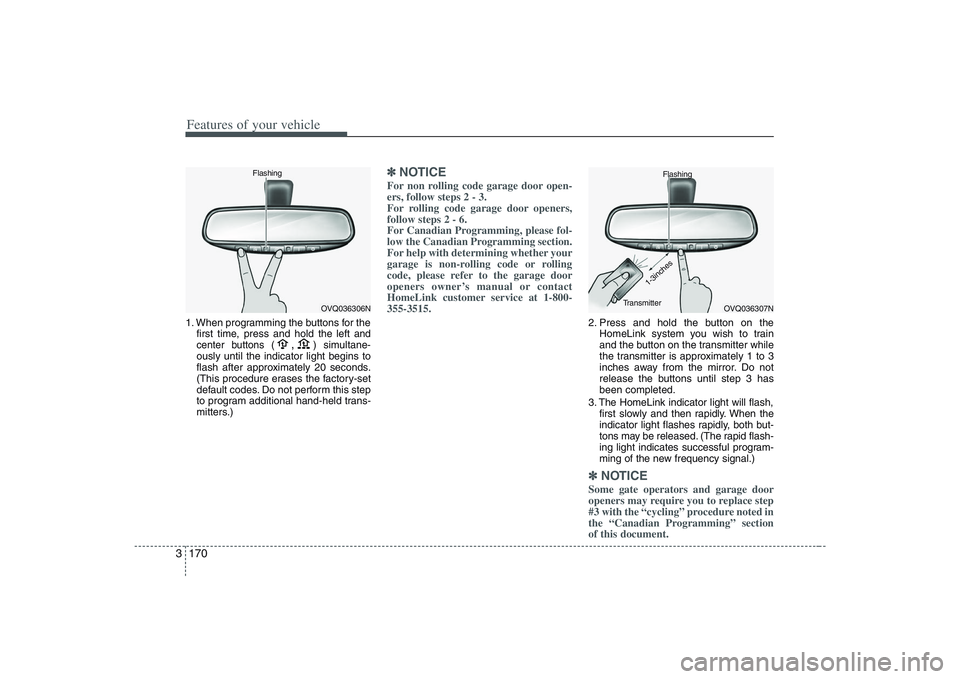
Features of your vehicle170 31. When programming the buttons for the
first time, press and hold
the left and
center buttons (
,
)simultane-
ously until the indicator light begins to
flash after approximately 20 seconds.
(This procedure erases the factory-set
default codes. Do not perform this step
to program additional hand-held trans-
mitters.)
✽ ✽
NOTICEFor non rolling code garage door open-
ers, follow steps 2 - 3.
For rolling code garage door openers,
follow steps 2 - 6.
For Canadian Programming, please fol-
low the Canadian Programming section.
For help with determining whether your
garage is non-rolling code or rolling
code, please refer to the garage door
openers owner’s manual or contact
HomeLink customer service at 1-800-
355-3515.
2. Press and hold the button on the
HomeLink system you wish to train
and the button on the transmitter while
the transmitter is approximately 1 to 3
inches away from the mirror. Do not
release the buttons until step 3 has
been completed.
3. The HomeLink indicator light will flash,
first slowly and then rapidly. When the
indicator light flashes rapidly, both but-
tons may be released. (The rapid flash-
ing light indicates successful program-
ming of the new frequency signal.)✽ ✽
NOTICESome gate operators and garage door
openers may require you to replace step
#3 with the “cycling” procedure noted in
the “Canadian Programming” section
of this document.
OVQ036306N Flashing
OVQ036307N Flashing
1-3inches
Transmitter
Page 187 of 402
3 171
Features of your vehicle
Rolling code programmingTo train a garage door opener (or other
rolling code equipped devices) with the
rolling code feature, follow these instruc-
tions after completing the “Programming”
portion of this text. (A second person
may make the following training proce-
dures quicker & easier.)
4. Locate the “learn” or “smart” button on
the device’s motor head unit. Exact
location and color of the button may
vary by product brand. If there is diffi-
culty locating the “learn” or “smart” but-
ton, reference the device’s owner’s
manual or contact HomeLink at 1-800-
355-3515 or on the internet at
www.homelink.com.
5. Press and release the “learn” or
“smart” button on the device’s motor
head unit. You have 30 seconds to
complete step number 6.
6. Return to the vehicle and firmly press
and release the programmed
HomeLink button up to three times.
The rolling code equipped device
should now recognize the HomeLink
signal and activate when the
HomeLink button is pressed. The
remaining two buttons may now be
programmed if this has not previously
been done. Refer to the
“Programming” portion of this text.
Operating HomeLink To operate, simply press the pro-
grammed HomeLink button. Activation
will now occur for the trained product
(garage door, security system, entry door
lock, estate gate, or home or office light-
ing). For convenience, the hand-held
transmitter of the device may also be
used at any time. The HomeLink
Wireless Controls System (once pro-
grammed) or the original hand-held
transmitter may be used to activate the
device (e.g. garage door, entry door lock,
etc.). In the event that there are still pro-
gramming difficulties, contact HomeLink
at 1-800-355-3515 or on the internet at
www.homelink.com.
Erasing programmed HomeLink
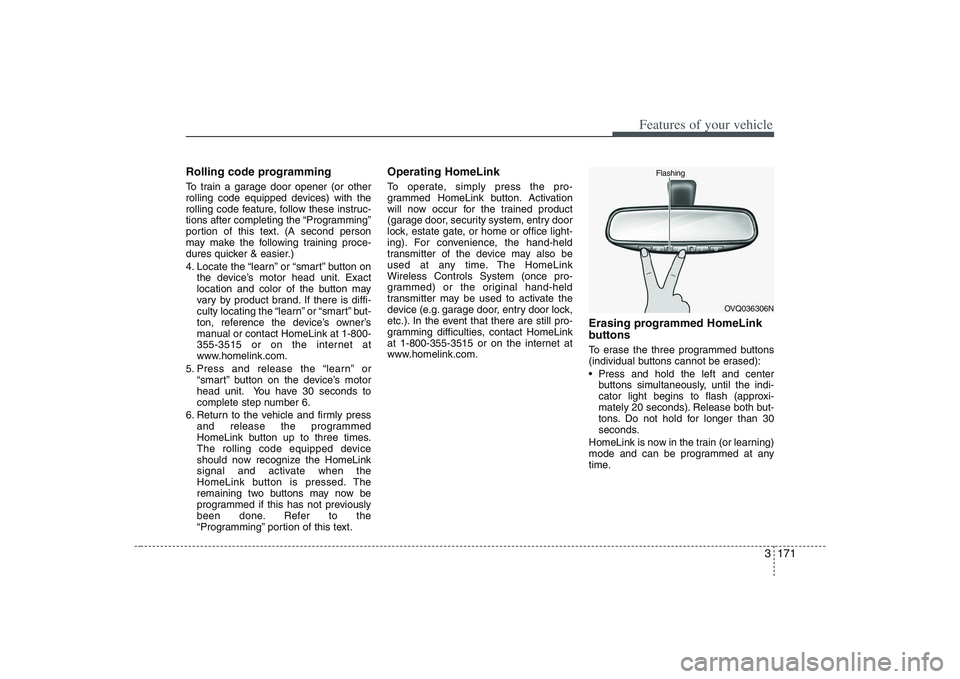
buttonsTo erase the three programmed buttons
(individual buttons cannot be erased):
Press and hold the left and center
buttons simultaneously, until the indi-
cator light begins to flash (approxi-
mately 20 seconds). Release both but-
tons. Do not hold for longer than 30
seconds.
HomeLink is now in the train (or learning)
mode and can be programmed at any
time.
OVQ036306N Flashing
Page 188 of 402
Features of your vehicle172 3Reprogramming a single
HomeLink buttonTo program a device to HomeLink using
a HomeLink button previously trained,
follow these steps:
1. Press and hold the desired HomeLink
button. Do NOT release until step 4
has been completed.
2. When the indicator light begins to flash
slowly (after 20 seconds), position the
hand-held transmitter 1 to 3 inches
away from the HomeLink surface.
3. Press and hold the hand-held trans-
mitter button (or press and “cycle” - as
described in “Canadian Programming”
above).
4. The HomeLink indicator light will flash,
first slowly and then rapidly. When the
indicator light begins to flash rapidly,
release both buttons.
The previous device has now been
erased and the new device can be acti-
vated by pushing the HomeLink button
that has just been programmed. This pro-
cedure will not affect any other pro-
grammed HomeLink buttons.
Gate operator programming &
canadian programmingDuring programming, your hand-held
transmitter may automatically stop trans-
mitting. Continue to press and hold the
HomeLink button (note steps 2 through 4
in the “Programming” portion of this text)
while you press and re-press (“cycle”)
your handheld transmitter every two sec-
onds until the frequency signal has been
learned. The indicator light will flash
slowly and then rapidly after several sec-
onds upon successful training.
AccessoriesIf you would like additional information on
the HomeLink Wireless Control System,
HomeLink compatible products, or to
purchase other accessories such as the
HomeLink® Lighting Package, please
contact HomeLink at 1-800-355-3515 or
on the internet at www.homelink.com.
This device complies with Part 15 of
the FCC rules.Operation is subject to
the following two conditions:
1. This device may not cause harmful
interference, and
2. This device must accept any interfer-
ence received, including interference
that may cause undesired operation.
CAUTION
If programming a garage door
opener or gate, it is advised to
unplug the device during the
“cycling” process to prevent possi-
ble motor burn-up.
WARNING
The HomeLink transmitter has been
tested and complies with FCC and
DOC/MDC rules. Changes or modifi-
cations not expressly approved by
the party responsible for compli-
ance could void the user’s authority
to operate the equipment.
IC: 4112104541A Gentex
MODEL/FCC ID: NZLSTDHL3
Page 196 of 402
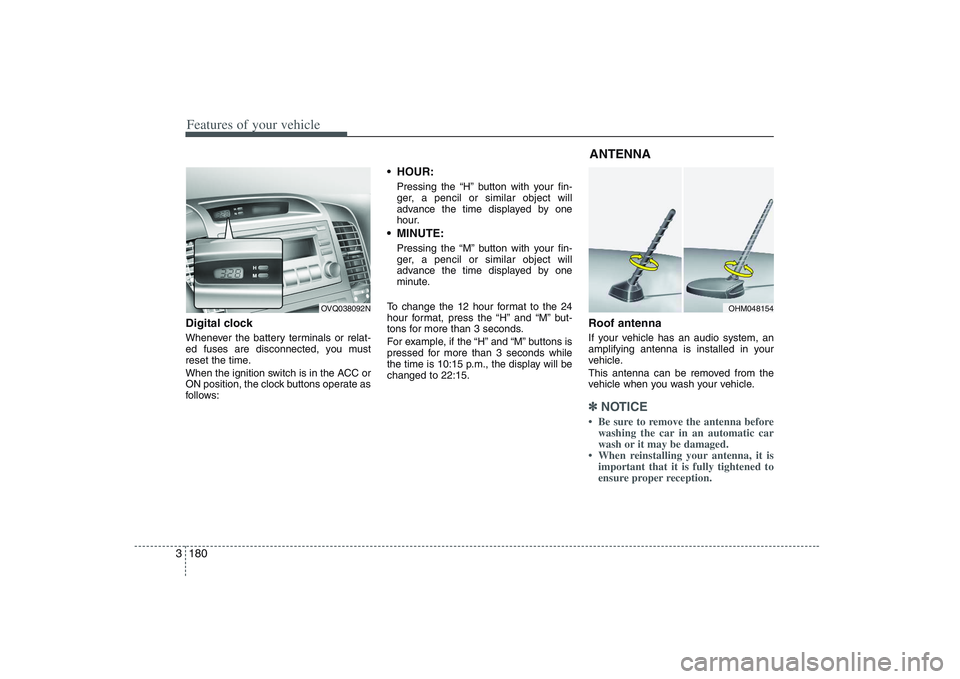
Features of your vehicle180 3Digital clockWhenever the battery terminals or relat-
ed fuses are disconnected, you must
reset the time.
When the ignition switch is in the ACC or
ON position, the clock buttons operate as
follows:
HOUR:Pressing the “H” button with your fin-
ger, a pencil or similar object will
advance the time displayed by one
hour. MINUTE:Pressing the “M” button with your fin-
ger, a pencil or similar object will
advance the time displayed by one
minute.
To change the 12 hour format to the 24
hour format, press the “H” and “M” but-
tons for more than 3 seconds.
For example, if the “H” and “M” buttons is
pressed for more than 3 seconds while
the time is 10:15 p.m., the display will be
changed to 22:15.
Roof antennaIf your vehicle has an audio system, an
amplifying antenna is installed in your
vehicle.
This antenna can be removed from the
vehicle when you wash your vehicle.✽ ✽
NOTICE• Be sure to remove the antenna before
washing the car in an automatic car
wash or it may be damaged.
• When reinstalling your antenna, it is
important that it is fully tightened to
ensure proper reception.
OVQ038092N
OHM048154
ANTENNA
Page 197 of 402
3181
Features of your vehicle
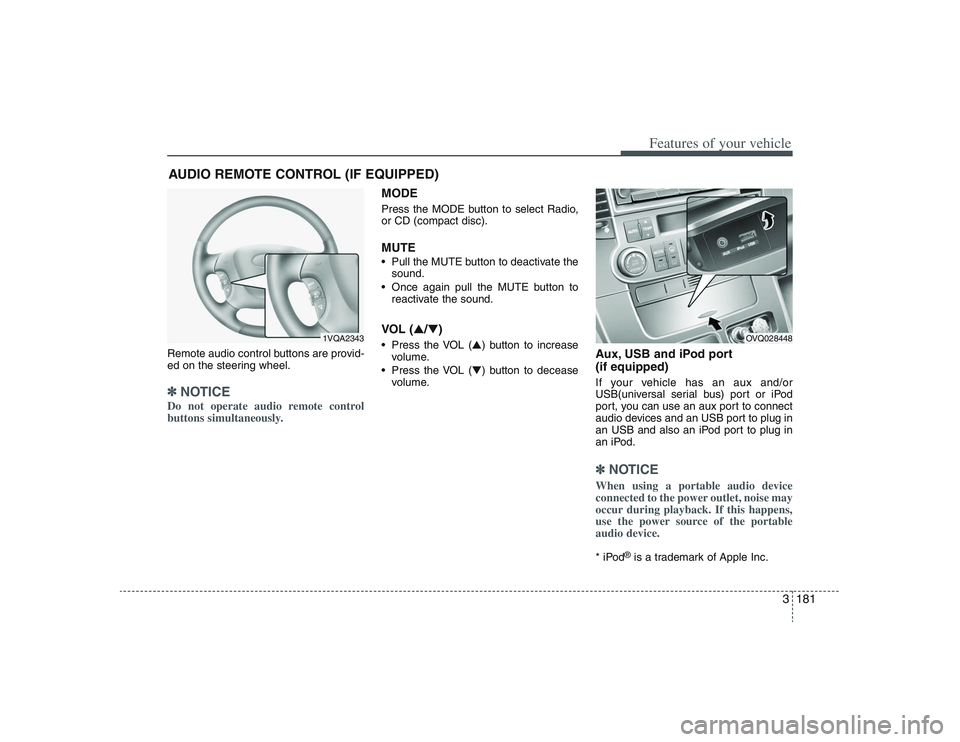
Remote audio control buttons are provid-
ed on the steering wheel.✽ ✽
NOTICEDo not operate audio remote control
buttons simultaneously.
MODEPress the MODE button to select Radio,
or CD (compact disc).MUTE• Pull the MUTE button to deactivate the
sound.
Once again pull the MUTE button to
reactivate the sound.VOL (▲/▼) Press the VOL (▲) button to increase
volume.
Press the VOL (▼) button to decease
volume.
Aux, USB and iPod port
(if equipped)If your vehicle has an aux and/or
USB(universal serial bus) port or iPod
port, you can use an aux port to connect
audio devices and an USB port to plug in
an USB and also an iPod port to plug in
an iPod.✽ ✽
NOTICEWhen using a portable audio device
connected to the power outlet, noise may
occur during playback. If this happens,
use the power source of the portable
audio device. * iPod
®is a trademark of Apple Inc.
AUDIO REMOTE CONTROL (IF EQUIPPED)
1VQA2343
OVQ028448
Page 203 of 402
3187
Features of your vehicle
11. TUNE/ENTER KnobTurn this button clockwise by one notch
to increase frequency by 200KHz(AM:
10KHz) from current frequency.
Turn this button counterclockwise by one
notch to decrease frequency by 200KHz
(AM:10KHz)from current frequency.
Press this button while holding SETUP
button to activate / inactivate the item to.
Select SETUP item using left and right
function of the Tune button.12. Preset Selection ButtonPush [1]~[6] buttons less than 0.8 second
to play the channel saved in each button.
Push preset button for 0.8 second or
longer to save current channel to the
respective button with a beep.
Page 212 of 402
Features of your vehicle196 3✽
✽
NOTICE FOR USING iPod
DEVICE• Some iPod models might not sup-
port the communication protocol
and the files will not be played.
(iPod models supported: Mini, 4G,
Photo, Nano, 5G)
• The order of search or playback of
songs in the iPod can be different
from the order searched in the
audio system.
• If the iPod crashes due to its own
trouble, reset the iPod. (Reset:
Refer to iPod manual)
• An iPod may not operate normally
on low battery.
CAUTION IN USING
iPod DEVICE
You need the power cable exclu-
sive for an iPod in order to oper-
ate an iPod with the buttons on
the audio system. The PC cable
provided by Apple may cause a
malfunction and do not use it for
vehicle use.
When connecting the device with
an iPod cable, push in the jack
fully to not interfere with commu-
nication.
When adjusting the sound effects
of an iPod and the audio system,
the sound effects of both devices
will overlap and might reduce or
distort the quality of the sound.
Deactivate (turn off) the equalizer
function of an iPod when adjust-
ing the audio system’s volume,
and turn off the equalizer of the
audio system when using the
equalizer of an iPod.
(Continued)
(Continued)
When the iPod cable is connected,
the system can be switched to the
AUX mode even without the iPod
device and can cause noise.
Disconnect the iPod cable when
you are not using the iPod device.
When the iPod is not used for the
audio system, the iPod cable has
to be separate from iPod devies.
Origin display of iPod may not be
displayed.
Page 217 of 402
3201
Features of your vehicle
11. TUNE/ENTER KnobTurn this button clockwise by one notch
to increase frequency by 200kHz(AM:
10KHz) from current frequency.
Turn this button counterclockwise by one
notch to decrease frequency by 200kHz
(AM:10KHz)from current frequency.
Press this button while holding SETUP
button to activate / inactivate the item to.
Select SETUP item using left and right
function of the Tune button.12. Preset Selection ButtonPush [1]~[6] buttons less than 0.8 second
to play the channel saved in each button.
Push preset button for 0.8 second or
longer to save the current channel to the
respective button with a beep.
Page 227 of 402
3211
Features of your vehicle
✽ ✽
NOTICE FOR USING iPod
DEVICE• Some iPod models might not sup-
port the communication protocol
and the files will not be played.
(iPod models supported: Mini, 4G,
Photo, Nano, 5G)
• The order of search or playback of
songs in the iPod can be different
from the order searched in the
audio system.
• If the iPod crashes due to its own
trouble, reset the iPod. (Reset:
Refer to iPod manual)
• An iPod may not operate normally
on low battery.
CAUTION IN USING
iPod DEVICE
You need the power cable exclu-
sive for an iPod in order to oper-
ate an iPod with the buttons on
the audio system. The PC cable
provided by Apple may cause a
malfunction and do not use it for
vehicle use.
When connecting the device with
an iPod cable, push in the jack
fully to not to interfere with com-
munication.
When adjusting the sound effects
of an iPod and the audio system,
the sound effects of both devices
will overlap and might reduce or
distort the quality of the sound.
Deactivate (turn off) the equalizer
function of an iPod when adjust-
ing the audio system’s volume,
and turn off the equalizer of the
audio system when using the
equalizer of an iPod.
(Continued)
(Continued)
When the iPod cable is connected,
the system can be switched to the
AUX mode even without the iPod
device and can cause noise.
Disconnect the iPod cable when
you are not using the iPod device.
When the iPod is not used for the
audio system, the iPod cable has
to be separate from iPod devies.
Origin display of iPod may not be
displayed.
Page 233 of 402
3217
Features of your vehicle
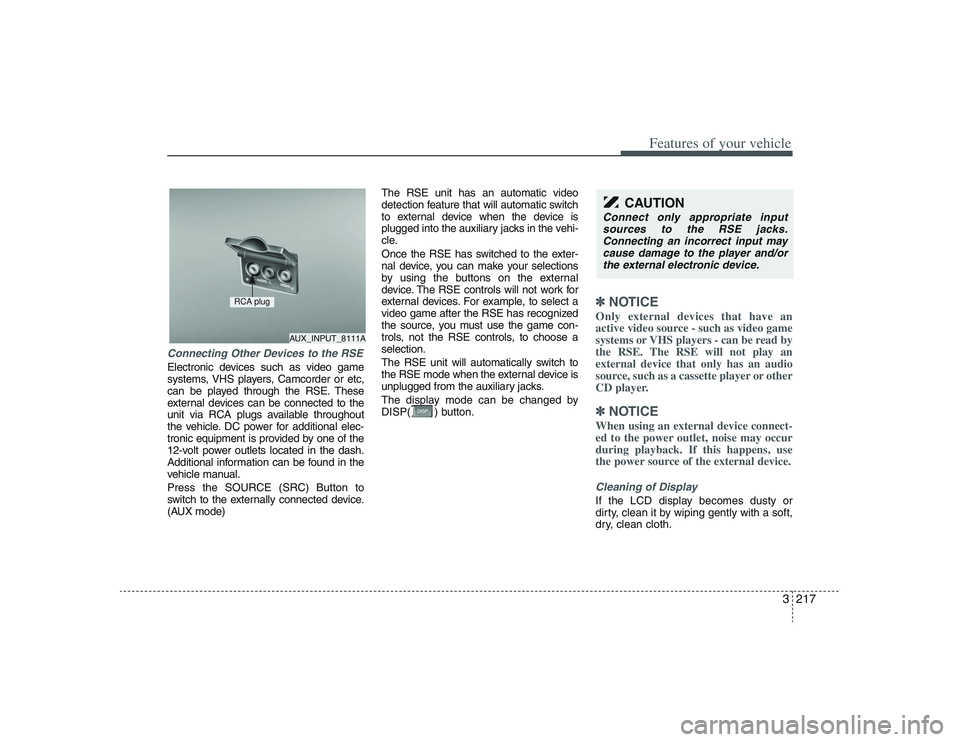
Connecting Other Devices to the RSEElectronic devices such as video game
systems, VHS players, Camcorder or etc,
can be played through the RSE. These
external devices can be connected to the
unit via RCA plugs available throughout
the vehicle. DC power for additional elec-
tronic equipment is provided by one of the
12-volt power outlets located in the dash.
Additional information can be found in the
vehicle manual.
Press the SOURCE (SRC) Button to
switch to the externally connected device.
(AUX mode)The RSE unit has an automatic video
detection feature that will automatic switch
to external device when the device is
plugged into the auxiliary jacks in the vehi-
cle.
Once the RSE has switched to the exter-
nal device, you can make your selections
by using the buttons on the external
device. The RSE controls will not work for
external devices. For example, to select a
video game after the RSE has recognized
the source, you must use the game con-
trols, not the RSE controls, to choose a
selection.
The RSE unit will automatically switch to
the RSE mode when the external device is
unplugged from the auxiliary jacks.
The display mode can be changed by
DISP( ) button.
✽ ✽
NOTICEOnly external devices that have an
active video source - such as video game
systems or VHS players - can be read by
the RSE. The RSE will not play an
external device that only has an audio
source, such as a cassette player or other
CD player.✽ ✽
NOTICEWhen using an external device connect-
ed to the power outlet, noise may occur
during playback. If this happens, use
the power source of the external device.Cleaning of DisplayIf the LCD display becomes dusty or
dirty, clean it by wiping gently with a soft,
dry, clean cloth.
CAUTION
Connect only appropriate input
sources to the RSE jacks.
Connecting an incorrect input may
cause damage to the player and/or
the external electronic device.
AUX_INPUT_8111A
RCA plug