clock Hyundai Genesis 2011 User Guide
[x] Cancel search | Manufacturer: HYUNDAI, Model Year: 2011, Model line: Genesis, Model: Hyundai Genesis 2011Pages: 409, PDF Size: 38.54 MB
Page 207 of 409
Features of your vehicle
130 4
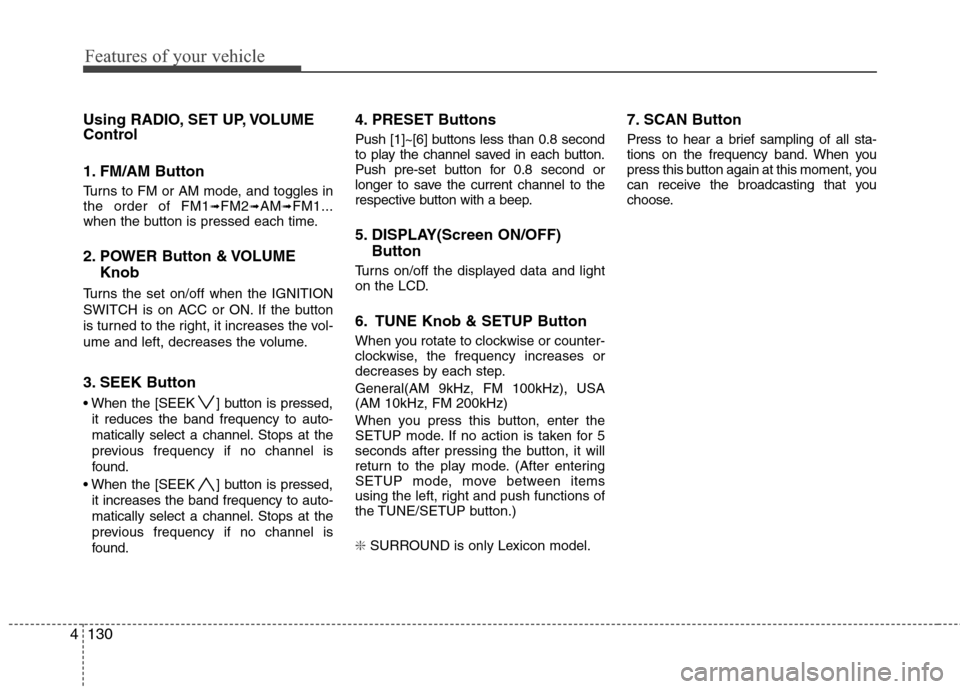
Using RADIO, SET UP, VOLUME
Control
1. FM/AM Button
Turns to FM or AM mode, and toggles in
the order of FM1➟FM2➟AM➟FM1...
when the button is pressed each time.
2. POWER Button & VOLUME
Knob
Turns the set on/off when the IGNITION
SWITCH is on ACC or ON. If the button
is turned to the right, it increases the vol-
ume and left, decreases the volume.
3. SEEK Button
When the [SEEK ] button is pressed,
it reduces the band frequency to auto-
matically select a channel. Stops at the
previous frequency if no channel is
found.
When the [SEEK ] button is pressed,
it increases the band frequency to auto-
matically select a channel. Stops at the
previous frequency if no channel is
found.
4. PRESET Buttons
Push [1]~[6] buttons less than 0.8 second
to play the channel saved in each button.
Push pre-set button for 0.8 second or
longer to save the current channel to the
respective button with a beep.
5. DISPLAY(Screen ON/OFF)
Button
Turns on/off the displayed data and light
on the LCD.
6. TUNE Knob & SETUP Button
When you rotate to clockwise or counter-
clockwise, the frequency increases or
decreases by each step.
General(AM 9kHz, FM 100kHz), USA
(AM 10kHz, FM 200kHz)
When you press this button, enter the
SETUP mode. If no action is taken for 5
seconds after pressing the button, it will
return to the play mode. (After entering
SETUP mode, move between items
using the left, right and push functions of
the TUNE/SETUP button.)
❇ SURROUND is only Lexicon model.
7. SCAN Button
Press to hear a brief sampling of all sta-
tions on the frequency band. When you
press this button again at this moment, you
can receive the broadcasting that you
choose.
Page 209 of 409
Features of your vehicle
132 4
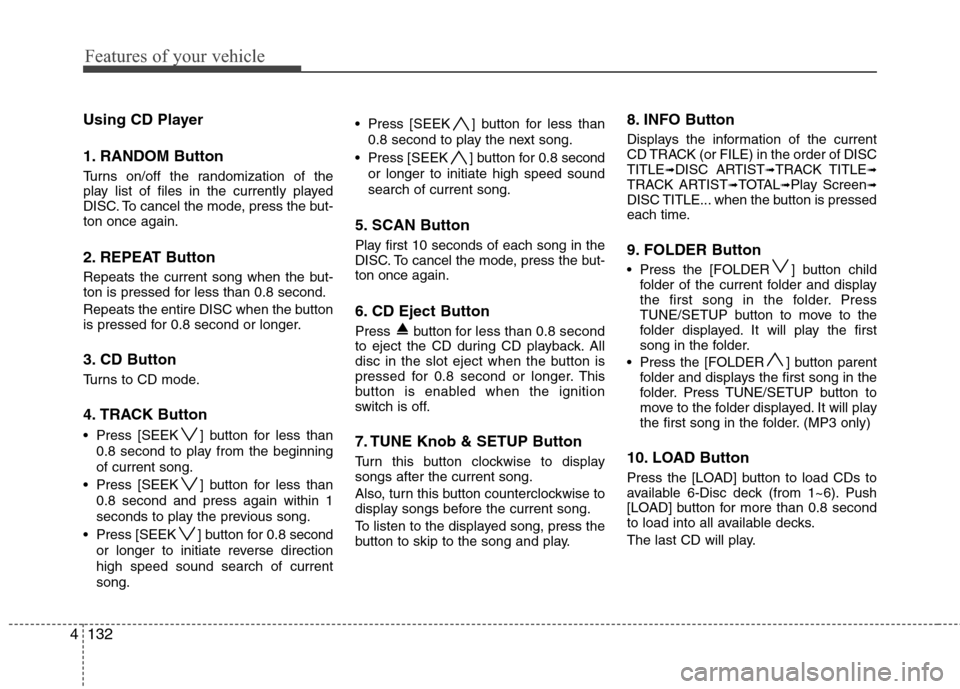
Using CD Player
1. RANDOM Button
Turns on/off the randomization of the
play list of files in the currently played
DISC. To cancel the mode, press the but-
ton once again.
2. REPEAT Button
Repeats the current song when the but-
ton is pressed for less than 0.8 second.
Repeats the entire DISC when the button
is pressed for 0.8 second or longer.
3. CD Button
Turns to CD mode.
4. TRACK Button
Press [SEEK ] button for less than
0.8 second to play from the beginning
of current song.
Press [SEEK ] button for less than
0.8 second and press again within 1
seconds to play the previous song.
Press [SEEK ] button for 0.8 second
or longer to initiate reverse direction
high speed sound search of current
song. Press [SEEK ] button for less than
0.8 second to play the next song.
Press [SEEK ] button for 0.8 second
or longer to initiate high speed sound
search of current song.
5. SCAN Button
Play first 10 seconds of each song in the
DISC. To cancel the mode, press the but-
ton once again.
6. CD Eject Button
Press button for less than 0.8 second
to eject the CD during CD playback. All
disc in the slot eject when the button is
pressed for 0.8 second or longer.This
button is enabled when the ignition
switch is off.
7. TUNE Knob & SETUP Button
Turn this button clockwise to display
songs after the current song.
Also, turn this button counterclockwise to
display songs before the current song.
To listen to the displayed song, press the
button to skip to the song and play.
8. INFO Button
Displays the information of the current
CD TRACK (or FILE) in the order of DISC
TITLE
➟DISC ARTIST➟TRACK TITLE➟TRACK ARTIST➟TOTAL➟Play Screen➟DISC TITLE... when the button is pressed
each time.
9. FOLDER Button
Press the [FOLDER ] button child
folder of the current folder and display
the first song in the folder. Press
TUNE/SETUP button to move to the
folder displayed. It will play the first
song in the folder.
Press the [FOLDER ] button parent
folder and displays the first song in the
folder. Press TUNE/SETUP button to
move to the folder displayed. It will play
the first song in the folder. (MP3 only)
10. LOAD Button
Press the [LOAD] button to load CDs to
available 6-Disc deck (from 1~6). Push
[LOAD] button for more than 0.8 second
to load into all available decks.
The last CD will play.
Page 214 of 409
4137
Features of your vehicle
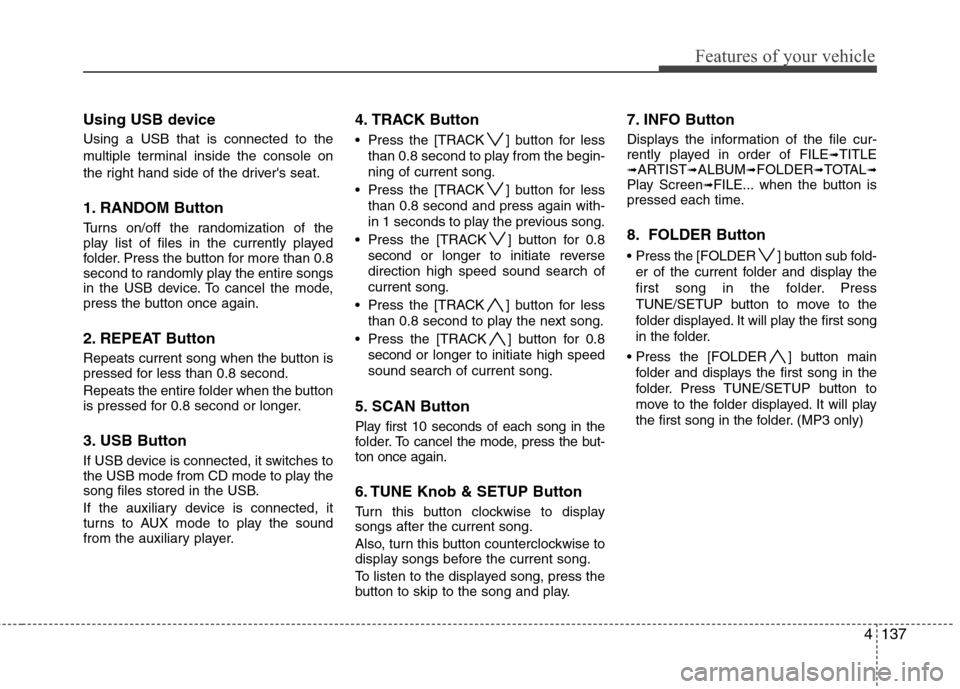
Using USB device
Using a USB that is connected to the
multiple terminal inside the console on
the right hand side of the driver's seat.
1. RANDOM Button
Turns on/off the randomization of the
play list of files in the currently played
folder. Press the button for more than 0.8
second to randomly play the entire songs
in the USB device. To cancel the mode,
press the button once again.
2. REPEAT Button
Repeats current song when the button is
pressed for less than 0.8 second.
Repeats the entire folder when the button
is pressed for 0.8 second or longer.
3. USB Button
If USB device is connected, it switches to
the USB mode from CD mode to play the
song files stored in the USB.
If the auxiliary device is connected, it
turns to AUX mode to play the sound
from the auxiliary player.
4. TRACK Button
Press the [TRACK ] button for less
than 0.8 second to play from the begin-
ning of current song.
Press the [TRACK ] button for less
than 0.8 second and press again with-
in 1 seconds to play the previous song.
Press the [TRACK ] button for 0.8
second or longer to initiate reverse
direction high speed sound search of
current song.
Press the [TRACK ] button for less
than 0.8 second to play the next song.
Press the [TRACK ] button for 0.8
second or longer to initiate high speed
sound search of current song.
5. SCAN Button
Play first 10 seconds of each song in the
folder. To cancel the mode, press the but-
ton once again.
6. TUNE Knob & SETUP Button
Turn this button clockwise to display
songs after the current song.
Also, turn this button counterclockwise to
display songs before the current song.
To listen to the displayed song, press the
button to skip to the song and play.
7. INFO Button
Displays the information of the file cur-
rently played in order of FILE➟TITLE➟ARTIST➟ALBUM➟FOLDER➟TOTAL➟Play Screen➟FILE... when the button is
pressed each time.
8. FOLDER Button
Press the [FOLDER ] button sub fold-
er of the current folder and display the
first song in the folder. Press
TUNE/SETUP button to move to the
folder displayed. It will play the first song
in the folder.
] button main
folder and displays the first song in the
folder. Press TUNE/SETUP button to
move to the folder displayed. It will play
the first song in the folder. (MP3 only)
Page 216 of 409
4139
Features of your vehicle
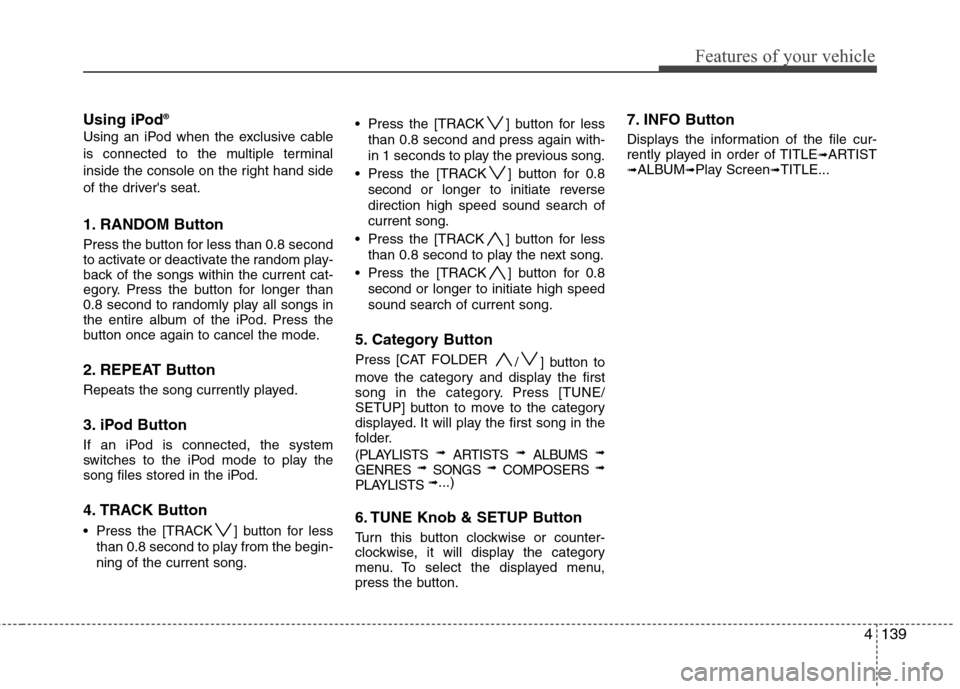
Using iPod®
Using an iPod when the exclusive cable
is connected to the multiple terminal
inside the console on the right hand side
of the driver's seat.
1. RANDOM Button
Press the button for less than 0.8 second
to activate or deactivate the random play-
back of the songs within the current cat-
egory. Press the button for longer than
0.8 second to randomly play all songs in
the entire album of the iPod. Press the
button once again to cancel the mode.
2. REPEAT Button
Repeats the song currently played.
3. iPod Button
If an iPod is connected, the system
switches to the iPod mode to play the
song files stored in the iPod.
4. TRACK Button
Press the [TRACK ] button for less
than 0.8 second to play from the begin-
ning of the current song. Press the [TRACK ] button for less
than 0.8 second and press again with-
in 1 seconds to play the previous song.
Press the [TRACK ] button for 0.8
second or longer to initiate reverse
direction high speed sound search of
current song.
Press the [TRACK ] button for less
than 0.8 second to play the next song.
Press the [TRACK ] button for 0.8
second or longer to initiate high speed
sound search of current song.
5. Category Button
Press [CAT FOLDER
/ ] button to
move the category and display the first
song in the category. Press [TUNE/
SETUP] button to move to the category
displayed. It will play the first song in the
folder.
(PLAYLISTS
➟ ARTISTS ➟ ALBUMS ➟
GENRES ➟ SONGS ➟ COMPOSERS ➟
PLAYLISTS ➟...)
6. TUNE Knob & SETUP Button
Turn this button clockwise or counter-
clockwise, it will display the category
menu. To select the displayed menu,
press the button.
7. INFO Button
Displays the information of the file cur-
rently played in order of TITLE➟ARTIST➟ALBUM➟Play Screen➟TITLE...
Page 219 of 409
Features of your vehicle
142 4
Using XM Satellite Radio
1. XM Button
Turns to XM Satellite Radio Mode.
XM mode toggles in order to XM1
➟XM2➟XM3➟XM1... when the button is pressed
each time.
2. SEEK Button
] button for less
than 0.8 second to select previous
channel.
[SEEK ] button for 0.8 sec-
ond or longer to continuously move to
previous channel.
] button for less
than 0.8 second to select next channel.
] button for 0.8 sec-
ond or longer to continuously move to
next channel.
Seek or Tune to XM channel
0 to display the Radio ID.
3. SCAN Button
Press to hear a brief sampling of all
channels. To cancel the scan mode,
press the button once again.
4. PRESET Buttons
Push [1]~[6] buttons less than 0.8 sec-
ond to play the channel saved in each
button. Push pre-set button for 0.8 sec-
ond or longer to save the current channel
to the respective button with a beep.
5. TUNE Knob & SETUP Button
Turn this button clockwise to display
channels after.
Also, turn this button counterclockwise to
display channels before current channel.
XM setup mode : It will be able to change
the XM display. (ex, Display by category/
channel or artist/song title.)
6. INFO Button
Displays the information of the current
channel in the order of Artist/Song title➟Category/Channel name➟Current Play
Channel➟Artist/Song title➟Category/Cha-
nnel name... when the button is pressed
each time.
If the complete text information is not dis-
played, rotate the tune button to see the
next page.
7. CAT/FOLDER Button
Press [CAT ] button to search previ-
ous category.
Press [CAT ] button to search next
category.
To listen to the displayed category, press
the TUNE/SETUP button.
To scan channel in displayed category,
press the scan button.
To search channel in displayed category,
press seek buttons or turn the tune but-
ton clockwise/counterclockwise.
(CATEGORY icon will be turned on in
Category mode)
Page 223 of 409
Features of your vehicle
146 4
4. PRESET Buttons
ond to play the channel saved in each
button.
longer to save current channel to the
respective button with a beep.
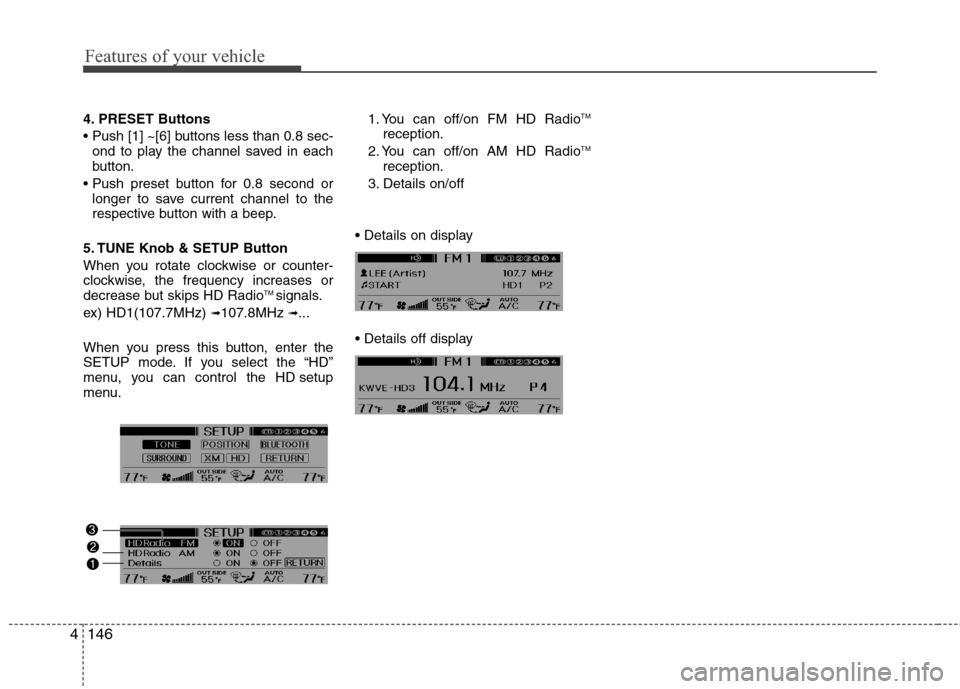
5. TUNE Knob & SETUP Button
When you rotate clockwise or counter-
clockwise, the frequency increases or
decrease but skips HD Radio
TM signals.
ex) HD1(107.7MHz)
➟107.8MHz ➟...
When you press this button, enter the
SETUP mode. If you select the “HD”
menu, you can control the HD setup
menu.1. You can off/on FM HD Radio
TM
reception.
2. You can off/on AM HD RadioTM
reception.
3. Details on/off
Page 256 of 409
Driving your vehicle
24 5
E070706BBH
EPB emergency release
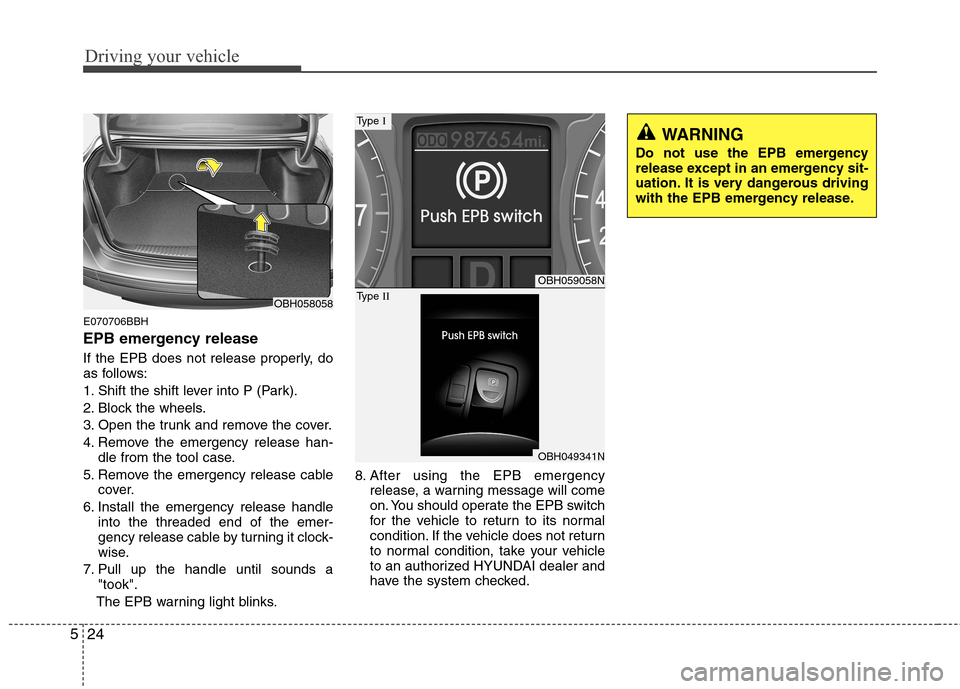
If the EPB does not release properly, do
as follows:
1. Shift the shift lever into P (Park).
2. Block the wheels.
3. Open the trunk and remove the cover.
4. Remove the emergency release han-
dle from the tool case.
5. Remove the emergency release cable
cover.
6. Install the emergency release handle
into the threaded end of the emer-
gency release cable by turning it clock-
wise.
7. Pull up the handle until sounds a
"took".
The EPB warning light blinks.8. After using the EPB emergency
release, a warning message will come
on. You should operate the EPB switch
for the vehicle to return to its normal
condition. If the vehicle does not return
to normal condition, take your vehicle
to an authorized HYUNDAI dealer and
have the system checked.
OBH058058
OBH059058N
OBH049341N
Type I
Type II
WARNING
Do not use the EPB emergency
release except in an emergency sit-
uation. It is very dangerous driving
with the EPB emergency release.
Page 314 of 409
613
What to do in an emergency
F070200ABH
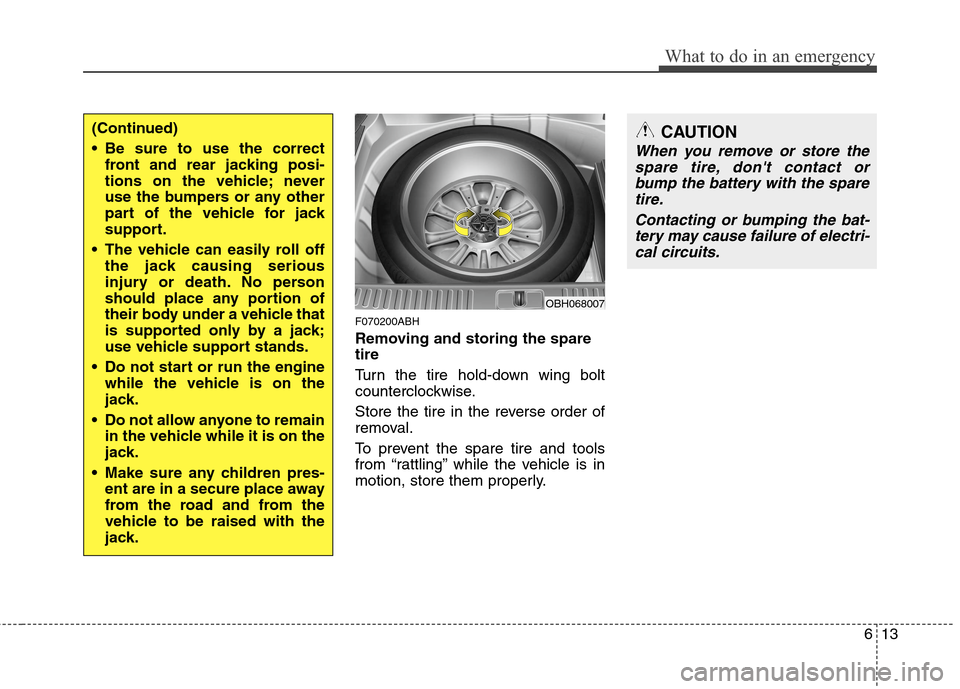
Removing and storing the spare
tire
Turn the tire hold-down wing bolt
counterclockwise.
Store the tire in the reverse order of
removal.
To prevent the spare tire and tools
from “rattling” while the vehicle is in
motion, store them properly.
OBH068007
(Continued)
Be sure to use the correct
front and rear jacking posi-
tions on the vehicle; never
use the bumpers or any other
part of the vehicle for jack
support.
The vehicle can easily roll off
the jack causing serious
injury or death. No person
should place any portion of
their body under a vehicle that
is supported only by a jack;
use vehicle support stands.
Do not start or run the engine
while the vehicle is on the
jack.
Do not allow anyone to remain
in the vehicle while it is on the
jack.
Make sure any children pres-
ent are in a secure place away
from the road and from the
vehicle to be raised with the
jack.CAUTION
When you remove or store the
spare tire, don't contact or
bump the battery with the spare
tire.
Contacting or bumping the bat-
tery may cause failure of electri-
cal circuits.
Page 316 of 409
615
What to do in an emergency
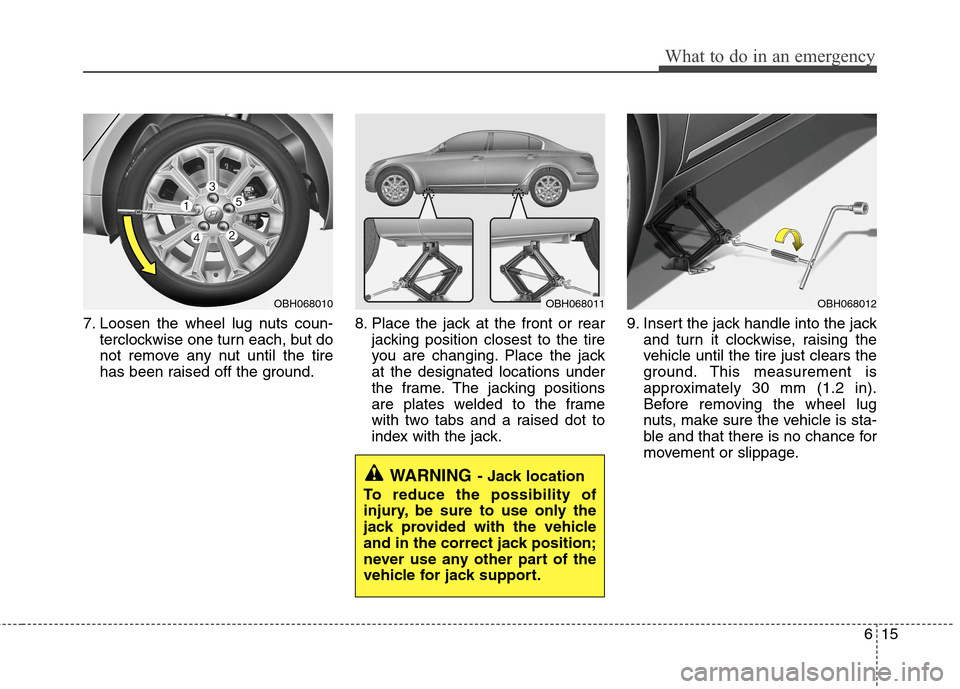
7. Loosen the wheel lug nuts coun-
terclockwise one turn each, but do
not remove any nut until the tire
has been raised off the ground.8. Place the jack at the front or rear
jacking position closest to the tire
you are changing. Place the jack
at the designated locations under
the frame. The jacking positions
are plates welded to the frame
with two tabs and a raised dot to
index with the jack.9. Insert the jack handle into the jack
and turn it clockwise, raising the
vehicle until the tire just clears the
ground. This measurement is
approximately 30 mm (1.2 in).
Before removing the wheel lug
nuts, make sure the vehicle is sta-
ble and that there is no chance for
movement or slippage.
WARNING- Jack location
To reduce the possibility of
injury, be sure to use only the
jack provided with the vehicle
and in the correct jack position;
never use any other part of the
vehicle for jack support.
OBH068011OBH068012OBH068010
Page 317 of 409
What to do in an emergency
16 6
10. Loosen the wheel nuts and
remove them with your fingers.
Slide the wheel off the studs and
lay it flat so it cannot roll away. To
put the wheel on the hub, pick up
the spare tire, line up the holes
with the studs and slide the
wheel onto them. If this is diffi-
cult, tip the wheel slightly and get
the top hole in the wheel lined up
with the top stud. Then jiggle the
wheel back and forth until the
wheel can be slid over the other
studs.11. To reinstall the wheel, hold it on
the studs, put the wheel nuts on
the studs and tighten them finger
tight. The nuts should be installed
with their tapered small diameter
ends directed inward. Jiggle the
tire to be sure it is completely
seated, then tighten the nuts as
much as possible with your fin-
gers again.
12. Lower the car to the ground by
turning the wheel nut wrench
counterclockwise.
WARNING
Wheels may have sharp edges.
Handle them carefully to avoid
possible severe injury. Before
putting the wheel into place, be
sure that there is nothing on the
hub or wheel (such as mud, tar,
gravel, etc.) that prevents the
wheel from fitting solidly
against the hub.
If there is, remove it. If there is
not good contact on the mount-
ing surface between the wheel
and hub, the wheel nuts could
come loose and cause the loss
of a wheel. Loss of a wheel may
result in loss of control of the
vehicle. This may cause serious
injury or death.