lock Hyundai Genesis 2012 Repair Manual
[x] Cancel search | Manufacturer: HYUNDAI, Model Year: 2012, Model line: Genesis, Model: Hyundai Genesis 2012Pages: 393, PDF Size: 8.81 MB
Page 200 of 393
4127
Features of your vehicle
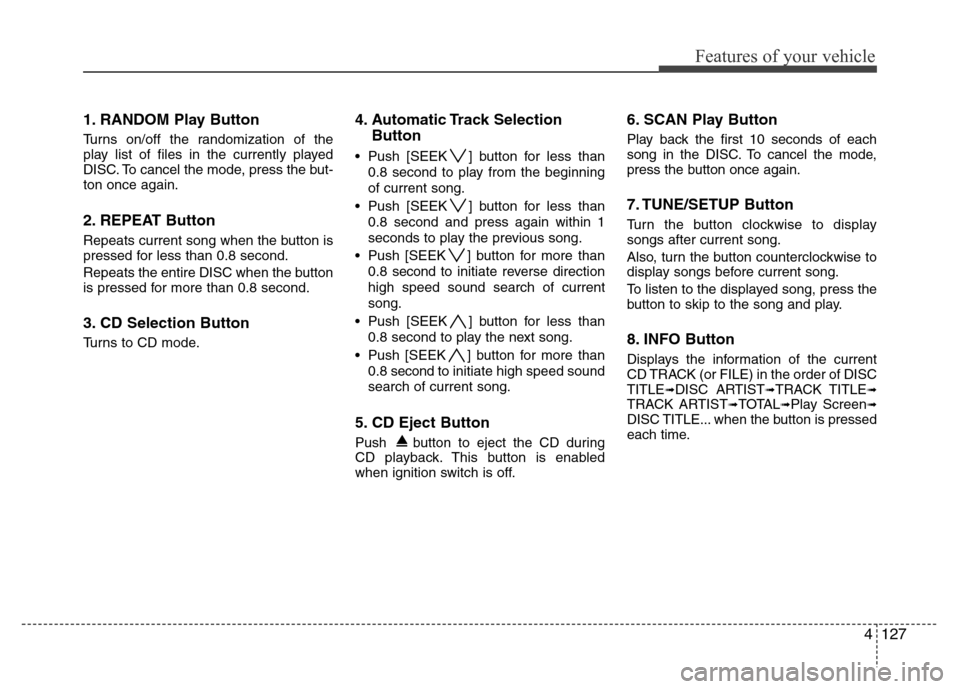
1. RANDOM Play Button
Turns on/off the randomization of the
play list of files in the currently played
DISC. To cancel the mode, press the but-
ton once again.
2. REPEAT Button
Repeats current song when the button is
pressed for less than 0.8 second.
Repeats the entire DISC when the button
is pressed for more than 0.8 second.
3. CD Selection Button
Turns to CD mode.
4. Automatic Track Selection
Button
• Push [SEEK ] button for less than
0.8 second to play from the beginning
of current song.
• Push [SEEK ] button for less than
0.8 second and press again within 1
seconds to play the previous song.
• Push [SEEK ] button for more than
0.8 second to initiate reverse direction
high speed sound search of current
song.
• Push [SEEK ] button for less than
0.8 second to play the next song.
• Push [SEEK ] button for more than
0.8 second to initiate high speed sound
search of current song.
5. CD Eject Button
Push button to eject the CD during
CD playback. This button is enabled
when ignition switch is off.
6. SCAN Play Button
Play back the first 10 seconds of each
song in the DISC. To cancel the mode,
press the button once again.
7. TUNE/SETUP Button
Turn the button clockwise to display
songs after current song.
Also, turn the button counterclockwise to
display songs before current song.
To listen to the displayed song, press the
button to skip to the song and play.
8. INFO Button
Displays the information of the current
CD TRACK (or FILE) in the order of DISC
TITLE
➟DISC ARTIST➟TRACK TITLE➟TRACK ARTIST➟TOTAL➟Play Screen➟DISC TITLE... when the button is pressed
each time.
Page 205 of 393
Features of your vehicle
132 4
In case USB is connected to the multiple
terminal inside the console on the right
hand side of the driver's seat.
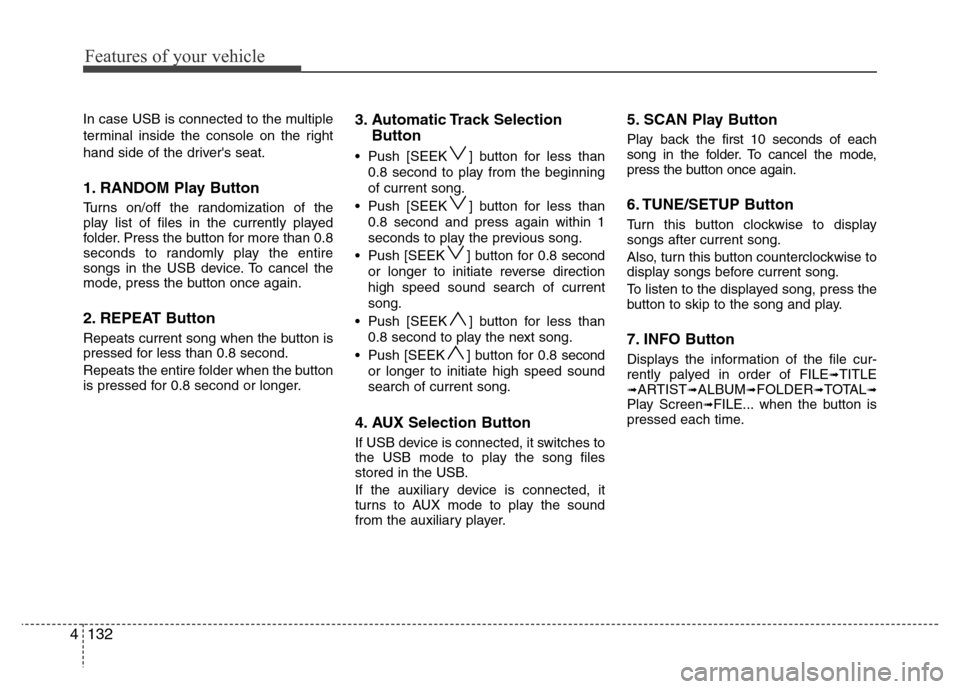
1. RANDOM Play Button
Turns on/off the randomization of the
play list of files in the currently played
folder. Press the button for more than 0.8
seconds to randomly play the entire
songs in the USB device. To cancel the
mode, press the button once again.
2. REPEAT Button
Repeats current song when the button is
pressed for less than 0.8 second.
Repeats the entire folder when the button
is pressed for 0.8 second or longer.
3. Automatic Track Selection
Button
• Push [SEEK ] button for less than
0.8 second to play from the beginning
of current song.
• Push [SEEK ] button for less than
0.8 second and press again within 1
seconds to play the previous song.
• Push [SEEK ] button for 0.8 second
or longer to initiate reverse direction
high speed sound search of current
song.
• Push [SEEK ] button for less than
0.8 second to play the next song.
• Push [SEEK ] button for 0.8 second
or longer to initiate high speed sound
search of current song.
4. AUX Selection Button
If USB device is connected, it switches to
the USB mode to play the song files
stored in the USB.
If the auxiliary device is connected, it
turns to AUX mode to play the sound
from the auxiliary player.
5. SCAN Play Button
Play back the first 10 seconds of each
song in the folder. To cancel the mode,
press the button once again.
6. TUNE/SETUP Button
Turn this button clockwise to display
songs after current song.
Also, turn this button counterclockwise to
display songs before current song.
To listen to the displayed song, press the
button to skip to the song and play.
7. INFO Button
Displays the information of the file cur-
rently palyed in order of FILE➟TITLE➟ARTIST➟ALBUM➟FOLDER➟TOTAL➟Play Screen➟FILE... when the button is
pressed each time.
Page 208 of 393
4135
Features of your vehicle
Using un iPod®when the exclusive cable
is connected to the multiple terminal
inside the console on the right hand side
of the driver's seat.
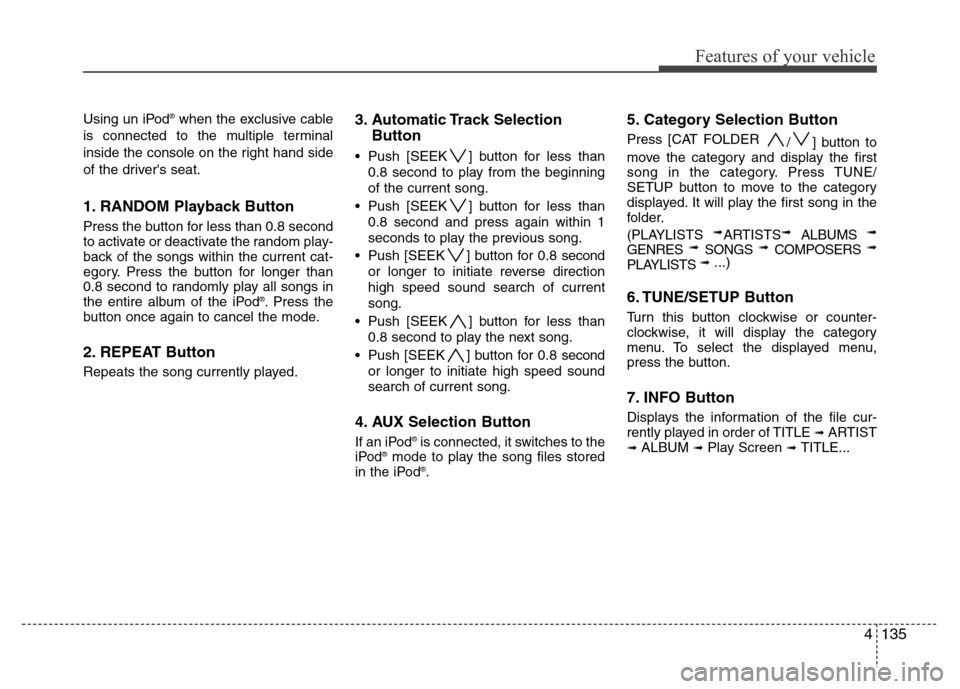
1. RANDOM Playback Button
Press the button for less than 0.8 second
to activate or deactivate the random play-
back of the songs within the current cat-
egory. Press the button for longer than
0.8 second to randomly play all songs in
the entire album of the iPod
®. Press the
button once again to cancel the mode.
2. REPEAT Button
Repeats the song currently played.
3. Automatic Track Selection
Button
• Push [SEEK ] button for less than
0.8 second to play from the beginning
of the current song.
• Push [SEEK ] button for less than
0.8 second and press again within 1
seconds to play the previous song.
• Push [SEEK ] button for 0.8 second
or longer to initiate reverse direction
high speed sound search of current
song.
• Push [SEEK ] button for less than
0.8 second to play the next song.
• Push [SEEK ] button for 0.8 second
or longer to initiate high speed sound
search of current song.
4. AUX Selection Button
If an iPod®is connected, it switches to the
iPod®mode to play the song files stored
in the iPod®.
5. Category Selection Button
Press [CAT FOLDER
/ ] button to
move the category and display the first
song in the category. Press TUNE/
SETUP button to move to the category
displayed. It will play the first song in the
folder.
(PLAYLISTS
➟ARTISTS➟ ALBUMS ➟
GENRES ➟ SONGS ➟ COMPOSERS ➟
PLAYLISTS ➟ ...)
6. TUNE/SETUP Button
Turn this button clockwise or counter-
clockwise, it will display the category
menu. To select the displayed menu,
press the button.
7. INFO Button
Displays the information of the file cur-
rently played in order of TITLE ➟ ARTIST➟ ALBUM ➟ Play Screen ➟ TITLE...
Page 211 of 393
Features of your vehicle
138 4
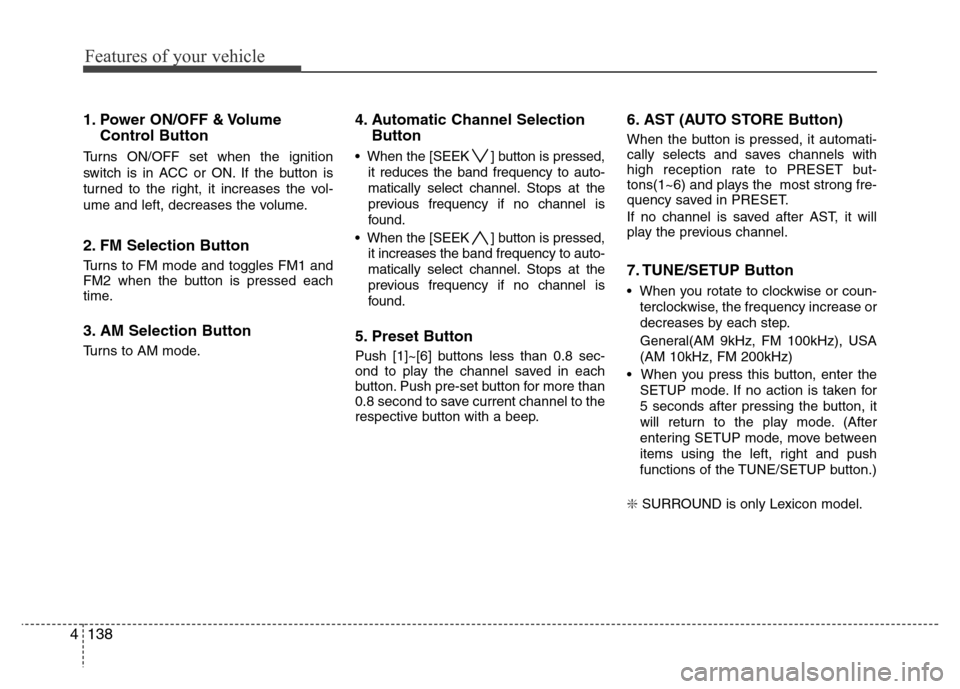
1. Power ON/OFF & Volume
Control Button
Turns ON/OFF set when the ignition
switch is in ACC or ON. If the button is
turned to the right, it increases the vol-
ume and left, decreases the volume.
2. FM Selection Button
Turns to FM mode and toggles FM1 and
FM2 when the button is pressed each
time.
3. AM Selection Button
Turns to AM mode.
4. Automatic Channel Selection
Button
• When the [SEEK ] button is pressed,
it reduces the band frequency to auto-
matically select channel. Stops at the
previous frequency if no channel is
found.
• When the [SEEK ] button is pressed,
it increases the band frequency to auto-
matically select channel. Stops at the
previous frequency if no channel is
found.
5. Preset Button
Push [1]~[6] buttons less than 0.8 sec-
ond to play the channel saved in each
button. Push pre-set button for more than
0.8 second to save current channel to the
respective button with a beep.
6. AST (AUTO STORE Button)
When the button is pressed, it automati-
cally selects and saves channels with
high reception rate to PRESET but-
tons(1~6) and plays the most strong fre-
quency saved in PRESET.
If no channel is saved after AST, it will
play the previous channel.
7. TUNE/SETUP Button
• When you rotate to clockwise or coun-
terclockwise, the frequency increase or
decreases by each step.
General(AM 9kHz, FM 100kHz), USA
(AM 10kHz, FM 200kHz)
• When you press this button, enter the
SETUP mode. If no action is taken for
5 seconds after pressing the button, it
will return to the play mode. (After
entering SETUP mode, move between
items using the left, right and push
functions of the TUNE/SETUP button.)
❇ SURROUND is only Lexicon model.
Page 213 of 393
Features of your vehicle
140 4
1. RANDOM Play Button
Turns on/off the randomization of the
play list of files in the currently played
DISC. To cancel the mode, press the but-
ton once again.
2. REPEAT Button
Repeats current song when the button is
pressed for less than 0.8 second.
Repeats the entire DISC when the button
is pressed for 0.8 second or longer.
3. CD Selection Button
Turns to CD mode.
4. Automatic Track Selection
Button
• Push [SEEK ] button for less than 0.8
second to play from the beginning of
current song.
• Push [SEEK ] button for less than 0.8
second and press again within 1 sec-
onds to play the previous song.
• Push [SEEK ] button for more than
0.8 second to initiate reverse direction
high speed sound search of current
song.
• Push [SEEK ] button for less than 0.8
second to play the next song.
• Push [SEEK ] button for more than
0.8 second to initiate high speed sound
search of current song.
5. CD eject Button
Push button for less than 0.8 second
to eject the CD during CD playback. All
eject disc in the slot when the button is
pressed for 0.8 second or longer. This
button is enabled when ignition switch is
off.
6. DISC Selection Button
• [DISC ] Change Button
Change disc to the previous disc.
• [DISC ] Change Button
Change disc to the next disc.
7. SCAN Play Button
Play back the first 10 seconds of each
song in the DISC. To cancel the mode,
press the button once again.
8. TUNE/SETUP Button
Turn this button clockwise to display
songs after current song.
Also, turn this button counterclockwise to
display songs before current song.
To listen to the displayed song, press the
button to skip to the song and play.
Page 218 of 393
4145
Features of your vehicle
In case USB is connected to the multiple
terminal inside the console on the right
hand side of the driver's seat.
1. RANDOM Play Button
Turns on/off the randomization of the
play list of files in the currently played
folder. Press the button for more than 0.8
second to randomly play the entire songs
in the USB device. To cancel the mode,
press the button once again.
2. REPEAT Button
Repeats current song when the button is
pressed for less than 0.8 second.
Repeats the entire folder when the button
is pressed for 0.8 second or longer.
3. Automatic Track Selection
Button
• Push [SEEK ] button for less than
0.8 second to play from the beginning
of current song.
• Push [SEEK ] button for less than
0.8 second and press again within 1
seconds to play the previous song.
• Push [SEEK ] button for more than
0.8 second or initiate reverse direction
high speed sound search of current
song.
• Push [SEEK ] button for less than
0.8 second to play the next song.
• Push [SEEK ] button for more than
0.8 second to initiate high speed sound
search of current song.
4. AUX Selection Button
If USB device is connected, it switches to
the USB mode to play the song files
stored in the USB.
If the auxiliary device is connected, it
turns to AUX mode to play the sound
from the auxiliary player.
5. SCAN Play Button
Play back the first 10 seconds of each
song in the folder. To cancel the mode,
press the button once again.
6. TUNE/SETUP Button
Turn this button clockwise to display
songs after current song.
Also, turn this button counterclockwise to
display songs before current song.
To listen to the displayed song, press the
button to skip to the song and play.
7. INFO Button
Displays the information of the file cur-
rently palyed in order of FILE➟TITLE➟ARTIST➟ALBUM➟FOLDER➟TOTAL➟Play Screen➟FILE... when the button is
pressed each time.
Page 221 of 393
Features of your vehicle
148 4
Using un iPod®when the exclusive cable
is connected to the multiple terminal
inside the console on the right hand side
of the driver's seat.
1. RANDOM Playback Button
Press the button for less than 0.8 second
to activate or deactivate the random play-
back of the songs within the current cat-
egory. Press the button for longer than
0.8 second to randomly play all songs in
the entire album of the iPod
®. Press the
button once again to cancel the mode.
2. REPEAT Button
Repeats the song currently played.
3. Automatic Track Selection
Button
• Push [SEEK ] button for less than
0.8 second to play from the beginning
of the current song.
• Push [SEEK ] button for less than
0.8 second and press again within 1
seconds to play the previous song.
• Push [SEEK ] button for 0.8 second
or longer to initiate reverse direction
high speed sound search of current
song.
• Push [SEEK ] button for less than
0.8 second to play the next song.
• Push [SEEK ] button for 0.8 second
or longer to initiate high speed sound
search of current song.
4. AUX Selection Button
If an iPod®is connected, it switches to the
iPod®mode to play the song files stored
in the iPod®.
5. Category Selection Button
Press [CAT FOLDER
/ ] button to
move the category and display the first
song in the category. Press TUNE/
SETUP button to move to the category
displayed. It will play the first song in the
folder.
(PLAYLISTS
➟ ARTISTS ➟ ALBUMS ➟
GENRES ➟ SONGS ➟ COMPOSERS ➟
PLAYLISTS ➟ ...)
6. TUNE/SETUP Button
Turn this button clockwise or counter-
clockwise, it will display the category
menu. To select the displayed menu,
press the button.
7. INFO Button
Displays the information of the file cur-
rently played in order of TITLE➟ARTIST➟ALBUM➟Play Screen➟TITLE...
Page 225 of 393
53
Driving your vehicle
E020100AUN
Before entering vehicle
• Be sure that all windows, outside mir-
ror(s), and outside lights are clean.
• Check the condition of the tires.
• Check under the vehicle for any sign of
leaks.
• Be sure there are no obstacles behind
you if you intend to back up.
E020200AUN
Necessary inspections
Fluid levels, such as engine oil, engine
coolant, brake fluid, and washer fluid
should be checked on a regular basis,
with the exact interval depending on the
fluid. Further details are provided in sec-
tion 7, “Maintenance”.
E020300AUN
Before starting
• Close and lock all doors.
• Position the seat so that all controls are
easily reached.
• Adjust the inside and outside rearview
mirrors.
• Be sure that all lights work.
• Check all gauges.
• Check the operation of warning lights
when the ignition switch is turned to
the ON position.
• Release the parking brake and make
sure the brake warning light goes out.
For safe operation, be sure you are famil-
iar with your vehicle and its equipment.
BEFORE DRIVING
WARNING
All passengers must be properly
belted whenever the vehicle is mov-
ing. Refer to “Seat belts” in section
3 for more information on their
proper use.
WARNING
Always check the surrounding
areas near your vehicle for people,
especially children, before putting a
car into D (Drive) or R (Reverse).
WARNING
Driving while distracted can result
in a loss of vehicle control, that
may lead to an accident, severe
personal injury, and death. The dri-
ver’s primary responsibility is in
the safe and legal operation of a
vehicle, and use of any handheld
devices, other equipment, or vehi-
cle systems which take the driver’s
eyes, attention and focus away
from the safe operation of a vehicle
or which are not permissible by law
should never be used during oper-
ation of the vehicle.
Page 227 of 393
55
Driving your vehicle
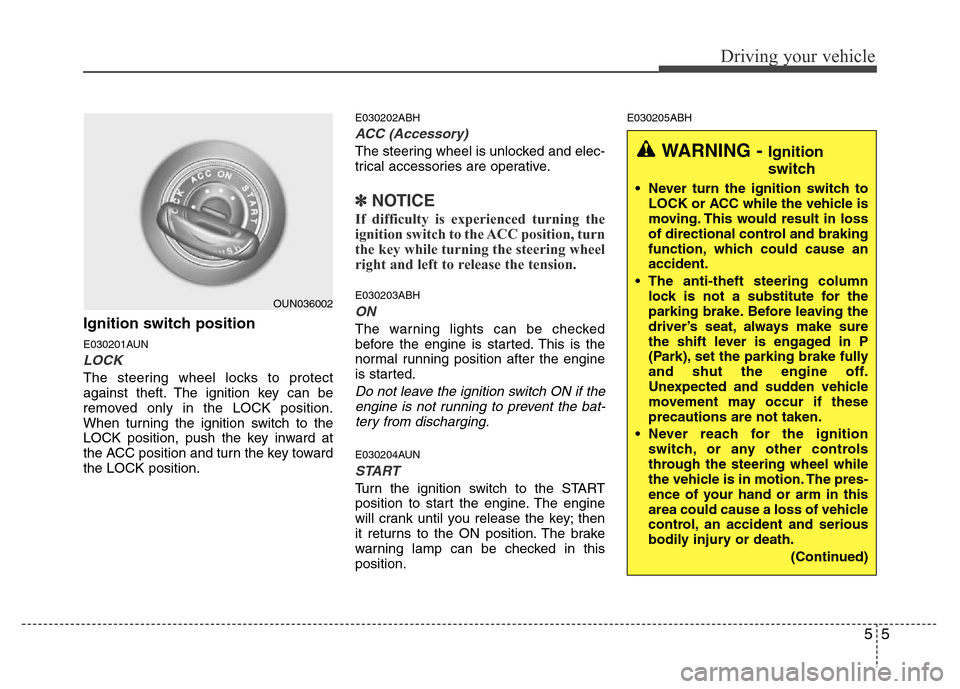
Ignition switch position
E030201AUN
LOCK
The steering wheel locks to protect
against theft. The ignition key can be
removed only in the LOCK position.
When turning the ignition switch to the
LOCK position, push the key inward at
the ACC position and turn the key toward
the LOCK position.
E030202ABH
ACC (Accessory)
The steering wheel is unlocked and elec-
trical accessories are operative.
✽NOTICE
If difficulty is experienced turning the
ignition switch to the ACC position, turn
the key while turning the steering wheel
right and left to release the tension.
E030203ABH
ON
The warning lights can be checked
before the engine is started. This is the
normal running position after the engine
is started.
Do not leave the ignition switch ON if the
engine is not running to prevent the bat-
tery from discharging.
E030204AUN
START
Turn the ignition switch to the START
position to start the engine. The engine
will crank until you release the key; then
it returns to the ON position. The brake
warning lamp can be checked in this
position.
E030205ABH
OUN036002
WARNING - Ignition
switch
• Never turn the ignition switch to
LOCK or ACC while the vehicle is
moving. This would result in loss
of directional control and braking
function, which could cause an
accident.
• The anti-theft steering column
lock is not a substitute for the
parking brake. Before leaving the
driver’s seat, always make sure
the shift lever is engaged in P
(Park), set the parking brake fully
and shut the engine off.
Unexpected and sudden vehicle
movement may occur if these
precautions are not taken.
• Never reach for the ignition
switch, or any other controls
through the steering wheel while
the vehicle is in motion. The pres-
ence of your hand or arm in this
area could cause a loss of vehicle
control, an accident and serious
bodily injury or death.
(Continued)
Page 229 of 393
57
Driving your vehicle
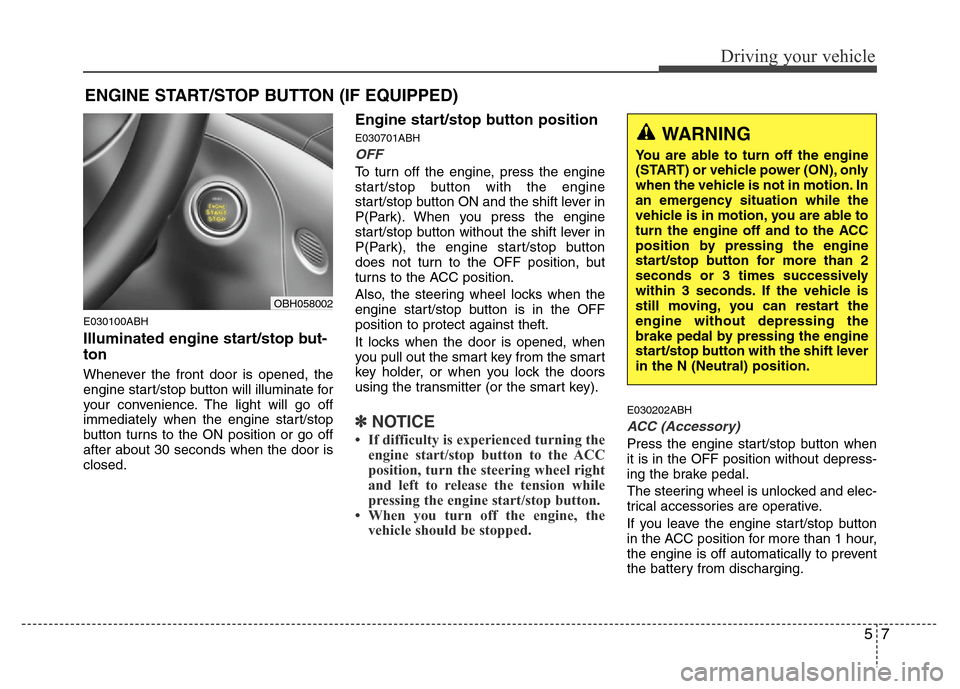
E030100ABH
Illuminated engine start/stop but-
ton
Whenever the front door is opened, the
engine start/stop button will illuminate for
your convenience. The light will go off
immediately when the engine start/stop
button turns to the ON position or go off
after about 30 seconds when the door is
closed.
Engine start/stop button position
E030701ABH
OFF
To turn off the engine, press the engine
start/stop button with the engine
start/stop button ON and the shift lever in
P(Park). When you press the engine
start/stop button without the shift lever in
P(Park), the engine start/stop button
does not turn to the OFF position, but
turns to the ACC position.
Also, the steering wheel locks when the
engine start/stop button is in the OFF
position to protect against theft.
It locks when the door is opened, when
you pull out the smart key from the smart
key holder, or when you lock the doors
using the transmitter (or the smart key).
✽NOTICE
• If difficulty is experienced turning the
engine start/stop button to the ACC
position, turn the steering wheel right
and left to release the tension while
pressing the engine start/stop button.
• When you turn off the engine, the
vehicle should be stopped.
E030202ABH
ACC (Accessory)
Press the engine start/stop button when
it is in the OFF position without depress-
ing the brake pedal.
The steering wheel is unlocked and elec-
trical accessories are operative.
If you leave the engine start/stop button
in the ACC position for more than 1 hour,
the engine is off automatically to prevent
the battery from discharging.
ENGINE START/STOP BUTTON (IF EQUIPPED)
WARNING
You are able to turn off the engine
(START) or vehicle power (ON), only
when the vehicle is not in motion. In
an emergency situation while the
vehicle is in motion, you are able to
turn the engine off and to the ACC
position by pressing the engine
start/stop button for more than 2
seconds or 3 times successively
within 3 seconds. If the vehicle is
still moving, you can restart the
engine without depressing the
brake pedal by pressing the engine
start/stop button with the shift lever
in the N (Neutral) position.
OBH058002