drive mode Hyundai Genesis 2013 User Guide
[x] Cancel search | Manufacturer: HYUNDAI, Model Year: 2013, Model line: Genesis, Model: Hyundai Genesis 2013Pages: 429, PDF Size: 8.94 MB
Page 176 of 429
497
Features of your vehicle
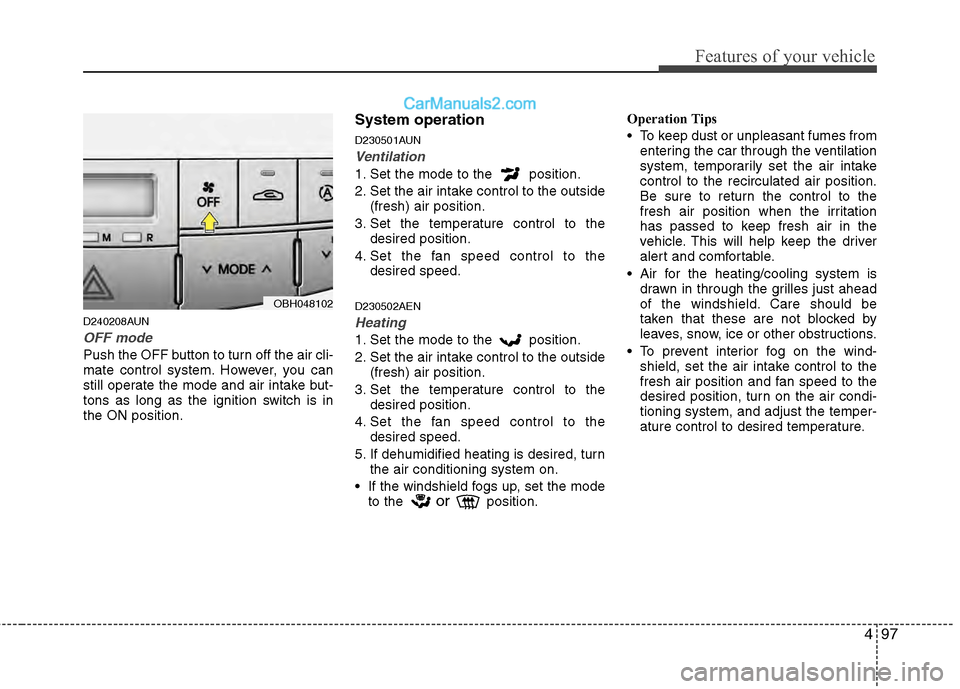
D240208AUN
OFF mode
Push the OFF button to turn off the air cli-
mate control system. However, you can
still operate the mode and air intake but-
tons as long as the ignition switch is in
the ON position.
System operation
D230501AUN
Ventilation
1. Set the mode to the position.
2. Set the air intake control to the outside(fresh) air position.
3. Set the temperature control to the desired position.
4. Set the fan speed control to the desired speed.
D230502AEN
Heating
1. Set the mode to the position.
2. Set the air intake control to the outside(fresh) air position.
3. Set the temperature control to the desired position.
4. Set the fan speed control to the desired speed.
5. If dehumidified heating is desired, turn the air conditioning system on.
If the windshield fogs up, set the mode to the
orposition. Operation Tips
To keep dust or unpleasant fumes from
entering the car through the ventilation
system, temporarily set the air intake
control to the recirculated air position.
Be sure to return the control to the
fresh air position when the irritation
has passed to keep fresh air in the
vehicle. This will help keep the driver
alert and comfortable.
Air for the heating/cooling system is drawn in through the grilles just ahead
of the windshield. Care should be
taken that these are not blocked by
leaves, snow, ice or other obstructions.
To prevent interior fog on the wind- shield, set the air intake control to the
fresh air position and fan speed to the
desired position, turn on the air condi-
tioning system, and adjust the temper-
ature control to desired temperature.
OBH048102
Page 178 of 429
499
Features of your vehicle
When using the air conditioning sys-tem, you may notice clear water drip-
ping (or even puddling) on the ground
under the passenger side of the vehi-
cle. This is a normal system operation
characteristic.
Operating the air conditioning system in the recirculated air position provides
maximum cooling, however, continual
operation in this mode may cause the
air inside the vehicle to become stale.
After sufficient cooling has been
achieved, switch back from the recircu-
lated air to the fresh outside air posi-
tion.
During cooling operation, you may occasionally notice a misty air flow
because of rapid cooling and humid air
intake. This is a normal system opera-
tion characteristic.
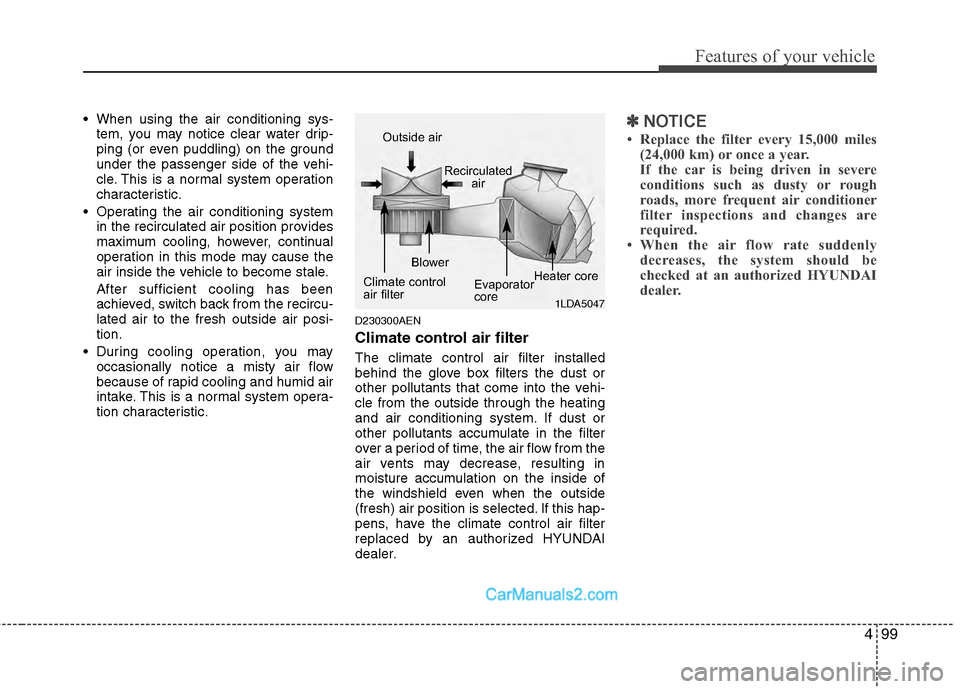
D230300AEN
Climate control air filter
The climate control air filter installed
behind the glove box filters the dust or
other pollutants that come into the vehi-
cle from the outside through the heating
and air conditioning system. If dust or
other pollutants accumulate in the filter
over a period of time, the air flow from the
air vents may decrease, resulting in
moisture accumulation on the inside of
the windshield even when the outside
(fresh) air position is selected. If this hap-
pens, have the climate control air filter
replaced by an authorized HYUNDAI
dealer.
✽ ✽ NOTICE
• Replace the filter every 15,000 miles
(24,000 km) or once a year.
If the car is being driven in severe
conditions such as dusty or rough
roads, more frequent air conditioner
filter inspections and changes are
required.
• When the air flow rate suddenly decreases, the system should be
checked at an authorized HYUNDAI
dealer.
1LDA5047
Outside air
Recirculatedair
Climate control
air filter Blower
Evaporator
coreHeater core
Page 189 of 429
Features of your vehicle
110
4
D280604AEN
Display conversion
To change the 12 hour format to the 24
hour format, press the R button until the
display blinks.
For example, if the R button is pressed
while the time is 10:15 p.m., the display
will be changed to 22:15.
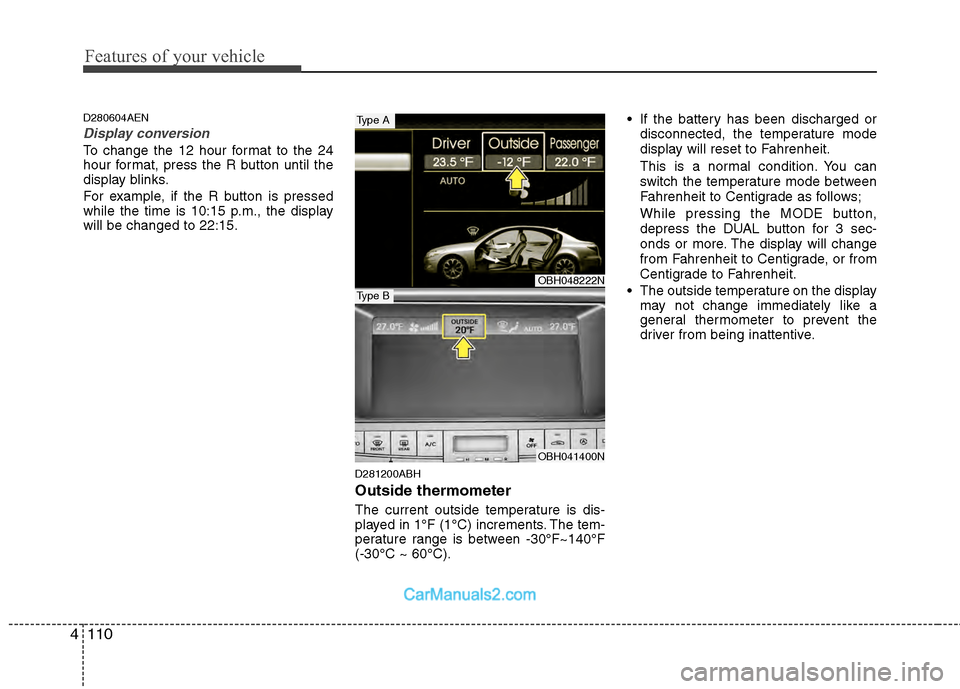
D281200ABH
Outside thermometer
The current outside temperature is dis-
played in 1°F (1°C) increments. The tem-
perature range is between -30°F~140°F
(-30°C ~ 60°C). If the battery has been discharged or
disconnected, the temperature mode
display will reset to Fahrenheit.
This is a normal condition. You can
switch the temperature mode between
Fahrenheit to Centigrade as follows;
While pressing the MODE button,
depress the DUAL button for 3 sec-
onds or more. The display will change
from Fahrenheit to Centigrade, or from
Centigrade to Fahrenheit.
The outside temperature on the display may not change immediately like a
general thermometer to prevent the
driver from being inattentive.
OBH048222N
OBH041400N
Type A
Type B
Page 204 of 429
4125
Features of your vehicle
(Continued) If you disconnect the external USB device during playback in USBmode, the external USB device canbe damaged or may malfunction.Therefore, disconnect the externalUSB device when the audio isturned off or in another mode. (e.g,Radio, XM or CD)
Depending on the type and capac- ity of the external USB device orthe type of the files stored in the device, there is a difference in thetime taken for recognition of thedevice.
Do not use the USB device for pur- poses other than playing music files.
Playing videos through the USB is not supported.
Use of USB accessories such as rechargers or heaters using USBI/F may lower performance orcause trouble.
If you use devices such as a USB hub purchased separately, thevehicle’s audio system may notrecognize the USB device. In thatcase, connect the USB devicedirectly to the multimedia termi- nal of the vehicle.
(Continued)(Continued) The data in the USB memory may be lost while using this audio.Always back up important data on a personal storage device.
Please avoid using USB memory products which can be used askey chains or cellular phoneaccessories as they could cause damage to the USB jack. Pleasemake certain only to use plug typeconnector products as shown below.(Continued)
If the USB device is divided by logical drives, only the music fileson the highest-priority drive arerecognized by car audio.
Devices such as MP3 Player/ Cellular phone/Digital camera canbe unrecognizable by standardUSB I/F can be unrecognizable.
Charging through the USB may not be supported in some mobiledevices.
❋ A car exclusive cable (providedor sold separately) is required touse the iPod
®.
Some non-standard USB devices (METAL COVER TYPE USB) can beunrecognizable.
Some USB flash memory readers (such as CF, SD, microSD, etc.) orexternal-HDD type devices can beunrecognizable.
Music files protected by DRM (DIGITAL RIGHTS MANAGEMENT)are not recognizable.
(Continued)
Page 206 of 429
4127
Features of your vehicle
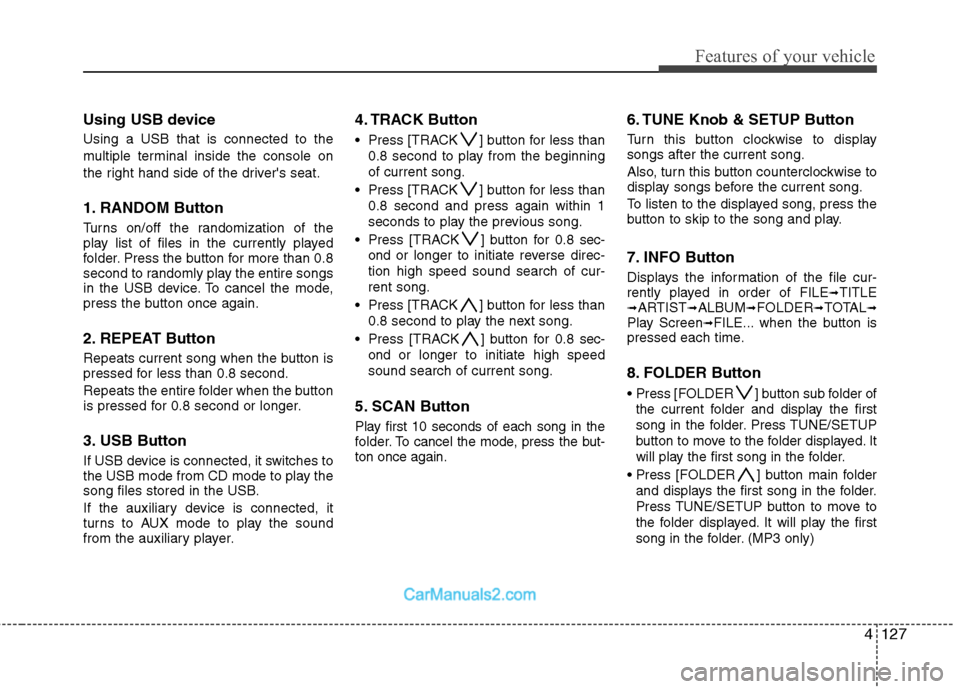
Using USB device
Using a USB that is connected to the
multiple terminal inside the console on
the right hand side of the driver's seat.
1. RANDOM Button
Turns on/off the randomization of the
play list of files in the currently played
folder. Press the button for more than 0.8
second to randomly play the entire songs
in the USB device. To cancel the mode,
press the button once again.
2. REPEAT Button
Repeats current song when the button is
pressed for less than 0.8 second.
Repeats the entire folder when the button
is pressed for 0.8 second or longer.
3. USB Button
If USB device is connected, it switches to
the USB mode from CD mode to play the
song files stored in the USB.
If the auxiliary device is connected, it
turns to AUX mode to play the sound
from the auxiliary player.
4. TRACK Button
Press [TRACK ] button for less than0.8 second to play from the beginning
of current song.
Press [TRACK ] button for less than 0.8 second and press again within 1
seconds to play the previous song.
Press [TRACK ] button for 0.8 sec- ond or longer to initiate reverse direc-
tion high speed sound search of cur-
rent song.
Press [TRACK ] button for less than 0.8 second to play the next song.
Press [TRACK ] button for 0.8 sec- ond or longer to initiate high speed
sound search of current song.
5. SCAN Button
Play first 10 seconds of each song in the
folder. To cancel the mode, press the but-
ton once again.
6. TUNE Knob & SETUP Button
Turn this button clockwise to display
songs after the current song.
Also, turn this button counterclockwise to
display songs before the current song.
To listen to the displayed song, press the
button to skip to the song and play.
7. INFO Button
Displays the information of the file cur-
rently played in order of FILE➟TITLE➟ARTIST➟ALBUM➟FOLDER➟TOTAL➟Play Screen➟FILE... when the button is
pressed each time.
8. FOLDER Button
Press [FOLDER ] button sub folder of
the current folder and display the first
song in the folder. Press TUNE/SETUP
button to move to the folder displayed. It
will play the first song in the folder.
] button main folder and displays the first song in the folder.
Press TUNE/SETUP button to move to
the folder displayed. It will play the first
song in the folder. (MP3 only)
Page 208 of 429
4129
Features of your vehicle
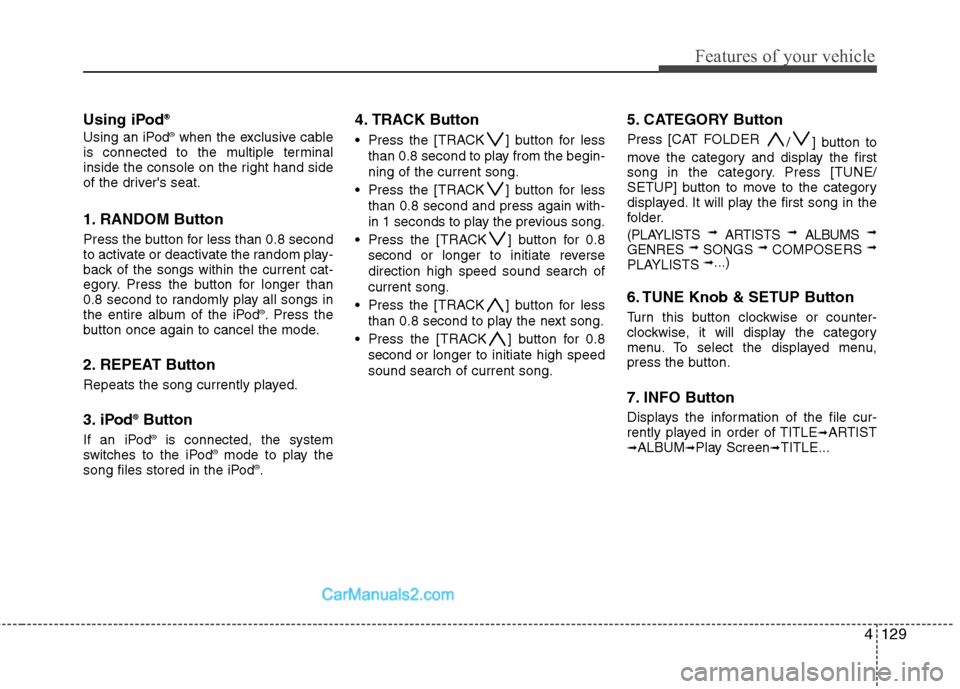
Using iPod®
®
Using an iPod®when the exclusive cable
is connected to the multiple terminal
inside the console on the right hand side
of the driver's seat.
1. RANDOM Button
Press the button for less than 0.8 second
to activate or deactivate the random play-
back of the songs within the current cat-
egory. Press the button for longer than
0.8 second to randomly play all songs in
the entire album of the iPod
®. Press the
button once again to cancel the mode.
2. REPEAT Button
Repeats the song currently played.
3. iPod®Button
If an iPod®is connected, the system
switches to the iPod®mode to play the
song files stored in the iPod®.
4. TRACK Button
Press the [TRACK ] button for less
than 0.8 second to play from the begin-
ning of the current song.
Press the [TRACK ] button for less than 0.8 second and press again with-
in 1 seconds to play the previous song.
Press the [TRACK ] button for 0.8 second or longer to initiate reverse
direction high speed sound search of
current song.
Press the [TRACK ] button for less than 0.8 second to play the next song.
Press the [TRACK ] button for 0.8 second or longer to initiate high speed
sound search of current song.
5. CATEGORY Button
Press [CAT FOLDER / ] button to
move the category and display the first
song in the category. Press [TUNE/
SETUP] button to move to the category
displayed. It will play the first song in the
folder.
(PLAYLISTS
➟ ARTISTS ➟ ALBUMS ➟
GENRES ➟ SONGS ➟ COMPOSERS ➟
PLAYLISTS ➟...)
6. TUNE Knob & SETUP Button
Turn this button clockwise or counter-
clockwise, it will display the category
menu. To select the displayed menu,
press the button.
7. INFO Button
Displays the information of the file cur-
rently played in order of TITLE➟ARTIST➟ALBUM➟Play Screen➟TITLE...
Page 217 of 429
Features of your vehicle
138
4
CAUTION IN USING
USB DEVICE
To use an external USB device,
make sure the device is not con-nected when starting up the vehi-cle. Connect the device afterstarting up.
If you start the engine when the USB device is connected, it maydamage the USB device. (USBflashdrives are very sensitive toelectric shock.)
If the engine is started up or turned off while the external USBdevice is connected, the externalUSB device may not work.
It may not play inauthentic MP3 or WMA files.
1) It can only play MP3 files with the compression rate between8Kbps~320Kbps.
2) It can only play WMA music files with the compression ratebetween 8Kbps~320Kbps.
Take precautions for static electrici- ty when connecting or disconnect-ing the external USB device.
(Continued)
(Continued) An encrypted MP3 PLAYER is not recognizable.
Depending on the condition of the external USB device, the con-nected external USB device canbe unrecognizable.
When the formatted byte/sector setting of External USB device isnot either 512BYTE or 2048BYTE,then the device will not be recog- nized.
Use only a USB device formatted to FAT 12/16/32.
USB devices without USB I/F authentication may not be recog-nizable.
Make sure the USB connection terminal does not come in contactwith the human body or otherobjects.
If you repeatedly connect or dis- connect the USB device in a shortperiod of time, it may break thedevice.
You may hear a strange noise when connecting or disconnect-ing a USB device.
(Continued)(Continued) If you disconnect the external USB device during playback in USBmode, the external USB device canbe damaged or may malfunction. Therefore, disconnect the externalUSB device when the audio is turned off or in another mode. (e.g,Radio, XM or CD)
Depending on the type and capaci- ty of the external USB device or thetype of the files stored in the device,there is a difference in the time taken for recognition of the device.
Do not use the USB device for pur- poses other than playing musicfiles.
Playing videos through the USB is not supported.
Use of USB accessories such as rechargers or heaters using USBI/F may lower performance orcause trouble.
If you use devices such as a USB hub purchased separately, thevehicle’s audio system may not recognize the USB device. In thatcase, connect the USB devicedirectly to the multimedia termi- nal of the vehicle.
(Continued)
Page 220 of 429
4141
Features of your vehicle
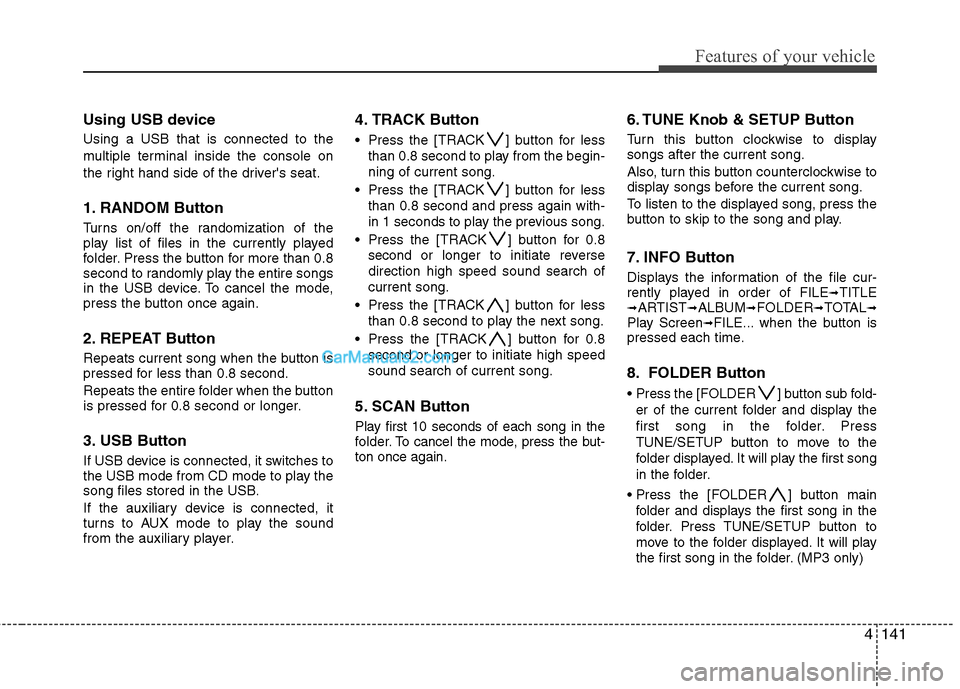
Using USB device
Using a USB that is connected to the
multiple terminal inside the console on
the right hand side of the driver's seat.
1. RANDOM Button
Turns on/off the randomization of the
play list of files in the currently played
folder. Press the button for more than 0.8
second to randomly play the entire songs
in the USB device. To cancel the mode,
press the button once again.
2. REPEAT Button
Repeats current song when the button is
pressed for less than 0.8 second.
Repeats the entire folder when the button
is pressed for 0.8 second or longer.
3. USB Button
If USB device is connected, it switches to
the USB mode from CD mode to play the
song files stored in the USB.
If the auxiliary device is connected, it
turns to AUX mode to play the sound
from the auxiliary player.
4. TRACK Button
Press the [TRACK ] button for lessthan 0.8 second to play from the begin-
ning of current song.
Press the [TRACK ] button for less than 0.8 second and press again with-
in 1 seconds to play the previous song.
Press the [TRACK ] button for 0.8 second or longer to initiate reverse
direction high speed sound search of
current song.
Press the [TRACK ] button for less than 0.8 second to play the next song.
Press the [TRACK ] button for 0.8 second or longer to initiate high speed
sound search of current song.
5. SCAN Button
Play first 10 seconds of each song in the
folder. To cancel the mode, press the but-
ton once again.
6. TUNE Knob & SETUP Button
Turn this button clockwise to display
songs after the current song.
Also, turn this button counterclockwise to
display songs before the current song.
To listen to the displayed song, press the
button to skip to the song and play.
7. INFO Button
Displays the information of the file cur-
rently played in order of FILE➟TITLE➟ARTIST➟ALBUM➟FOLDER➟TOTAL➟Play Screen➟FILE... when the button is
pressed each time.
8. FOLDER Button
Press the [FOLDER ] button sub fold-
er of the current folder and display the
first song in the folder. Press
TUNE/SETUP button to move to the
folder displayed. It will play the first song
in the folder.
] button main folder and displays the first song in the
folder. Press TUNE/SETUP button to
move to the folder displayed. It will play
the first song in the folder. (MP3 only)
Page 222 of 429
4143
Features of your vehicle
Using iPod®
Using an iPod®when the exclusive cable
is connected to the multiple terminal
inside the console on the right hand side
of the driver's seat.
1. RANDOM Button
Press the button for less than 0.8 second
to activate or deactivate the random play-
back of the songs within the current cat-
egory. Press the button for longer than
0.8 second to randomly play all songs in
the entire album of the iPod
®. Press the
button once again to cancel the mode.
2. REPEAT Button
Repeats the song currently played.
3. iPod®Button
If an iPod®is connected, the system
switches to the iPod®mode to play the
song files stored in the iPod®.
4. TRACK Button
Press the [TRACK ] button for less
than 0.8 second to play from the begin-
ning of the current song.
Press the [TRACK ] button for less than 0.8 second and press again with-
in 1 seconds to play the previous song.
Press the [TRACK ] button for 0.8 second or longer to initiate reverse
direction high speed sound search of
current song.
Press the [TRACK ] button for less than 0.8 second to play the next song.
Press the [TRACK ] button for 0.8 second or longer to initiate high speed
sound search of current song.
5. Category Button
Press [CAT FOLDER / ] button to
move the category and display the first
song in the category. Press [TUNE/
SETUP] button to move to the category
displayed. It will play the first song in the
folder.
(PLAYLISTS
➟ ARTISTS ➟ ALBUMS ➟
GENRES ➟ SONGS ➟ COMPOSERS ➟
PLAYLISTS ➟...)
6. TUNE Knob & SETUP Button
Turn this button clockwise or counter-
clockwise, it will display the category
menu. To select the displayed menu,
press the button.
7. INFO Button
Displays the information of the file cur-
rently played in order of TITLE➟ARTIST➟ALBUM➟Play Screen➟TITLE...
Page 253 of 429
WARNING
Always fully depress the brake
pedal before and while shifting out
of the P (Park) position into anoth-
er position to avoid inadvertent
motion of the vehicle which could
injure persons in or around the car.
Driving your vehicle
14
5
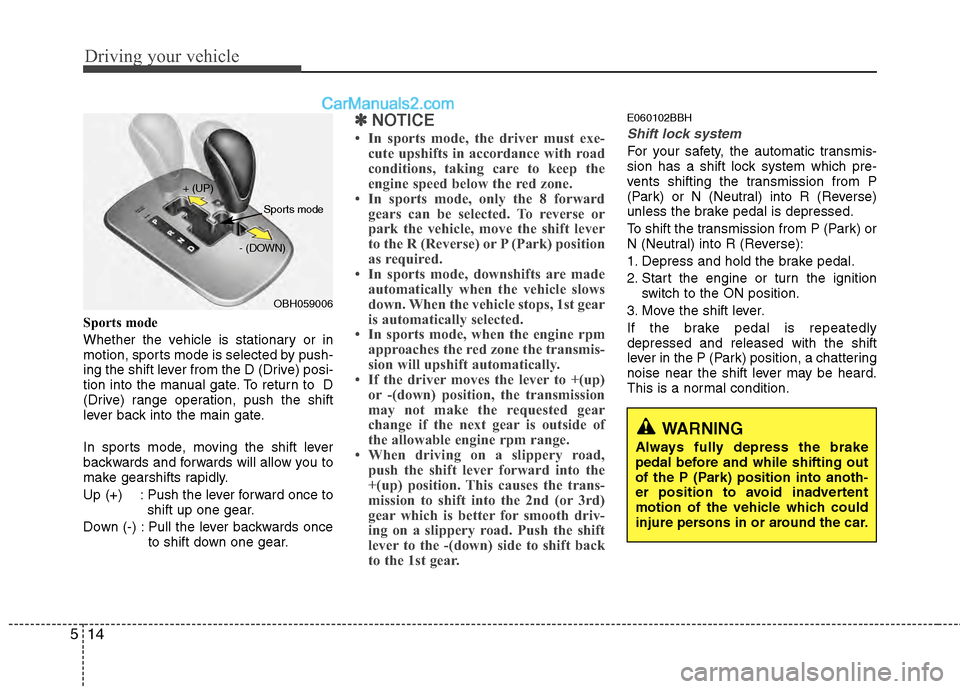
Sports mode
Whether the vehicle is stationary or in
motion, sports mode is selected by push-
ing the shift lever from the D (Drive) posi-
tion into the manual gate. To return to D
(Drive) range operation, push the shift
lever back into the main gate.
In sports mode, moving the shift lever
backwards and forwards will allow you to
make gearshifts rapidly.
Up (+) : Push the lever forward once to
shift up one gear.
Down (-) : Pull the lever backwards once to shift down one gear.
✽ ✽NOTICE
• In sports mode, the driver must exe-
cute upshifts in accordance with road
conditions, taking care to keep the
engine speed below the red zone.
• In sports mode, only the 8 forward gears can be selected. To reverse or
park the vehicle, move the shift lever
to the R (Reverse) or P (Park) position
as required.
• In sports mode, downshifts are made automatically when the vehicle slows
down. When the vehicle stops, 1st gear
is automatically selected.
• In sports mode, when the engine rpm approaches the red zone the transmis-
sion will upshift automatically.
• If the driver moves the lever to +(up) or -(down) position, the transmission
may not make the requested gear
change if the next gear is outside of
the allowable engine rpm range.
• When driving on a slippery road, push the shift lever forward into the
+(up) position. This causes the trans-
mission to shift into the 2nd (or 3rd)
gear which is better for smooth driv-
ing on a slippery road. Push the shift
lever to the -(down) side to shift back
to the 1st gear.
E060102BBH
Shift lock system
For your safety, the automatic transmis-
sion has a shift lock system which pre-
vents shifting the transmission from P
(Park) or N (Neutral) into R (Reverse)
unless the brake pedal is depressed.
To shift the transmission from P (Park) or
N (Neutral) into R (Reverse):
1. Depress and hold the brake pedal.
2. Start the engine or turn the ignition
switch to the ON position.
3. Move the shift lever.
If the brake pedal is repeatedly
depressed and released with the shift
lever in the P (Park) position, a chattering
noise near the shift lever may be heard.
This is a normal condition.
OBH059006
+ (UP)
- (DOWN)
Sports mode