radio Hyundai Genesis 2013 User Guide
[x] Cancel search | Manufacturer: HYUNDAI, Model Year: 2013, Model line: Genesis, Model: Hyundai Genesis 2013Pages: 429, PDF Size: 8.94 MB
Page 199 of 429
Features of your vehicle
120
4
BH_PA710BH_RADIO
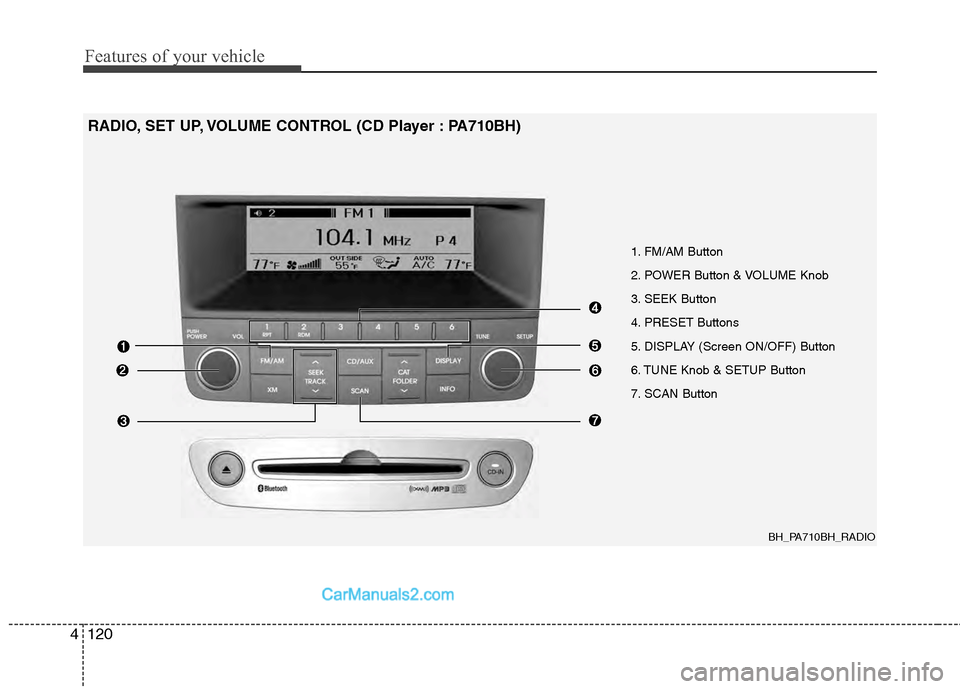
1. FM/AM Button
2. POWER Button & VOLUME Knob
3. SEEK Button
4. PRESET Buttons
5. DISPLAY (Screen ON/OFF) Button
6. TUNE Knob & SETUP Button
7. SCAN Button
RADIO, SET UP, VOLUME CONTROL (CD Player : PA710BH)
Page 200 of 429
4121
Features of your vehicle
Using RADIO, SET UP, VOLUME
Control
1. FM/AM Button
Turns to FM or AM mode, and toggles in
the order of FM1➟FM2➟AM➟FM1...
when the button is pressed each time.
2. POWER Button & VOLUME Knob
Turns the set on/off when the IGNITION
SWITCH is on ACC or ON. If the button
is turned to the right, it increases the vol-
ume and left, decreases the volume.
3. SEEK Button
When the [SEEK ] button is pressed,
it reduces the band frequency to auto-
matically select a channel. Stops at the
previous frequency if no channel is
found.
When the [SEEK ] button is pressed, it increases the band frequency to auto-
matically select a channel. Stops at the
previous frequency if no channel is
found.
4. PRESET Buttons
Press [1]~[6] buttons less than 0.8 second
to play the channel saved in each button.
Press preset button for 0.8 second or
longer to save current channel to the
respective button with a beep.
5. DISPLAY (Screen ON/OFF) Button
Turns the displayed data and light on/off
on the LCD.
6. TUNE Knob & SETUP Button
When you rotate to clockwise or counter-
clockwise, the frequency increases or
decreases by each step.
General(AM 9kHz, FM 100kHz), USA
(AM 10kHz, FM 200kHz)
When you press this button, enter the
SETUP mode. If no action is taken for 5
seconds after pressing the button, it will
return to the play mode. (After entering
SETUP mode, move between items
using the left, right and push functions of
the TUNE/SETUP button.)
7. SCAN Button
Press to hear a brief sampling of all sta-
tions on the frequency band. When you
press this button again at this moment, you
can receive the broadcasting that you
choose.
Page 204 of 429
4125
Features of your vehicle
(Continued) If you disconnect the external USB device during playback in USBmode, the external USB device canbe damaged or may malfunction.Therefore, disconnect the externalUSB device when the audio isturned off or in another mode. (e.g,Radio, XM or CD)
Depending on the type and capac- ity of the external USB device orthe type of the files stored in the device, there is a difference in thetime taken for recognition of thedevice.
Do not use the USB device for pur- poses other than playing music files.
Playing videos through the USB is not supported.
Use of USB accessories such as rechargers or heaters using USBI/F may lower performance orcause trouble.
If you use devices such as a USB hub purchased separately, thevehicle’s audio system may notrecognize the USB device. In thatcase, connect the USB devicedirectly to the multimedia termi- nal of the vehicle.
(Continued)(Continued) The data in the USB memory may be lost while using this audio.Always back up important data on a personal storage device.
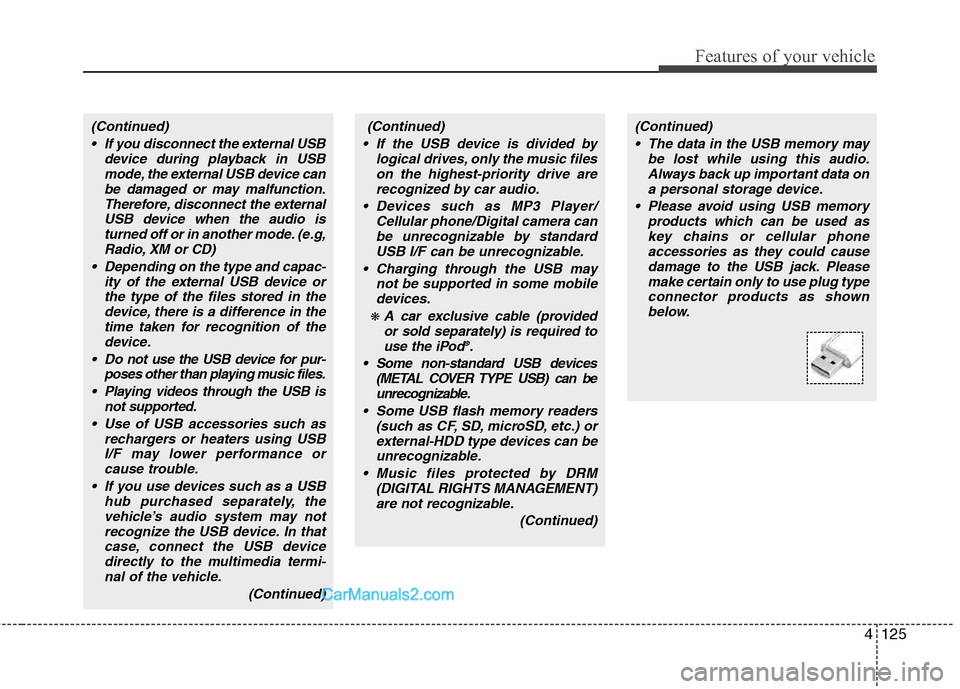
Please avoid using USB memory products which can be used askey chains or cellular phoneaccessories as they could cause damage to the USB jack. Pleasemake certain only to use plug typeconnector products as shown below.(Continued)
If the USB device is divided by logical drives, only the music fileson the highest-priority drive arerecognized by car audio.
Devices such as MP3 Player/ Cellular phone/Digital camera canbe unrecognizable by standardUSB I/F can be unrecognizable.
Charging through the USB may not be supported in some mobiledevices.
❋ A car exclusive cable (providedor sold separately) is required touse the iPod
®.
Some non-standard USB devices (METAL COVER TYPE USB) can beunrecognizable.
Some USB flash memory readers (such as CF, SD, microSD, etc.) orexternal-HDD type devices can beunrecognizable.
Music files protected by DRM (DIGITAL RIGHTS MANAGEMENT)are not recognizable.
(Continued)
Page 210 of 429
4131
Features of your vehicle
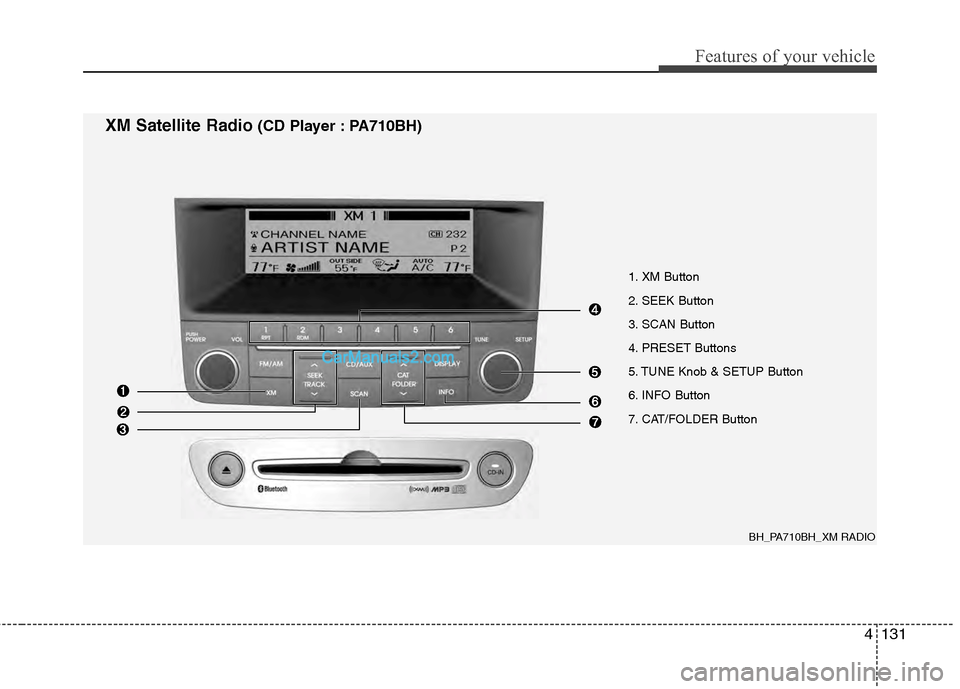
1. XM Button
2. SEEK Button
3. SCAN Button
4. PRESET Buttons
5. TUNE Knob & SETUP Button
6. INFO Button
7. CAT/FOLDER Button
BH_PA710BH_XM RADIO
XM Satellite Radio(CD Player : PA710BH)
Page 211 of 429
Features of your vehicle
132
4
Using XM Satellite Radio
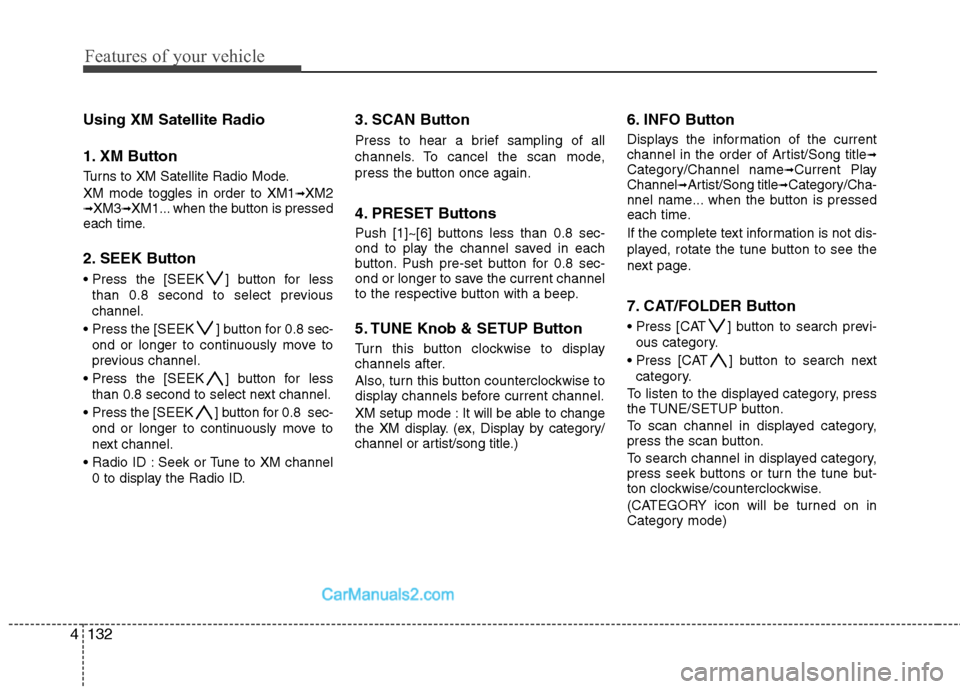
1. XM Button
Turns to XM Satellite Radio Mode.
XM mode toggles in order to XM1
➟XM2➟XM3➟XM1... when the button is pressed
each time.
2. SEEK Button
] button for less
than 0.8 second to select previous
channel.
] bu tton for 0.8 sec-
ond or longer to continuously move to
previous channel.
] button for less than 0.8 second to select next channel.
] button for 0.8 sec- ond or longer to continuously move to
next channel.
Seek or Tune to XM channel 0 to display the Radio ID.
3. SCAN Button
Press to hear a brief sampling of all
channels. To cancel the scan mode,
press the button once again.
4. PRESET Buttons
Push [1]~[6] buttons less than 0.8 sec-
ond to play the channel saved in each
button. Push pre-set button for 0.8 sec-
ond or longer to save the current channel
to the respective button with a beep.
5. TUNE Knob & SETUP Button
Turn this button clockwise to display
channels after.
Also, turn this button counterclockwise to
display channels before current channel.
XM setup mode : It will be able to change
the XM display. (ex, Display by category/
channel or artist/song title.)
6. INFO Button
Displays the information of the current
channel in the order of Artist/Song title➟Category/Channel name➟Current Play
Channel➟Artist/Song title➟Category/Cha-
nnel name... when the button is pressed
each time.
If the complete text information is not dis-
played, rotate the tune button to see the
next page.
7. CAT/FOLDER Button
Press [CAT ] button to search previ-
ous category.
Press [CAT ] button to search next category.
To listen to the displayed category, press
the TUNE/SETUP button.
To scan channel in displayed category,
press the scan button.
To search channel in displayed category,
press seek buttons or turn the tune but-
ton clockwise/counterclockwise.
(CATEGORY icon will be turned on in
Category mode)
Page 212 of 429
4133
Features of your vehicle
BH_PA760BH_RADIO
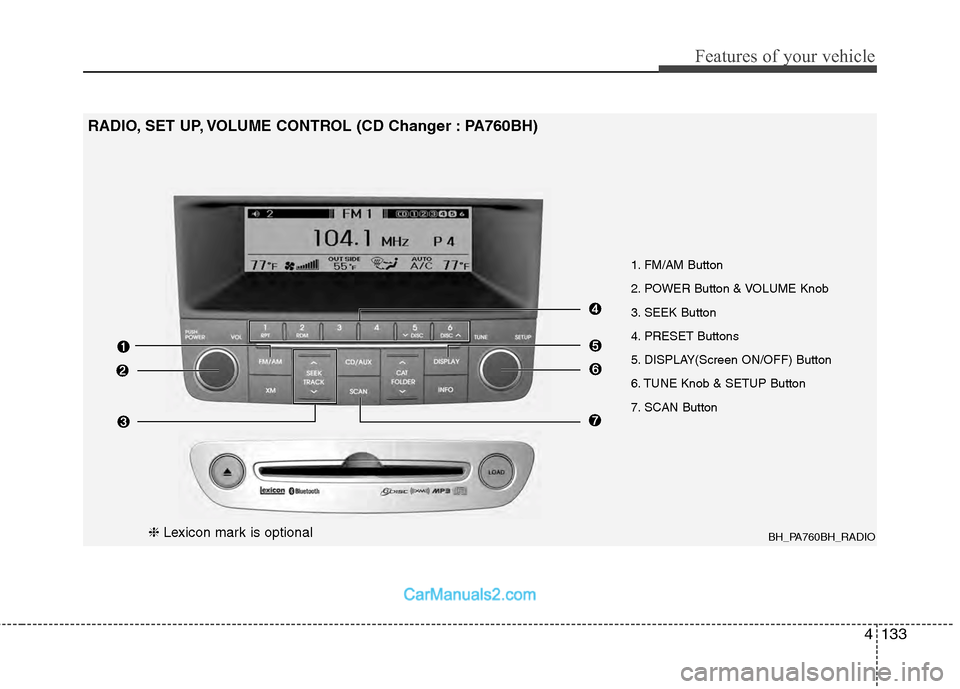
1. FM/AM Button
2. POWER Button & VOLUME Knob
3. SEEK Button
4. PRESET Buttons
5. DISPLAY(Screen ON/OFF) Button
6. TUNE Knob & SETUP Button
7. SCAN Button
RADIO, SET UP, VOLUME CONTROL (CD Changer : PA760BH)
❈Lexicon mark is optional
Page 213 of 429
Features of your vehicle
134
4
Using RADIO, SET UP, VOLUME
Control
1. FM/AM Button
Turns to FM or AM mode, and toggles in
the order of FM1➟FM2➟AM➟FM1...
when the button is pressed each time.
2. POWER Button & VOLUME Knob
Turns the set on/off when the IGNITION
SWITCH is on ACC or ON. If the button
is turned to the right, it increases the vol-
ume and left, decreases the volume.
3. SEEK Button
When the [SEEK ] button is pressed,
it reduces the band frequency to auto-
matically select a channel. Stops at the
previous frequency if no channel is
found.
When the [SEEK ] button is pressed, it increases the band frequency to auto-
matically select a channel. Stops at the
previous frequency if no channel is
found.
4. PRESET Buttons
Push [1]~[6] buttons less than 0.8 second
to play the channel saved in each button.
Push pre-set button for 0.8 second or
longer to save the current channel to the
respective button with a beep.
5. DISPLAY(Screen ON/OFF) Button
Turns on/off the displayed data and light
on the LCD.
6. TUNE Knob & SETUP Button
When you rotate to clockwise or counter-
clockwise, the frequency increases or
decreases by each step.
General(AM 9kHz, FM 100kHz), USA
(AM 10kHz, FM 200kHz)
When you press this button, enter the
SETUP mode. If no action is taken for 5
seconds after pressing the button, it will
return to the play mode. (After entering
SETUP mode, move between items
using the left, right and push functions of
the TUNE/SETUP button.)
❇ SURROUND is only Lexicon model.
7. SCAN Button
Press to hear a brief sampling of all sta-
tions on the frequency band. When you
press this button again at this moment, you
can receive the broadcasting that you
choose.
Page 217 of 429
Features of your vehicle
138
4
CAUTION IN USING
USB DEVICE
To use an external USB device,
make sure the device is not con-nected when starting up the vehi-cle. Connect the device afterstarting up.
If you start the engine when the USB device is connected, it maydamage the USB device. (USBflashdrives are very sensitive toelectric shock.)
If the engine is started up or turned off while the external USBdevice is connected, the externalUSB device may not work.
It may not play inauthentic MP3 or WMA files.
1) It can only play MP3 files with the compression rate between8Kbps~320Kbps.
2) It can only play WMA music files with the compression ratebetween 8Kbps~320Kbps.
Take precautions for static electrici- ty when connecting or disconnect-ing the external USB device.
(Continued)
(Continued) An encrypted MP3 PLAYER is not recognizable.
Depending on the condition of the external USB device, the con-nected external USB device canbe unrecognizable.
When the formatted byte/sector setting of External USB device isnot either 512BYTE or 2048BYTE,then the device will not be recog- nized.
Use only a USB device formatted to FAT 12/16/32.
USB devices without USB I/F authentication may not be recog-nizable.
Make sure the USB connection terminal does not come in contactwith the human body or otherobjects.
If you repeatedly connect or dis- connect the USB device in a shortperiod of time, it may break thedevice.
You may hear a strange noise when connecting or disconnect-ing a USB device.
(Continued)(Continued) If you disconnect the external USB device during playback in USBmode, the external USB device canbe damaged or may malfunction. Therefore, disconnect the externalUSB device when the audio is turned off or in another mode. (e.g,Radio, XM or CD)
Depending on the type and capaci- ty of the external USB device or thetype of the files stored in the device,there is a difference in the time taken for recognition of the device.
Do not use the USB device for pur- poses other than playing musicfiles.
Playing videos through the USB is not supported.
Use of USB accessories such as rechargers or heaters using USBI/F may lower performance orcause trouble.
If you use devices such as a USB hub purchased separately, thevehicle’s audio system may not recognize the USB device. In thatcase, connect the USB devicedirectly to the multimedia termi- nal of the vehicle.
(Continued)
Page 224 of 429
4145
Features of your vehicle
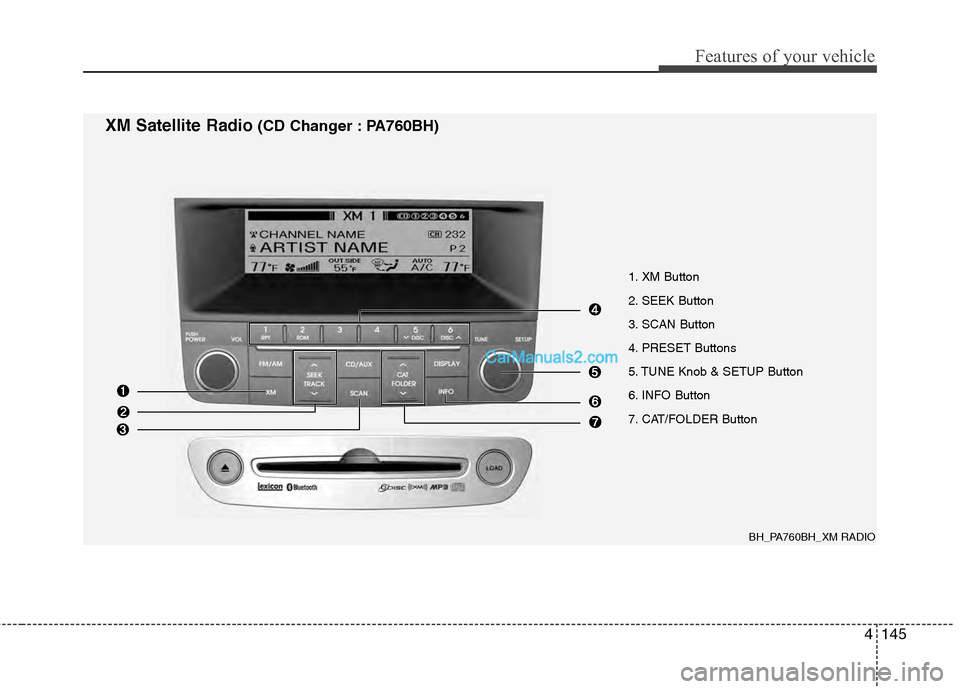
1. XM Button
2. SEEK Button
3. SCAN Button
4. PRESET Buttons
5. TUNE Knob & SETUP Button
6. INFO Button
7. CAT/FOLDER Button
BH_PA760BH_XM RADIO
XM Satellite Radio(CD Changer : PA760BH)
Page 225 of 429
Features of your vehicle
146
4
Using XM Satellite Radio
1. XM Button
Turns to XM Satellite Radio Mode.
XM mode toggles in order to XM1
➟XM2➟XM3➟XM1... when the button is pressed
each time.
2. SEEK Button
] button for less
than 0.8 second to select previous
channel.
[SEEK ] b utton for 0.8 sec-
ond or longer to continuously move to
previous channel.
] button for less than 0.8 second to select next channel.
] button for 0.8 sec- ond or longer to continuously move to
next channel.
Seek or Tune to XM channel 0 to display the Radio ID.
3. SCAN Button
Press to hear a brief sampling of all
channels. To cancel the scan mode,
press the button once again.
4. PRESET Buttons
Push [1]~[6] buttons less than 0.8 sec-
ond to play the channel saved in each
button. Push pre-set button for 0.8 sec-
ond or longer to save the current channel
to the respective button with a beep.
5. TUNE Knob & SETUP Button
Turn this button clockwise to display
channels after.
Also, turn this button counterclockwise to
display channels before current channel.
XM setup mode : It will be able to change
the XM display. (ex, Display by category/
channel or artist/song title.)
6. INFO Button
Displays the information of the current
channel in the order of Artist/Song title➟Category/Channel name➟Current Play
Channel➟Artist/Song title➟Category/Cha-
nnel name... when the button is pressed
each time.
If the complete text information is not dis-
played, rotate the tune button to see the
next page.
7. CAT/FOLDER Button
Press [CAT ] button to search previ-
ous category.
Press [CAT ] button to search next category.
To listen to the displayed category, press
the TUNE/SETUP button.
To scan channel in displayed category,
press the scan button.
To search channel in displayed category,
press seek buttons or turn the tune but-
ton clockwise/counterclockwise.
(CATEGORY icon will be turned on in
Category mode)