display Hyundai Genesis 2013 Owner's Guide
[x] Cancel search | Manufacturer: HYUNDAI, Model Year: 2013, Model line: Genesis, Model: Hyundai Genesis 2013Pages: 429, PDF Size: 8.94 MB
Page 208 of 429
4129
Features of your vehicle
Using iPod®
®
Using an iPod®when the exclusive cable
is connected to the multiple terminal
inside the console on the right hand side
of the driver's seat.
1. RANDOM Button
Press the button for less than 0.8 second
to activate or deactivate the random play-
back of the songs within the current cat-
egory. Press the button for longer than
0.8 second to randomly play all songs in
the entire album of the iPod
®. Press the
button once again to cancel the mode.
2. REPEAT Button
Repeats the song currently played.
3. iPod®Button
If an iPod®is connected, the system
switches to the iPod®mode to play the
song files stored in the iPod®.
4. TRACK Button
Press the [TRACK ] button for less
than 0.8 second to play from the begin-
ning of the current song.
Press the [TRACK ] button for less than 0.8 second and press again with-
in 1 seconds to play the previous song.
Press the [TRACK ] button for 0.8 second or longer to initiate reverse
direction high speed sound search of
current song.
Press the [TRACK ] button for less than 0.8 second to play the next song.
Press the [TRACK ] button for 0.8 second or longer to initiate high speed
sound search of current song.
5. CATEGORY Button
Press [CAT FOLDER / ] button to
move the category and display the first
song in the category. Press [TUNE/
SETUP] button to move to the category
displayed. It will play the first song in the
folder.
(PLAYLISTS
➟ ARTISTS ➟ ALBUMS ➟
GENRES ➟ SONGS ➟ COMPOSERS ➟
PLAYLISTS ➟...)
6. TUNE Knob & SETUP Button
Turn this button clockwise or counter-
clockwise, it will display the category
menu. To select the displayed menu,
press the button.
7. INFO Button
Displays the information of the file cur-
rently played in order of TITLE➟ARTIST➟ALBUM➟Play Screen➟TITLE...
Page 211 of 429
Features of your vehicle
132
4
Using XM Satellite Radio
1. XM Button
Turns to XM Satellite Radio Mode.
XM mode toggles in order to XM1
➟XM2➟XM3➟XM1... when the button is pressed
each time.
2. SEEK Button
] button for less
than 0.8 second to select previous
channel.
] bu tton for 0.8 sec-
ond or longer to continuously move to
previous channel.
] button for less than 0.8 second to select next channel.
] button for 0.8 sec- ond or longer to continuously move to
next channel.
Seek or Tune to XM channel 0 to display the Radio ID.
3. SCAN Button
Press to hear a brief sampling of all
channels. To cancel the scan mode,
press the button once again.
4. PRESET Buttons
Push [1]~[6] buttons less than 0.8 sec-
ond to play the channel saved in each
button. Push pre-set button for 0.8 sec-
ond or longer to save the current channel
to the respective button with a beep.
5. TUNE Knob & SETUP Button
Turn this button clockwise to display
channels after.
Also, turn this button counterclockwise to
display channels before current channel.
XM setup mode : It will be able to change
the XM display. (ex, Display by category/
channel or artist/song title.)
6. INFO Button
Displays the information of the current
channel in the order of Artist/Song title➟Category/Channel name➟Current Play
Channel➟Artist/Song title➟Category/Cha-
nnel name... when the button is pressed
each time.
If the complete text information is not dis-
played, rotate the tune button to see the
next page.
7. CAT/FOLDER Button
Press [CAT ] button to search previ-
ous category.
Press [CAT ] button to search next category.
To listen to the displayed category, press
the TUNE/SETUP button.
To scan channel in displayed category,
press the scan button.
To search channel in displayed category,
press seek buttons or turn the tune but-
ton clockwise/counterclockwise.
(CATEGORY icon will be turned on in
Category mode)
Page 212 of 429
4133
Features of your vehicle
BH_PA760BH_RADIO
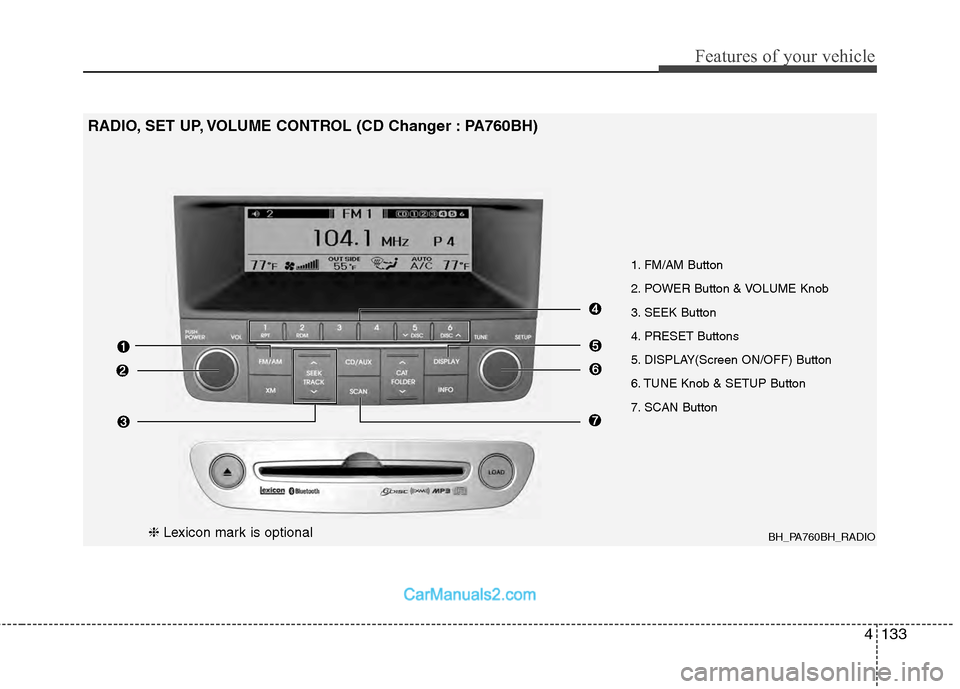
1. FM/AM Button
2. POWER Button & VOLUME Knob
3. SEEK Button
4. PRESET Buttons
5. DISPLAY(Screen ON/OFF) Button
6. TUNE Knob & SETUP Button
7. SCAN Button
RADIO, SET UP, VOLUME CONTROL (CD Changer : PA760BH)
❈Lexicon mark is optional
Page 213 of 429
Features of your vehicle
134
4
Using RADIO, SET UP, VOLUME
Control
1. FM/AM Button
Turns to FM or AM mode, and toggles in
the order of FM1➟FM2➟AM➟FM1...
when the button is pressed each time.
2. POWER Button & VOLUME Knob
Turns the set on/off when the IGNITION
SWITCH is on ACC or ON. If the button
is turned to the right, it increases the vol-
ume and left, decreases the volume.
3. SEEK Button
When the [SEEK ] button is pressed,
it reduces the band frequency to auto-
matically select a channel. Stops at the
previous frequency if no channel is
found.
When the [SEEK ] button is pressed, it increases the band frequency to auto-
matically select a channel. Stops at the
previous frequency if no channel is
found.
4. PRESET Buttons
Push [1]~[6] buttons less than 0.8 second
to play the channel saved in each button.
Push pre-set button for 0.8 second or
longer to save the current channel to the
respective button with a beep.
5. DISPLAY(Screen ON/OFF) Button
Turns on/off the displayed data and light
on the LCD.
6. TUNE Knob & SETUP Button
When you rotate to clockwise or counter-
clockwise, the frequency increases or
decreases by each step.
General(AM 9kHz, FM 100kHz), USA
(AM 10kHz, FM 200kHz)
When you press this button, enter the
SETUP mode. If no action is taken for 5
seconds after pressing the button, it will
return to the play mode. (After entering
SETUP mode, move between items
using the left, right and push functions of
the TUNE/SETUP button.)
❇ SURROUND is only Lexicon model.
7. SCAN Button
Press to hear a brief sampling of all sta-
tions on the frequency band. When you
press this button again at this moment, you
can receive the broadcasting that you
choose.
Page 215 of 429
Features of your vehicle
136
4
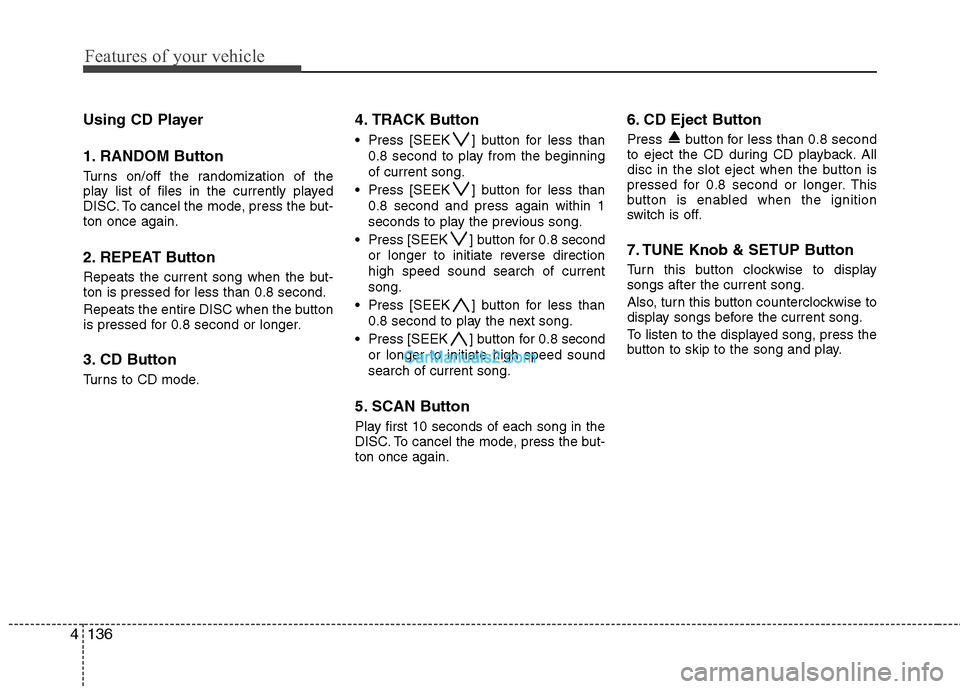
Using CD Player
1. RANDOM Button
Turns on/off the randomization of the
play list of files in the currently played
DISC. To cancel the mode, press the but-
ton once again.
2. REPEAT Button
Repeats the current song when the but-
ton is pressed for less than 0.8 second.
Repeats the entire DISC when the button
is pressed for 0.8 second or longer.
3. CD Button
Turns to CD mode.
4. TRACK Button
Press [SEEK ] button for less than
0.8 second to play from the beginning
of current song.
Press [SEEK ] button for less than 0.8 second and press again within 1
seconds to play the previous song.
Press [SEEK ] button for 0.8 second
or longer to initiate reverse direction
high speed sound search of current
song.
Press [SEEK ] button for less than 0.8 second to play the next song.
Press [SEEK ] button for 0.8 second
or longer to initiate high speed sound
search of current song.
5. SCAN Button
Play first 10 seconds of each song in the
DISC. To cancel the mode, press the but-
ton once again.
6. CD Eject Button
Press button for less than 0.8 second
to eject the CD during CD playback. All
disc in the slot eject when the button is
pressed for 0.8 second or longer. This
button is enabled when the ignition
switch is off.
7. TUNE Knob & SETUP Button
Turn this button clockwise to display
songs after the current song.
Also, turn this button counterclockwise to
display songs before the current song.
To listen to the displayed song, press the
button to skip to the song and play.
Page 216 of 429
4137
Features of your vehicle
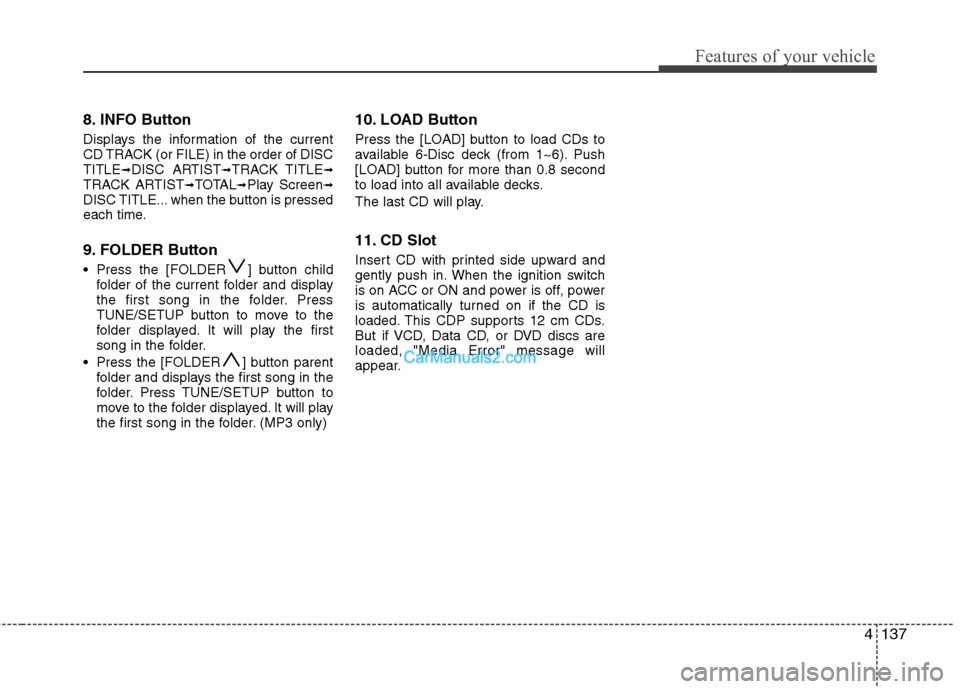
8. INFO Button
Displays the information of the current
CD TRACK (or FILE) in the order of DISC
TITLE
➟DISC ARTIST➟TRACK TITLE➟TRACK ARTIST➟TOTAL➟Play Screen➟DISC TITLE... when the button is pressed
each time.
9. FOLDER Button
Press the [FOLDER ] button childfolder of the current folder and display
the first song in the folder. Press
TUNE/SETUP button to move to the
folder displayed. It will play the first
song in the folder.
Press the [FOLDER ] button parent folder and displays the first song in the
folder. Press TUNE/SETUP button to
move to the folder displayed. It will play
the first song in the folder. (MP3 only)
10. LOAD Button
Press the [LOAD] button to load CDs to
available 6-Disc deck (from 1~6). Push
[LOAD] button for more than 0.8 second
to load into all available decks.
The last CD will play.
11. CD Slot
Insert CD with printed side upward and
gently push in. When the ignition switch
is on ACC or ON and power is off, power
is automatically turned on if the CD is
loaded. This CDP supports 12 cm CDs.
But if VCD, Data CD, or DVD discs are
loaded, "Media Error" message will
appear.
Page 220 of 429
4141
Features of your vehicle
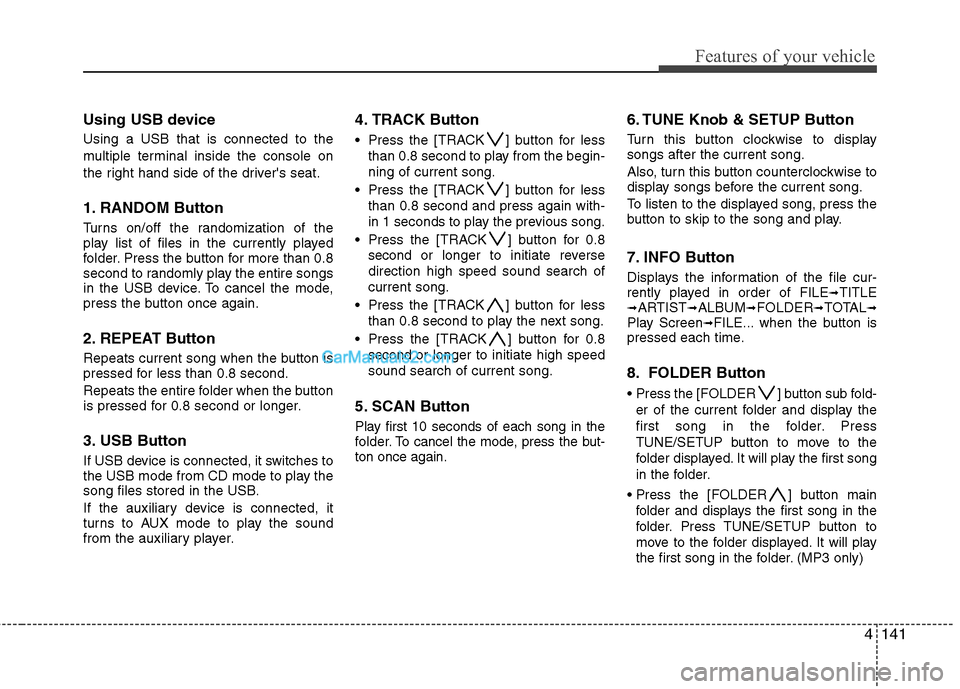
Using USB device
Using a USB that is connected to the
multiple terminal inside the console on
the right hand side of the driver's seat.
1. RANDOM Button
Turns on/off the randomization of the
play list of files in the currently played
folder. Press the button for more than 0.8
second to randomly play the entire songs
in the USB device. To cancel the mode,
press the button once again.
2. REPEAT Button
Repeats current song when the button is
pressed for less than 0.8 second.
Repeats the entire folder when the button
is pressed for 0.8 second or longer.
3. USB Button
If USB device is connected, it switches to
the USB mode from CD mode to play the
song files stored in the USB.
If the auxiliary device is connected, it
turns to AUX mode to play the sound
from the auxiliary player.
4. TRACK Button
Press the [TRACK ] button for lessthan 0.8 second to play from the begin-
ning of current song.
Press the [TRACK ] button for less than 0.8 second and press again with-
in 1 seconds to play the previous song.
Press the [TRACK ] button for 0.8 second or longer to initiate reverse
direction high speed sound search of
current song.
Press the [TRACK ] button for less than 0.8 second to play the next song.
Press the [TRACK ] button for 0.8 second or longer to initiate high speed
sound search of current song.
5. SCAN Button
Play first 10 seconds of each song in the
folder. To cancel the mode, press the but-
ton once again.
6. TUNE Knob & SETUP Button
Turn this button clockwise to display
songs after the current song.
Also, turn this button counterclockwise to
display songs before the current song.
To listen to the displayed song, press the
button to skip to the song and play.
7. INFO Button
Displays the information of the file cur-
rently played in order of FILE➟TITLE➟ARTIST➟ALBUM➟FOLDER➟TOTAL➟Play Screen➟FILE... when the button is
pressed each time.
8. FOLDER Button
Press the [FOLDER ] button sub fold-
er of the current folder and display the
first song in the folder. Press
TUNE/SETUP button to move to the
folder displayed. It will play the first song
in the folder.
] button main folder and displays the first song in the
folder. Press TUNE/SETUP button to
move to the folder displayed. It will play
the first song in the folder. (MP3 only)
Page 222 of 429
4143
Features of your vehicle
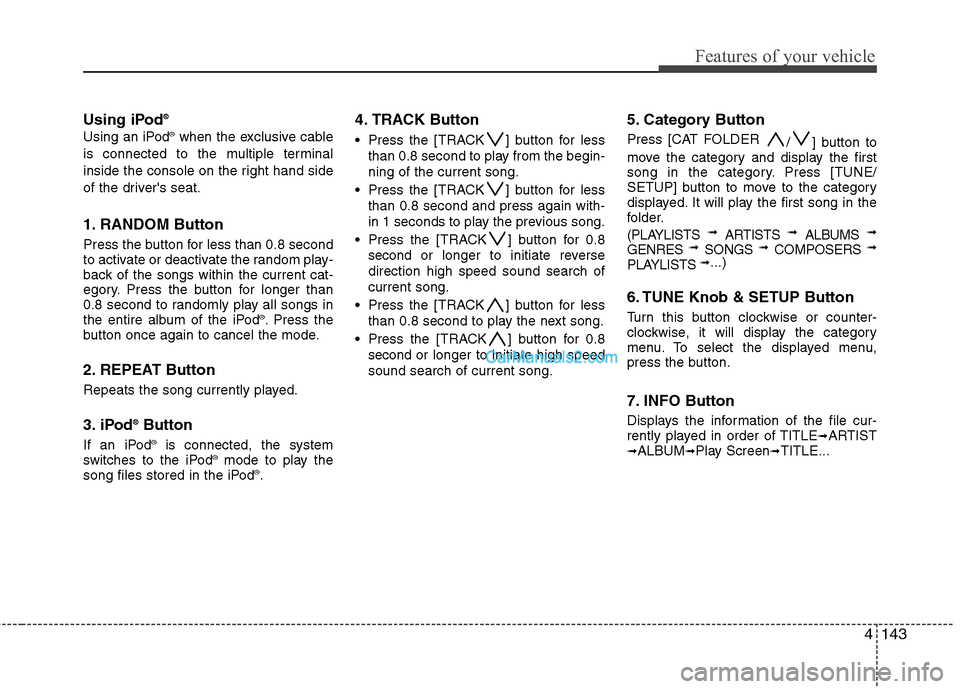
Using iPod®
Using an iPod®when the exclusive cable
is connected to the multiple terminal
inside the console on the right hand side
of the driver's seat.
1. RANDOM Button
Press the button for less than 0.8 second
to activate or deactivate the random play-
back of the songs within the current cat-
egory. Press the button for longer than
0.8 second to randomly play all songs in
the entire album of the iPod
®. Press the
button once again to cancel the mode.
2. REPEAT Button
Repeats the song currently played.
3. iPod®Button
If an iPod®is connected, the system
switches to the iPod®mode to play the
song files stored in the iPod®.
4. TRACK Button
Press the [TRACK ] button for less
than 0.8 second to play from the begin-
ning of the current song.
Press the [TRACK ] button for less than 0.8 second and press again with-
in 1 seconds to play the previous song.
Press the [TRACK ] button for 0.8 second or longer to initiate reverse
direction high speed sound search of
current song.
Press the [TRACK ] button for less than 0.8 second to play the next song.
Press the [TRACK ] button for 0.8 second or longer to initiate high speed
sound search of current song.
5. Category Button
Press [CAT FOLDER / ] button to
move the category and display the first
song in the category. Press [TUNE/
SETUP] button to move to the category
displayed. It will play the first song in the
folder.
(PLAYLISTS
➟ ARTISTS ➟ ALBUMS ➟
GENRES ➟ SONGS ➟ COMPOSERS ➟
PLAYLISTS ➟...)
6. TUNE Knob & SETUP Button
Turn this button clockwise or counter-
clockwise, it will display the category
menu. To select the displayed menu,
press the button.
7. INFO Button
Displays the information of the file cur-
rently played in order of TITLE➟ARTIST➟ALBUM➟Play Screen➟TITLE...
Page 225 of 429
Features of your vehicle
146
4
Using XM Satellite Radio
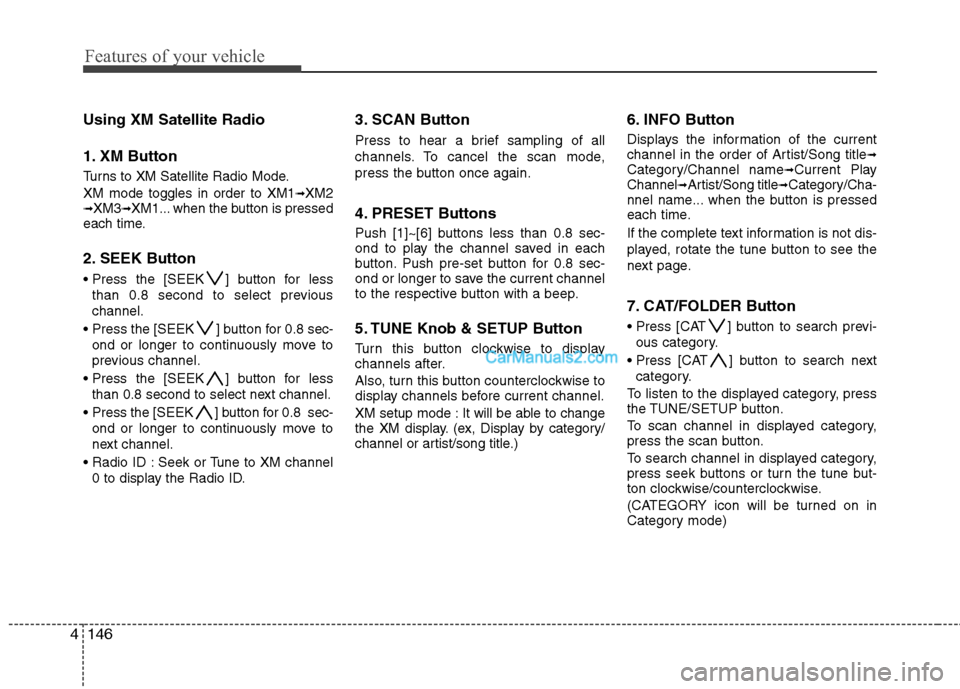
1. XM Button
Turns to XM Satellite Radio Mode.
XM mode toggles in order to XM1
➟XM2➟XM3➟XM1... when the button is pressed
each time.
2. SEEK Button
] button for less
than 0.8 second to select previous
channel.
[SEEK ] b utton for 0.8 sec-
ond or longer to continuously move to
previous channel.
] button for less than 0.8 second to select next channel.
] button for 0.8 sec- ond or longer to continuously move to
next channel.
Seek or Tune to XM channel 0 to display the Radio ID.
3. SCAN Button
Press to hear a brief sampling of all
channels. To cancel the scan mode,
press the button once again.
4. PRESET Buttons
Push [1]~[6] buttons less than 0.8 sec-
ond to play the channel saved in each
button. Push pre-set button for 0.8 sec-
ond or longer to save the current channel
to the respective button with a beep.
5. TUNE Knob & SETUP Button
Turn this button clockwise to display
channels after.
Also, turn this button counterclockwise to
display channels before current channel.
XM setup mode : It will be able to change
the XM display. (ex, Display by category/
channel or artist/song title.)
6. INFO Button
Displays the information of the current
channel in the order of Artist/Song title➟Category/Channel name➟Current Play
Channel➟Artist/Song title➟Category/Cha-
nnel name... when the button is pressed
each time.
If the complete text information is not dis-
played, rotate the tune button to see the
next page.
7. CAT/FOLDER Button
Press [CAT ] button to search previ-
ous category.
Press [CAT ] button to search next category.
To listen to the displayed category, press
the TUNE/SETUP button.
To scan channel in displayed category,
press the scan button.
To search channel in displayed category,
press seek buttons or turn the tune but-
ton clockwise/counterclockwise.
(CATEGORY icon will be turned on in
Category mode)
Page 228 of 429
4149
Features of your vehicle
HD RadioTMsignal delay
To overcome the delay that digital sys-
tems inherently produce, HD RadioTM
technology first uses the audio signal of
the analog broadcasting when you tune
to an AM station or to the main channel
of a FM station. After that, the system will
blend from analog to digital signal.
Normally, this blending is very smooth. If
you experience a skip in program content
of several seconds, the radio station has
not implemented HD Radio
TMbroadcast-
ing correctly. This is not a problem with
your audio system.
Due to the fact that sub channels are only
broadcasting digital, blending from analog
to digital signal is not possible if you tune
to a sub channel. In this case playback of
the sub channel starts after several sec-
onds. This is a normal function.
Automatic switching between dig-
ital and analog broadcasting
If the digital signal reception is lost, the
system switches automatically to the
analog signal. As soon as the digital sig-
nal is available again it will switch back.
Due to the fact that sub channels are
only broadcasted digital, the system
mutes playback if you have tuned to a
sub channel and the digital signal is lost.
The main line will show the message No
HD signal in place of station name.
After approximately one minute with the
digital signal lost, the system will auto-
matically tune to the analog signal of the
corresponding frequency.
Text based information
HD RadioTMstations are able to broad-
cast text based information, e.g. station
name, song title and artist name. The
Driver Information System is able to dis-
play this information.
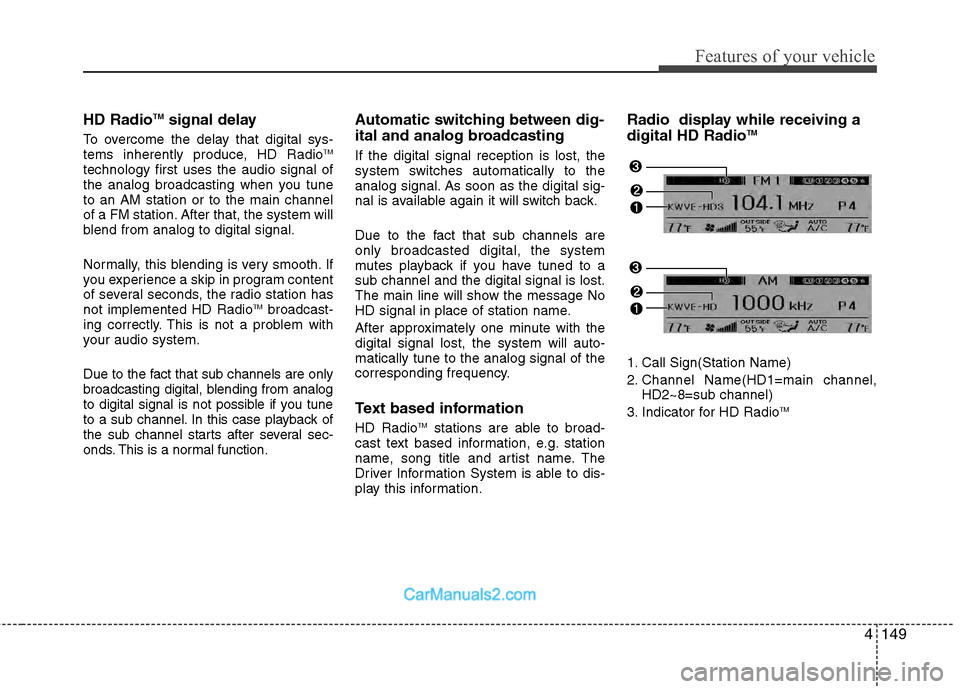
Radio display while receiving a
digital HD RadioTM
1. Call Sign(Station Name)
2. Channel Name(HD1=main channel, HD2~8=sub channel)
3. Indicator for HD Radio
TM