power Hyundai Genesis 2015 Blue Link Manual
[x] Cancel search | Manufacturer: HYUNDAI, Model Year: 2015, Model line: Genesis, Model: Hyundai Genesis 2015Pages: 18, PDF Size: 2.07 MB
Page 2 of 18

Blue link User’s Manual I 1
Welcome to Blue link ........................................................................\
........................ 1
enrolling in Blue link ........................................................................\
................. 2
s etting Blue link Preferences and a lerts ...................................................4
Blue link Features Overview ........................................................................\
... 6
a ccessing Blue link Features
smart Phone Mobile a pplication ......................................................... 8
Using Blue link in your c ar ..................................................................... 10
Using Blue link Online ........................................................................\
.... 11
In-Vehicle a pps ........................................................................\
.................. 12
In-Vehicle Wi-Fi ........................................................................\
................... 12
a ssurance c ar care In-Vehicle a pp ..................................................... 13
l ocation sharing In-Vehicle a pp .......................................................... 13
Blue link Features
Blue link c onnected c are Package
Safety a utomatic collision notification and a ssistance .................... 14
sOs emergency a ssistance ............................................................. 15
enhanced r oadside assistance ..................................................... 16
Car Care Monthly Vehicle Health r eport ..................................................... 17
a utomatic Diagnostic Trouble c ode notification ...................18
s ervice link ........................................................................\
................... 18
On-Demand Diagnostics ................................................................. 19
Driving Information ........................................................................\
... 19
Maintenance a lert ........................................................................\
...... 20
Blue link r emote Package
Convenience r emote Door Unlock/l ock .............................................................. 21
r emote Horn/lights ........................................................................\
.. 22
r emote start with climate c ontrol* ............................................ 23
c ar Finder ........................................................................\
...................... 25
Safeguard s tolen Vehicle recovery ................................................................... 26
s tolen Vehicle slowdown ................................................................ 26
Vehicle Immobilization ..................................................................... 27
Panic notification ........................................................................\
....... 27
a larm notification ........................................................................\
...... 27
Valet alert ........................................................................\
...................... 28
Geo-Fence ........................................................................\
..................... 28
speed a lert ........................................................................\
................... 29
c urfew alert........................................................................\
.................. 29
Blue link Guidance Package
Destination s earch Powered by Google ............................................ 30
Index ........................................................................\
.......................................... 33
Welcome to
Blue link® is a dynamic, telematics technology that allows Hyundai vehicles
to send—and receive—important and useful information.
The system uses an enhanced cellular network, with automatic roaming, that
optimizes connections and prioritizes emergency requests. In your vehicle,
Blue link uses voice-response technology, with the addition of GPs and
a live assistance team for selected needs.
With Blue link you get…
• automatic emergency assistance, in the unfortunate event of
a collision.
• The convenience of Destination s earch, Powered by Google
TM, as well
as the ability to remotely operate various vehicle features.
•
The peace of mind that comes with in-vehicle, on-demand diagnostics,
and more…
In addition, selected features incorporate notifications
via your choice of
text messaging or email.
Please note that selected Blue link features and notifications require
that you first input information or set preferences online
. (see Blue
link Features Overview, pages 6-7.)
a n available smart phone mobile app gives you direct access to selected
r emote features such as r emote start with climate c ontrol* and remote
Door l ock/Unlock.
Please note: Hyundai Blue link s ervice is only available in the
50 United states.
TaBle OF cOnTenT s
Features
accessible via the
Mobile app
* not available on all models * not available on all models
Google is a registered trademark of Google Inc.
Page 3 of 18
Blue link User’s Manual I 3
2 I Blue link User’s Manual
3 Blue link Packages
Blue link services come in three packages:
connected c are
r emote
• r emote s ervice:
– r emote Door l ock/
Unlock
– r emote Horn/lights
– r emote s tart with
climate c ontrol
*
– c ar Finder**
– Parking Meter r eminder**
• Vehicle safeguard:
– stolen Vehicle
r ecovery
– stolen Vehicle
slowdown
– Vehicle
Immobilization
– alarm notification
– Panic notification • Vehicle s
afeguard a lert***:
– Valet a lert
– Geo-Fence
– speed a lert
– curfew a lert
• c
ar c are:
– Driving Information
– On-Demand Diagnostics
– a utomatic Diagnostics Trouble c ode notification
– Monthly Vehicle Health r eport
–
Maintenance a lert
*
– service link
• s
afety:
– a utomatic c ollison notification and a ssistance
– enhanced r oadside assistance
– sOs emergency a ssistance
Guidance
• Destination s earch Powered by Google
• Destination s end-to-car by Google
Purchasing Packages
Owners can subscribe to Blue link packages in the following groupings:
• c onnected c are
• c onnected c are + remote + Guidance
• c onnected c are + remote
• c onnected c are + Guidance
cancelling Packages
When selling or trading in your vehicle, you are entitled to a refund of any
unused portion of your subscription. Please call 855-2-Bluelink (855-225-8354)
to cancel your subscription.
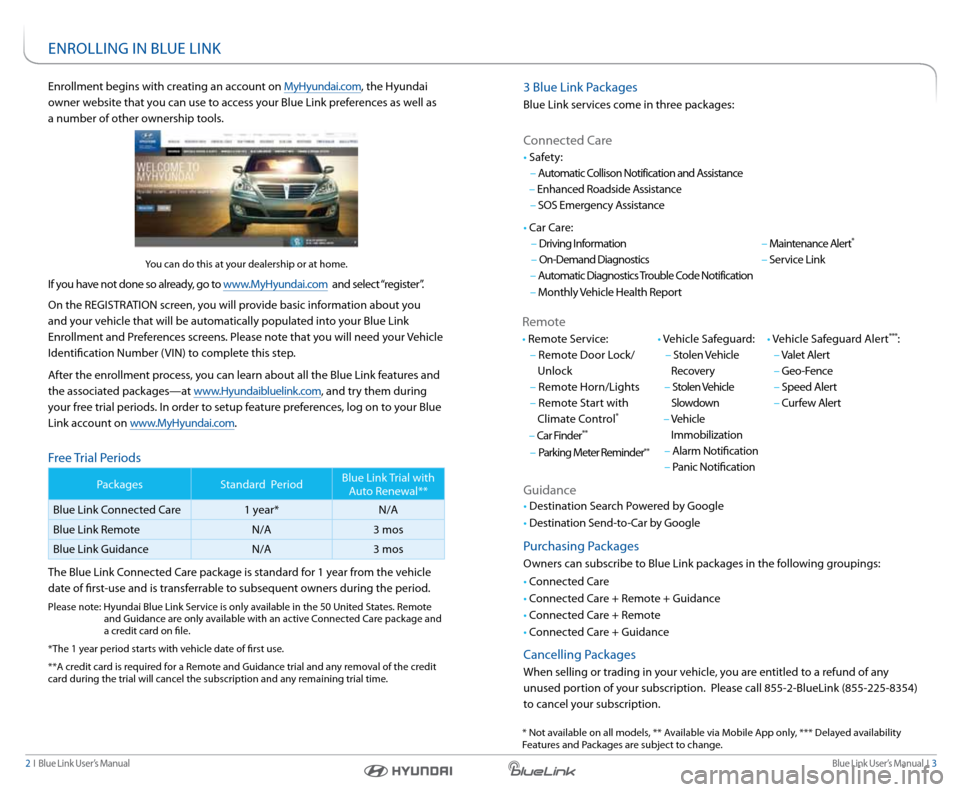
enrollment begins with creating an account on MyHyundai.com, the Hyundai
owner website that you can use to access your Blue link preferences as well as
a number of other ownership tools.
you can do this at your dealership or at home.
If you have not done so already, go to www.MyHyundai.com and select “register”.
On the reGIsTra TIOn screen, you will provide basic information about you
and your vehicle that will be automatically populated into your Blue link
enrollment and Preferences screens. Please note that you will need your Vehicle
Identification number (VIn) to complete this step.
a fter the enrollment process, you can learn about all the Blue link features and
the associated packages—at www.Hyundaibluelink.com, and try them during
your free trial periods. In order to setup feature preferences, log on to your Blue
link account on www.MyHyundai.com.
Free Trial Periods
Packages standard Period Blue link Trial with
a uto r enewal**
Blue link c onnected c are 1 year* n/a
Blue link r emote n/a3 mos
Blue link Guidance n/a3 mos
The Blue link c onnected care package is standard for 1 year from the vehicle
date of first-use and is transferrable to subsequent owners during the period.
Please note: Hyundai Blue link s ervice is only available in the 50 United s tates. remote
and Guidance are only available with an active c onnected care package and
a credit card on file.
*The 1 year period starts with vehicle date of first use.
**a credit card is required for a r emote and Guidance trial and any removal of the credit
card during the trial will cancel the subscription and any remaining trial time.
enr OllInG In BlUe lInk
* not available on all models, ** a vailable via Mobile app only, *** Delayed availability
Features and Packages are subject to change.
Page 5 of 18
Blue link User’s Manual I 7
6 I Blue link User’s Manual
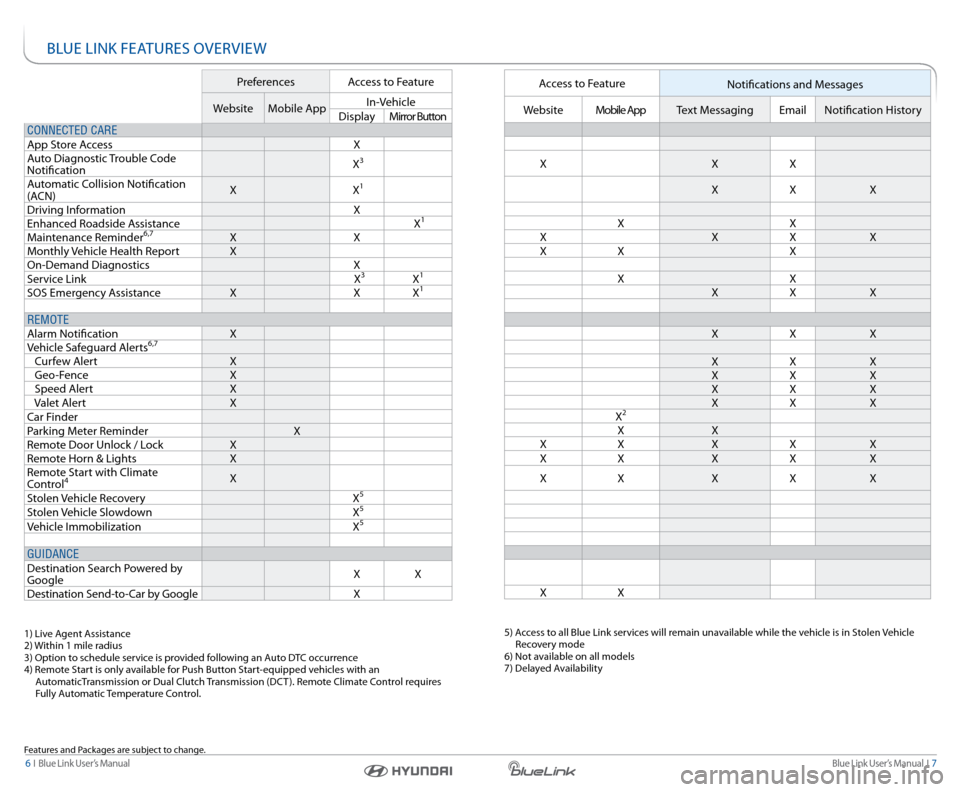
Bl Ue lInk Fea TUres OVerVIeW
Preferences access to Feature
Website Mobile app In-Vehicle
Display Mirror Button
CONNECTED CARE
a pp s tore a ccess X
a uto Diagnostic Trouble c ode
notification X
3
a
utomatic c ollision notification
( acn) X
X1
Driving Information X
enhanced r oadside assistance X1
Maintenance reminder6,7X X
Monthly Vehicle Health r eportX
On-Demand Diagnostics X
s ervice link X
3X1
sOs emergency assistance X XX1
REMOTE
alarm notification X
Vehicle s afeguard a lerts
6,7
curfew a lert X
Geo-Fence X
speed a lert X
Valet a lert X
c ar Finder
Parking Meter r eminder X
r emote Door Unlock / l ockX
r emote Horn & lights X
r emote s tart with climate
c ontrol
4X
s tolen Vehicle recovery X
5
stolen Vehicle slowdown X5
Vehicle Immobilization X5
GUIDANCE
Destination search Powered by
Google X
X
Destination s end-to-car by Google X
1) live agent assistance
2) Within 1 mile radius
3) Option to schedule service is provided following an a uto DTc occurrence
4) r emote s tart is only available for Push Button s tart-equipped vehicles with an
a utomaticTransmission or Dual clutch Transmission (Dc T ). remote climate c ontrol requires
Fully a utomatic Temperature c ontrol.
Features and Packages are subject to change.
access to Feature
notifications and Messages
Website Mobile app Text Messaging emailnotification History
X XX
X X X
X X
X XX X
X X X
X X
X X X
X X X
X X X
X X X
X X X
X X X
X
2
X X
X X XX X
X X XX X
X X XX X
X X
5) access to all Blue link services will remain unavailable while the vehicle is in s tolen Vehicle
r ecovery mode
6) not available on all models
7) Delayed a vailability
Page 7 of 18
Blue link User’s Manual I 11
10 I Blue link User’s Manual
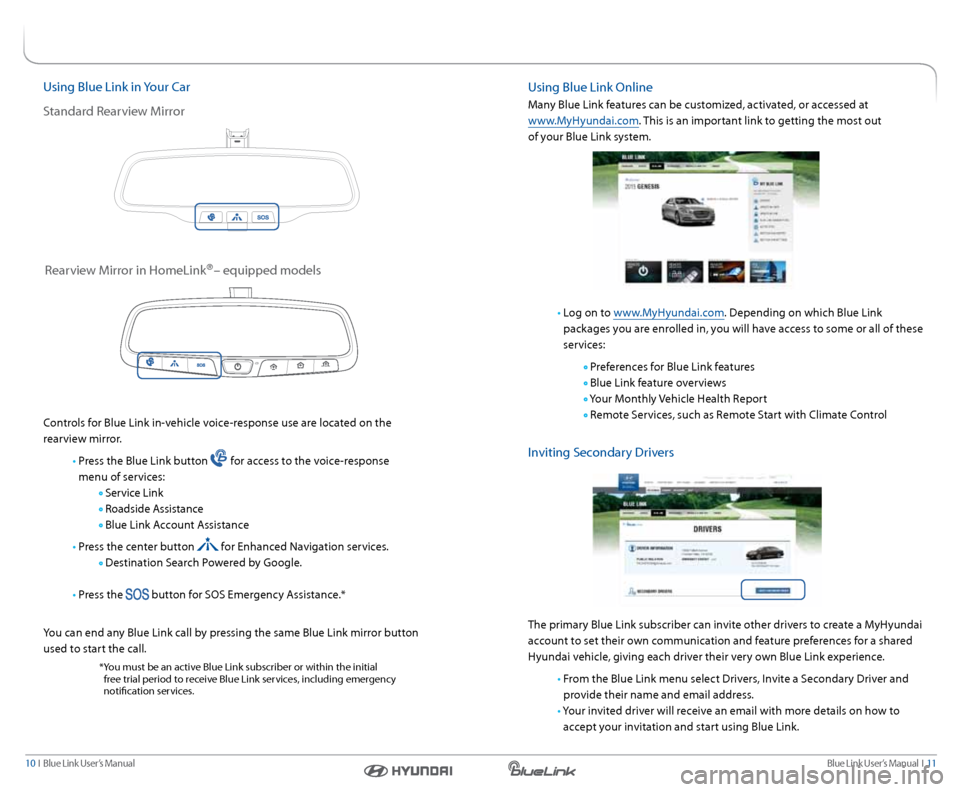
Using Blue link in your c ar
s tandard r earview Mirror
controls for Blue link in-vehicle voice-response use are located on the
rearview mirror.
• Press the Blue link button
for access to the voice-response
menu of services:
s ervice link
r oadside assistance
Blue link a ccount assistance
• Press the center button
for enhanced navigation services.
Destination s earch Powered by Google.
• Press the
button for sOs emergency a ssistance.*
y ou can end any Blue link call by pressing the same Blue link mirror button
used to start the call.
* you must be an active Blue link subscriber or within the initial
free trial period to receive Blue link services, including emergency
notification services.
r earview Mirror in Homelink®– equipped models
Using Blue link Online
Many Blue link features can be customized, activated, or accessed at
www.MyHyundai.com. This is an important link to getting the most out
of your Blue link system.
• log on to www.MyHyundai.com. Depending on which Blue link
packages you are enrolled in, you will have access to some or all of these
services:
Preferences for Blue link features
Blue link feature overviews
y our Monthly Vehicle Health r eport
r emote s ervices, such as r emote start with climate c ontrol
Inviting secondary Drivers
The primary Blue link subscriber can invite other drivers to create a MyHyundai
account to set their own communication and feature preferences for a shared
Hyundai vehicle, giving each driver their very own Blue link experience.
• From the Blue link menu select Drivers, Invite a s econdary Driver and
provide their name and email address.
• y our invited driver will receive an email with more details on how to
accept your invitation and start using Blue link.
Page 9 of 18
Blue link User’s Manual I 15
14 I Blue link User’s Manual
sOs emergency a ssistance
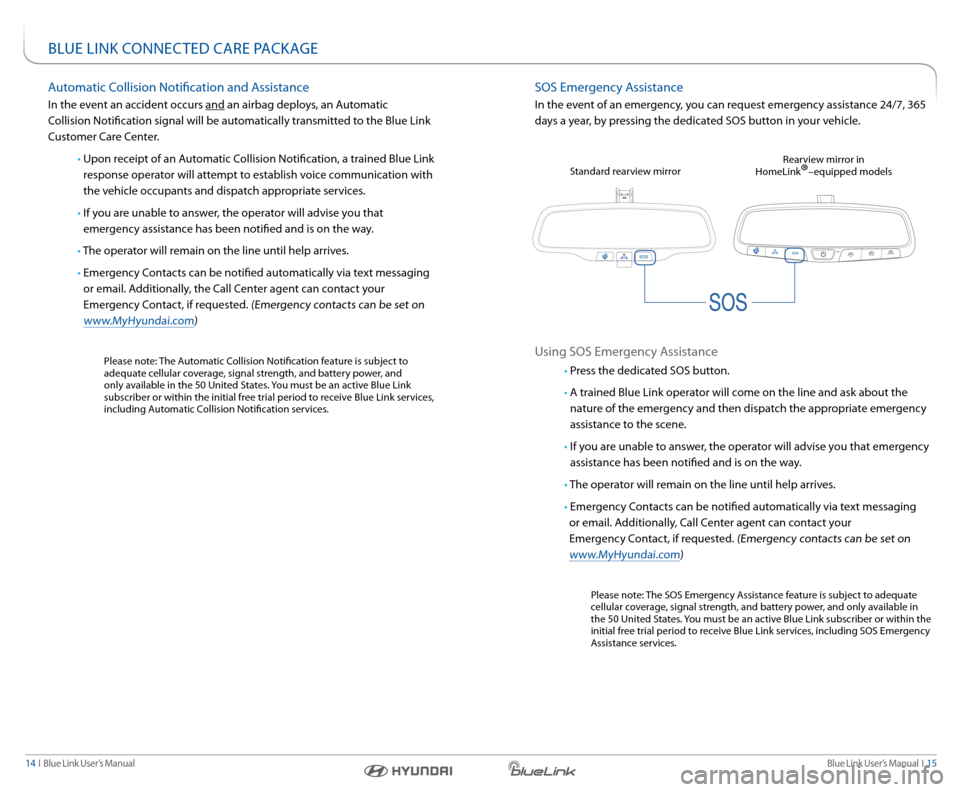
In the event of an emergency, you can request emergency assistance 24/7, 365
days a year, by pressing the dedicated sOs button in your vehicle.
Using sOs emergency a ssistance
• Press the dedicated sOs button.
• a trained Blue link operator will come on the line and ask about the
nature of the emergency and then dispatch the appropriate emergency
assistance to the scene.
• If you are unable to answer, the operator will advise you that emergency
assistance has been notified and is on the way.
• The operator will remain on the line until help arrives.
• emergency c ontacts can be notified automatically via text messaging
or email. a dditionally, c all center agent can contact your
emergency c ontact, if requested.
(emergency contacts can be set on
www.MyHyundai.com)
Please note: The sOs emergency a ssistance feature is subject to adequate
cellular coverage, signal strength, and battery power, and only available in
the 50 United s tates. you must be an active Blue link subscriber or within the
initial free trial period to receive Blue link services, including sOs emergency
a ssistance services.
s
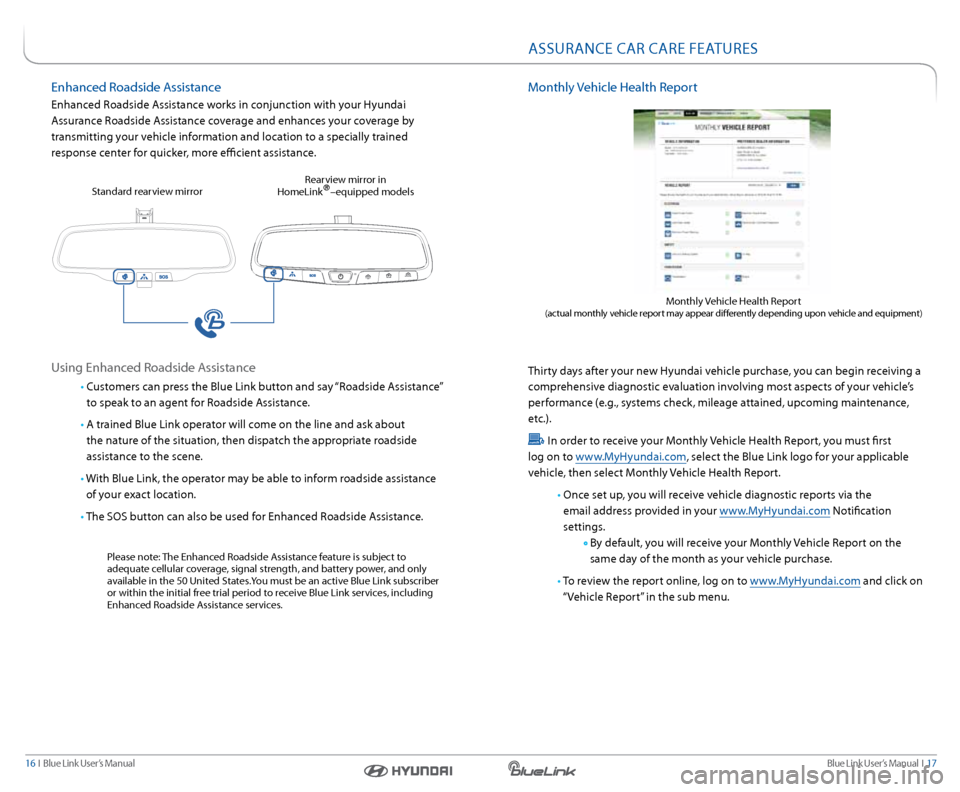
tandard rearview mirror r
earview mirror in
Homelink
®–equipped models
Bl Ue lInk cOnnec TeD care Packa Ge
automatic c ollision notification and a ssistance
In the event an accident occurs and an airbag deploys, an a utomatic
c ollision notification signal will be automatically transmitted to the Blue link
c ustomer c are center.
• Upon receipt of an a utomatic collision notification, a trained Blue link
response operator will attempt to establish voice communication with
the vehicle occupants and dispatch appropriate services.
• If you are unable to answer, the operator will advise you that
emergency assistance has been notified and is on the way.
• The operator will remain on the line until help arrives.
• emergency c ontacts can be notified automatically via text messaging
or email. a dditionally, the c all center agent can contact your
emergency c ontact, if requested.
(emergency contacts can be set on
www.MyHyundai.com)
Please note: The a utomatic collision notification feature is subject to
adequate cellular coverage, signal strength, and battery power, and
only available in the 50 United s tates. you must be an active Blue link
subscriber or within the initial free trial period to receive Blue link services,
including a utomatic collision notification services.
Page 10 of 18
Blue link User’s Manual I 17
16 I Blue link User’s Manual
Monthly Vehicle Health r eport
Thirty days after your new Hyundai vehicle purchase, you can begin receiving a
comprehensive diagnostic evaluation involving most aspects of your vehicle’s
performance (e.g., systems check, mileage attained, upcoming maintenance,
etc.).
In order to receive your Monthly Vehicle Health r eport, you must first
log on to www.MyHyundai.com, select the Blue link logo for your applicable
vehicle, then select Monthly Vehicle Health r eport.
• Once set up, you will receive vehicle diagnostic reports via the
email address provided in your www.MyHyundai.com notification
settings.
By default, you will receive your Monthly Vehicle r eport on the
same day of the month as your vehicle purchase.
• To review the report online, log on to www.MyHyundai.com and click on
“Vehicle r eport” in the sub menu.
Monthly Vehicle Health r eport (actual monthly vehicle report may appear differently depending upon vehicle and equipment)
assUrance car care FeaTUres
enhanced r oadside assistance
enhanced r oadside assistance works in conjunction with your Hyundai
a ssurance r oadside assistance coverage and enhances your coverage by
transmitting your vehicle information and location to a specially trained
response center for quicker, more efficient assistance.
Using enhanced r oadside assistance
• customers can press the Blue link button and say “r oadside assistance”
to speak to an agent for r oadside assistance.
• a trained Blue link operator will come on the line and ask about
the nature of the situation, then dispatch the appropriate roadside
assistance to the scene.
• With Blue link, the operator may be able to inform roadside assistance
of your exact location.
• The sOs button can also be used for enhanced r oadside assistance.
Please note: The enhanced r oadside assistance feature is subject to
adequate cellular coverage, signal strength, and battery power, and only
available in the 50 United s tates.you must be an active Blue link subscriber
or within the initial free trial period to receive Blue link services, including
enhanced r oadside assistance services.
s
tandard rearview mirror r
earview mirror in
Homelink
®–equipped models
Page 14 of 18
Blue link User’s Manual I 25
24 I Blue link User’s Manual
car Finder
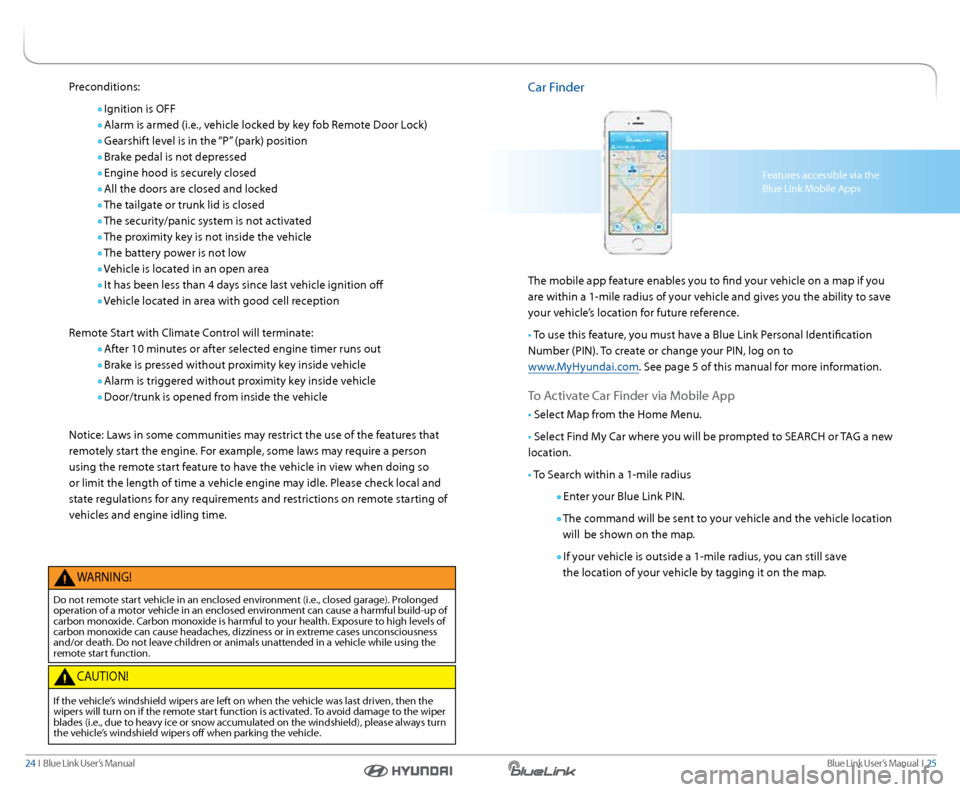
The mobile app feature enables you to find your vehicle on a map if you
are within a 1-mile radius of your vehicle and gives you the ability to save
your vehicle’s location for future reference.
• To use this feature, you must have a Blue link Personal Identification
number (PIn). To create or change your PIn, log on to
www.MyHyundai.com. s ee page 5 of this manual for more information.
To activate c ar Finder via Mobile a pp
• select Map from the Home Menu.
• s elect Find My c ar where you will be prompted to searcH or T aG a new
location.
• To s earch within a 1-mile radius
enter your Blue link PIn.
The command will be sent to your vehicle and the vehicle location
will be shown on the map.
If your vehicle is outside a 1-mile radius, you can still save
the location of your vehicle by tagging it on the map.
Features accessible via the
Blue link Mobile a pps
Preconditions:
Ignition is OFF
a larm is armed (i.e., vehicle locked by key fob r emote Door lock)
Gearshift level is in the “P” (park) position
Brake pedal is not depressed
engine hood is securely closed
a ll the doors are closed and locked
The tailgate or trunk lid is closed
The security/panic system is not activated
The proximity key is not inside the vehicle
The battery power is not low
Vehicle is located in an open area
It has been less than 4 days since last vehicle ignition off
Vehicle located in area with good cell reception
r emote s tart with climate c ontrol will terminate:
a fter 10 minutes or after selected engine timer runs out
Brake is pressed without proximity key inside vehicle
a larm is triggered without proximity key inside vehicle
Door/trunk is opened from inside the vehicle
notice: laws in some communities may restrict the use of the features that
remotely start the engine. For example, some laws may require a person
using the remote start feature to have the vehicle in view when doing so
or limit the length of time a vehicle engine may idle. Please check local and
state regulations for any requirements and restrictions on remote starting of
vehicles and engine idling time.
W arnInG!
Do not remote start vehicle in an enclosed environment (i.e., closed garage). Prolonged
operation of a motor vehicle in an enclosed environment can cause a harmful build-up of
carbon monoxide. c arbon monoxide is harmful to your health. exposure to high levels of
carbon monoxide can cause headaches, dizziness or in extreme cases unconsciousness
and/or death. Do not leave children or animals unattended in a vehicle while using the
remote start function.
ca UTIOn!
If the vehicle’s windshield wipers are left on when the vehicle was last driven, then the
wipers will turn on if the remote start function is activated. To avoid damage to the wiper
blades (i.e., due to heavy ice or snow accumulated on the windshield), please always turn
the vehicle’s windshield wipers off when parking the vehicle.
Page 15 of 18
Blue link User’s Manual I 27
26 I Blue link User’s Manual
Vehicle Immobilization
In the event your vehicle is reported stolen to law enforcement authorities,
they may elect to utilize this feature to completely turn off the engine once
the vehicle has been stopped using vehicle slowdown. This will prevent the
vehicle from being restarted until law enforcement has arrived on
the scene.
• To inform Hyundai of the theft of your Hyundai vehicle, call
855-2- Bluelink (855-225-8354).
• a live operator will work with law enforcement in initiating vehicle
immobilization and assist in the vehicle’s recovery.
Panic notification
This feature will notify any pre-selected persons if your vehicle’s remote panic
button is engaged, via your choice of text messaging or email.
•
In order to activate this feature, you must first log on to
www.MyHyundai.com and set your preferences as outlined on page 4
of this manual.
•
all individuals designated by you will be notified of your vehicle’s
precise location should the panic button be activated.
Please note: notifications are subject to adequate cellular coverage
and signal strength, and only available in the 50 United s tates.
alarm notification
In the event your vehicle’s alarm is activated, this feature will automatically
notify any pre-selected persons via your choice of text messaging or email.
•
In order to activate this feature, you must first log on to
www.MyHyundai.com and set your preferences as outlined
on page 4 of this guide.
•
y our pre-selected contacts will be notified if your vehicle’s
alarm is activated.
Please note: notifications are subject to adequate cellular coverage
and signal strength, and only available in the 50 United s tates.
stolen Vehicle recovery
In the event your vehicle is reported stolen to law enforcement authorities,
the Blue link c ustomer care center can use the GPs system to help pinpoint
the exact location of the vehicle and assist in its recovery.
l og on to www.MyHyundai.com, select the Blue link logo for your
applicable vehicle, then select notification s ettings and set your alert
preferences.
• To inform Hyundai of the theft of your Hyundai vehicle, call
855-2- Bluelink (855-225-8354).
• a live operator will come online to assist you.
• y ou will be asked to verify your name, phone numbers, and Hyundai
PIn and provide verification that a police report has been filed,
including the case number.
• The agent will initiate a stolen vehicle recovery signal to pin point
the vehicle’s location and will coordinate with law enforcement in its
recovery.
Once the stolen vehicle recovery routine has been started, the owner will not
have access to Blue link services or be provided vehicle status or location,
due to personal safety issues. a t the conclusion of the recovery process, Blue
link will contact the owner and inform them of the vehicle’s disposition.
s tolen Vehicle slowdown
In the event your vehicle is reported stolen to law enforcement authorities,
they may elect to utilize this feature to gradually reduce engine power,
thereby slowing the vehicle’s speed and eventually bringing it to a complete stop.
• To inform Hyundai of the theft of your Hyundai vehicle,
call 855-2- Bluelink (855-225-8354).
• a live operator will work with law enforcement in initiating vehicle
slowdown and assist in the vehicle’s recovery.
Page 17 of 18
Blue link User’s Manual I 31
30 I Blue link User’s Manual
nOTenOTes
Bl Ue lInk GUID ance PackaGe
Destination search Powered by Google
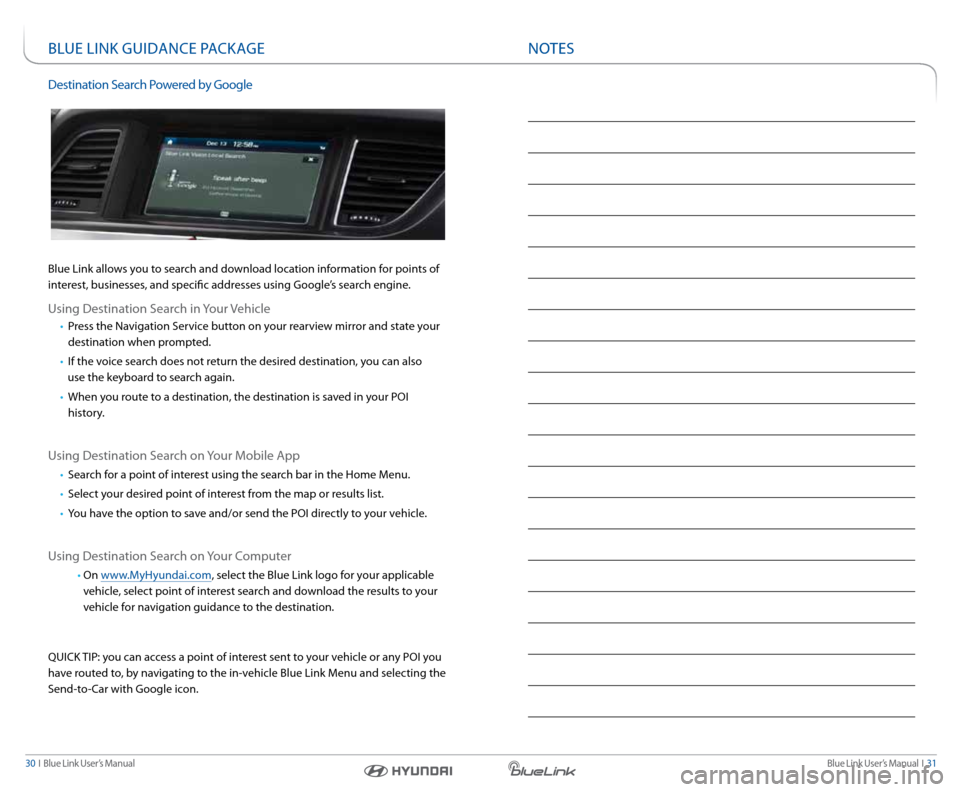
Blue link allows you to search and download location information for points of
interest, businesses, and specific addresses using Google’s search engine.
Using Destination s earch in your Vehicle
• Press the navigation s ervice button on your rearview mirror and state your
destination when prompted.
• If the voice search does not return the desired destination, you can also
use the keyboard to search again.
• When you route to a destination, the destination is saved in your POI
history.
Using Destination s earch on your Mobile a pp
• search for a point of interest using the search bar in the Home Menu.
• select your desired point of interest from the map or results list.
• you have the option to save and/or send the POI directly to your vehicle.
Using Destination s earch on your c omputer
• On www.MyHyundai.com, select the Blue link logo for your applicable
vehicle, select point of interest search and download the results to your
vehicle for navigation guidance to the destination.
QUIck TIP: you can access a point of interest sent to your vehicle or any POI you
have routed to, by navigating to the in-vehicle Blue link Menu and selecting the
s end-to- car with Google icon.
Page 18 of 18

Blue link User’s Manual I 33
32 I Blue link User’s Manual
alarm notification ........................................................................\
............................... 27
a ssurance c ar care In-Vehicle a pp ....................................................................... 13
a utomatic c ollision notification and a ssistance ............................................. 14
a utomatic Diagnostic Trouble c ode notification ............................................ 18
Blue link Features (Operation chart) ................................................................... 6
c ar Finder ........................................................................\
.......................................... 25
c urfew a lert ........................................................................\
.......................................... 29
Destination s earch Powered by Google ............................................................. 30
Driving Information ........................................................................\
............................ 19
enhanced r oadside assistance ........................................................................\
...... 16
Geo-Fence ........................................................................\
........................................... 28
In-Vehicle a pps ........................................................................\
.................................... 12
In-Vehicle Wi-Fi ........................................................................\
..................................... 12
Maintenance a lert ........................................................................\
.............................. 20
Monthly Vehicle Health r eport ........................................................................\
...... 17
On-Demand Diagnostics ........................................................................\
.................. 19
Panic notification ........................................................................\
................................ 27
r emote Door Unlock/l ock ........................................................................\
............... 21
r emote Horn/lights ........................................................................\
........................... 22
r emote s tart with climate c ontrol ....................................................................... 23
s ervice link ........................................................................\
.......................................... 18
sOs emergency a ssistance ........................................................................\
.............. 15
smart Phone Mobile a pplication ........................................................................\
.. 8
speed a lert ........................................................................\
.......................................... 29
s tolen Vehicle recovery ........................................................................\
.................... 26
s tolen Vehicle slowdown ........................................................................\
................. 26
Using Blue link in your c ar ........................................................................\
.............. 10
Using Blue link Online ........................................................................\
...................... 11
Valet a lert ........................................................................\
............................................. 28
Vehicle Immobilization ........................................................................\
...................... 27
InDeXnOTes