ECO mode Hyundai Genesis Coupe 2010 User Guide
[x] Cancel search | Manufacturer: HYUNDAI, Model Year: 2010, Model line: Genesis Coupe, Model: Hyundai Genesis Coupe 2010Pages: 322, PDF Size: 25.93 MB
Page 161 of 322
4109
Features of your vehicle
CAUTION IN USING
USB DEVICE
To use an external USB device, make sure the device is notmounted when starting up thevehicle and mount the deviceafter starting up.
If you start the vehicle when the USB device is mounted, it maydamage the USB device. (USB isnot ESA)
If the vehicle is started up or turned off while the external USBdevice is connected, the external USB device may not work.
It may not play inauthentic MP3 or WMA files.
1) It can only play MP3 files with the compression rate between8Kbps~320Kbps.
2) It can only play WMA music files with the compression rate
between 8Kbps~320Kbps.
Take cautions for static electricity when mounting or dismountingthe external USB device.
An encoded MP3 PLAYER is not recognizable.
(Continued)
(Continued) Depending on the condition of the external USB device, the con-nected external USB device canbe unrecognizable.
When the formatted byte/sector setting of External USB devices isnot either 512BYTE or 2048BYTE,then the device will not be recog-
nized.
Use only a USB device formatted to FAT 12/16/32.
USB devices without USB IF authentication may not be recog-nizable.
Make sure the USB connection terminal does not come in contactwith a human body or any object.
If you repeat mounting or dis- mounting USB device in a short
period of time, it may break the device.
You might hear a strange noise when mounting or dismounting aUSB device.
(Continued)(Continued) If you dismount the external USB device during playback in USBmode, the external USB device canbe damaged or malfunction.
Therefore, mount the external USBdevice when the engine is turned off or in another mode.
Depending on the type and capac- ity of the external USB device orthe type of the files stored in thedevice, there is a difference in thetime taken for recognition of the
device, but this is not an indicatorof trouble and you only have to wait.
Do not use the USB device for other purposes than playing music files.
Use of USB accessories such as recharger or heater using USB I/Fmay lower performance or causetrouble.
If you use devices such as a USB hub you purchased separately,the vehicle’s audio system may not recognize the USB device.Connect the USB device directly
to the multimedia terminal of the vehicle.
(Continued)
Page 164 of 322
Features of your vehicle
112
4
1. RANDOM Play Button
Press the button for less than 0.8 second
to to activate or deactivate the random
playback of the songs within the current
category. Press the button for longer than
0.8 second to randomly play all songs in
the entire album of the iPod. Press the
button once again to cancel the mode.
2. REPEAT Button
Press the button to repeat the song cur-
rently played.
3. TRACK UP/DOWN Button
] button to play
from the beginning of the song current-
ly played. Press again to move and play
the previous track.
] button to move to the next track.
4. SEEK UP/DOWN Button
] button to play the song in reverse direction in fast speed.
] button to play the song in forward direction in fast speed. 5. AUX Selection Button
If iPod is connected, it switches to the
iPod mode from the previous mode to
play the song files stored in the iPod.
If there is no iPod connected, then it dis-
plays the message "No Media" and
returns to the previous mode.
6. AST Button
Scans each song in the USB device for
10 seconds each. Press the button onceagain to cancel scanning.
7. Display
Displays the current time, mode, play
track number, play time, RDM, RPT and
AST status.
8. FOLDER UP/DOWN Button
] button to move the
category and display the first song in
the category. Press [ENTER] button to
move to the category displayed. It will
play the first song in the folder.
] button to move the category and display the first song in
the category. Press [ENTER] button to
move to the category displayed. (PLAYLISTS
➟ ARTISTS ➟ ALBUMS ➟
GENRES ➟ SONGS ➟ COMPOSERS ➟
PLAYLIST ➟...)
9. TUNE FILE UP/DOWN Button
] button to select the next song and press [ENTER] but-
ton to play.
] button to select the previous song and press [ENTER]
button to play.
10. INFO Button
Displays the information of the file cur-
rently played in the order of TITLE ➟
ARTIST ➟ALBUM ➟NORMAL DISPLAY
➟ TITLE ➟... (Displays no information if
the file has no song information.)
Page 167 of 322
4115
Features of your vehicle
1. FM/AM Selection Button
Turn to FM or AM mode, and toggles in the order of FM1 ➟FM2 ➟ AM ➟ FM1...
when the button is pressed each time.
2. CD Selection Button If there is a CD in the CDP DECK, it
switches from the previous mode to CD
mode and plays the song. If there is no
CD, then it displays the message "No
Media" and returns to the previous mode.
3. SEEK TRACK UP/DOWN Button
When the [SEEK / ] button is pressed, it increases / decreases the
band frequency by 200kHz to automati-
cally select channel. Stops at the original
frequency if no channel is found.
4. AUX Selection Button
If a device is connected to AUX then it
toggles. USB ➟AUX ➟USB... when the button is
pressed each time.(It will not turn to AUX
if the auxiliary device is not connected.) 5. AST(AUTO STORE) Button When AST is pressed, frequency is stored
on the preset memory [1]~[6] and auto-
matically plays the channel stored on thePreset [1].
If no channels have been stored because
there was no channel received, will return
to the previous channel.
6. Display
Displays the current time, mode, frequen- cy AST status and preset channel.
7. Preset Button
Press [1] ~ [6] buttons less than 0.8 sec-
ond to play the channel saved in each
button. Press [1]~[6] button more than
0.8 second or longer to save current sta-
tion to the respective button with a beep.
8. DISP Selection Button
Turns on/off the displayed data and light
on LCD.
9. TUNE FILE UP/DOWN Button
When the [TUNE / ] button is pressed, it increases / decreases the
band frequency by 200kHz from current
frequency.
10. SETUP Button
Press the button to change the CLOCK,
TONE, POSITION, AVC, TEMP and
SCROLL option modes.
11. Power ON/OFF Button &
Volume Control Knob
Turn on/off the set When the IGNITION
SWITCH is on ACC or ON. If the button
is turned to the right, it increases the vol-
ume and left, decreases the volume.
Page 169 of 322
4117
Features of your vehicle
1. RANDOM Play Button
Turns on/off the randomization of the
play list of files in the currently played
DISC. To cancel the mode, press the but-ton once again.
If loaded CD has a file folder, RANDOM
PLAY button operates below.
play randomized files in folder.
play randomized all files in CD.
2. REPEAT Button
Repeating an MP3 DISC or WMA DISC file Repeats current song when the button
is pressed for less than 0.8 second.
Repeats all songs in current folder when
the button is pressed for 0.8 second or
longer.
Repeats current song when the button
is pressed for less than 0.8 second.
Repeats the entire DISC when the but-
ton is pressed for 0.8 second or longer. 3. CD Loading Slot
Please face printed side upward and gen-
tly press in. When the ignition switch is on
ACC or ON and power is off, power is auto-
matically turned on if the CD is loaded.
This CDP supports only 12cm CD. If VCD,Data CD are loaded, "Reading Error" mes-sage will appear and CD will be ejected.
4. CD Eject Button
] button for less than 0.8 sec-
ond to eject the CD during CD play-
back.
] button for 0.8 second or longer to eject all the CD in deck.
tion switch is off.
5. DISC UP/DOWN button
] button to change disc to the previous disc.
] button to change disc to the next disc. 6. SEEK TRACK UP/DOWN Button
Press [SEEK TRACK ] button for
less than 0.8 second too play from the begining of current song and press
again within 1 second to play the previ-ous song.
Press [SEEK TRACK ] button for 0.8 second or longer to initiate reverse direc-tion high speed sound search of currentsong.
] button for less than 0.8 second to play the next song.
] button for 0.8 second or longer to initiate high speedsound search of current song.
7. CD Selection Button If there is a CD in the CDP DECK, it
switches from the previous mode to CD
mode and plays the song. If there is no
CD, then it displays the message "No
Media" and returns to the previous mode.
8. AST Play Button
Plays first 10 seconds of each song in
the DISC. Press the button once again to
cancel the mode.
Page 170 of 322
![Hyundai Genesis Coupe 2010 User Guide Features of your vehicle
118
4
9. Display
Displays the current time, mode, play
track number, play time, RDM, RPT and
AST status.
10. LOAD Button
Press [LOAD] button to load CDs into
available CD](/img/35/14702/w960_14702-169.png "Hyundai Genesis Coupe 2010 User Guide Features of your vehicle
118
4
9. Display
Displays the current time, mode, play
track number, play time, RDM, RPT and
AST status.
10. LOAD Button
Press [LOAD] button to load CDs into
available CD")
Features of your vehicle
118
4
9. Display
Displays the current time, mode, play
track number, play time, RDM, RPT and
AST status.
10. LOAD Button
Press [LOAD] button to load CDs into
available CDC slots (from 1~6).
Press [LOAD] button for 2 seconds or
longer to load into all available decks. The
last CD will play. Idle status for 10 sec-
onds will terminate the loading process.
11. FOLDER UP/DOWN Button
When the loaded CD has file folders,
[FOLDER / ] buttons will operate in
the manner described below.
] button to move
child folder of the current folder and dis-
play the first song in the folder. Press
[ENTER] button to move to the folder
displayed. It will play the first song in the
folder.
] button to move parent folder and display the first song
in the folder. Press [ENTER] button to
move to the folder displayed. 12. TUNE FILE UP/DOWN Button When the loaded CD contains MP3 or
WMA files, [TUNE FILE / ] buttons
will operate in the manner described
below.
] button to select
the next song and press [ENTER] but-
ton to play.
] button to select the previous song and press [ENTER]
button to play.
13. INFO Button
Displays the information of the current CD
TRACK in the order of DISC TITLE ➟
DISC ARTIST ➟TRACK TITLE ➟TRACK
ARTIST ➟TOTAL TRACK ➟PLAY
SCREEN ➟DISC TITLE ➟... (not dis-
played if the information is not available
on the DISC.)
Page 172 of 322
Features of your vehicle
120
4
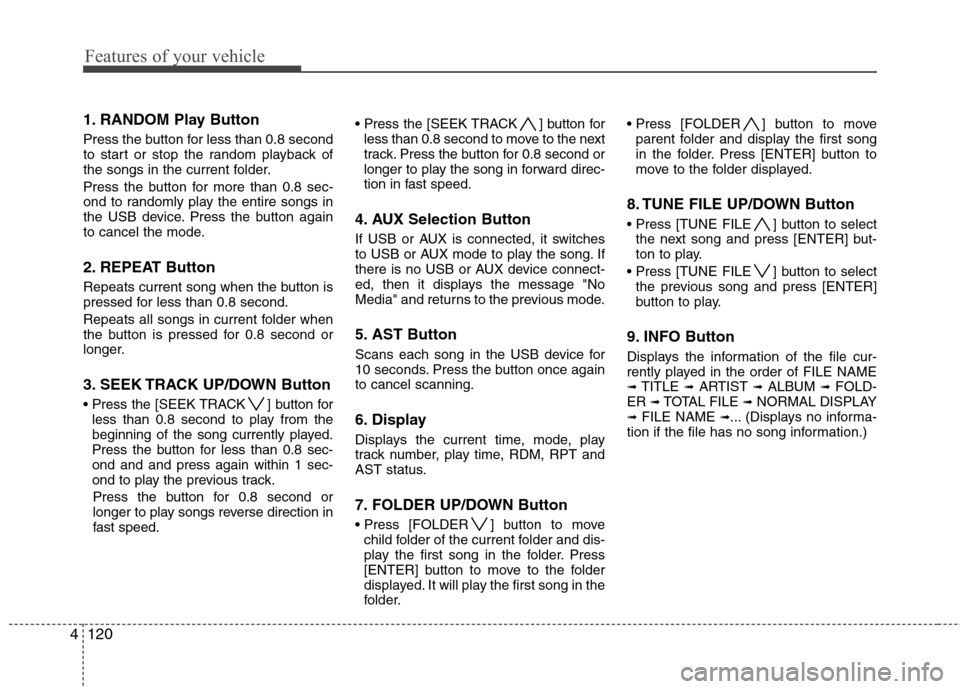
1. RANDOM Play Button
Press the button for less than 0.8 second
to start or stop the random playback of
the songs in the current folder.
Press the button for more than 0.8 sec-
ond to randomly play the entire songs in
the USB device. Press the button again
to cancel the mode.
2. REPEAT Button
Repeats current song when the button is
pressed for less than 0.8 second.
Repeats all songs in current folder when
the button is pressed for 0.8 second or
longer.
3. SEEK TRACK UP/DOWN Button
] button for
less than 0.8 second to play from the
beginning of the song currently played.
Press the button for less than 0.8 sec-ond and and press again within 1 sec-
ond to play the previous track.
Press the button for 0.8 second or
longer to play songs reverse direction in
fast speed. ] button for
less than 0.8 second to move to the next
track. Press the button for 0.8 second or
longer to play the song in forward direc-
tion in fast speed.
4. AUX Selection Button
If USB or AUX is connected, it switches
to USB or AUX mode to play the song. If
there is no USB or AUX device connect-
ed, then it displays the message "No
Media" and returns to the previous mode.
5. AST Button
Scans each song in the USB device for
10 seconds. Press the button once againto cancel scanning.
6. Display
Displays the current time, mode, play
track number, play time, RDM, RPT and
AST status.
7. FOLDER UP/DOWN Button
] button to move child folder of the current folder and dis-
play the first song in the folder. Press
[ENTER] button to move to the folder
displayed. It will play the first song in the
folder. ] button to move
parent folder and display the first song
in the folder. Press [ENTER] button to
move to the folder displayed.
8. TUNE FILE UP/DOWN Button
] button to select the next song and press [ENTER] but-
ton to play.
] button to select the previous song and press [ENTER]
button to play.
9. INFO Button
Displays the information of the file cur-
rently played in the order of FILE NAME➟ TITLE ➟ARTIST ➟ALBUM ➟FOLD-
ER ➟TOTAL FILE ➟NORMAL DISPLAY
➟ FILE NAME ➟... (Displays no informa-
tion if the file has no song information.)
Page 173 of 322
4121
Features of your vehicle
CAUTION IN USING
USB DEVICE
To use an external USB device, make sure the device is notmounted when starting up thevehicle and mount the deviceafter starting up.
If you start the vehicle when the USB device is mounted, it maydamage the USB device. (USB isnot ESA)
If the vehicle is started up or turned off while the external USBdevice is connected, the external USB device may not work.
It may not play inauthentic MP3 or WMA files.
1) It can only play MP3 files with the compression rate between8Kbps~320Kbps.
2) It can only play WMA music files with the compression rate
between 8Kbps~320Kbps.
Take cautions for static electricity when mounting or dismountingthe external USB device.
An encoded MP3 PLAYER is not recognizable.
(Continued)
(Continued) Depending on the condition of the external USB device, the con-nected external USB device canbe unrecognizable.
When the formatted byte/sector setting of External USB devices isnot either 512BYTE or 2048BYTE,then the device will not be recog-
nized.
Use only a USB device formatted to FAT 12/16/32.
USB devices without USB IF authentication may not be recog-nizable.
Make sure the USB connection terminal does not come in contactwith a human body or any object.
If you repeat mounting or dis- mounting USB device in a short
period of time, it may break the device.
You might hear a strange noise when mounting or dismounting aUSB device.
(Continued)(Continued) If you dismount the external USB device during playback in USBmode, the external USB device canbe damaged or malfunction.
Therefore, mount the external USBdevice when the engine is turned off or in another mode.
Depending on the type and capac- ity of the external USB device orthe type of the files stored in thedevice, there is a difference in thetime taken for recognition of the
device, but this is not an indicatorof trouble and you only have to wait.
Do not use the USB device for other purposes than playing music files.
Use of USB accessories such as recharger or heater using USB I/Fmay lower performance or causetrouble.
If you use devices such as a USB hub you purchased separately,the vehicle’s audio system may not recognize the USB device.Connect the USB device directly
to the multimedia terminal of the vehicle.
(Continued)
Page 176 of 322
Features of your vehicle
124
4
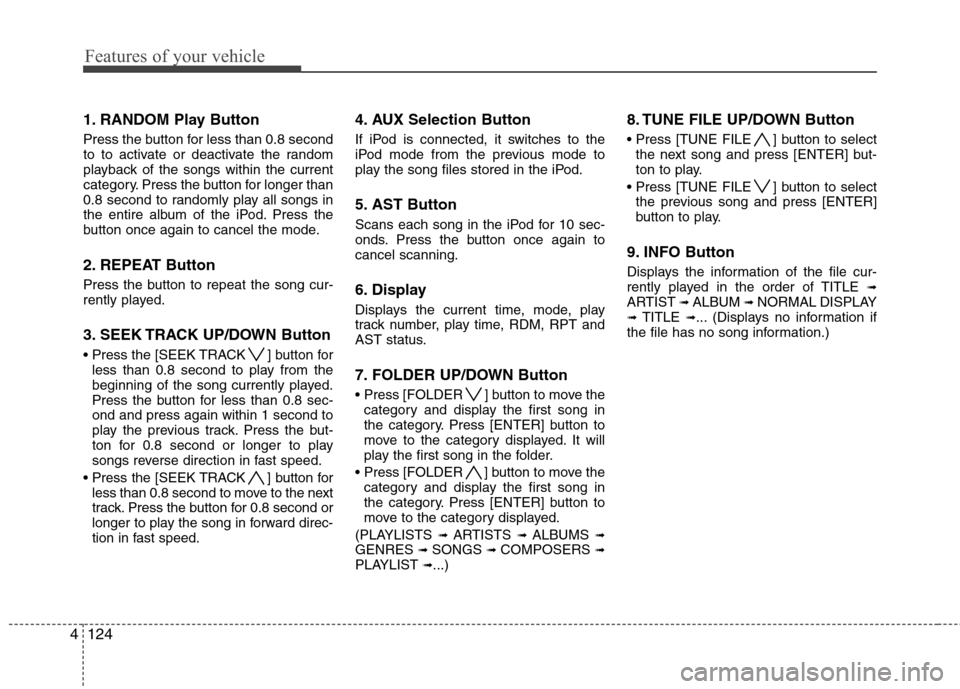
1. RANDOM Play Button
Press the button for less than 0.8 second
to to activate or deactivate the random
playback of the songs within the current
category. Press the button for longer than
0.8 second to randomly play all songs in
the entire album of the iPod. Press the
button once again to cancel the mode.
2. REPEAT Button
Press the button to repeat the song cur-
rently played.
3. SEEK TRACK UP/DOWN Button
] button for
less than 0.8 second to play from the
beginning of the song currently played.
Press the button for less than 0.8 sec-ond and press again within 1 second to
play the previous track. Press the but-
ton for 0.8 second or longer to play
songs reverse direction in fast speed.
] button for less than 0.8 second to move to the next
track. Press the button for 0.8 second or
longer to play the song in forward direc-
tion in fast speed. 4. AUX Selection Button
If iPod is connected, it switches to the
iPod mode from the previous mode to
play the song files stored in the iPod.
5. AST Button
Scans each song in the iPod for 10 sec-
onds. Press the button once again tocancel scanning.
6. Display
Displays the current time, mode, play
track number, play time, RDM, RPT and
AST status.
7. FOLDER UP/DOWN Button
] button to move the
category and display the first song in
the category. Press [ENTER] button to
move to the category displayed. It will
play the first song in the folder.
] button to move the category and display the first song in
the category. Press [ENTER] button to
move to the category displayed.
(PLAYLISTS ➟
ARTISTS ➟ ALBUMS ➟
GENRES ➟ SONGS ➟ COMPOSERS ➟
PLAYLIST ➟...) 8. TUNE FILE UP/DOWN Button
] button to select
the next song and press [ENTER] but-
ton to play.
] button to select the previous song and press [ENTER]
button to play.
9. INFO Button
Displays the information of the file cur-
rently played in the order of TITLE ➟
ARTIST ➟ALBUM ➟NORMAL DISPLAY
➟ TITLE ➟... (Displays no information if
the file has no song information.)
Page 206 of 322
529
Driving your vehicle
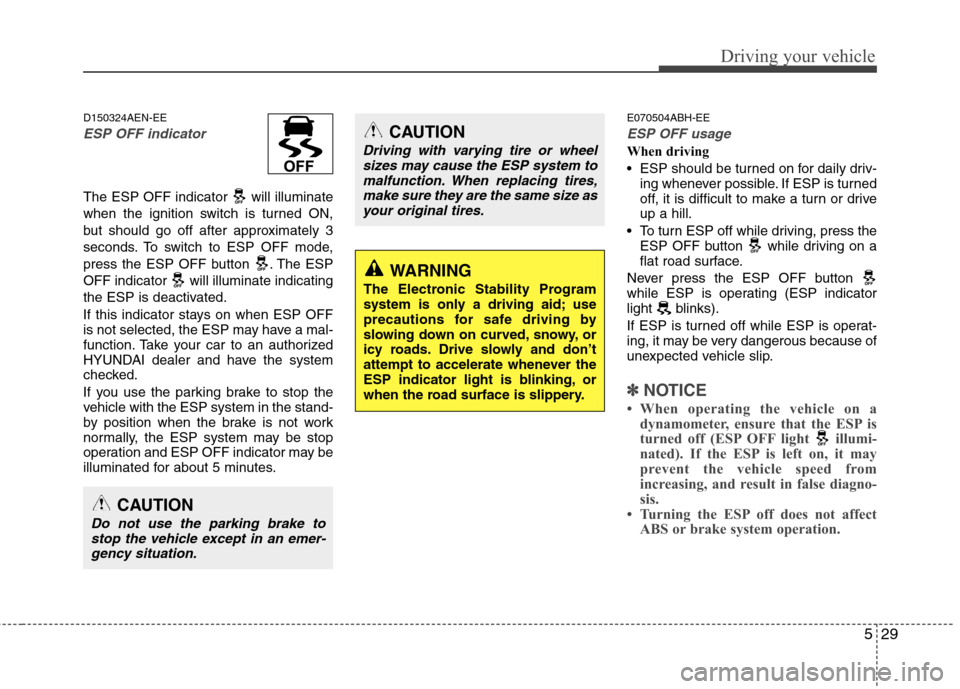
D150324AEN-EE
ESP OFF indicator
The ESP OFF indicator will illuminate
when the ignition switch is turned ON,
but should go off after approximately 3
seconds. To switch to ESP OFF mode,
press the ESP OFF button . The ESP
OFF indicator will illuminate indicating
the ESP is deactivated.
If this indicator stays on when ESP OFF
is not selected, the ESP may have a mal-
function. Take your car to an authorized
HYUNDAI dealer and have the system
checked.
If you use the parking brake to stop the
vehicle with the ESP system in the stand-
by position when the brake is not work
normally, the ESP system may be stop
operation and ESP OFF indicator may be
illuminated for about 5 minutes.E070504ABH-EE
ESP OFF usage
When driving
ESP should be turned on for daily driv-
ing whenever possible. If ESP is turned
off, it is difficult to make a turn or driveup a hill.
To turn ESP off while driving, press the ESP OFF button while driving on a
flat road surface.
Never press the ESP OFF button
while ESP is operating (ESP indicator
light blinks).
If ESP is turned off while ESP is operat-
ing, it may be very dangerous because of
unexpected vehicle slip.
✽✽ NOTICE
When operating the vehicle on a dynamometer, ensure that the ESP is
turned off (ESP OFF light illumi-
nated). If the ESP is left on, it may
prevent the vehicle speed from
increasing, and result in false diagno-
sis.
Turning the ESP off does not affect ABS or brake system operation.
CAUTION
Driving with varying tire or wheel
sizes may cause the ESP system to
malfunction. When replacing tires,make sure they are the same size asyour original tires.
WARNING
The Electronic Stability Program
system is only a driving aid; use
precautions for safe driving by
slowing down on curved, snowy, or
icy roads. Drive slowly and don’t
attempt to accelerate whenever the
ESP indicator light is blinking, or
when the road surface is slippery.
CAUTION
Do not use the parking brake to stop the vehicle except in an emer-gency situation.
Page 213 of 322
Driving your vehicle
36
5
E100000AUN
Your vehicle's fuel economy depends
mainly on your style of driving, where you
drive and when you drive.
Each of these factors affects how many
miles (kilometers) you can get from a gal-
lon (liter) of fuel. To operate your vehicle
as economically as possible, use the fol-
lowing driving suggestions to help save
money in both fuel and repairs:
Drive smoothly. Accelerate at a moder-
ate rate. Don't make "jack-rabbit" starts or full-throttle shifts and maintain a
steady cruising speed. Don't race
between stoplights. Try to adjust your
speed to that of the other traffic so you
don't have to change speeds unneces-
sarily. Avoid heavy traffic whenever
possible. Always maintain a safe dis-
tance from other vehicles so you can
avoid unnecessary braking. This also
reduces brake wear.
Drive at a moderate speed. The faster you drive, the more fuel your car uses.
Driving at a moderate speed, especial-
ly on the highway, is one of the most
effective ways to reduce fuel consump-tion. Don't "ride" the brake or clutch pedal.
This can increase fuel consumption
and also increase wear on these com-
ponents. In addition, driving with your
foot resting on the brake pedal may
cause the brakes to overheat, which
reduces their effectiveness and may
lead to more serious consequences.
Take care of your tires. Keep them inflated to the recommended pressure.
Incorrect inflation, either too much or
too little, results in unnecessary tire
wear. Check the tire pressures at leastonce a month.
Be sure that the wheels are aligned correctly. Improper alignment can
result from hitting curbs or driving too
fast over irregular surfaces. Poor align-
ment causes faster tire wear and may
also result in other problems as well as
greater fuel consumption. Keep your car in good condition. For
better fuel economy and reduced
maintenance costs, maintain your carin accordance with the maintenance
schedule in section 7. If you drive your
car in severe conditions, more frequentmaintenance is required (see section 7
for details).
Keep your car clean. For maximum service, your vehicle should be kept
clean and free of corrosive materials. It
is especially important that mud, dirt,
ice, etc. not be allowed to accumulate
on the underside of the car. This extra
weight can result in increased fuel con-
sumption and also contribute to corro-sion.
Travel lightly. Don't carry unnecessary weight in your car. Weight reduces fuel
economy.
Don't let the engine idle longer than necessary. If you are waiting (and not
in traffic), turn off your engine and
restart only when you're ready to go.
ECONOMICAL OPERATION