ECO mode HYUNDAI GENESIS COUPE 2014 Owner's Manual
[x] Cancel search | Manufacturer: HYUNDAI, Model Year: 2014, Model line: GENESIS COUPE, Model: HYUNDAI GENESIS COUPE 2014Pages: 438, PDF Size: 40.35 MB
Page 227 of 438
4143
Features of your vehicle
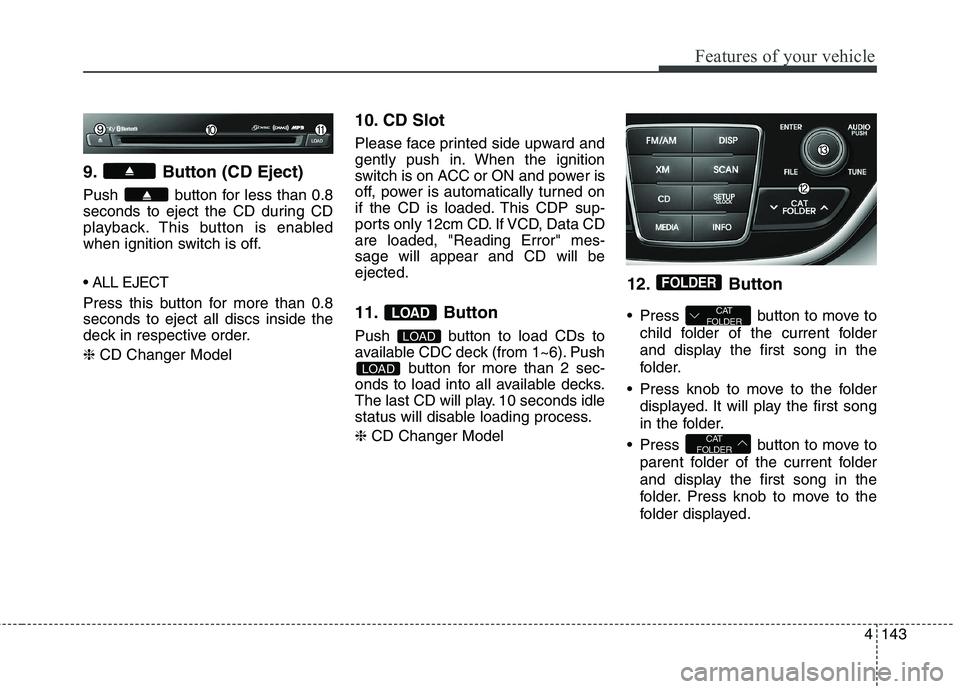
9. Button (CD Eject)
Push button for less than 0.8
seconds to eject the CD during CD
playback. This button is enabled
when ignition switch is off.
Press this button for more than 0.8
seconds to eject all discs inside the
deck in respective order.
❈CD Changer Model
10. CD Slot
Please face printed side upward and
gently push in. When the ignition
switch is on ACC or ON and power is
off, power is automatically turned on
if the CD is loaded. This CDP sup-
ports only 12cm CD. If VCD, Data CD
are loaded, "Reading Error" mes-
sage will appear and CD will be
ejected.
11. Button
Push button to load CDs to
available CDC deck (from 1~6). Push
button for more than 2 sec-
onds to load into all available decks.
The last CD will play. 10 seconds idle
status will disable loading process.
❈CD Changer Model
12. Button
Press button to move to
child folder of the current folder
and display the first song in the
folder.
Press knob to move to the folder
displayed. It will play the first song
in the folder.
Press button to move to
parent folder of the current folder
and display the first song in the
folder. Press knob to move to the
folder displayed.
CAT
FOLDER
CAT
FOLDER
FOLDER
LOAD
LOAD
LOAD
Page 229 of 438
4145
Features of your vehicle
CAUTION IN USING
USB DEVICE
To use an external USB
device, make sure the device
is not connected when start-
ing up the vehicle. Connect
the device after starting up.
If you start the engine when
the USB device is connected,
it may damage the USB
device. (USB flashdrives are
very sensitive to electric
shock.)
If the engine is started up or
turned off while the external
USB device is connected, the
external USB device may not
work.
It may not play inauthentic
MP3 or WMA files.
1) It can only play MP3 files
with the compression rate
between 8Kbps~320Kbps.
2) It can only play WMA music
files with the compression
rate between 8Kbps ~
320Kbps.
(Continued)
(Continued)
Take precautions for static
electricity when connecting or
disconnecting the external
USB device.
An encrypted MP3 PLAYER is
not recognizable.
Depending on the condition of
the external USB device, the
connected external USB
device can be unrecognizable.
When the formatted byte/sec-
tor setting of External USB
device is not either 512BYTE
or 2048BYTE, then the device
will not be recognized.
Use only a USB device format-
ted to FAT 12/16/32.
USB devices without USB I/F
authentication may not be rec-
ognizable.
Make sure the USB connec-
tion terminal does not come in
contact with the human body
or other objects.
(Continued)(Continued)
If you repeatedly connect or
disconnect the USB device in
a short period of time, it may
break the device.
You may hear a strange noise
when connecting or discon-
necting a USB device.
If you disconnect the external
USB device during playback in
USB mode, the external USB
device can be damaged or may
malfunction. Therefore, discon-
nect the external USB device
when the audio is turned off or
in another mode. (e.g, Radio or
CD)
Depending on the type and
capacity of the external USB
device or the type of the files
stored in the device, there is a
difference in the time taken for
recognition of the device.
Do not use the USB device for
purposes other than playing
music files.
(Continued)
Page 231 of 438
4147
Features of your vehicle
Using USB device
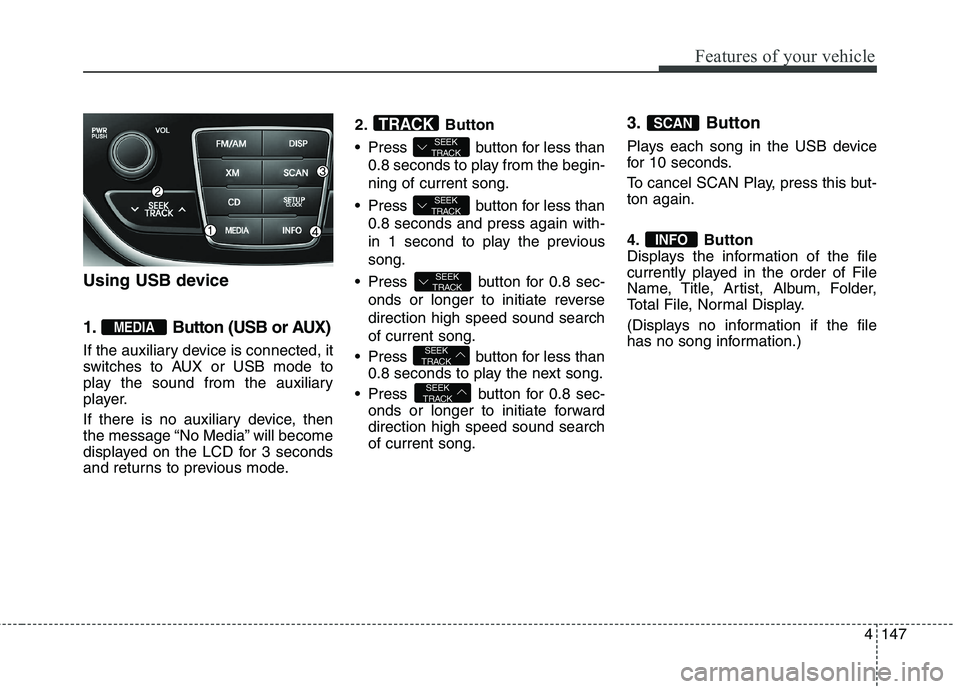
1. Button (USB or AUX)
If the auxiliary device is connected, it
switches to AUX or USB mode to
play the sound from the auxiliary
player.
If there is no auxiliary device, then
the message “No Media” will become
displayed on the LCD for 3 seconds
and returns to previous mode.2. Button
Press button for less than
0.8 seconds to play from the begin-
ning of current song.
Press button for less than
0.8 seconds and press again with-
in 1 second to play the previous
song.
Press button for 0.8 sec-
onds or longer to initiate reverse
direction high speed sound search
of current song.
Press button for less than
0.8 seconds to play the next song.
Press button for 0.8 sec-
onds or longer to initiate forward
direction high speed sound search
of current song.
3. Button
Plays each song in the USB device
for 10 seconds.
To cancel SCAN Play, press this but-
ton again.
4. Button
Displays the information of the file
currently played in the order of File
Name, Title, Artist, Album, Folder,
Total File, Normal Display.
(Displays no information if the file
has no song information.)
INFO
SCAN
SEEK
TRACK
SEEK
TRACK
SEEK
TRACK
SEEK
TRACK
SEEK
TRACKTRACK
MEDIA
Page 232 of 438
Features of your vehicle
148 4
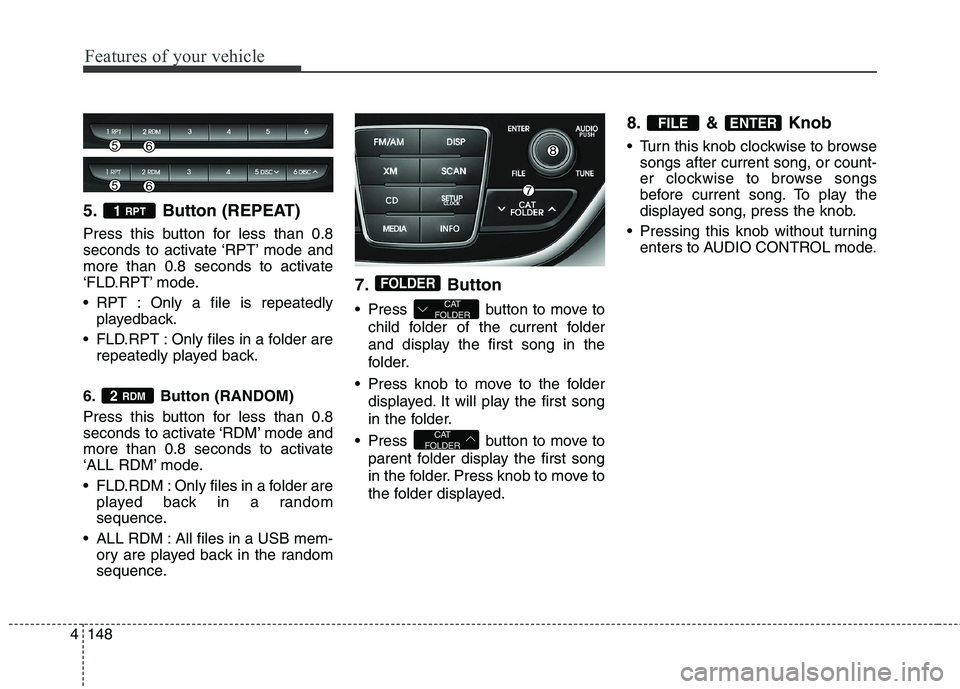
5. Button (REPEAT)
Press this button for less than 0.8
seconds to activate ‘RPT’ mode and
more than 0.8 seconds to activate
‘FLD.RPT’ mode.
RPT : Only a file is repeatedly
playedback.
FLD.RPT : Only files in a folder are
repeatedly played back.
6. Button (RANDOM)
Press this button for less than 0.8
seconds to activate ‘RDM’ mode and
more than 0.8 seconds to activate
‘ALL RDM’ mode.
FLD.RDM : Only files in a folder are
played back in a random
sequence.
ALL RDM : All files in a USB mem-
ory are played back in the random
sequence.
7. Button
Press button to move to
child folder of the current folder
and display the first song in the
folder.
Press knob to move to the folder
displayed. It will play the first song
in the folder.
Press button to move to
parent folder display the first song
in the folder. Press knob to move to
the folder displayed.
8. & Knob
Turn this knob clockwise to browse
songs after current song, or count-
er clockwise to browse songs
before current song. To play the
displayed song, press the knob.
Pressing this knob without turning
enters to AUDIO CONTROL mode.
ENTERFILE
CAT
FOLDER
CAT
FOLDER
FOLDER
2 RDM
1 RPT
Page 235 of 438
4151
Features of your vehicle
Using iPod®
❋iPod®is a trademark of Apple Inc.
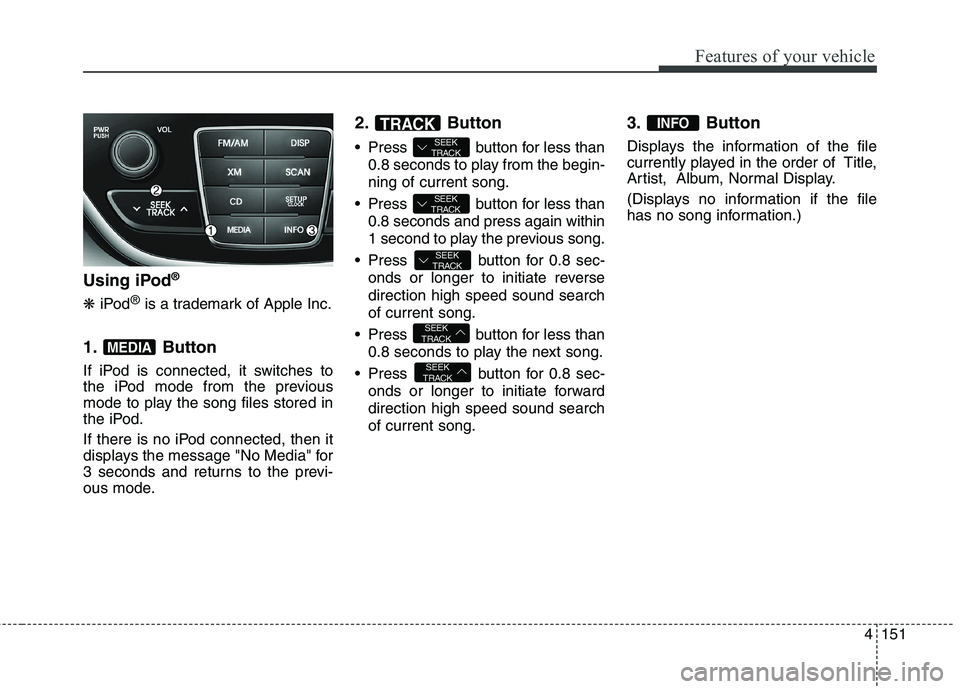
1. Button
If iPod is connected, it switches to
the iPod mode from the previous
mode to play the song files stored in
the iPod.
If there is no iPod connected, then it
displays the message "No Media" for
3 seconds and returns to the previ-
ous mode.
2. Button
Press button for less than
0.8 seconds to play from the begin-
ning of current song.
Press button for less than
0.8 seconds and press again within
1 second to play the previous song.
Press button for 0.8 sec-
onds or longer to initiate reverse
direction high speed sound search
of current song.
Press button for less than
0.8 seconds to play the next song.
Press button for 0.8 sec-
onds or longer to initiate forward
direction high speed sound search
of current song.
3. Button
Displays the information of the file
currently played in the order of Title,
Artist, Album, Normal Display.
(Displays no information if the file
has no song information.)
INFO
SEEK
TRACK
SEEK
TRACK
SEEK
TRACK
SEEK
TRACK
SEEK
TRACKTRACK
MEDIA
Page 237 of 438
4153
Features of your vehicle
Using XM satellite Radio
Your vehicle is equipped with 3
months complimentary period of XM
Satellite Radio. XM provides access
to over 130 channels of music, infor-
mation, and entertainment program-
ming.
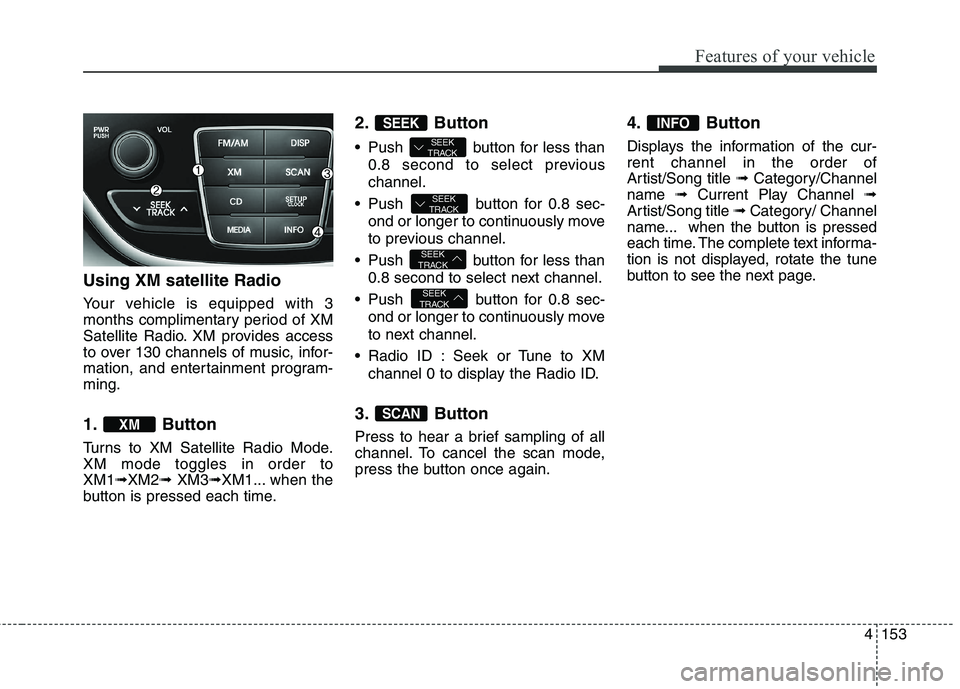
1. Button
Turns to XM Satellite Radio Mode.
XM mode toggles in order to
XM1➟XM2➟ XM3➟XM1... when the
button is pressed each time.
2. Button
Push button for less than
0.8 second to select previous
channel.
Push button for 0.8 sec-
ond or longer to continuously move
to previous channel.
Push button for less than
0.8 second to select next channel.
Push button for 0.8 sec-
ond or longer to continuously move
to next channel.
Radio ID : Seek or Tune to XM
channel 0 to display the Radio ID.
3. Button
Press to hear a brief sampling of all
channel. To cancel the scan mode,
press the button once again.
4. Button
Displays the information of the cur-
rent channel in the order of
Artist/Song title ➟ Category/Channel
name ➟ Current Play Channel ➟
Artist/Song title ➟ Category/ Channel
name... when the button is pressed
each time. The complete text informa-
tion is not displayed, rotate the tune
button to see the next page.
INFO
SCAN
SEEK
TRACK
SEEK
TRACK
SEEK
TRACK
SEEK
TRACK
SEEK
XM
Page 238 of 438
Features of your vehicle
154 4
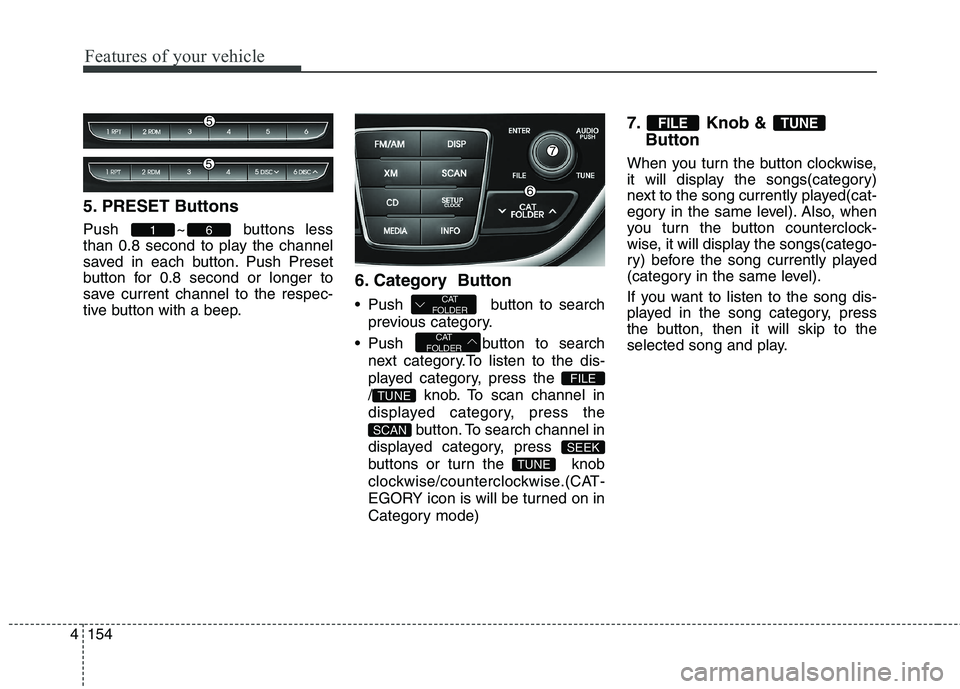
5. PRESET Buttons
Push ~ buttons less
than 0.8 second to play the channel
saved in each button. Push Preset
button for 0.8 second or longer to
save current channel to the respec-
tive button with a beep.
6. Category Button
Push button to search
previous category.
Push button to search
next category.To listen to the dis-
played category, press the
/ knob. To scan channel in
displayed category, press the
button. To search channel in
displayed category, press
buttons or turn the knob
clockwise/counterclockwise.(CAT-
EGORY icon is will be turned on in
Category mode)
7. Knob &
Button
When you turn the button clockwise,
it will display the songs(category)
next to the song currently played(cat-
egory in the same level). Also, when
you turn the button counterclock-
wise, it will display the songs(catego-
ry) before the song currently played
(category in the same level).
If you want to listen to the song dis-
played in the song category, press
the button, then it will skip to the
selected song and play.
TUNEFILE
TUNE
SEEK
SCAN
TUNE
FILE
CAT
FOLDER
CAT
FOLDER
61
Page 241 of 438
4157
Features of your vehicle
Bluetooth®Wireless
Technology PHONE
OPERATION (if equipped)
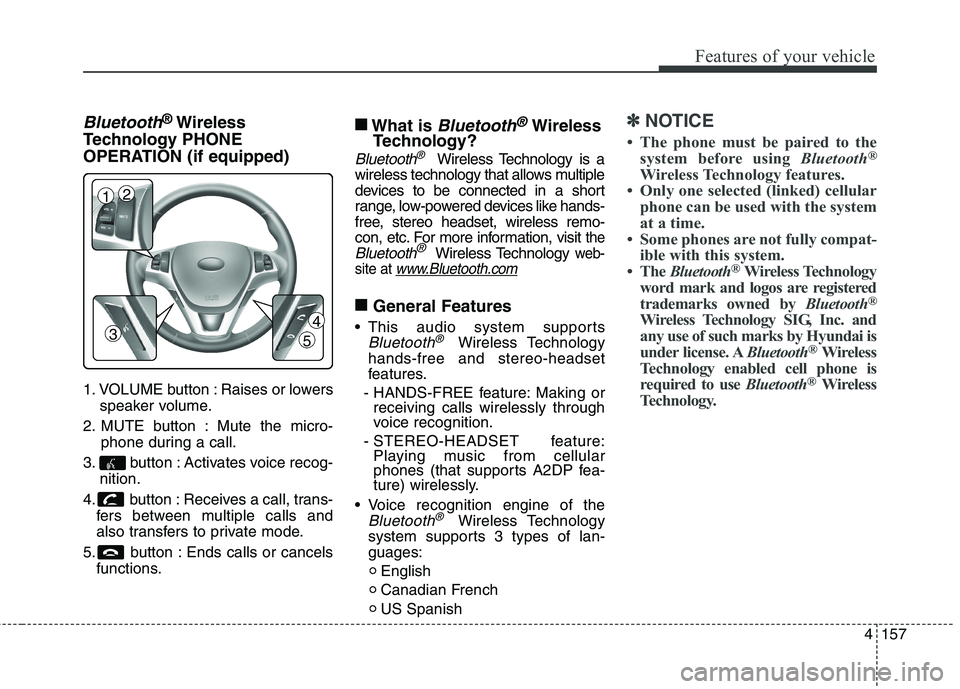
1. VOLUME button : Raises or lowers
speaker volume.
2. MUTE button : Mute the micro-
phone during a call.
3. button : Activates voice recog-
nition.
4. button : Receives a call, trans-
fers between multiple calls and
also transfers to private mode.
5. button : Ends calls or cancels
functions.
■
What is Bluetooth®Wireless
Technology?
Bluetooth®Wireless Technology is a
wireless technology that allows multiple
devices to be connected in a short
range, low-powered devices like hands-
free, stereo headset, wireless remo-
con, etc. For more information, visit
the
Bluetooth®Wireless Technology web-
site at
www.Bluetooth.com
■
General Features
This audio system supports
Bluetooth®Wireless Technology
hands-free and stereo-headset
features.
- HANDS-FREE feature: Making or
receiving calls wirelessly through
voice recognition.
- STEREO-HEADSET feature:
Playing music from cellular
phones (that supports A2DP fea-
ture) wirelessly.
Voice recognition engine of the
Bluetooth®Wireless Technology
system supports 3 types of lan-
guages:
English
Canadian French
US Spanish
✽ ✽
NOTICE
• The phone must be paired to the
system before using Bluetooth®
Wireless Technology features.
• Only one selected (linked) cellular
phone can be used with the system
at a time.
• Some phones are not fully compat-
ible with this system.
• The Bluetooth
®Wireless Technology
word mark and logos are registered
trademarks owned by Bluetooth
®
Wireless Technology SIG, Inc. and
any use of such marks by Hyundai is
under license. ABluetooth
®Wireless
Technology enabled cell phone is
required to use Bluetooth
®Wireless
Technology.
3
12
4
5
Page 246 of 438
Features of your vehicle
162 4
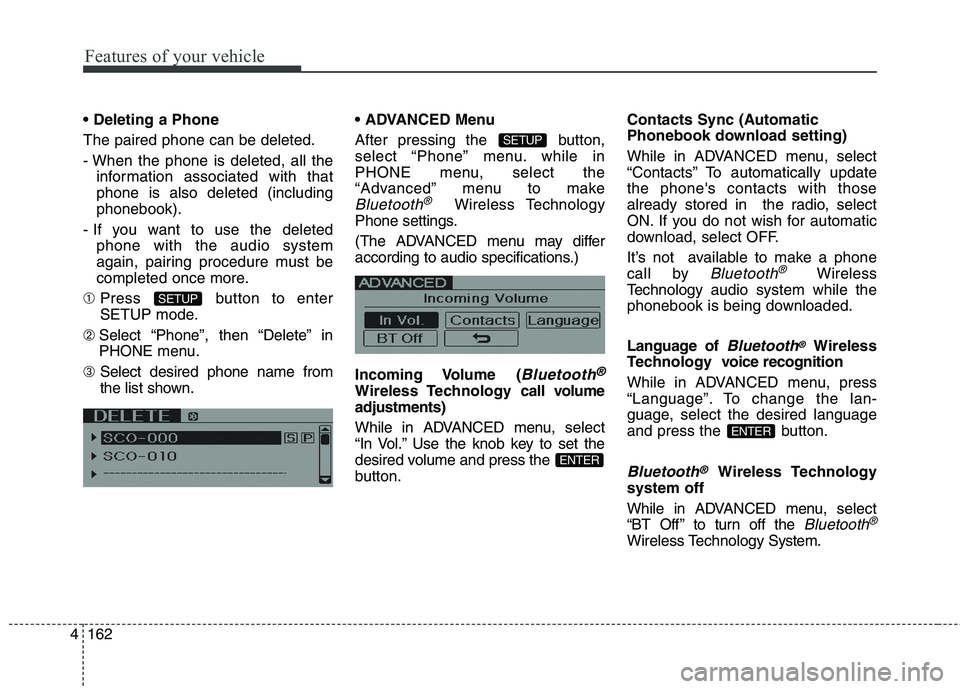
The paired phone can be deleted.
- When the phone is deleted, all the
information associated with that
phone is also deleted (including
phonebook).
- If you want to use the deleted
phone with the audio system
again, pairing procedure must be
completed once more.
➀Press button to enter
SETUP mode.
➁ Select “Phone”, then “Delete” in
PHONE menu.
➂ Select desired phone name from
the list shown. Menu
After pressing the button,
select “Phone” menu. while in
PHONE menu, select the
“Advanced” menu to make
Bluetooth®Wireless Technology
Phone settings.
(The ADVANCED menu may differ
according to audio specifications.)
Incoming Volume (
Bluetooth®
Wireless Technology call volume
adjustments)
While in ADVANCED menu, select
“In Vol.” Use the knob key to set the
desired volume and press the
button.Contacts Sync (Automatic
Phonebook download setting)
While in ADVANCED menu, select
“Contacts” To automatically update
the phone's contacts with those
already stored in the radio, select
ON. If you do not wish for automatic
download, select OFF.
It’s not available to make a phone
call by
Bluetooth®Wireless
Technologyaudio system while the
phonebook is being downloaded.
Language of
Bluetooth®Wireless
Technology voice recognition
While in ADVANCED menu, press
“Language”. To change the lan-
guage, select the desired language
and press the button.
Bluetooth®Wireless Technology
system off
While in ADVANCED menu, select
“BT Off ” to turn off the
Bluetooth®
Wireless TechnologySystem.
ENTER
ENTER
SETUP
SETUP
Page 247 of 438
4163
Features of your vehicle
■Voice Recognition Activation
The voice recognition engine con-
tained in the
Bluetooth®Wireless
TechnologySystem can be activat-
ed in the following conditions:
- Button Activation
The voice recognition system will
be active when the button is
pressed and after the sound of a
Beep.
- Active Listening
The voice recognition system will
be active for a period of time when
the Voice Recognition system has
asked for a customer response.
The system can recognize single
digits from zero to nine while num-
ber greater than ten will not be rec-
ognized.
The system shall cancel voice
recognition mode in following
cases : When pressing the but-
ton and saying cancel following the
beep. When not making a call and
pressing the button. When
voice recognition has failed 3 con-
secutive times. At any time if you say “help”, the
system will announce what com-
mands are available.
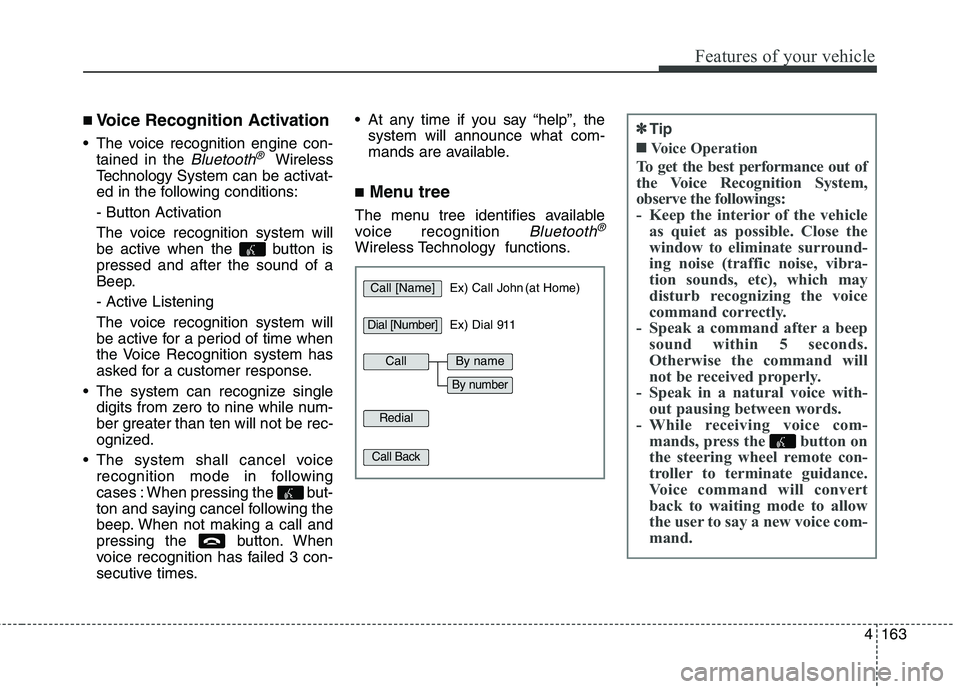
■Menu tree
The menu tree identifies available
voice recognition
Bluetooth®
Wireless Technology functions.
✽ ✽
Tip
■Voice Operation
To get the best performance out of
the Voice Recognition System,
observe the followings:
- Keep the interior of the vehicle
as quiet as possible. Close the
window to eliminate surround-
ing noise (traffic noise, vibra-
tion sounds, etc), which may
disturb recognizing the voice
command correctly.
- Speak a command after a beep
sound within 5 seconds.
Otherwise the command will
not be received properly.
- Speak in a natural voice with-
out pausing between words.
- While receiving voice com-
mands, press the button on
the steering wheel remote con-
troller to terminate guidance.
Voice command will convert
back to waiting mode to allow
the user to say a new voice com-
mand.
Call [Name]Ex) Call John (at Home)
Ex) Dial 911
Dial [Number]
Redial
Call Back
CallBy name
By number