phone HYUNDAI GENESIS COUPE 2014 Owner's Manual
[x] Cancel search | Manufacturer: HYUNDAI, Model Year: 2014, Model line: GENESIS COUPE, Model: HYUNDAI GENESIS COUPE 2014Pages: 438, PDF Size: 40.35 MB
Page 244 of 438
Features of your vehicle
160 4
Before using
Bluetooth®Wireless
Technology features, the phone must
be paired (registered) with the audio
system. Up to 5 phones can be
paired with the system.
NOTE:
phone varies according to each
phone model. Before attempting
to pair phone, please see your
phone’s User’s Guide for
instructions.
completed, there is no need to
pair with that phone again
unless the phone is deleted
manually from the audio system
(refer “Deleting a Phone” sec-
tion) or the vehicle’s information
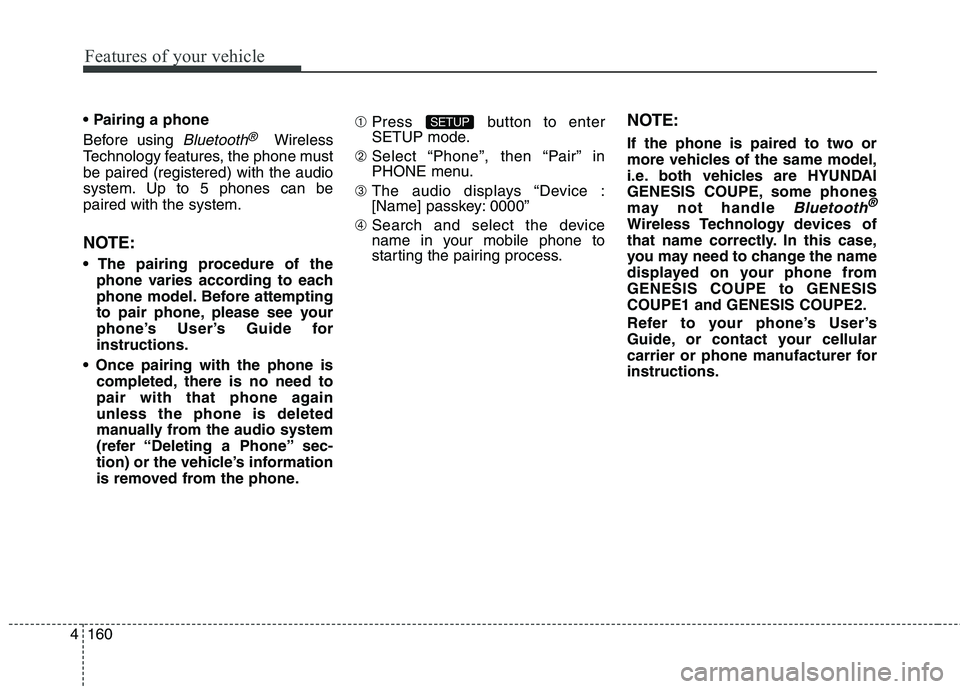
is removed from the phone.➀Press button to enter
SETUP mode.
➁ Select “Phone”, then “Pair” in
PHONE menu.
➂ The audio displays “Device :
[Name] passkey: 0000”
➃ Search and select the device
name in your mobile phone to
starting the pairing process.
NOTE:
If the phone is paired to two or
more vehicles of the same model,
i.e. both vehicles are HYUNDAI
GENESIS COUPE, some phones
may not handle
Bluetooth®
Wireless Technology devices of
that name correctly. In this case,
you may need to change the name
displayed on your phone from
GENESIS COUPE to GENESIS
COUPE1 and GENESIS COUPE2.
Refer to your phone’s User’s
Guide, or contact your cellular
carrier or phone manufacturer for
instructions.
SETUP
Page 245 of 438
4161
Features of your vehicle
When the
Bluetooth®Wireless
Technology system is enabled, the
phone previously used is automati-
cally selected and re-connected. If
you want to select different phone
previously paired, the phone can be
selected through “Select Phone”
menu.
Only one phone can be actively con-
nected to the hands-free system at a
time.
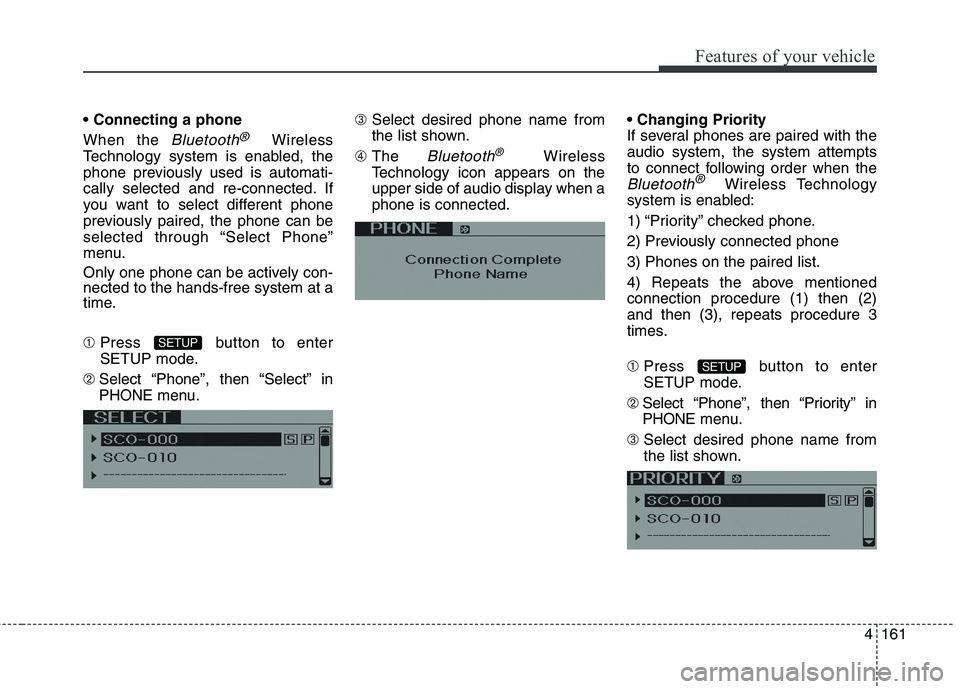
➀Press button to enter
SETUP mode.
➁ Select “Phone”, then “Select” in
PHONE menu.➂ Select desired phone name from
the list shown.
➃ The
Bluetooth®Wireless
Technology icon appears on the
upper side of audio display when a
phone is connected.
If several phones are paired with the
audio system, the system attempts
to connect following order when the
Bluetooth®Wireless Technology
system is enabled:
1) “Priority” checked phone.
2) Previously connected phone
3) Phones on the paired list.
4) Repeats the above mentioned
connection procedure (1) then (2)
and then (3), repeats procedure 3
times.
➀Press button to enter
SETUP mode.
➁ Select “Phone”, then “Priority” in
PHONE menu.
➂ Select desired phone name from
the list shown.
SETUP
SETUP
Page 246 of 438
Features of your vehicle
162 4
The paired phone can be deleted.
- When the phone is deleted, all the
information associated with that
phone is also deleted (including
phonebook).
- If you want to use the deleted
phone with the audio system
again, pairing procedure must be
completed once more.
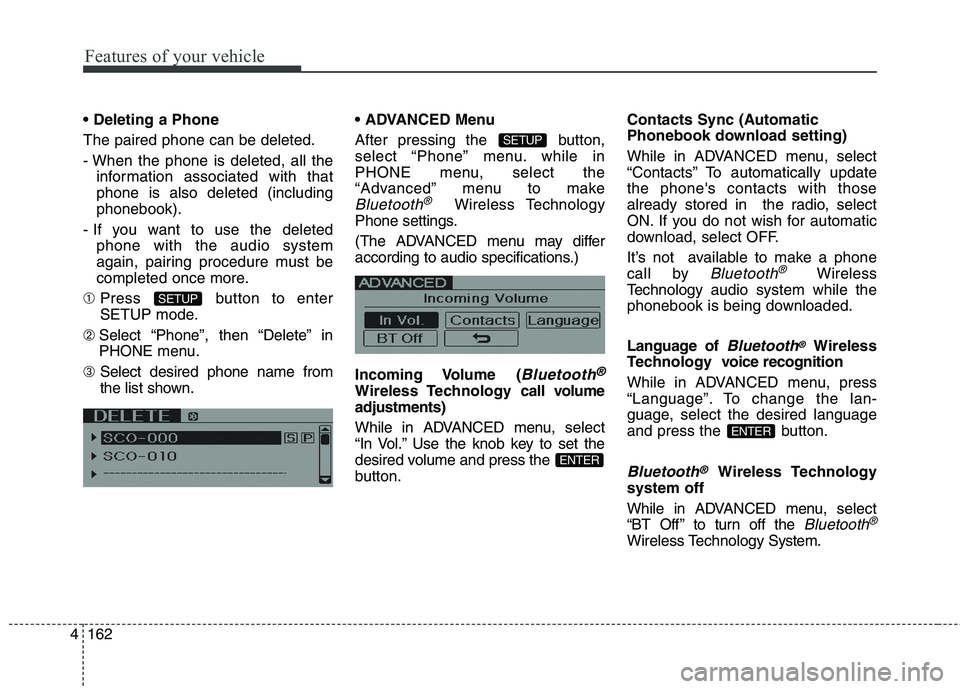
➀Press button to enter
SETUP mode.
➁ Select “Phone”, then “Delete” in
PHONE menu.
➂ Select desired phone name from
the list shown. Menu
After pressing the button,
select “Phone” menu. while in
PHONE menu, select the
“Advanced” menu to make
Bluetooth®Wireless Technology
Phone settings.
(The ADVANCED menu may differ
according to audio specifications.)
Incoming Volume (
Bluetooth®
Wireless Technology call volume
adjustments)
While in ADVANCED menu, select
“In Vol.” Use the knob key to set the
desired volume and press the
button.Contacts Sync (Automatic
Phonebook download setting)
While in ADVANCED menu, select
“Contacts” To automatically update
the phone's contacts with those
already stored in the radio, select
ON. If you do not wish for automatic
download, select OFF.
It’s not available to make a phone
call by
Bluetooth®Wireless
Technologyaudio system while the
phonebook is being downloaded.
Language of
Bluetooth®Wireless
Technology voice recognition
While in ADVANCED menu, press
“Language”. To change the lan-
guage, select the desired language
and press the button.
Bluetooth®Wireless Technology
system off
While in ADVANCED menu, select
“BT Off ” to turn off the
Bluetooth®
Wireless TechnologySystem.
ENTER
ENTER
SETUP
SETUP
Page 248 of 438
Features of your vehicle
164 4
■Making a Phone Call
➀ Press button.
➁ Say the following command.
- Call
John.
- Call
Connects the call to John’s mobile
phone number.
- Call
Connects the call to john’s home
number.
- Call
Connects the call to John’s office
number.
A phone call can be made by speak-
ing names registered in the audio
system.
➀ Press button.
➁ Say “Call”.
➂ Say “By name” when prompted.
➃ Say desired name (in Phonebook
or voice tag).
➄ Say desired location (phone num-
ber type). Only stored locations
can be selected.
➅ Say “Yes” to confirm and make a
call.✽ ✽
Tip
A shortcut to each of the following
functions is available:
1. Say “Call Name”
A phone call can be made by dialing
the spoken numbers. The system
can recognize single digits from zero
to nine.
➀ Press button.
➁ Say “Call”.
➂ Say “By number” when prompted.
➃ Say desired phone numbers.
➄ Say “Dial” to complete the number
and make a call.
✽ ✽
Tip
A shortcut to each of the following
functions is available:
➀ Say “Dial Number”
➁ Say “Dial
Page 250 of 438
Features of your vehicle
166 4
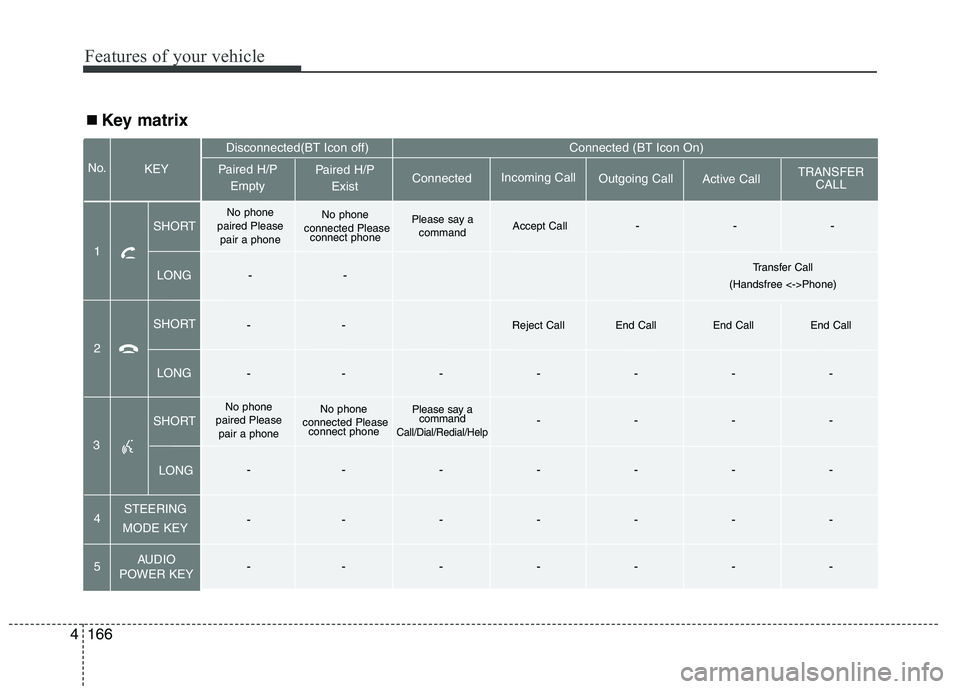
■ Key matrix
No.
Disconnected(BT Icon off) Connected (BT Icon On)
Paired H/P
EmptyPaired H/P
Exist
1SHORT
LONG
SHORT
LONG
STEERING
MODE KEY
AUDIO
POWER KEYIncoming Call
Outgoing Call
Active CallTRANSFER
CALL Connected KEY
--Reject Call End Call End Call End Call
-------
No phone
paired Please
pair a phoneNo phone
connected Please
connect phonePlease say a
command
Call/Dial/Redial/Help----
-------
-------
-------
No phone
paired Please
pair a phoneNo phone
connected Please
connect phonePlease say a
commandAccept Call---
4
5 2
3
SHORT
LONG
--Transfer Call
(Handsfree <->Phone)