ECO mode Hyundai Grand Santa Fe 2015 Owner's Guide
[x] Cancel search | Manufacturer: HYUNDAI, Model Year: 2015, Model line: Grand Santa Fe, Model: Hyundai Grand Santa Fe 2015Pages: 717, PDF Size: 16.93 MB
Page 335 of 717
Features of your vehicle
238 4
Random
While song (file) is playing
(RDM) key
Audio CD, My Music mode: RDM on
screen
• Random (Shortly pressing the key ):
Plays all songs in random order.
MP3 CD, USB mode: FLD.RDM on
screen
• Folder Random (Shortly pressing
the key): Plays all files within the
current folder in random order.
MP3 CD, USB mode: RDM on
screen
• Random (pressing twice): Plays all
files in random order.
iPod
®mode: RDM on screen
• Random (press the key) : Plays all
files in random order.
❈ Press the key again to turn
off random.
Changing Song/File
While song (file) is playing
key
• Shortly pressing the key: Plays the
current song from the beginning.
❈ If the key is pressed
again within 1 second, the previ-
ous song is played.
• Pressing and holding the key (over
0.8 seconds): Rewinds the song.
While song (file) is playing
key
• Shortly pressing the key: Plays the
next song.
• Pressing and holding the key (over
0.8 seconds): Fast forwards the
song.
Scan (for RDS model)
While song (file) is playing
key
• Pressing and holding the key (over
0.8 seconds) : Scans all songs for
10 seconds starting from the next
song.
❈ Pressing and holding the
key again to turn off.
Scan
While song (file) is playing
key
• Shortly pressing the key (under 0.8
seconds) : Scans all songs from the
next song for 10 seconds each.
❈ Press the key again to turn
off.
❈ The SCAN function is not support-
ed in iPod
®mode.2RDM
TA/SCAN
TA/SCAN
SEEK
TRACK
SCAN
SCAN
2 RDM
SEEK
TRACK
SEEK
TRACK
Page 342 of 717
4 245
Features of your vehicle
PHONE (if equipped)
Before using the Bluetooth®Wireless
Technology
phone features
• In order to use
Bluetooth®Wireless
Technology
phone, you must first
pair and connect the
Bluetooth®
Wireless Technologymobile phone.
• If the mobile phone is not paired or
connected, it is not possible to
enter Phone mode. Once a phone
is paired or connected, the guid-
ance screen will be displayed.
• If Priority is set upon vehicle igni-
tion (IGN/ACC ON), the
Bluetooth®
Wireless Technologyphone will be
automatically connected. Even if
you are outside, the
Bluetooth®
Wireless Technologyphone will be
automatically connected once you
are in the vicinity of the vehicle. If you
do not want automatic
Bluetooth®
Wireless Technologyphone connec-
tion, set the
Bluetooth®Wireless
Technology
power to OFF.
Making a call using the Steering
wheel remote controller
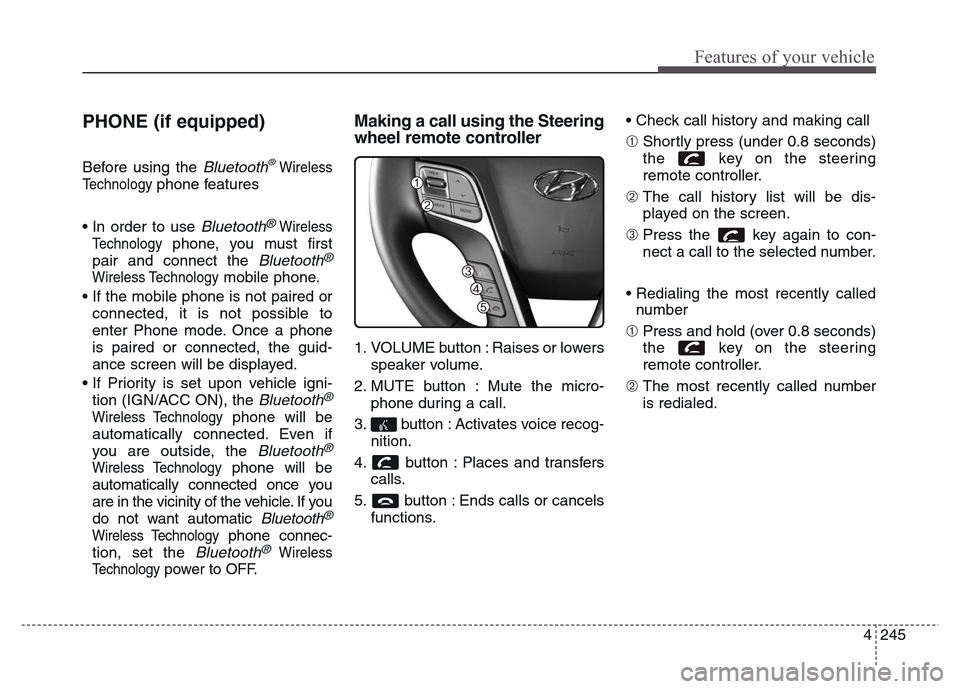
1. VOLUME button : Raises or lowers
speaker volume.
2. MUTE button : Mute the micro-
phone during a call.
3. button : Activates voice recog-
nition.
4. button : Places and transfers
calls.
5. button : Ends calls or cancels
functions.• Check call history and making call
➀ Shortly press (under 0.8 seconds)
the key on the steering
remote controller.
➁ The call history list will be dis-
played on the screen.
➂ Press the key again to con-
nect a call to the selected number.
• Redialing the most recently called
number
➀ Press and hold (over 0.8 seconds)
the key on the steering
remote controller.
➁ The most recently called number
is redialed.
Page 348 of 717
4 251
Features of your vehicle
VOICE COMMAND
(if equipped)
Starting Voice Command
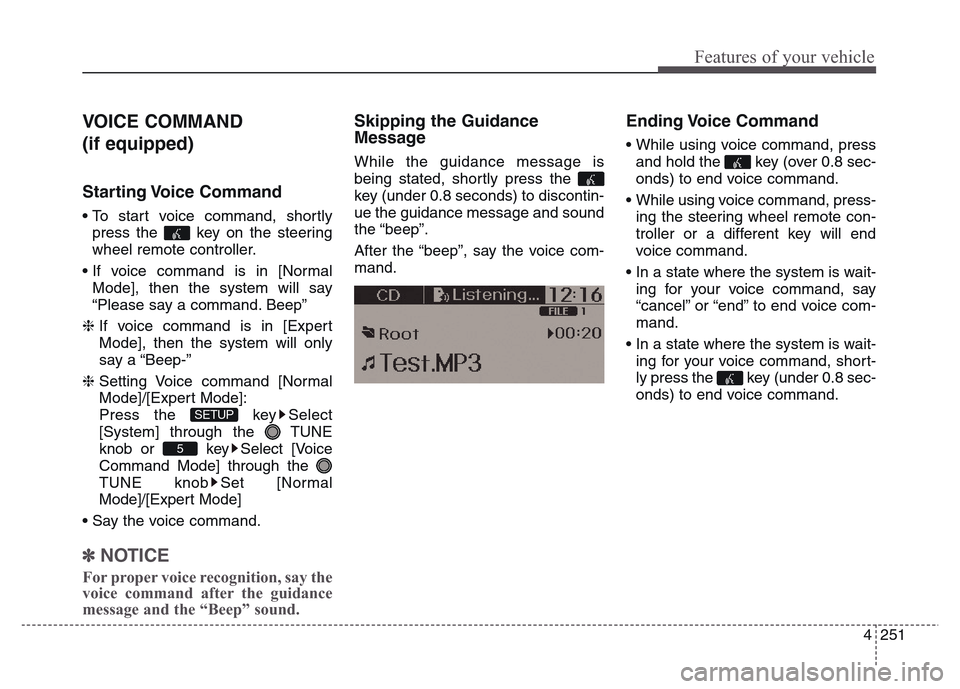
• To start voice command, shortly
press the key on the steering
wheel remote controller.
• If voice command is in [Normal
Mode], then the system will say
“Please say a command. Beep”
❈ If voice command is in [Expert
Mode], then the system will only
say a “Beep-”
❈ Setting Voice command [Normal
Mode]/[Expert Mode]:
Press the key Select
[System] through the TUNE
knob or key Select [Voice
Command Mode] through the
TUNE knob Set [Normal
Mode]/[Expert Mode]
• Say the voice command.
✽NOTICE
For proper voice recognition, say the
voice command after the guidance
message and the “Beep” sound.
Skipping the Guidance
Message
While the guidance message is
being stated, shortly press the
key (under 0.8 seconds) to discontin-
ue the guidance message and sound
the “beep”.
After the “beep”, say the voice com-
mand.
Ending Voice Command
• While using voice command, press
and hold the key (over 0.8 sec-
onds) to end voice command.
• While using voice command, press-
ing the steering wheel remote con-
troller or a different key will end
voice command.
• In a state where the system is wait-
ing for your voice command, say
“cancel” or “end” to end voice com-
mand.
• In a state where the system is wait-
ing for your voice command, short-
ly press the key (under 0.8 sec-
onds) to end voice command.
5
SETUP
Page 357 of 717
Features of your vehicle
260 4
SYSTEM CONTROLLERS
AND FUNCTIONS
❈ Display and settings may differ
depending on the selected audio.
Audio Head Unit
(for RDS,
Bluetooth®Wireless
Technology equipped model)
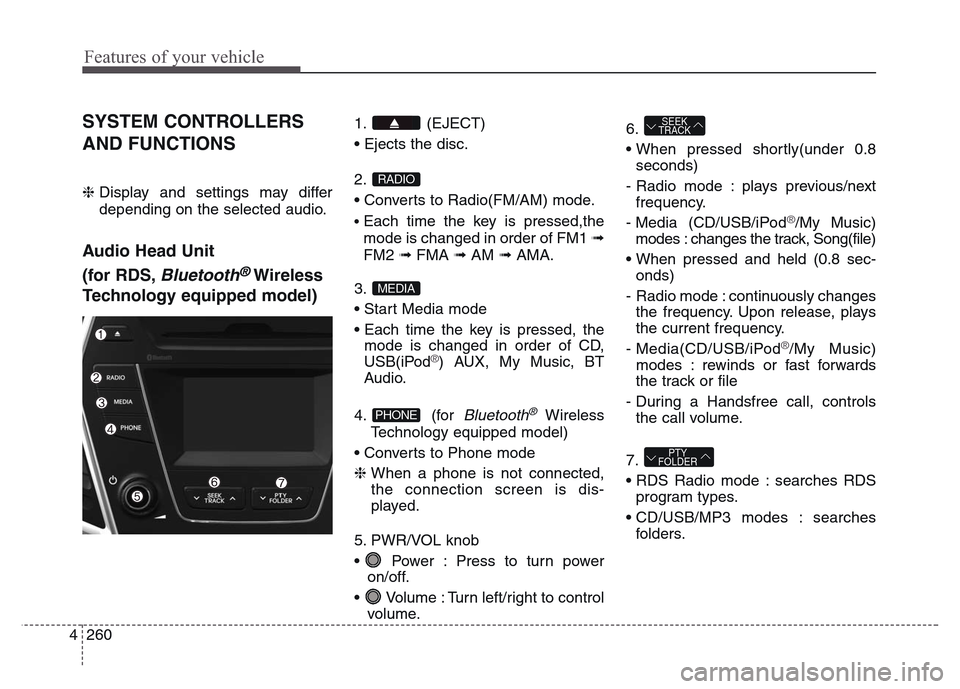
1. (EJECT)
• Ejects the disc.
2.
• Converts to Radio(FM/AM) mode.
•Each time the key is pressed,the
mode is changed in order of FM1 ➟
FM2 ➟FMA ➟AM ➟AMA.
3.
• Start Media mode
• Each time the key is pressed, the
mode is changed in order of CD,
USB(iPod
®) AUX, My Music, BT
Audio.
4. (for
Bluetooth®Wireless
Technology equipped model)
• Converts to Phone mode
❈When a phone is not connected,
the connection screen is dis-
played.
5. PWR/VOL knob
• Power : Press to turn power
on/off.
• Volume : Turn left/right to control
volume.6.
• When pressed shortly(under 0.8
seconds)
- Radio mode : plays previous/next
frequency.
- Media (CD/USB/iPod
®/My Music)
modes : changes the track, Song(file)
• When pressed and held (0.8 sec-
onds)
- Radio mode : continuously changes
the frequency. Upon release, plays
the current frequency.
- Media(CD/USB/iPod
®/My Music)
modes : rewinds or fast forwards
the track or file
- During a Handsfree call, controls
the call volume.
7.
• RDS Radio mode : searches RDS
program types.
• CD/USB/MP3 modes : searches
folders.
PTY
FOLDER
SEEK
TRACK
PHONE
MEDIA
RADIO
Page 358 of 717
4 261
Features of your vehicle
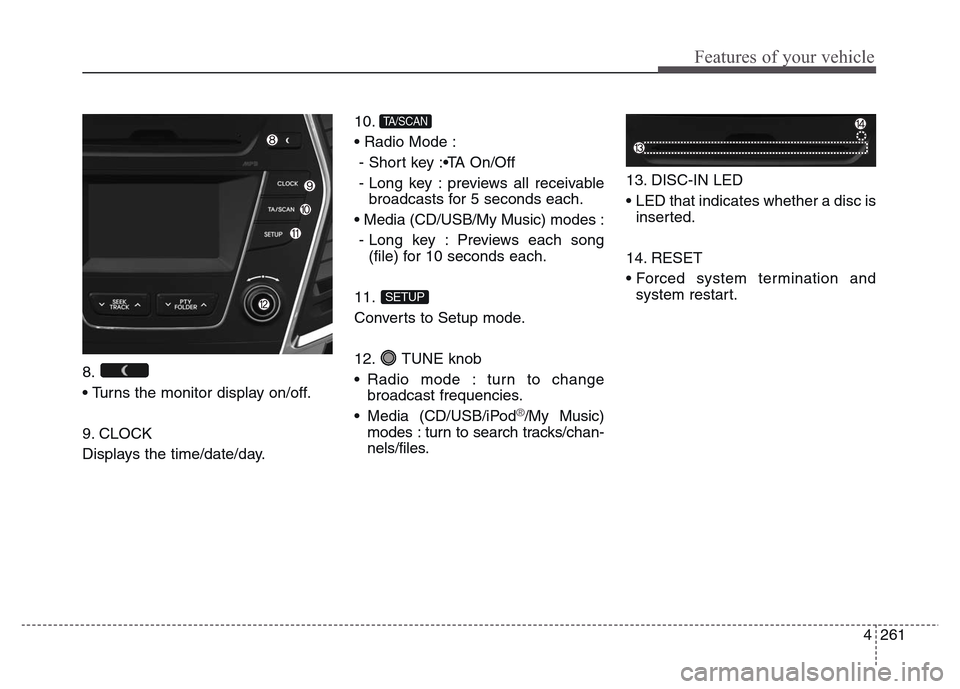
8.
• Turns the monitor display on/off.
9. CLOCK
Displays the time/date/day.10.
• Radio Mode :
- Short key :•TA On/Off
- Long key : previews all receivable
broadcasts for 5 seconds each.
• Media (CD/USB/My Music) modes :
- Long key : Previews each song
(file) for 10 seconds each.
11.
Converts to Setup mode.
12. TUNE knob
• Radio mode : turn to change
broadcast frequencies.
• Media (CD/USB/iPod
®/My Music)
modes : turn to search tracks/chan-
nels/files.13. DISC-IN LED
• LED that indicates whether a disc is
inserted.
14. RESET
• Forced system termination and
system restart.
SETUP
TA/SCAN
Page 361 of 717
Features of your vehicle
264 4
SYSTEM CONTROLLERS
AND FUNCTIONS
❈ Display and settings may differ
depending on the selected audio.
Audio Head Unit
(for
Bluetooth®Wireless
Technology equipped model)
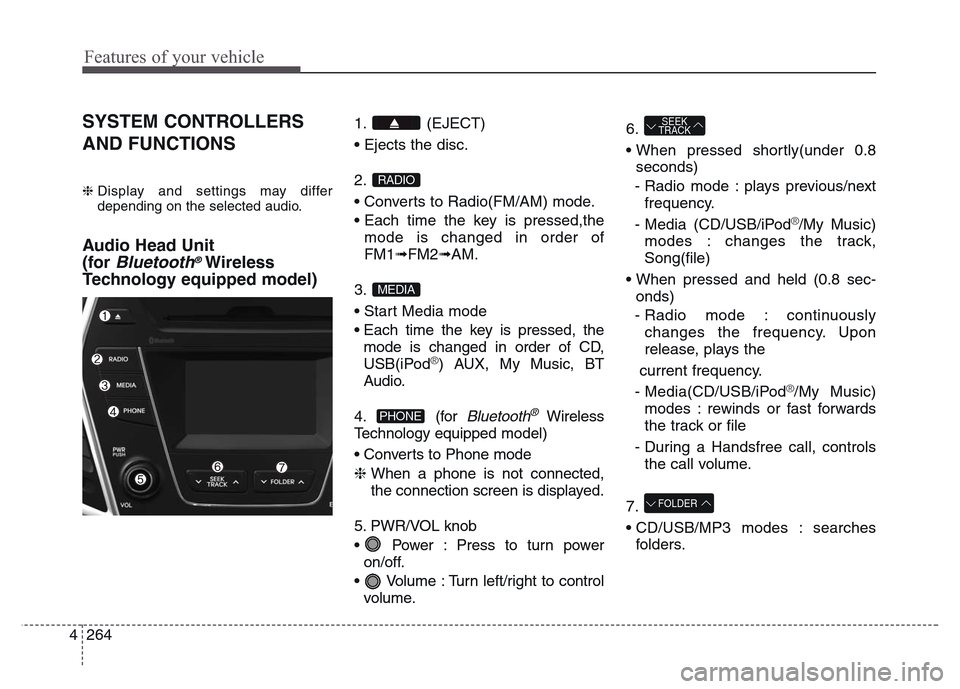
1. (EJECT)
• Ejects the disc.
2.
• Converts to Radio(FM/AM) mode.
• Each time the key is pressed,the
mode is changed in order of
FM1➟FM2➟AM.
3.
• Start Media mode
• Each time the key is pressed, the
mode is changed in order of CD,
USB(iPod
®) AUX, My Music, BT
Audio.
4. (for
Bluetooth®Wireless
Technology equipped model)
• Converts to Phone mode
❈ When a phone is not connected,
the connection screen is displayed.
5. PWR/VOL knob
• Power : Press to turn power
on/off.
• Volume : Turn left/right to control
volume.6.
• When pressed shortly(under 0.8
seconds)
- Radio mode : plays previous/next
frequency.
- Media (CD/USB/iPod
®/My Music)
modes : changes the track,
Song(file)
• When pressed and held (0.8 sec-
onds)
- Radio mode : continuously
changes the frequency. Upon
release, plays the
current frequency.
- Media(CD/USB/iPod
®/My Music)
modes : rewinds or fast forwards
the track or file
- During a Handsfree call, controls
the call volume.
7.
• CD/USB/MP3 modes : searches
folders.
FOLDER
SEEK
TRACK
PHONE
MEDIA
RADIO
Page 362 of 717
4 265
Features of your vehicle
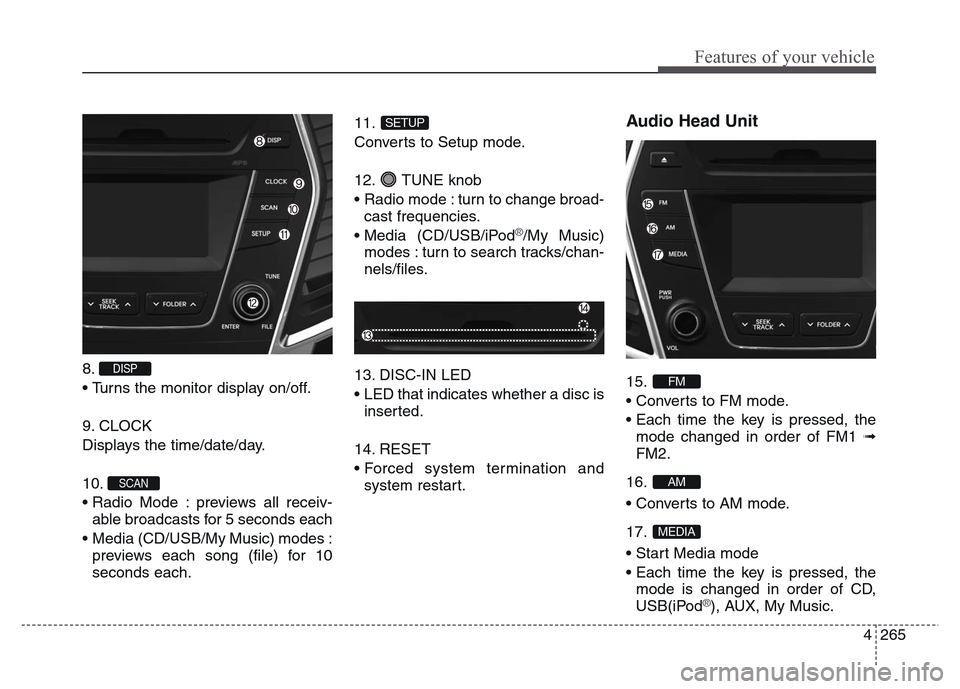
8.
• Turns the monitor display on/off.
9. CLOCK
Displays the time/date/day.
10.
• Radio Mode : previews all receiv-
able broadcasts for 5 seconds each
• Media (CD/USB/My Music) modes :
previews each song (file) for 10
seconds each.11.
Converts to Setup mode.
12. TUNE knob
• Radio mode : turn to change broad-
cast frequencies.
• Media (CD/USB/iPod
®/My Music)
modes : turn to search tracks/chan-
nels/files.
13. DISC-IN LED
• LED that indicates whether a disc is
inserted.
14. RESET
• Forced system termination and
system restart.
Audio Head Unit
15.
• Converts to FM mode.
• Each time the key is pressed, the
mode changed in order of FM1 ➟
FM2.
16.
• Converts to AM mode.
17.
• Start Media mode
• Each time the key is pressed, the
mode is changed in order of CD,
USB(iPod
®), AUX, My Music.
MEDIA
AM
FM
SETUP
SCAN
DISP
Page 363 of 717
Features of your vehicle
266 4
Steering wheel remote controller
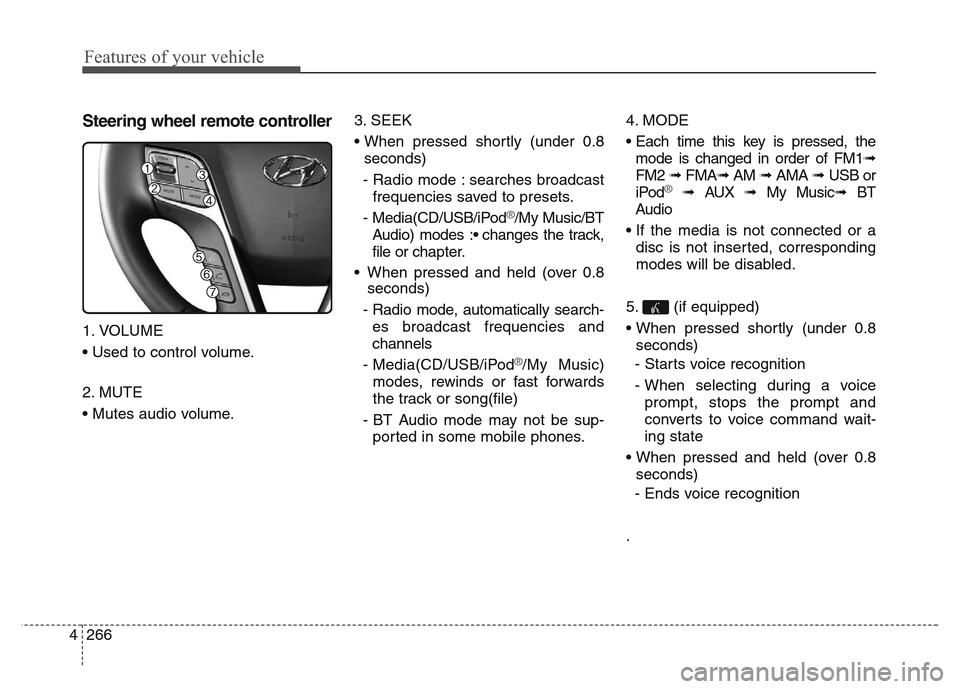
1. VOLUME
• Used to control volume.
2. MUTE
• Mutes audio volume.3. SEEK
• When pressed shortly (under 0.8
seconds)
- Radio mode : searches broadcast
frequencies saved to presets.
- Media(CD/USB/iPod
®/My Music/BT
Audio) modes :• changes the track,
file or chapter.
• When pressed and held (over 0.8
seconds)
- Radio mode, automatically search-
es broadcast frequencies and
channels
- Media(CD/USB/iPod
®/My Music)
modes, rewinds or fast forwards
the track or song(file)
- BT Audio mode may not be sup-
ported in some mobile phones.4. MODE
• Each time this key is pressed, the
mode is changed in order of FM1➟
FM2 ➟ FMA➟AM ➟ AMA ➟ USB or
iPod
®➟ AUX ➟ My Music➟ BT
Audio
• If the media is not connected or a
disc is not inserted, corresponding
modes will be disabled.
5. (if equipped)
• When pressed shortly (under 0.8
seconds)
- Starts voice recognition
- When selecting during a voice
prompt, stops the prompt and
converts to voice command wait-
ing state
• When pressed and held (over 0.8
seconds)
- Ends voice recognition
.
Page 364 of 717
4 267
Features of your vehicle
6.
• When pressed shortly (under 0.8
seconds)
- When pressed in the phone
screen, displays call history screen
- When pressed in the dial screen,
makes a call
- When pressed in the incoming call
screen, answers the call
- When pressed during call waiting,
switches to waiting call (Call
Waiting)
• When pressed and held (over 0.8
seconds)
- When pressed in the
Bluetooth®
Wireless Technology Handsfree
wait mode, redials the last call
- When pressed during a
Bluetooth®
Wireless Technology Handsfree
call, switches call back to mobile
phone (Private)
- When pressed while calling on the
mobile phone, switches call back to
Bluetooth®Wireless Technology
Handsfree (Operates only when
Bluetooth®Wireless Technology
Handsfree is connected)7.
• Ends phone call
Page 366 of 717
4 269
Features of your vehicle
Searching Radio Frequencies
Using Seek
Press the key to play the
previous/next frequency.
Using TUNE
Turn the TUNE knob to select the
desired frequency.
• FM : Increases/decreased by 50kHz
• AM : Increases/decreased by 9kHz
Using Radio Mode
Selecting/Saving Presets
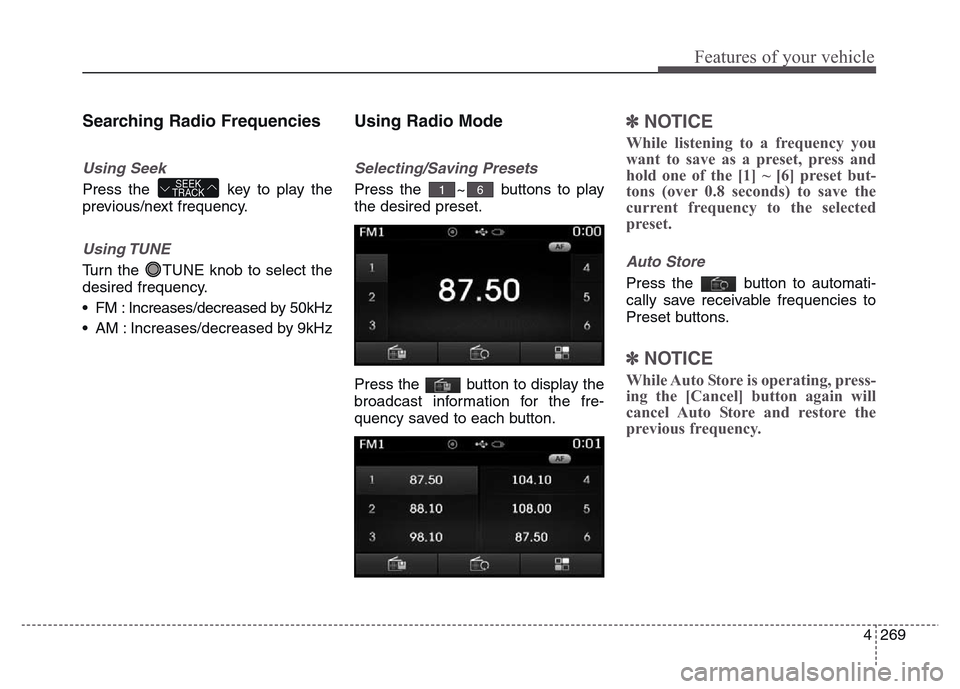
Press the ~ buttons to play
the desired preset.
Press the button to display the
broadcast information for the fre-
quency saved to each button.
✽NOTICE
While listening to a frequency you
want to save as a preset, press and
hold one of the [1] ~ [6] preset but-
tons (over 0.8 seconds) to save the
current frequency to the selected
preset.
Auto Store
Press the button to automati-
cally save receivable frequencies to
Preset buttons.
✽NOTICE
While Auto Store is operating, press-
ing the [Cancel] button again will
cancel Auto Store and restore the
previous frequency.
SEEK
TRACK61