display Hyundai H350 2015 Owner's Guide
[x] Cancel search | Manufacturer: HYUNDAI, Model Year: 2015, Model line: H350, Model: Hyundai H350 2015Pages: 473, PDF Size: 26.4 MB
Page 137 of 473
3-75
Convenient features of your vehicle
3
Lane departure warn-ing system (LDWS)
(if equipped)
The warning light illuminates, if
LDWS cannot identify any lane
departure due to a system malfunc-
tion, snow, or dirt.
In case of a communications fail-
ure, the warning light flashes in
the amber color.
Tachograh
(if equipped)
The warning light illuminates, if an
error in a tachograph is detected.
Have your vehicle inspected by an
HYUNDAI authorized dealer.
Master Warning Light
The Master Warning Light illumi-
nates, when one of the following sys-
tem malfunctions occurs. Moredetails about a malfunction will be
displayed on the LCD display.
The Master Warning Light illumi-
nates, when there is a malfunction
with one of the followings: - Lamp disconnection
- DPF check-up
- Service alarm
Situations, where the Master
Warning Light illuminates, may be
various. When a warning situation is
settled, the Master Warning Light
turns OFF.
In addition, for a malfunction with the
major units, such as CM and SJB,
the Master Warning Light also illumi-
nates. ❈ DPF : Diesel Particular Filter
❈ CM : Central Module
❈ SJB : Smart Junction Box
❈
There will be a warning sound
if you change the lane withoutturning ON the turn signal
switch.
Change the lane after turning
ON the turn signal switch,when required.
WARNING
T
Page 142 of 473
3-80
Convenient features of your vehicle
Warning sound
Overspeed warning (if equipped)
Overspeed warning light
If you drive with the speed of
120km/h or more, the overspeed
warning light will blink. This is to pre-
vent from driving your vehicle with
overspeed.
Overspeed warning chime
If you drive with the speed of
120km/h or more, the overspeed
warning chime will sound for about 5
seconds. This is to prevent you from
driving your vehicle with overspeed.
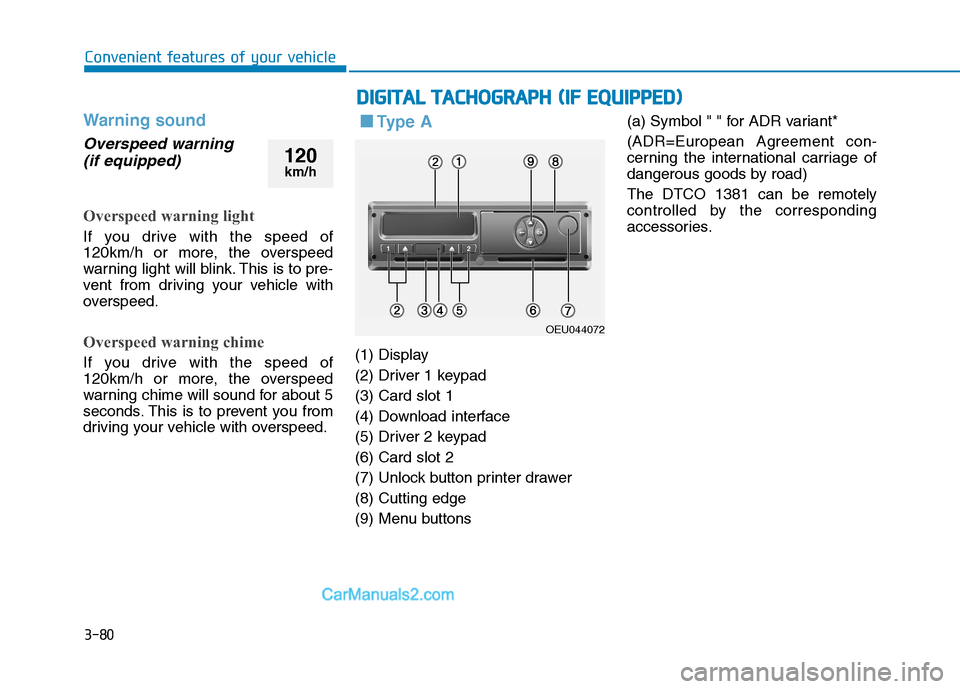
■■ Ty p e A
(1) Display
(2) Driver 1 keypad(3) Card slot 1
(4) Download interface
(5) Driver 2 keypad(6) Card slot 2
(7) Unlock button printer drawer(8) Cutting edge
(9) Menu buttons (a) Symbol " " for ADR variant*
(ADR=European Agreement con-
cerning the international carriage of
dangerous goods by road) The DTCO 1381 can be remotely
controlled by the corresponding
accessories.
DD
IIGG IITT AA LL TT AA CCHH OO GGRRAA PPHH (( IIFF EE QQ UUIIPP PP EEDD ))
OEU044072
120
km/h
Page 143 of 473
3-81
Convenient features of your vehicle
3
Description
Display (1)
Depending on the vehicle's opera-
tional condition, different displays will
appear or data can be displayed.
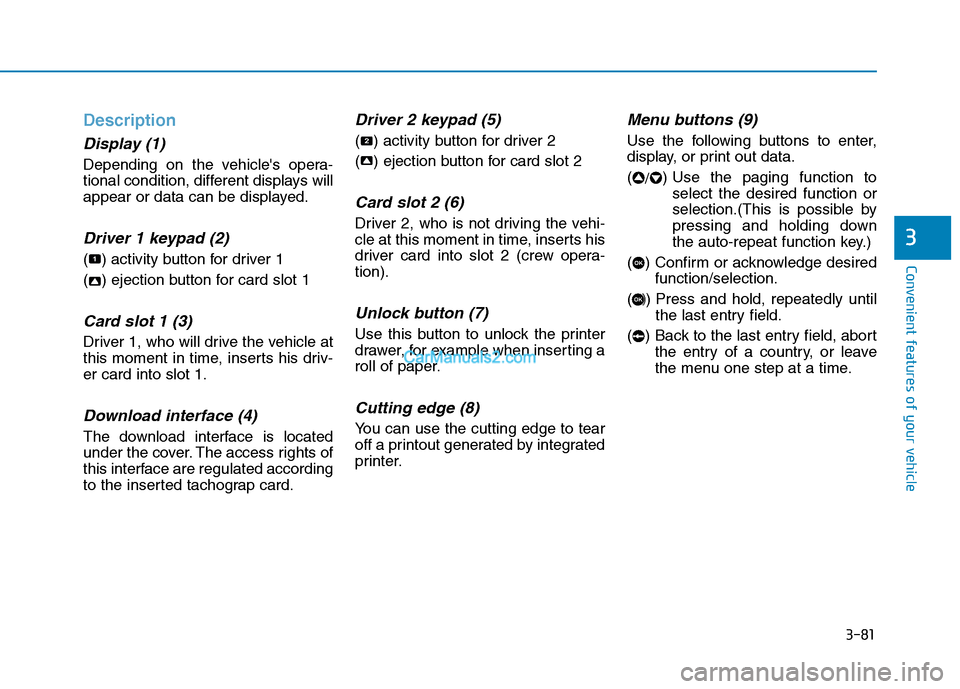
Driver 1 keypad (2)
( ) activity button for driver 1
( ) ejection button for card slot 1
Card slot 1 (3)
Driver 1, who will drive the vehicle at
this moment in time, inserts his driv-er card into slot 1.
Download interface (4)
The download interface is located
under the cover. The access rights of
this interface are regulated according
to the inserted tachograp card.
Driver 2 keypad (5)
( ) activity button for driver 2
( ) ejection button for card slot 2
Card slot 2 (6)
Driver 2, who is not driving the vehi-
cle at this moment in time, inserts his
driver card into slot 2 (crew opera-tion).
Unlock button (7)
Use this button to unlock the printer
drawer, for example when inserting a
roll of paper.
Cutting edge (8)
You can use the cutting edge to tear
off a printout generated by integrated
printer.
Menu buttons (9)
Use the following buttons to enter,
display, or print out data. (/) Use the paging function to
select the desired function or
selection.(This is possible by
pressing and holding down
the auto-repeat function key.)
( ) Confirm or acknowledge desired function/selection.
( ) Press and hold, repeatedly until the last entry field.
( ) Back to the last entry field, abort the entry of a country, or leave
the menu one step at a time.
OK
OK
22
2
1
Page 144 of 473
3-82
Convenient features of your vehicle
ADR variant*(a)
- Some functions, such as insertionor removal of the tachograph
cards, printing or display of data
are possible only while the ignition
is switched on.
- The download interface dap on the DTCO 1381 must be closed duringloading and unloading of haz-
ardous materials. ❈ For more detail information,
refer to operating instructions
(book or CD) from the manufac-
turing company.
■■
Type B
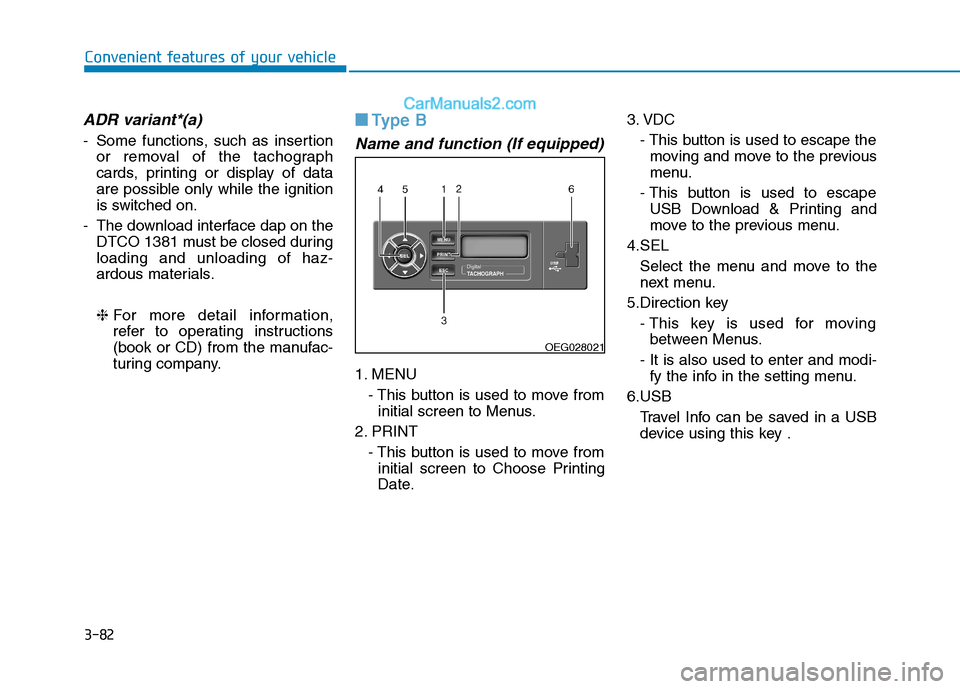
Name and function (If equipped)
1. MENU
- This button is used to move frominitial screen to Menus.
2. PRINT - This button is used to move frominitial screen to Choose Printing
Date. 3. VDC
- This button is used to escape themoving and move to the previous
menu.
- This button is used to escape USB Download & Printing and
move to the previous menu.
4.SEL Select the menu and move to the
next menu.
5.Direction key - This key is used for movingbetween Menus.
- It is also used to enter and modi- fy the info in the setting menu.
6.USB Travel Info can be saved in a USBdevice using this key .
OEG028021
Page 145 of 473
3-83
Convenient features of your vehicle
3
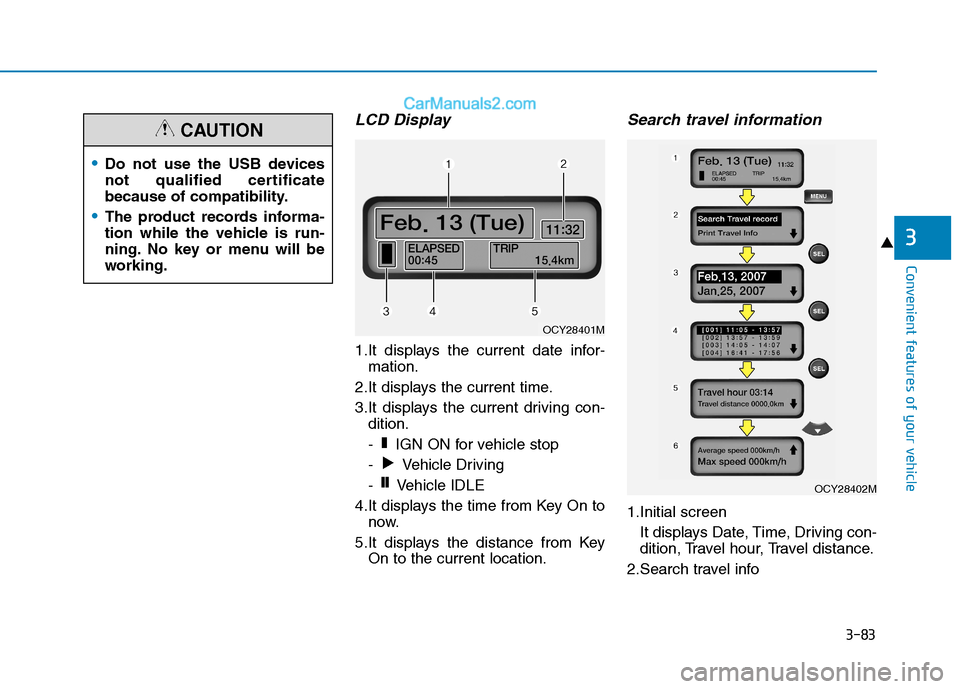
LCD Display
1.It displays the current date infor-mation.
2.It displays the current time.
3.It displays the current driving con- dition.
- IGN ON for vehicle stop
- Vehicle Driving
- Vehicle IDLE
4.It displays the time from Key On to now.
5.It displays the distance from Key On to the current location.
Search travel information
1.Initial screen
It displays Date, Time, Driving con-
dition, Travel hour, Travel distance.
2.Search travel info
❙❙
❚
OCY28401M
OCY28402M
Do not use the USB devices
not qualified certificate
because of compatibility.
The product records informa-
tion while the vehicle is run-
ning. No key or menu will be
working.
CAUTION
Page 146 of 473
3-84
Convenient features of your vehicle
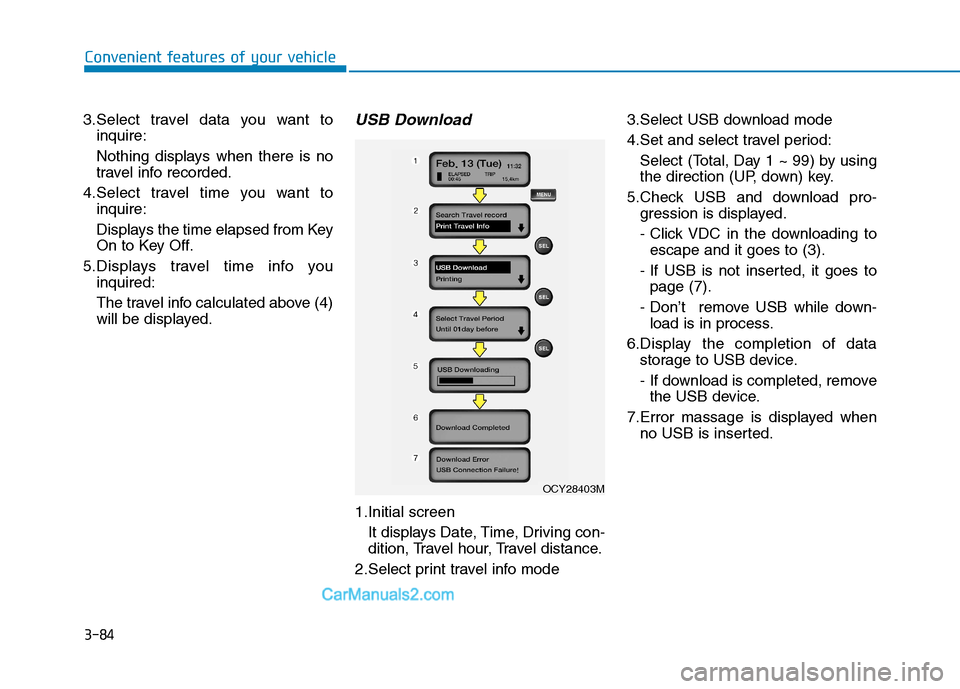
3.Select travel data you want toinquire:
Nothing displays when there is no
travel info recorded.
4.Select travel time you want to inquire:
Displays the time elapsed from Key
On to Key Off.
5.Displays travel time info you inquired:
The travel info calculated above (4)
will be displayed.USB Download
1.Initial screen
It displays Date, Time, Driving con-
dition, Travel hour, Travel distance.
2.Select print travel info mode 3.Select USB download mode
4.Set and select travel period:
Select (Total, Day 1 ~ 99) by using
the direction (UP, down) key.
5.Check USB and download pro- gression is displayed.
- Click VDC in the downloading toescape and it goes to (3).
- If USB is not inserted, it goes to page (7).
- Don’t remove USB while down- load is in process.
6.Display the completion of data storage to USB device.
- If download is completed, removethe USB device.
7.Error massage is displayed when no USB is inserted.
OCY28403M
Page 147 of 473
3-85
Convenient features of your vehicle
3
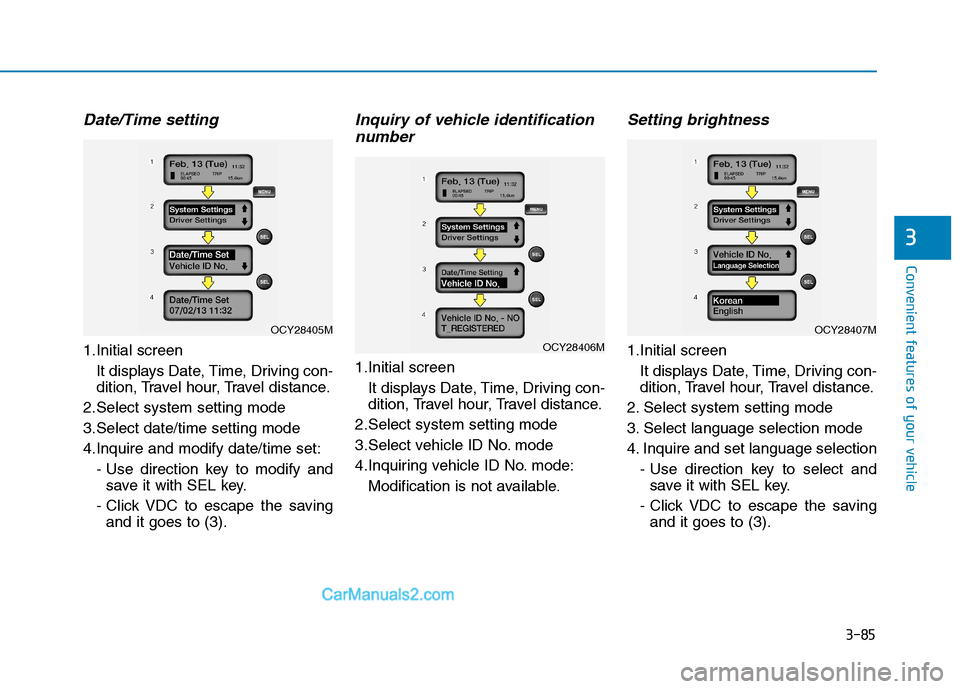
Date/Time setting
1.Initial screenIt displays Date, Time, Driving con-
dition, Travel hour, Travel distance.
2.Select system setting mode
3.Select date/time setting mode
4.Inquire and modify date/time set: - Use direction key to modify andsave it with SEL key.
- Click VDC to escape the saving and it goes to (3).
Inquiry of vehicle identification
number
1.Initial screen
It displays Date, Time, Driving con-
dition, Travel hour, Travel distance.
2.Select system setting mode
3.Select vehicle ID No. mode
4.Inquiring vehicle ID No. mode: Modification is not available.
Setting brightness
1.Initial screenIt displays Date, Time, Driving con-
dition, Travel hour, Travel distance.
2. Select system setting mode
3. Select language selection mode
4. Inquire and set language selection - Use direction key to select andsave it with SEL key.
- Click VDC to escape the saving and it goes to (3).OCY28406M
OCY28407MOCY28405M
Page 148 of 473
3-86
Convenient features of your vehicle
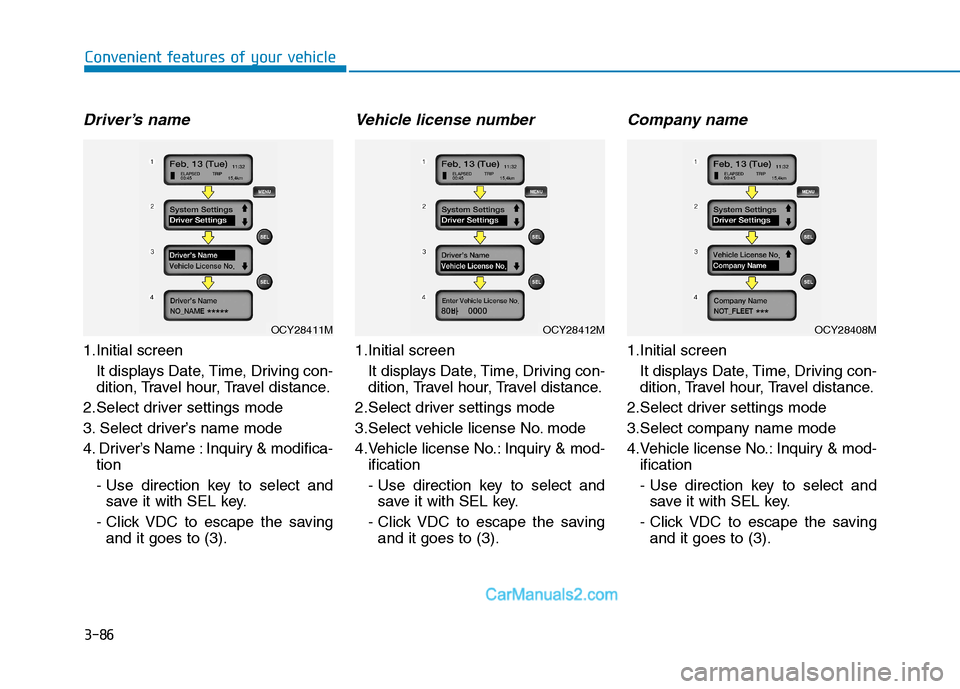
Driver’s name
1.Initial screen It displays Date, Time, Driving con-
dition, Travel hour, Travel distance.
2.Select driver settings mode
3. Select driver’s name mode
4. Driver’s Name : Inquiry & modifica- tion
- Use direction key to select andsave it with SEL key.
- Click VDC to escape the saving and it goes to (3).
Vehicle license number
1.Initial screen
It displays Date, Time, Driving con-
dition, Travel hour, Travel distance.
2.Select driver settings mode
3.Select vehicle license No. mode
4.Vehicle license No.: Inquiry & mod- ification
- Use direction key to select andsave it with SEL key.
- Click VDC to escape the saving and it goes to (3).
Company name
1.Initial screen
It displays Date, Time, Driving con-
dition, Travel hour, Travel distance.
2.Select driver settings mode
3.Select company name mode
4.Vehicle license No.: Inquiry & mod- ification
- Use direction key to select andsave it with SEL key.
- Click VDC to escape the saving and it goes to (3).
OCY28412MOCY28408MOCY28411M
Page 149 of 473
3-87
Convenient features of your vehicle
3
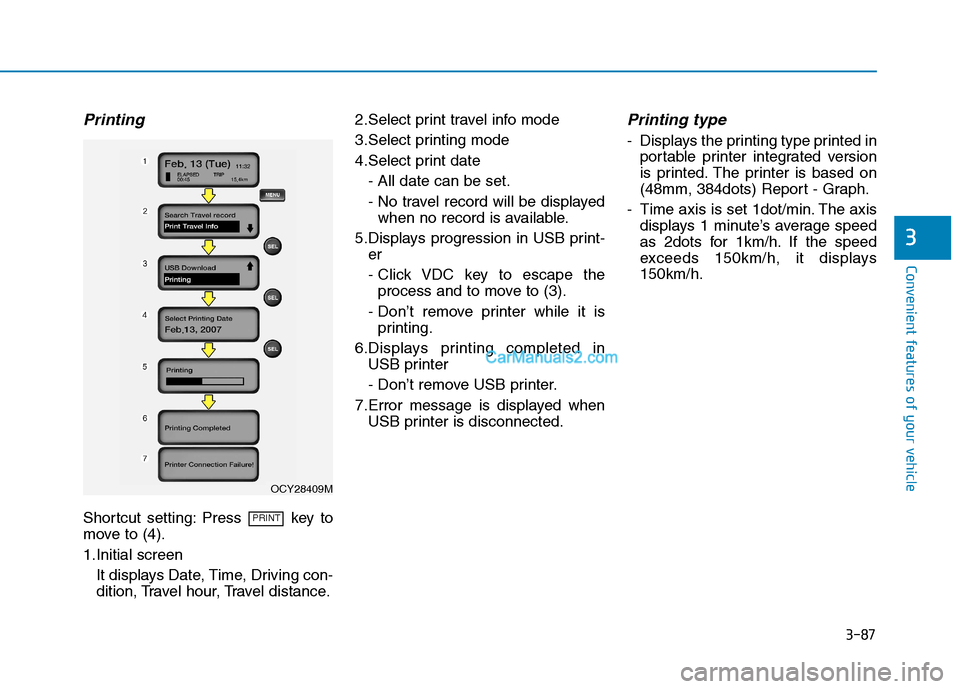
Printing
Shortcut setting: Press key to
move to (4).
1.Initial screenIt displays Date, Time, Driving con-
dition, Travel hour, Travel distance. 2.Select print travel info mode
3.Select printing mode
4.Select print date
- All date can be set.
- No travel record will be displayedwhen no record is available.
5.Displays progression in USB print- er
- Click VDC key to escape theprocess and to move to (3).
- Don’t remove printer while it is printing.
6.Displays printing completed in USB printer
- Don’t remove USB printer.
7.Error message is displayed when USB printer is disconnected.
Printing type
- Displays the printing type printed inportable printer integrated version
is printed. The printer is based on
(48mm, 384dots) Report - Graph.
- Time axis is set 1dot/min. The axis displays 1 minute’s average speed
as 2dots for 1km/h. If the speed
exceeds 150km/h, it displays150km/h.
PRINT
OCY28409M
Page 154 of 473
3-92
Convenient features of your vehicle
Self-diagnosis
If you don’t hear an audible warning
sound or if the buzzer sounds inter-mittently when shifting the gear to
the R (Reverse) position, this mayindicate a malfunction in the rear
parking assist system. If this occurs,
we recommend that the system be
checked by an authorized HYUNDAI
dealer.
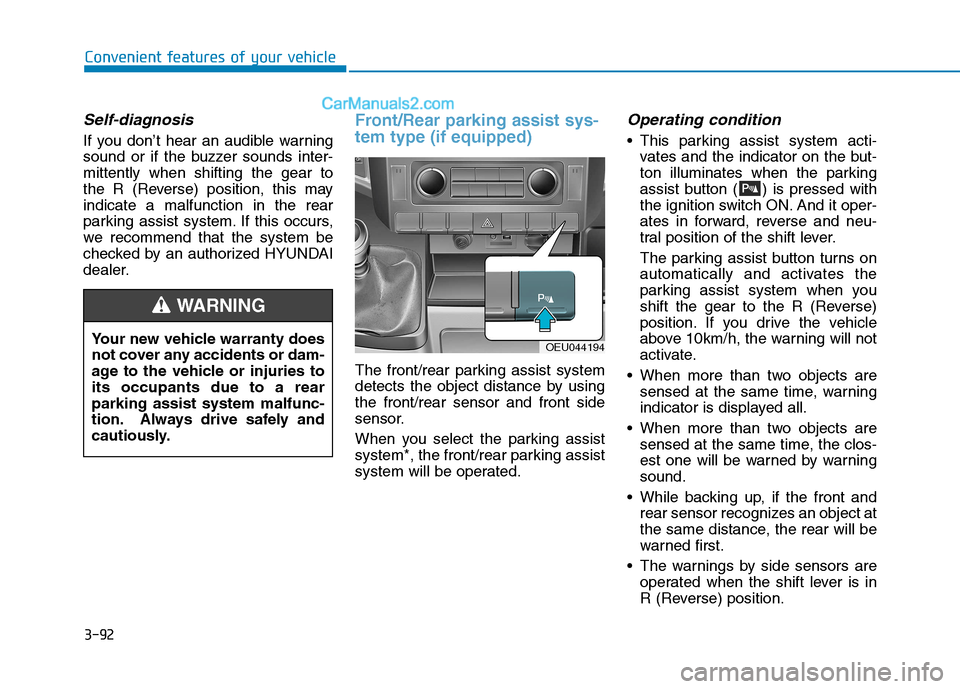
Front/Rear parking assist sys- tem type (if equipped)
The front/rear parking assist system
detects the object distance by usingthe front/rear sensor and front side
sensor.
When you select the parking assist
system*, the front/rear parking assist
system will be operated.
Operating condition
This parking assist system acti-vates and the indicator on the but-
ton illuminates when the parking
assist button ( ) is pressed with
the ignition switch ON. And it oper-
ates in forward, reverse and neu-
tral position of the shift lever.
The parking assist button turns on
automatically and activates the
parking assist system when you
shift the gear to the R (Reverse)
position. If you drive the vehicle
above 10km/h, the warning will not
activate.
When more than two objects are sensed at the same time, warning
indicator is displayed all.
When more than two objects are sensed at the same time, the clos-
est one will be warned by warningsound.
While backing up, if the front and rear sensor recognizes an object at
the same distance, the rear will be
warned first.
The warnings by side sensors are operated when the shift lever is in
R (Reverse) position.
Your new vehicle warranty does
not cover any accidents or dam-
age to the vehicle or injuries toits occupants due to a rearparking assist system malfunc-
tion. Always drive safely and
cautiously.
WARNING
OEU044194