display Hyundai H350 2015 Owner's Guide
[x] Cancel search | Manufacturer: HYUNDAI, Model Year: 2015, Model line: H350, Model: Hyundai H350 2015Pages: 473, PDF Size: 26.4 MB
Page 156 of 473
3-94
Convenient features of your vehicle
Self-diagnosis
When the front/rear parking assist
system has a malfunction, if you
operate the system, the warning
sound sounds 3 times. In this time,
the indicator on switch will blink and
the warning on the cluster will blink.
However, the warning regardingobject will not sound.
In this time, we recommend that the
system be checked by an authorized
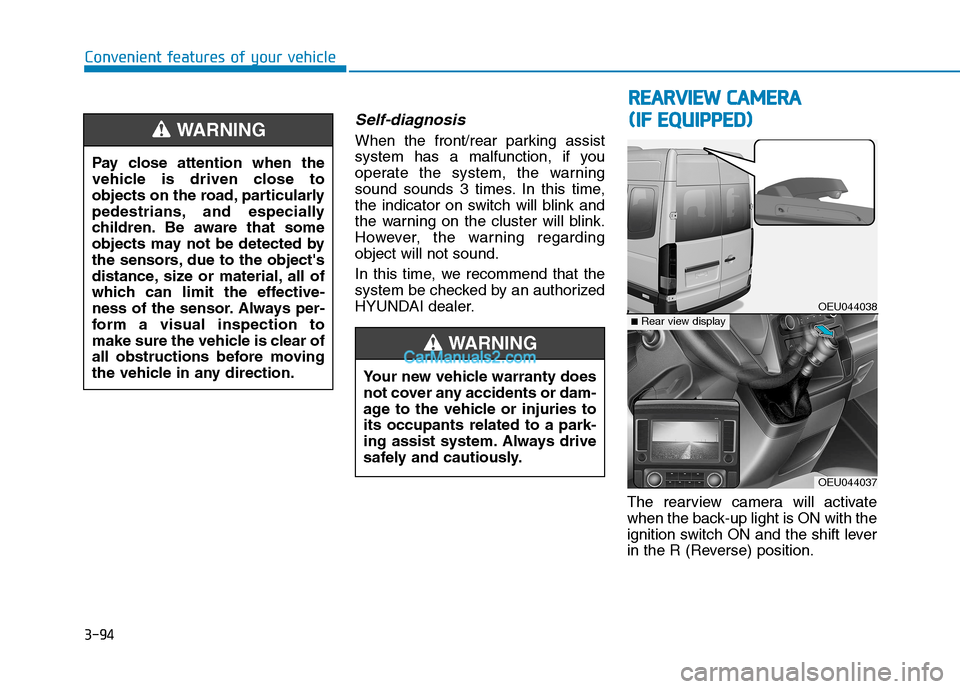
HYUNDAI dealer.The rearview camera will activate
when the back-up light is ON with the
ignition switch ON and the shift lever
in the R (Reverse) position.
Pay close attention when the
vehicle is driven close to
objects on the road, particularly
pedestrians, and especially
children. Be aware that some
objects may not be detected by
the sensors, due to the object's
distance, size or material, all of
which can limit the effective-
ness of the sensor. Always per-
form a visual inspection to
make sure the vehicle is clear of
all obstructions before moving
the vehicle in any direction.WARNING
RR
EEAA RRVV IIEE WW CC AA MM EERR AA
(
( IIFF EE QQ UUIIPP PPEEDD ))
OEU044038
OEU044037
■Rear view display
Your new vehicle warranty does
not cover any accidents or dam-
age to the vehicle or injuries toits occupants related to a park-
ing assist system. Always drive
safely and cautiously.
WARNING
Page 157 of 473
3-95
Convenient features of your vehicle
3
This system is a supplemental sys-
tem that shows behind the vehicle
through the rearview display mirror
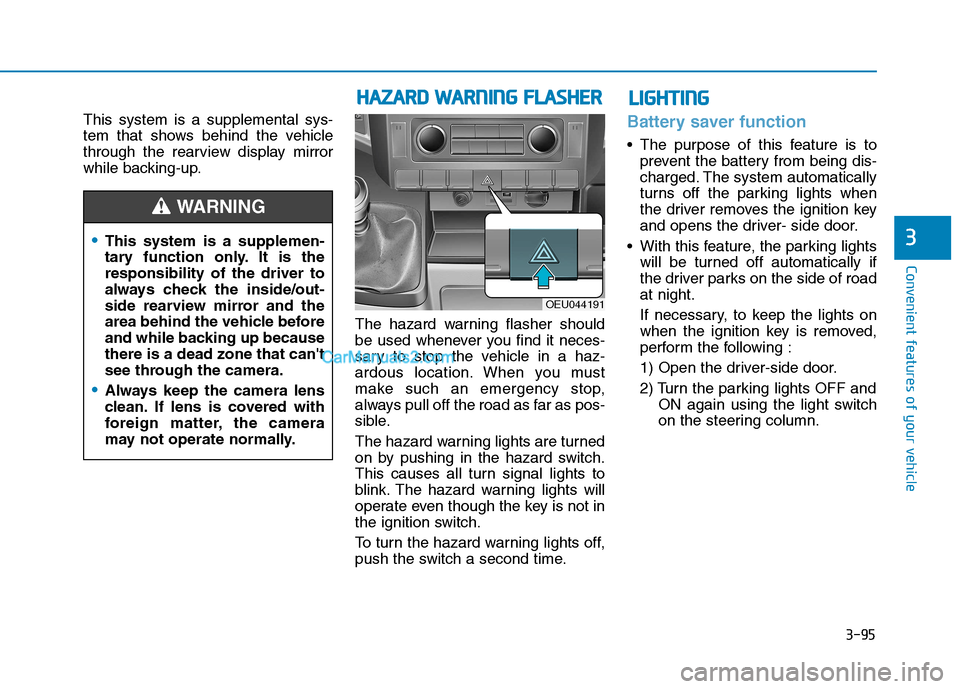
while backing-up.The hazard warning flasher should
be used whenever you find it neces-
sary to stop the vehicle in a haz-
ardous location. When you must
make such an emergency stop,
always pull off the road as far as pos-
sible.
The hazard warning lights are turned
on by pushing in the hazard switch.
This causes all turn signal lights to
blink. The hazard warning lights will
operate even though the key is not in
the ignition switch.
To turn the hazard warning lights off,
push the switch a second time.Battery saver function
The purpose of this feature is toprevent the battery from being dis-
charged. The system automatically
turns off the parking lights when
the driver removes the ignition key
and opens the driver- side door.
With this feature, the parking lights will be turned off automatically if
the driver parks on the side of roadat night.
If necessary, to keep the lights on
when the ignition key is removed,
perform the following :
1) Open the driver-side door.
2) Turn the parking lights OFF and ON again using the light switch
on the steering column.
This system is a supplemen-
tary function only. It is theresponsibility of the driver to
always check the inside/out-
side rearview mirror and the
area behind the vehicle before
and while backing up becausethere is a dead zone that can't
see through the camera.
Always keep the camera lens
clean. If lens is covered with
foreign matter, the camera
may not operate normally.
WARNING
HHAAZZAA RRDD WW AARRNN IINN GG FF LLAA SSHH EERR
OEU044191
LLIIGG HH TTIINN GG
Page 199 of 473
4-7
Multimedia System
4
Caring for disc
If the temperature inside the vehicleis too high, open the vehicle windows
to ventilate before using the system.
It is illegal to copy and use MP3/WMA files without permission.
Use CDs that are created only by
lawful means.
Do not apply volatile agents, such as benzene and thinner, normal clean-
ers and magnetic sprays made for
analogue disc onto CDs.
To prevent the disc surface from get- ting damaged, hold CDs by the
edges or the center hole only.
Clean the disc surface with a piece of soft cloth before playback (wipe itfrom the center to the outside edge).
Do not damage the disc surface or attach pieces of sticky tape or paper.
Make certain only CDs are inserted into the CD player (Do not insertmore than one CD at a time). Keep CDs in their cases after use to
protect them from scratches or dirt.
Depending on the type of CD-R/CD- RW CDs, certain CDs may not oper-
ate normally according to manufac-
turing companies or making and
recording methods. In such circum-
stances, continued use may cause
malfunctions to your audio system.
Information - Playing an Incompatible
Copy Protected Audio CD
Some copy protected CDs, which do
not comply with international audio
CD standards (Red Book), may not
play on your vehicle audio. Please note
that inabilities to properly play a copy
protected CD may indicate that the
CD is defective, not the CD player. NOTICE:
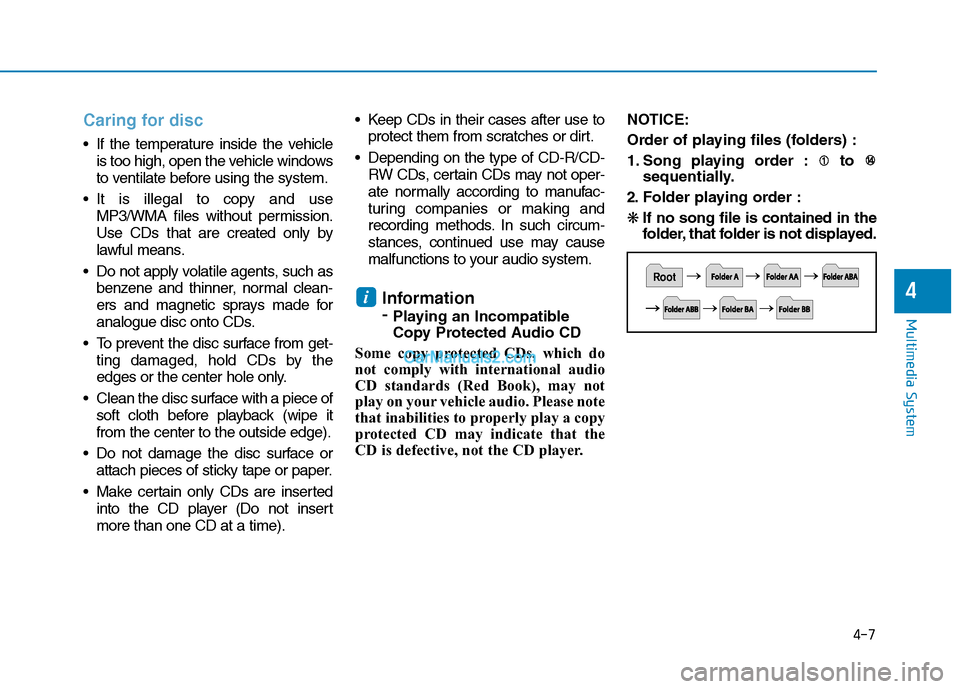
Order of playing files (folders) :
1. Song playing order : to
sequentially.
2. Folder playing order :❋ If no song file is contained in the
folder, that folder is not displayed.
i
Page 207 of 473
4-15
Multimedia System
4
SSYY SSTT EEMM CC OO NNTTRR OO LLLL EE RR SS AA NN DD
F
F UU NNCCTT IIOO NNSS
❈ Display and settings may differ
depending on the selected audio.
Audio Head Unit
(for RDS model)
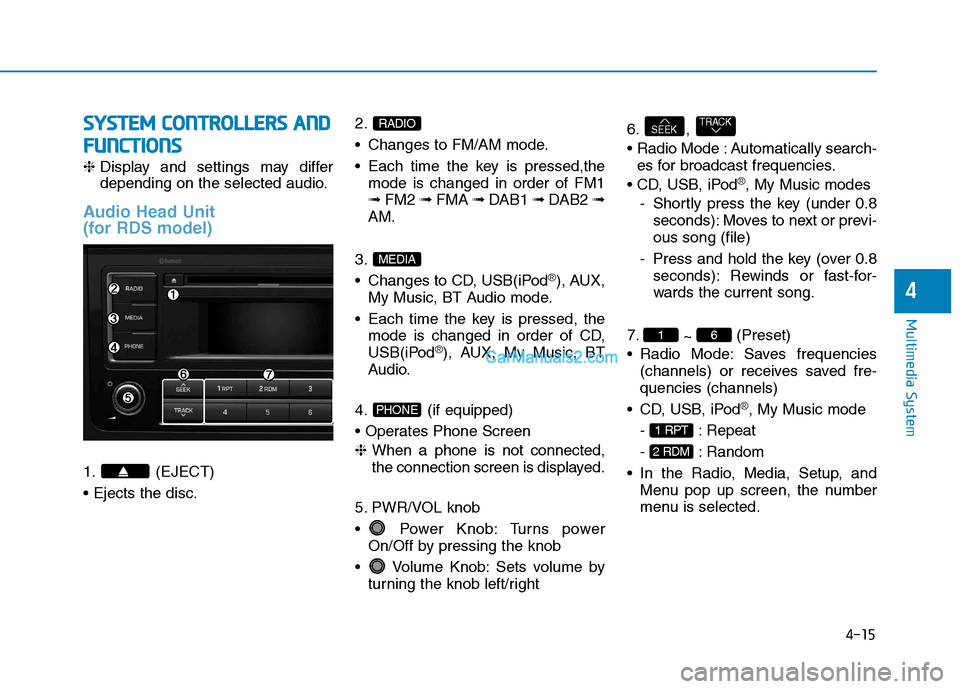
1. (EJECT) 2.
Changes to FM/AM mode.
Each time the key is pressed,the
mode is changed in order of FM1 ➟ FM2 ➟ FMA ➟ DAB1 ➟ DAB2 ➟
AM.
3.
Changes to CD, USB(iPod
®), AUX,
My Music, BT Audio mode.
Each time the key is pressed, the mode is changed in order of CD,
USB(iPod
®), AUX, My Music, BT
Audio.
4. (if equipped)
❈ When a phone is not connected,
the connection screen is displayed.
5. PWR/VOL knob
Power Knob: Turns power On/Off by pressing the knob
Volume Knob: Sets volume by turning the knob left/right 6. ,
Automatically search-
es for broadcast frequencies.
®, My Music modes
- Shortly press the key (under 0.8 seconds): Moves to next or previ- ous song (file)
- Press and hold the key (over 0.8 seconds): Rewinds or fast-for-
wards the current song.
7. ~ (Preset)
Radio Mode: Saves frequencies (channels) or receives saved fre-quencies (channels)
®, My Music mode
- : Repeat
- : Random
Menu pop up screen, the number
menu is selected.
2 RDM
1 RPT
61
TRACKSEEK
PHONE
MEDIA
RADIO
Page 208 of 473
4-16
Multimedia System
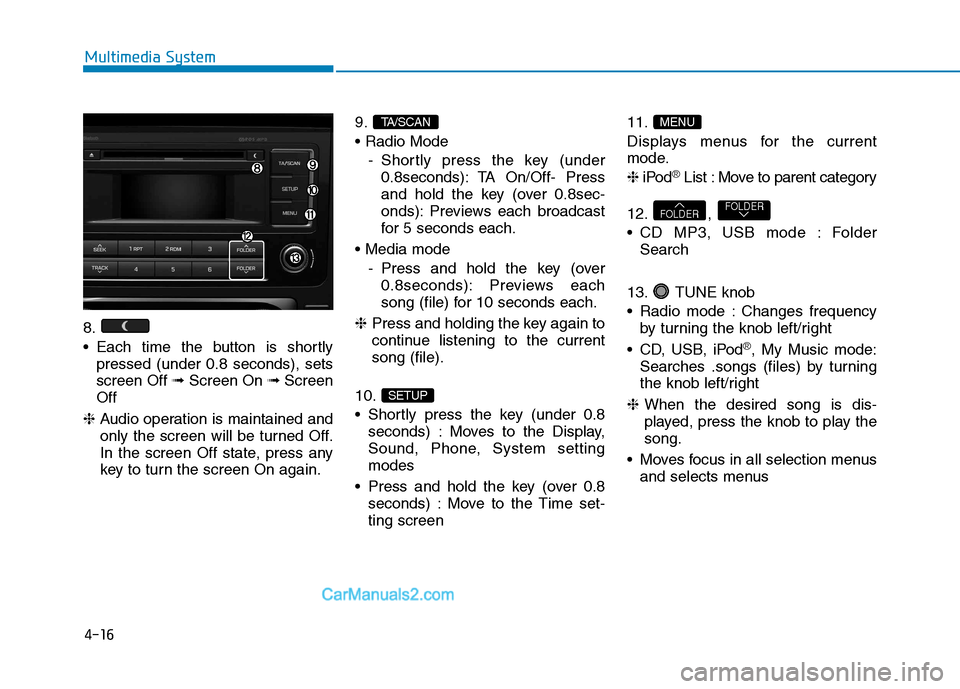
8.
Each time the button is shortlypressed (under 0.8 seconds), sets screen Off ➟Screen On ➟Screen
Off
❈ Audio operation is maintained and
only the screen will be turned Off.
In the screen Off state, press any
key to turn the screen On again. 9.
- Shortly press the key (under0.8seconds): TA On/Off- Press
and hold the key (over 0.8sec-
onds): Previews each broadcast
for 5 seconds each.
- Press and hold the key (over0.8seconds): Previews each
song (file) for 10 seconds each.
❈ Press and holding the key again to
continue listening to the currentsong (file).
10.
Shortly press the key (under 0.8 seconds) : Moves to the Display,
Sound, Phone, System settingmodes
Press and hold the key (over 0.8 seconds) : Move to the Time set-ting screen 11.
Displays menus for the current
mode. ❈
iPod
®List : Move to parent category
12. ,
CD MP3, USB mode : Folder Search
13. TUNE knob
Radio mode : Changes frequency by turning the knob left/right
CD, USB, iPod
®, My Music mode:
Searches .songs (files) by turning
the knob left/right
❈ When the desired song is dis-
played, press the knob to play thesong.
Moves focus in all selection menus and selects menus
FOLDERFOLDER
MENU
SETUP
TA/SCAN
Page 209 of 473
4-17
Multimedia System
4
SSYY SSTT EEMM CC OO NNTTRR OO LLLL EE RR SS AA NN DD
F
F UU NNCCTT IIOO NNSS
❈ Display and settings may differ
depending on the selected audio.
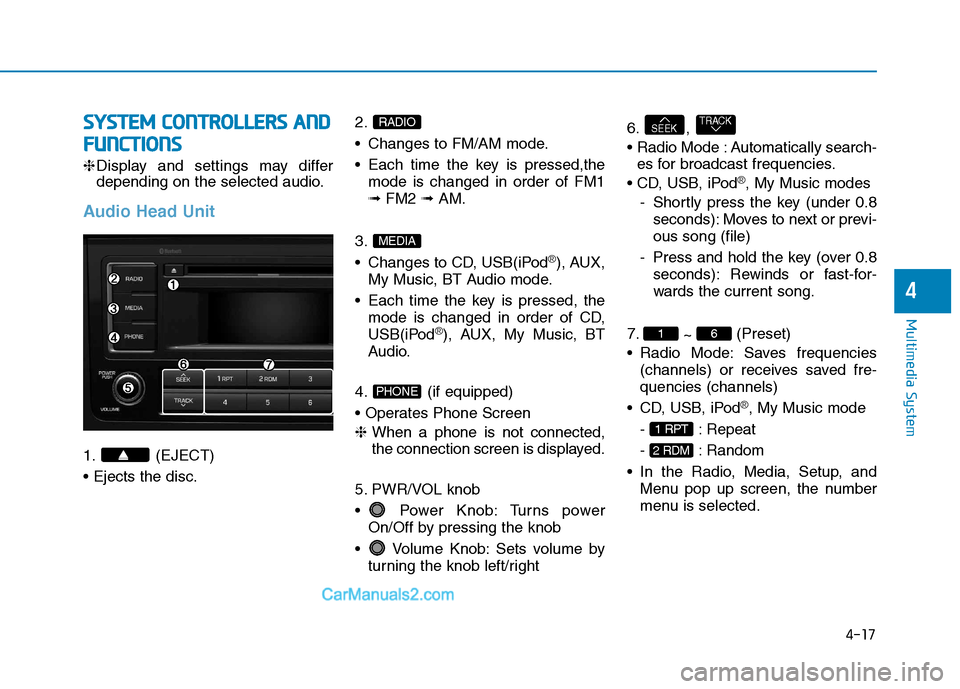
Audio Head Unit
1. (EJECT) 2.
Changes to FM/AM mode.
Each time the key is pressed,the
mode is changed in order of FM1 ➟ FM2 ➟ AM.
3.
Changes to CD, USB(iPod
®), AUX,
My Music, BT Audio mode.
Each time the key is pressed, the mode is changed in order of CD,
USB(iPod
®), AUX, My Music, BT
Audio.
4. (if equipped)
❈ When a phone is not connected,
the connection screen is displayed.
5. PWR/VOL knob
Power Knob: Turns power On/Off by pressing the knob
Volume Knob: Sets volume by turning the knob left/right 6. ,
Automatically search-
es for broadcast frequencies.
®, My Music modes
- Shortly press the key (under 0.8 seconds): Moves to next or previ- ous song (file)
- Press and hold the key (over 0.8 seconds): Rewinds or fast-for-
wards the current song.
7. ~ (Preset)
Radio Mode: Saves frequencies (channels) or receives saved fre-quencies (channels)
®, My Music mode
- : Repeat
- : Random
Menu pop up screen, the number
menu is selected.
2 RDM
1 RPT
61
TRACKSEEK
PHONE
MEDIA
RADIO
Page 210 of 473
4-18
Multimedia System
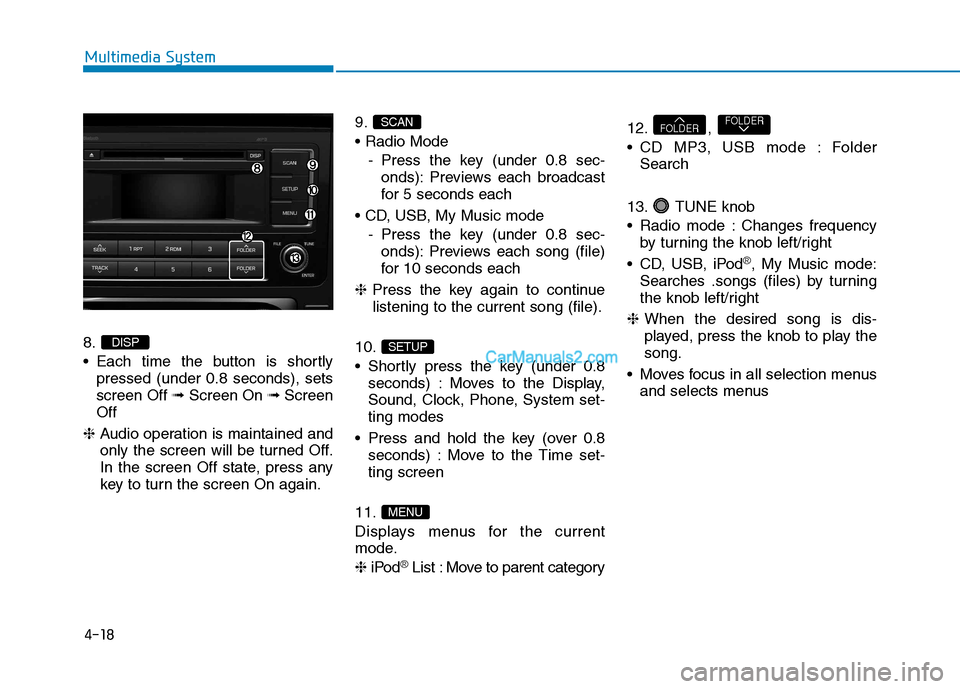
8.
Each time the button is shortlypressed (under 0.8 seconds), sets screen Off ➟Screen On ➟Screen
Off
❈ Audio operation is maintained and
only the screen will be turned Off.
In the screen Off state, press any
key to turn the screen On again. 9.
- Press the key (under 0.8 sec-onds): Previews each broadcast
for 5 seconds each
- Press the key (under 0.8 sec-onds): Previews each song (file)
for 10 seconds each
❈ Press the key again to continue
listening to the current song (file).
10.
Shortly press the key (under 0.8 seconds) : Moves to the Display,
Sound, Clock, Phone, System set-ting modes
Press and hold the key (over 0.8 seconds) : Move to the Time set-ting screen
11.
Displays menus for the current
mode. ❈ iPod
®List : Move to parent category 12. ,
CD MP3, USB mode : Folder
Search
13. TUNE knob
Radio mode : Changes frequency by turning the knob left/right
CD, USB, iPod
®, My Music mode:
Searches .songs (files) by turning
the knob left/right
❈ When the desired song is dis-
played, press the knob to play thesong.
Moves focus in all selection menus and selects menus
FOLDERFOLDER
MENU
SETUP
SCAN
DISP
Page 211 of 473
![Hyundai H350 2015 Owners Guide 4-19
Multimedia System
4
SSEE TT UU PP (( FF OO RR RR DD SS MM OODDEELL))
- AC210MDEE
Display Settings
Press the key Select
[Display] through TUNE knob or
key Select menu through
Mode Pop up
[M](/img/35/14886/w960_14886-210.png "Hyundai H350 2015 Owners Guide 4-19
Multimedia System
4
SSEE TT UU PP (( FF OO RR RR DD SS MM OODDEELL))
- AC210MDEE
Display Settings
Press the key Select
[Display] through TUNE knob or
key Select menu through
Mode Pop up
[M")
4-19
Multimedia System
4
SSEE TT UU PP (( FF OO RR RR DD SS MM OODDEELL))
- AC210MDEE
Display Settings
Press the key Select
[Display] through TUNE knob or
key Select menu through
Mode Pop up
[Mode Pop up] Changes . selection mode
During On state, press the or key to display the mode change pop up screen.
When the pop up screen is dis- played, use the TUNE knob or
keys ~ to select the
desired mode.
Scroll text
[Scroll text] Set /
Maintains scroll
: Scrolls only one (1) time.
Song Info
When playing an MP3 file, select the
desired display info from ‘Folder/File’
or ‘Album/Artist/Song’.
Off
On
OffOn
61
MEDIA
RADIO
On
1 RPT
SETUP
Page 213 of 473
![Hyundai H350 2015 Owners Guide 4-21
Multimedia System
4
System Settings
Press the key Select [System] through tune knob or
key Select menu through TUNEknob
Memory Information (if equipped)
Displays currently used memory and
to](/img/35/14886/w960_14886-212.png "Hyundai H350 2015 Owners Guide 4-21
Multimedia System
4
System Settings
Press the key Select [System] through tune knob or
key Select menu through TUNEknob
Memory Information (if equipped)
Displays currently used memory and
to")
4-21
Multimedia System
4
System Settings
Press the key Select [System] through tune knob or
key Select menu through TUNEknob
Memory Information (if equipped)
Displays currently used memory and
total system memory.
Select [Memory Information] OK
The currently used memory is dis-
played on the left side while the total
system memory is displayed on the
right side.
Languag e
This menu is used to set the display
and voice recognition language.
Select [Language] Set through
TUNE knob
❈ The system will reboot after the
language is changed.
❈ Language support by region
-
5
SETUP
Page 214 of 473
![Hyundai H350 2015 Owners Guide 4-22
Multimedia System
S
S EE TT UU PP
-AC110MDGG, AC110MDGN, AC110MDGL
Display Settings
Press the key Select
[Display] through TUNE knob or
key Select menu through
TUNE knob
Mode Pop up
[Mode Po](/img/35/14886/w960_14886-213.png "Hyundai H350 2015 Owners Guide 4-22
Multimedia System
S
S EE TT UU PP
-AC110MDGG, AC110MDGN, AC110MDGL
Display Settings
Press the key Select
[Display] through TUNE knob or
key Select menu through
TUNE knob
Mode Pop up
[Mode Po")
4-22
Multimedia System
S
S EE TT UU PP
-AC110MDGG, AC110MDGN, AC110MDGL
Display Settings
Press the key Select
[Display] through TUNE knob or
key Select menu through
TUNE knob
Mode Pop up
[Mode Pop up] Changes . selection mode
During On state, press the or key to display the mode change pop up screen.
When the pop up screen is dis- played, use the TUNE knob or
keys ~ to select the
desired mode.
Text Scroll
[Text Scroll] Set /
Maintains scroll
: Scrolls only one (1) time.
Media Display
When playing an MP3 file, select the
desired display info from ‘Folder/File’
or ‘Album/Artist/Song’.
Sound Settings
Press the key Select
[Sound] through TUNE knob or key Select menu through
TUNE knob
Sound Settings
Press the key Select
[Sound] through TUNE knob or key
2
SETUP
2 RDM
SETUP
Off
On
OffOn
61
MEDIA
RADIO
On
1 RPT
SETUP