lock Hyundai H350 2015 Workshop Manual
[x] Cancel search | Manufacturer: HYUNDAI, Model Year: 2015, Model line: H350, Model: Hyundai H350 2015Pages: 473, PDF Size: 26.4 MB
Page 169 of 473
3-107
Convenient features of your vehicle
3
Also, the light (with room
lamp) goes out gradually
after approximately 30 sec-
onds if the door (except rear
door) is closed. However, if
the ignition switch is ON or
all doors (except rear door)
are locked, the light will turn
off immediately.
If a door (except rear door) is opened with the ignition
switch in the ACC or LOCKposition, the light (with room
lamp) stays on for about 20
minutes. However, if a door
(except rear door) is opened
with the ignition switch in theON position, the light (with
room lamp) stays on contin-
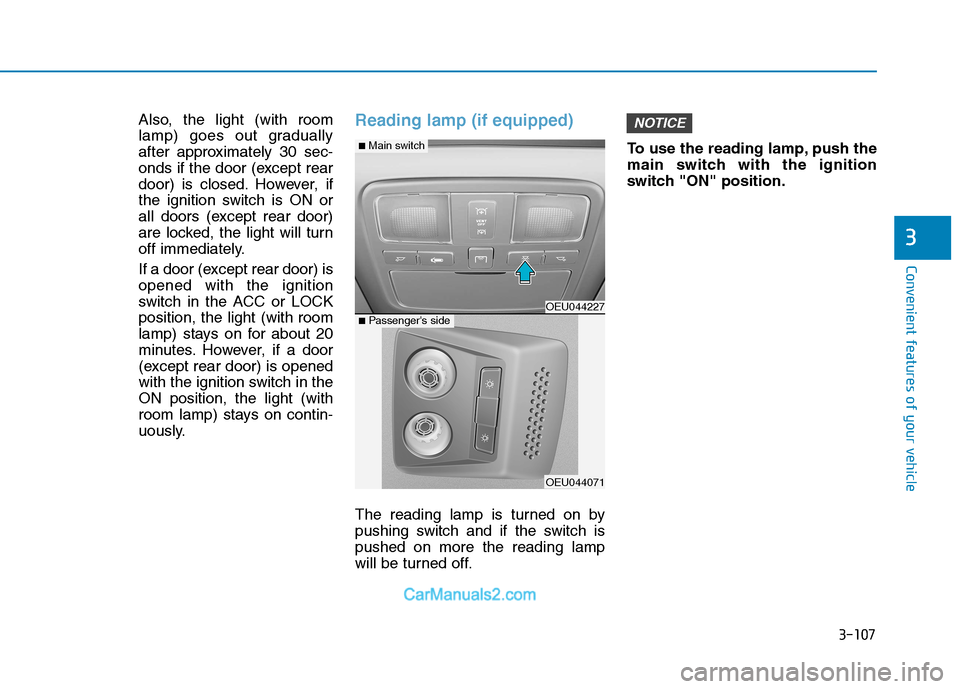
uously.Reading lamp (if equipped)
The reading lamp is turned on by
pushing switch and if the switch ispushed on more the reading lamp
will be turned off.To use the reading lamp, push the
main switch with the ignition
switch "ON" position.
NOTICE
OEU044227
OEU044071
■
Main switch
■ Passenger's side
Page 179 of 473
3-117
Convenient features of your vehicle
3
System operation
Ventilation
1. Set the mode to the position.
2. Set the air intake control to theoutside (fresh) air position.
3. Set the temperature control to the desired position.
4. Set the fan speed control to the desired speed.
Heating
1. Set the mode to the position.
2. Set the air intake control to theoutside (fresh) air position.
3. Set the temperature control to the desired position.
4. Set the fan speed control to the desired speed.
5. If dehumidified heating is desired, turn the air conditioning system (if equipped) on.
If the windshield fogs up, set the mode to the or position.
Operation Tips
To keep dust or unpleasant fumesfrom entering the vehicle through
the ventilation system, temporarily
set the air intake control to the
recirculated air position. Be sure to
return the control to the fresh air
position when the irritation has
passed to keep fresh air in the
vehicle. This will help keep the driv-
er alert and comfortable.
Air for the heating/cooling system is drawn in through the grilles just
ahead of the windshield. Care
should be taken that these are not
blocked by leaves, snow, ice or
other obstructions.
To prevent interior fog on the wind- shield, set the air intake control to
the fresh air position and fan speed
to the desired position, turn on theair conditioning system, and adjust
the temperature control to desired
temperature.
Air conditioning (if equipped)
HYUNDAI Air Conditioning Systems
are filled with environmentally friend-
ly R-134a refrigerant.
1. Start the engine. Push the air con- ditioning button.
2. Set the mode to the position.
3. Set the air intake control to the outside air or recirculated air posi- tion.
4. Adjust the fan speed control and temperature control to maintain
maximum comfort.
When maximum cooling is desired, set the temperature control to the
extreme left position, then set the
fan speed control to the highestspeed.
Page 188 of 473
3-126
Convenient features of your vehicle
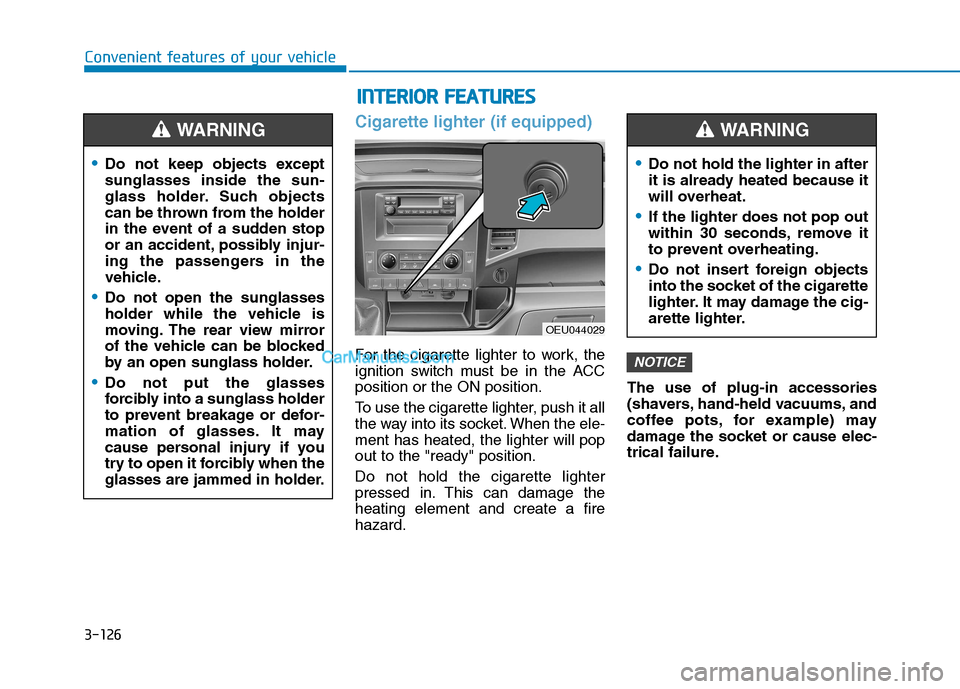
Cigarette lighter (if equipped)
For the cigarette lighter to work, the
ignition switch must be in the ACCposition or the ON position.
To use the cigarette lighter, push it all
the way into its socket. When the ele-ment has heated, the lighter will popout to the "ready" position. Do not hold the cigarette lighter
pressed in. This can damage theheating element and create a firehazard.The use of plug-in accessories
(shavers, hand-held vacuums, and
coffee pots, for example) may
damage the socket or cause elec-
trical failure.NOTICE
Do not keep objects except sunglasses inside the sun-
glass holder. Such objects
can be thrown from the holder
in the event of a sudden stop
or an accident, possibly injur-
ing the passengers in the
vehicle.
Do not open the sunglasses
holder while the vehicle is
moving. The rear view mirror
of the vehicle can be blocked
by an open sunglass holder.
Do not put the glasses
forcibly into a sunglass holder
to prevent breakage or defor-
mation of glasses. It may
cause personal injury if you
try to open it forcibly when the
glasses are jammed in holder.
WARNING
II
NN TTEERR IIOO RR FF EE AA TTUU RREESS
OEU044029
Do not hold the lighter in after
it is already heated because it
will overheat.
If the lighter does not pop out
within 30 seconds, remove it
to prevent overheating.
Do not insert foreign objects
into the socket of the cigarette
lighter. It may damage the cig-
arette lighter.
WARNING
Page 194 of 473
4-2
Multimedia System
Information
If you install an aftermarket HID headlamp, your vehicle’s audio and
electronic device may malfunction.
Prevent chemicals such as perfume, cosmetic oil, sun cream, hand clean-
er, and air freshener from contacting
the interior parts because they may
cause damage or discoloration.Aux, USB and iPod ®
(if equipped)
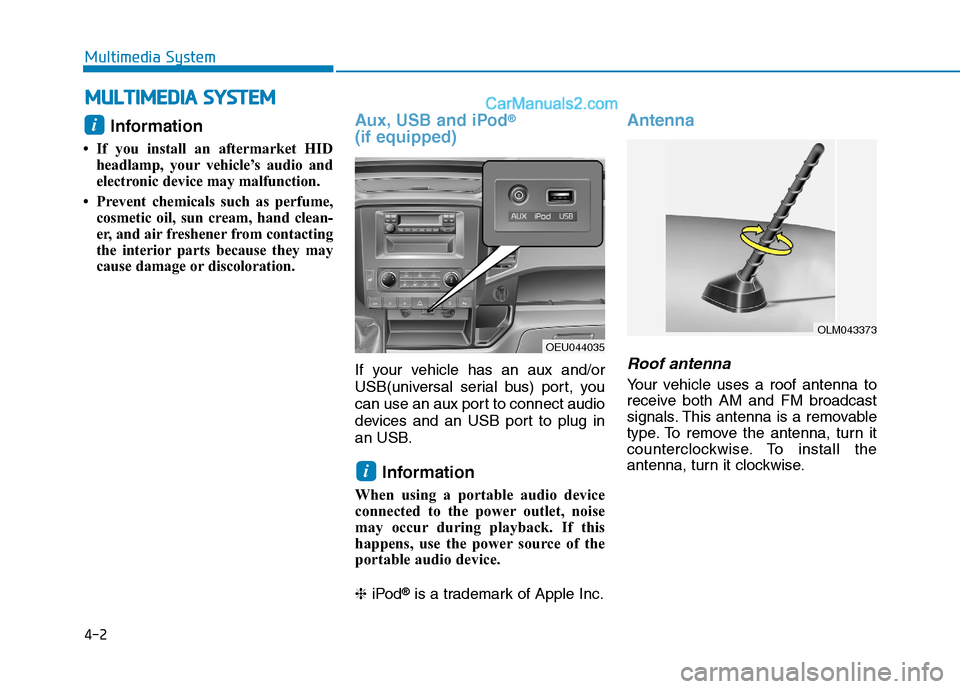
If your vehicle has an aux and/or
USB(universal serial bus) port, you
can use an aux port to connect audio
devices and an USB port to plug in
an USB.
Information
When using a portable audio device
connected to the power outlet, noise
may occur during playback. If this
happens, use the power source of the
portable audio device. ❈ iPod ®
is a trademark of Apple Inc.
Antenna
Roof antenna
Your vehicle uses a roof antenna to
receive both AM and FM broadcast
signals. This antenna is a removable
type. To remove the antenna, turn it
counterclockwise. To install the
antenna, turn it clockwise.
i
i
MM UULLTT IIMM EEDD IIAA SS YY SSTT EEMM
OLM043373
OEU044035
Page 195 of 473
4-3
Multimedia System
4
Before entering a place with alow height clearance or a vehicle
wash, remove the antenna by
rotating it counterclockwise. If
not, the antenna may be dam-
aged.
When reinstalling your antenna, it is important that it is fullytightened and adjusted to the
upright position to ensure prop-
er reception. But it could be fold-
ed or removed when parking the
vehicle or when loading cargo
on the roof rack.
When cargo is loaded on the roof rack, do not place the cargonear the antenna pole to ensure
proper reception.
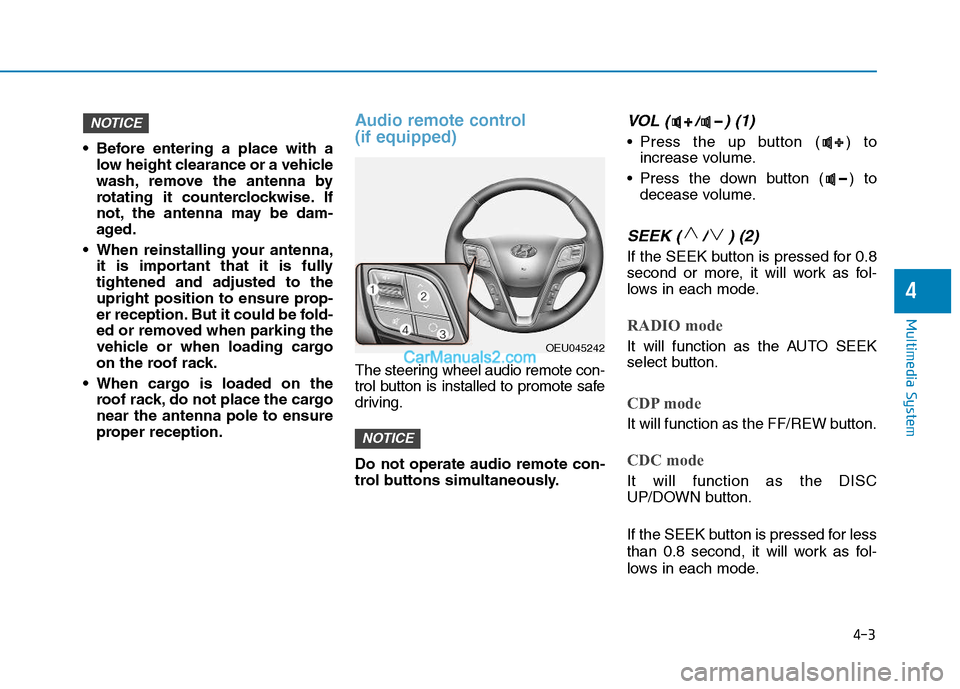
Audio remote control (if equipped)
The steering wheel audio remote con-
trol button is installed to promote safe
driving. Do not operate audio remote con-
trol buttons simultaneously.
VOL ( / ) (1)
• Press the up button ( ) toincrease volume.
Press the down button ( ) to decease volume.
SEEK ( / ) (2)
If the SEEK button is pressed for 0.8
second or more, it will work as fol-
lows in each mode.
RADIO mode
It will function as the AUTO SEEK
select button.
CDP mode
It will function as the FF/REW button.
CDC mode
It will function as the DISC
UP/DOWN button.
If the SEEK button is pressed for less
than 0.8 second, it will work as fol-
lows in each mode.
NOTICE
NOTICE
OEU045242
Page 198 of 473
4-6
Multimedia System
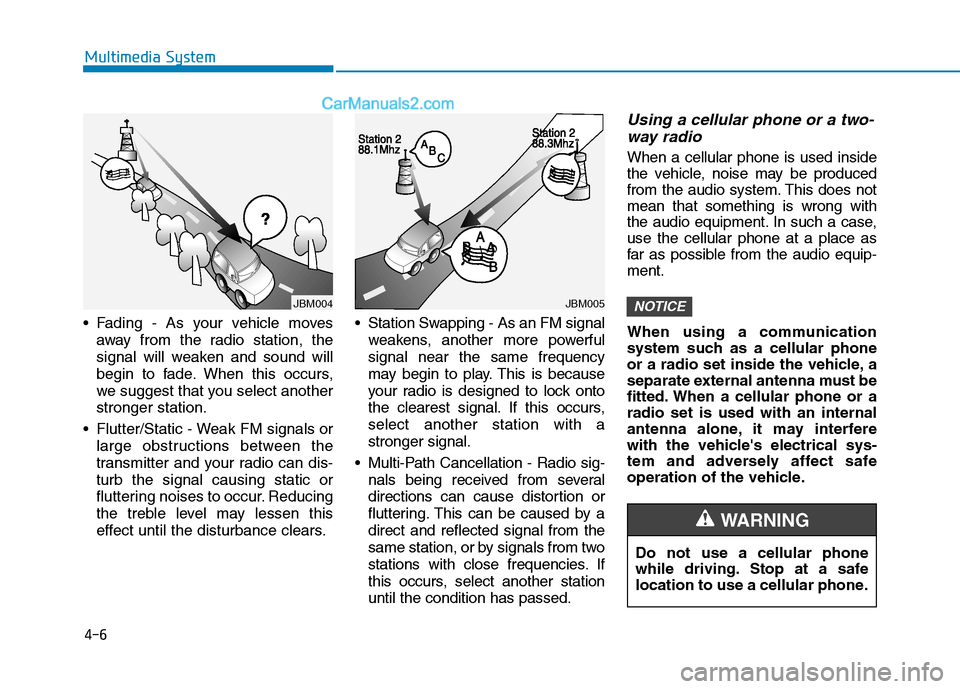
Fading - As your vehicle movesaway from the radio station, the
signal will weaken and sound will
begin to fade. When this occurs,
we suggest that you select anotherstronger station.
Flutter/Static - Weak FM signals or large obstructions between the
transmitter and your radio can dis-turb the signal causing static or
fluttering noises to occur. Reducing
the treble level may lessen this
effect until the disturbance clears. Station Swapping - As an FM signal
weakens, another more powerfulsignal near the same frequency
may begin to play. This is because
your radio is designed to lock onto
the clearest signal. If this occurs,select another station with astronger signal.
Multi-Path Cancellation - Radio sig- nals being received from several
directions can cause distortion or
fluttering. This can be caused by adirect and reflected signal from the
same station, or by signals from two
stations with close frequencies. If
this occurs, select another stationuntil the condition has passed.
Using a cellular phone or a two-
way radio
When a cellular phone is used inside
the vehicle, noise may be produced
from the audio system. This does notmean that something is wrong with
the audio equipment. In such a case,use the cellular phone at a place as
far as possible from the audio equip-ment.
When using a communication
system such as a cellular phone
or a radio set inside the vehicle, a
separate external antenna must be
fitted. When a cellular phone or aradio set is used with an internal
antenna alone, it may interfere
with the vehicle's electrical sys-
tem and adversely affect safe
operation of the vehicle.
NOTICE
Do not use a cellular phone
while driving. Stop at a safe
location to use a cellular phone.
WARNING
JBM004JBM005
Page 210 of 473
4-18
Multimedia System
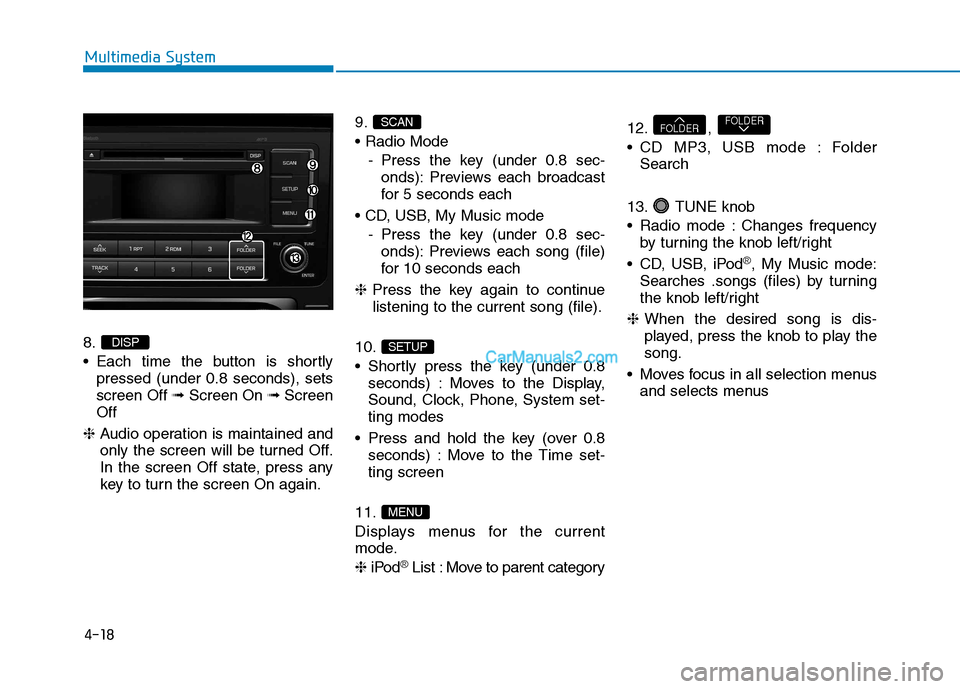
8.
Each time the button is shortlypressed (under 0.8 seconds), sets screen Off ➟Screen On ➟Screen
Off
❈ Audio operation is maintained and
only the screen will be turned Off.
In the screen Off state, press any
key to turn the screen On again. 9.
- Press the key (under 0.8 sec-onds): Previews each broadcast
for 5 seconds each
- Press the key (under 0.8 sec-onds): Previews each song (file)
for 10 seconds each
❈ Press the key again to continue
listening to the current song (file).
10.
Shortly press the key (under 0.8 seconds) : Moves to the Display,
Sound, Clock, Phone, System set-ting modes
Press and hold the key (over 0.8 seconds) : Move to the Time set-ting screen
11.
Displays menus for the current
mode. ❈ iPod
®List : Move to parent category 12. ,
CD MP3, USB mode : Folder
Search
13. TUNE knob
Radio mode : Changes frequency by turning the knob left/right
CD, USB, iPod
®, My Music mode:
Searches .songs (files) by turning
the knob left/right
❈ When the desired song is dis-
played, press the knob to play thesong.
Moves focus in all selection menus and selects menus
FOLDERFOLDER
MENU
SETUP
SCAN
DISP
Page 216 of 473
![Hyundai H350 2015 Workshop Manual 4-24
Multimedia System
System Settings
Press the key Select [System]
Memory Information (if equipped)
Displays currently used memory and
total system memory.
Select [Memory Information] OK
The cur](/img/35/14886/w960_14886-215.png "Hyundai H350 2015 Workshop Manual 4-24
Multimedia System
System Settings
Press the key Select [System]
Memory Information (if equipped)
Displays currently used memory and
total system memory.
Select [Memory Information] OK
The cur")
4-24
Multimedia System
System Settings
Press the key Select [System]
Memory Information (if equipped)
Displays currently used memory and
total system memory.
Select [Memory Information] OK
The currently used memory is dis-
played on the left side while the total
system memory is displayed on the
right side.
Phone Setup (if equipped)
Press the key Select [Phone]
(for RDS model) SETUP
CLOCKSETUP
Page 217 of 473
![Hyundai H350 2015 Workshop Manual 4-25
Multimedia System
4
Press the key Select [Phone]Pair Phone
To pair a Bluetooth®Wireless
Technology enabled mobile
phone, authentication and con-
nection processes are first
required. As a resu](/img/35/14886/w960_14886-216.png "Hyundai H350 2015 Workshop Manual 4-25
Multimedia System
4
Press the key Select [Phone]Pair Phone
To pair a Bluetooth®Wireless
Technology enabled mobile
phone, authentication and con-
nection processes are first
required. As a resu")
4-25
Multimedia System
4
Press the key Select [Phone]Pair Phone
To pair a Bluetooth®Wireless
Technology enabled mobile
phone, authentication and con-
nection processes are first
required. As a result, you cannot
pair your mobile phone while driv-
ing the vehicle. First park your
vehicle before use.
Select [Pair Phone] Set through
TUNE knob
➀ Search for device names as dis-
played on your mobile phone andconnect.
➁ Input the passkey displayed on the
screen. (Passkey : 0000)
❈ The device name and passkey will
be displayed on the screen for up
to 3 minutes. If pairing is not com-
pleted within the 3 minutes, the
mobile phone pairing process willautomatically be canceled. ➂
Pairing completion is displayed.
❈ In some mobile phones, pairing
will automatically be followed byconnection.
❈ It is possible to pair up to five
Bluetooth ®
Wireless Technology
enabled mobile phones.
NOTICE
SETUP
CLOCK
Page 221 of 473
![Hyundai H350 2015 Workshop Manual 4-29
Multimedia System
4
Bluetooth®Wireless
Technology System Off
This feature is used when you do not wish to use the
Bluetooth®Wireless
Technology system.
Select [Bluetooth System Off] Set
thro](/img/35/14886/w960_14886-220.png "Hyundai H350 2015 Workshop Manual 4-29
Multimedia System
4
Bluetooth®Wireless
Technology System Off
This feature is used when you do not wish to use the
Bluetooth®Wireless
Technology system.
Select [Bluetooth System Off] Set
thro")
4-29
Multimedia System
4
Bluetooth®Wireless
Technology System Off
This feature is used when you do not wish to use the
Bluetooth®Wireless
Technology system.
Select [Bluetooth System Off] Set
through TUNE knob ❈ If a phone is already connected, disconnect the currently connect-
ed phone and turn the
Bluetooth®
Wireless Technology system off.
Using the Bluetooth®Wireless
Technology System
To use Bluetooth®Wireless Technology
when the system is currently off, fol-
low these next steps.
Turning On Bluetooth ®
Wireless
Technology through the
Key
Press the key ScreenGuidance ❈ Moves to the screen where
Bluetooth ®
Wireless Technology
functions can be used and dis-
plays guidance. Turning On Bluetooth
®
Wireless
Technology through the
Key
Press the key Select[Phone] ➀ A screen asking whether to turn on
Bluetooth®Wireless Technology will
be displayed.
➁ On the screen, select to turn on
Bluetooth®Wireless Technology
and display guidance.
❈ If the Bluetooth ®
Wireless
Technology system is turned on,
the system will automatically try toconnect the most recently con-nected Bluetooth ®
Wireless
Technology mobile phone.
Bluetooth®Wireless Technology
connection may become inter-
mittently disconnected in some
mobile phones. Follow these
next steps to try again.
1) Turn the
Bluetooth®Wireless
Technology function within the
mobile phone ON/OFF and try
to connect again.
2) Turn the mobile phone power ON/OFF and try to connect
again.
3) Completely remove the mobile phone battery, reboot, and then
try to connect again.
4) Reboot the audio system and try to connect again
5) Delete all paired devices in your mobile phone and the audio
system and pair again for use.
NOTICE
YES
SETUP
CLOCK
SETUP
CLOCK
PHONE
PHONE