ECO mode HYUNDAI I10 2013 User Guide
[x] Cancel search | Manufacturer: HYUNDAI, Model Year: 2013, Model line: I10, Model: HYUNDAI I10 2013Pages: 343, PDF Size: 9.14 MB
Page 167 of 343
Features of your vehicle
106 4
SYSTEM CONTROLLERS AND
FUNCTIONS
❈Display and settings may differ
depending on the selected audio.
Audio Head Unit
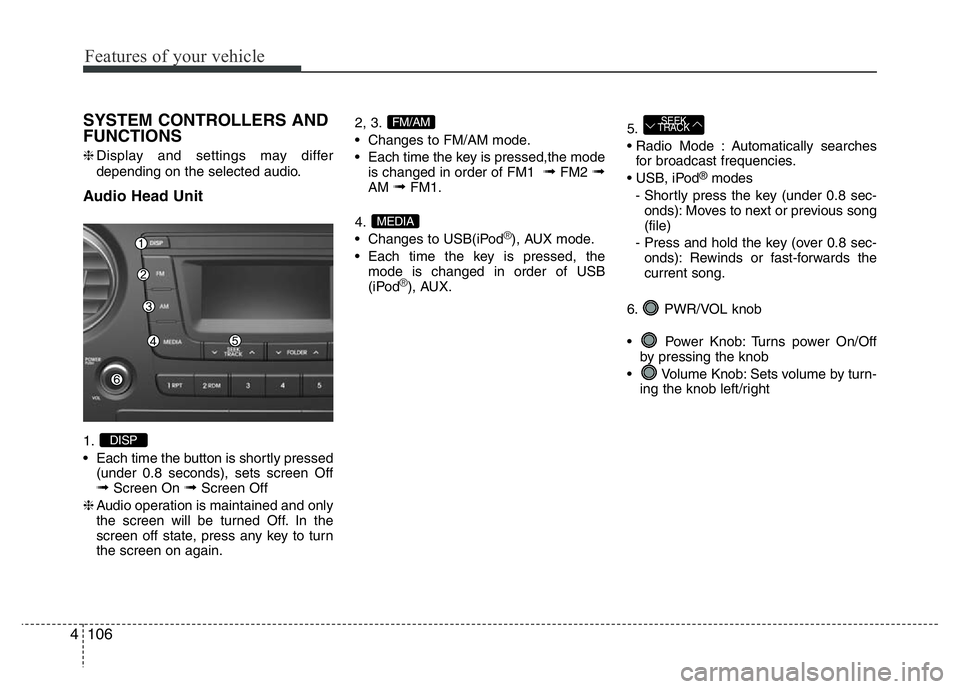
1.
• Each time the button is shortly pressed
(under 0.8 seconds), sets screen Off
➟Screen On ➟Screen Off
❈Audio operation is maintained and only
the screen will be turned Off. In the
screen off state, press any key to turn
the screen on again.2, 3.
• Changes to FM/AM mode.
• Each time the key is pressed,the mode
is changed in order of FM1
➟FM2 ➟AM ➟FM1.
4.
• Changes to USB(iPod
®), AUX mode.
• Each time the key is pressed, the
mode is changed in order of USB
(iPod
®), AUX.5.
• Radio Mode : Automatically searches
for broadcast frequencies.
• USB, iPod
®modes
- Shortly press the key (under 0.8 sec-
onds): Moves to next or previous song
(file)
- Press and hold the key (over 0.8 sec-
onds): Rewinds or fast-forwards the
current song.
6. PWR/VOL knob
• Power Knob: Turns power On/Off
by pressing the knob
• Volume Knob: Sets volume by turn-
ing the knob left/right
SEEK
TRACK
MEDIA
FM/AM
DISP
Page 168 of 343
4107
Features of your vehicle
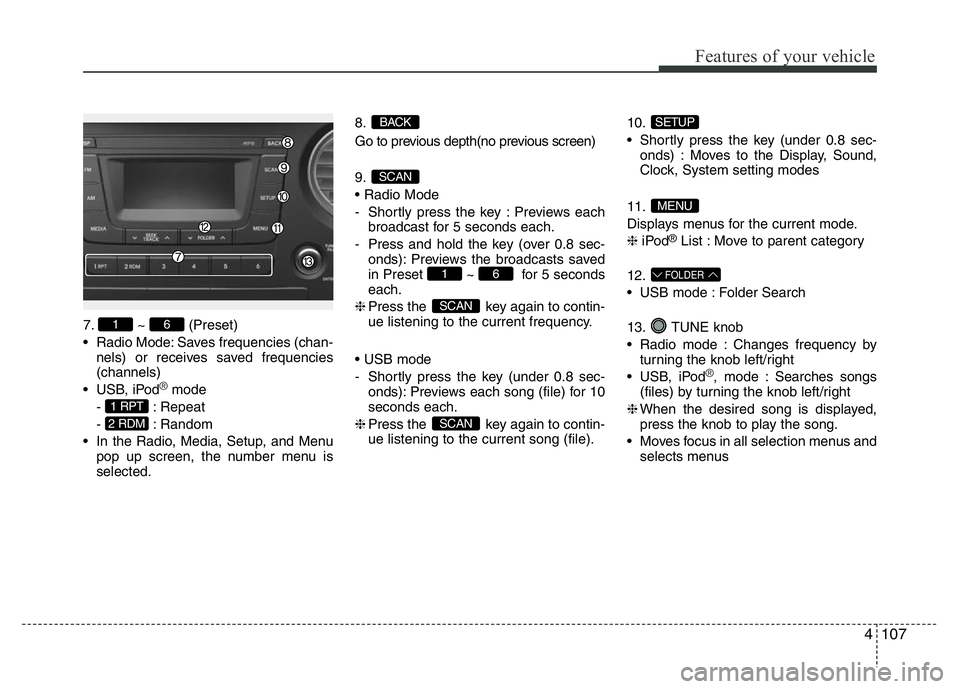
7. ~ (Preset)
• Radio Mode: Saves frequencies (chan-
nels) or receives saved frequencies
(channels)
• USB, iPod
®mode
- : Repeat
- : Random
• In the Radio, Media, Setup, and Menu
pop up screen, the number menu is
selected.8.
Go to previous depth(no previous screen)
9.
• Radio Mode
- Shortly press the key : Previews each
broadcast for 5 seconds each.
- Press and hold the key (over 0.8 sec-
onds): Previews the broadcasts saved
in Preset ~ for 5 seconds
each.
❈Press the key again to contin-
ue listening to the current frequency.
• USB mode
- Shortly press the key (under 0.8 sec-
onds): Previews each song (file) for 10
seconds each.
❈Press the key again to contin-
ue listening to the current song (file).10.
• Shortly press the key (under 0.8 sec-
onds) : Moves to the Display, Sound,
Clock, System setting modes
11.
Displays menus for the current mode.
❈iPod
®List : Move to parent category
12.
• USB mode : Folder Search
13. TUNE knob
• Radio mode : Changes frequency by
turning the knob left/right
• USB, iPod
®, mode : Searches songs
(files) by turning the knob left/right
❈When the desired song is displayed,
press the knob to play the song.
• Moves focus in all selection menus and
selects menus
FOLDER
MENU
SETUP
SCAN
SCAN
61
SCAN
BACK
2 RDM
1 RPT
61
Page 177 of 343
Features of your vehicle
116 4
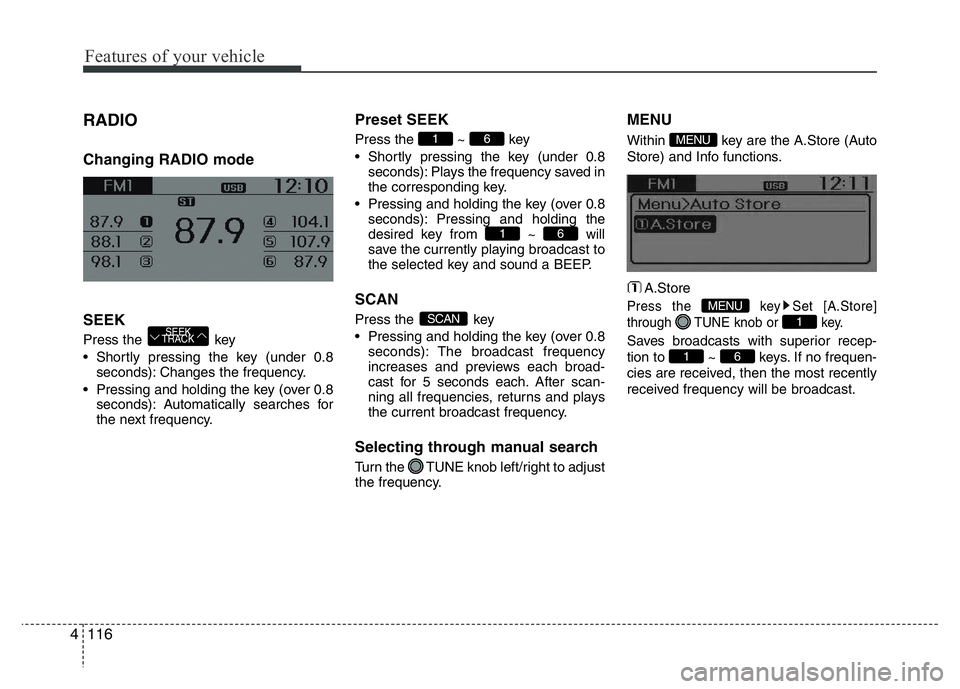
RADIO
Changing RADIO mode
SEEK
Press the key
• Shortly pressing the key (under 0.8
seconds): Changes the frequency.
• Pressing and holding the key (over 0.8
seconds): Automatically searches for
the next frequency.
Preset SEEK
Press the ~ key
• Shortly pressing the key (under 0.8
seconds): Plays the frequency saved in
the corresponding key.
• Pressing and holding the key (over 0.8
seconds): Pressing and holding the
desired key from ~ will
save the currently playing broadcast to
the selected key and sound a BEEP.
SCAN
Press the key
• Pressing and holding the key (over 0.8
seconds): The broadcast frequency
increases and previews each broad-
cast for 5 seconds each. After scan-
ning all frequencies, returns and plays
the current broadcast frequency.
Selecting through manual search
Turn the TUNE knob left/right to adjust
the frequency.
MENU
Within key are the A.Store (Auto
Store) and Info functions.
A.Store
Press the key Set [A.Store]
through TUNE knob or key.
Saves broadcasts with superior recep-
tion to ~ keys. If no frequen-
cies are received, then the most recently
received frequency will be broadcast.61
1
MENU
MENU
SCAN
61
61
SEEK
TRACK
Page 178 of 343
4117
Features of your vehicle
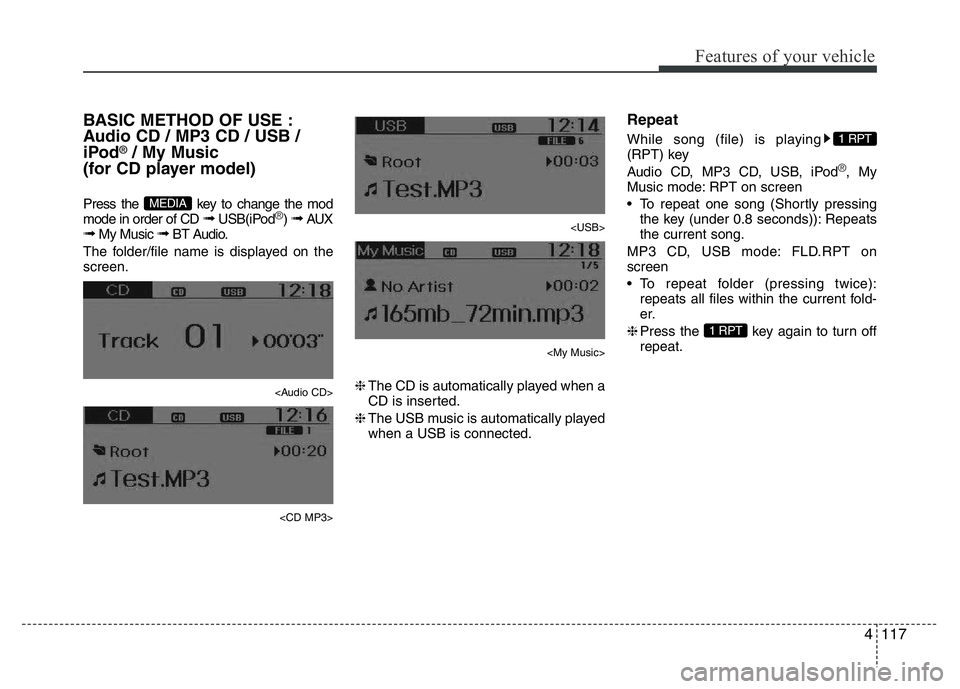
BASIC METHOD OF USE :
Audio CD / MP3 CD / USB /
iPod
®/ My Music
(for CD player model)
Press the key to change the mod
mode in order of CD ➟ USB(iPod®) ➟ AUX➟ My Music ➟ BT Audio.
The folder/file name is displayed on the
screen.
Page 179 of 343
Features of your vehicle
118 4
Random
While song (file) is playing
(RDM) key
Audio CD, My Music mode: RDM on
screen
• Random (Shortly pressing the key ):
Plays all songs in random order.
MP3 CD, USB mode: FLD.RDM on
screen
• Folder Random (Shortly pressing the
key): Plays all files within the current
folder in random order.
MP3 CD, USB mode: RDM on screen
• Random (pressing twice): Plays all files
in random order.
iPod
®mode: RDM on screen
• Random (press the key) : Plays all files
in random order.
❈ Press the key again to turn off
random.
Changing Song/File
While song (file) is playing key
• Shortly pressing the key: Plays the cur-
rent song from the beginning.
❈If the key is pressed again
within 1 second, the previous song is
played.
• Pressing and holding the key (over 0.8
seconds): Rewinds the song.
While song (file) is playing key
• Shortly pressing the key: Plays the
next song.
• Pressing and holding the key (over 0.8
seconds): Fast forwards the song.
Scan
While song (file) is playing key
• Pressing and holding the key (over 0.8
seconds) : Scans all songs for 10 sec-
onds starting from the next song.
❈Pressing and holding the key
again to turn off.
SCAN
SCAN
SEEK
TRACK
SEEK
TRACK
SEEK
TRACK
2 RDM
2 RDM
Page 185 of 343
Features of your vehicle
124 4
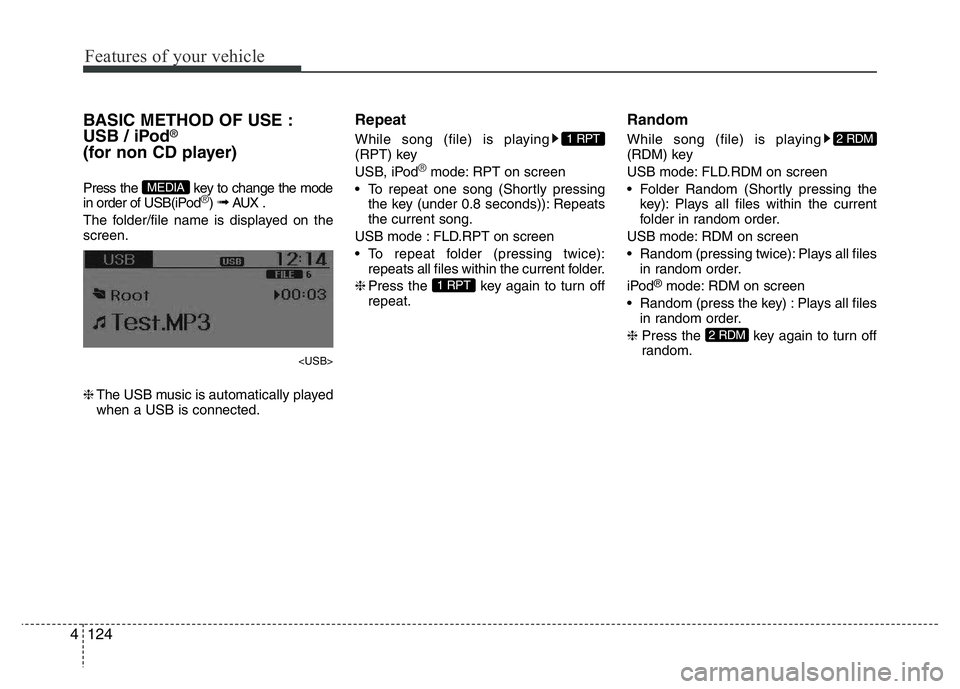
BASIC METHOD OF USE :
USB / iPod®
(for non CD player)
Press the key to change the mode
in order of USB(iPod®) ➟ AUX .
The folder/file name is displayed on the
screen.
❈The USB music is automatically played
when a USB is connected.
Repeat
While song (file) is playing
(RPT) key
USB, iPod
®mode: RPT on screen
• To repeat one song (Shortly pressing
the key (under 0.8 seconds)): Repeats
the current song.
USB mode : FLD.RPT on screen
• To repeat folder (pressing twice):
repeats all files within the current folder.
❈Press the key again to turn off
repeat.
Random
While song (file) is playing
(RDM) key
USB mode: FLD.RDM on screen
• Folder Random (Shortly pressing the
key): Plays all files within the current
folder in random order.
USB mode: RDM on screen
• Random (pressing twice): Plays all files
in random order.
iPod
®mode: RDM on screen
• Random (press the key) : Plays all files
in random order.
❈Press the key again to turn off
random.
2 RDM
2 RDM
1 RPT
1 RPT
MEDIA
Page 187 of 343
Features of your vehicle
126 4
Changing Song/File
While song (file) is playing key
• Shortly pressing the key: Plays the cur-
rent song from the beginning.
❈If the key is pressed again
within 1 second, the previous song is
played.
• Pressing and holding the key (over 0.8
seconds): Rewinds the song.
While song (file) is playing key
• Shortly pressing the key:
Plays the next song.
• Pressing and holding the key (over 0.8
seconds): Fast forwards the song.
Scan
While song (file) is playing key
• Pressing and holding the key (over 0.8
seconds) : Scans all songs for 10 sec-
onds starting from the next song.
❈Pressing and holding the key
again to turn off.
Folder Search : USB Mode
While file is playing (Folder
Up) key
• Searches the next folder.
While file is playing (Folder
Down) key
• Searches the parent folder.
❈If a folder is selected by pressing the
TUNE knob, the first file within the
selected folder will be played.
Searching Songs (File)
• Turning TUNE knob : Searches for
songs (files)
• Pressing TUNE knob : Plays select-
ed song (file).
FOLDER
FOLDER
SCAN
SCAN
SEEK
TRACK
SEEK
TRACK
SEEK
TRACK
Page 190 of 343
PHONE (if equipped)
Before using the Bluetooth®Wireless
Technologyphone features
• In order to use
Bluetooth®Wireless
Technology
phone, you must first pair
and connect the
Bluetooth®Wireless
Technology
mobile phone.
• If the mobile phone is not paired or con-
nected, it is not possible to enter Phone
mode. Once a phone is paired or con-
nected, the guidance screen will be dis-
played.
• If Priority is set upon vehicle ignition
(IGN/ACC ON), the
Bluetooth®Wireless
Technology
phone will be automatically
connected. Even if you are outside, the
Bluetooth®Wireless Technologyphone will
be automatically connected once you are
in the vicinity of the vehicle. If you do not
want automatic
Bluetooth®Wireless
Technology
phone connection, set the
Bluetooth®Wireless Technologypower to
OFF.
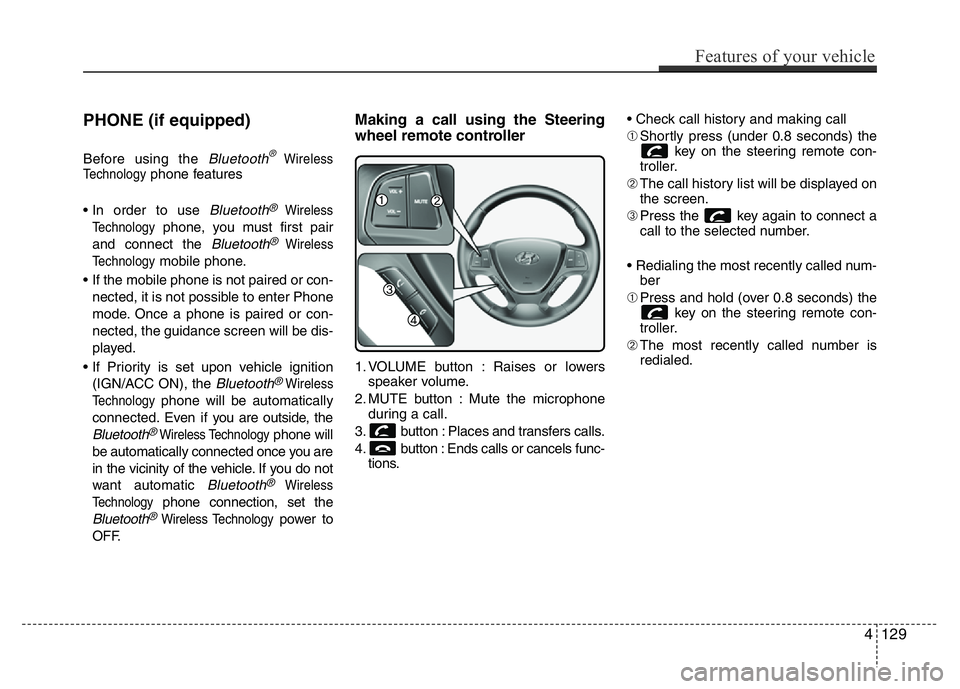
Making a call using the Steering
wheel remote controller
1. VOLUME button : Raises or lowers
speaker volume.
2. MUTE button : Mute the microphone
during a call.
3. button : Places and transfers calls.
4. button : Ends calls or cancels func-
tions.• Check call history and making call
➀Shortly press (under 0.8 seconds) the
key on the steering remote con-
troller.
➁The call history list will be displayed on
the screen.
➂Press the key again to connect a
call to the selected number.
• Redialing the most recently called num-
ber
➀Press and hold (over 0.8 seconds) the
key on the steering remote con-
troller.
➁The most recently called number is
redialed.
Features of your vehicle
129 4
Page 209 of 343
Driving your vehicle
16 5
N (Neutral)
The wheels and transaxle are not
engaged.
Use N (Neutral) if you need to restart a
stalled engine, or if it is necessary to stop
with the engine ON. Shift into P (Park) if
you need to leave your vehicle for any
reason.
Always depress the brake pedal when
you are shifting from N (Neutral) to
another gear.
D (Drive)
This is the normal driving position. The
transaxle will automatically shift through
a 4-gear sequence, providing the best
fuel economy and power.
For extra power when passing another
vehicle or driving uphill, depress the
accelerator fully. The transaxle will auto-
matically downshift to the next lower gear
(or gears, as appropriate).
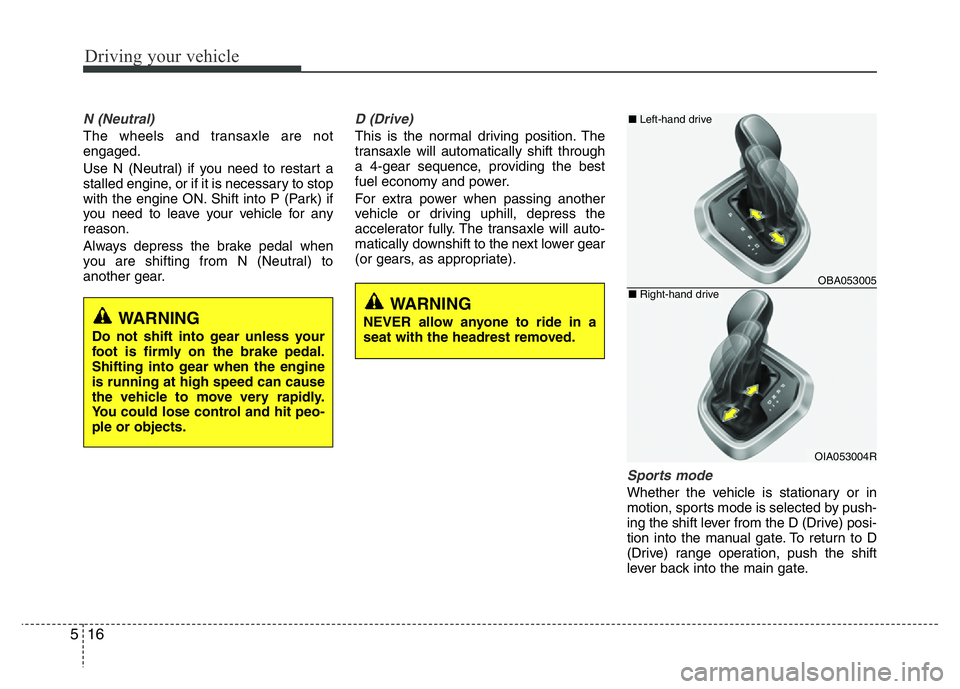
Sports mode
Whether the vehicle is stationary or in
motion, sports mode is selected by push-
ing the shift lever from the D (Drive) posi-
tion into the manual gate. To return to D
(Drive) range operation, push the shift
lever back into the main gate.
WARNING
Do not shift into gear unless your
foot is firmly on the brake pedal.
Shifting into gear when the engine
is running at high speed can cause
the vehicle to move very rapidly.
You could lose control and hit peo-
ple or objects.
WARNING
NEVER allow anyone to ride in a
seat with the headrest removed.
OBA053005
OIA053004R
■Left-hand drive
■Right-hand drive
Page 211 of 343
Driving your vehicle
18 5
Parking
Always come to a complete stop and
continue to depress the brake pedal.
Move the shift lever into the P (Park)
position, apply the parking brake, and
place the ignition switch in the
LOCK/OFF position. Take the Key with
you when exiting the vehicle.
Good driving practices
• Never move the shift lever from P
(Park) or N (Neutral) to any other posi-
tion with the accelerator pedal
depressed.
• Never move the shift lever into P (Park)
when the vehicle is in motion.
• Be sure the vehicle is completely
stopped before you attempt to shift into
R (Reverse) or D (Drive).
• Do not move the shift lever to N
(Neutral) when driving. Doing so may
result in an accident because of a loss
of engine braking and the transaxle
could be damaged.
• Do not drive with your foot resting on
the brake pedal. Even light, but consis-
tent pedal pressure can result in the
brakes overheating, brake wear and
possibly even brake failure.
• When driving in sports mode, slow
down before shifting to a lower gear.
Otherwise, the lower gear may not be
engaged if the engine rpms are out-
side of the allowable range.
• Always apply the parking brake when
leaving the vehicle. Do not depend on
placing the transmission in P (Park) to
keep the vehicle from moving.• Exercise extreme caution when driving
on a slippery surface. Be especially
careful when braking, accelerating or
shifting gears. On a slippery surface,
an abrupt change in vehicle speed can
cause the drive wheels to lose traction
and may cause loss of vehicle control
resulting in an accident
• Optimum vehicle performance and
economy is obtained by smoothly
depressing and releasing the accelera-
tor.
WARNING
When you stay in the vehicle with
the engine running, be careful not
to depress the accelerator pedal for
a long period of time. The engine or
exhaust system may overheat and
start a fire.
The exhaust gas and the exhaust
system are very hot. Keep away
from the exhaust system compo-
nents.
Do not stop or park over flammable
materials, such as dry grass, paper
or leaves. They may ignite and
cause a fire.