Call HYUNDAI I10 2014 Owner's Manual
[x] Cancel search | Manufacturer: HYUNDAI, Model Year: 2014, Model line: I10, Model: HYUNDAI I10 2014Pages: 343, PDF Size: 9.14 MB
Page 120 of 343
459
Features of your vehicle
Battery saver function (if equipped)
• The purpose of this feature is to pre-
vent the battery from being dis-
charged. The system automatically
turns off the exterior lights when the
driver removes the ignition key and
opens the driver-side door.
• With this feature, the parking lights will
turn off automatically if the driver parks
on the side of road at night.
If necessary, to keep the lights on
when the ignition key is removed, per-
form the following :
1) Open the driver-side door.
2) Turn the parking lights OFF and ON
again using the light switch on the
steering column.
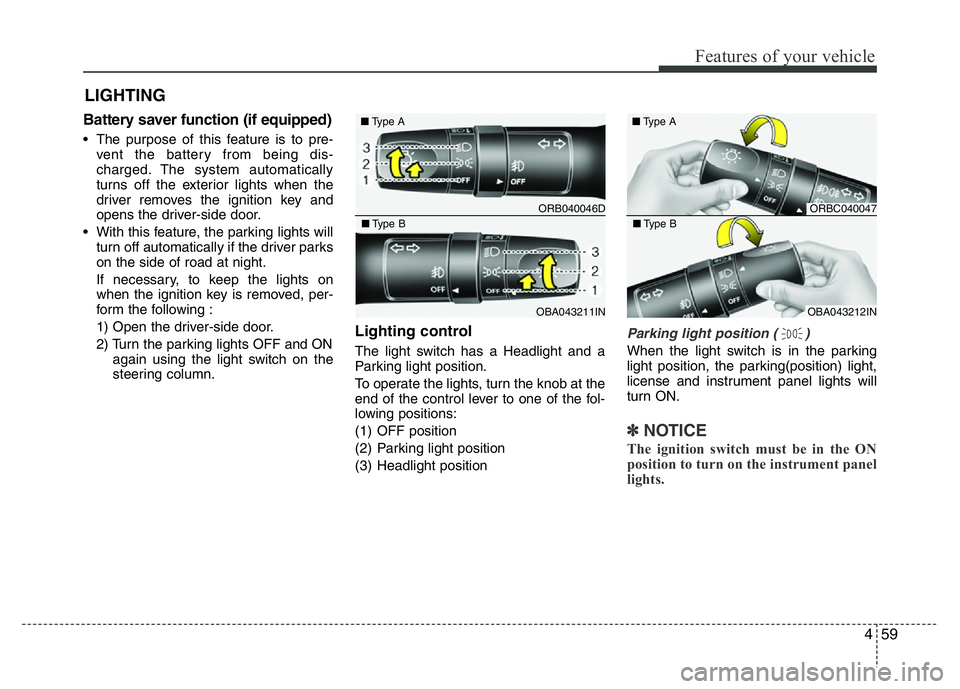
Lighting control
The light switch has a Headlight and a
Parking light position.
To operate the lights, turn the knob at the
end of the control lever to one of the fol-
lowing positions:
(1) OFF position
(2) Parking light position
(3) Headlight position
Parking light position ( )
When the light switch is in the parking
light position, the parking(position) light,
license and instrument panel lights will
turn ON.
✽NOTICE
The ignition switch must be in the ON
position to turn on the instrument panel
lights.
LIGHTING
ORB040046D ■Type A
OBA043211IN ■Type B
ORBC040047 ■Type A
OBA043212IN ■Type B
Page 131 of 343
Features of your vehicle
70 4
✽NOTICE
If you want to defrost and defog the
front windshield, refer to “Windshield
defrosting and defogging” in this chap-
ter.
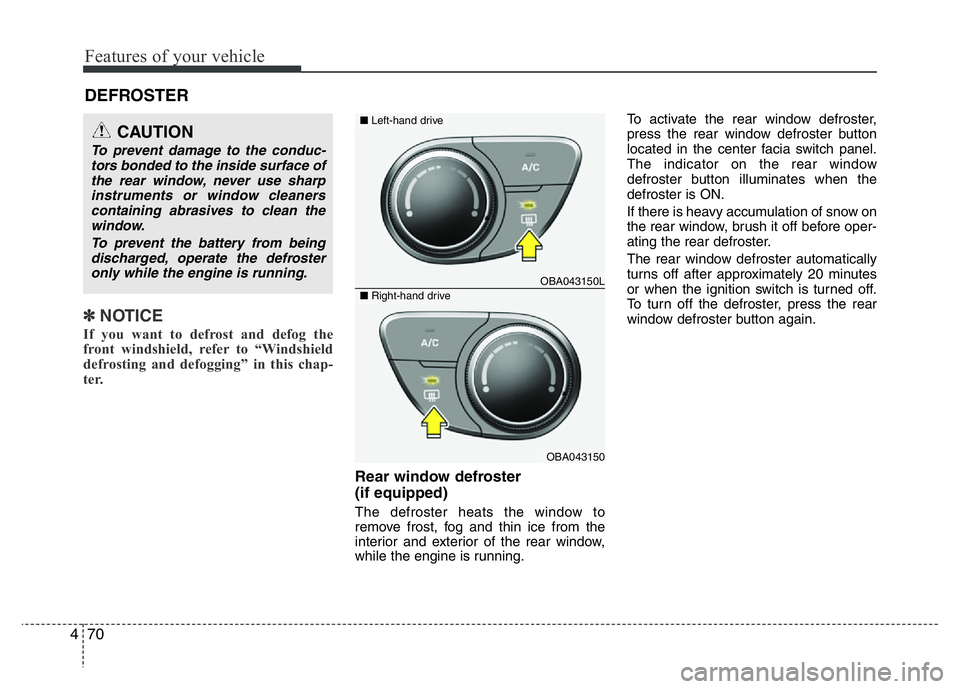
Rear window defroster
(if equipped)
The defroster heats the window to
remove frost, fog and thin ice from the
interior and exterior of the rear window,
while the engine is running.To activate the rear window defroster,
press the rear window defroster button
located in the center facia switch panel.
The indicator on the rear window
defroster button illuminates when the
defroster is ON.
If there is heavy accumulation of snow on
the rear window, brush it off before oper-
ating the rear defroster.
The rear window defroster automatically
turns off after approximately 20 minutes
or when the ignition switch is turned off.
To turn off the defroster, press the rear
window defroster button again.
DEFROSTER
CAUTION
To prevent damage to the conduc-
tors bonded to the inside surface of
the rear window, never use sharp
instruments or window cleaners
containing abrasives to clean the
window.
To prevent the battery from being
discharged, operate the defroster
only while the engine is running.
OBA043150L
OBA043150
■Left-hand drive
■Right-hand drive
Page 141 of 343
Features of your vehicle
80 4
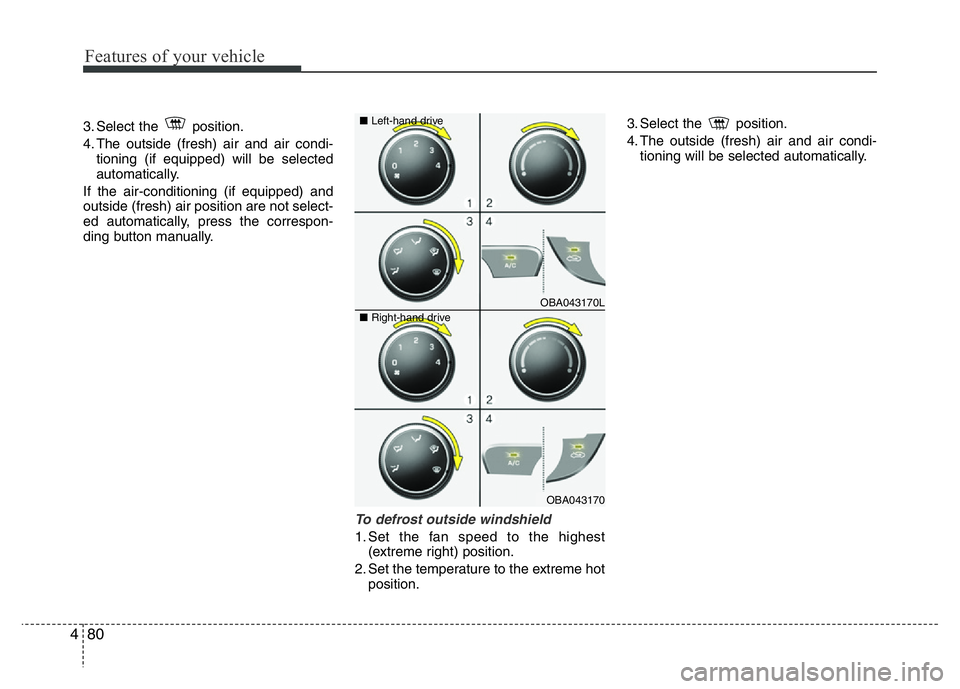
3. Select the position.
4. The outside (fresh) air and air condi-
tioning (if equipped) will be selected
automatically.
If the air-conditioning (if equipped) and
outside (fresh) air position are not select-
ed automatically, press the correspon-
ding button manually.
To defrost outside windshield
1. Set the fan speed to the highest
(extreme right) position.
2. Set the temperature to the extreme hot
position.3. Select the position.
4. The outside (fresh) air and air condi-
tioning will be selected automatically.
OBA043170L
OBA043170 ■Left-hand drive
■Right-hand drive
Page 142 of 343
481
Features of your vehicle
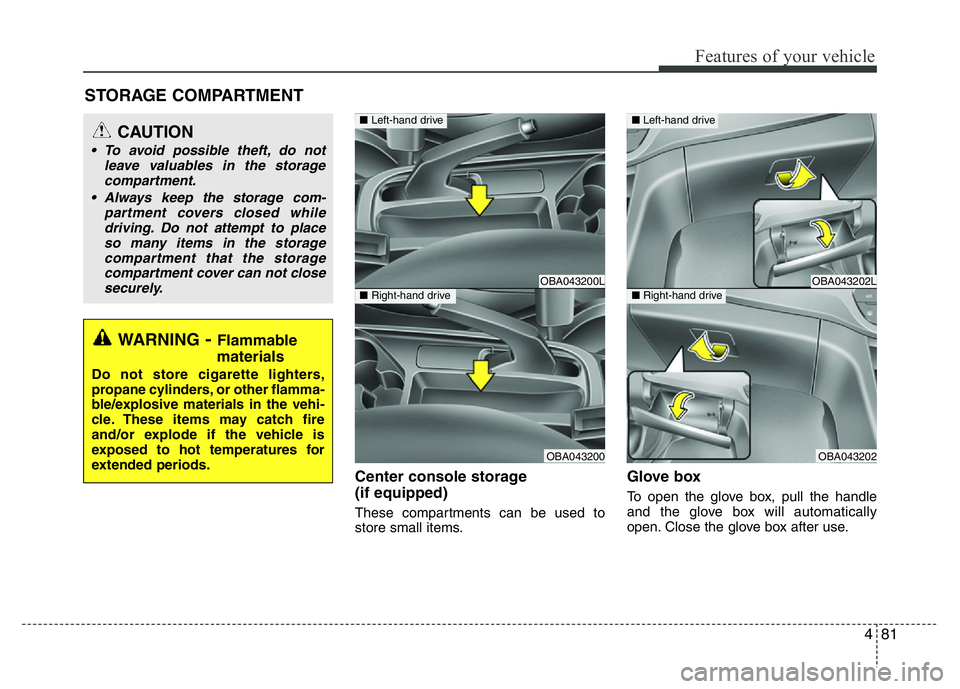
Center console storage
(if equipped)
These compartments can be used to
store small items.
Glove box
To open the glove box, pull the handle
and the glove box will automatically
open. Close the glove box after use.
STORAGE COMPARTMENT
WARNING- Flammable
materials
Do not store cigarette lighters,
propane cylinders, or other flamma-
ble/explosive materials in the vehi-
cle. These items may catch fire
and/or explode if the vehicle is
exposed to hot temperatures for
extended periods.
CAUTION
• To avoid possible theft, do not
leave valuables in the storage
compartment.
• Always keep the storage com-
partment covers closed while
driving. Do not attempt to place
so many items in the storage
compartment that the storage
compartment cover can not close
securely.
OBA043200L
OBA043200
■Left-hand drive
■Right-hand driveOBA043202L
OBA043202
■Left-hand drive
■Right-hand drive
Page 163 of 343
Features of your vehicle
102 4
SYSTEM CONTROLLERS AND
FUNCTIONS
❈Display and settings may differ
depending on the selected audio.
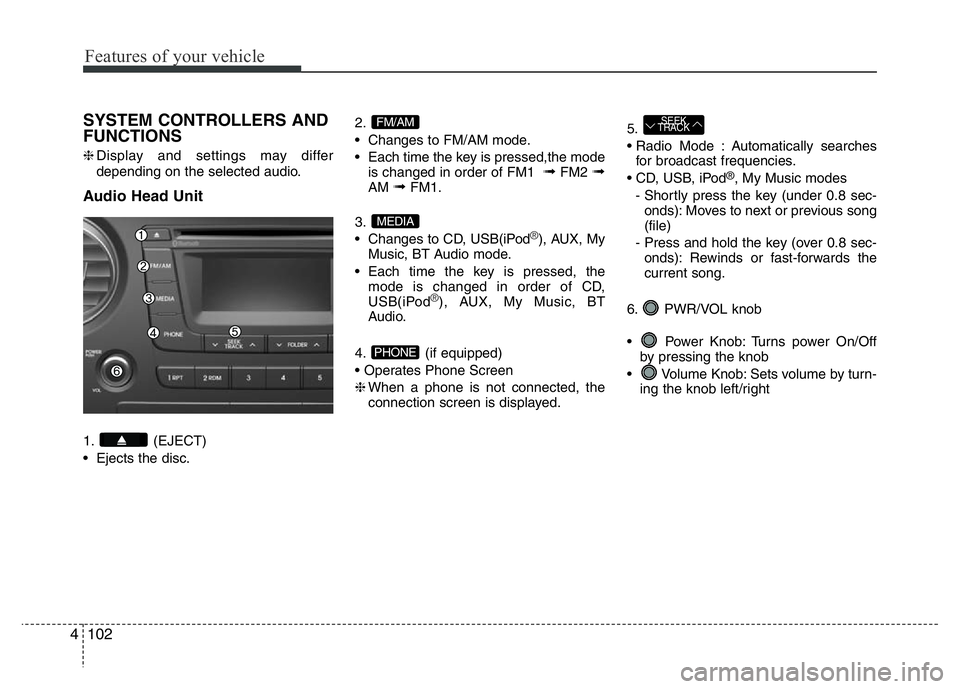
Audio Head Unit
1. (EJECT)
• Ejects the disc.2.
• Changes to FM/AM mode.
• Each time the key is pressed,the mode
is changed in order of FM1
➟FM2 ➟AM ➟FM1.
3.
• Changes to CD, USB(iPod
®), AUX, My
Music, BT Audio mode.
• Each time the key is pressed, the
mode is changed in order of CD,
USB(iPod
®), AUX, My Music, BT
Audio.
4. (if equipped)
• Operates Phone Screen
❈When a phone is not connected, the
connection screen is displayed.5.
• Radio Mode : Automatically searches
for broadcast frequencies.
• CD, USB, iPod
®, My Music modes
- Shortly press the key (under 0.8 sec-
onds): Moves to next or previous song
(file)
- Press and hold the key (over 0.8 sec-
onds): Rewinds or fast-forwards the
current song.
6. PWR/VOL knob
• Power Knob: Turns power On/Off
by pressing the knob
• Volume Knob: Sets volume by turn-
ing the knob left/right
SEEK
TRACK
PHONE
MEDIA
FM/AM
Page 167 of 343
Features of your vehicle
106 4
SYSTEM CONTROLLERS AND
FUNCTIONS
❈Display and settings may differ
depending on the selected audio.
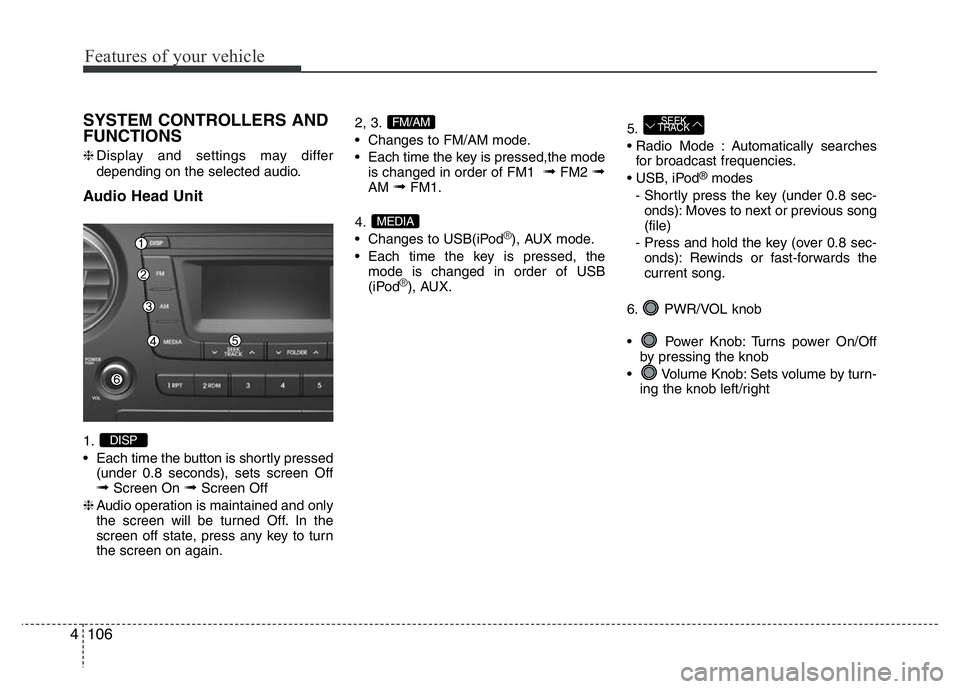
Audio Head Unit
1.
• Each time the button is shortly pressed
(under 0.8 seconds), sets screen Off
➟Screen On ➟Screen Off
❈Audio operation is maintained and only
the screen will be turned Off. In the
screen off state, press any key to turn
the screen on again.2, 3.
• Changes to FM/AM mode.
• Each time the key is pressed,the mode
is changed in order of FM1
➟FM2 ➟AM ➟FM1.
4.
• Changes to USB(iPod
®), AUX mode.
• Each time the key is pressed, the
mode is changed in order of USB
(iPod
®), AUX.5.
• Radio Mode : Automatically searches
for broadcast frequencies.
• USB, iPod
®modes
- Shortly press the key (under 0.8 sec-
onds): Moves to next or previous song
(file)
- Press and hold the key (over 0.8 sec-
onds): Rewinds or fast-forwards the
current song.
6. PWR/VOL knob
• Power Knob: Turns power On/Off
by pressing the knob
• Volume Knob: Sets volume by turn-
ing the knob left/right
SEEK
TRACK
MEDIA
FM/AM
DISP
Page 170 of 343
![HYUNDAI I10 2014 Owners Manual 4109
Features of your vehicle
Sound Settings
This menu allows you to set the ‘Bass,
Middle, Treble’ and the Sound Fader and
Balance.
Select [Audio Settings] Select menu
through TUNE knob Turn TUNE](/img/35/56233/w960_56233-169.png "HYUNDAI I10 2014 Owners Manual 4109
Features of your vehicle
Sound Settings
This menu allows you to set the ‘Bass,
Middle, Treble’ and the Sound Fader and
Balance.
Select [Audio Settings] Select menu
through TUNE knob Turn TUNE")
4109
Features of your vehicle
Sound Settings
This menu allows you to set the ‘Bass,
Middle, Treble’ and the Sound Fader and
Balance.
Select [Audio Settings] Select menu
through TUNE knob Turn TUNE
knob left/right to set
• Bass, Middle, Treble : Selects the sound
tone.
• Fader, Balance : Moves the sound fader
and balance.
• Default : Restores default settings.
❈Return : While adjusting values, re-
pressing the TUNE knob will restore
the parent menu.
Virtual Sound
The PowerTreble, and Surround can be
set.
Select [Virtual Sound] Set menu
through
TUNEknob Set /
through
TUNEknob
• PowerTreble : This is a sound system fea-
ture that provides live tremble.
• Surround : This is a sound system fea-
ture that provides surround sound.
❈May differ depending on the selected
audio.
Speed Dependent Volume Control
This feature is used to automatically con-
trol the volume level according to the
speed of the vehicle.
Select [Speed Dependent Vol.] Set in 4
levels [Off/Low/Mid/High] of TUNE knob
Off
On
Page 171 of 343
![HYUNDAI I10 2014 Owners Manual Features of your vehicle
110 4
Clock Settings
Press the key Select [Clock]
through TUNE knob or key
Select menu through TUNE knob
Clock Settings
This menu is used to set the time.
Select [Clock Set](/img/35/56233/w960_56233-170.png "HYUNDAI I10 2014 Owners Manual Features of your vehicle
110 4
Clock Settings
Press the key Select [Clock]
through TUNE knob or key
Select menu through TUNE knob
Clock Settings
This menu is used to set the time.
Select [Clock Set")
Features of your vehicle
110 4
Clock Settings
Press the key Select [Clock]
through TUNE knob or key
Select menu through TUNE knob
Clock Settings
This menu is used to set the time.
Select [Clock Settings] Set through
TUNE knob Press TUNE knob
❈Adjust the number currently in focus to
set the [hour] and press the tune knob
to set the [minute].
Callendar Settings
This menu is used to set the date.
Select [Callendar Settings ] Set through
TUNE knob Press TUNE knob
❈Adjust the number currently in focus to
make the settings and press the tune
knob to move to the next setting. (Set
in order of Year/Month/Day)
Time Format
This function is used to set the 12/24
hour time format of the audio system.
Select [Time Format] Set 12Hr / 24Hr
through TUNE knob
Clock Display when Power is OFF
Select [Clock Disp.(Pwr Off) Set /
through TUNE knob
• : Displays time/date on screen
• : Turn off.
Off
On
Off
On
3
SETUP
CLOCK
Page 172 of 343
![HYUNDAI I10 2014 Owners Manual 4111
Features of your vehicle
Phone Setup (if equipped)
Press the key Select [Phone]
Pair Phone
Select [Pair Phone] Set through
TUNE knob
➀Search for device names as displayed
on your mobile phone](/img/35/56233/w960_56233-171.png "HYUNDAI I10 2014 Owners Manual 4111
Features of your vehicle
Phone Setup (if equipped)
Press the key Select [Phone]
Pair Phone
Select [Pair Phone] Set through
TUNE knob
➀Search for device names as displayed
on your mobile phone")
4111
Features of your vehicle
Phone Setup (if equipped)
Press the key Select [Phone]
Pair Phone
Select [Pair Phone] Set through
TUNE knob
➀Search for device names as displayed
on your mobile phone and connect.
➁Input the passkey displayed on the
screen. (Passkey : 0000)
❈The device name and passkey will be
displayed on the screen for up to 3
minutes. If pairing is not completed
within the 3 minutes, the mobile phone
pairing process will automatically be
canceled.➂Pairing completion is displayed.
❈In some mobile phones, pairing will
automatically be followed by connec-
tion.
❈It is possible to pair up to five
Bluetooth®Wireless Technology
enabled mobile phones.
SETUP
CLOCKCAUTION
To pair a Bluetooth®Wireless
Technology enabled mobile phone,
authentication and connection
processes are first required. As a
result, you cannot pair your mobile
phone while driving the vehicle.
First park your vehicle before use.
Page 174 of 343
![HYUNDAI I10 2014 Owners Manual 4113
Features of your vehicle
• Changing connection sequence
(Priority)
This is used to change the order (pri-
ority) of automatic connection for the
paired mobile phones.
Select [Phone List] Select](/img/35/56233/w960_56233-173.png "HYUNDAI I10 2014 Owners Manual 4113
Features of your vehicle
• Changing connection sequence
(Priority)
This is used to change the order (pri-
ority) of automatic connection for the
paired mobile phones.
Select [Phone List] Select")
4113
Features of your vehicle
• Changing connection sequence
(Priority)
This is used to change the order (pri-
ority) of automatic connection for the
paired mobile phones.
Select [Phone List] Select [Priority]
through TUNE knob Select No. 1
Priority mobile phone
➀Select [Priority].
➁From the paired phones, select
the phone desired for No.1 priority.
➂The changed priority sequence is
displayed.
❈Once the connection sequence
(priority) is changed, the new no. 1
priority mobile phone will be con-
nected.
- when the no. 1 priority cannot be
connected: Automatically
attempts to connect the most
recently connected phone.
- Cases when the most recently
connected phone cannot be con-
nected: Attempts to connect in
the order in which paired phones
are listed.- The connected phone will auto-
matically be changed to No. 1
priority.
• Delete
Select [Phone List] Select mobile
phone through TUNE knob
Select [Delete]
➀ Select the desired mobile phone.
➁ Delete the selected mobile phone.
➂ Deletion completion is displayed.
❈When attempting to delete a cur-
rently connected phone, the
phone is first disconnected.Contacts Download
This feature is used to download
contacts and call histories into the
audio system.
Select [Contacts Download] Select
through TUNE knob
CAUTION
• When you delete a mobile
phone, the mobile phone con-
tacts will also be erased.
• For stable Bluetooth
®Wireless
Technology communication,
delete the mobile phone from
the audio and also delete the
audio from your mobile phone.
CAUTION
• The download feature may not
be supported in some mobile
phones.
• If a different operation is per-
formed while Contacts are
being downloaded, download-
ing will be discontinued.
Contacts already downloaded
will be saved.
• When downloading new
Contacts, delete all previously
saved Contacts before start-
ing download.