Change HYUNDAI I30 2019 Owner's Manual
[x] Cancel search | Manufacturer: HYUNDAI, Model Year: 2019, Model line: I30, Model: HYUNDAI I30 2019Pages: 659, PDF Size: 17.14 MB
Page 221 of 659
3-71
Convenient features of your vehicle
3
LCD display control
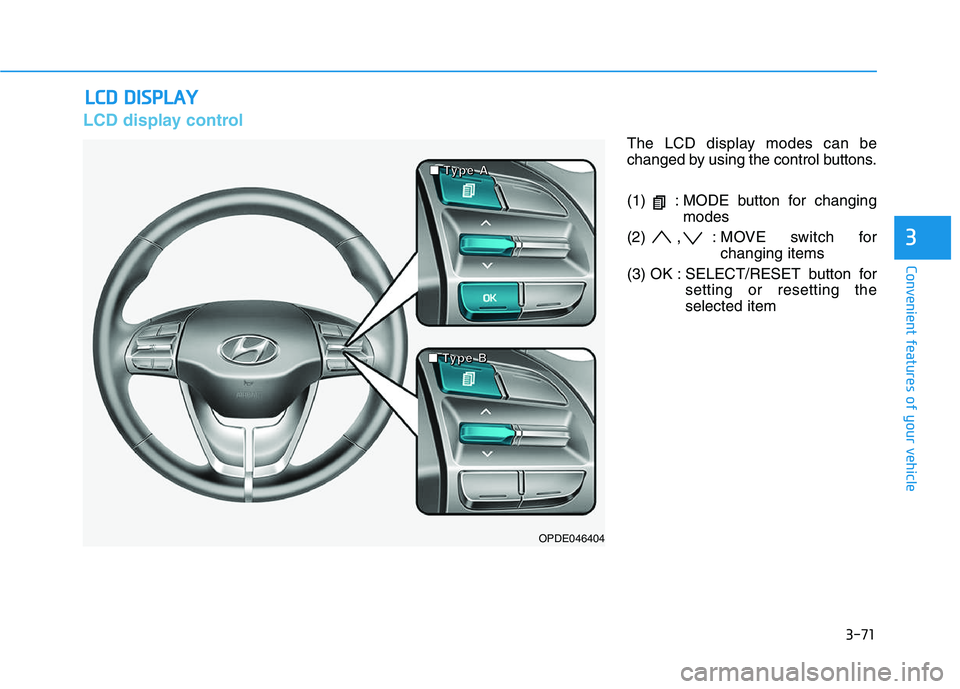
The LCD display modes can be
changed by using the control buttons.
(1) : MODE button for changingmodes
(2) , : MOVE switch for changing items
(3) OK : SELECT/RESET button for setting or resetting the
selected item
L
L C
C D
D
D
D I
I S
S P
P L
L A
A Y
Y
OPDE046404
■
■
■
■
T
T
T
T
y
y
y
y
p
p
p
p
e
e
e
e
A
A
A
A
■
■
■
■
T
T
T
T
y
y
y
y
p
p
p
p
e
e
e
e
B
B
B
B
Page 222 of 659
3-72
Convenient features of your vehicle
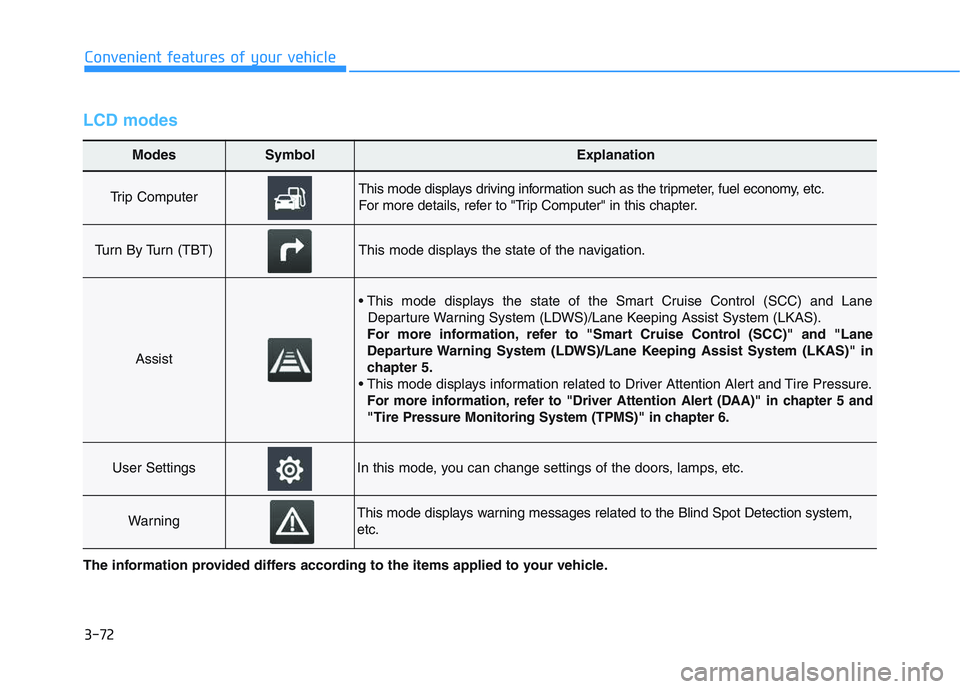
LCD modes
Modes SymbolExplanation
Trip Computer This mode displays driving information such as the tripmeter, fuel economy, etc.
For more details, refer to "Trip Computer" in this chapter.
Turn By Turn (TBT)This mode displays the state of the navigation.
Assist
• This mode displays the state of the Smart Cruise Control (SCC) and LaneDeparture Warning System (LDWS)/Lane Keeping Assist System (LKAS).
For more information, refer to "Smart Cruise Control (SCC)" and "Lane
Departure Warning System (LDWS)/Lane Keeping Assist System (LKAS)" in
chapter 5.
For more information, refer to "Driver Attention Alert (DAA)"in chapter 5 and
"Tire Pressure Monitoring System (TPMS)"in chapter 6.
User SettingsIn this mode, you can change settings of the doors, lamps, etc.
WarningThis mode displays warning messages related to the Blind Spot Detection system,
etc.
The information provided differs according to the items applied to your vehicle.
Page 223 of 659
3-73
Convenient features of your vehicle
3
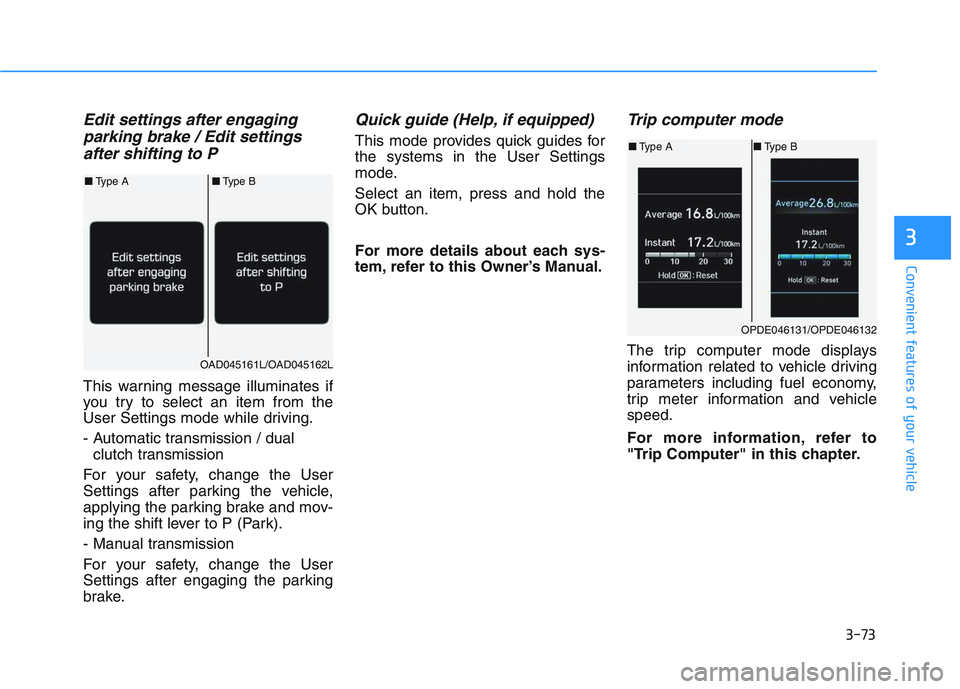
Edit settings after engaging parking brake / Edit settingsafter shifting to P
This warning message illuminates if
you try to select an item from the
User Settings mode while driving.
- Automatic transmission / dual
clutch transmission
For your safety, change the User
Settings after parking the vehicle,
applying the parking brake and mov-
ing the shift lever to P (Park).
- Manual transmission
For your safety, change the User
Settings after engaging the parking
brake.
Quick guide (Help, if equipped)
This mode provides quick guides for
the systems in the User Settings
mode.
Select an item, press and hold the
OK button.
For more details about each sys-
tem, refer to this Owner’s Manual.
Trip computer mode
The trip computer mode displays
information related to vehicle driving
parameters including fuel economy,
trip meter information and vehicle
speed.
For more information, refer to
"Trip Computer" in this chapter.
OPDE046131/OPDE046132
■ Type A ■Type B
OAD045161L/OAD045162L
■Type A ■Type B
Page 225 of 659
3-75
Convenient features of your vehicle
3
Warning message mode
If one of followings occurs, warning
messages will be displayed in the
information mode for several seconds.
- Low washer fluid (if equipped)
- Smart high beam malfunction (if equipped)
- Blind Spot Detection (BSD) mal- function (if equipped)
- Autonomous Emergency Braking (AEB) malfunction (if equipped)
- Speed Limit Information Function (SLIF) malfunction (if equipped)
- Advanced Smart Cruise Control malfunction (if equipped)
- Tire Pressure Monitoring System (TPMS, if equipped)
User settings mode
In this mode, you can change the
setting of the instrument cluster,
doors, lamps, etc.
1. Driving Assist
2. Door
3. Lights
4. Sound
5. Convenience
6. Service Interval
7. Other Features
8. Reset
The information provided differs
according to the items applied to
your vehicle.
1. Driving Assist
- Lane Departure Warning/StandardLKA/Active LKA
To adjust the sensitivity of the Lane
Keeping Assist System.
For more information, refer to the
"Lane Keeping Assist System" in
chapter 5.
To adjust the sensitivity of the Driver
Attention Alert (DAA).
- Off/Normal/Early
For more information, refer to the
"Driver Attention Alert (DAA)" in
chapter 5.
- Slow/Normal/Fast
To adjust the sensitivity of the
Smart Cruise Control system.
For more information, refer to the
"Smart Cruise Control" in chapter 5.
To activate or deactivate the
Autonomous Emergency Braking
(AEB).
For more information, refer to
"Autonomous Emergency Braking
(AEB)" in chapter 5.
Page 227 of 659
3-77
Convenient features of your vehicle
3
3. Lights
- Off: The one touch turn signal func-tion will be deactivated.
- 3, 5, 7 Flashes: The turn signal indi- cator will blink 3, 5, or 7 times when
the turn signal lever is moved slightly.
For more information, refer to
"Light" in this chapter.
To activate or deactivate the head-
lamp delay function.
For more information, refer to
"Light" in this chapter
To activate or deactivate the wel-
come light function.
For more information, refer to
"Light" in this chapter. 4. Sound
- Softer/Louder
To adjust the Park Assist System
volume.
To activate or deactivate the Blind
Spot Detection sound.
For more information, refer to
"Blind Spot Detection" in chapter 5.
To activate or deactivate the wel-
come sound.
5. Convenience
- Off: The seat easy access function is deactivated.
- Normal/Extended: When you turn off the engine, the driver's seat will
automatically move rearward short
(Normal) or long (Extended) for you
to enter or exit the vehicle more
comfortably. For more information, refer to
"Driver Position Memory System"
in this chapter.
To activate or deactivate the wireless
charging system in the front seat.
For more information, refer to
"Wireless Charging System" in
this chapter.
To activate or deactivate the Wiper/
Light mode.
When activated, the LCD display
shows the selected Wiper/Light
mode whenever you changed the
mode.
To activate or deactivate the rear
wiper while the vehicle is in reverse
with the front wiper ON.
To activate or deactivate the gear
position pop-up.
Page 229 of 659
3-79
Convenient features of your vehicle
3
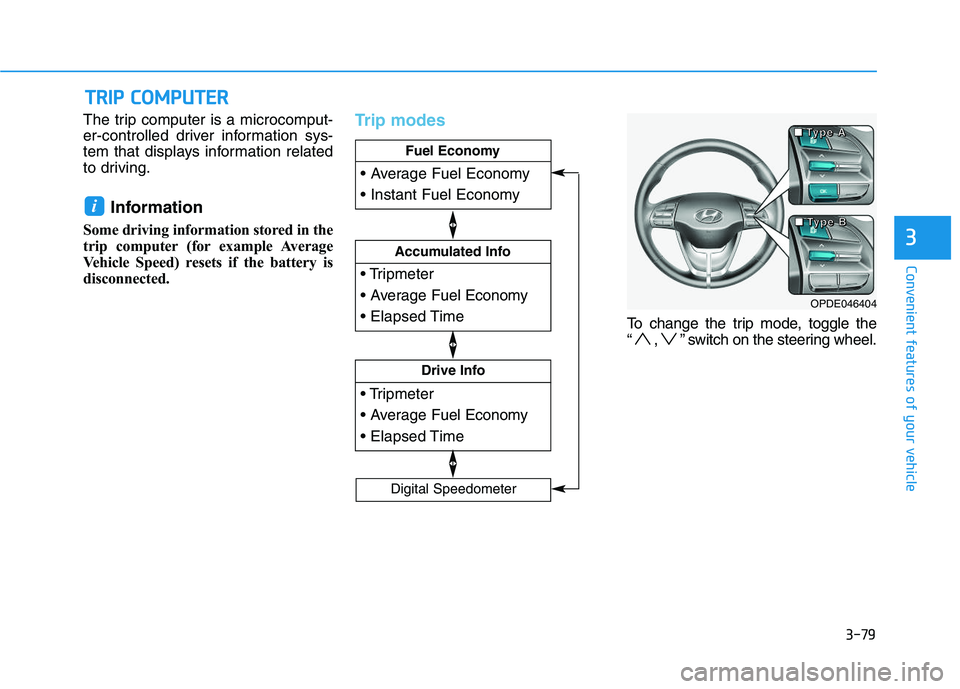
The trip computer is a microcomput-
er-controlled driver information sys-
tem that displays information related
to driving.
Information
Some driving information stored in the
trip computer (for example Average
Vehicle Speed) resets if the battery is
disconnected.
Trip modes
To change the trip mode, toggle the
“ , ” switch on the steering wheel.
i
T
T R
R I
I P
P
C
C O
O M
M P
P U
U T
T E
E R
R
Drive Info
Accumulated Info
Fuel Economy
Digital Speedometer
OPDE046404
■
■
■
■
T
T
T
T
y
y
y
y
p
p
p
p
e
e
e
e
A
A
A
A
■
■
■
■
T
T
T
T
y
y
y
y
p
p
p
p
e
e
e
e
B
B
B
B
Page 242 of 659
4-10
Multimedia System
Feature of Your Audio
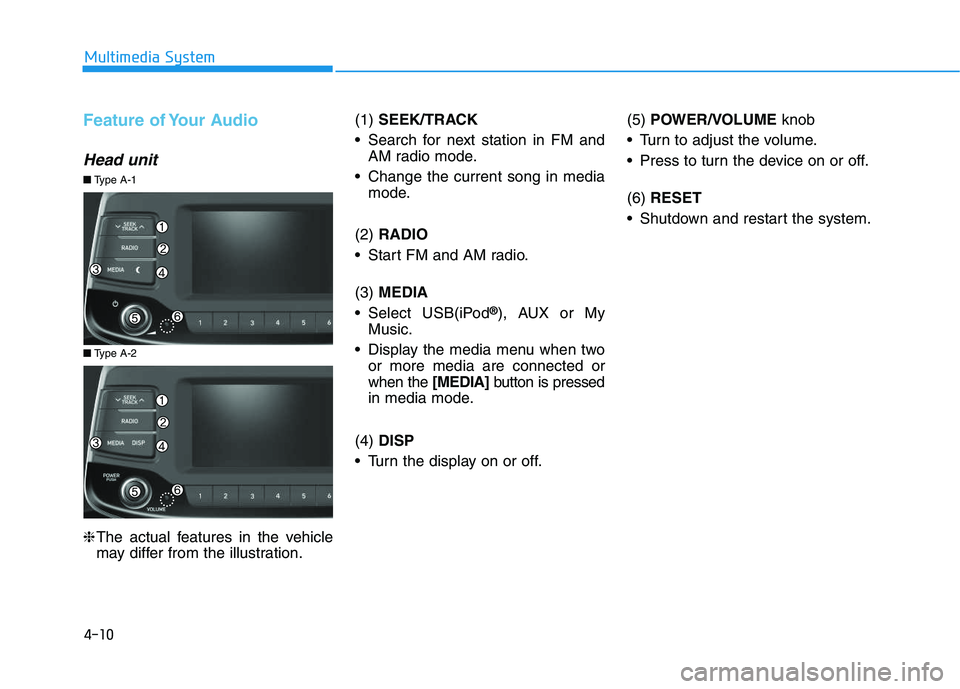
Head unit
❈The actual features in the vehicle
may differ from the illustration. (1)
SEEK/TRACK
Search for next station in FM and AM radio mode.
Change the current song in media mode.
(2) RADIO
Start FM and AM radio.
(3) MEDIA
Select USB(iPod
®), AUX or My
Music.
Display the media menu when two or more media are connected or
when the [MEDIA]button is pressed
in media mode.
(4) DISP
Turn the display on or off. (5)
POWER/VOLUME knob
Turn to adjust the volume.
Press to turn the device on or off.
(6) RESET
Shutdown and restart the system.
■ Type A-2
■Type A-1
Page 245 of 659
4-13
Multimedia System
4
Feature of Your Audio
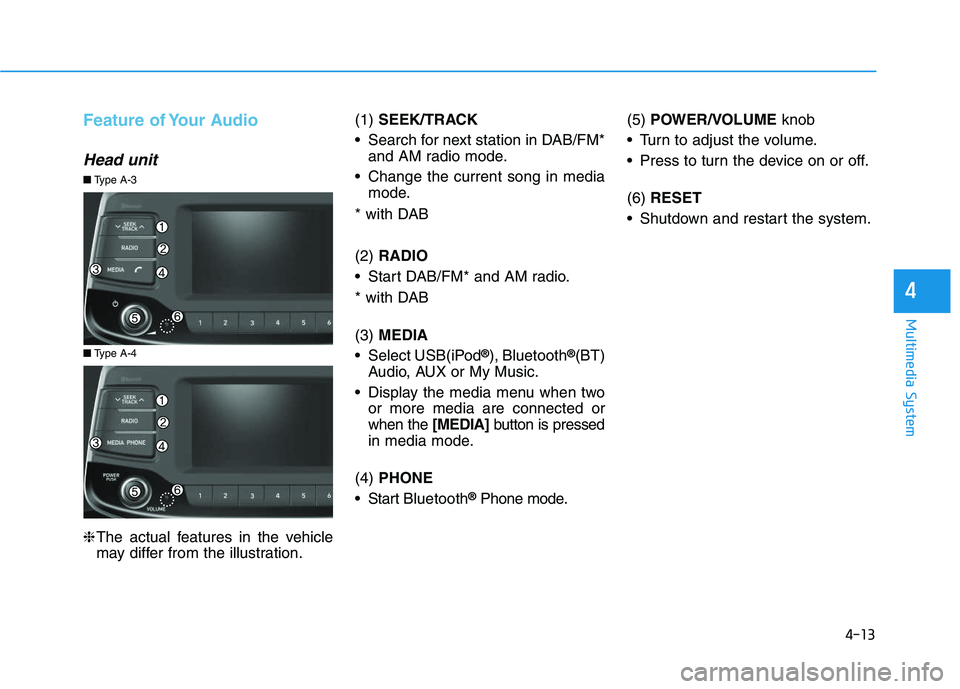
Head unit
❈The actual features in the vehicle
may differ from the illustration. (1)
SEEK/TRACK
Search for next station in DAB/FM* and AM radio mode.
Change the current song in media mode.
* with DAB
(2) RADIO
Start DAB/FM* and AM radio.
* with DAB
(3) MEDIA
Select USB(iPod
®), Bluetooth®(BT)
Audio, AUX or My Music.
Display the media menu when two or more media are connected or
when the [MEDIA]button is pressed
in media mode.
(4) PHONE
Start Bluetooth
®Phone mode. (5)
POWER/VOLUME knob
Turn to adjust the volume.
Press to turn the device on or off.
(6) RESET
Shutdown and restart the system.
■ Type A-4
■Type A-3
Page 247 of 659
4-15
Multimedia System
4
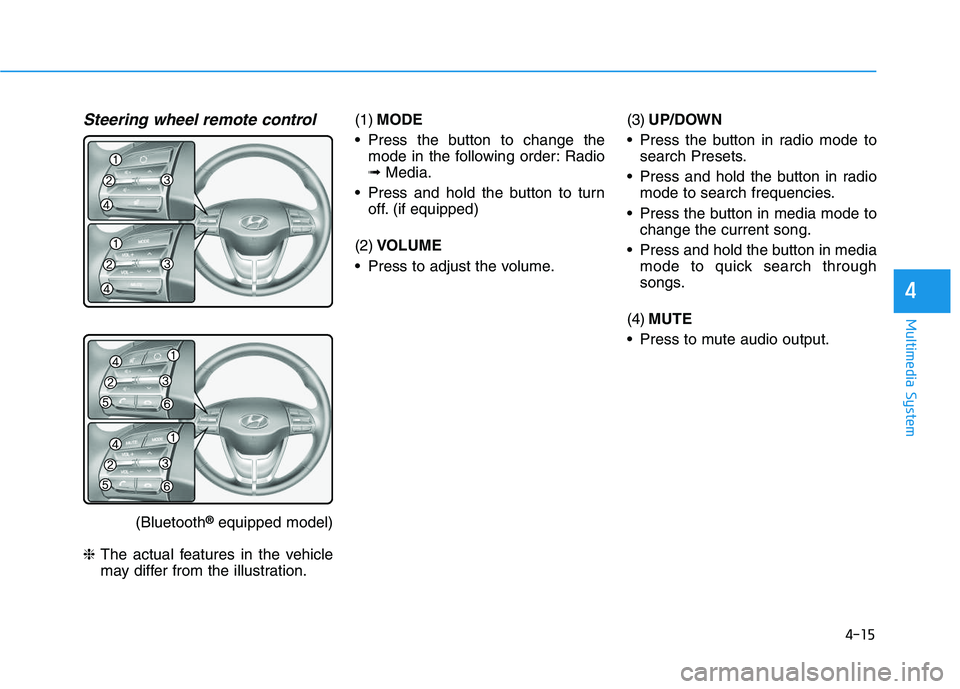
Steering wheel remote control
(Bluetooth®equipped model)
❈ The actual features in the vehicle
may differ from the illustration. (1)
MODE
Press the button to change the mode in the following order: Radio
➟ Media.
Press and hold the button to turn off. (if equipped)
(2) VOLUME
Press to adjust the volume. (3)
UP/DOWN
Press the button in radio mode to search Presets.
Press and hold the button in radio mode to search frequencies.
Press the button in media mode to change the current song.
Press and hold the button in media mode to quick search through
songs.
(4) MUTE
Press to mute audio output.
Page 250 of 659
4-18
Multimedia System
Operating the device while driv- ing could lead to accidents due
to a lack of attention to external
surroundings. First park the
vehicle before operating the
device.
Adjust the volume to levels that allow the driver to hear sounds
from outside of the vehicle.
Driving in a state where external
sounds cannot be heard may
lead to accidents.
Pay attention to the volume set- ting when turning the device on.
A sudden output of extreme vol-
ume upon turning the device on
could lead to hearing impair-
ment. (Adjust the volume to a
suitable levels before turning off
the device.)
If you want to change the position of device installation, please
inquire with your place of pur-
chase or service maintenance
center. Technical expertise is
required to install or disassem-
ble the device.
(Continued)(Continued)
Turn on the car ignition before
using this device. Do not oper-
ate the audio system for long
periods of time with the ignition
turned off as such operations
may lead to battery discharge.
Do not subject the device to severe shock or impact. Direct
pressure onto the front side of
the monitor may cause damage
to the LCD or touch screen.
When cleaning the device, make sure to turn off the device and
use a dry and smooth cloth.
Never use tough materials,
chemical cloths, or solvents
(alcohol, benzene, thinners,
etc.). As such materials may
damage the device panel or
cause color/quality deteriora-
tion.
Do not place beverages close to the audio system. Spilling bever-
ages may lead to system mal-
function.
In case of product malfunction, please contact your place of pur-
chase or After Service center.
(Continued)(Continued)
an electromagnetic environment
may result in noise interference.
NOTICE