Rack HYUNDAI I30 2020 User Guide
[x] Cancel search | Manufacturer: HYUNDAI, Model Year: 2020, Model line: I30, Model: HYUNDAI I30 2020Pages: 659, PDF Size: 17.14 MB
Page 259 of 659
![HYUNDAI I30 2020 User Guide 4-27
Multimedia System
4
iPod®
(1) Repeat
Enable/disable repeat by pressing
button [1].
(2) Shuffle
Enable/disable shuffle play by press-
ing button [2].
(3) List
View a list of all songs by pressin](/img/35/56147/w960_56147-258.png "HYUNDAI I30 2020 User Guide 4-27
Multimedia System
4
iPod®
(1) Repeat
Enable/disable repeat by pressing
button [1].
(2) Shuffle
Enable/disable shuffle play by press-
ing button [2].
(3) List
View a list of all songs by pressin")
4-27
Multimedia System
4
iPod®
(1) Repeat
Enable/disable repeat by pressing
button [1].
(2) Shuffle
Enable/disable shuffle play by press-
ing button [2].
(3) List
View a list of all songs by pressing
button [3].
Playback
Connect your iPod®to the audio
USB port, press the [MEDIA]button,
and select [iPod].
Changing songs
Press the [SEEK/TRACK] button to
play the previous or next song.
Press and hold the [SEEK/TRACK]
button to rewind or fast forward the
currently playing song.
Search songs by turning the TUNE
knob, and press the knob to play.
Selecting songs from a list
Select [List] to see a list of songs
available for play.
Select and play the desired song.
Repeat play
Select [Repeat] to enable or disable
‘Repeat category’, ‘Repeat current
song’.
Repeat category: Repeat all songs in the current category.
Repeat current song: The cur- rently playing song is repeated.
Shuffle play
Select [Shuffle] to enable/disable
‘Shuffle category’ play.
Shuffle category: Songs withinthe current category are played in
random order.
Menu
Press the [MENU]button, and select
the desired function.
Information: Detailed info on the currently playing song is displayed.
Sound Settings: Audio sound set- tings can be changed.
Page 260 of 659
4-28
Multimedia System
When other music programs are
running
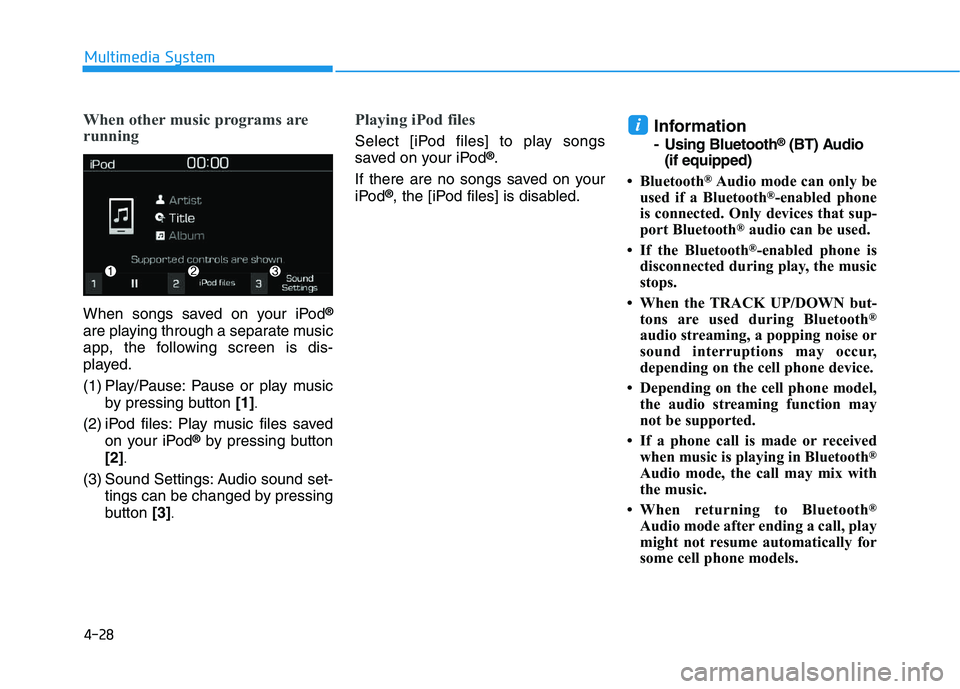
When songs saved on your iPod®
are playing through a separate music
app, the following screen is dis-
played.
(1) Play/Pause: Pause or play musicby pressing button [1]
.
(2) iPod files: Play music files saved
on your iPod®by pressing button
[2]
.
(3) Sound Settings: Audio sound set- tings can be changed by pressing
button [3]
.
Playing iPod files
Select [iPod files] to play songs
saved on your iPod®.
If there are no songs saved on your
iPod
®, the [iPod files] is disabled.
Information
- Using Bluetooth®(BT) Audio
(if equipped)
• Bluetooth
®Audio mode can only be
used if a Bluetooth®-enabled phone
is connected. Only devices that sup-
port Bluetooth
®audio can be used.
• If the Bluetooth
®-enabled phone is
disconnected during play, the music
stops.
• When the TRACK UP/DOWN but- tons are used during Bluetooth
®
audio streaming, a popping noise or
sound interruptions may occur,
depending on the cell phone device.
• Depending on the cell phone model, the audio streaming function may
not be supported.
• If a phone call is made or received when music is playing in Bluetooth
®
Audio mode, the call may mix with
the music.
• When returning to Bluetooth
®
Audio mode after ending a call, play
might not resume automatically for
some cell phone models.
i
Page 261 of 659
4-29
Multimedia System
4
Bluetooth®Handsfree is a fea-
ture that enables drivers to prac-
tice safe driving. Connecting the
car audio system with a
Bluetooth
®phone allows the
user to conveniently make calls,
receive calls, and manage the
phone book. Before using the
Bluetooth®Wireless Technology,
carefully read the contents of
this user’s manual.
Excessive use or operations while driving may lead to negli-
gent driving practices and be
the cause of accidents.
Do not operate the device exces- sively while driving.
Viewing the screen for pro- longed periods of time is dan-
gerous and may lead to acci-
dents.
When driving, view the screen only for short periods of time.
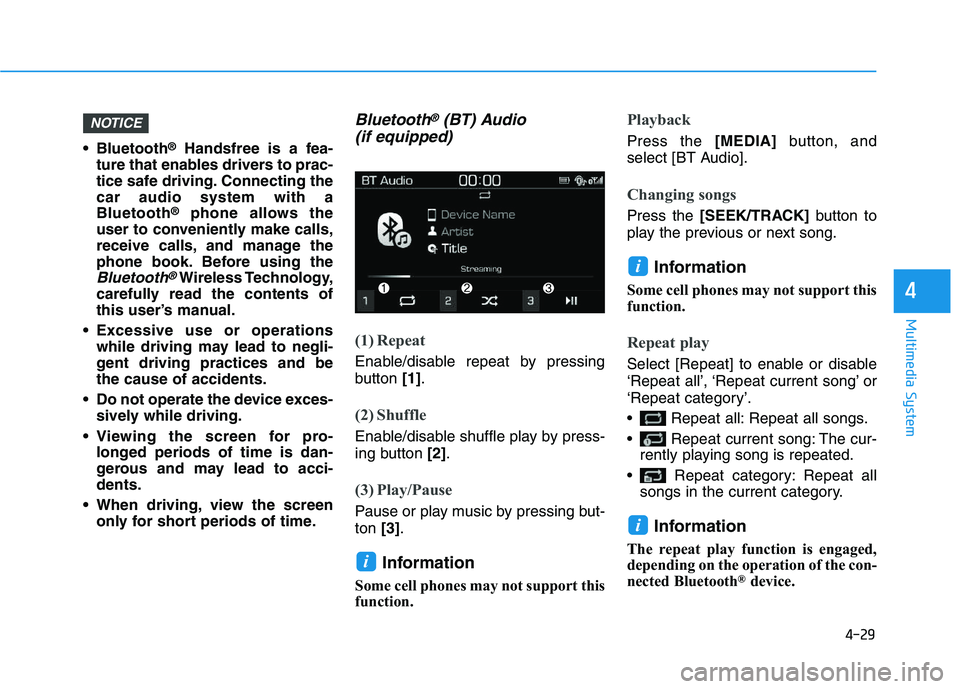
Bluetooth®(BT) Audio
(if equipped)
(1) Repeat
Enable/disable repeat by pressing
button [1].
(2) Shuffle
Enable/disable shuffle play by press-
ing button [2].
(3) Play/Pause
Pause or play music by pressing but-
ton [3].
Information
Some cell phones may not support this
function.
Playback
Press the [MEDIA]button, and
select [BT Audio].
Changing songs
Press the [SEEK/TRACK] button to
play the previous or next song.
Information
Some cell phones may not support this
function.
Repeat play
Select [Repeat] to enable or disable
‘Repeat all’, ‘Repeat current song’ or
‘Repeat category’.
Repeat all: Repeat all songs.
Repeat current song: The cur- rently playing song is repeated.
Repeat category: Repeat all songs in the current category.
Information
The repeat play function is engaged,
depending on the operation of the con-
nected Bluetooth
®device.
i
i
i
NOTICE
Page 263 of 659
![HYUNDAI I30 2020 User Guide 4-31
Multimedia System
4
Playback
Press the [MEDIA]button, and
select [My Music].
My Music cannot be selected if it does not contain music.
Check the content of your USB drive before saving music to](/img/35/56147/w960_56147-262.png "HYUNDAI I30 2020 User Guide 4-31
Multimedia System
4
Playback
Press the [MEDIA]button, and
select [My Music].
My Music cannot be selected if it does not contain music.
Check the content of your USB drive before saving music to")
4-31
Multimedia System
4
Playback
Press the [MEDIA]button, and
select [My Music].
My Music cannot be selected if it does not contain music.
Check the content of your USB drive before saving music to My
Music.
Changing songs
Press the [SEEK/TRACK] button to
play the previous or next song.
Press and hold the [SEEK/TRACK]
button to rewind or fast forward the
currently playing song.
Search songs by turning the TUNE
knob and press the knob to play.
Selecting songs from a list
Select [List] to see a list of songs
available for play.
Select and play the desired song.
Repeat play
Select [Repeat] to enable or disable
‘Repeat all’, ‘Repeat current song’ or
‘Repeat category’.
Repeat all: Repeat all songs.
Repeat current song: The cur- rently playing song is repeated.
Repeat category: Repeat all songs in the current category.
Shuffle play
Select [Shuffle] to enable/disable
‘Shuffle’, ‘Shuffle category’ play.
Shuffle: Songs are played inrandom order.
Shuffle category: Songs within the current category are played in
random order.
Menu
Press the [MENU]button, and select
the desired function.
Delete files: You can delete files from My Music.
(1) File: Select saved file by using TUNE knob
.
(2) Mark all: Select all files by press-
ing button [1]
.
(3) Unmark all: Deselect all files by
pressing button [2]
.
(4) Delete: Delete the selected file(s)
by pressing button [3]
.
- Select the file to delete, then
select [Delete] to delete it.
- Delete is canceled if voice recog- nition is activated or phone calls
are received or made during
delete.
Page 275 of 659
4-43
Multimedia System
4
Feature of Your Audio
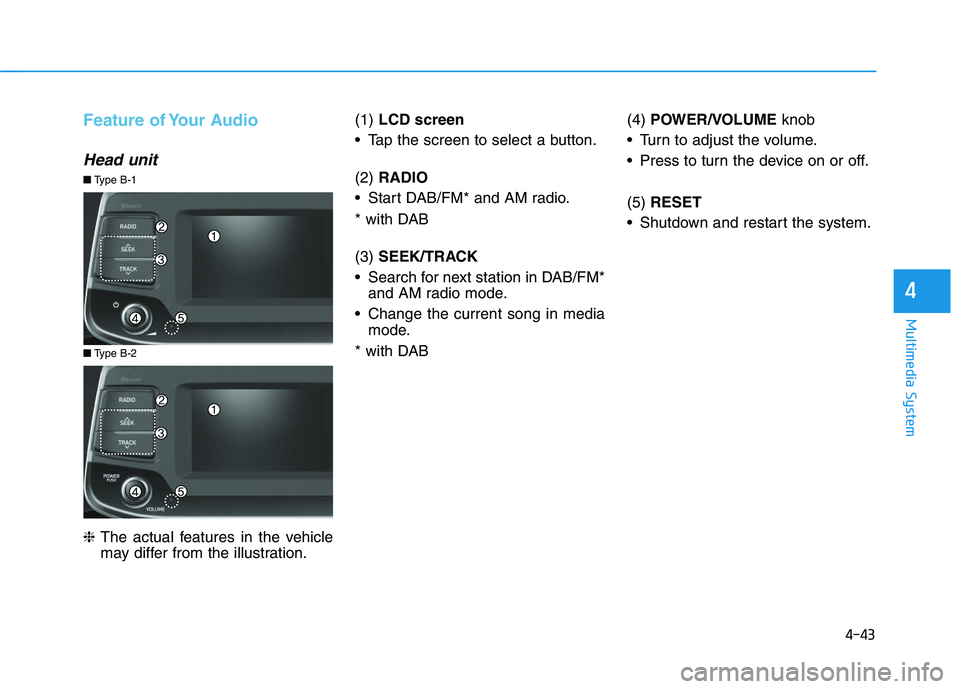
Head unit
❈The actual features in the vehicle
may differ from the illustration. (1)
LCD screen
Tap the screen to select a button.
(2) RADIO
Start DAB/FM* and AM radio.
* with DAB
(3) SEEK/TRACK
Search for next station in DAB/FM* and AM radio mode.
Change the current song in media mode.
* with DAB (4)
POWER/VOLUME knob
Turn to adjust the volume.
Press to turn the device on or off.
(5) RESET
Shutdown and restart the system.
■ Type B-2
■Type B-1
Page 280 of 659
4-48
Multimedia System
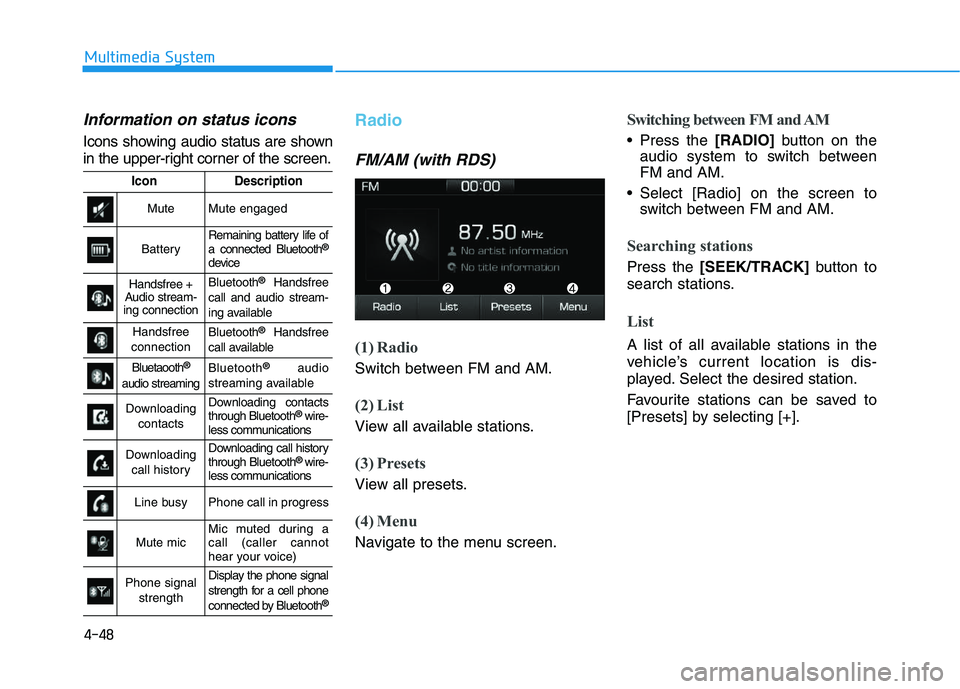
Information on status icons
Icons showing audio status are shown
in the upper-right corner of the screen.
Radio
FM/AM (with RDS)
(1) Radio
Switch between FM and AM.
(2) List
View all available stations.
(3) Presets
View all presets.
(4) Menu
Navigate to the menu screen.
Switching between FM and AM
Press the [RADIO]button on the
audio system to switch between
FM and AM.
Select [Radio] on the screen to switch between FM and AM.
Searching stations
Press the [SEEK/TRACK] button to
search stations.
List
A list of all available stations in the
vehicle’s current location is dis-
played. Select the desired station.
Favourite stations can be saved to
[Presets] by selecting [+].
IconDescription
MuteMute engaged
BatteryRemaining battery life of
a connected Bluetooth®
device
Handsfree +
Audio stream-
ing connectionBluetooth®Handsfree
call and audio stream-
ing available
Handsfree
connectionBluetooth®Handsfree
call available
Bluetaooth®
audio streaming
Bluetooth®audio
streaming available
Downloading contactsDownloading contacts
through Bluetooth®wire-
less communications
Downloading
call historyDownloading call history
through Bluetooth® wire-
less communications
Line busyPhone call in progress
Mute micMic muted during a
call (caller cannot
hear your voice)
Phone signal
strengthDisplay the phone signal
strength for a cell phone
connected by Bluetooth
®
Page 281 of 659
4-49
Multimedia System
4
Presets
Save up to 40 frequently used stations.
To listen to a preset, select the
desired station list.
Press and hold the desired slot from
1 through 40. This saves the current
station in the selected slot.
If the slot is empty, simply selecting
saves the station to the slot.
Menu
Select [Menu], and select the desired
function.
Traffic Announcement (TA): Enableor disable Traffic Announcements.
Scan: All available stations are played for five seconds each.
Sound Settings: Audio sound set- tings can be changed.
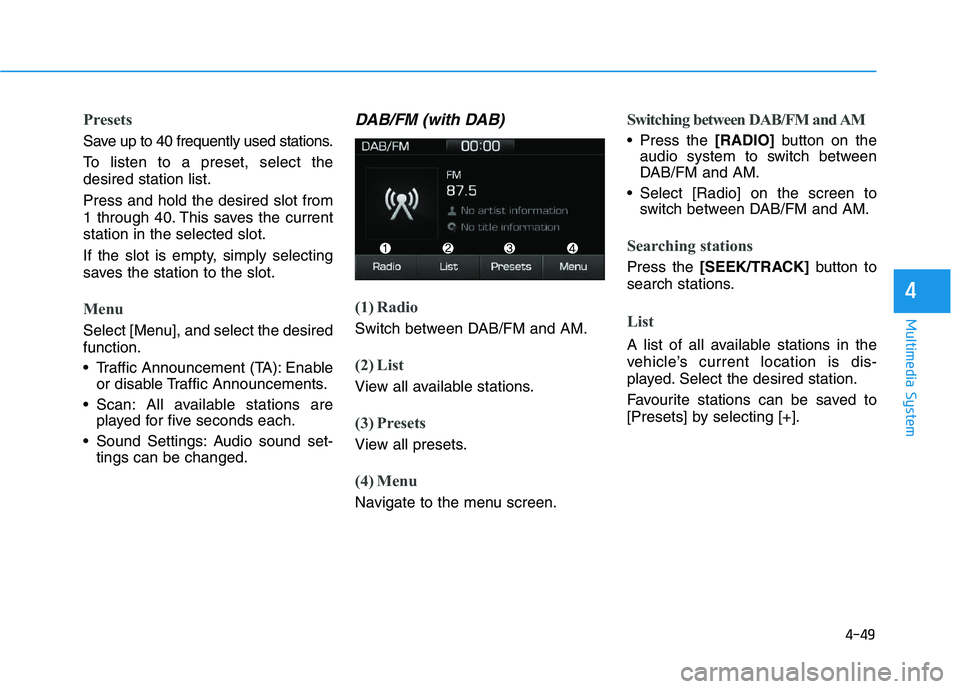
DAB/FM (with DAB)
(1) Radio
Switch between DAB/FM and AM.
(2) List
View all available stations.
(3) Presets
View all presets.
(4) Menu
Navigate to the menu screen.
Switching between DAB/FM and AM
Press the [RADIO]button on the
audio system to switch between
DAB/FM and AM.
Select [Radio] on the screen to switch between DAB/FM and AM.
Searching stations
Press the [SEEK/TRACK] button to
search stations.
List
A list of all available stations in the
vehicle’s current location is dis-
played. Select the desired station.
Favourite stations can be saved to
[Presets] by selecting [+].
Page 282 of 659
4-50
Multimedia System
Presets
Save up to 40 frequently used stations.
To listen to a preset, select the
desired station list.
Press and hold the desired slot from
1 through 40. This saves the current
station in the selected slot.
If the slot is empty, simply selecting
saves the station to the slot.
Menu
Select [Menu], and select the desired
function.
Traffic Announcement (TA): Enableor disable Traffic Announcements.
Region : Enable or disable auto- matic switching between regional
stations.
Scan: All available stations are played for five seconds each.
Sound Settings: Audio sound set- tings can be changed.
Manual tune FM : Search for fre- quencies manually.
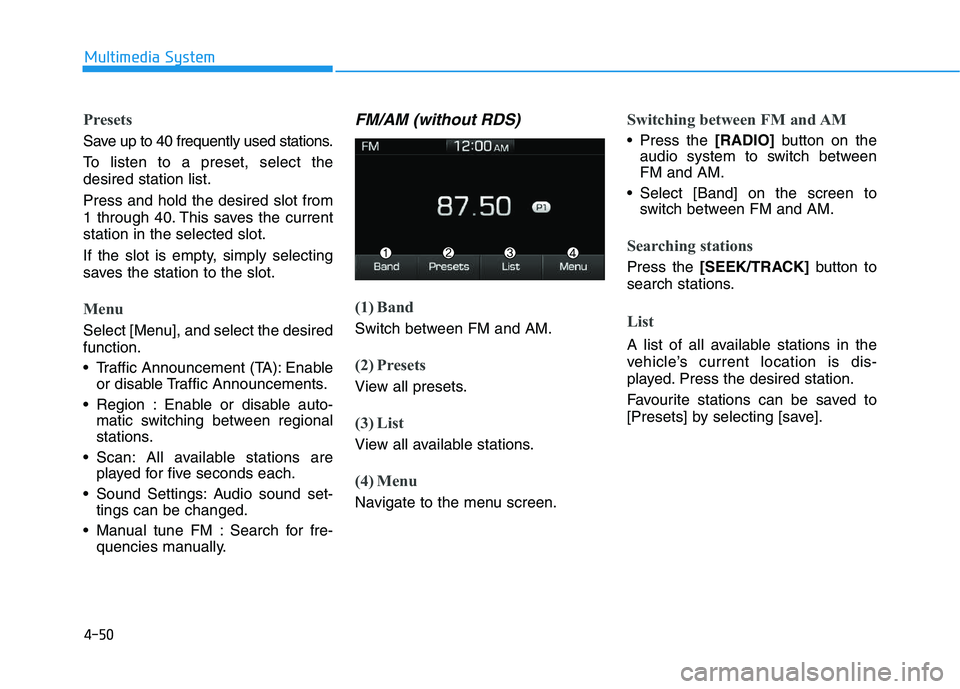
FM/AM (without RDS)
(1) Band
Switch between FM and AM.
(2) Presets
View all presets.
(3) List
View all available stations.
(4) Menu
Navigate to the menu screen.
Switching between FM and AM
Press the [RADIO]button on the
audio system to switch between
FM and AM.
Select [Band] on the screen to switch between FM and AM.
Searching stations
Press the [SEEK/TRACK] button to
search stations.
List
A list of all available stations in the
vehicle’s current location is dis-
played. Press the desired station.
Favourite stations can be saved to
[Presets] by selecting [save].
Page 286 of 659
4-54
Multimedia System
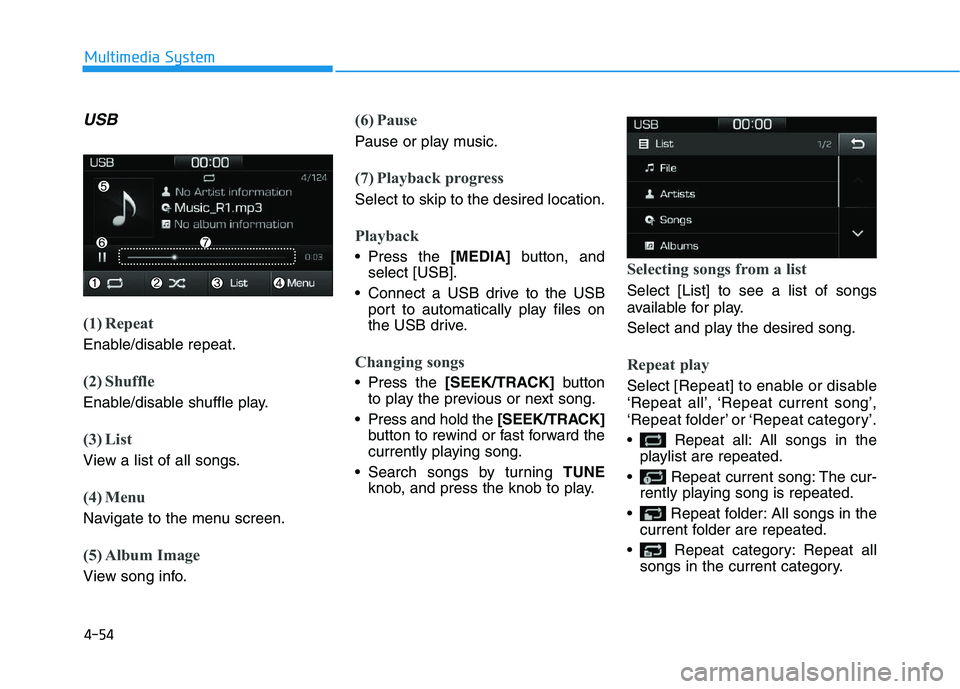
USB
(1) Repeat
Enable/disable repeat.
(2) Shuffle
Enable/disable shuffle play.
(3) List
View a list of all songs.
(4) Menu
Navigate to the menu screen.
(5) Album Image
View song info.
(6) Pause
Pause or play music.
(7) Playback progress
Select to skip to the desired location.
Playback
Press the [MEDIA]button, and
select [USB].
Connect a USB drive to the USB port to automatically play files on
the USB drive.
Changing songs
Press the [SEEK/TRACK] button
to play the previous or next song.
Press and hold the [SEEK/TRACK]
button to rewind or fast forward the
currently playing song.
Search songs by turning TUNE
knob, and press the knob to play.
Selecting songs from a list
Select [List] to see a list of songs
available for play.
Select and play the desired song.
Repeat play
Select [ Repeat] to enable or disable
‘Repeat all’, ‘Repeat current song’,
‘Repeat folder’ or ‘Repeat category’.
Repeat all: All songs in the playlist are repeated.
Repeat current song: The cur- rently playing song is repeated.
Repeat folder: All songs in the current folder are repeated.
Repeat category: Repeat all songs in the current category.
Page 289 of 659
4-57
Multimedia System
4
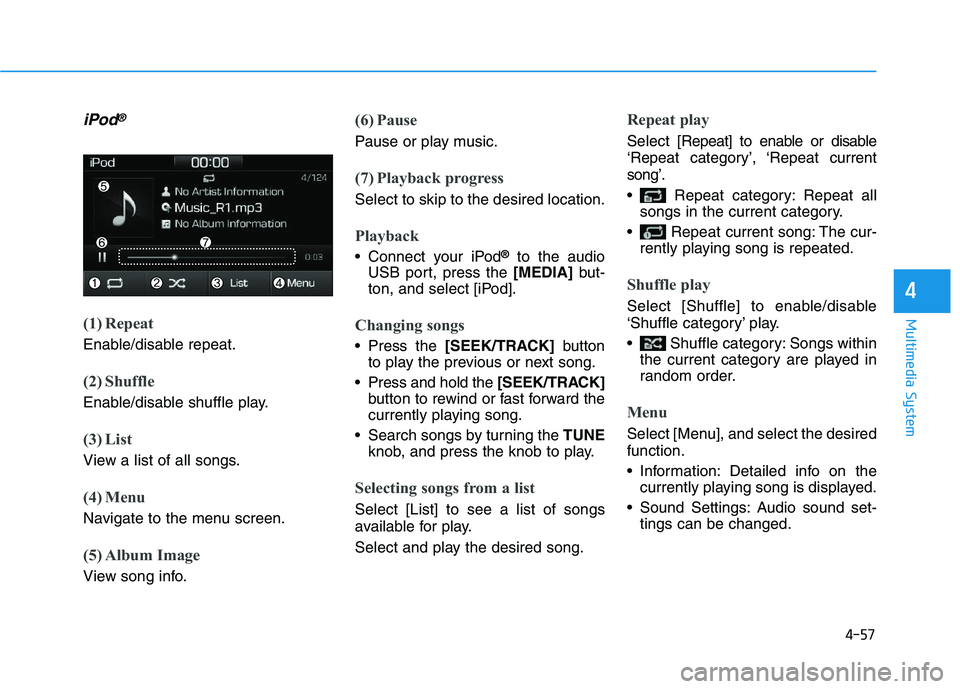
iPod®
(1) Repeat
Enable/disable repeat.
(2) Shuffle
Enable/disable shuffle play.
(3) List
View a list of all songs.
(4) Menu
Navigate to the menu screen.
(5) Album Image
View song info.
(6) Pause
Pause or play music.
(7) Playback progress
Select to skip to the desired location.
Playback
Connect your iPod®to the audio
USB port, press the [MEDIA]but-
ton, and select [iPod].
Changing songs
Press the [SEEK/TRACK] button
to play the previous or next song.
Press and hold the [SEEK/TRACK]
button to rewind or fast forward the
currently playing song.
Search songs by turning the TUNE
knob, and press the knob to play.
Selecting songs from a list
Select [List] to see a list of songs
available for play.
Select and play the desired song.
Repeat play
Select [Repeat] to enable or disable
‘Repeat category’, ‘Repeat current
song’.
Repeat category: Repeat all songs in the current category.
Repeat current song: The cur- rently playing song is repeated.
Shuffle play
Select [Shuffle] to enable/disable
‘Shuffle category’ play.
Shuffle category: Songs withinthe current category are played in
random order.
Menu
Select [Menu], and select the desired
function.
Information: Detailed info on thecurrently playing song is displayed.
Sound Settings: Audio sound set- tings can be changed.