Rack HYUNDAI I30 2020 Owners Manual
[x] Cancel search | Manufacturer: HYUNDAI, Model Year: 2020, Model line: I30, Model: HYUNDAI I30 2020Pages: 659, PDF Size: 17.14 MB
Page 144 of 659
3-142
Convenient features of your vehicle
Sunvisor
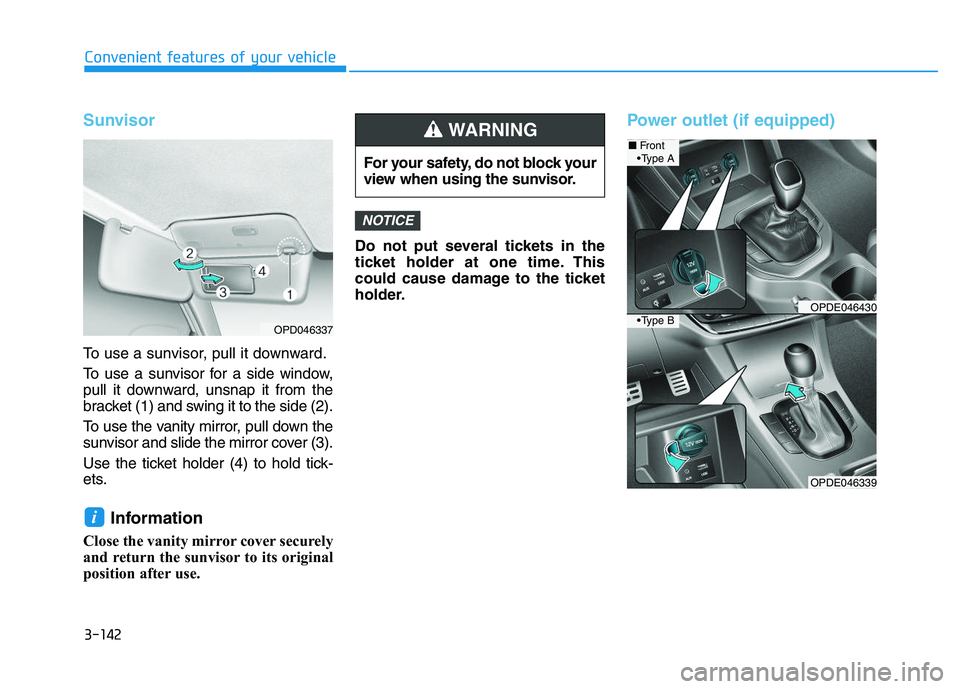
To use a sunvisor, pull it downward.
To use a sunvisor for a side window,
pull it downward, unsnap it from the
bracket (1) and swing it to the side (2).
To use the vanity mirror, pull down the
sunvisor and slide the mirror cover (3).
Use the ticket holder (4) to hold tick-
ets.
Information
Close the vanity mirror cover securely
and return the sunvisor to its original
position after use.Do not put several tickets in the
ticket holder at one time. This
could cause damage to the ticket
holder.
Power outlet (if equipped)
NOTICE
i
For your safety, do not block your
view when using the sunvisor.
WARNING
OPDE046339
■
Front
OPDE046430
OPD046337
A
B
Page 151 of 659
3-149
Convenient features of your vehicle
Mounting bracket for roof car-
rier (if equipped)
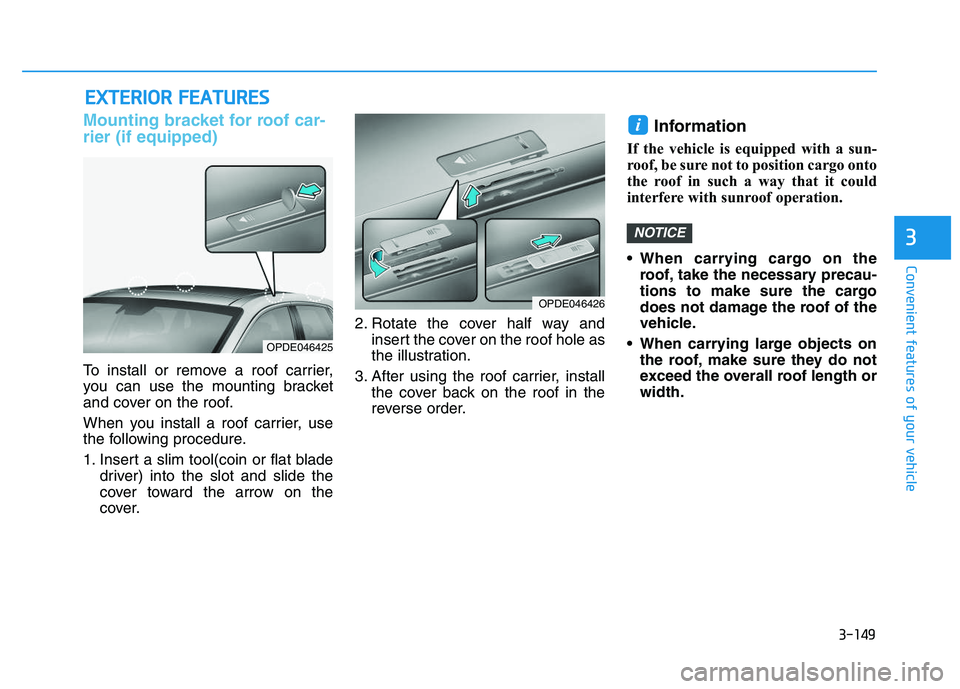
To install or remove a roof carrier,
you can use the mounting bracket
and cover on the roof.
When you install a roof carrier, use
the following procedure.
1. Insert a slim tool(coin or flat bladedriver) into the slot and slide the
cover toward the arrow on the
cover. 2. Rotate the cover half way and
insert the cover on the roof hole as
the illustration.
3. After using the roof carrier, install the cover back on the roof in the
reverse order.
Information
If the vehicle is equipped with a sun-
roof, be sure not to position cargo onto
the roof in such a way that it could
interfere with sunroof operation.
When carrying cargo on theroof, take the necessary precau-
tions to make sure the cargo
does not damage the roof of the
vehicle.
When carrying large objects on the roof, make sure they do not
exceed the overall roof length or
width.
NOTICE
i
E
E X
X T
T E
E R
R I
I O
O R
R
F
F E
E A
A T
T U
U R
R E
E S
S
3
OPDE046425
OPDE046426
Page 152 of 659
Interior lights ....................................................................3-93
Wipers and washers ............................................3-97
Windshield wipers ..........................................................3-98
Windshield washers .......................................................3-99
Rear window wiper and washer switch ..................3-100
Driver assist system ..........................................3-101
Rear view camera ........................................................3-101
Rear parking assist system ........................................3-102
Parking assist system .................................................3-106
Defroster .............................................................3-109
Rear window defroster ...............................................3-109
Manual climate control system........................3-111
Heating and air conditioning......................................3-112
System operation ..........................................................3-116
System maintenance ....................................................3-118
Automatic climate control system ...................3-121
Automatic heating and air conditioning ..................3-122
Manual heating and air conditioning .......................3-123
System operation ..........................................................3-128
System maintenance ....................................................3-131
Windshield defrosting and defogging ............3-133
Manual climate control system .................................3-133
Automatic climate control system ............................3-134
Defogging logic ............................................................3-135
Auto defogging system
(only for automatic climate control system) .........3-136
Climate control additional features.................3-137
Cluster ionizer ..............................................................3-137
Automatic ventilation ..................................................3-137
To cancel or set the automatic ventilation ............3-137
Sunroof inside air recirculation ...............................3-137
Storage compartment ........................................3-138
Center console storage ...............................................3-138
Glove box ........................................................................3-138
Sunglass holder ............................................................3-139
Multi box ........................................................................3-139
Interior features ...............................................3-140
Ashtray ...........................................................................3-140
Cup holder.......................................................................3-140
Sliding armrest .............................................................3-141
Sunvisor ...........................................................................3-142
Power outlet .................................................................3-142
Cigarette lighter ...........................................................3-144
Wireless cellular phone charging system ..............3-144
Clock .................................................................................3-146
Clothes hanger .............................................................3-146
Floor mat anchor(s) ....................................................3-147
Luggage net (holder) ...................................................3-147
Cargo area cover .........................................................3-148
Exterior features ...............................................3-149
Mounting bracket for roof carrier ..........................3-149
3
Page 236 of 659
Steering wheel audio control
(if equipped)
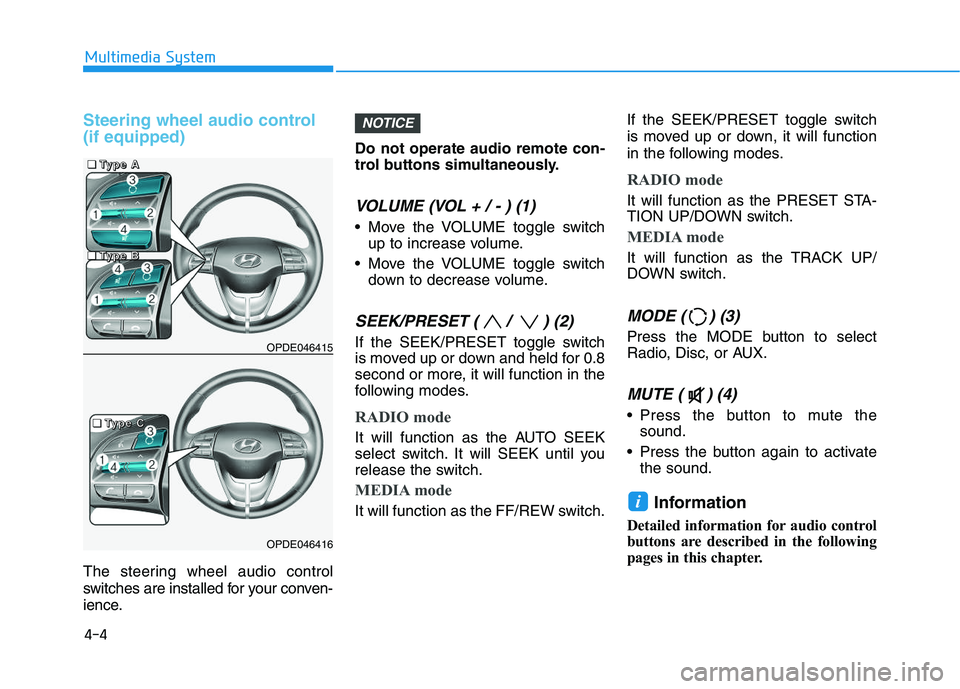
The steering wheel audio control
switches are installed for your conven-
ience.Do not operate audio remote con-
trol buttons simultaneously.
VOLUME (VOL + / - ) (1)
Move the VOLUME toggle switch
up to increase volume.
Move the VOLUME toggle switch down to decrease volume.
SEEK/PRESET ( / ) (2)
If the SEEK/PRESET toggle switch
is moved up or down and held for 0.8
second or more, it will function in the
following modes.
RADIO mode
It will function as the AUTO SEEK
select switch. It will SEEK until you
release the switch.
MEDIA mode
It will function as the FF/REW switch. If the SEEK/PRESET toggle switch
is moved up or down, it will function
in the following modes.
RADIO mode
It will function as the PRESET STA-
TION UP/DOWN switch.
MEDIA mode
It will function as the TRACK UP/
DOWN switch.
MODE ( ) (3)
Press the MODE button to select
Radio, Disc, or AUX.
MUTE ( ) (4)
Press the button to mute the
sound.
Press the button again to activate the sound.
Information
Detailed information for audio control
buttons are described in the following
pages in this chapter.
i
NOTICE
OPDE046415
OPDE046416
4-4
Multimedia System
■
■
■
■
T
T
T
T
y
y
y
y
p
p
p
p
e
e
e
e
A
A
A
A
■
■
■
■
T
T
T
T
y
y
y
y
p
p
p
p
e
e
e
e
C
C
C
C
■
■
■
■
T
T
T
T
y
y
y
y
p
p
p
p
e
e
e
e
B
B
B
B
Page 242 of 659
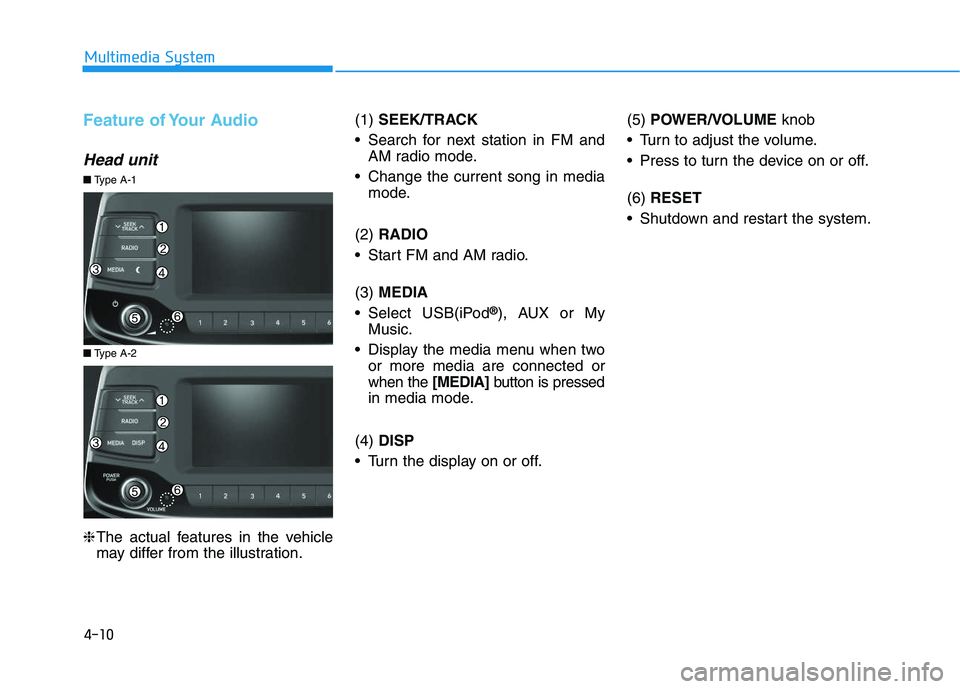
4-10
Multimedia System
Feature of Your Audio
Head unit
❈The actual features in the vehicle
may differ from the illustration. (1)
SEEK/TRACK
Search for next station in FM and AM radio mode.
Change the current song in media mode.
(2) RADIO
Start FM and AM radio.
(3) MEDIA
Select USB(iPod
®), AUX or My
Music.
Display the media menu when two or more media are connected or
when the [MEDIA]button is pressed
in media mode.
(4) DISP
Turn the display on or off. (5)
POWER/VOLUME knob
Turn to adjust the volume.
Press to turn the device on or off.
(6) RESET
Shutdown and restart the system.
■ Type A-2
■Type A-1
Page 245 of 659
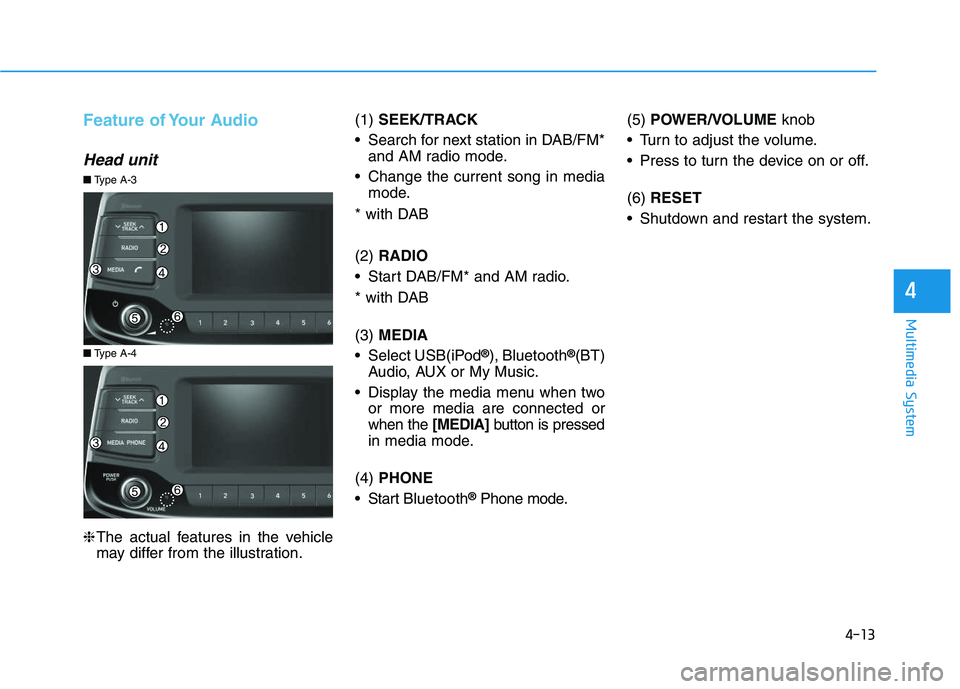
4-13
Multimedia System
4
Feature of Your Audio
Head unit
❈The actual features in the vehicle
may differ from the illustration. (1)
SEEK/TRACK
Search for next station in DAB/FM* and AM radio mode.
Change the current song in media mode.
* with DAB
(2) RADIO
Start DAB/FM* and AM radio.
* with DAB
(3) MEDIA
Select USB(iPod
®), Bluetooth®(BT)
Audio, AUX or My Music.
Display the media menu when two or more media are connected or
when the [MEDIA]button is pressed
in media mode.
(4) PHONE
Start Bluetooth
®Phone mode. (5)
POWER/VOLUME knob
Turn to adjust the volume.
Press to turn the device on or off.
(6) RESET
Shutdown and restart the system.
■ Type A-4
■Type A-3
Page 251 of 659
![HYUNDAI I30 2020 Owners Manual 4-19
Multimedia System
4
Information on status icons
Icons showing audio status are shown
in the upper-right corner of the screen.
Radio
FM/AM (with RDS)
Switching between FM and AM
Press the [RADIO]](/img/35/56147/w960_56147-250.png "HYUNDAI I30 2020 Owners Manual 4-19
Multimedia System
4
Information on status icons
Icons showing audio status are shown
in the upper-right corner of the screen.
Radio
FM/AM (with RDS)
Switching between FM and AM
Press the [RADIO]")
4-19
Multimedia System
4
Information on status icons
Icons showing audio status are shown
in the upper-right corner of the screen.
Radio
FM/AM (with RDS)
Switching between FM and AM
Press the [RADIO]button on the
audio system to switch between
FM and AM.
Searching stations
Press the [SEEK/TRACK] button to
search stations.
Presets
Save up to 36 frequently used sta-
tions.
1. Press and hold the desired slot from 1 through 36. This saves the
current station in the selected slot.
If the slot is empty, simply press-
ing saves the station to the slot.
2. To save in slots numbered 7 or higher, press the [PRESET]but-
ton to move to the previous/next
page and save.
To listen to a preset station, press
the desired station in the list.
Menu
Press the [MENU]button, and select
the desired function.
List: A list of all available stations in the current location of the vehicle is
displayed. Press the desired sta-
tion.
Traffic Announcement (TA): Enable or disable Traffic Announcements.
Sound Settings: Audio sound set- tings can be changed.
Scan: All available stations are played for five seconds each.
IconDescription
MuteMute engaged
BatteryRemaining battery life of
a connected Bluetooth®
device
Handsfree +
Audio stream-
ing connectionBluetooth®Handsfree
call and audio streaming
available
Handsfree
connectionBluetooth®Handsfree
call available
Bluetaooth®
audio streamingBluetooth®audio
streaming available
Downloading
contactsDownloading contacts
through Bluetooth®wire-
less communications
Downloading
call historyDownloading call history
through Bluetooth® wire-
less communications
Line busyPhone call in progress
Mute micMic muted during a
call (caller cannot
hear your voice)
Phone signal
strengthDisplay the phone signal
strength for a cell phone
connected by Bluetooth
®
Page 252 of 659
![HYUNDAI I30 2020 Owners Manual 4-20
Multimedia System
DAB/FM (with DAB)
Switching between DAB/FM and AM
Press the [RADIO]button on the
audio system to switch between
DAB/FM and AM.
Searching stations
Press the [SEEK/TRACK] button](/img/35/56147/w960_56147-251.png "HYUNDAI I30 2020 Owners Manual 4-20
Multimedia System
DAB/FM (with DAB)
Switching between DAB/FM and AM
Press the [RADIO]button on the
audio system to switch between
DAB/FM and AM.
Searching stations
Press the [SEEK/TRACK] button")
4-20
Multimedia System
DAB/FM (with DAB)
Switching between DAB/FM and AM
Press the [RADIO]button on the
audio system to switch between
DAB/FM and AM.
Searching stations
Press the [SEEK/TRACK] button to
search stations.
Presets
Save up to 36 frequently used sta-
tions.
1. Press and hold the desired slot from 1 through 36. This saves the
current station in the selected slot.
If the slot is empty, simply press-
ing saves the station to the slot.
2. To save in slots numbered 7 or higher, press the [PRESET]but-
ton to move to the previous/next
page and save.
To listen to a preset station, press
the desired station in the list.
Menu
Press the [MENU]button, and select
the desired function.
List: A list of all available stations in the current location of the vehicle is
displayed. Press the desired sta-
tion.
Traffic Announcement (TA): Enable or disable Traffic Announcements.
Region : Enable or disable auto- matic switching between regional
stations.
Sound Settings: Audio sound set- tings can be changed.
Scan: All available stations are played for five seconds each.
Manual tune FM : Search for fre- quencies manually.
Page 253 of 659
![HYUNDAI I30 2020 Owners Manual 4-21
Multimedia System
4
FM/AM (without RDS)
Switching between FM, AM
Press the [RADIO] button on the
audio system to switch between
FM and AM.
Searching stations
Press the [SEEK/TRACK] button to
se](/img/35/56147/w960_56147-252.png "HYUNDAI I30 2020 Owners Manual 4-21
Multimedia System
4
FM/AM (without RDS)
Switching between FM, AM
Press the [RADIO] button on the
audio system to switch between
FM and AM.
Searching stations
Press the [SEEK/TRACK] button to
se")
4-21
Multimedia System
4
FM/AM (without RDS)
Switching between FM, AM
Press the [RADIO] button on the
audio system to switch between
FM and AM.
Searching stations
Press the [SEEK/TRACK] button to
search stations.
Presets
Save up to 36 frequently used sta-
tions.
1. Press and hold the desired slot from 1 through 36. This saves the
current station in the selected slot.
If the slot is empty, simply press-
ing saves the station to the slot.
2. To save in slots numbered 7 or higher, press the [PRESET] but-
ton to move to the previous/next
page and save.
To listen to a preset station, press
the desired station in the list.
Menu
Press the [MENU]button, and select
the desired function.
List: A list of all available stations in the current location of the vehicle is
displayed. Press the desired sta-
tion. Select [Refresh] to update the
list of available stations.
Scan: All stations available in the current location of the vehicle are
played for five seconds each.
Sound Settings: Audio sound set- tings can be changed.
Media
Information
- Using MP3
Supported audio formats
File formats other than the for-
mats above may not be recog-
nized or playable. Information
such as filename may not be dis-
played.
NOTICE
i
Page 256 of 659
4-24
Multimedia System
(Continued)
• DRM (Digital Rights Management) files cannot be played.
• SD-type USB memory, CF-type USB memory, and other USB mem-
ory devices that require adapters
for connection are not supported.
• Proper operation of USB HDDs or USB drives with connectors that
loosen due to vehicle vibrations is
not guaranteed. (iStick, etc.)
• USB products that are used as key chains or
cell phone accessories
may damage the USB
jack and affect proper
file playback. Please refrain from
use. Use only products with plug
connectors, as shown in the follow-
ing illustration.
• When MP3 devices or cell phones are connected simultaneously
through AUX, BT Audio and USB
modes, a popping noise or malfunc-
tion may occur.
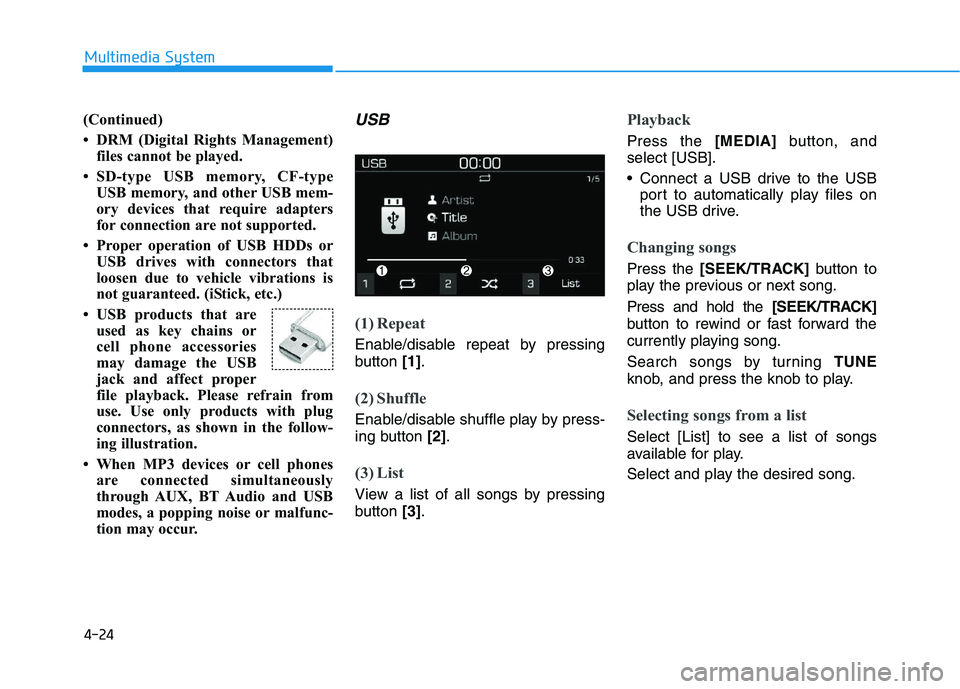
USB
(1) Repeat
Enable/disable repeat by pressing
button [1].
(2) Shuffle
Enable/disable shuffle play by press-
ing button [2].
(3) List
View a list of all songs by pressing
button [3].
Playback
Press the [MEDIA] button, and
select [USB].
• Connect a USB drive to the USB port to automatically play files on
the USB drive.
Changing songs
Press the [SEEK/TRACK] button to
play the previous or next song.
Press and hold the [SEEK/TRACK]
button to rewind or fast forward the
currently playing song.
Search songs by turning TUNE
knob, and press the knob to play.
Selecting songs from a list
Select [List] to see a list of songs
available for play.
Select and play the desired song.